
Quick Answer
The FH6 matchmaking failed issue is usually caused by server instability, NAT issues, or Xbox Live problems, and can often be fixed by restarting the game, adjusting network settings, switching to a wired connection, or using LagoFast to improve connection stability.
Forza Horizon 6 players are frequently encountering matchmaking failures that prevent them from joining Horizon Life, convoys, or online sessions, often showing errors like “Failed to connect to Horizon Life” or endless matchmaking loading. These issues are usually temporary and can often be resolved with a few simple in-game or network fixes.

- ✅ Reduce Lag and High Ping.
✅ Boost FPS at the Same Time.
✅ Fix Crashing and Freezing Issues.
✅ Change Server without Latency.
✅ Boost Game Loading Speed. - ✅ Repair Game Disconnected Problems.
Part 1: What Does the Forza Horizon 6 Matchmaking Failed Error Mean?
Part 2: Why Is Forza Horizon 6 Matchmaking Failing?
Part 3: What Should You Try First Before Fixing FH6 Matchmaking?
Part 4: How LagoFast Can Help Fix Forza Horizon 6 Matchmaking Failed
Part 5: Manual Fixes for Forza Horizon 6 Matchmaking Failed
Part 6: What to Do If FH6 Matchmaking Is Still Broken
Part 1: What Does the Forza Horizon 6 Matchmaking Failed Error Mean?
The “Forza Horizon 6 matchmaking failed” error usually means the game is unable to connect you to an online Horizon Life session. In other words, the game is trying to place you into a multiplayer lobby, but the connection breaks before matchmaking can complete.
This can happen for a few common reasons:
- FH6 servers may become overloaded during peak hours or updates
- Your NAT type is blocking or limiting online connections
- Xbox network services are unstable or partially disconnected
- Crossplay sessions fail to sync properly between platforms
- Your internet route to FH6 servers is unstable or has packet loss
When this happens, the game can’t complete the session setup, which is why you end up stuck on matchmaking screens or get disconnected before joining.
That’s also why players often see errors like:
- Unable to find session
- Session join failed
- Horizon Life unavailable
- Online session failed
These issues can affect both PC and Xbox players, especially when servers are busy or network conditions are unstable.
Part 2: Why Is Forza Horizon 6 Matchmaking Failing?
There isn’t just one cause behind the Forza Horizon 6 matchmaking failed issue. In most cases, it comes down to server pressure, network stability, or session syncing problems between players.
FH6 Server Congestion
FH6 servers can struggle during high-traffic periods, especially when lots of players are trying to connect at once. This usually happens during:
- Seasonal events
- Weekend peak hours
- Major game updates
- New content releases
When servers are overloaded, matchmaking may slow down, fail to load sessions, or disconnect players mid-connection.
NAT Type Restrictions
Your NAT type plays a big role in online connectivity.
If your NAT type is not set to open, you may run into issues like:
- FH6 matchmaking failed server connectivity blocked
- Unable to join convoy
- Session join failed
Even on PC, FH6 still relies on Xbox networking services, so strict NAT settings can break matchmaking completely.
Crossplay Sync Issues
Crossplay between PC and Xbox usually works well, but session syncing can sometimes fail.
This can lead to:
- Stuck or infinite matchmaking
- Friends not appearing in convoy
- Failed Horizon Life connections
- Random disconnects after joining
Network Instability & Packet Loss
Even with fast internet, unstable routing or Wi-Fi congestion can break matchmaking.
Common signs include:
- Matchmaking stuck on loading
- Lag spikes before failure
- FH6 online session failed
- Sudden disconnects during joining
This is often caused by unstable Wi-Fi, background network usage, or poor routing to FH6 servers.
Part 3: What Should You Try First Before Fixing FH6 Matchmaking?
Before changing any advanced settings, it’s worth running through a few quick checks.
Check FH6 Server Status
Start with server-side issues first
If FH6 servers are overloaded or under maintenance, matchmaking can fail completely no matter what you do on your end. This is especially common right after:
- Game updates
- Seasonal resets
- Hotfix patches
- New event launches
If you notice similar reports on social media or forums, it’s usually a sign the issue isn’t on your side.
Restart Horizon Life Session
A quick session refresh often clears temporary connection glitches.
Instead of staying stuck in a broken session, try reloading Horizon Life:
- Open the pause menu
- Go to the Online tab
- Leave Horizon Life
- Switch to Solo Mode
- Rejoin Horizon Life
This forces the game to rebuild your online session and can immediately fix matchmaking issues.
Rejoin or Reset Your Convoy
If the problem happens while playing with friends, it may be a convoy sync issue.
In that case:
- Leave the convoy
- Restart the game if needed
- Rejoin using Xbox or Steam invites
This helps clear desync problems that often cause session join failures.
Restart Your Internet Connection
If everything else looks fine, the issue may be your connection route.
A simple router restart can help refresh unstable paths and reduce temporary connection conflicts. This is especially useful when you see:
- FH6 unable to find session
- Online session failed
- Horizon Life disconnects
Part 4: How LagoFast Can Help Fix Forza Horizon 6 Matchmaking Failed
If FH6 matchmaking keeps failing during peak hours, the issue is often not your internet speed but the stability of the connection between your device and the game servers. In situations like this, tools like LagoFast can help stabilize your connection route to FH6 servers and reduce interruptions during matchmaking.
By improving connection stability rather than raw speed, LagoFast can make FH6 matchmaking more consistent, especially during peak server times. It also helps reduce ping spikes, fix packet loss, stabilize network connections, and other useful optimization features for a smoother online experience.
How to Use LagoFast Fix Forza Horizon 6 Matchmaking Failed
Step 1: Click the Free Trial button to download and install LagoFast.
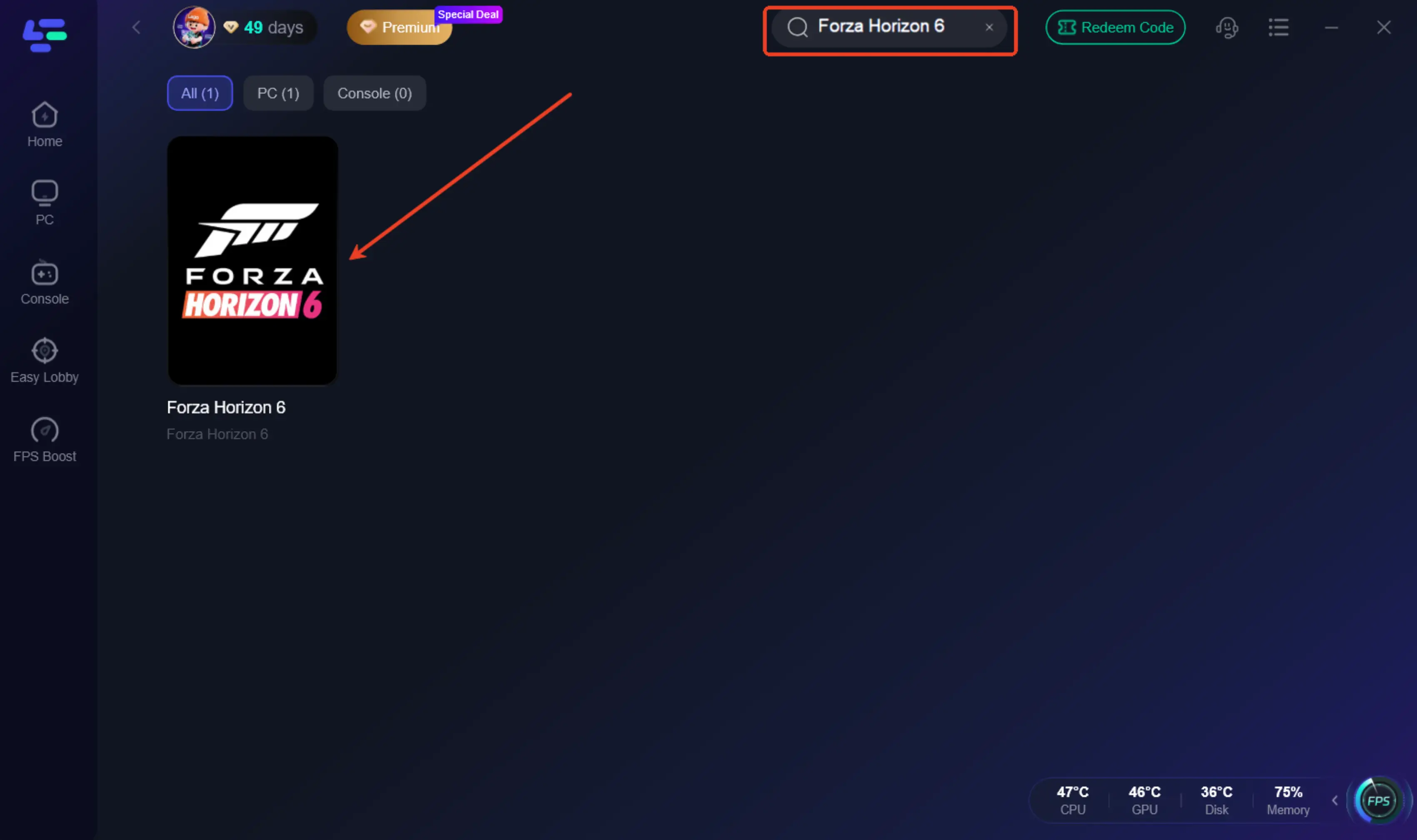
Step 2: After installation, search "Forza Horizon 6" in the search bar and select the game.
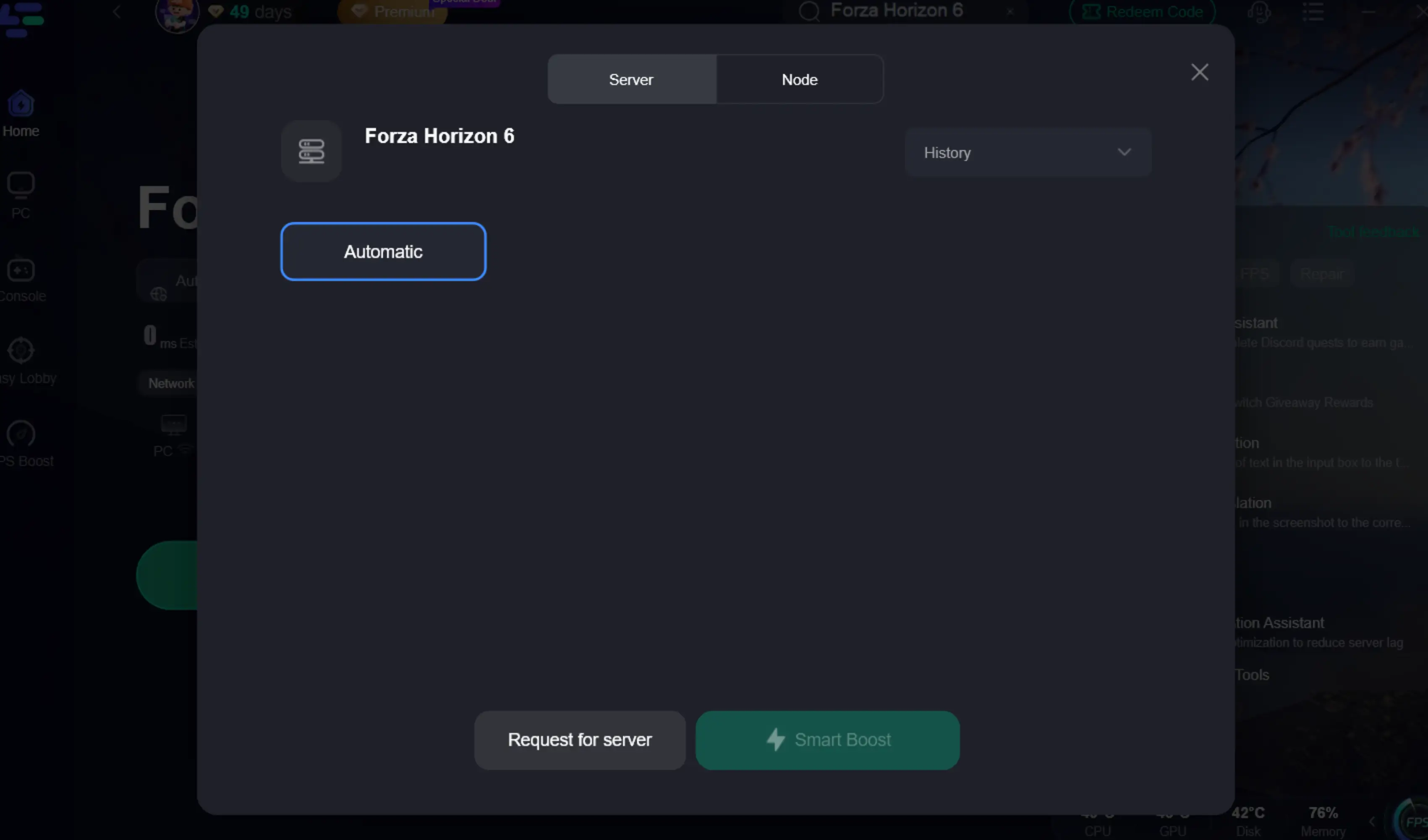
Step 3: Choose your preferred server node and click "Smart Boost" to start optimizing.
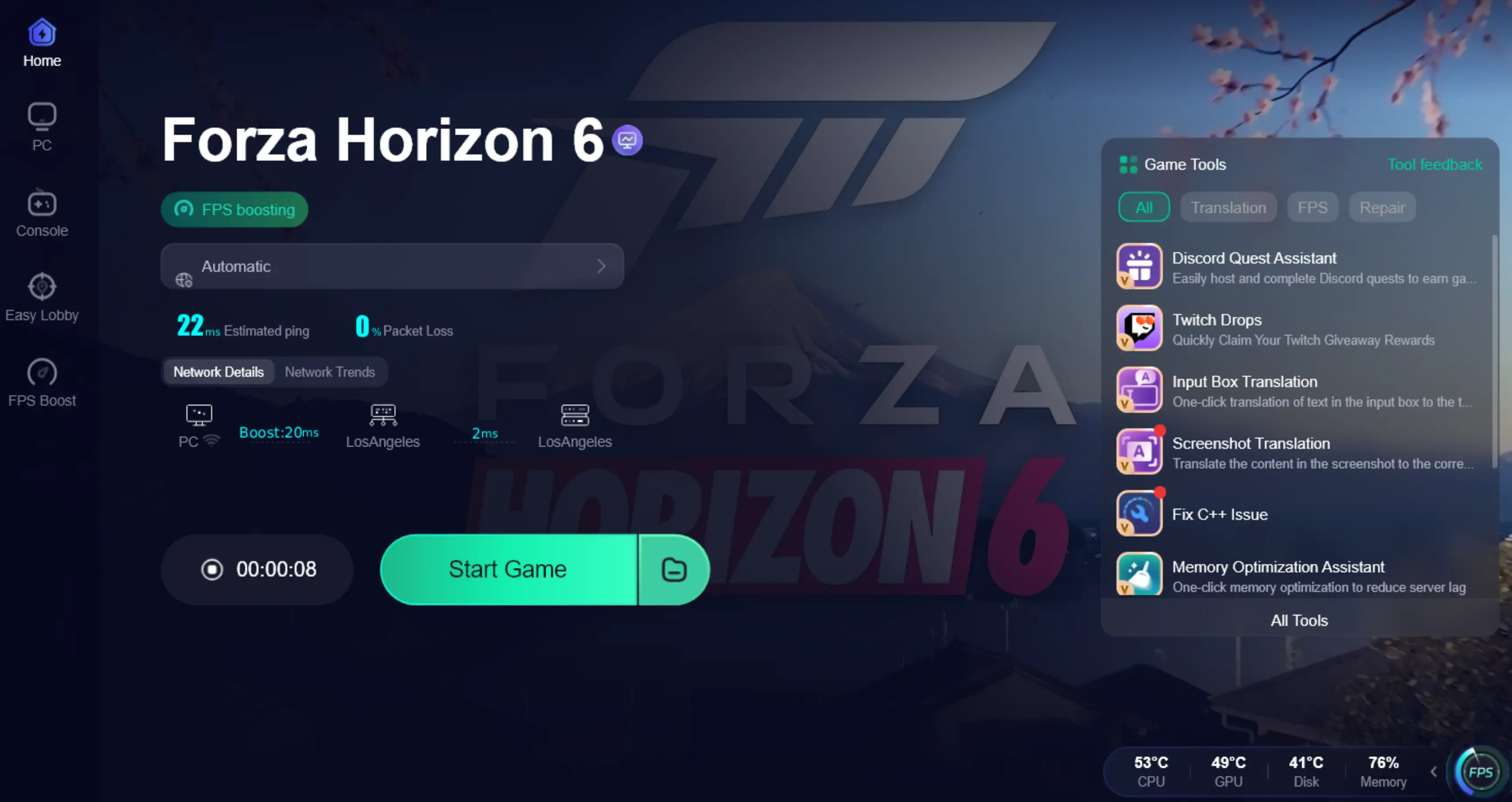
Step 4: Launch your game and enjoy smooth, optimized gameplay with lower ping and no stutter.
Part 5: Manual Fixes for Forza Horizon 6 Matchmaking Failed
If you prefer a more hands-on approach, it’s worth going through a few deeper fixes that often resolve persistent connection issues.
Check Your NAT Type
On Xbox, go to Settings > Network Settings and check your NAT type. Ideally, it should show Open. If it’s set to Moderate or Strict NAT, you’re more likely to run into issues like FH6 matchmaking failed or trouble joining online sessions.
Fix Teredo and Xbox Network on PC
On Windows, FH6 relies on Xbox networking services to connect properly. Open Xbox Networking settings and check:
- NAT Type: Open
- Server Connectivity: Connected
If Teredo isn’t working correctly, it can block matchmaking entirely. Restarting the IP Helper service, enabling Teredo, and updating Windows network components can often help restore a stable connection.
Disable VPNs if You’re Using One
VPNs can interfere with Xbox services and lead to matchmaking issues. If you’re using one, try turning it off temporarily, then restart FH6 and test Horizon Life again.
Switch to a Wired Connection
Wi-Fi instability is one of the most common causes of FH6 matchmaking problems. Switching to Ethernet can help reduce disconnects, session join failures, and convoy lag during online play.
Close Background Network Usage
Heavy background traffic can also affect matchmaking stability. Before launching FH6, close anything that may be using bandwidth, such as:
- Game or platform downloads
- Windows updates
- Streaming apps
- Browser tabs with video or cloud sync
Part 6: What to Do If FH6 Matchmaking Is Still Broken
If none of the fixes have worked, the issue is more likely server-side rather than your setup.
The best step is to check official Forza Horizon 6 updates or Xbox Live service status for any outages, maintenance, or server issues. These problems often occur during major updates, seasonal events, or peak traffic.
If everything looks normal but the issue continues for several hours, it’s usually due to temporary server congestion or regional instability that resolves once traffic drops.
Part 7: FAQs
Why is FH6 matchmaking stuck on “Finding Session”?
This usually happens when servers are overloaded or your connection can’t properly sync with Horizon Life. It often resolves after a retry or when server traffic drops.
Why can’t I join friends in Forza Horizon 6?
This is commonly caused by NAT restrictions, crossplay sync issues, or temporary session desync between players.
Does FH6 matchmaking depend on Xbox Live?
Yes. Even on PC, FH6 relies on Xbox networking services, so any Xbox Live instability can directly affect matchmaking.
Can VPN or background apps affect FH6 matchmaking?
Yes. VPNs and heavy background downloads can interfere with Xbox services and cause session join failures or matchmaking issues.
Conclusion
The FH6 matchmaking failed issue is usually caused by server load, network instability, or Xbox service problems rather than a single fault. In most cases, it can be fixed with simple connection adjustments or by waiting for server traffic to stabilize. Tools like LagoFast can also help improve connection stability during peak hours. If the issue persists, it’s often temporary and resolves on its own, allowing players to return to Horizon Life once conditions improve.

Boost Your Game with LagoFast for Epic Speed
Play harder, faster. LagoFast game booster eliminates stutter and lags on PC, mobile, or Mac—win every match!
Quickly Reduce Game Lag and Ping!
Boost FPS for Smoother Gameplay!