
Cruising through the vibrant, neon-drenched streets of Japan in Forza Horizon 6 is an unparalleled experience, especially when shared with friends in a convoy. However, that exhilaration comes to a screeching halt when you are abruptly met with a "You have been disconnected" message. For many players, the Forza Horizon 6 connection error is a persistent nightmare, transforming a seamless open-world adventure into a frustrating cycle of offline isolation. Whether you are battling constant disconnects from the server, struggling with high ping, or facing the dreaded "low streaming bandwidth" warning, these network issues can severely impact your gameplay.
This comprehensive guide is designed for both PC and Xbox players, offering deep technical insights and practical solutions to stabilize your connection, fix server errors, and ensure you stay connected to the Horizon Festival.

- ✅ Reduce Lag and High Ping.
✅ Boost FPS at the Same Time.
✅ Support 2000+ Popular Online Games.
✅ Change Server without Latency.
✅ Boost Game Loading Speed.
Part 1. Why Do I Keep Disconnecting from FH6? Understanding the Root Causes
Part 2. How to Fix Forza Horizon 6 Server Connection Issues (Essential Checklist)
Part 3. How to FIX Forza Horizon 6 Connection Error on PC (Teredo & NAT)
Part 4. How To Fix Forza Horizon 6 Keeps Disconnecting on Xbox
Part 5. How to fix low bandwidth on Forza Horizon 6
Part 6. How to Enhance Your Game Experience with LagoFast Game Booster
Part 1. Why Do I Keep Disconnecting from FH6? Understanding the Root Causes
Before applying fixes, it is essential to understand the underlying architecture that powers Forza's multiplayer experience. The Forza franchise utilizes a complex networking system that is highly sensitive to local configurations.
The primary culprit for PC players is often the Teredo tunneling protocol. Forza Horizon 6 relies heavily on Teredo to facilitate IPv6 connectivity over IPv4 networks for its multiplayer features. If Windows reports that "Teredo is unable to qualify," your game will inevitably fail to connect to the servers. Similarly, your NAT (Network Address Translation) type plays a crucial role on both PC and Xbox. A "Strict" or "Moderate" NAT restricts your ability to communicate freely with other players, leading to matchmaking failures and sudden drops.
Furthermore, players often confuse network speed with the "Low Streaming Bandwidth" error. While it sounds like an internet issue, this specific error is almost always related to your system's storage speed (HDD vs. SSD) or CPU/GPU bottlenecks, not your ping or download rate. Finally, software interference—such as aggressive firewalls, antivirus programs, or even Windows background app settings—can silently sever your connection to the Forza servers.
Part 2. How to Fix Forza Horizon 6 Server Connection Issues (Essential Checklist)
Before diving into advanced command-line fixes, ensure your foundational network setup is solid. These basic steps resolve a surprising number of Forza Horizon 6 connection issues.
First, perform a hard reset of your router and modem. Unplug them for 60 seconds before reconnecting. If you are playing on Wi-Fi, switch to a wired Ethernet connection immediately. Wi-Fi is prone to packet loss and jitter, which the Forza netcode handles poorly.
If you are already in the game and experience a drop, try the "Solo to Life" workaround. Open the pause menu, switch to "Horizon Solo" (offline mode), wait a few moments, and then attempt to reconnect to "Horizon Life" (online mode). Alternatively, joining a random player's convoy can sometimes force the game to re-establish a stable connection to the server cluster.
|
Feature |
Low Streaming Bandwidth |
Server Connection Error |
|
Symptom |
Game freezes, world geometry fails to load, cars stop moving |
Kicked to offline mode, "You have been disconnected" popup |
|
Primary Cause |
Slow storage drive (HDD) or severe CPU/GPU bottleneck |
Network routing, Teredo failure, Strict NAT, or Server outages |
|
Best Fix |
Move game installation to an NVMe SSD, lower graphics settings |
Optimize network, fix Teredo, open NAT, use a game booster |
Part 3. How to FIX Forza Horizon 6 Connection Error on PC (Teredo & NAT)
For PC players, the battle against the Forza Horizon 6 connection error is usually fought within Windows settings. The most critical step is ensuring Teredo is functioning correctly.
To reset your Teredo state, you will need to use the Command Prompt. Press the Windows key, type cmd, right-click it, and select "Run as administrator." Type the following command and press Enter: netsh interface teredo set state disabled. Restart your PC. Open the Command Prompt as administrator again and type: netsh interface teredo set state type=default. This forces Windows to re-initialize the protocol.
Next, check your Xbox Networking status. Go to Windows Settings > Gaming > Xbox Networking. Wait for the test to complete. If it shows issues with Teredo or NAT, click the "Fix it" button, wait for it to finish, and then click "Check again."
Finally, ensure Forza Horizon 6 has permission to run in the background. Go to Windows Settings > Privacy > Background apps, and verify that the toggle for Forza Horizon 6 is set to "ON." If this is off, simply alt-tabbing out of the game can cause an immediate disconnect.
Part 4. How To Fix Forza Horizon 6 Keeps Disconnecting on Xbox
Xbox players often run into a different class of issues, mainly related to network configuration and console cache. If Forza Horizon 6 keeps disconnecting during online play, focus on these two key areas:
Check and Improve NAT Type
Start by checking your NAT status on Xbox Series X or Xbox Series S:
Settings → General → Network settings
If your NAT Type shows as “Strict” or “Moderate,” it can limit connectivity and cause frequent disconnects. The goal is to reach “Open” NAT. To do this, log into your router and:
Enable UPnP (Universal Plug and Play), which automatically opens required ports
Or manually forward these ports for Xbox Live:
- 88 (UDP)
- 3074 (UDP/TCP)
- 53 (UDP/TCP)
- 80 (TCP)
- 500 (UDP)
- 3544 (UDP)
- 4500 (UDP)
This step alone resolves many online stability issues.
Clear Alternate MAC Address (Network Cache Reset)
Another effective fix is clearing the console’s stored network data:
Settings → General → Network settings → Advanced settings → Alternate MAC address → Clear
The console will restart automatically. This process refreshes the network cache and can fix persistent connection loops or matchmaking failures.
Practical Optimization Tips
For a more stable experience overall:
- Use a wired Ethernet connection instead of Wi-Fi whenever possible
- Restart both your router and console regularly
- Avoid running heavy downloads or streaming on the same network during gameplay
By ensuring an Open NAT and keeping the network cache clean, most Xbox-related connection issues can be significantly reduced or eliminated.
Part 5. How to fix low bandwidth on Forza Horizon 6
The “Low Streaming Bandwidth” error in Forza Horizon 6 is often mistaken for a network issue, but it is actually unrelated to your internet connection. When it occurs, the game may freeze, textures may not load properly, or your car may stop while the environment catches up.
What Causes It?
This happens when your system cannot transfer high-resolution game data from storage to RAM and VRAM fast enough. In most cases, the storage device becomes the main bottleneck rather than the network.
Use a Faster Storage Drive
The most effective solution is installing the game on a fast SSD. Ideally, use an NVMe M.2 drive instead of a traditional HDD. Mechanical hard drives simply cannot keep up with the data streaming demands of modern open-world games like Forza Horizon 6, and using one will almost always trigger this error.
If you’re already using an SSD but still experiencing the issue, it may be due to limited bandwidth between storage, memory, and GPU under heavy load.
Lower Data-Heavy Graphics Settings
Reducing certain settings can significantly ease the streaming load:
- Lower Environment Geometry to reduce world complexity
- Reduce Texture Quality to decrease VRAM usage and asset size
These adjustments lessen the amount of data that needs to be transferred in real time, improving stability.
Additional Optimization Tips
- Ensure your SSD has enough free space (at least 15–20%) for optimal performance
- Close background applications that may be accessing the disk
- Keep your storage drivers and system firmware up to date
By treating this as a hardware data-streaming issue rather than a network problem, you can apply the right fixes and eliminate most “Low Streaming Bandwidth” errors for a much smoother driving experience.
Part 6. How to Enhance Your Game Experience with LagoFast Game Booster
If you have exhausted manual troubleshooting and are still asking, "Why do I keep disconnecting from FH6?", it is time to utilize a professional network optimization tool. LagoFast Game Booster is specifically designed to tackle the complex routing and protocol issues that plague games like Forza Horizon 6.
LagoFast goes beyond simple VPNs by utilizing a proprietary multipath connection technology. This means it simultaneously routes your game data through multiple optimal paths. If one node experiences packet loss or congestion, LagoFast instantly switches to a stable path, preventing the dreaded disconnect screen. Furthermore, LagoFast includes a one-click fix for the notorious PC Teredo issues, automating the complex command-line processes mentioned earlier.
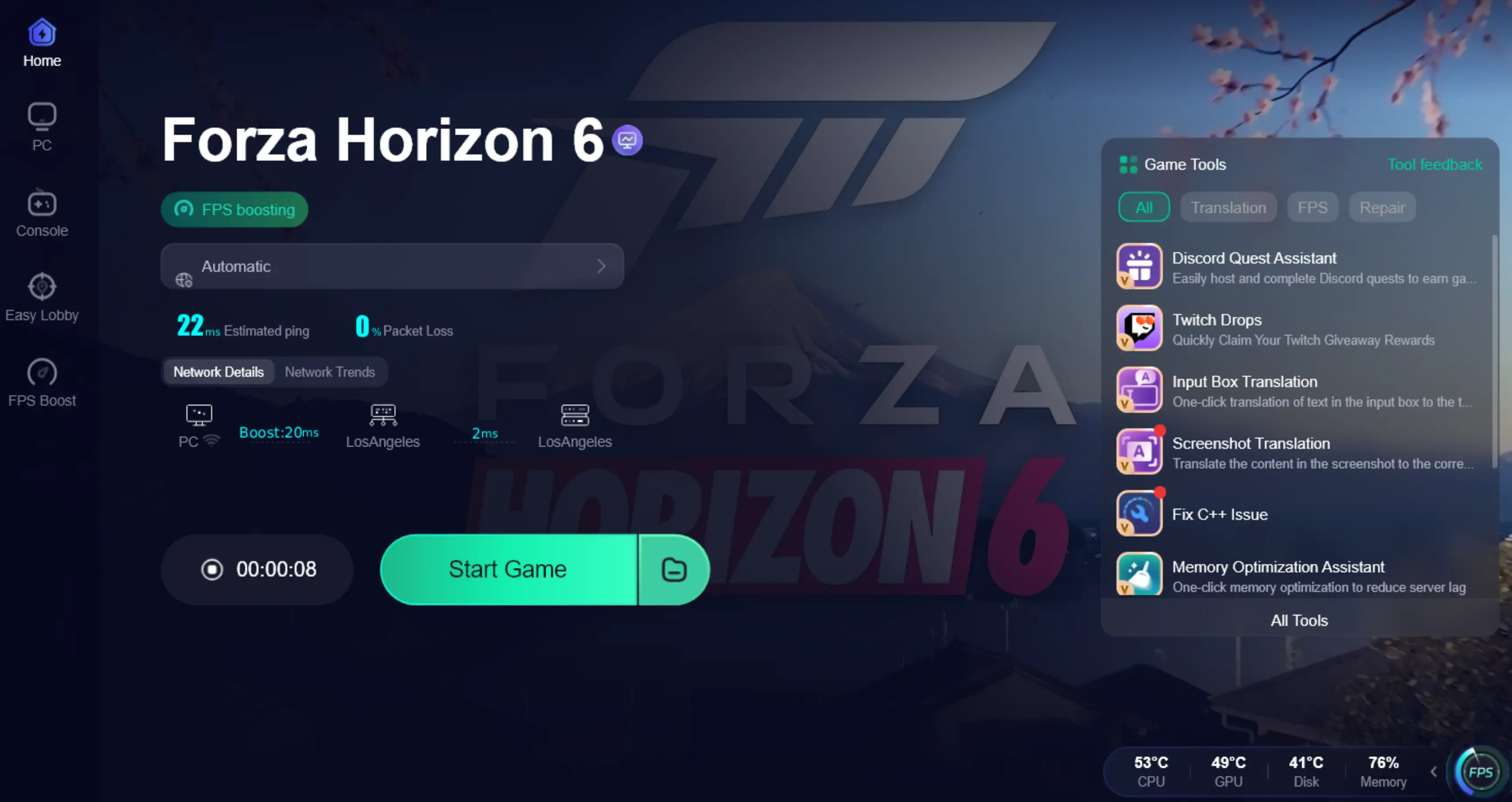
How to Use LagoFast Game Booster
Step 1: Click the Free Trial button to download and install LagoFast.
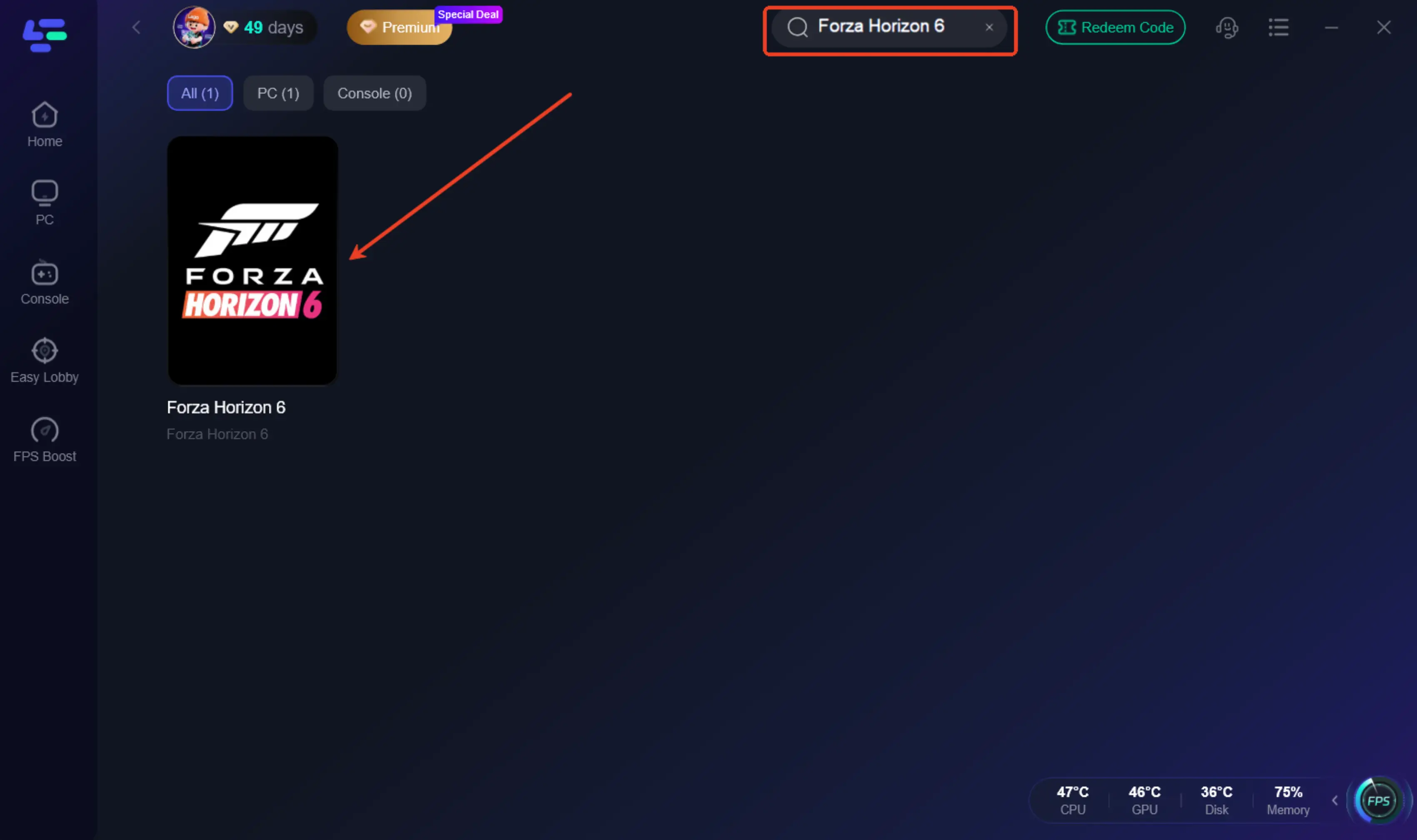
Step 2: After installation, search "Forza Horizon 6" in the search bar and select the game.
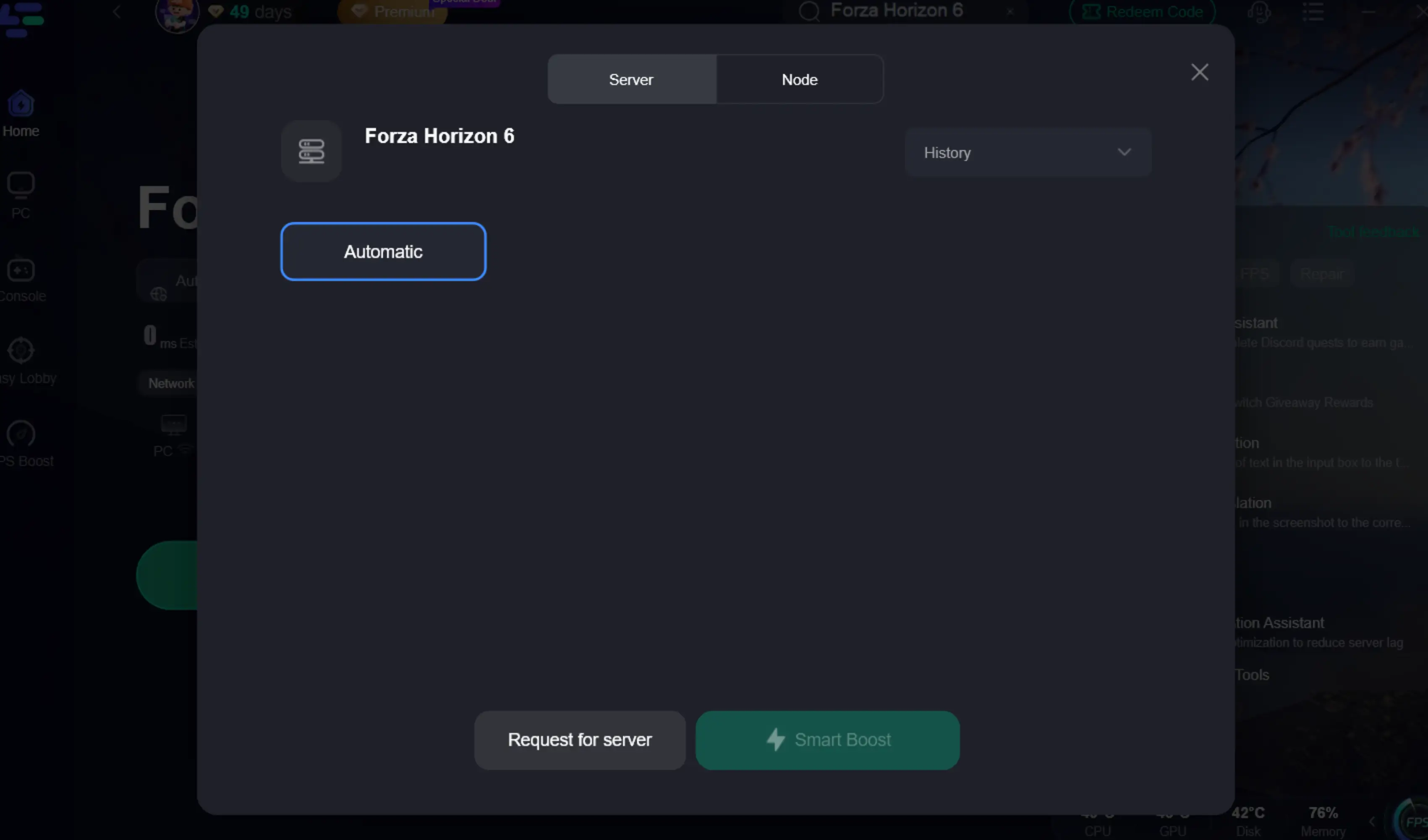
Step 3: Choose your preferred server node and click "Smart Boost" to start optimizing.
Step 4: Launch your game and enjoy smooth, optimized gameplay with lower ping and no stutter.
Part 7: FAQs
Why does alt-tabbing disconnect me from FH6?
On PC, if Windows Privacy settings restrict the game from running in the background, alt-tabbing suspends the application's network activity, causing an immediate timeout and disconnect from the server.
Is a "Strict" NAT type really that bad for Forza?
Yes. A Strict NAT severely limits your console or PC's ability to connect to other players' IP addresses, which is essential for Forza's peer-to-peer and server-based matchmaking systems.
Does FH6 require a high-speed internet connection?
While a stable connection is crucial, high bandwidth (download/upload speed) is less important than low latency (ping) and zero packet loss. A stable 10Mbps connection is often better than an unstable 1000Mbps connection for gaming.
Can a VPN fix Forza connection errors?
Standard VPNs often increase latency and can complicate NAT types. A dedicated game booster like LagoFast is preferable because it optimizes specifically for gaming protocols rather than just masking your IP.
Why does my game say "Offline" even when I'm connected?
This usually indicates a failure in the Teredo protocol or a temporary outage on the official Forza servers. Always check the official Forza Support social media channels to rule out server-side maintenance.
Conclusion
Dealing with a Forza Horizon 6 connection error can drain the joy out of an otherwise spectacular racing game. By understanding the technical nuances of Teredo, NAT types, and the difference between network lag and low streaming bandwidth, you can take control of your connection. Whether you are applying manual fixes on your PC or Xbox, or leveraging the advanced routing capabilities of LagoFast Game Booster, a stable Horizon Life session is within reach. Don't let network instability keep you in the garage—optimize your connection, download LagoFast, and get back to dominating the streets of Japan.
Boost Your Game with LagoFast for Epic Speed
Play harder, faster. LagoFast game booster eliminates stutter and lags on PC, mobile, or Mac—win every match!
Quickly Reduce Game Lag and Ping!
Boost FPS for Smoother Gameplay!