
Quick Answer: How to Fix Meccha Chameleon Friends Can't Find Server?
The fastest and most reliable way to fix multiplayer connection errors, hidden lobbies, or broken Steam invites in Meccha Chameleon is to use a specialized network optimization tool like LagoFast. By routing your connection through dedicated gaming nodes, LagoFast bypasses regional ISP throttling, corrects underlying NAT type mismatches, and refreshes server discovery protocols instantly. If you prefer manual troubleshooting, you can fix server visibility and invitation drops by flushing your DNS, updating network drivers, resetting Steam’s download region, or switching to an explicit IP direct connection.
Introduction
Meccha Chameleon relies heavily on seamless peer-to-peer (P2P) synchronization and Steam’s integrated multiplayer backbone to connect players worldwide. When these background network handshakes fail, lobbies vanish, invites drop into the void, and private servers become entirely unreachable. This guide breaks down the exact steps to diagnose and repair these connectivity drops.

- ✅Less ping and crashes.
- ✅ Higher FPS and better performance.
- ✅ Support for 2000+ games.
- ✅ Stable connection and region switching.
Part 1: Meccha Chameleon Friends Can't Find Server Overview
Part 2: How to Fix "Can’t Join Private Games" Issue
Part 3: How to Fix Friend’s Server Does Not Show Up
Part 4: How to Fix "Only a Few Public Rooms Show Up"
Part 5: How to Fix Private Room Not Visible
Part 6: How to Fix "Can’t Connect to Friends"
Part 7: How to Fix Steam Invites Fail
Part 8: How to Fix Invites Stopped Working
Part 9: All-In-One Solution: Fix All Meccha Chameleon Friends Can't Find Server Issues
Part 1: Meccha Chameleon Friends Can't Find Server Overview
When the game's server communication gets disrupted, the connection breaks down in a few distinct ways. The table below outlines how these glitches present themselves and what typically causes them under the hood.
|
Multiplayer Symptom |
Technical Root Cause |
Impact on Gameplay |
|
Can't join private games |
NAT Type restrictions or local firewall blocks. |
Prevents handshakes with specific hosts. |
|
Friend’s server does not show up |
Regional server mismatches or outdated game versions. |
Lobbies fail to populate in the in-game browser. |
|
Only a few public rooms show up |
Strict sub-net configurations or corrupted network cache. |
Drastically limits the global server list view. |
|
Private room not visible |
Steam matchmaking privacy sync errors or port blockages. |
Keeps password-protected rooms hidden from friends. |
|
Can't connect to friends |
High packet loss or unstable P2P packet routing. |
Disconnects players during the loading screen phase. |
|
Steam invites fail |
Overlay synchronization crashes or API timeouts. |
Clicking "Join Game" via Steam does absolutely nothing. |
|
Invites stopped working |
Token expiration or unexpected lobby state corruption. |
Disables the invitation system entirely mid-session. |
Related Article: Meccha Chameleon Multiplayer Guide: How to Play With Friends
Part 2: How to Fix "Can’t Join Private Games" Issue
When you can't join private games, the problem usually stems from a strict NAT (Network Address Translation) configuration or an aggressive local firewall that stops inbound P2P connections.
Step-by-Step Solution:
Step 1. Press the Windows Key + R, type control firewall.cpl, and hit Enter.
Step 2. Click on Allow an app or feature through Windows Defender Firewall on the left panel.
Step 3. Click Change settings at the top right.
Step 4. Locate Meccha Chameleon on the list and ensure both the Private and Public checkboxes are ticked.
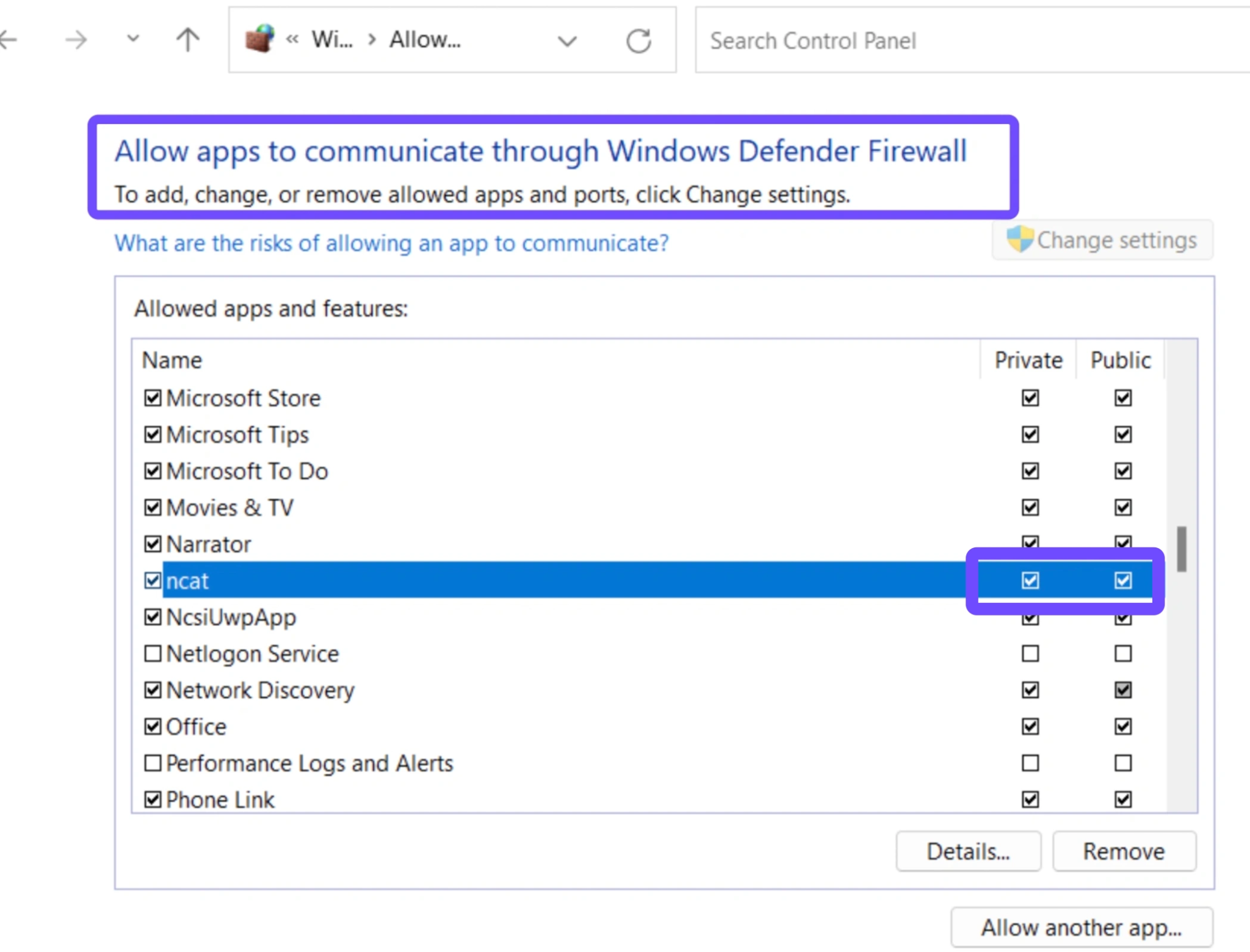
Step 5. If it is not listed, click Allow another app, browse to your Steam installation directory (Steam\steamapps\common\Meccha Chameleon), and add the game’s primary executable file.
Step 6. Click OK to save changes, restart your PC, and attempt to join the private game again.
Related Article: MECCHA CHAMELEON Failed Due to Invalid or Missing Authentication Token Fix
Part 3: How to Fix Friend’s Server Does Not Show Up
If your friend’s server does not show up in the multiplayer menu, it often means Steam’s backend has placed you two in slightly different regional matchmaking pools.
Step-by-Step Solution:
Step 1. Launch your Steam client and click on Steam in the top-left corner, then choose Settings.
Step 2. Navigate to the Downloads tab in the sidebar menu.
Step 3. Locate the Download Region dropdown field.
Step 4. Coordinate with your friend and select the exact same geographic region (e.g., US - Chicago or UK - London).
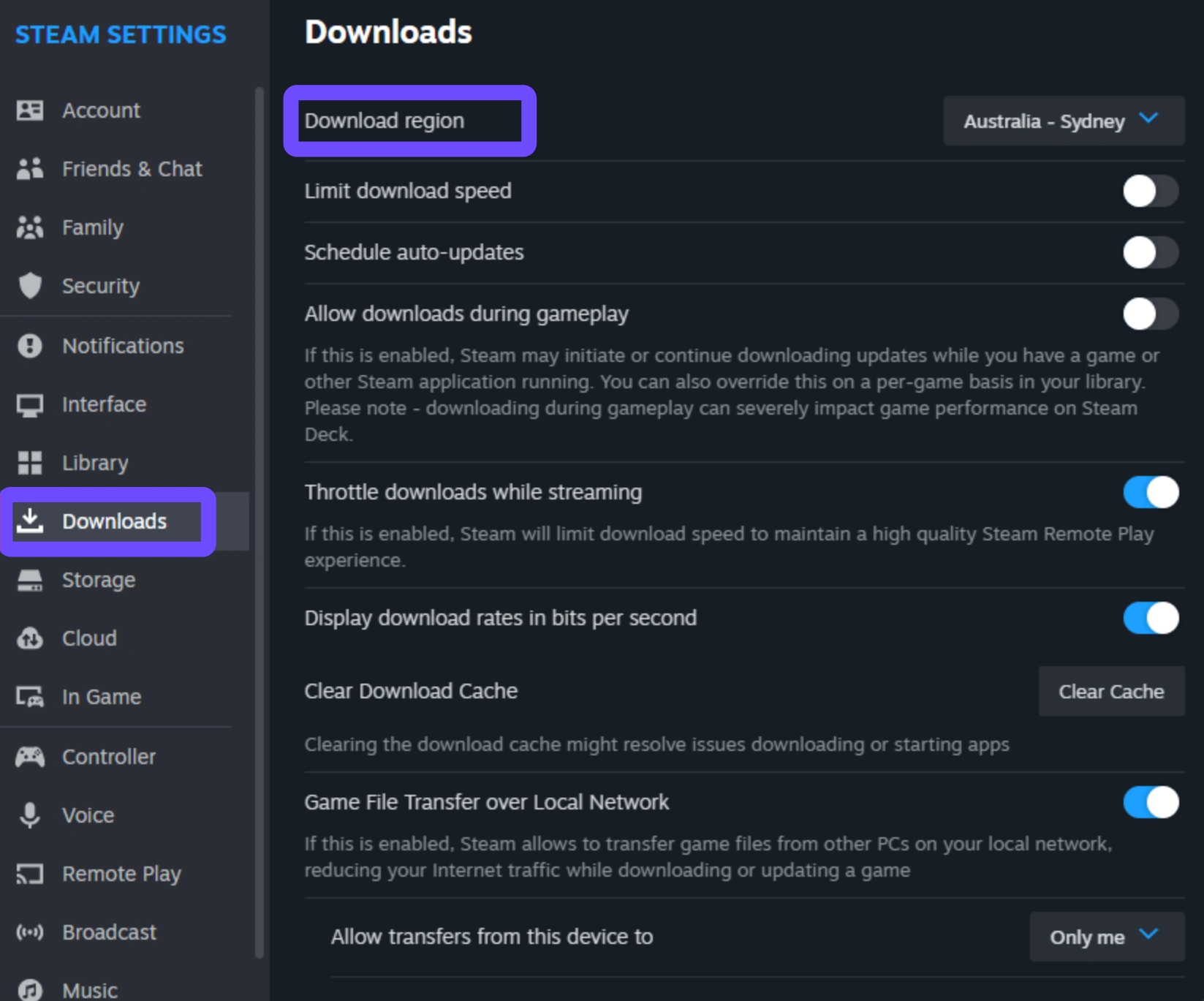
Step 5. Steam will prompt you to restart the client; let it restart completely.
Step 6. Boot up Meccha Chameleon, ask your friend to recreate the room, and check if the lobby now populates your screen.
Related Article: Meccha Chameleon Not Working? Fix Crashing, Paint Bug, and Login Errors
Part 4: How to Fix "Only a Few Public Rooms Show Up"
Seeing only a handful of public rooms indicates your network card is filtering out broad discovery queries or your system's DNS cache is clogged with outdated IP routing addresses.
Step-by-Step Solution:
Step 1. Close the game entirely and open your Windows Search bar.
Step 2. Type cmd, right-click on Command Prompt, and select Run as administrator.
Step 3. In the black window that opens, type the following command and press Enter: ipconfig /flushdns
Step 4. Next, type this command to reset your core internet protocol stack and press Enter: netsh int ip reset
Step 5. Finally, reset your network winsock catalog by typing: netsh winsock reset
Step 6. Restart your computer, open your game, and open the public browser to view the restored room listings.
Related Guide: Meccha Chameleon Beginner Guide: Ultimate Painting, Hiding & Seeker Tips
Part 5: How to Fix Private Room Not Visible
When a room is properly configured but the private room remains not visible to the rest of your squad, Steam's active overlay state has likely locked up or failed to update your current lobby status.
Step-by-Step Solution:
Step 1. The host must log out of the in-game lobby back to the main menu.
Step 2. In the Steam client, click Friends at the top, select Change Profile Name/Avatar, and ensure your online status is set to Online or Looking to Play, not Invisible.
Step 3. Re-enter the multiplayer menu and rebuild the room, ensuring the privacy toggle is explicitly set to Friends Only or Password Protected.
Step 4. Have the host open their friend list via the Steam overlay (Shift + Tab), right-click the friend's name, and click Invite to Lobby.
Step 5. The joining player should access the invite directly through the overlay chat window rather than searching the public browser.
Part 6: How to Fix "Can’t Connect to Friends"
A persistent failure when you can't connect to friends, usually ending in a "Connection Timed Out" message, means your router is dropping the specific data packets required to sustain a peer-to-peer session.
Step-by-Step Solution:
Step 1. Open your web browser, type your router's default gateway IP address (commonly 192.168.1.1 or 192.168.0.1), and log in using your admin credentials.
Step 2. Navigate to the advanced networking settings tab and look for UPnP (Universal Plug and Play).
Step 3. Toggle UPnP to Enabled; this allows your PC to automatically open communication ports for gaming.
Step 4. If the issue remains, locate the DMZ (Demilitarized Zone) settings page.
Step 5. Find your PC’s local IP address (discoverable by typing ipconfig in Command Prompt) and input it into the DMZ field to bypass local router filtering entirely for testing. Save and apply changes.
Part 7: How to Fix Steam Invites Fail
When Steam invites fail, the primary culprit is a broken link between the Steam client backend API and the runtime engine of the game itself.
Step-by-Step Solution:
Step 1. Exit Meccha Chameleon and pull up your Steam library view.
Step 2. Right-click Meccha Chameleon and select Properties from the context menu.
Step 3. Under the General tab, make sure the toggle for Enable the Steam Overlay while in-game is switched to the blue On position.
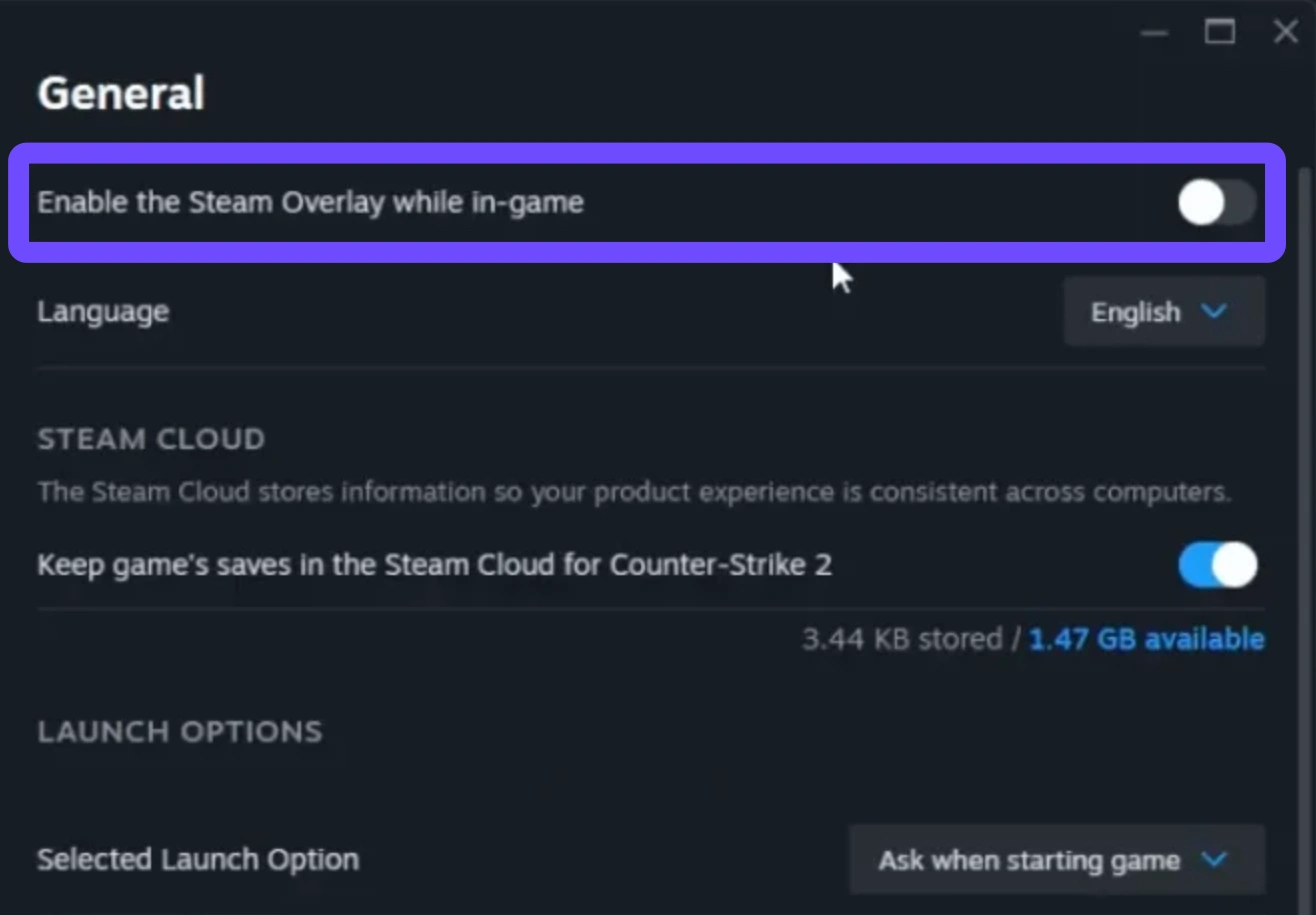
Step 4. Head to the Installed Files tab on the left.
Step 5. Click the button labeled Verify integrity of game files.
Step 6. Wait for Steam to scan your game installation. If it detects any corrupted or missing system files responsible for handling Steam's invite integration, it will automatically download healthy replacements.
Part 8: How to Fix Invites Stopped Working
If invites stopped working mid-way through a session after previously functioning fine, a localized IP address conflict or a background memory leak inside the game's network listener code has likely occurred.
Step-by-Step Solution:
Step 1. Everyone in the group must close Meccha Chameleon and exit their Steam clients entirely.
Step 2. Walk over to your physical internet router and modem, unplug the power cables from the wall, and leave them disconnected for 30 full seconds.
Step 3. Plug the power cords back in and wait for all system indicator lights to turn solid green.
Step 4. While the internet reboots, have players restart their computers to wipe their temporary RAM caches clean.
Step 5. Boot Steam, launch the game, and let the designated host create a fresh room instance to send out brand-new session invites.
Part 9: All-In-One Solution: Fix All Meccha Chameleon Friends Can't Find Server Issues
Manual network fixes take time, require digging through deep system menus, and don't always stick if your ISP changes your routing path overnight. If you want a hassle-free, permanent remedy for your connection drops, LagoFast is the ultimate all-in-one game booster designed to iron out multiplayer network wrinkles seamlessly.
With a single click, LagoFast optimizes your data routing paths, bypasses unstable network nodes, and stabilizes your connection directly to the game's servers, eliminating bugs that hide lobbies or break invites.
Key Features of LagoFast:
- One-Click Network Optimization: Automatically repairs broken game routes and unblocks missing server lobbies instantly.
- High Ping Reducer: Dynamically switches your connection to the fastest, most stable nodes available to drastically cut down on high latency.
- One-Click FPS Boost: Optimizes your system's CPU and GPU allocations alongside your network to remove stutters and boost frame rates.
- Crash & Disconnection Fix: Stabilizes your multiplayer data streams to protect you from unexpected lobby drops and game freezes.
Tutorial to Use LagoFast to Fix Meccha Chameleon Friends Can't Find Server Issues:
Step 1: Click the Free Trial button to download and install LagoFast.
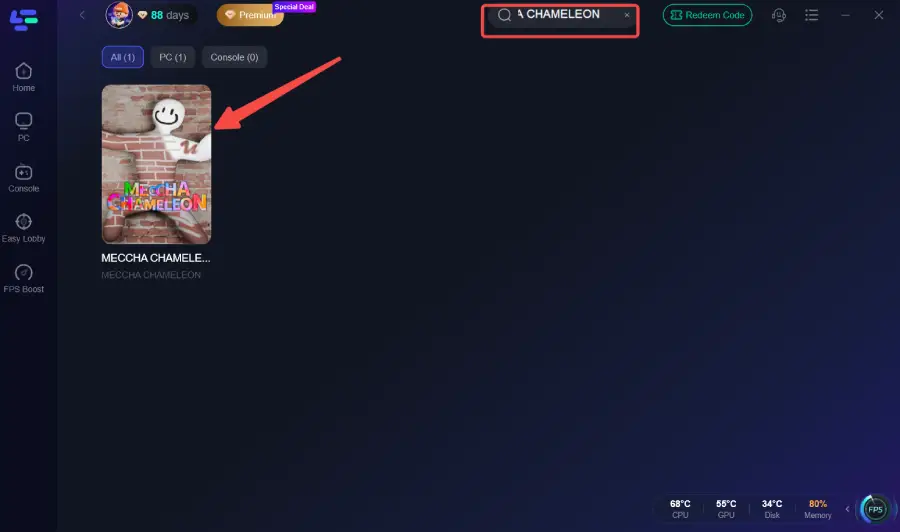
Step 2: Open LagoFast, then click the PC button on the left, search for Meccha Chameleon in the search bar, and click it after it appears.
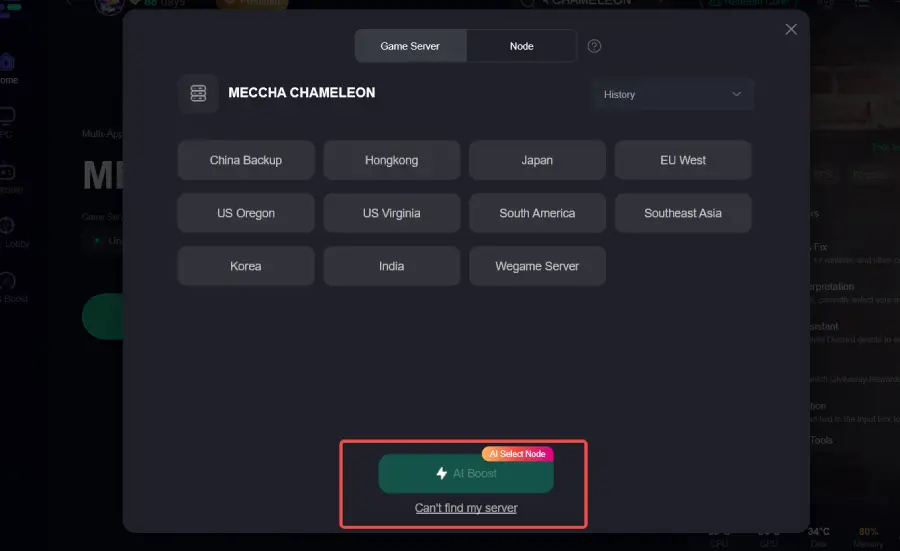
Step 3: Click on “Server” to change to a better server that ensures a better gaming experience, then click on “Smart Boost” to fix Meccha Chameleon common errors.
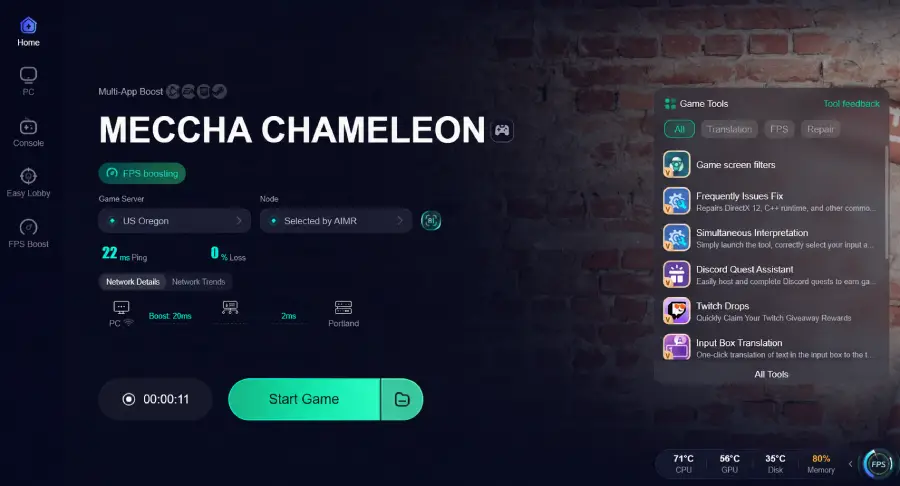
Step 4: Check the specific game ping, packet loss, and multiple path connections on the right side. Finally, click “Start Game” to play the game.
Part 10: FAQs
Why can't I see my friend's private room in the server list?
This usually happens because of mismatched download regions within Steam or out-of-sync game updates. Make sure both you and your friend have verified that your game clients are fully updated to the latest build version and that you share identical Steam download regions.
Will switching to a wired Ethernet connection fix server discovery problems?
While a wired Ethernet connection significantly reduces packet loss and local wireless interference, it cannot change your NAT type or fix an ISP-level routing issue that blocks Steam invite verification. It helps with connection stability, but software configuration adjustments may still be needed.
What does a "Connection Failed" error mean when accepting an invite?
This error typically signals a peer-to-peer connection timeout. It means your computer managed to see the invite token, but when it tried to build a direct bridge to your friend's PC, your router or firewall actively blocked the incoming data streams.
Can a third-party antivirus cause Steam invites to stop working?
Yes, certain aggressive antivirus suites run real-time web protection modules that treat unauthorized peer-to-peer game handshakes as suspicious activity. Try temporarily disabling your antivirus game shield or adding an explicit exclusion rule for Meccha Chameleon.
How do I know if my NAT type is causing the private game issue?
If you can join large public matchmaking rooms but find yourself consistently locked out of small, two-player private rooms hosted by your friends, your network is likely constrained by a Strict or Moderate NAT profile.
Does LagoFast protect my gameplay from disconnecting mid-match?
Yes. LagoFast runs dynamic, real-time smart routing pathways. If a primary network route suddenly experiences packet loss or an ISP outage mid-match, it switches your data stream onto a backup lane seamlessly so your connection to your group remains unbroken.
Conclusion
Fixing server connection errors in Meccha Chameleon doesn't have to turn into an endless loop of trial and error. By working through your system's network settings, matching your Steam download regions, and clearing out corrupted DNS caches, you can easily get your squad back together. For a fast, permanent fix that skips the manual technical hassle, let LagoFast handle your connection optimization so you can focus on playing the game.
Boost Your Game with LagoFast for Epic Speed
Play harder, faster. LagoFast game booster eliminates stutter and lags on PC, mobile, or Mac—win every match!
Quickly Reduce Game Lag and Ping!
Boost FPS for Smoother Gameplay!