
Quick Answer: How to Fix Meccha Chameleon Common Error?
If you are struggling with a persistent Meccha Chameleon common error, the absolute fastest way to bypass server-side network locks, high ping spikes, and unstable authentication loops is to use a dedicated multiplayer connection routing tool like LagoFast. LagoFast automatically optimizes your server paths, bypasses network congestion, and establishes a highly stable connection, which instantly alleviates loading hangs, login failures, and abrupt session drops.
The multiplayer hide-and-seek sensation Meccha Chameleon has taken the gaming community by storm, pushing millions of active players to paint their avatars and blend perfectly into diverse environments. However, the sheer volume of traffic has triggered multiple backend server bottlenecks, frustrating installation issues, and annoying graphic rendering bugs that interrupt the casual fun.

- ✅Less ping and crashes.
- ✅ Higher FPS and better performance.
- ✅ Support for 8000+ games.
- ✅ Stable connection and region switching.
Part 1: Common Meccha Chameleon Errors Players Are Reporting
Part 2: Quick Fixes for Meccha Chameleon Not Working
Part 3: Fix Meccha Chameleon Crashing or Not Launching
Part 4: Fix Meccha Chameleon Paint Bug
Part 5: Fix Color Picker / Eye Dropper Not Working
Part 7: Fix Login or Authentication Token Error
Part 8: When to Wait for an Official Patch
Part 1: Common Meccha Chameleon Errors Players Are Reporting
As players rush to paint their characters and outsmart seekers, several persistent functional blocks have emerged across Steam discussion boards and community forums.
Error Message After Launch
Many players manage to press play only to be greeted by a pop-up window stating an unexpected error occurred. This often points to unverified local files, outdated Epic Online Services SDK hooks, or missing runtime libraries that fail to process initial network handshakes.
Crash on Startup
A highly widespread problem is the immediate Meccha Chameleon crash on startup or a persistent black screen that freezes the Windows operating system. This is frequently traced to Unreal Engine 5 shader decompression failures (such as the Oodle decompression error) or outdated graphics processing drivers struggling with the game's dynamic lighting configurations.
CloudSave Error
The Meccha Chameleon cloudsave error occurs when local game states fail to sync properly with Steam Cloud services. This prevents progress from saving or blocks users from starting new rounds because the game cannot verify their profile layout history.
Paint Bug
The core mechanics of the game rely entirely on camouflage, making the Meccha Chameleon paint bug particularly devastating. Players report their character models failing to register color applications, leaving them glowing bright white and completely exposed to seekers.
Related Article: Meccha Chameleon One-Click Outfit Tool: Save, Switch, and Share Paint Presets
Color Picker / Eye Dropper Not Working
Directly tied to the camouflage mechanics, the Meccha Chameleon eye dropper not working issue completely breaks gameplay. When players try to sample environmental colors, the color picker tool samples an incorrect flat color, entirely ruining their disguise.
Unable to Log In
The Meccha Chameleon unable to log in error is heavily tied to regional server congestion. When lobby demands peak, the global authentication nodes drop incoming connection requests, leaving players infinitely spinning on the main menu screen.
Invalid or Missing Authentication Token
An absolute roadblock for multi-hour sessions, the Meccha Chameleon invalid or missing authentication token error drops players right out of active lobbies. It indicates a total communication breakdown between the Steam API client, Epic Online Services, and the primary regional game server.
Related Article: Meccha Chameleon Can’t Join Friends Fix: All Multiplayer Issues Explained
Part 2: Quick Fixes for Meccha Chameleon Not Working
Before diving into complex system modifications, try these four efficient structural solutions to get your camouflage match running smoothly again.
Optimize Your Network Routes via LagoFast (Recommended)
Network routing errors are the primary cause of token validation drops and long loading loops. LagoFast Game Booster functions as a highly specialized Lag Reducer & Ping Booster, utilizing smart multi-path technology to instantly find the fastest global server routes. By dynamically adjusting paths, it bypasses regional congestion nodes and completely eliminates high ping anomalies. Additionally, LagoFast includes an integrated Game Crash Fix tool that repairs broken local gaming execution environments with a single click.
Tutorial to Use LagoFast to Fix Meccha Chameleon Not Working:
Step 1: Click the Free Trial button to download and install LagoFast.
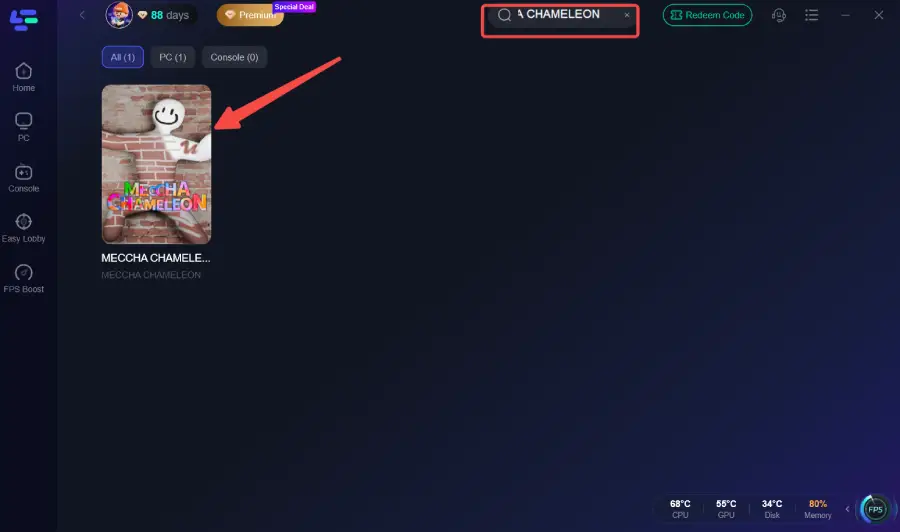
Step 2: Open LagoFast, then click the PC button on the left, search for Meccha Chameleon in the search bar, and click it after it appears.
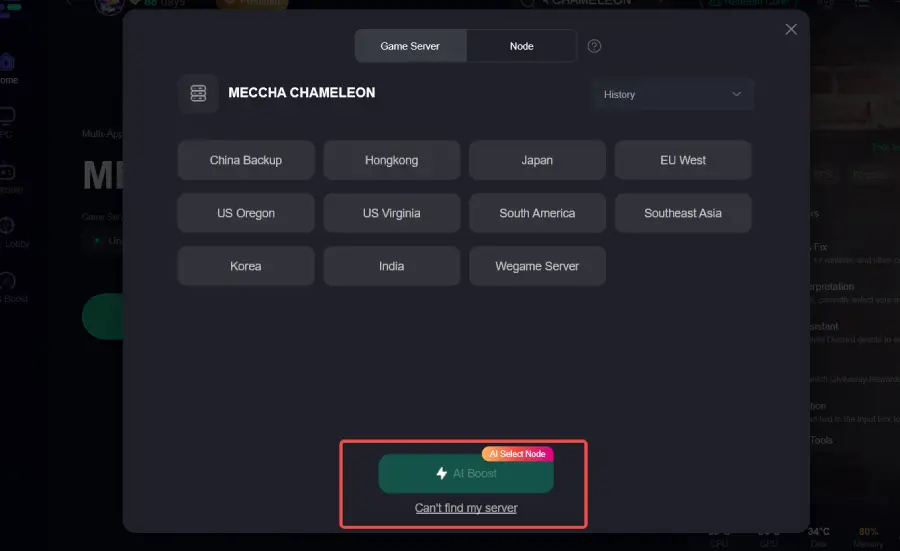
Step 3: Click on “Server” to change to a better server that ensures a better gaming experience, then click on “Smart Boost” to fix Meccha Chameleon common errors.
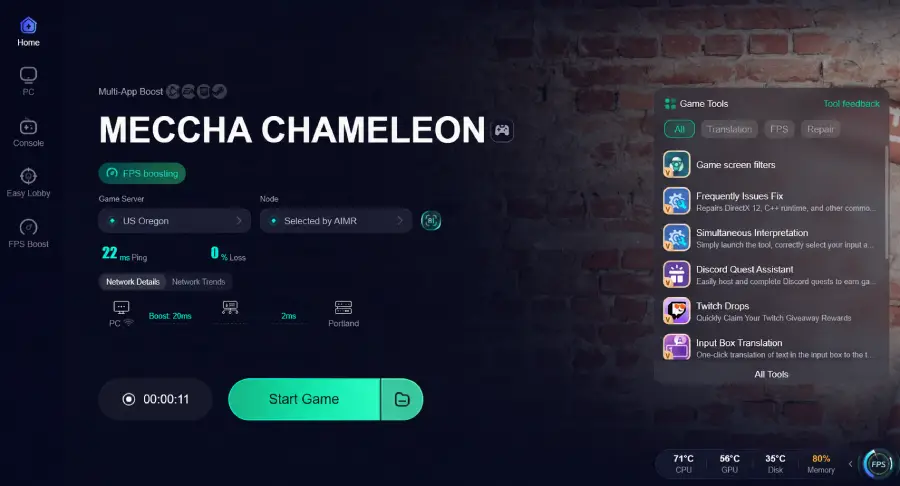
Step 4: Check the specific game ping, packet loss, and multiple path connections on the right side. Finally, click “Start Game” to play the game.
Force DirectX 11 Mode
If your computer hardware experiences compatibility friction with the default Unreal Engine graphics setup, forcing an older, highly stable rendering engine often resolves startup freezes.
Step 1: Open your Steam Library panel and locate the game title.
Step 2: Right-click Meccha Chameleon and select the "Properties" option.
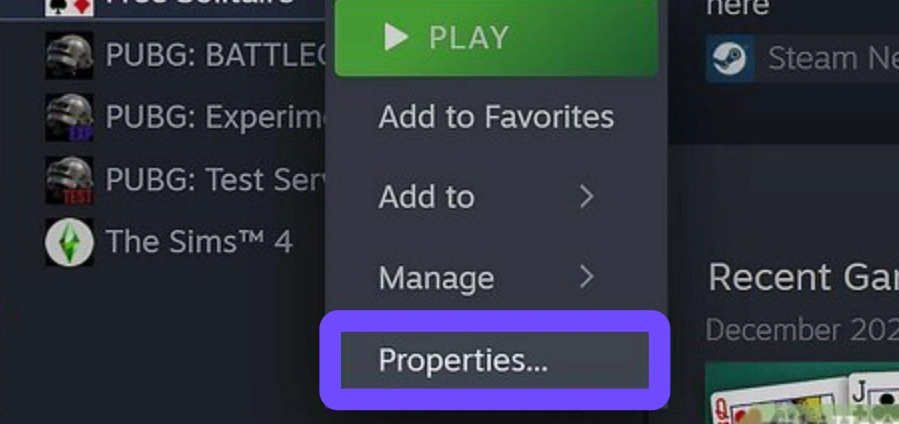
Step 3: Stay on the "General" tab and locate the input box under "Launch Options".
Step 4: Type exactly -dx11 into the text box field.
Step 5: Close the Properties window and launch the game normally to check stability.
Clear Local DNS Cache Configuration
Corrupted local network maps can trick your PC into trying to reach outdated server configurations, which blocks the game from validating your account logins.
Step 1: Press your Windows Key, type cmd, and run the Command Prompt application as an administrator.
Step 2: Type out ipconfig /flushdns into the terminal window and press Enter.
Step 3: Input netsh winsock reset right after and hit Enter again to rebuild your network catalog.
Step 4: Shut down your PC completely, and unplug your internet router for a full 30 seconds.
Step 5: Boot up your system, connect back to the web, and attempt to access a public lobby.
Adjust Steam Cloud Syncing Settings
When cloud synchronization conflicts disrupt local save data configurations, turning off the sync layer can help bypass structural startup errors.
Step 1: Access your personal Steam library menu layout.
Step 2: Right-click on Meccha Chameleon and pick the "Properties" section.
Step 3: Navigate down to the "General" options panel.
Step 4: Find the toggle switch for "Keep games saves in the Steam Cloud for Meccha Chameleon" and click it to Off.
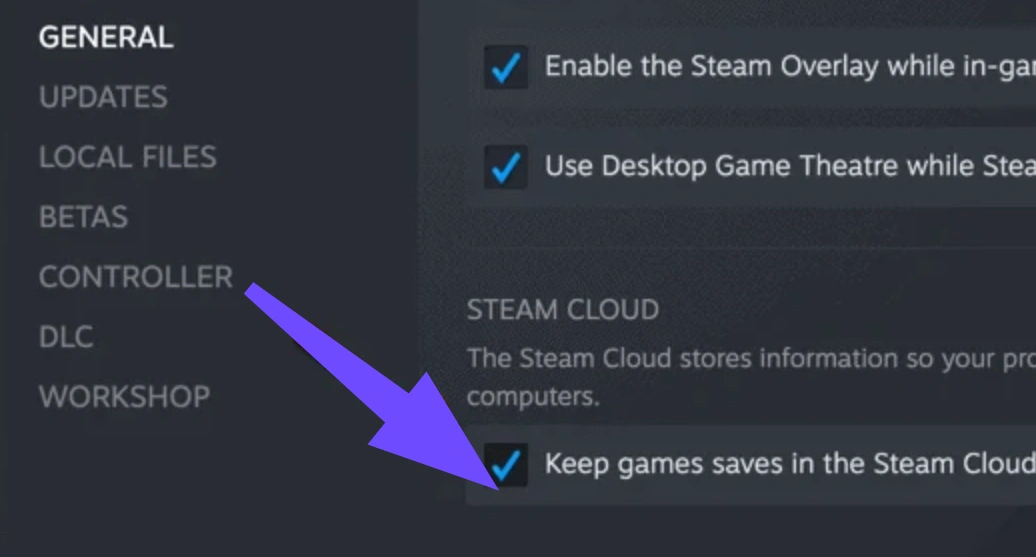
Step 5: Restart Steam entirely before testing if the game boots up without errors.
Part 3: Fix Meccha Chameleon Crashing or Not Launching
If your game continues to crash to your desktop or refuses to open entirely, use this procedural system checklist to repair underlying software dependencies.
Step 1: Check Local File Integrity. Open Steam, right-click the game, choose Properties, go to Installed Files, and select "Verify integrity of game files" to download any corrupted files.
Step 2: Clean Install Graphics Drivers. Download the latest software suite from your GPU manufacturer (NVIDIA, AMD, or Intel). Run the installer and choose "Clean Installation" to wipe old configuration profiles.
Step 3: Update Essential Visual C++ Redistributables. Visit the official Microsoft support page, download the latest unified vc_redist.x64.exe package, run the installer architecture, and restart your computer.
Step 4: Run as Administrator. Navigate to the installation directory folder, right-click the main executable application file, choose Properties, open the Compatibility tab, and check "Run this program as an administrator."
Step 5: Whitelist Through Windows Defender. Open your Update & Security menu, find Windows Security, select Virus & Threat Protection, click Manage Settings, and add the game folder to your Exclusions list.
Part 4: Fix Meccha Chameleon Paint Bug
When the avatar customization rendering pipeline stalls out, it ruins your match strategy. Use these steps to restore the regular painting system mechanics.
Step 1: Adjust Visual Texture Quality. Enter the in-game settings menu, locate the video preferences, and lower the Texture quality preset down one level to force a reload of the character skin cache.
Step 2: Clear Out Shaders via Steam. Exit the game completely, go to your global Steam client settings menu, select the Shader Pre-Caching tab, toggle the option off and back on to force a fresh shader compile.
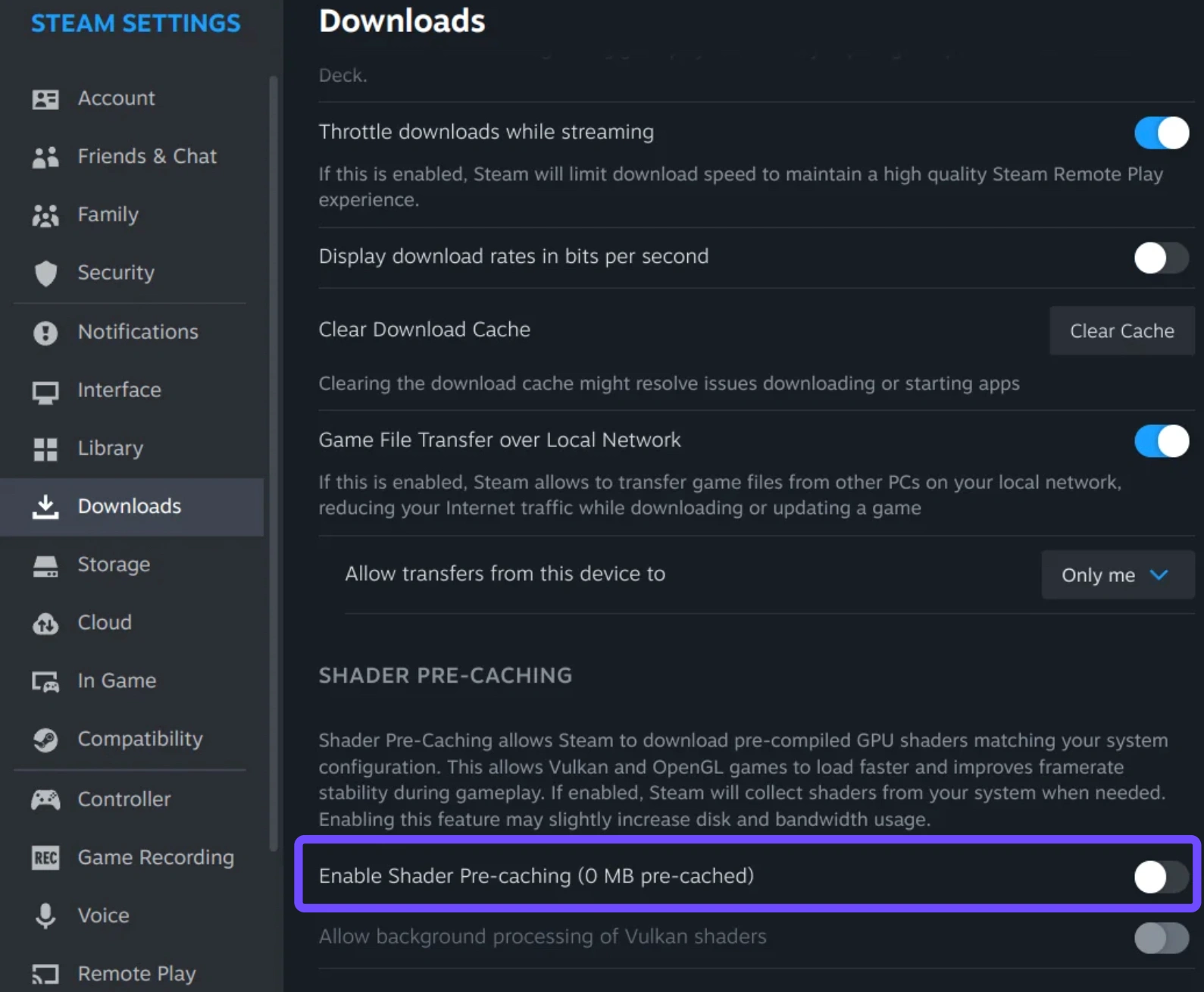
Step 3: Update Windows System Architecture. Open your system settings panel, select Windows Update, and click check for updates to make sure your core Direct3D runtimes are up to date.
Step 4: Reset Default Avatar Schemes. Navigate to the main menu cosmetic customization screen, select a baseline stock character preset pattern, and save changes to override a broken skin profile.
Step 5: Disable Overlapping Software Overlays. Close background tools like Discord, GeForce Experience, or Rivatuner Statistics Server, as custom software overlays can conflict with the game's UI rendering.
Related Article: How to Save Your Current Outfit in Meccha Chameleon
Part 5: Fix Color Picker / Eye Dropper Not Working
If your color selection tool fails to pull matching environmental hues, a screen resolution or coordinate mapping error is likely to blame.
Step 1: Swap Over to Fullscreen Borderless Mode. Open the video configuration menu and change your display settings from Exclusive Fullscreen to Borderless Windowed to fix screen coordinate issues.
Step 2: Reset Windows Display Scaling. Right-click empty space on your desktop, choose Display Settings, and verify your "Scale and layout" dropdown selection is set exactly to 100%.
Step 3: Clear Game Cache Configuration Files. Press Win + R, type localappdata, find the game's folder name, open the Saved directory, and delete the temporary cache folders found inside.
Step 4: Turn Off Hardware Mouse Acceleration. Open your system mouse properties control layout, jump into Pointer Options, and uncheck "Enhance pointer precision" to normalize picker positioning.
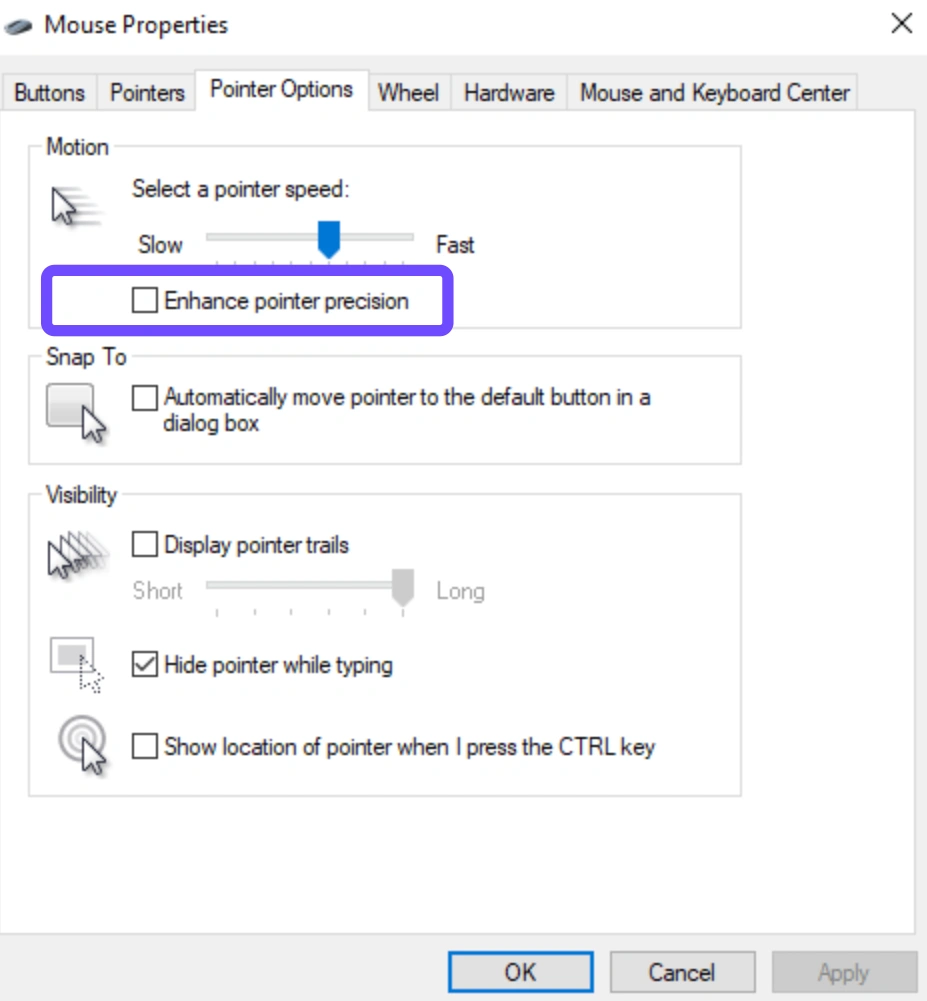
Step 5: Rebind the Selection Action. Access the keybinding options menu, remove your current input for the color picker action, assign it to a different keyboard key, and click confirm.
Part 6: Fix CloudSave Error
When structural network sync errors lock down your player profile progress, follow this cleanup routine to safely sync your files.
Step 1: Force a Manual Steam Sync. Click the Steam option at the very top left of your desktop app, select "Go Offline", wait one full minute, then click it again to "Go Online" and force a fresh profile refresh.
Step 2: Clear Out Steam Download Cache Data. Open Steam Settings, click the Downloads tab, locate the "Clear Cache" action button, click it, and re-login to your account.
Step 3: Remove Temporary Lock Files. Locate the local save directory pathway inside your user profile data folder and delete any files ending with an explicit .tmp extension format.
Step 4: Check Epic Online Services Client Status. Make sure the background service client isn't blocked by checking your Windows Services panel (services.msc) and setting Epic Online Services to run automatically.
Step 5: Create a Local Profile Backup. Manually copy your entire save folder to an external directory, delete the old source files, and start up the game to let Steam rebuild a fresh save file structure.
Part 7: Fix Login or Authentication Token Error
When the authentication token error blocks access to public matchmaking pools, follow these connectivity steps to fix the handshake validation process.
Step 1: Sign Out of Steam Entirely. Do not just close the active window layout; click your profile name at the very top right, select "Log Out of Account", and close the app.
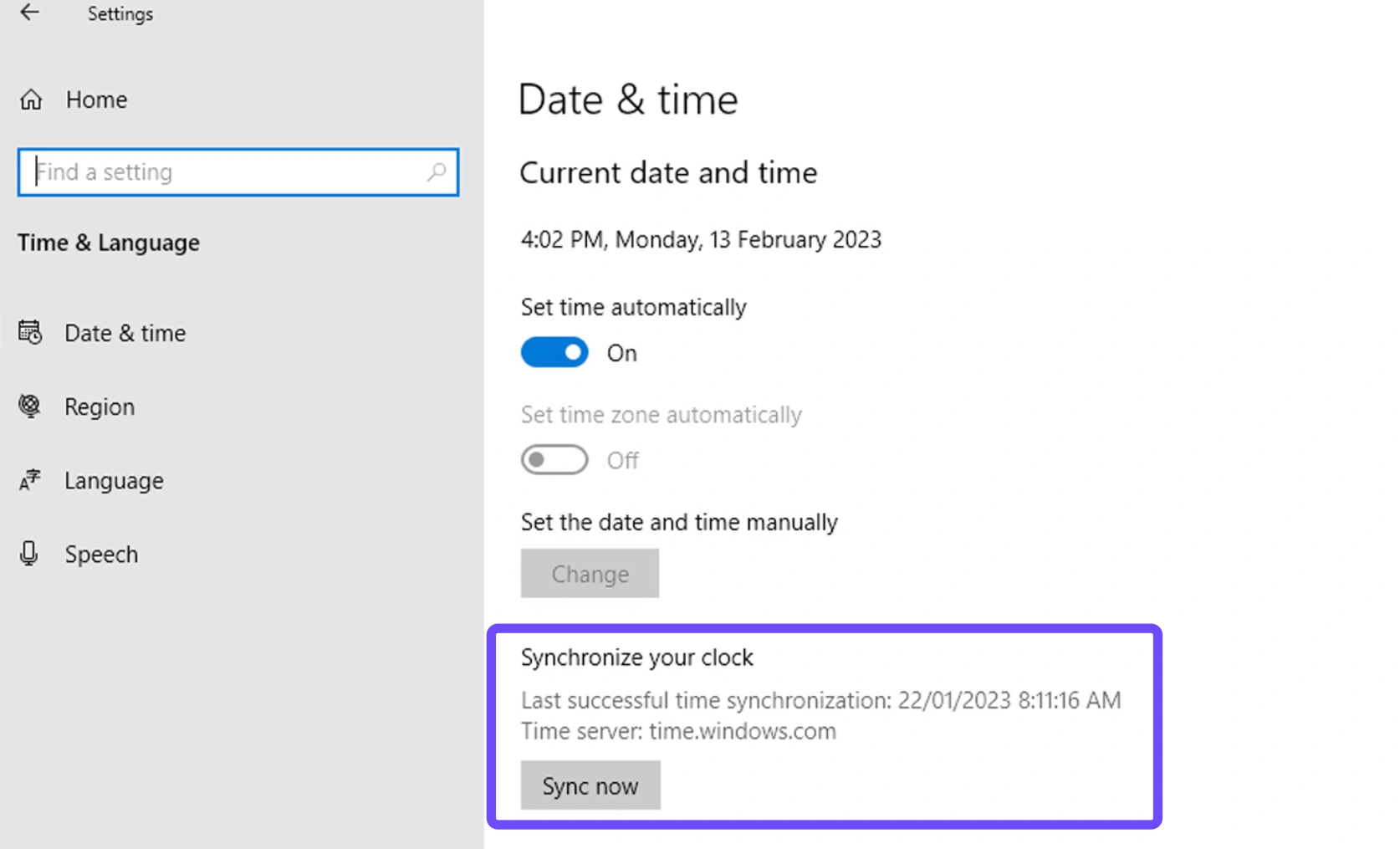
Step 2: Sync Your Local System Time. Open your Windows Time & Date settings menu panel and click the "Sync Now" button to align your system clock perfectly with global server times.
Step 3: Toggle IPv6 Network Properties. Open your Network Connections menu, right-click your active adapter, choose Properties, and uncheck Internet Protocol Version 6 (IPv6) to prioritize an IPv4 pathway.
Step 4: Renew Your Local IP Assignment. Open your administrative Command Prompt terminal, input ipconfig /release, press enter, and then input ipconfig /renew to get a fresh connection.
Step 5: Re-authenticate Steam Guard. If you have mobile authentication enabled, open your phone app, sign out of the session link, and log back in to refresh your global security profile tokens.
Part 8: When to Wait for an Official Patch
If you have tried all the steps above and still encounter a black screen, a locked authentication screen, or persistent color bugs, you may be dealing with a widespread server outage. Meccha Chameleon is a massive indie success, meaning its multiplayer backend frequently requires emergency hotfixes to manage the huge player base. Check the official Steam Community hub announcements page or the developer's Discord channel for real-time updates on server maintenance.
Part 9: FAQs
Why does Meccha Chameleon keep crashing on startup?
This is usually caused by outdated graphics card drivers or issues with Unreal Engine 5 shader decompression. Lowering your settings or forcing DirectX 11 mode typically fixes it.
How do I fix the invalid or missing authentication token error?
This error indicates a sync issue between your Steam account session and the game's servers. Re-syncing your Windows clock, logging out of Steam, or using LagoFast to stabilize your route can quickly resolve it.
What is the fastest way to get around the paint bug?
The fastest workaround is to drop your overall texture settings down one notch or clear out your Steam shader cache to force the game to redraw your avatar asset configurations.
Can LagoFast resolve high ping and server lag in this game?
Yes, LagoFast uses smart multi-path technology to route your connection data around high-traffic nodes, which directly lowers your in-game ping and keeps you from disconnecting.
Will I lose my hide-and-seek match progress if I turn off Steam Cloud?
No, your progress will save locally to your hard drive instead. You can turn Steam Cloud back on once the developers patch the sync issues.
Why does the eye dropper color picker select the wrong color?
This happens when your Windows screen scaling is set higher than 100%, which misaligns the cursor coordinates in full-screen mode. Switching to borderless windowed mode usually fixes it.
Conclusion
Technical bugs shouldn't get in the way of a fun game of hide-and-seek. By systematically walking through these network routing and system configuration steps, you can eliminate crashing errors and fix color tool bugs. For the smoothest gameplay experience without dealing with manual network configurations, let LagoFast optimize your connection so you can focus on building the ultimate disguise.

Boost Your Game with LagoFast for Epic Speed
Play harder, faster. LagoFast game booster eliminates stutter and lags on PC, mobile, or Mac—win every match!
Quickly Reduce Game Lag and Ping!
Boost FPS for Smoother Gameplay!