
Quick Answer
To play Meccha Chameleon with friends, create a lobby from the multiplayer menu, set a server name and optional password for a Meccha Chameleon Private Room, then invite friends via Steam overlay (Shift + Tab). If the Meccha Chameleon Lobby Not Showing Up issue occurs, usually it’s caused by version mismatch, filter settings, or temporary Steam/network issues. Restarting Steam or refreshing the server list often helps, and LagoFast Game Booster can further improve connection stability.
Introduction
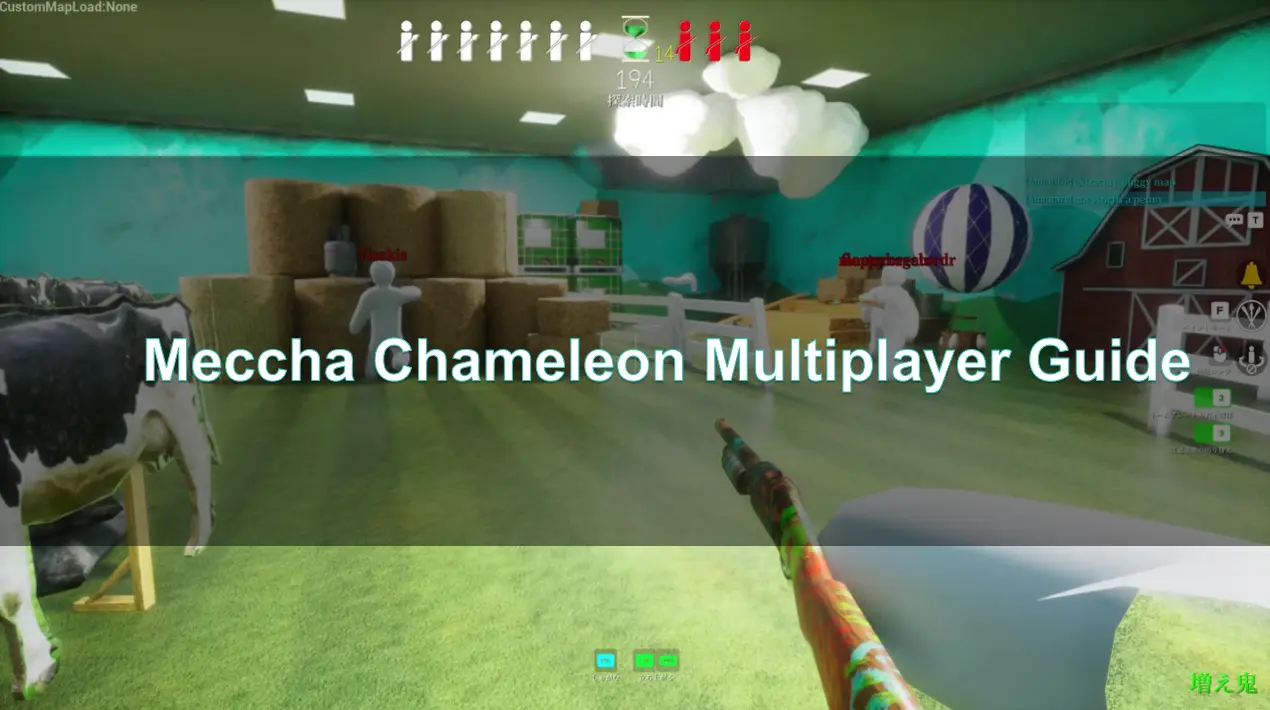
Meccha Chameleon is a multiplayer hide-and-seek game built around online interaction and fast-paced matches. This guide explains how to play with friends, manage lobbies, and fix common connection issues.

- ✅Less ping and crashes.
- ✅ Higher FPS and better performance.
- ✅ Support for 8000+ games.
- ✅ Stable connection and region switching.
Part 1: Does Meccha Chameleon Support Multiplayer?
Part 2: How to Play Meccha Chameleon With Friends
Part 3: How to Make a Private Lobby in Meccha Chameleon
Part 4: Meccha Chameleon Friend Lobby Not Showing Up
Part 5: Can You Kick Players From a Lobby?
Part 6: Does Meccha Chameleon Have Crossplay?
Part 7: How to Enhance Your Game Experience with LagoFast Game Booster
Part 1: Does Meccha Chameleon Support Multiplayer?
Absolutely! Meccha Chameleon, the vibrant hide-and-seek game where players blend into their surroundings, is built from the ground up as a multiplayer experience. The core fun of the game lies in outsmarting opponents and coordinating with friends, making its multiplayer functionality not just a feature, but the very essence of its gameplay loop. Whether you're meticulously painting yourself to match a potted plant or frantically searching for camouflaged adversaries, doing it with or against other players is where Meccha Chameleon truly shines.
Online PvP and Friend Lobbies Explained
Meccha Chameleon primarily offers online Player-versus-Player (PvP) matches. These can be played in either public lobbies, where you're matched with random players, or in private friend lobbies, designed for you and your chosen companions. The game's design encourages both casual fun and strategic play, with the multiplayer system facilitating seamless connections between players globally. The emphasis is on quick, engaging rounds that are easy to jump into, whether you're queuing solo or with a full squad.
Public Lobby vs Private Lobby
The distinction between public and private lobbies is crucial for tailoring your Meccha Chameleon experience. Public lobbies are the default, offering immediate access to games with other players. They're perfect for quick matches, meeting new people, and experiencing the full breadth of the player base. However, for a more controlled and predictable environment, private lobbies are your go-to. These allow you to play exclusively with friends, practice strategies, or simply enjoy a more relaxed session without the unpredictability of random matchmaking.
How Many Players Can Join One Game?
Meccha Chameleon supports a substantial number of players per match, allowing for chaotic and engaging hide-and-seek sessions. While the game technically supports up to 24 players in a server, the developers often recommend keeping the player count at 13 or fewer for the most balanced and enjoyable experience [1]. This ensures that maps don't feel too empty or too crowded, striking a sweet spot for both seekers and hiders.
Related Article: MECCHA CHAMELEON Failed Due to Invalid or Missing Authentication Token Fix
Part 2: How to Play Meccha Chameleon With Friends
Getting into a game of Meccha Chameleon with your friends should be a straightforward process, but sometimes the nuances of in-game systems and platform integrations can make it a bit tricky. Here's a detailed breakdown of how to ensure you and your squad are blending in (or seeking out) together.
How to Host a Lobby
To initiate a game with your friends, one player needs to act as the host and create a lobby. This is typically done through the game's main multiplayer menu:
- Navigate to Multiplayer: From the main menu, select themultiplayer option.
- Create Server: Look for an option like "Create Server" or "Host Game." This will open a new interface for setting up your lobby.
- Server Name: Enter a unique and recognizable name for your server. This is crucial if your friends will be searching for it in a public list.
- Password (Optional): If you intend to play privately, set a password. This restricts access to only those you share the password with.
- Tags (Optional): Some games allow you to add tags (e.g., "Casual," "Competitive," "Hide Only"). Use these to describe your game type, which can help friends and other players find suitable matches.
- Confirm Settings: Once all settings are configured, confirm to create the server. You will then be placed into the lobby, awaiting other players.
How to Invite Steam Friends
The most direct way to get your Steam friends into your game is through the Steam overlay:
- Host a Lobby: First, create your lobby as described above.
- Open Steam Overlay: While in your lobby, press Shift + Tab (the default keybind) to open the Steam overlay.
- Friends List: Navigate to your Friends List within the overlay.
- Invite to Game: Find the friend you wish to invite, right-click on their name, and select "Invite to Game." They will receive a direct invitation that they can accept to join your lobby.
How to Join a Friend’s Room
If your friend is hosting, you can join them through a few methods:
- Accept Steam Invite: The easiest way is to accept a direct Steam invitation from your friend. This will automatically launch the game (if not already running) and place you in their lobby.
- Join via Steam Friends List: If your friend is already in a game, you can often right-click their name in your Steam Friends List and select "Join Game." This works even if they haven't sent a direct invite.
How to Find a Lobby from the Room List
If direct invites aren't working or you need to join a friend who isn't on your Steam list, you can use the in-game server browser:
- Navigate to Multiplayer: From the main menu, select the multiplayer option.
- Find Server/Server Browser: Look for an option like "Find Server" or "Server Browser."
- Search Filters: Use available filters to narrow down the list. Search by your friend's server name, or by tags if they used them. Ensure that "Search Public Servers" is enabled, even if it's a private game with a password, as it still needs to be listed [1].
- Enter Password: If the lobby is password-protected, you will be prompted to enter the password upon attempting to join.
Related Article: Meccha Chameleon Not Working? Fix Crashing, Paint Bug, and Login Errors
Part 3: How to Make a Private Lobby in Meccha Chameleon
Private lobbies are essential for focused gameplay with friends, free from the distractions or unpredictability of public matchmaking. However, setting them up and ensuring visibility can sometimes be a point of confusion for players.
Private Room Setup
Creating a private room in Meccha Chameleon is straightforward:
- Host a Game: As outlined in Part 2, select the option to "Create Server" or "Host Game" from the multiplayer menu.
- Set a Password: Crucially, when prompted, enter a password for your lobby. This is the primary mechanism that makes your room private. Only players who know this password will be able to join.
- Communicate Password: Share the password with your friends through an external communication method (e.g., Discord, Steam chat, voice chat). The game itself will not automatically share this password.
Why Your Private Room May Not Show Up
This is a common pain point for players. You've set up a private room, but your friends can't see it in the server browser. Here are the likely reasons:
- Server Browser Defaults: Many server browsers default to showing only public, non-password-protected games. Your friends need to ensure they are actively searching for all available servers, or specifically by name, and are prepared to enter a password.
- Filtering Issues: Ensure your friends aren't applying filters that inadvertently hide your private lobby (e.g., filters for player count, specific game modes, or region that your lobby doesn't match).
- Direct Invite Preference: The game might prioritize direct Steam invites for private sessions. If your friends are struggling to find it in the list, a direct invite is often the most reliable method.
- Game Version Mismatch: If you or your friends are on different game versions, lobbies will not appear. Always ensure everyone has the latest update.
When to Use a Public Room Instead
While private rooms offer control, public rooms have their place:
- Quick Matches: If you just want to jump into a game without waiting for friends or coordinating, public lobbies are instant.
- Meeting New Players: Public lobbies are great for expanding your social circle within the game and finding new people to play with.
- Fuller Games: If your group is small, a public lobby can quickly fill up the remaining slots, leading to more dynamic and populated matches.
Related Guide: Meccha Chameleon Beginner Guide: Ultimate Painting, Hiding & Seeker Tips
Part 4: Meccha Chameleon Friend Lobby Not Showing Up
It's incredibly frustrating when you and your friends are ready to play Meccha Chameleon, but the lobby simply isn't appearing in the server browser. This is a common issue in many online games, and it usually boils down to a few key areas. Here's a systematic approach to troubleshooting why your friend's lobby might not be visible.
Check If Everyone Is on the Same Game Version
This is often the simplest yet most overlooked solution. Online games, especially during active development or frequent updates, require all players to be on the exact same game version to connect. A version mismatch will prevent lobbies from appearing or joining.
- Verify Updates: Ensure both you and your friends have the latest game update installed. On Steam, you can usually check this by right-clicking the game in your library, going to Properties > Updates, or simply by restarting Steam to force an update check.
- Automatic Updates: Confirm that automatic updates are enabled for Meccha Chameleon in your Steam settings.
Restart Steam and the Game
A classic PC gaming fix, restarting both the Steam client and Meccha Chameleon can resolve temporary glitches or cached data issues that prevent proper lobby visibility.
- Full Restart: Close Meccha Chameleon completely. Then, exit Steam (Steam > Exit) and restart it. Launch the game again through Steam.
Refresh the Room List
The server browser might not always update instantly. A simple refresh can often reveal lobbies that were previously hidden.
- In-Game Refresh: Look for a "Refresh" button or option within the game's server browser. Repeatedly refreshing can sometimes help.
- Re-enter Browser: If there's no dedicated refresh button, try exiting the server browser and re-entering it.
Check Region, Network, or Steam Overlay Issues
Network configurations and platform-specific overlays can interfere with lobby visibility.
- Region Settings: Ensure that all players have their in-game region settings (if any) set to the same region. Some games filter lobbies by region.
- Network Firewall/Antivirus: Temporarily disable your firewall and antivirus software (or add exceptions for Meccha Chameleon and Steam) to see if they are blocking the connection. Remember to re-enable them after testing.
- Steam Overlay: Ensure the Steam Overlay is enabled for Meccha Chameleon (Steam > Settings > In-Game). The overlay is crucial for Steam invites and sometimes for proper lobby communication.
- VPN/Proxy: If anyone is using a VPN or proxy, try disabling it. These can sometimes interfere with game server discovery.
Try Hosting From Another Player
If one player consistently has trouble hosting or seeing lobbies, have another friend try hosting the game. This can help determine if the issue is specific to one player's setup or a broader problem.
Part 5: Can You Kick Players From a Lobby?
Lobby management is a critical feature for any multiplayer game, especially when dealing with public lobbies or unwanted guests in private sessions. For Meccha Chameleon, the ability to manage players within a lobby, particularly kicking disruptive individuals, is a common question among players.
Current Lobby Management Limitations
Based on player feedback and common discussions, Meccha Chameleon currently has limitations regarding robust lobby management features, specifically the ability for a host to kick players [2]. This means that once a player joins your lobby, you might not have a direct in-game option to remove them. This can be particularly frustrating in public lobbies where players might be AFK, griefing, or simply not adhering to the intended spirit of the game.
What to Do If Public Lobbies Have Trolls or Bad Players
Given the current limitations, dealing with disruptive players in public lobbies requires alternative strategies:
- Leave and Re-queue: The simplest solution is often to leave the problematic lobby and re-queue for a new one. While not ideal, it's the quickest way to find a better experience.
- Report (if available): If the game offers an in-game reporting system, utilize it for players who violate community guidelines. This helps developers identify and address problematic behavior.
- Block/Mute: If a player is being verbally abusive or spamming, use the platform's (e.g., Steam) block or mute features to prevent further interaction.
Safer Setup: Play With Friends or Discord Groups
The most effective way to avoid issues with unwanted players is to play exclusively with people you know or trust. This reinforces the value of private lobbies:
- Private Lobbies: As discussed, setting a password for your lobby ensures only invited friends can join.
- Discord Communities: Join official or community-run Discord servers for Meccha Chameleon. These often have dedicated channels for finding groups and coordinating private matches with like-minded players.
Part 6: Does Meccha Chameleon Have Crossplay?
Crossplay, the ability for players on different platforms to play together, has become a highly sought-after feature in modern multiplayer games. For Meccha Chameleon, understanding its crossplay capabilities is important for players looking to connect with friends across various gaming ecosystems.
PC / Steam Availability
Meccha Chameleon is primarily available on PC through Steam. This means that all PC players who own the game on Steam can easily connect and play together. The game leverages Steam's robust multiplayer infrastructure for friend invites and lobby management, making it a seamless experience for the Steam user base.
Steam Deck Compatibility
For players who enjoy gaming on the go, Meccha Chameleon is rated as "Steam Deck Playable" [3]. This indicates that while it might require some minor adjustments (such as a community controller configuration), the game runs well on Valve's handheld PC. Steam Deck users can fully participate in multiplayer sessions with other PC players, enjoying the same online experience.
Can Console Players Join?
Currently, Meccha Chameleon is not cross-platform [1]. The game is exclusively available on Steam for PC, and there are no console versions (e.g., PlayStation, Xbox, Nintendo Switch) available. Therefore, crossplay between PC and console platforms is not supported. If the game were to be released on consoles in the future, crossplay functionality would need to be specifically developed and implemented by the developers.
Part 7: Improve Gameplay Stability with LagoFast Game Booster
Even when lobbies and invites are working correctly, network issues can still affect gameplay. Lag, packet loss, and unstable routing can cause delays or movement inconsistencies.
LagoFast Game Booster improves connection stability by optimizing routing paths between your system and game servers. This reduces ping and helps maintain smoother real-time gameplay.
How LagoFast Helps Multiplayer Stability
- Reduces latency and network delay
- Improves routing efficiency
- Stabilizes connection during peak hours
- Minimizes packet loss during matches
Basic Setup Steps
Step 1: Click the Free Trial button to download and install LagoFast.
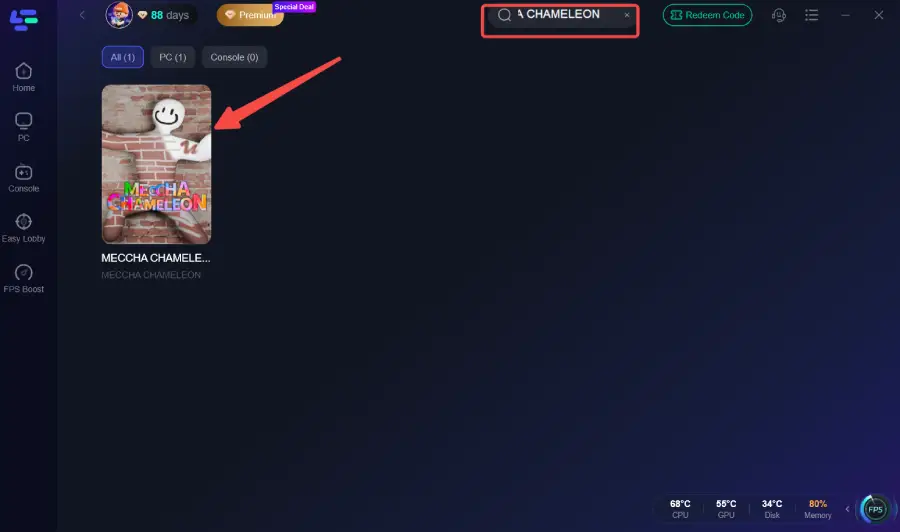
Step 2: Open LagoFast, then click the PC button on the left, search for Meccha Chameleon in the search bar, and click it after it appears.
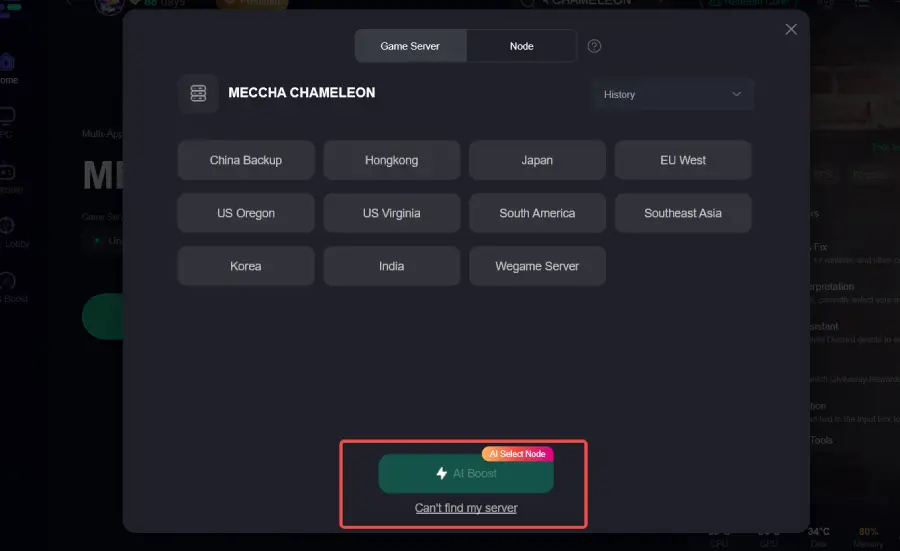
Step 3: Click on “Server” to change to a better server that ensures a better gaming experience, then click on “Smart Boost” to fix Meccha Chameleon common errors.
Step 4: Check the specific game ping, packet loss, and multiple path connections on the right side. Finally, click “Start Game” to play the game.
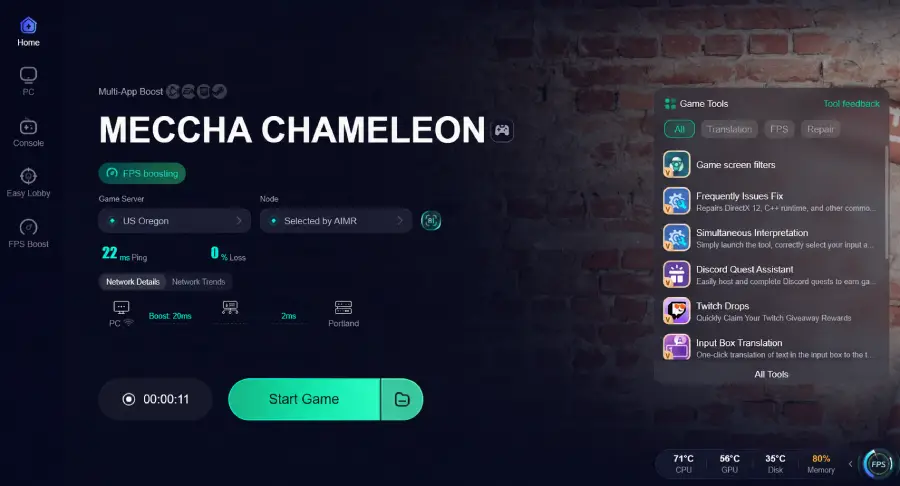
This is especially useful for Meccha Chameleon Multiplayer Guide users who frequently experience Meccha Chameleon Lobby Not Showing Up issues caused by unstable connections.
Part 8: FAQ
Q1: What is the maximum player count in Meccha Chameleon?
A: While the game technically supports up to 24 players in a server, the developers often recommend keeping the player count at 13 or fewer for the best and most balanced gameplay experience.
Q2: Can I play Meccha Chameleon solo?
A: Meccha Chameleon is primarily designed as a multiplayer game. While you can technically start a lobby alone, the core gameplay loop of hide-and-seek is intended for multiple players. There is no dedicated single-player campaign or AI opponents to fill out a lobby.
Q3: How do I report a disruptive player in Meccha Chameleon?
A: If Meccha Chameleon has an in-game reporting system, you should use that. Otherwise, you can utilize the reporting features of the platform you are playing on (e.g., Steam's report player function) to report users who violate community guidelines or are disruptive.
Q4: Is Meccha Chameleon free-to-play?
A: Meccha Chameleon is a paid title available on Steam. It is not a free-to-play game, though it may offer free weekends or demos occasionally. Always check the Steam store page for the most current pricing information.
Q5: What are the minimum system requirements for Meccha Chameleon?
A: While specific requirements can vary, generally, Meccha Chameleon is designed to be accessible. You would typically need a modern operating system (Windows 10/11), a decent dual-core processor, at least 8GB of RAM, and a graphics card with DirectX 11 support. Always refer to the game's Steam store page for the most accurate and up-to-date system requirements.
Conclusion: Meccha Chameleon Multiplayer Guide Summary
Understanding Meccha Chameleon Multiplayer systems is key to fully enjoying the game. Whether you are setting up Meccha Chameleon Private Room sessions, trying to Meccha Chameleon Play With Friends, or troubleshooting Meccha Chameleon Lobby Not Showing Up errors, most issues can be resolved through correct setup and synchronization.
While Meccha Chameleon Invite Steam Friends remains the fastest method for joining matches, server browser tools and proper network configuration also play important roles. With no Meccha Chameleon Crossplay support currently available, all gameplay stays within the Steam ecosystem, including Meccha Chameleon Steam Deck users.
For players seeking smoother performance, tools like LagoFast Game Booster can help stabilize connections and reduce lag, ensuring a more consistent multiplayer experience overall.

Boost Your Game with LagoFast for Epic Speed
Play harder, faster. LagoFast game booster eliminates stutter and lags on PC, mobile, or Mac—win every match!
Quickly Reduce Game Lag and Ping!
Boost FPS for Smoother Gameplay!