
Quick Answer
To resolve the “Failed Due To Invalid Or Missing Authentication Token” issue in MECCHA CHAMELEON, you should first verify that your Steam and Epic Games accounts are correctly linked. After that, access the local installation files, locate PenguinHotel.exe, open its Compatibility settings, and disable “Run this program as an administrator” while enabling “Disable fullscreen optimizations.” You can also improve stability by adding launch parameters such as -dx11 or -dx12 in Steam, and resetting network proxy settings using the command netsh winhttp reset proxy.
This error is not a simple login bug. It usually reflects a breakdown in authentication communication between Steam, Epic Online Services (EOS), and the game client. The following sections explain the issue in depth and provide step-by-step fixes without skipping any essential detail.

- ✅Less ping and crashes.
- ✅ Higher FPS and better performance.
- ✅ Support for 8000+ games.
- ✅ Stable connection and region switching.
Part 1: MECCHA CHAMELEON Failed Due to Invalid or Missing Authentication Token Fix
Part 2: Understanding the MECCHA CHAMELEON Authentication Token Error
Part 3: Resolving MECCHA CHAMELEON Login Error: The Steam-Epic Account Link
Part 4: Technical Tweaks: PenguinHotel.exe Compatibility and Launch Options
Part 5: Fixing MECCHA CHAMELEON Connection Errors: Proxy and Network Resets
Part 6: How to Enhance Your Game Experience with LagoFast Game Booster
Part 1: MECCHA CHAMELEON Authentication Token Failure and Login Error Fix
Understanding the “Failed Due To Invalid Or Missing Authentication Token” Issue
For many players, MECCHA CHAMELEON suddenly stops at login with an authentication error that prevents access to the game. This happens when the game client fails to validate your identity through Epic Online Services. Without a valid token, the system cannot confirm your access rights, and the login process is blocked immediately.
This issue is more complex than a normal connection drop. It involves a multi-platform handshake between Steam, Epic Games services, and backend authentication servers. If any part of this process fails, the token becomes invalid or is never generated.
As a result, players are often stuck at a “failed to login” screen while the game cannot proceed past authentication.
Why the Authentication System Breaks in MECCHA CHAMELEON
The game depends heavily on external authentication systems, which makes it more sensitive to configuration issues. The most common causes include:
- Launcher communication failure: Steam and Epic services fail to sync properly during startup.
- Incorrect launch behavior: Starting the executable directly instead of launching through Steam can skip required authentication steps.
- System-level interference: Windows permission settings or administrator privileges may block token verification.
- Network instability: Weak connections or proxy interference may interrupt authentication requests before completion.
Understanding these causes is important because each one requires a different type of fix, which is covered in later sections.
Related Article: Meccha Chameleon Not Working? Fix Crashing, Paint Bug, and Login Errors
Part 2: MECCHA CHAMELEON Authentication System Explained and Root Causes
How Epic Online Services (EOS) Handles Login Authentication
MECCHA CHAMELEON uses Epic Online Services for multiplayer access, social features, and identity verification. Even when purchased on Steam, the game still requires Epic authentication tokens to function.
These tokens act as temporary security credentials that validate your access to the game servers. They are generated at launch and expire quickly, which means any interruption during generation or transfer can lead to login failure.
Main Reasons Behind Invalid or Missing Tokens
Several technical factors can trigger this error:
- Launcher desynchronization: Steam and Epic services fail to communicate during startup.
- Incorrect execution path: Running PenguinHotel.exe directly bypasses authentication hooks.
- Windows permission conflicts: Administrator mode can restrict token access between services.
- Network disruption: Proxy settings, VPN interference, or unstable connections may corrupt authentication requests.
These problems often appear together, making troubleshooting more difficult without a structured approach.
Related Guide: Meccha Chameleon Beginner Guide: Ultimate Painting, Hiding & Seeker Tips
Part 3: Fixing MECCHA CHAMELEON Steam and Epic Account Linking Issue
Checking Your Steam–Epic Account Connection
A broken account link is one of the most frequent causes of login failure. Since EOS verifies ownership through linked accounts, even a minor mismatch can block authentication entirely.
To verify the connection, log into your Epic Games account and navigate to the account settings area where connected applications are displayed. Confirm that Steam appears in the linked accounts list.
Relinking Accounts to Refresh Authentication
If the link already exists but the error persists, unlinking and relinking the Steam account can reset stale authentication tokens. This forces a fresh handshake between platforms and often resolves persistent login loops.
Ensuring Epic Games Services Are Updated
Even if you primarily use Steam, the Epic Games Launcher must remain updated. Outdated background services can prevent proper token generation. Launch the Epic Games client and allow all updates to complete before retrying the game.
Handling Missing EOS Overlay Prompts
Sometimes the authentication overlay does not appear during launch, preventing account verification. Restarting the game through Steam typically triggers this prompt again and restores the correct login flow.
A stable account link significantly reduces authentication failures and is one of the most important steps in resolving this issue.
Part 4: MECCHA CHAMELEON PenguinHotel.exe Fix and Launch Options Optimization
Adjusting Windows Compatibility Settings for Stability
If account linking does not resolve the issue, the problem may be caused by system-level execution conflicts involving PenguinHotel.exe.
Follow these adjustments:
- Navigate to the Steam library and open the local installation folder.
- Locate PenguinHotel.exe and open Properties.
- In the Compatibility tab, disable “Run this program as an administrator.”
- Enable “Disable fullscreen optimizations.”
- Apply changes and restart the game.
Although administrator mode seems helpful, it can actually block authentication token access between Steam and EOS services.
Using Steam Launch Options for Better Performance
Launch settings can also influence backend communication stability.
In Steam properties, locate Launch Options and add:
-dx11
Alternatively, -dx12 may be used on newer systems, but -dx11 is generally more stable for troubleshooting authentication issues.
These settings adjust how the game interacts with your graphics API, which can indirectly improve authentication consistency.
Part 5: MECCHA CHAMELEON Connection Errors, Proxy Reset, and Network Fixes
Resetting Windows Proxy Settings
Network configuration issues are another major cause of authentication failure. Residual proxy or VPN settings can block token requests.
Open Command Prompt as administrator and execute:
netsh winhttp reset proxy
This ensures that no hidden proxy routes interfere with game traffic.
Flushing DNS to Fix Server Routing Issues
Old or corrupted DNS data may direct authentication requests incorrectly. Running:
ipconfig /flushdns
clears outdated routing information and restores correct server resolution.
Preventing Bandwidth Conflicts and Security Blocks
Heavy downloads or background applications can delay authentication requests. Additionally, firewalls or antivirus tools may block outbound verification traffic.
Ensure that MECCHA CHAMELEON and its related executables are fully whitelisted in your security software.
These network adjustments help eliminate “meccha chameleon connection error fix” scenarios that stem from routing or interference problems.
Part 6: Improving MECCHA CHAMELEON Stability with Game Booster Tools
Why Network Stability Still Matters After Fixing Login Issues
Even after resolving authentication errors, online gameplay still depends heavily on stable network conditions. High latency or packet loss can cause disconnections or trigger repeated authentication failures.
How Optimization Tools Improve Connection Routing
Game acceleration tools such as LagoFast Game Booster optimize traffic routing by selecting faster server paths and reducing unnecessary network hops. This helps lower ping, reduce jitter, and stabilize connections during gameplay sessions.
Using a Booster Tool for MECCHA CHAMELEON
Step 1: Click the Free Trial button to download and install LagoFast.
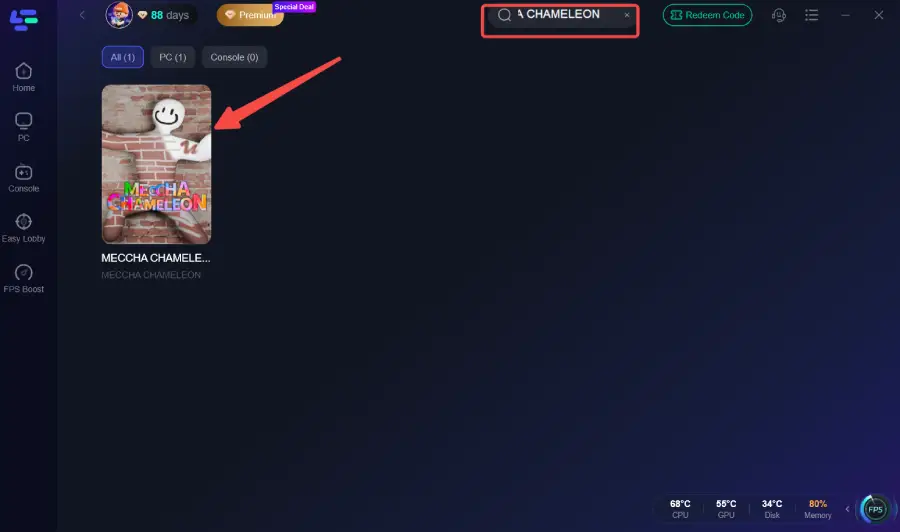
Step 2: Open LagoFast, then click the PC button on the left, search for Meccha Chameleon in the search bar, and click it after it appears.
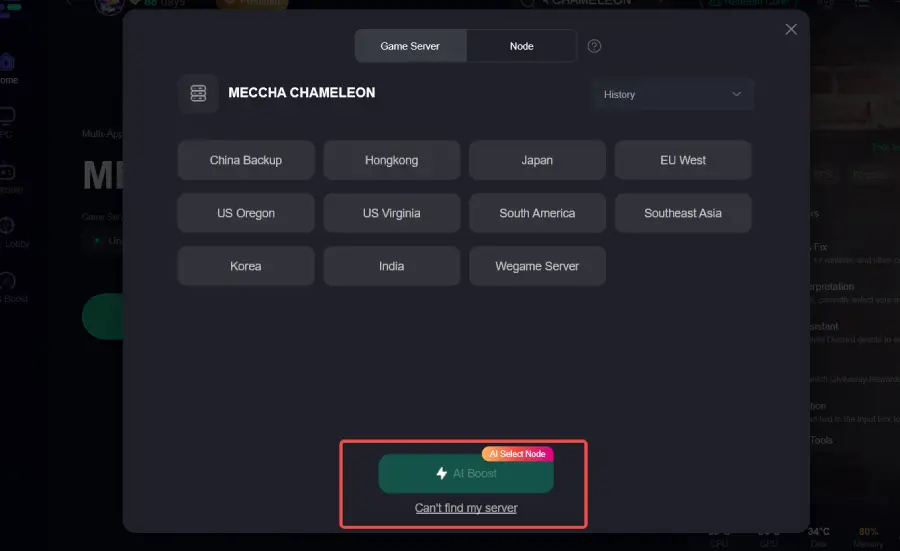
Step 3: Click on “Server” to change to a better server that ensures a better gaming experience, then click on “Smart Boost” to fix Meccha Chameleon common errors.
Step 4: Check the specific game ping, packet loss, and multiple path connections on the right side. Finally, click “Start Game” to play the game.
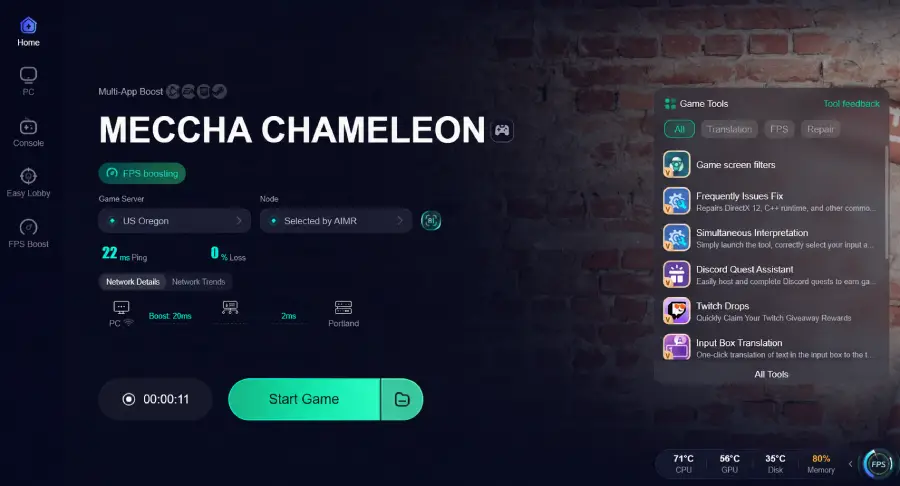
This process improves stability and reduces the likelihood of future authentication interruptions.
Part 7: MECCHA CHAMELEON Authentication Token Error FAQs
Why does the game require an Epic account if I bought it on Steam?
The game uses Epic Online Services for authentication, multiplayer features, and identity management. Steam purchase alone is not sufficient for online verification.
Does relinking accounts delete game progress?
Progress is generally tied to cloud saves and platform accounts. Relinking accounts typically refreshes authentication without affecting saved data.
What if the invalid token error continues?
If the issue persists after all fixes, it may be caused by server-side maintenance or temporary outages. Checking community channels or official updates is recommended.
Does using -dx11 reduce graphics quality?
No. It changes how the game communicates with your GPU rather than lowering visual quality. It is mainly a compatibility and stability adjustment.
Can the game be played offline to avoid this error?
MECCHA CHAMELEON is primarily online-based, and most features require authentication, making offline play extremely limited or unavailable.
Conclusion: Final Fix Summary for MECCHA CHAMELEON Authentication Token Error
Resolving the “Failed Due To Invalid Or Missing Authentication Token” issue in MECCHA CHAMELEON requires addressing multiple layers of the system. The most effective approach is to ensure Steam and Epic accounts are properly linked, adjust PenguinHotel.exe compatibility settings, and stabilize network routing through proxy resets and DNS flushing.
When combined with optimized launch options and stable connectivity practices, these steps eliminate the majority of login and authentication failures. The key point is that this error is rarely caused by a single issue—it is usually the result of account synchronization, system permissions, and network stability working against each other at the same time.

Boost Your Game with LagoFast for Epic Speed
Play harder, faster. LagoFast game booster eliminates stutter and lags on PC, mobile, or Mac—win every match!
Quickly Reduce Game Lag and Ping!
Boost FPS for Smoother Gameplay!