
Fortnite download time depends on your file size, real download speed, Epic Games Launcher status, and how fast your PC can install or verify files. Even with a fast internet plan, Fortnite may update slowly if the launcher is limited, the CDN route is unstable, or your disk is busy writing data.
To make Fortnite update faster, first remove the Epic Games Launcher speed limit, use Ethernet, clear the launcher cache, and check whether the game is downloading, installing, or verifying. LagoFast can also help stabilize your network connection when Fortnite downloads fluctuate because of unstable routing, cross-region CDN paths, or connection interruptions.

- ✅ Reduce Lag and High Ping
- ✅ Boost FPS in Real Time
- ✅ Get the Easiest Server in Fortnite
- ✅ End All Connection Login Issues.
- ✅ Support 8000+ Online Games.
- ✅ Multiplatform: PC, Mobile, Console
Part 1: How Long Does Fortnite Take to Download
The time it takes to download Fortnite depends on several factors, including your internet speed, the size of the game or update, and the performance of your PC. On average, with a stable internet connection of around 50 Mbps, downloading Fortnite can take approximately 30 minutes to an hour. However, slower connections or larger updates may extend this time significantly.
Estimated time = file size ÷ actual download speed. Internet plans are usually shown in Mbps, while launchers often show MB/s. Divide Mbps by 8 to estimate MB/s. For example, 100Mbps is about 12.5MB/s before normal overhead.
The table below uses ideal network speed. Real download time can be 10-30% longer because Epic Games Launcher may pause to install, verify, decompress, or write files to disk.
|
Fortnite File Size |
50Mbps |
100Mbps |
500Mbps |
|
10GB |
About 26 min 40 sec |
About 13 min 20 sec |
About 2 min 40 sec |
|
30GB |
About 1 hr 20 min |
About 40 min |
About 8 min |
|
60GB |
About 2 hr 40 min |
About 1 hr 20 min |
About 16 min |
Fortnite updates are not always a full reinstall. A small patch can still take a long time if it has to modify, install, and verify a large number of local game files.
Part 2: Why is Fortnite Updating & Downloading so slowly on the Epic Games Launcher
A slow Fortnite update does not always mean your internet is bad. The cause is usually one of the following:
- Epic server or CDN congestion: When a major Fortnite update launches, many players download at the same time. Epic servers or regional CDN nodes may become slower than usual.
- Download speed limit is enabled: If Limit Download Speeds is turned on, Epic Games Launcher may cap Fortnite downloads even when your internet connection is faster.
- Launcher cache problems: Cache issues can make the launcher behave inconsistently, especially after failed downloads or repeated pauses.
- Slow disk writing or limited free storage: Fortnite updates often download chunks, unpack files, write them to disk, and verify them. A slow HDD can make the whole update feel slow.
- Unstable Wi-Fi: Weak Wi-Fi signal, crowded channels, or packet loss can cause speed spikes, drops, or repeated 0 B/s pauses.
- DNS, proxy, firewall, or antivirus interference: Connection filtering can slow down or block the launcher from reaching Epic services cleanly.
- Background downloads: Other apps may use bandwidth or disk resources, making Fortnite downloads and installs slower.
- Large seasonal updates: Big Fortnite updates can include new assets, map changes, events, textures, and file verification. These can take longer even if the shown patch size looks manageable.
Part 3: Best Solution to Make Fortnite Download Faster on PC
If you find that Fortnite is taking too long to download, you can choose LagoFast with 100% confidence. LagoFast is a powerful game booster with various functions for video games players. It can boost Epic Store and stabilize your network connection so that you can download Fortnite faster on PC. Here are some key benefits more detailed of using LagoFast to make your Fortnite downloads faster:
Benefits of Using LagoFast for Fortnite Download on PC
1. Optimized Bandwidth Allocation
LagoFast intelligently allocates bandwidth to ensure that your internet connection is used efficiently. By prioritizing the download of Fortnite, LagoFast minimizes the bandwidth used by other applications and background processes, resulting in a faster and more stable download speed.
2. Reduced Latency
Latency can significantly impact your gaming experience, especially during downloads. LagoFast reduces latency by optimizing your connection routes and ensuring that data packets are transmitted more quickly and reliably. This means not only faster downloads, but also smoother gameplay once you’re in the game.
3. Enhanced Connection Stability
One of the main issues that can slow down downloads is an unstable internet connection. LagoFast works by stabilizing your connection, reducing packet loss, and ensuring a more consistent download speed. This leads to fewer interruptions and a more reliable downloading process.
Quick Steps to Boost the Download Speed of Fortnite by Using LagoFast
Step 1: Click on Free Trial to download.
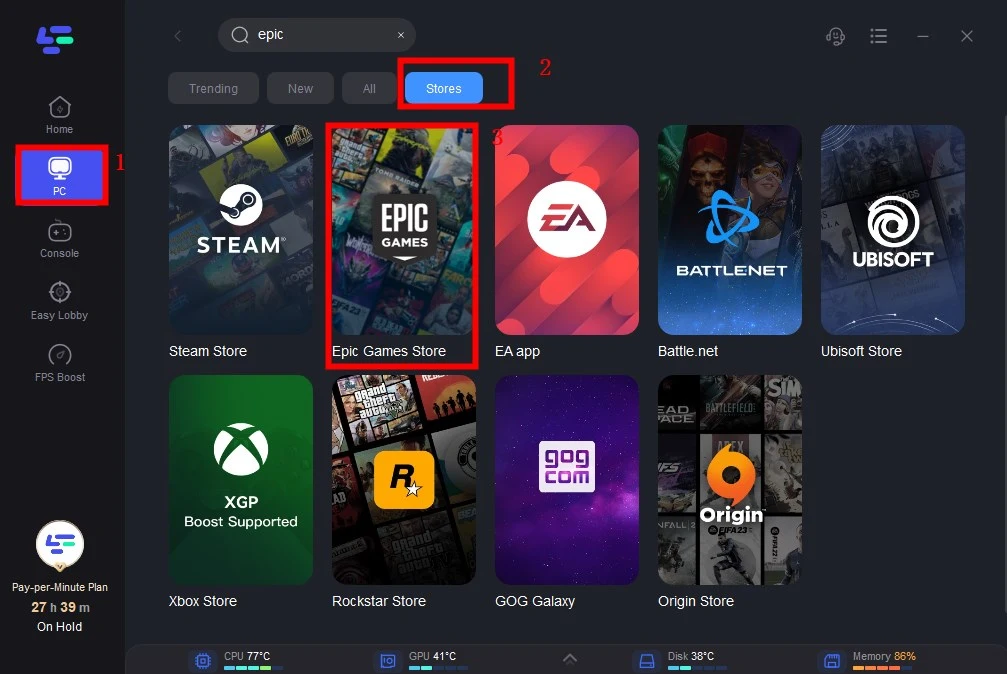
Step 2: Before launching the game, you can search for Epic Games in LagoFast.
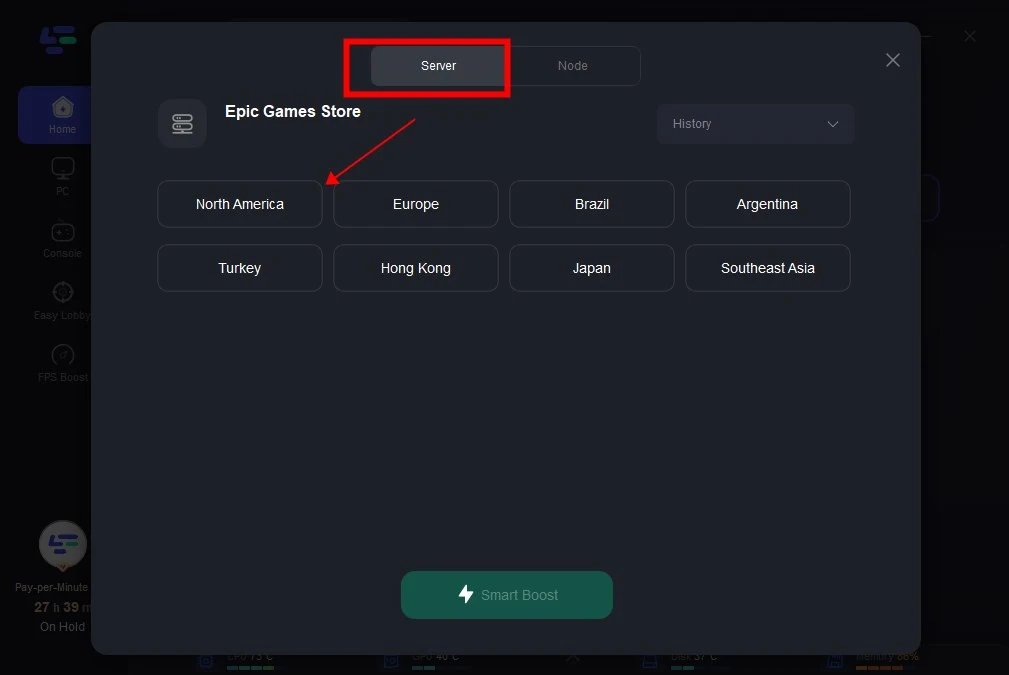
Step 3: Click on “Select Server” so you can choose stable servers, then click on the “Node” on the right to choose the best Node.
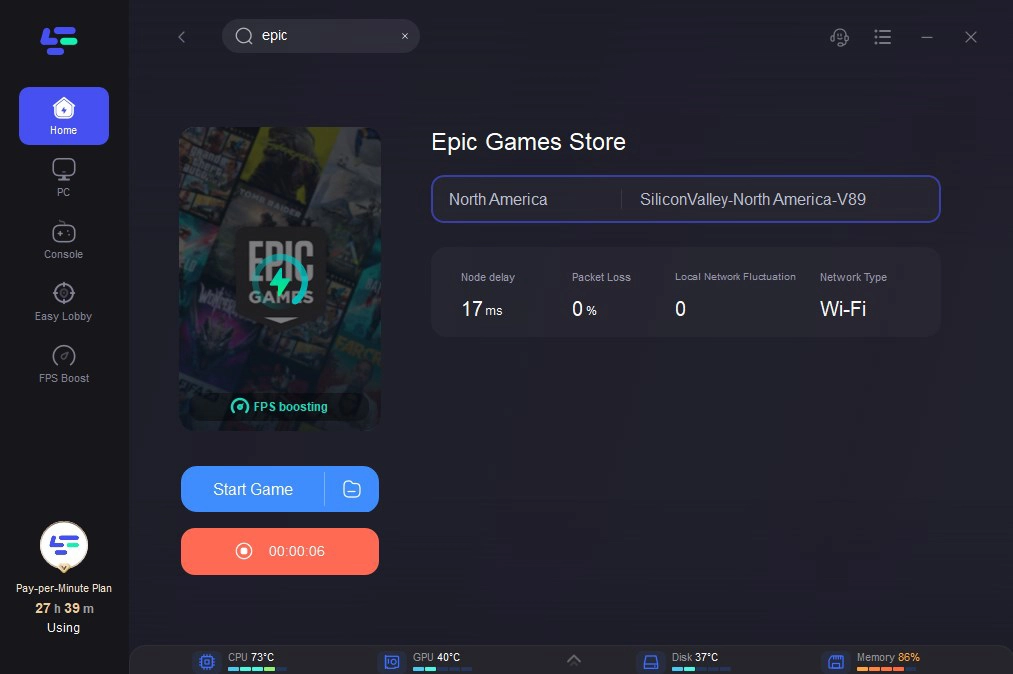
Step 4: By clicking the “Smart Boost” button, you can see the specific game ping, packet loss, and network type on the right side. Now, the download speed of Fortnite is accelerated. Enjoy your game!
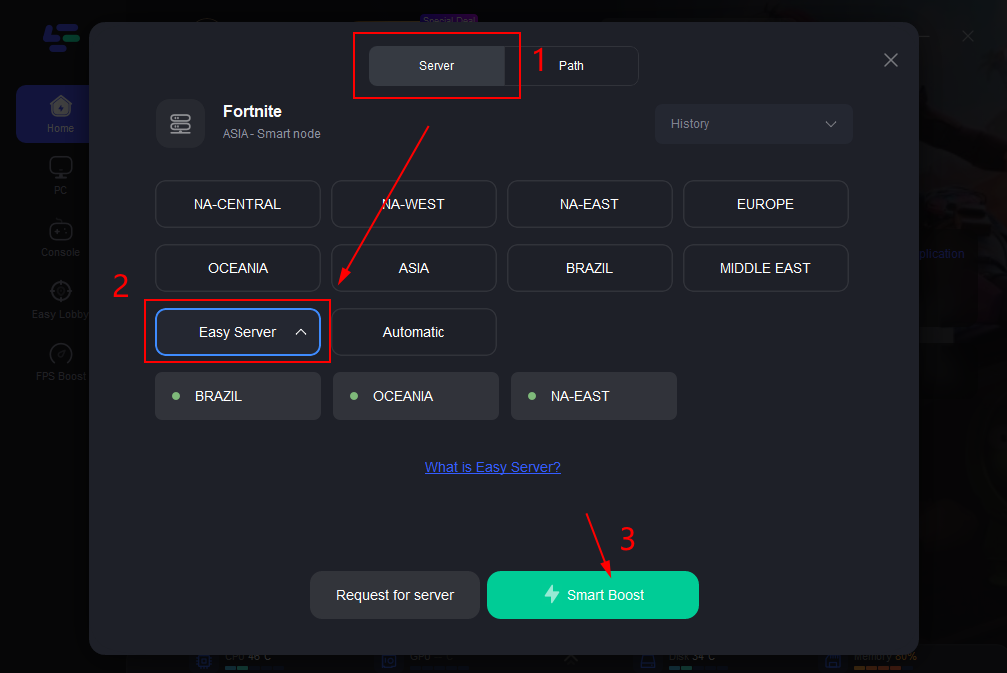
Moreover, LagoFast reduces lag and high ping for video game while boosting FPS. With global servers coverage, players can switch server region smoothly so that they can play with players from different countries or those with different gameplay levels. You can follow the same steps to Boost Fortnite in LagoFast to ensure your seamless gameplay without lag. What more important is that LagoFast offers easy server function for Fortnite and Apex players, which allows them to play in low K/D rate server to get kill and victories more easily and collect game props.
You just need to choose "Easy Server" on this page while you are selecting servers.
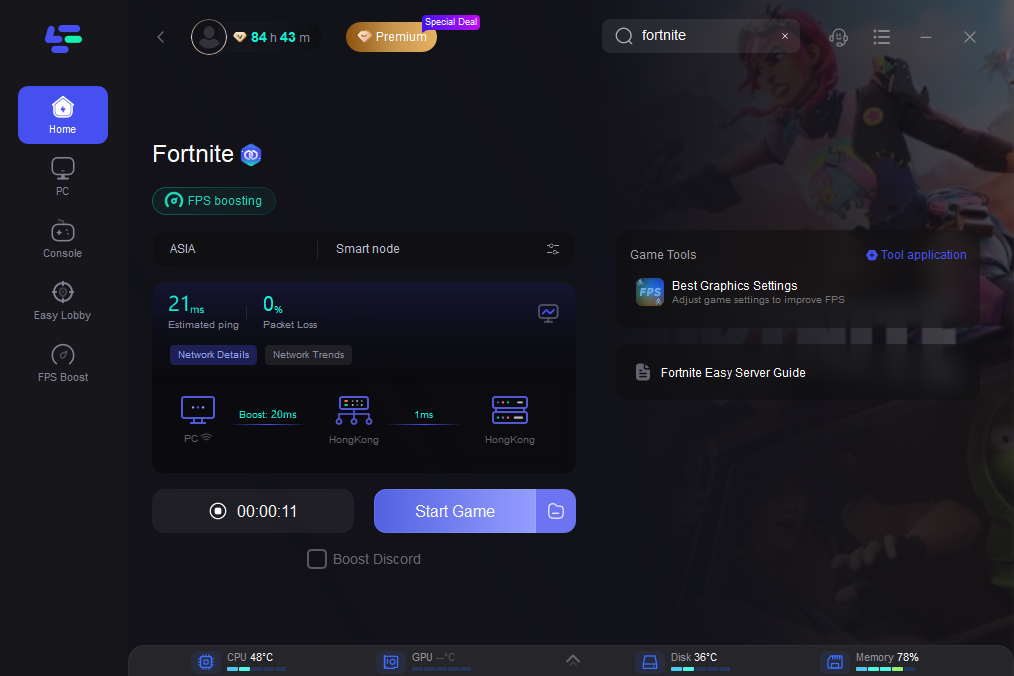
After this easy click, the LagoFast game booster will improve your game internet connection, decrease Fortnite's high ping, and reduce lag issues in the background. While you are playing the game, you can see the accurate ping test result. And in addition, LagoFast could also provide you with many other tests, like packet loss and local network fluctuation.
Or if you want to enjoy low K/D games in Fortnite, we recommend: NA-EAST、Brazil、Oceania、Middle East.
Part 4. Other Methods to Speed Up Fortnite Downloads
Aside from using LagoFast, there are several other methods you can try to boost your Fortnite download speed:
1. Check Your Internet Connection
Ensure that you have a stable and fast internet connection. You can use online tools to test your internet speed. If your connection is slow, consider restarting your router or contacting your ISP for support.
2. Close Background Applications
Close any unnecessary applications running in the background on your PC. Applications that consume bandwidth, such as streaming services or large file downloads, can significantly slow down your Fortnite download.
3. Pause Other Downloads
If you are downloading other files or updates simultaneously, pause them to allocate more bandwidth to Fortnite.
4. Update Network Drivers
Ensure your network drivers are up to date. Outdated drivers can affect your download speed. Visit your PC manufacturer's website to download the latest network drivers.
5. Use a Wired Connection
If you’re using Wi-Fi, switch to a wired Ethernet connection. Wired connections tend to be more stable and faster, reducing download times.
6. Change DNS Settings
Try changing the DNS server in your PC to the Google Public DNS addresses to see if Netflix lagging issue can be resolved. Here is how to do it:
- Press the Windows + R at the same time to open the Run box.
- Type control and press Enter to open the Control Panel.
- View the Control Panel by Category. Click View network status and tasks.
- In the pop-up window, click Change adapter settings.
- Right-click your current network and then select Properties.
- Double-click Internet Protocol Version 4(TCP/IPv4) to view its properties.
- Select Obtain an IP address automatically and Use the following DNS server addresses.
For the Preferred DNS server, enter the Google Public DNS address: 8.8.8.8
For the Alternative DNS server, enter the Google Public DNS address: 8.8.4.4
- Then click OK to save the changes.
- Restart your PC and try downloading Fortnite again.
7. Try IP Configuration
Sometimes your download speed is slow because the IP configuration is incorrect, so you can update the IP address in your computer by following the instructions below.
- Press Windows + R to invoke the Run box.
- Type cmd and click OK to open the Command Prompt.
- In the Command Prompt, enter the following commands and press Enter after each one.
ipconfig /release
ipconfig /flushdns
ipconfig /renew

- Once finished, exit the Command Prompt.
- Restart your computer and try the download again and see if it works.
Bonus Tips: Fix Epic Games Launcher Download Speed Limit
Before changing advanced network settings, check Epic Games Launcher download throttling. This is the most direct launcher-side fix.
- Open Epic Games Launcher.
- Click your Profile icon in the top-right corner.
- Select Settings.
- Scroll to Download Settings.
- Uncheck Limit Download Speeds.
- Restart Epic Games Launcher.
- Try downloading or updating Fortnite again.
Note: If the limit was already off, do not keep changing random throttle values. Move to network stability, cache, DNS, and disk checks instead.
Advanced Tips: Fortnite Slow Download Troubleshooting Table
|
Symptom |
Likely Cause |
Best Fix |
How to Verify |
|
Epic shows 0 B/s |
Disk write/verify pause, unstable connection, launcher cache, or CDN interruption |
Check Task Manager. If disk is active, wait. If disk and network are idle, restart launcher, clear cache, and check connection. |
Network/Disk columns show whether anything is still working. |
|
Speed goes up and down |
Wi-Fi instability, CDN route fluctuation, background traffic, or Epic server load |
Use Ethernet, pause other downloads, restart router, test at another time, or test a routing tool. |
Compare Epic speed with a speed test and another launcher download. |
|
Stuck on verifying |
Large file verification, slow disk, antivirus scanning, or corrupted files |
Wait if disk is active. Free storage, close heavy apps, temporarily review antivirus behavior, then restart launcher if fully stuck. |
Task Manager shows high disk usage even when network is low. |
|
Only Fortnite is slow |
Fortnite patch size/install process, Epic CDN, or local Fortnite file verification |
Check Epic status, wait during major updates, verify cache/storage, and compare with another Epic game. |
Steam or browser downloads may be normal while Epic/Fortnite is slow. |
|
All downloads are slow |
ISP issue, router/Wi-Fi problem, VPN/proxy/firewall issue, or device-wide bandwidth usage |
Restart router, use Ethernet, disable proxy/VPN, pause background apps, test another device or network. |
Speed tests and downloads outside Epic are also slow. |
FAQ
How long does Fortnite take to download?
It depends on file size and real download speed. A 30GB download takes about 40 minutes on 100Mbps under ideal conditions, but installs and verification can make the total time longer.
Why is Fortnite updating so slowly on Epic Games Launcher?
Common causes include Epic CDN congestion, download speed limits, cache issues, slow disk writing, weak Wi-Fi, DNS problems, firewall/proxy interference, background downloads, and large seasonal updates.
How do I make Fortnite update faster?
Start by turning off Epic Games Launcher download speed limits, restarting the launcher, using Ethernet, pausing other downloads, clearing cache, checking disk activity, and troubleshooting DNS/firewall/proxy issues.
Why does Epic Games Launcher show 0 B/s when updating Fortnite?
0 B/s can mean the download is stalled, but it can also happen while Epic is writing or verifying files. Check Task Manager: if disk activity is high, the launcher may still be working.
Does LagoFast make Fortnite updates faster?
LagoFast may help if the problem is unstable routing, CDN connection fluctuation, or repeated connection drops. It will not directly fix slow disk writing, local verification, low storage, or Epic server maintenance.
Conclusion
Understanding why Fortnite takes a long time to download and implementing the above methods can significantly reduce your waiting time. Using tools like LagoFast, optimizing your internet connection, and ensuring your PC is performing at its best are key steps to make Fortnite download faster on your PC.

Boost Your Game with LagoFast for Epic Speed
Play harder, faster. LagoFast game booster eliminates stutter and lags on PC, mobile, or Mac—win every match!
Quickly Reduce Game Lag and Ping!
Boost FPS for Smoother Gameplay!