
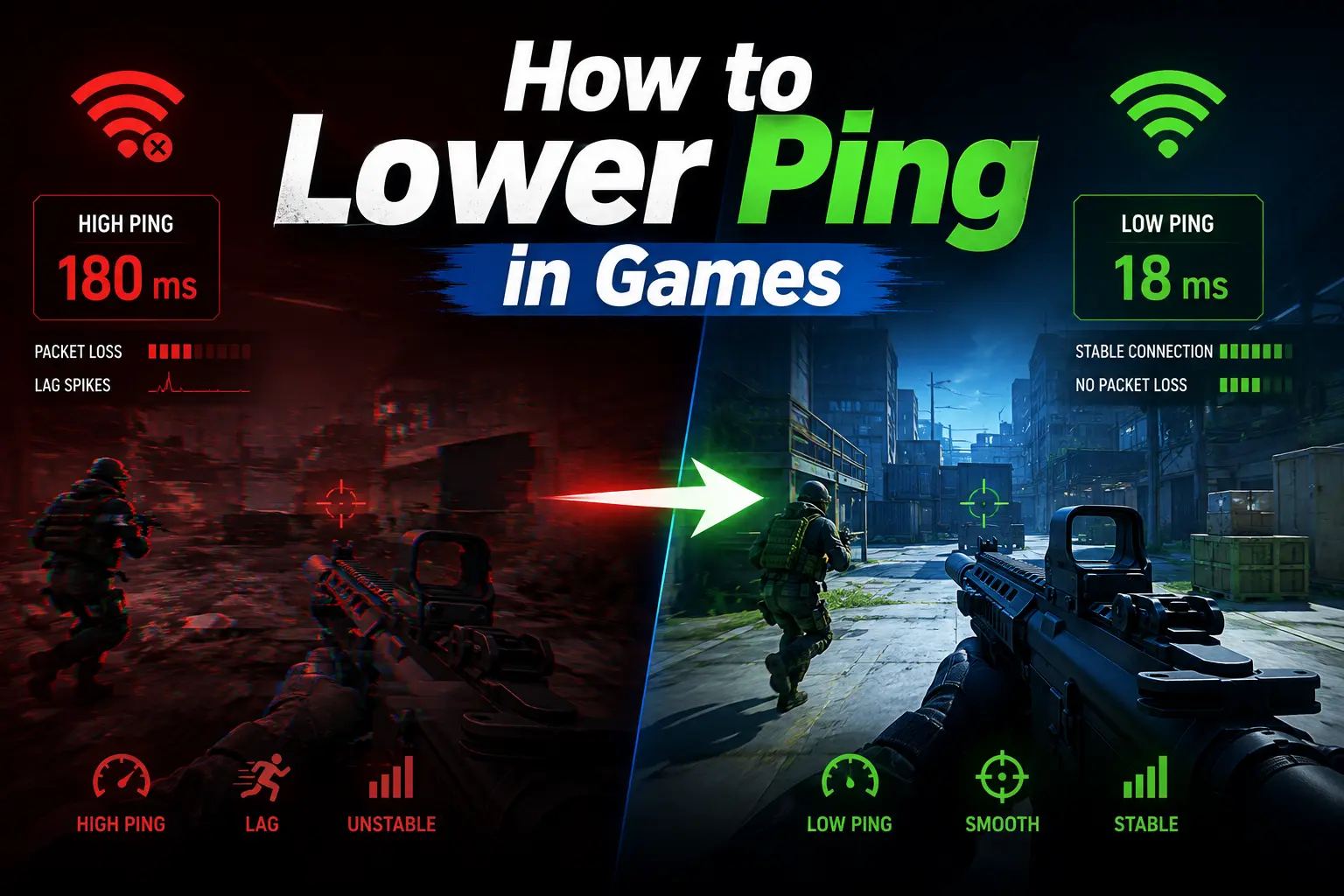
High ping can cause delayed actions, rubberbanding, and unstable gameplay. If you're wondering how to lower ping, you don't necessarily need to upgrade your internet plan. In many cases, optimizing your network, router, or game connection is enough to reduce latency.
This guide shares 12 proven ways to reduce ping, including quick fixes, network optimization tips, and game route improvements to help you achieve a faster, more stable connection.
Quick Guide
Part 1. Quick Ways to Lower Ping (Checklist)
Part 2. Test Your Ping Before Making Any Changes
Part 3. 12 Proven Fixes to Lower Ping in Game
Part 4. Optimize Game Route with LagoFast to Reduce Ping Instantly
Part 5. Which Ping Fix Works Best for Your Situation?
Part 6. Common Myths About High Ping
Part 7. FAQ on Getting Less Ping for Gamers
Quick Ways to Lower Ping (Checklist)
Before changing your router settings or contacting your ISP, try these quick fixes for bad ping first. Most players can complete them in just a few minutes, and they're often enough to reduce latency caused by local network issues or background traffic.
- Switch to an Ethernet connection instead of Wi-Fi.
- Close background downloads and streaming apps that use your bandwidth.
- Choose the nearest game server whenever possible.
- Restart your router to refresh your network connection.
Test your ping again. If these quick fixes don't improve your latency, continue with the detailed solutions below to find the real bottleneck.
Test Your Ping Before Making Any Changes
Testing your ping before and after each fix makes it much easier to identify what's actually working instead of changing multiple settings at once.
You can test your ping in three simple ways:
- Check your in-game ping. Most online games display real-time latency in the network or performance settings.
- Run a ping test. Use the Command Prompt (ping) or an online ping test to measure your network latency.
- Monitor your ping while gaming. Tools like LagoFast let you view your ping, packet loss, and FPS in real time, making it easier to spot connection issues.
Not sure whether your latency is considered high? Check our What Is Good Ping for Gaming guide.
12 Proven Fixes to Lower Ping in Game
If optimizing your game route isn't enough and you're wondering how to get lower ping, try the following fixes. Start with the easiest solutions first before moving on to router configuration or ISP-related troubleshooting.
Fix 1. Use Ethernet Instead of Wi-Fi
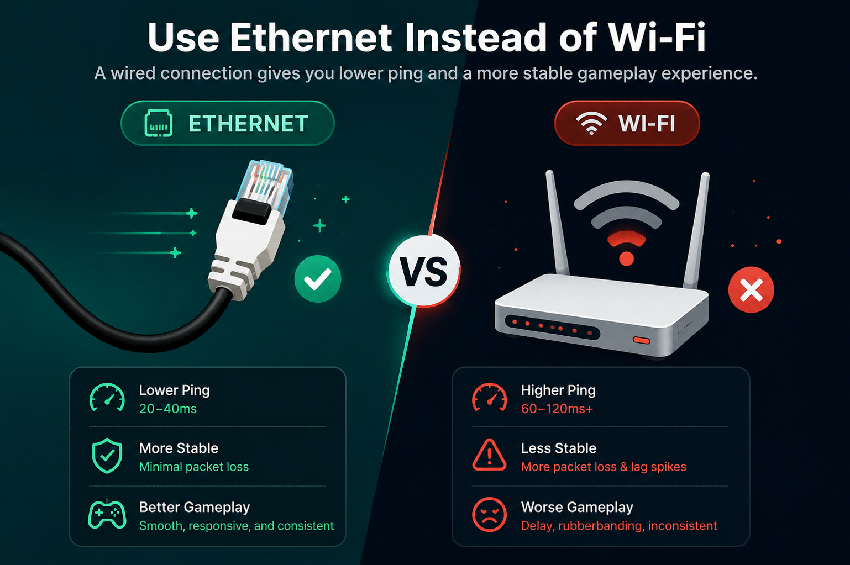
Many players report that their ping looks fine most of the time but suddenly jumps during matches. In gaming forums, switching from Wi-Fi to a wired Ethernet connection is one of the most common fixes for ping spikes because it avoids wireless interference and provides a more stable connection.
What to do:
- Connect your PC or console directly to the router using a Cat5e or Cat6 Ethernet cable.
- If running a cable isn't practical, consider using a powerline adapter for a more stable wired connection.
Fix 2. Close Bandwidth-Hungry Apps
If your game starts lagging while Steam is updating, Windows Update is running, or someone is streaming videos, background traffic may be using your bandwidth. Closing these apps is one of the easiest ways to reduce ping during gameplay.
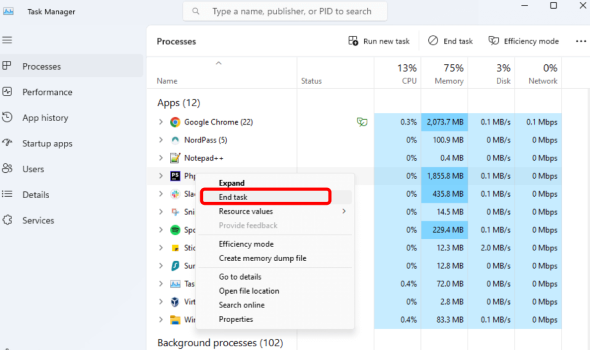
How to decrease ping on PC:
- Step 1: Open the Windows search bar, type "Task Manager," and select the app from the search results.
- Step 2: Navigate to the Processes tab. Here, you can view all running processes and sort them by CPU usage to identify the ones consuming the most resources.
- Step 3: Once you've identified a resource-heavy process, right-click on it and select "End Task" to terminate it.
Fix 3. Connect to the Nearest Game Server
The farther your data travels, the higher your latency. If your game supports multiple regions, selecting the closest server can significantly improve ping optimization.
Quick Fix:
- Open your game's Server or Region settings.
- Select the server with the lowest displayed ping instead of using Auto Select.
Fix 4. Restart Your Router
If your ping suddenly increases after hours of gaming, restarting your router may refresh the connection to your ISP and clear temporary network issues. It's a simple fix that many players try before changing any network settings.
Quick Fix:
- Turn off your modem and router.
- Wait 30–60 seconds before turning them back on.
- Launch your game after the internet connection is fully restored.
Fix 5. Reduce Wi-Fi Interference
Can't use Ethernet? Move closer to your router, switch to the 5 GHz band, and avoid thick walls or crowded wireless channels. Even a strong Wi-Fi signal can introduce extra latency compared with a wired connection.
Quick Fix:
- Switch to the 5 GHz band instead of 2.4 GHz.
- Move closer to your router.
- Keep your router away from walls, metal objects, and other electronics.
Fix 6. Enable QoS or SQM
If your gaming ping becomes unstable whenever someone is watching Netflix or downloading files, enable QoS (Quality of Service) or SQM (Smart Queue Management) on your router. These features prioritize gaming traffic when your network is busy, although they work best only when your bandwidth is actually congested.
Quick Fix:
- Log in to your router's admin page.
- Enable QoS or SQM if available.
- Set your gaming PC or console as a high-priority device.
Fix 7. Reduce Packet Loss and Jitter
High ping often appears alongside packet loss or jitter, leading to rubberbanding, delayed actions, and inconsistent gameplay. So, you can improve your ping in gaming by fixing packet loss.
Quick Fix:
- Pause downloads and streaming.
- Use a wired connection whenever possible.
- Check your network statistics in-game or with a ping test to identify whether packet loss is also occurring.
Fix 8. Update Your Router Firmware
Router manufacturers regularly release firmware updates to improve stability and fix networking bugs. If you haven't updated your router for a long time, installing the latest firmware may improve connection reliability.
Quick Fix:
- Log in to your router's admin page.
- Check for the latest firmware update.
- Install the update and restart the router.
Fix 9. Replace an Old Router
Older routers may struggle to handle multiple devices or newer Wi-Fi standards. While a new router won't magically lower ping, it can eliminate hardware bottlenecks.
Quick Fix:
- Upgrade to a router that supports Wi-Fi 6 or newer.
- If possible, continue gaming over Ethernet for the lowest latency.
Fix 10. Play During Off-Peak Hours
Some players notice that their ping is normal in the morning but much higher at night. This usually points to ISP congestion rather than a problem with your PC or router. Playing during off-peak hours can sometimes improve latency.
Quick Fix:
- Compare your ping during the morning, afternoon, and evening.
- If only peak hours are affected, consider gaming during less congested periods.
Fix 11. Contact Your ISP
If high ping persists across multiple games and devices, the issue may lie with your ISP's routing or local network congestion.
Quick Fix:
- Record your ping test results.
- Tell your ISP which games, servers, and times are affected.
- Ask them to check for routing issues or line faults.
Fix 12. Change or Optimize Your Network Route
Fast internet doesn't always mean low ping. You may get excellent speed test results while still experiencing lag because your ISP takes an inefficient route to the game server. Optimizing the network path can reduce unnecessary hops and improve connection stability, especially for overseas or cross-region gaming.
Quick Fix:
- Test different game regions if available.
- If you frequently play on overseas servers, consider using a gaming route optimizer to improve routing efficiency.
Tip: If high ping is caused by inefficient ISP routing, a game route optimizer (like LagoFast) can automatically find a faster, more stable path to the game server.
Optimize Game Route with LagoFast to Reduce Ping Instantly
If you want the fastest way to lower ping in games, a game route optimizer can help reduce latency caused by poor ISP routing, cross-region connections, or unstable network paths.
LagoFast ping reducer automatically selects a faster and more stable route between your device and the game server, helping reduce ping, packet loss, and connection instability.
Why Use LagoFast?
- Reduce Ping & Packet Loss: Optimize your network route for a faster, more stable connection.
- Real-Time Network Monitoring: Track your ping, packet loss, and FPS while you play.
- Support for 8,000+ Games: Works with popular titles such as Valorant, League of Legends, Fortnite, Roblox, and Call of Duty.
- Console Acceleration via PC: Optimize online games on PlayStation, Xbox, and Nintendo Switch.
Steps to Lower Ping in Game with LagoFast
Step 1. Click the Free Trial to download and install LagoFast on your PC.
Step 2. Search for your game and choose the server. LagoFast supports over 8,000 games; for example, you can get a good ping in Valorant, reduce latency in League of Legends, or lower ping in Roblox.
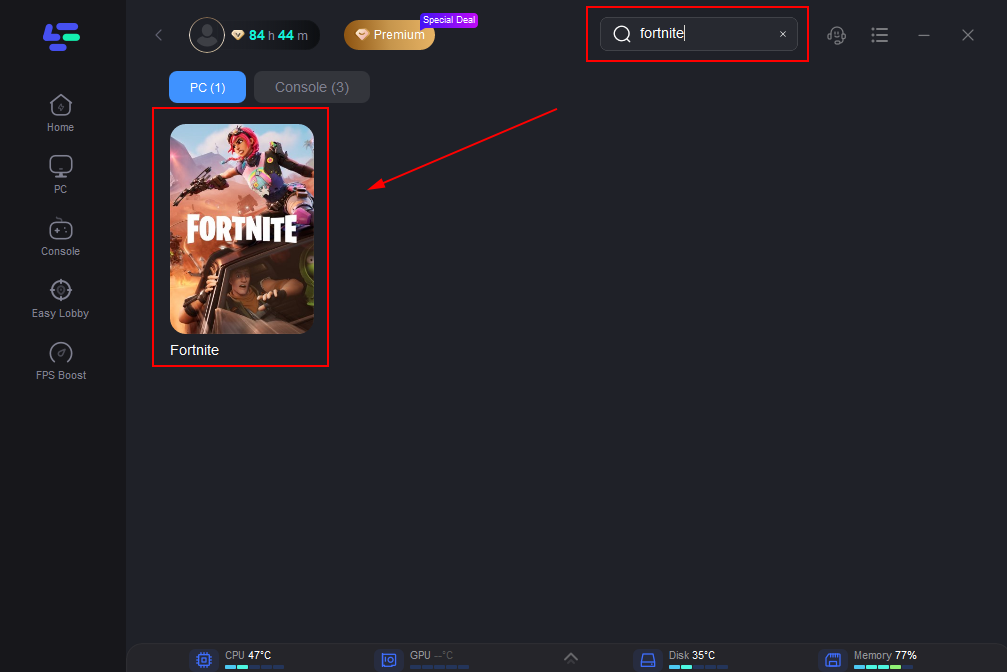
Step 3. From the "Server", select the recommended server for your region. Click "AI Boost" to optimize your game route.
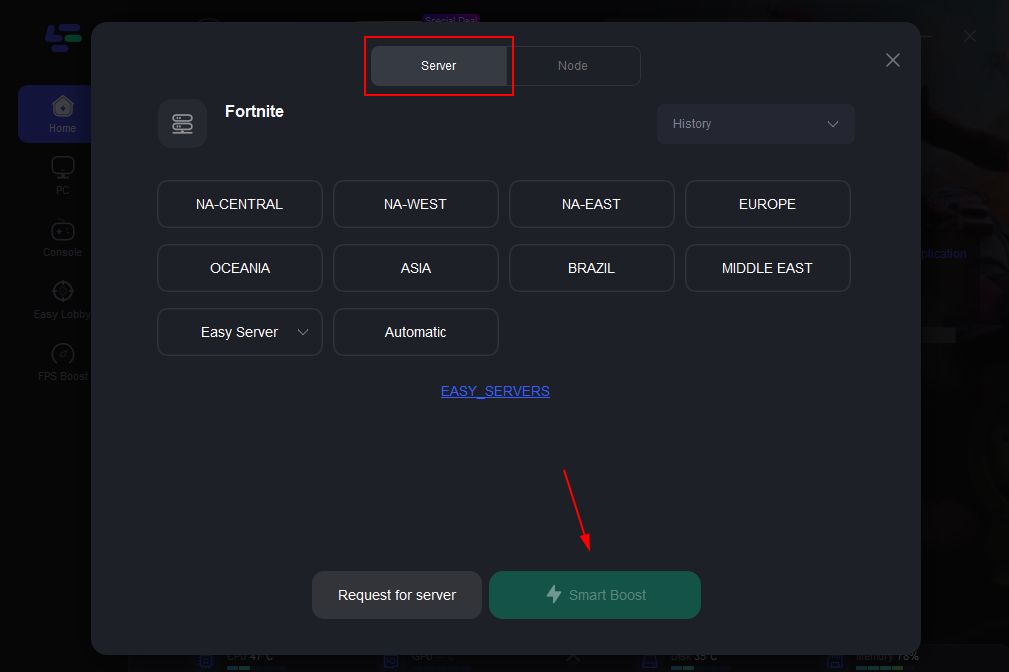
Step 4. Tap the "Smart Boost" to launch the game through LagoFast.
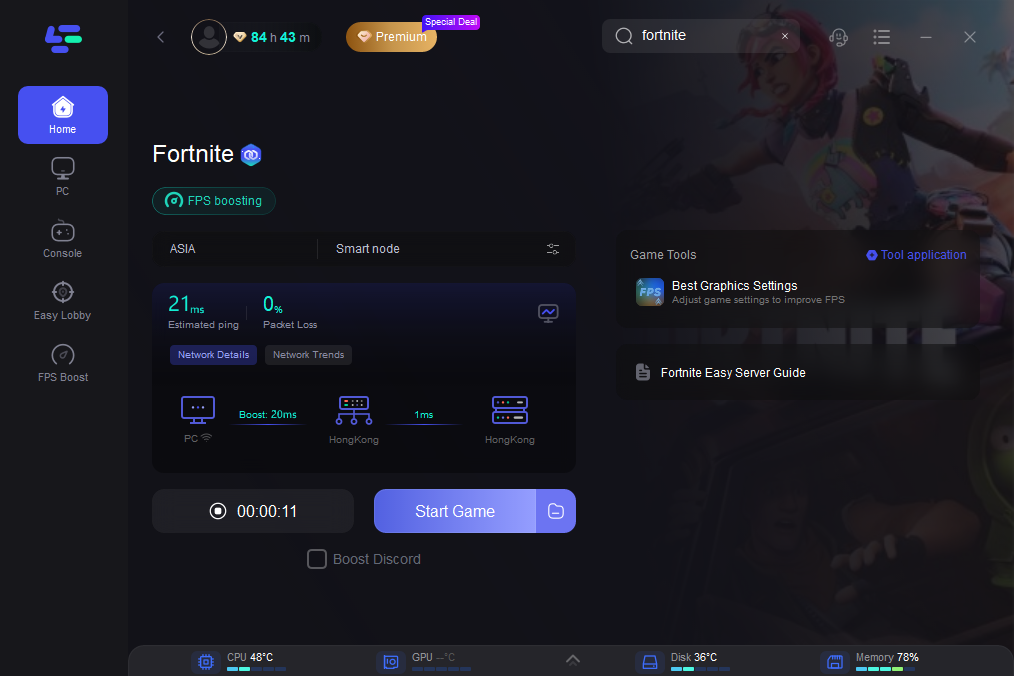
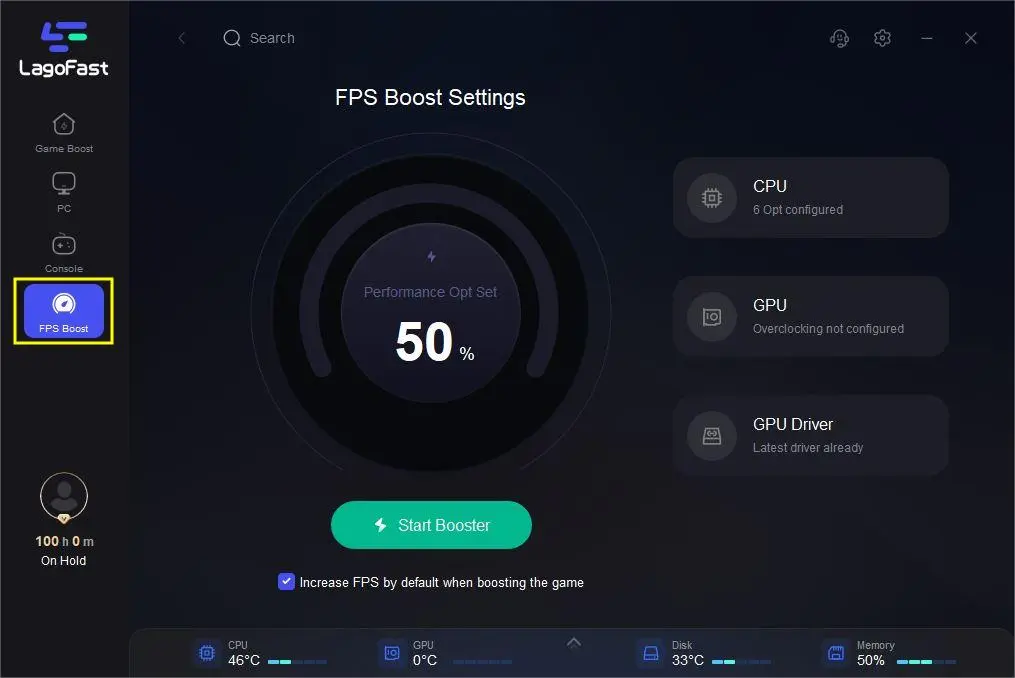
Once your game starts, you can monitor your ping, packet loss, and FPS in real time. If you're also experiencing FPS drops, LagoFast's FPS Booster can help improve frame stability for a smoother gaming experience.
Which Ping Fix Works Best for Your Situation?
Not every ping fix works for every problem. Use the table below to identify the most likely cause of your high ping and start with the solution that's most relevant to your situation.
|
If You Notice... |
Most Likely Cause |
Try This First |
|
Ping spikes only on Wi-Fi |
Wireless interference |
Use Ethernet → Reduce Wi-Fi Interference |
|
High ping while downloading or streaming |
Bandwidth congestion |
Close Background Apps → Enable QoS/SQM |
|
High ping only on one game server |
Server distance or routing |
Connect to the Nearest Server |
|
Ping is much higher at night |
ISP congestion |
Play During Off-Peak Hours → Contact Your ISP |
|
Good internet speed but high ping |
Inefficient ISP routing |
Optimize Your Network Route → LagoFast |
|
High ping with packet loss |
Unstable network connection |
Reduce Packet Loss & Jitter |
Common Myths About High Ping
Many players try to lower ping by following popular tips online, but not all of them actually solve the problem. Here are some of the most common misconceptions.
Mistake 1. Assuming Faster Internet Always Means Lower Ping
A faster internet plan mainly improves download and upload speeds, not latency. In most online games, server distance, network routing, and connection stability have a much greater impact on ping than bandwidth does.
Mistake 2. Treating FPS and Ping as the Same Problem
Low FPS and high ping can both make a game feel sluggish, but they're different issues. FPS affects how smoothly the game renders, while ping affects how quickly your actions reach the game server. Fixing one won't automatically solve the other.
Mistake 3. Closing Every Background App
Not every background process affects gaming performance. Focus on applications that actually use your network bandwidth, such as Steam downloads, cloud sync, Windows Update, or video streaming, instead of closing everything.
Mistake 4. Ignoring Packet Loss and Jitter
Many players blame high ping when the real issue is packet loss or jitter. These problems can cause rubberbanding, delayed hit registration, and teleporting even when your average ping looks normal.
FAQ on Getting Less Ping for Gamers
Does faster internet lower ping?
Not necessarily. A faster internet plan improves bandwidth, but ping mainly depends on server distance, network routing, and connection quality. Unless your current connection is congested, upgrading your speed may have little effect on latency.
Can I lower ping without changing ISP?
Yes. Switching to Ethernet, choosing a closer game server, reducing background traffic, or optimizing your network route can all help lower ping without changing providers.
Why is my ping still high after using Ethernet?
Ethernet eliminates Wi-Fi interference, but it can't fix every cause of high ping. If the game server is far away, your ISP has poor routing, or the server is overloaded, your latency may remain high. Learn more about the causes of why your ping is so high.
What's the fastest way to get good ping?
Start with the simplest fixes: use an Ethernet connection, close background downloads, connect to the nearest game server, and restart your router. If routing is the bottleneck, optimizing your game route may provide additional improvements.
Does having a better rig eliminate bad ping?
No. Upgrading your CPU or GPU can improve FPS, but it won't reduce network latency. Ping is determined by your internet connection, routing, and the distance to the game server, not by your PC's performance.
Conclusion
By following the 12 proven ways about how to lower ping, you can reduce ping, improve ping, and enjoy a more stable gaming connection. If you're still experiencing high ping or ping spikes, especially in cross-region games, LagoFast can help optimize your game route for smoother, lower-latency gameplay.

Boost Your Game with LagoFast for Epic Speed
Play harder, faster. LagoFast game booster eliminates stutter and lags on PC, mobile, or Mac—win every match!
Quickly Reduce Game Lag and Ping!
Boost FPS for Smoother Gameplay!