
Quick Answer:
To fix DLSS not working in Forza Horizon 6, ensure you have updated to the GeForce Game Ready Driver (v596.49 or later), verify that your Hardware-Accelerated GPU Scheduling is enabled in Windows settings, and check if your RTX GPU is correctly detected. If the option is greyed out, a quick restart or a DLSS Override via the NVIDIA App often resolves the issue.
Forza Horizon 6 has finally arrived, bringing the breathtaking landscapes of Japan to our screens with unprecedented graphical fidelity. As a flagship title for NVIDIA's latest hardware, it pushes the boundaries of what’s possible with DLSS 4.5. According to official NVIDIA data, the game supports a full suite of RTX technologies at launch:
- DLSS 4.5 Super Resolution: Available for all RTX users.
- DLSS Multi Frame Generation: Native support for RTX 40 and 50 series.
- Dynamic Multi Frame Generation (up to 6X): Exclusive to RTX 50 series via NVIDIA App override.
- Ray Tracing: Including RT Global Illumination and Reflections.
- NVIDIA Reflex: For ultra-low latency.
NVIDIA claims that with an RTX 5090, players can achieve over 330 FPS at 4K with max settings and ray tracing enabled. Even the RTX 5080 comfortably clears 230 FPS. However, the reality for many PC gamers is that these settings don't always work out of the box.
|
Feature |
Supported |
Description |
|
DLSS Super Resolution |
✅ |
Available for all RTX players |
|
DLSS 4.5 |
✅ |
Uses the new Transformer model for better clarity |
|
Frame Generation |
✅ |
Supported on RTX 40/50 series |
|
Multi Frame Generation 4X |
✅ |
Native in-game support |
|
Dynamic MFG 5X/6X |
✅ |
RTX 50 Series + NVIDIA App Override |
|
Ray Tracing |
✅ |
Includes RT Global Illumination / Reflections |

- ✅ Reduce Lag and High Ping.
✅ Boost FPS at the Same Time.
✅ Fix Crashing and Freezing Issues.
✅ Change Server without Latency.
✅ Boost Game Loading Speed. - ✅ Repair Game Disconnected Problems
Part 1: Common DLSS Problems in FH6
Part 2: Why DLSS Is Not Working in Forza Horizon 6
Part 3: Pre-Fix Checklist: Drivers and Compatibility
Part 4: How to Fix FH6 DLSS Not Working (Step-by-Step)
Part 5: How LagoFast Helps Prevent FH6 Performance Issues
Part 6: How to Enhance Your Game Experience with LagoFast Game Booster
Part 7: DLSS vs. Frame Generation Explained
Part 8: GPU Compatibility Table
Part 9: Best DLSS Settings for FH6
Part 10: Can You Use FSR Instead?
Part 1: Common DLSS Problems in FH6
Even with a high-end rig, you might encounter several frustrating DLSS-related bugs in Forza Horizon 6. Based on early player reports and community feedback, these are the most frequent issues:
- DLSS option is greyed out: The setting exists but cannot be toggled.
- Frame Generation is missing: The option simply doesn't appear in the menu, even on RTX 40/50 series cards.
- DLSS automatically switches back to TAA: You enable DLSS, but the game reverts to Temporal Anti-Aliasing after you hit "Apply."
- DLSS causes blurry visuals: Excessive ghosting or a "smearing" effect, particularly on fast-moving cars.
- FPS drops after enabling DLSS: Instead of a boost, performance degrades or becomes stuttery.
- DLSS crashes the game on launch: The game fails to reach the main menu when DLSS is active in the config file.
- RTX GPU not detected: The game defaults to integrated graphics or fails to recognize the NVIDIA hardware.
Part 2: Why DLSS Is Not Working in Forza Horizon 6
Understanding the "why" is the first step to the "how." Usually, when DLSS fails in FH6, it's due to one of three things: software conflicts, outdated drivers, or hardware limitations.
Forza Horizon 6 utilizes the latest DLSS 4.5 libraries. If your system is running an older version of the NVIDIA driver, the game might fail to initialize the DLSS handshake. Furthermore, Windows features like Hardware-Accelerated GPU Scheduling (HAGS) are mandatory for Frame Generation. If HAGS is off, the Frame Generation toggle will remain hidden or greyed out.
Another common culprit is the NVIDIA App (the successor to GeForce Experience). FH6 relies heavily on the new NVIDIA App for advanced features like Dynamic Multi Frame Generation. If the app isn't configured correctly, or if there's a conflict with the in-game overlay, DLSS might break.
Part 3: Pre-Fix Checklist: Drivers and Compatibility
Before attempting complex fixes, ensure your foundation is solid.
Update to the Forza Horizon 6 Game Ready Driver
NVIDIA released a specific driver for the FH6 launch (v596.49). This driver contains the necessary "Game Ready" profiles that tell your GPU how to handle the new DLSS 4.5 Transformer models. Without it, you are likely to experience crashes or missing options.
Check Whether Your GPU Supports the DLSS Feature
Not all RTX cards are created equal. While all RTX cards support Super Resolution, only the 40 and 50 series support Frame Generation. If you are on a 30-series card (like the RTX 3080), don't waste time looking for the Frame Generation toggle—it isn't there.
Part 4: How to Fix FH6 DLSS Not Working (Step-by-Step)
If you've checked your drivers and hardware but still can't get DLSS to behave, follow these proven fixes.
Fix — Enable DLSS in Forza Horizon 6 Settings
It sounds simple, but the FH6 menu can be confusing. Navigate to Settings > Graphics. Ensure that "Resolution Scaling" is set to NVIDIA DLSS. Once selected, a sub-menu for "DLSS Mode" (Quality, Balanced, Performance, Ultra Performance) and "DLSS Sharpness" will appear. Remember to hit Save/Apply before exiting.
Fix — Configure DLSS Override in the NVIDIA App
For RTX 50 series users wanting that 6X Frame Generation, the in-game menu might not be enough.
1.Open the NVIDIA App.
2.Go to the Graphics tab and select Forza Horizon 6.
3.Look for DLSS Override - Frame Generation Mode.
4.Set it to Dynamic and select Max Refresh Rate. This forces the driver to take control of the frame pacing.
Fix — Make Sure FH6 Uses Your NVIDIA GPU
On laptops or dual-GPU desktops, FH6 might try to run on the integrated graphics.
1.Open Windows Settings > System > Display > Graphics.
2.Find Forza Horizon 6 in the list (or add the .exe).
3.Click Options and select High Performance (NVIDIA GPU).
Fix — Turn Off Conflicting Overlays or Mods
Third-party overlays like Discord, MSI Afterburner, or even certain Steam features can interfere with the DLSS hook. Disable these one by one to see if the DLSS option returns.
Fix — Verify Game Files and Update FH6
If a DLSS DLL file is corrupted, the feature won't work. On Steam, right-click the game > Properties > Installed Files > Verify integrity of game files. On the Xbox App, go to Manage > Files > Verify and Repair.
Part 5: How LagoFast Helps Prevent FH6 Performance Issues
While DLSS handles the upscaling and frame generation, it doesn't solve every performance bottleneck. Network jitter, high ping, and system-level stutters can still ruin your race. This is where LagoFast(LagoFast Game Booster - Get No Lag and Lower Ping) Game Booster becomes an essential tool for any serious FH6 player.
LagoFast isn't just a VPN; it's a dedicated gaming optimizer. It features a specialized FPS Boost mode that works in tandem with DLSS. While DLSS uses AI to generate frames, LagoFast ensures your CPU and RAM are fully dedicated to the game, reducing background interference that causes "micro-stutters"—those tiny freezes that occur even when your FPS counter says 100+.
Furthermore, LagoFast's Frame Generation optimization helps stabilize the delivery of those AI-generated frames. One of the biggest complaints with DLSS Frame Generation is "input lag." LagoFast minimizes the system latency, making the 6X mode on RTX 50 series feel as responsive as native rendering.
Part 6: How to Enhance Your Game Experience with LagoFast Game Booster
If you want the smoothest possible experience in the streets of Tokyo, follow these steps to set up LagoFast for Forza Horizon 6:
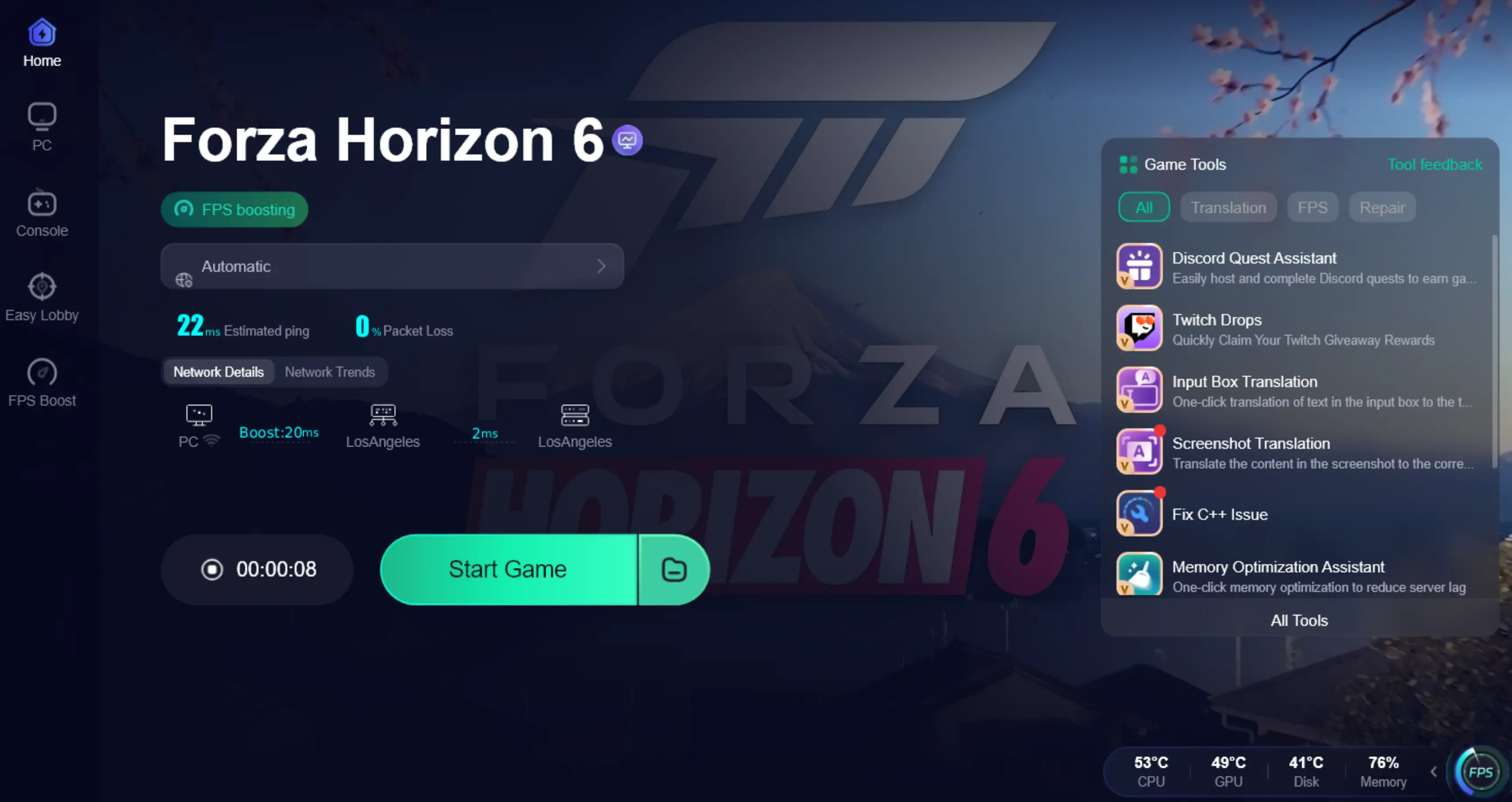
How to Use LagoFast Game Booster
Step 1: Click the Free Trial button to download and install LagoFast Free Trial.
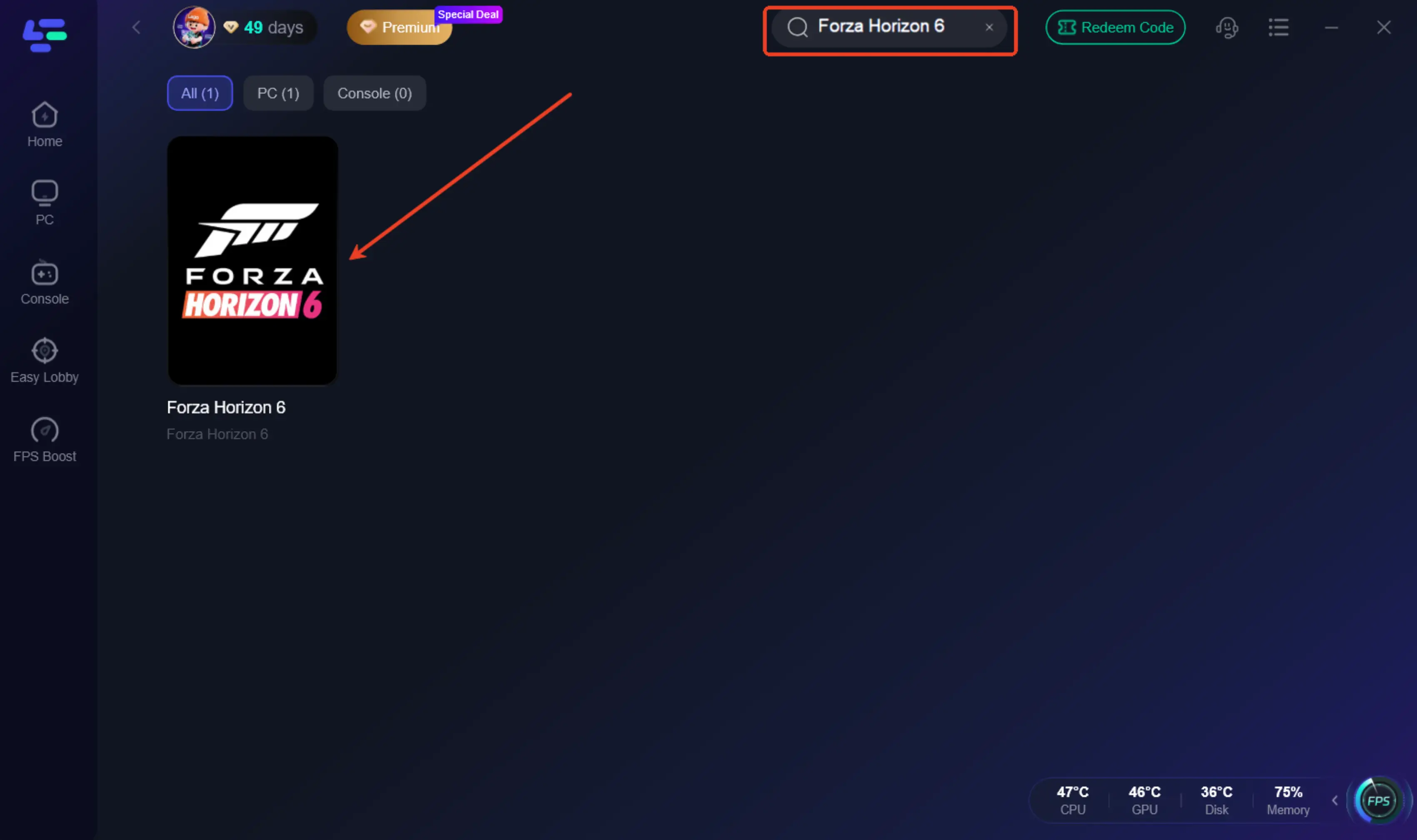
Step 2: Search for Forza Horizon 6: Open the app and type "Forza Horizon 6" into the search bar.
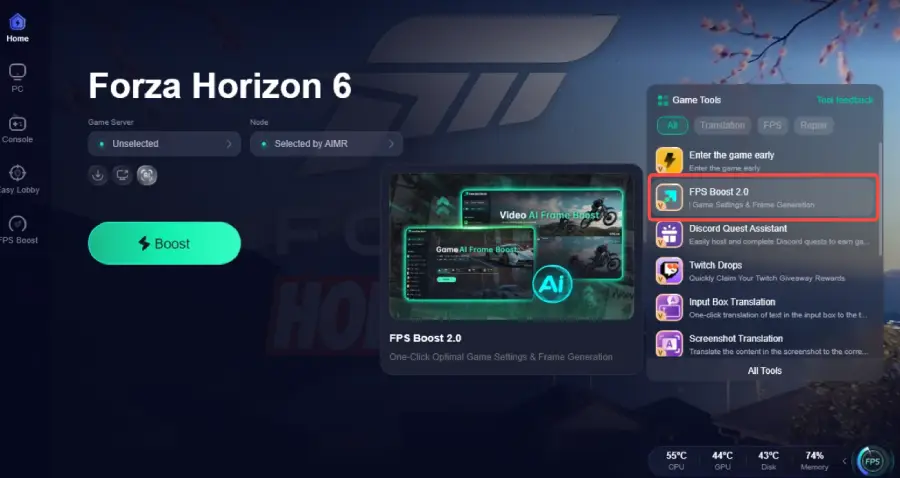
Step 3: Enable FPS Boost: Before clicking "Boost," go to the FPS Boost tab on the left. Here, you can toggle options to "Close Unnecessary Processes" and "Enable High-Performance Power Plan" with a single click.
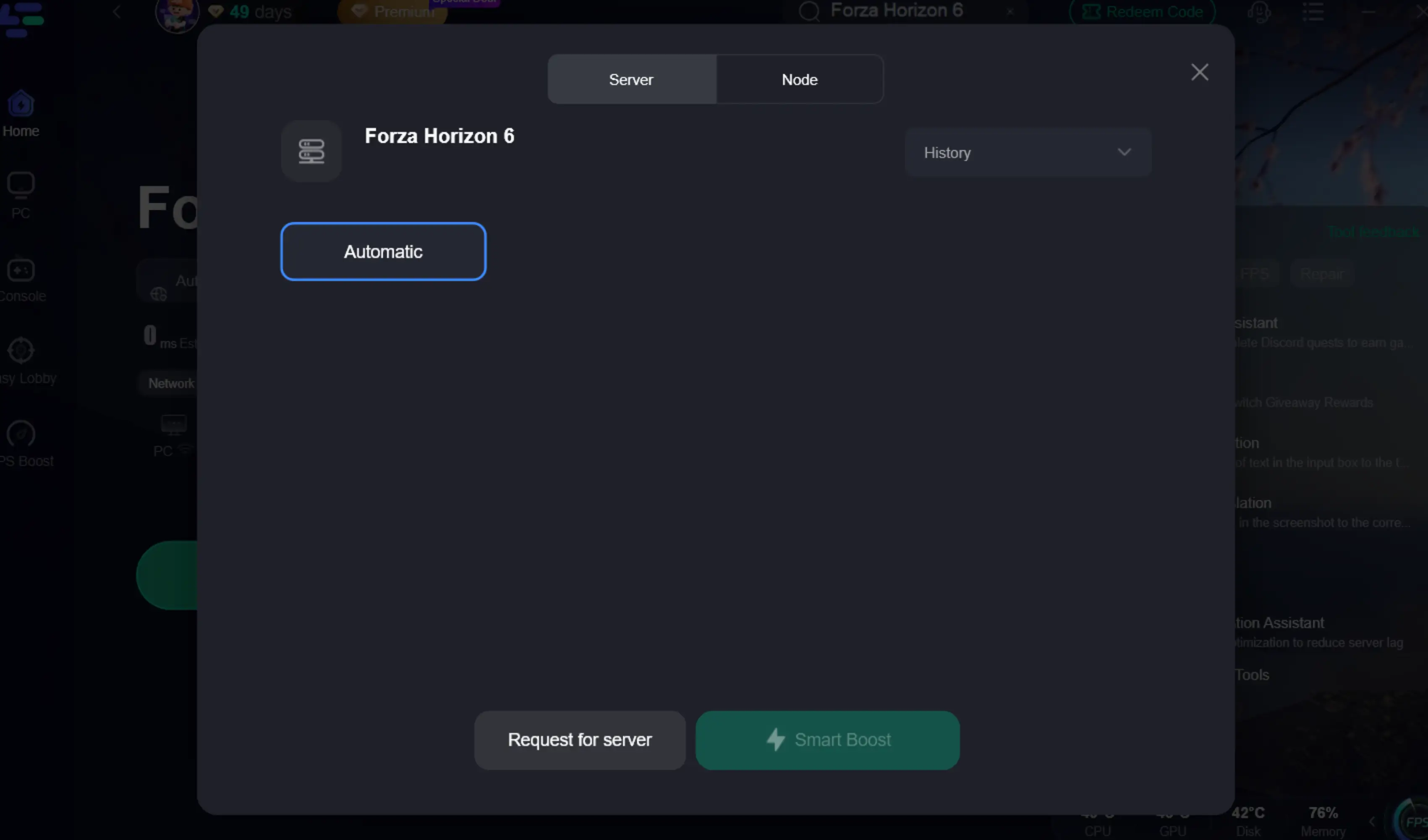
Step 4: Select Your Region and Node: Choose the server closest to your physical location. LagoFast uses a global network of dedicated gaming paths to ensure the lowest possible ping.
Step 5: Click Boost: Hit the big "Boost" button. LagoFast will now optimize your connection and system settings specifically for FH6.
Part 7: DLSS vs. Frame Generation Explained
Many players confuse these two terms. DLSS Super Resolution (the original DLSS) works by rendering the game at a lower resolution and using AI to upscale it to your native resolution. This reduces the load on your GPU's shaders.
Frame Generation, introduced with DLSS 3, doesn't just upscale; it creates entirely new frames between the ones rendered by the GPU. It uses "Optical Flow" data to predict motion. In FH6, DLSS 4.5 takes this further with better temporal stability, meaning less flickering on thin objects like power lines or fences.
Part 8: GPU Compatibility Table
To clear up any confusion, here is what your hardware can actually do in Forza Horizon 6:
|
GPU Series |
DLSS Super Resolution |
Frame Generation |
Dynamic 6X Mode |
|
RTX 50 Series |
✅ Supported |
✅ Supported |
✅ Supported |
|
RTX 40 Series |
✅ Supported |
✅ Supported |
❌ Not Supported |
|
RTX 30 Series |
✅ Supported |
❌ Not Supported |
❌ Not Supported |
|
RTX 20 Series |
✅ Supported |
❌ Not Supported |
❌ Not Supported |
|
GTX / AMD / Intel |
❌ Not Supported |
❌ Not Supported |
❌ Not Supported |
Part 9: Best DLSS Settings for FH6
For the best balance of visual clarity and performance, we recommend the following:
- DLSS Mode: Quality (at 1440p or 4K) or Balanced (at 1080p).
- DLSS Sharpness: 0.3 to 0.5. Anything higher often causes "ringing" artifacts around the car models.
- Frame Generation: On (if available).
- NVIDIA Reflex: On + Boost. This is crucial to counteract the slight latency penalty of Frame Generation.
Part 10: Can You Use FSR Instead?
If you don't have an RTX card, or if DLSS is simply refusing to work despite all fixes, Forza Horizon 6 does support AMD FSR 3.1. While FSR works on almost any GPU (including older NVIDIA cards), it generally lacks the image stability of DLSS 4.5. You might notice more "shimmering" on the road surface or foliage. However, as a fallback, FSR 3.1 is a solid option that also includes its own version of Frame Generation.
Part 11: FAQs
1. Why is the DLSS option missing in my FH6 menu?
This usually happens if you are using a non-RTX GPU or if your drivers are outdated. Ensure you have an NVIDIA RTX card and the latest Game Ready Driver installed.
2. Does DLSS 4.5 work on RTX 30-series cards?
Yes, the Super Resolution part of DLSS 4.5 works on all RTX cards. However, Frame Generation remains exclusive to the 40 and 50 series.
3. How do I fix the "DLSS Greyed Out" bug?
Check if Hardware-Accelerated GPU Scheduling is enabled in Windows. Go to Settings > System > Display > Graphics > Change default graphics settings and toggle it ON, then restart your PC.
4. Is DLSS better than native resolution in FH6?
In many cases, yes. DLSS 4.5 often provides better anti-aliasing than the game's native TAA, resulting in a cleaner image with significantly higher performance.
5. Can I use DLSS and FSR at the same time?
No, these are competing upscaling technologies. You must choose one or the other in the Graphics settings.
Key Takeaways
- Update First: Always start by installing the latest NVIDIA Game Ready Driver (v596.49+).
- Check HAGS: Frame Generation requires Hardware-Accelerated GPU Scheduling to be enabled in Windows.
- RTX 50 Exclusive: The 6X Dynamic Frame Generation mode is only for RTX 50 series users via the NVIDIA App.
- Optimize with LagoFast: Use LagoFast Game Booster to eliminate system stutters and reduce input lag, especially when using Frame Generation.
- Settings Matter: Use "Quality" mode for the best visual experience at high resolutions.
By following this guide, you should have Forza Horizon 6 running smoothly with all the bells and whistles of DLSS 4.5. See you on the streets of Tokyo!
Boost Your Game with LagoFast for Epic Speed
Play harder, faster. LagoFast game booster eliminates stutter and lags on PC, mobile, or Mac—win every match!
Quickly Reduce Game Lag and Ping!
Boost FPS for Smoother Gameplay!