
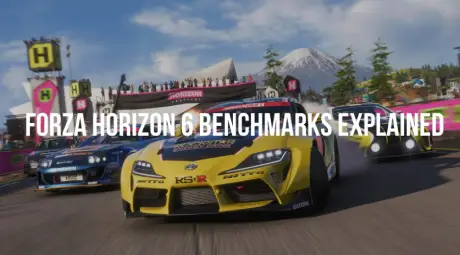
Quick Answer: What is the best way to run Forza Horizon 6?
For the ultimate experience, use an RTX 5080 with DLSS 4.5 enabled and set to Multi Frame Generation. To ensure these high frame rates remain stable and lag-free, use LagoFast to optimize your system and network connection.
Engines roar as Forza Horizon 6 launches with NVIDIA’s Game Ready Driver, showcasing next-gen racing performance. The standout figure, RTX 5080 hitting 230 FPS at 4K, signals a leap powered by DLSS 4.5 and Multi Frame Generation. Whether on RTX 5090 or optimizing your rig, understanding these benchmarks is crucial.

- ✅ Reduce Lag and High Ping.
✅ Boost FPS at the Same Time.
✅ Fix Crashing and Freezing Issues.
✅ Change Server without Latency.
✅ Boost Game Loading Speed. - ✅ Repair Game Disconnected Problems
Part 1: Forza Horizon 6 Benchmarks Explained – The Tech Behind the Numbers
Part 2: RTX 50 Series Performance Comparison
Part 3: RTX 5080 4K Benchmark: DLSS ON vs. OFF
Part 4: Forza Horizon 6 4K Ultra: The Generational Battle
Part 5: Best Settings for Every Resolution
Part 6: Best Forza Horizon 6 Settings for RTX 5080 (4K Ultra)
Part 7: How to Enable DLSS 4.5 and Multi-Frame Generation
Part 8: Supercharge Your Racing Experience with LagoFast
Part 1: Forza Horizon 6 Benchmarks Explained – The Tech Behind the Numbers
To understand why a GPU can suddenly jump from 60 FPS to over 200 FPS, we need to define the technologies at play. Modern benchmarks are no longer just about raw hardware power; they are about AI orchestration.
Native FPS (The Foundation)
Native FPS refers to the frames fully rendered by the GPU at the target resolution (e.g., 3840 x 2160 for 4K). Every pixel and light calculation is processed in real-time. This is the "purest" form of performance, but also the most taxing.
DLSS Super Resolution (The Upscaler)
DLSS Super Resolution uses AI to render the game at a lower internal resolution (like 1080p) and then "upscales" it to 4K. It significantly reduces GPU load while maintaining high visual fidelity.
DLSS 4.5 Multi-Frame Generation (The Multiplier)
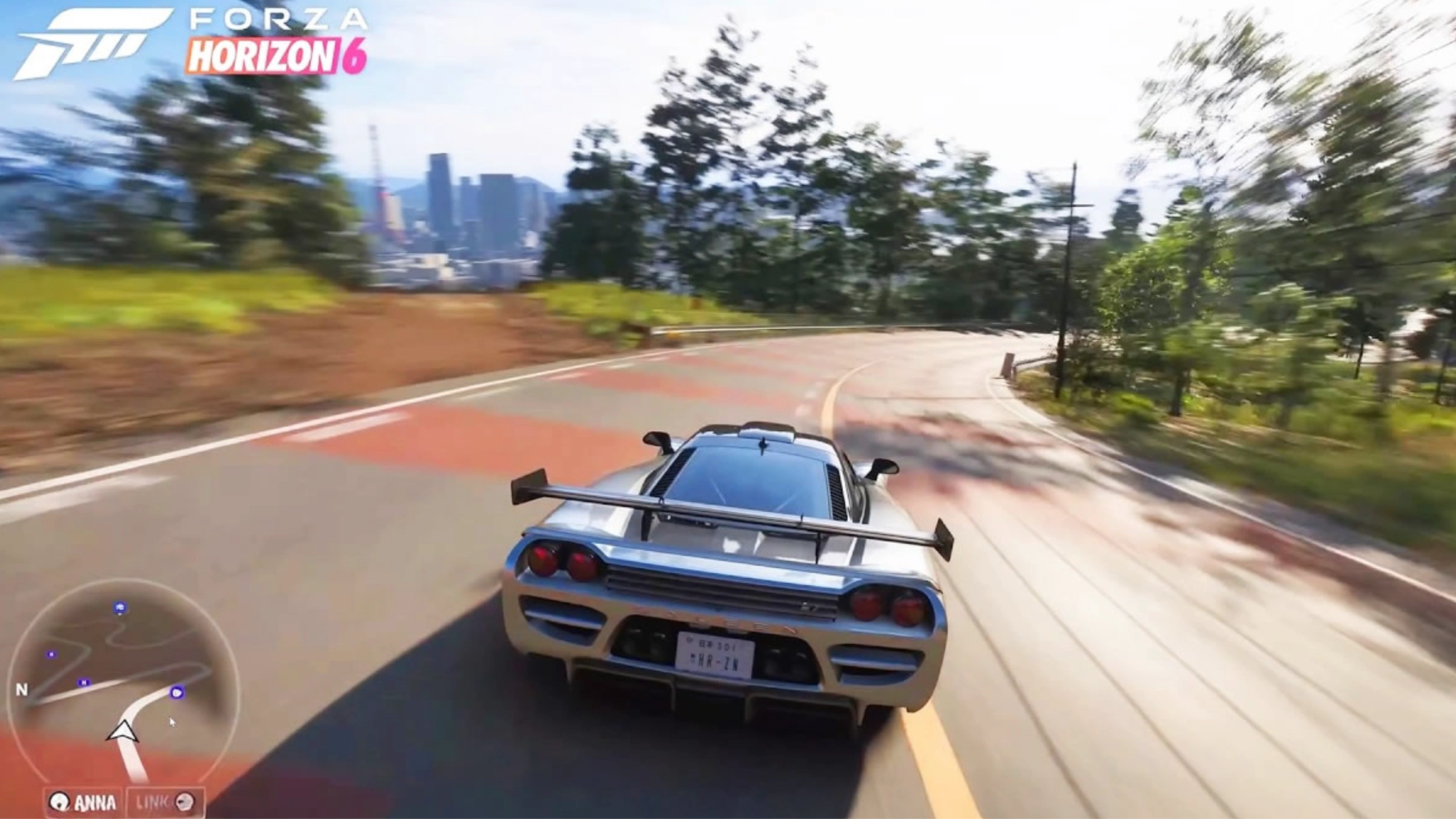
This is the breakthrough feature for the RTX 50 Series. While previous versions (DLSS 3) generated one AI frame for every one rendered frame (2X), DLSS 4.5 Multi Frame Generation can generate multiple frames between each rendered one.
- 4X Mode: Standard for high-end cards.
- 6X Mode: Available on RTX 50 Series via the NVIDIA App, pushing frame rates to extreme levels (the 230+ FPS mark).
NVIDIA Reflex (The Latency Killer)
Because Frame Generation adds a slight delay (latency), NVIDIA Reflex is mandatory. It synchronizes the CPU and GPU to ensure that even if you see 230 FPS, your car responds to your inputs as if the frame rate were much higher.
The Key Distinction: There is a difference between Rendering Framerate (what the GPU physically calculates) and Display Framerate (what you see on your 240Hz monitor). The "230 FPS" on an RTX 5080 is a perceived smoothness achieved through AI interpolation.
Part 2: RTX 50 Series Performance Comparison
The Blackwell architecture has widened the gap between the flagship and the mid-high tier. The RTX 5090 is in a league of its own, while the RTX 5080 serves as the "Sweet Spot" for 4K gaming.
|
GPU Model |
Architecture |
VRAM |
4K FPS (DLSS 4.5 + MFG) |
Recommendation |
|
RTX 5090 |
Blackwell |
32GB GDDR7 |
330+ FPS |
For the "No Compromise" enthusiast. |
|
RTX 5080 |
Blackwell |
16GB GDDR7 |
230+ FPS |
Best Value for 4K Ultra. |
|
RTX 5070 Ti |
Blackwell |
16GB GDDR7 |
200+ FPS |
Excellent for 1440p or 4K with settings tweaks. |
Part 3: RTX 5080 4K Benchmark: DLSS ON vs. OFF
Can the RTX 5080 handle FH6 at 4K natively? Yes, but the difference in smoothness is night and day when you toggle the AI features.
|
Setting |
Resolution |
Average FPS |
Experience |
|
Native (No DLSS) |
4K Ultra |
65 - 75 FPS |
Solid 60Hz experience; very "heavy" feel. |
|
DLSS Super Res (Quality) |
4K Ultra |
110 - 120 FPS |
High refresh rate gaming; indistinguishable from native. |
|
DLSS 4.5 + Multi-Frame |
4K Ultra |
230+ FPS |
Elite-level smoothness; perfect for 240Hz monitors. |
Part 4: Forza Horizon 6 4K Ultra: The Generational Battle
How does the new RTX 5080 stack up against the legendary RTX 4090? Surprisingly, the 5080 pulls ahead in "Perceived FPS" thanks to the 6X Multi Frame Generation exclusive to the 50 series.
|
GPU |
4K Ultra Native |
4K Ultra (Max DLSS/FG) |
|
RTX 5080 |
~72 FPS |
230+ FPS (DLSS 4.5) |
|
RTX 4090 |
~85 FPS |
165+ FPS (DLSS 3.5) |
|
RTX 4080 Super |
~62 FPS |
130+ FPS (DLSS 3.5) |
Part 5: Best Settings for Every Resolution
To maximize your experience in the Japan-set Horizon Festival, use these recommended configurations:
|
Resolution |
Recommended GPU |
Suggested Settings |
|
1080p |
RTX 4060 / 5060 |
Ultra Settings, DLSS Quality, FG On |
|
1440p |
RTX 4070 Ti / 5070 |
Extreme Settings, DLSS Quality, FG On |
|
4K |
RTX 4090 / 5080 |
Ultra/Extreme, DLSS Balanced, Multi-FG 4X/6X |
Part 6: Best Forza Horizon 6 Settings for RTX 5080 (4K Ultra)
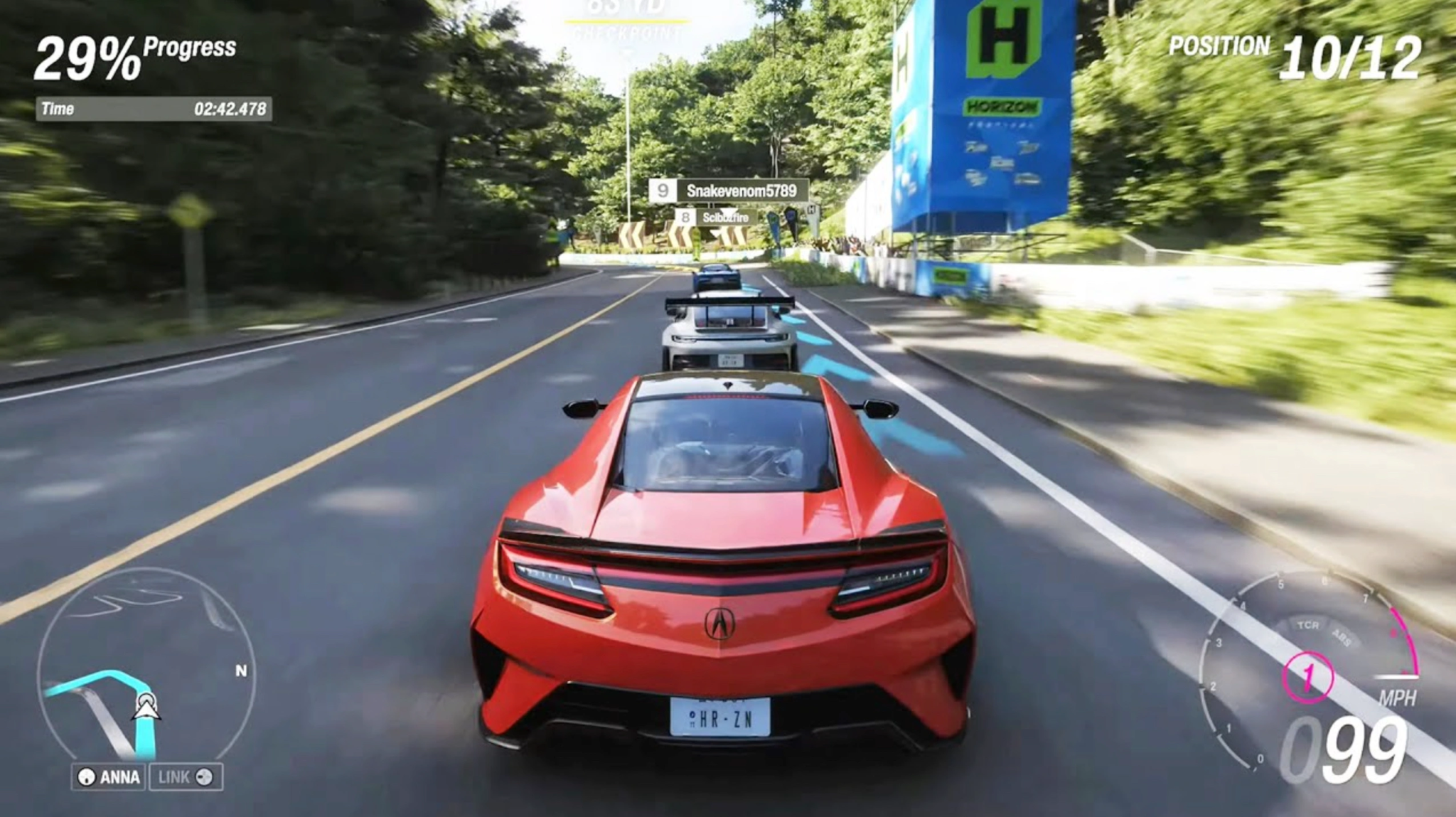
For the ultimate balance of visuals and speed, use the following in-game and NVIDIA App settings:
- In-Game Preset: Extreme (with Ray Tracing set to "Heroic").
- DLSS Super Resolution: Balanced or Quality.
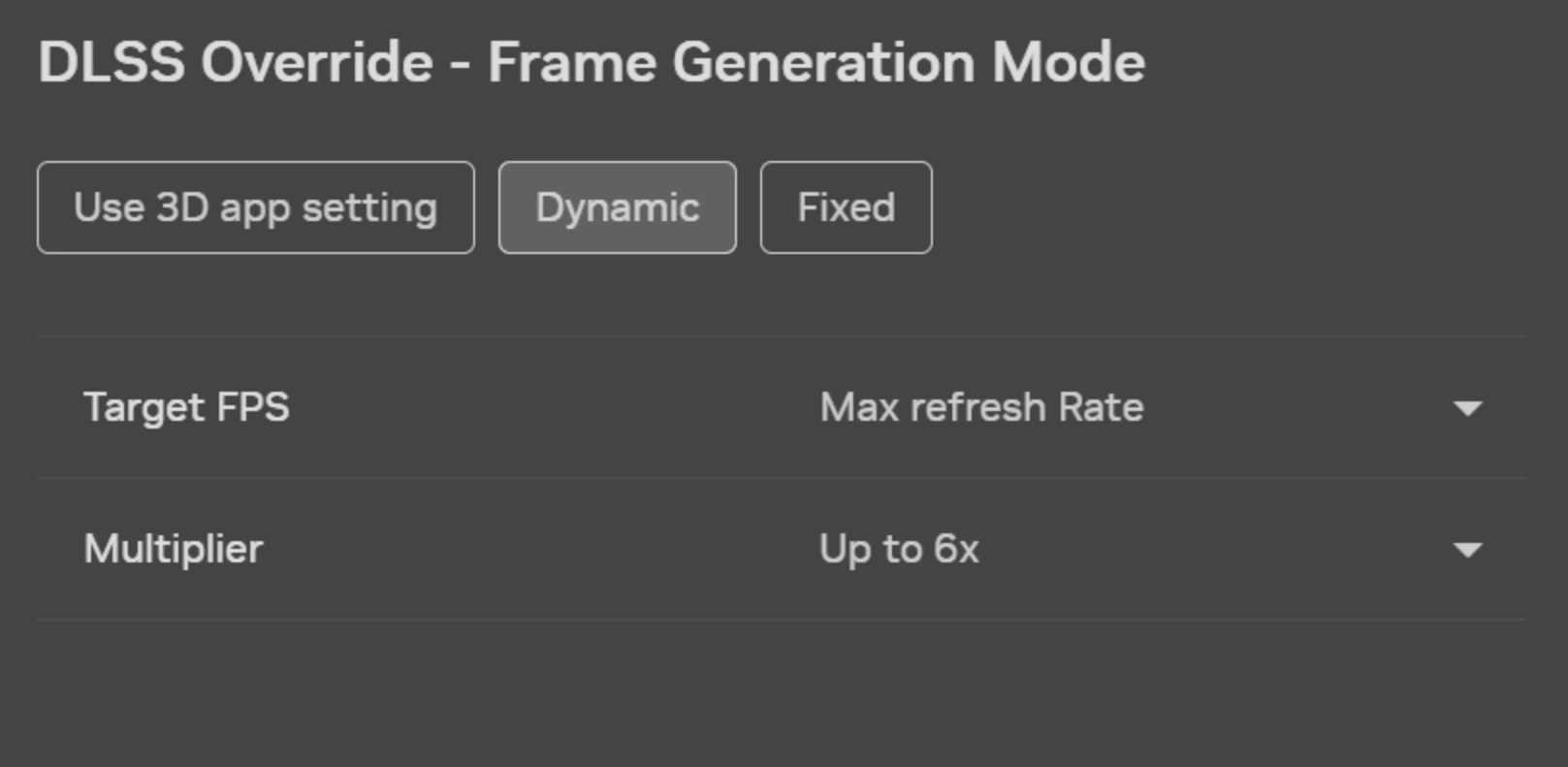
- NVIDIA App Setting: Set DLSS Multi Frame Generation to "Dynamic." This allows the AI to automatically shift multipliers to maintain stability during intense city races in Tokyo.
- Frame Generation Mode: "Performance Priority."
Part 7: How to Enable DLSS 4.5 and Multi-Frame Generation
Step 1. Update Drivers: Ensure you have the latest GeForce Game Ready Driver (v595.97 or newer).
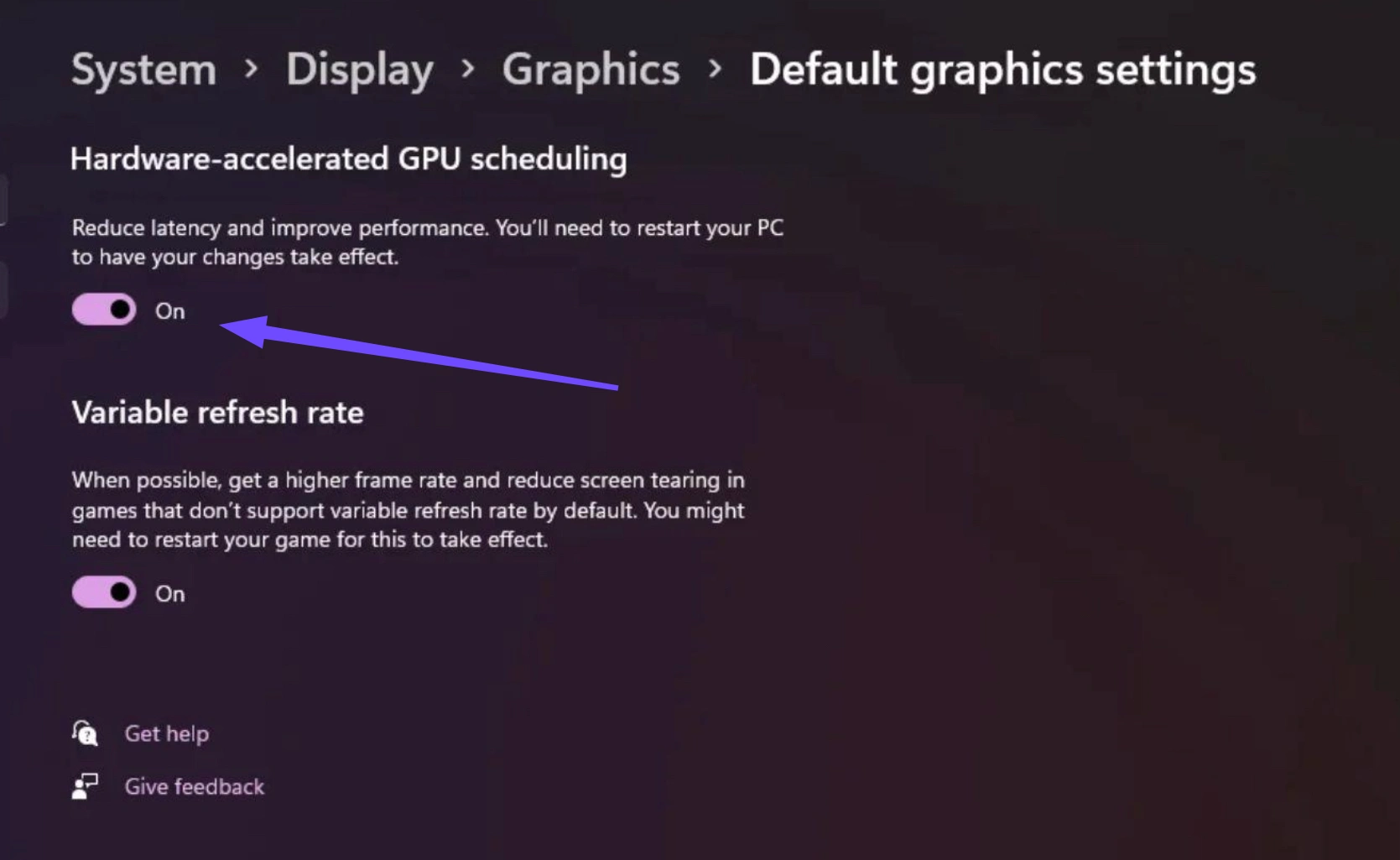
Step 2. Windows Settings: Enable "Hardware-Accelerated GPU Scheduling" in System, select Display, and click Graphics.
Step 3. In-Game Menu: Go to Settings and select Video. Toggle NVIDIA DLSS Super Resolution to 'On'.
Step 4. Activate Multi-Frame: Scroll down to DLSS Frame Generation. If you have an RTX
50 card, select the "Multi Frame" option to unlock the 4X or 6X modes.
Part 8: Supercharge Your Racing Experience with LagoFast
While a high-end GPU gives you the frames, it doesn't always give you a smooth connection. In a massive open-world game like Forza Horizon 6, where "Car Meets" and "Horizon CoLab" involve hundreds of players, network jitter can ruin a high-FPS experience.
LagoFast is a specialized gaming booster that complements your high-end hardware:
- FPS Boost 2.0: LagoFast features a one-click FPS optimization tool that closes unnecessary background processes and reallocates CPU priority to Forza Horizon 6, ensuring your RTX 5080 isn't held back by "micro-stutters."
- Multipath Connection: It reduces ping and eliminates packet loss during online races by finding the fastest route to the Horizon servers.
- Frame Generation Stability: By stabilizing your system's resources, LagoFast helps the DLSS 4.5 algorithm work more efficiently, resulting in a cleaner image and fewer "AI artifacts."
Tutorial to Optimize Your Forza Horizon 6 Gaming Experience with LagoFast:
Step 1: Click the Free Trial button to download and install LagoFast.
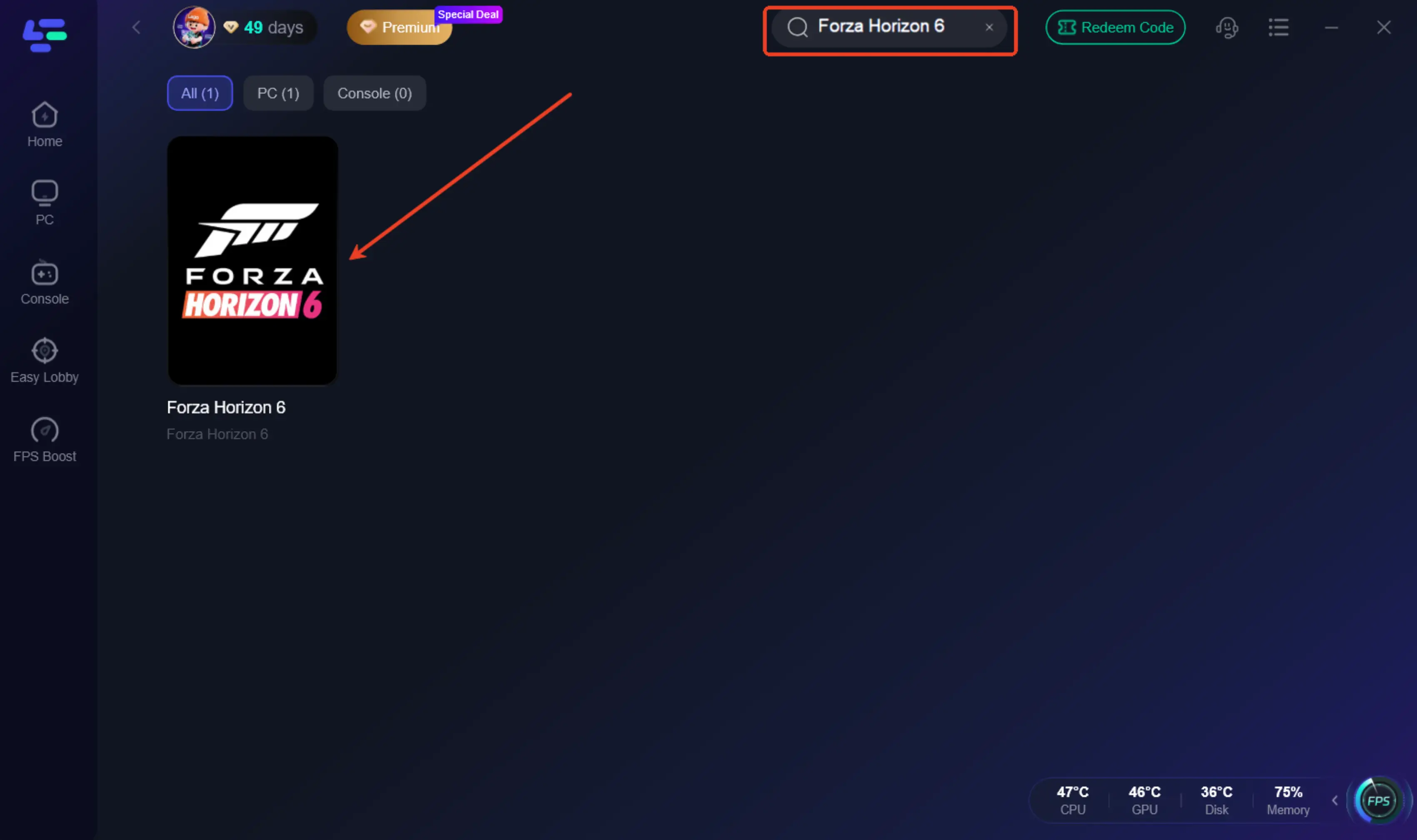
Step 2: Open LagoFast, then click the PC button on the left and search for FH6 in the search bar, and click it after it appears.
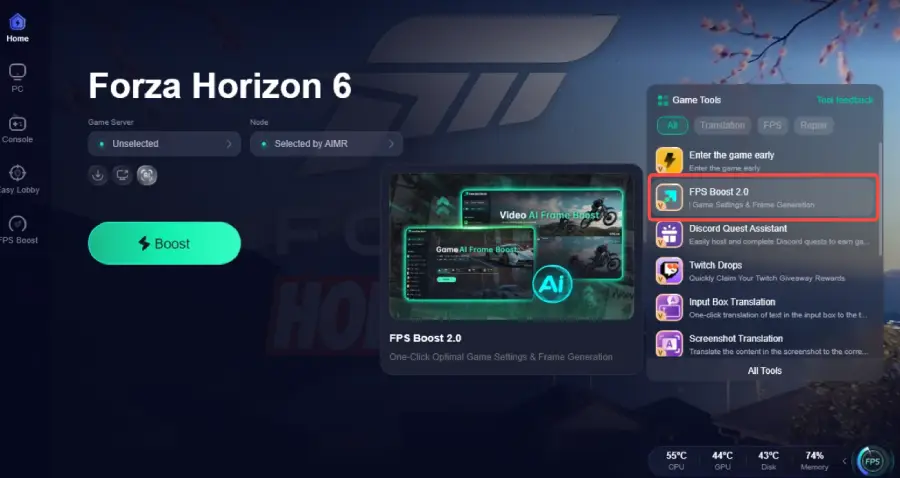
Step 3: Click the “FPS Boost 2.0” option in the bottom-right corner.
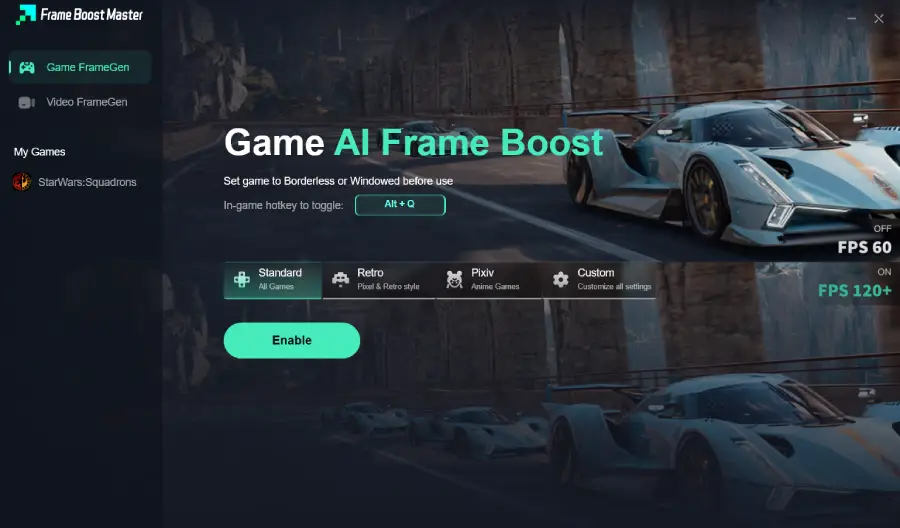
Step 4: Set the game to Borderless or Windowed mode, then click “Enable” to turn on FPS Boost.
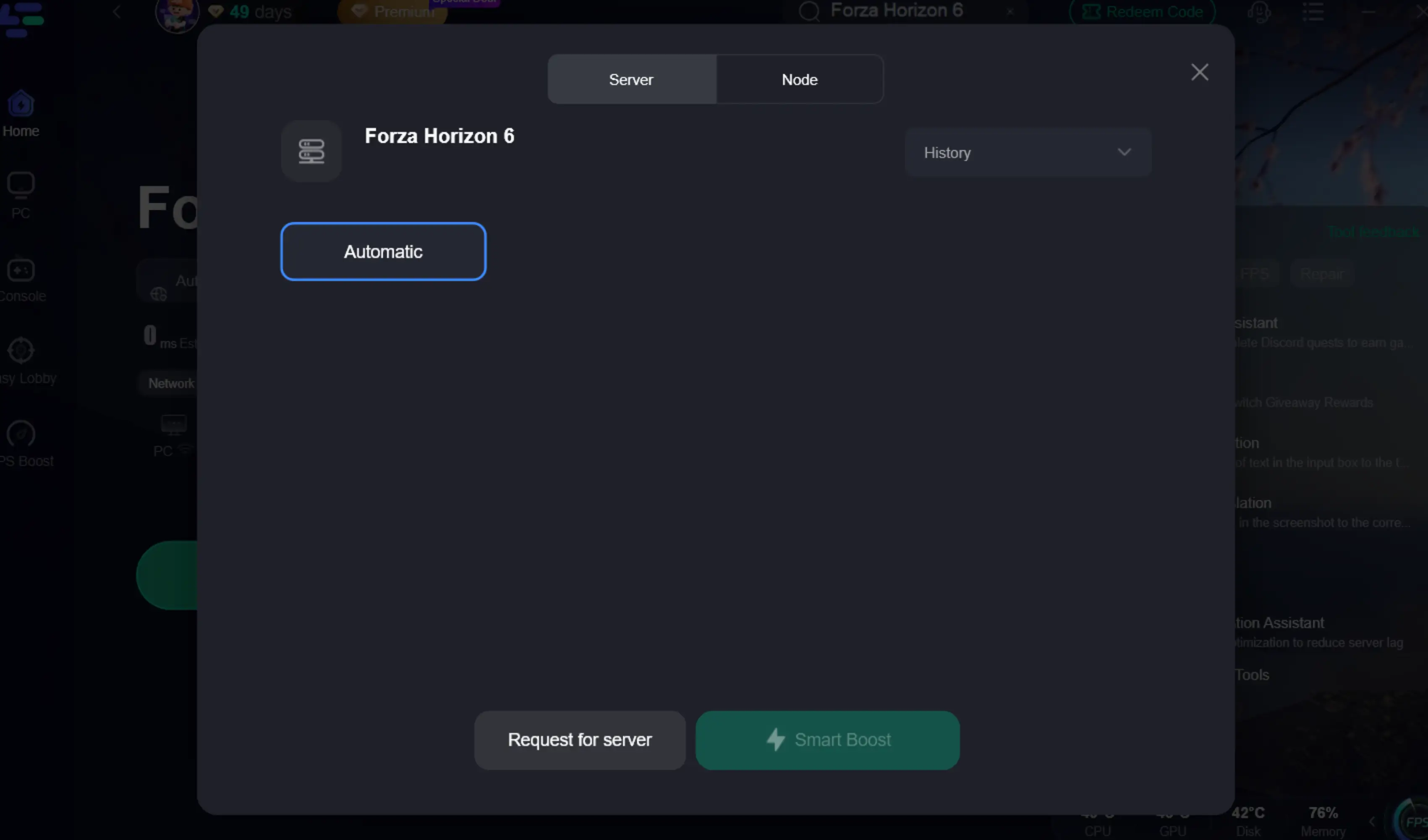
Step 5: Click on “Server” to change to a better server that provides a smooth gaming experience, then click on “Smart Boost” to fix the FH6 common issues.
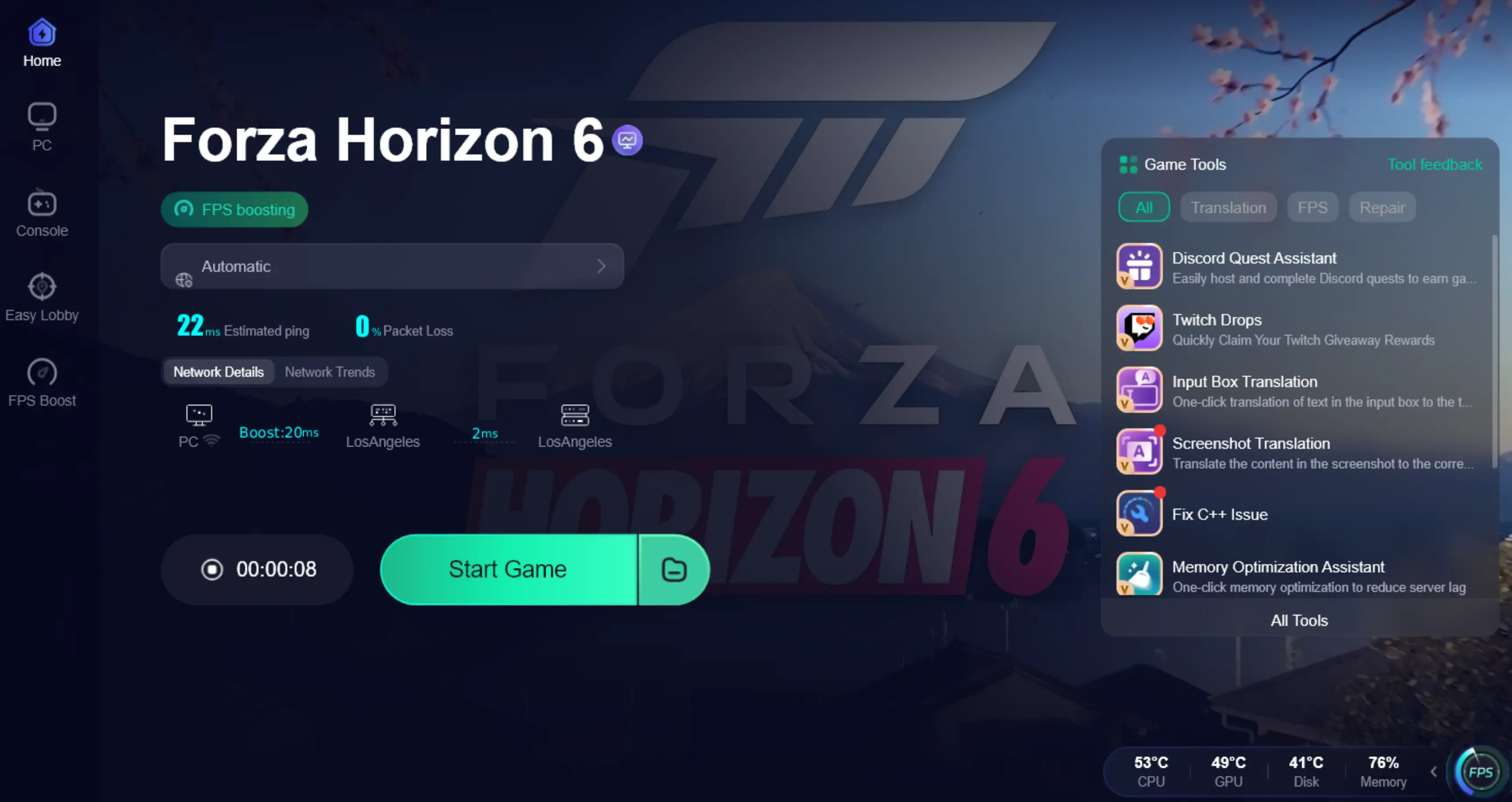
Step 6: Check the specific game ping, packet loss, and multiple path connections on the right side. Finally, click the “Start Game” to play the game.
Part 9: FAQs
Is Forza Horizon 6’s 230 FPS Benchmark Real?
Yes, but it is a "Display FPS" achieved via DLSS 4.5 Multi Frame Generation. It is not 230 frames rendered natively from scratch.
Is DLSS Frame Generation "Fake FPS"?
Technically, the frames are "interpolated" by AI rather than "rendered" by the game engine. However, they are visually real to the human eye and provide a significantly smoother experience.
Native FPS vs. DLSS FPS: What Should I Use?
If you have a high-refresh monitor (144Hz+), use DLSS. If you prefer the absolute highest image clarity and play on a 60Hz screen, Native FPS might feel more "grounded."
Is the RTX 5080 230 FPS Just Marketing?
It is real-world performance using the Blackwell architecture's specific features. It represents the "best-case scenario" with all AI optimizations active.
How Do I Fix Low FPS in Forza Horizon 6?
Update your drivers, lower "Shadow Quality" and "Environment Geometry," and use LagoFast's FPS Boost to clear system bottlenecks.
Why is DLSS Not Working in Forza Horizon 6?
Ensure you are using a GeForce RTX card. If the option is greyed out, verify that "Hardware-Accelerated GPU Scheduling" is enabled in Windows.
Does Frame Generation Increase Input Lag?
Quick Answer: It can, but NVIDIA Reflex (built into FH6) offsets this lag. Most players will not notice a difference in responsiveness at such high frame rates.
Boost Your Game with LagoFast for Epic Speed
Play harder, faster. LagoFast game booster eliminates stutter and lags on PC, mobile, or Mac—win every match!
Quickly Reduce Game Lag and Ping!
Boost FPS for Smoother Gameplay!