PRAGMATA brings impressive visuals powered by Capcom’s RE Engine, but many PC players encounter Pragmata performance issues such as stuttering, unstable frame pacing, or low FPS. Even on capable hardware, these problems can disrupt gameplay and immersion.
This guide delivers a focused Pragmata performance analysis, helping you identify the causes behind these issues and apply effective solutions. From basic settings adjustments to advanced optimization methods, you’ll find everything needed for a reliable Pragmata stuttering fix and smoother overall performance.
Part 1. Causes of PRAGMATA Performance Issues
Part 2. LagoFast – Best Solution for PRAGMATA Stuttering Fix
Part 3. Common Fixes for PRAGMATA Stuttering or Lag
Part 4. Bonus Tips: Max Performance Requirements & Benchmarks
Part 5. FAQs
Part 1: Causes of PRAGMATA Performance Issues on PC
Understanding the underlying causes is the first step toward an effective Pragmata stuttering or lag fix.
Hardware Bottlenecks and System Limitations
Outdated or underpowered GPU:
The most common cause of low FPS. If your GPU struggles with modern rendering demands or lacks sufficient VRAM, expect frequent stuttering and texture pop-ins.
CPU limitations:
Even with a strong GPU, a weak processor can bottleneck performance. CPU-heavy scenarios like AI calculations and physics simulations may result in unstable frame pacing.
Insufficient RAM capacity or speed:
Systems with less than 16GB RAM or slower memory speeds may experience asset-loading delays, contributing to stutter.
Slow storage drives:
Running the game on an HDD instead of an SSD—especially an NVMe SSD—can lead to asset streaming issues and noticeable lag spikes.
Software and Driver-Related Problems
Outdated graphics drivers:
GPU drivers often include optimizations for new releases. Running outdated drivers is a major contributor to Pragmata low FPS issues.
Operating system and DirectX issues:
An outdated Windows version or corrupted DirectX installation can create compatibility problems.
Background applications:
Programs consuming CPU, GPU, or RAM (e.g., browsers, overlays, recording tools) can interfere with gameplay.
Corrupted game files:
Missing or damaged files can cause instability, crashes, or persistent stuttering.
In-Game Settings and Engine Behavior
Overly high graphics settings:
Features like ray tracing, ultra textures, and volumetric effects are demanding and can overwhelm mid-range systems.
V-Sync and frame cap misconfiguration:
Incorrect settings may introduce input lag or inconsistent frame pacing.
Shader compilation stutters:
The RE Engine may compile shaders during gameplay, especially on first launch, causing temporary stutter spikes.
Part 2: LagoFast – Advanced Pragmata Stuttering Fix Solution
While most performance issues are hardware-related, network instability can also contribute to perceived lag. Background services such as updates, cloud saves, and authentication may create subtle interruptions.
LagoFast Game Booster provides a comprehensive solution by optimizing both network routing and system resource allocation.
Why LagoFast Helps Improve Performance
Optimized network routing:
Reduces packet loss and stabilizes background data transmission.
Lower latency and smoother updates:
Ensures patch downloads and cloud syncing do not interfere with gameplay.
FPS boost functionality:
Allocates more system resources to the game, reducing interference from background processes.
How to Use LagoFast
Step 1: Click the Free Trial button to download and install LagoFast.
Free Trial
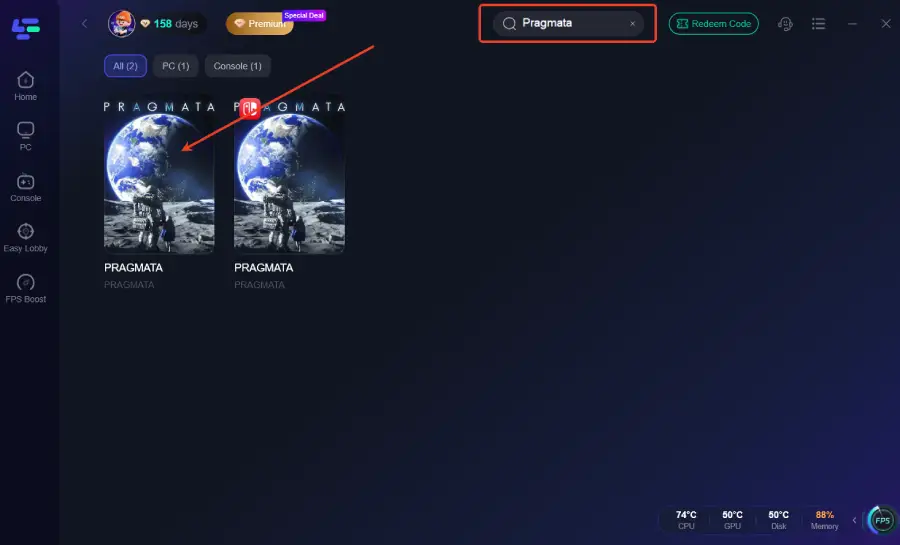
Step 2: After installation, search "Pragmata" in the search bar and select the game.
Step 3: Choose your preferred server node and click "Smart Boost" to start optimizing.
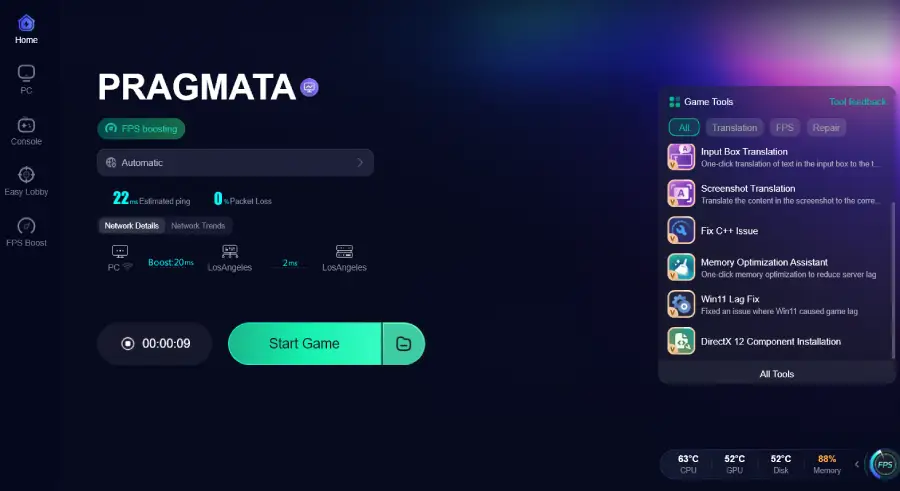
Step 4: Launch your game and enjoy smooth, optimized gameplay with lower ping and packet loss.
This approach enhances overall stability and complements traditional Pragmata stuttering fix methods.
Part 3: Common Pragmata Stuttering or Lag Fix Methods
Beyond third-party tools, applying core optimizations can significantly improve performance.
Update Graphics Drivers with Clean Installation
Use DDU (Display Driver Uninstaller):
Remove all existing GPU drivers completely.
Install latest drivers:
Download from official NVIDIA or AMD sources.
Perform clean installation:
Avoid leftover conflicts from previous versions.
Optimize In-Game Graphics Settings
Lower resolution:
Switch from 4K to 1440p or 1080p for immediate FPS gains.
Adjust render scaling:
Set to 80–90% for better performance with minimal visual loss.
Reduce demanding settings:
- Shadow quality: major performance impact
- Volumetric effects: high GPU load
- Ray tracing: disable if necessary
Use DLSS or FSR:
Enable “Balanced” or “Performance” modes to boost frame rates.
System-Level Performance Optimization
Enable Windows Game Mode:
Improves resource allocation for gaming.
Set power plan to High Performance:
Prevents CPU throttling.
Disable fullscreen optimizations:
Reduces compatibility overhead.
Close background applications:
Free up CPU and RAM resources.
Add antivirus exclusions:
Prevents real-time scanning interruptions.
Storage and Hardware Optimization
Install on SSD:
Preferably NVMe for faster asset streaming.
Monitor temperatures:
Keep CPU/GPU under 85°C to avoid thermal throttling.
Disable unstable overclocks:
Return to stock settings if instability occurs.
Part 4: Performance Benchmarks & Optimization Insights
Early testing suggests that PRAGMATA is demanding but generally well-optimized on the RE Engine.
Recommended Hardware for Smooth Gameplay
1080p High Settings (60 FPS):
- RTX 3060 / RTX 4060
- RX 6700 XT / RX 7700 XT
1440p–4K with Ray Tracing:
- RTX 4070 Ti SUPER / RTX 4080 SUPER
- RX 7900 XT / XTX
Key Performance Factors
VRAM requirements:
- 8GB for 1080p–1440p
- 12GB+ for 4K
CPU performance:
Modern 6-core or 8-core CPUs with strong single-core speed are ideal.
RAM speed:
Faster memory (3200MHz+ or DDR5) improves minimum FPS and reduces stutter.
Example Benchmark Estimates
- RTX 3060: 55–65 FPS (native), 70–85 FPS (DLSS)
- RTX 4060: 65–75 FPS (native), 80–95 FPS (DLSS)
- RX 6700 XT: 60–70 FPS (native), 75–90 FPS (FSR)
- RX 7700 XT: 70–80 FPS (native), 85–100 FPS (FSR)
These figures highlight how upscaling technologies are essential for achieving a stable Pragmata low FPS fix at higher resolutions.
Part 5: FAQs About PRAGMATA Performance Issues
Why does PRAGMATA stutter even with high FPS?
This is typically due to frame pacing issues, shader compilation, or VRAM bottlenecks rather than raw FPS limitations.
How do DLSS and FSR improve performance?
They render at a lower resolution and upscale the image, significantly boosting FPS while maintaining visual quality.
Why does performance drop after extended gameplay?
Possible causes include thermal throttling, memory leaks, or background processes activating mid-session.
Should I use V-Sync?
- With G-Sync/FreeSync: disable in-game V-Sync
- Without adaptive sync: enable V-Sync but monitor input lag
Can internet issues affect a single-player game?
Indirectly, yes. Background updates and cloud syncing can cause interruptions. Tools like LagoFast help stabilize these processes.
Conclusion: Achieving a Complete Pragmata Stuttering Fix
Experiencing performance problems in PRAGMATA can be frustrating, but they are rarely unsolvable. By conducting a thorough Pragmata performance analysis and addressing key factors—hardware limitations, software conflicts, and configuration errors—you can significantly improve stability and frame rates.
Combining driver updates, optimized settings, system tweaks, and SSD usage forms the foundation of any effective Pragmata stuttering fix. For players seeking an additional edge, tools like LagoFast provide enhanced network and system-level optimization.
With the right adjustments, you can eliminate most Pragmata performance issues and enjoy a smooth, immersive gameplay experience as intended.