
Capcom’s highly anticipated sci-fi adventure, Pragmata, promises a breathtaking lunar journey, but for many PC players, the experience has been cut short by frustrating technical hurdles. Whether you are dealing with a sudden Pragmata crashing error, a persistent black screen, or the game simply refusing to launch, these issues can dampen the excitement of exploring a futuristic Earth. Fortunately, most of these glitches stem from software conflicts or optimization gaps that are easily rectified with the right approach.

- ✅ Reduce Lag and High Ping.
✅ Boost FPS at the Same Time.
✅ Support 2000+ Popular Online Games.
✅ Change Server without Latency.
✅ Boost Game Loading Speed.
Part 1: Quick Answer: How to Fix Pragmata Crashing Error
Part 2: Pragmata Crashing Error: What It Is and Main Causes
Part 3: How to Fix the Pragmata Crashing Error? – Detailed Tutorial
Part 4: Pragmata System Requirements
Part 1: Quick Answer: How to Fix Pragmata Crashing Error
If you want to spend less time troubleshooting and more time exploring the lunar research station, here are the three fastest ways to stabilize your game:
- Use LagoFast (Best & Quickest): The most efficient way to resolve Pragmata not launching or crashing is by using a specialized game booster like LagoFast. It optimizes your system resources and stabilizes your connection to prevent engine-level failures.
- Verify Game Files: Often, a corrupt download is the culprit behind Pragmata freezing the PC. Use your game launcher (Steam/Epic) to repair the installation.
- Update Graphics Drivers: Pragmata utilizes heavy Ray-Tracing and next-gen textures. Outdated NVIDIA or AMD drivers are the primary cause of the Pragmata black screen error.
Part 2: Pragmata Crashing Error: What It Is and Main Causes
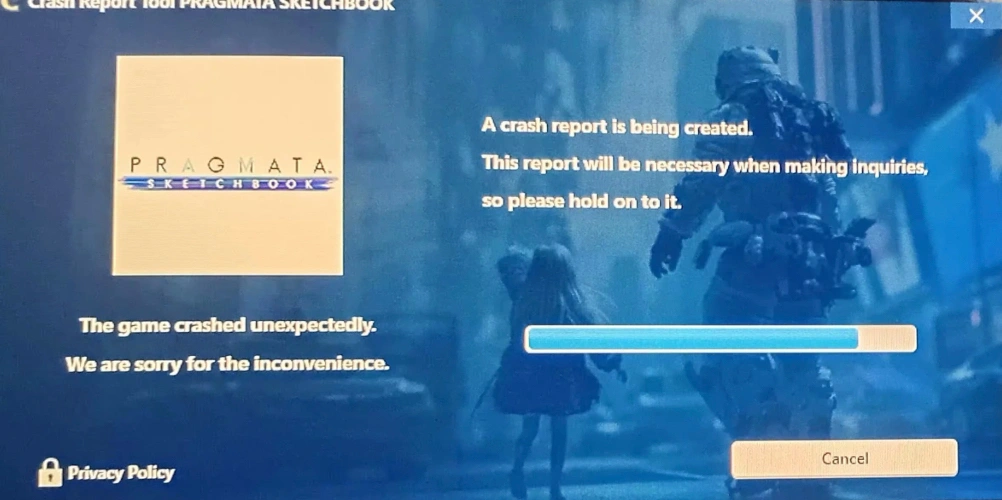
When we talk about Pragmata freezing PC or crashing to the desktop, we are usually looking at a breakdown in communication between the game engine and your hardware. Because Pragmata utilizes heavy next-gen assets, even a minor discrepancy in your system settings can trigger a failure.
Common Causes Include:
- Outdated GPU Drivers: The game relies on the latest Vulkan or DirectX 12 instructions.
- Corrupt Installation: Missing DLL files or interrupted downloads.
- Overloaded System Resources: Background apps competing for RAM and CPU cycles.
- Incompatible Overlay Software: Apps like Discord or RivaTuner sometimes conflict with the game's rendering.
- Optimization Issues: Being a demanding title, minor network jitters or shader compilation errors can lead to Pragmata not launching.
Part 3: How to Fix the Pragmata Crashing Error? – Detailed Tutorial
The Pro Solution: LagoFast Game Booster
The most effective way to fix PRAGMATA Demo crashing at startup and general performance issues is to use LagoFast. This specialized game booster optimizes your PC's internal resources and provides a dedicated data path to game servers, significantly reducing jitter and system-level lag that often leads to freezing. It handles the "heavy lifting" of optimization, so you don't have to manually tweak deep system registries.
Key Features of LagoFast:
- Fixed Game Crashes (Pragmata Exclusive): Automatically modifies configuration files to disable settings like ray tracing and DLSS, effectively resolving crash issues. No manual tweaking required—fast, precise, and reliable.
- Real-time Optimization: Automatically clears background processes to prioritize Pragmata.
- Multipath Connection: Reduces ping and prevents crashes tied to server timeouts.
- Easy FPS Boost: One-click settings to increase frame rates and stabilize stability.
- Global Server Support: Ensures a smooth experience regardless of your geographic location.
Tutorial to Use LagoFast to Fix Pragmata Crashing Error:
Step 1: Click the Free Trial button to download and install LagoFast.
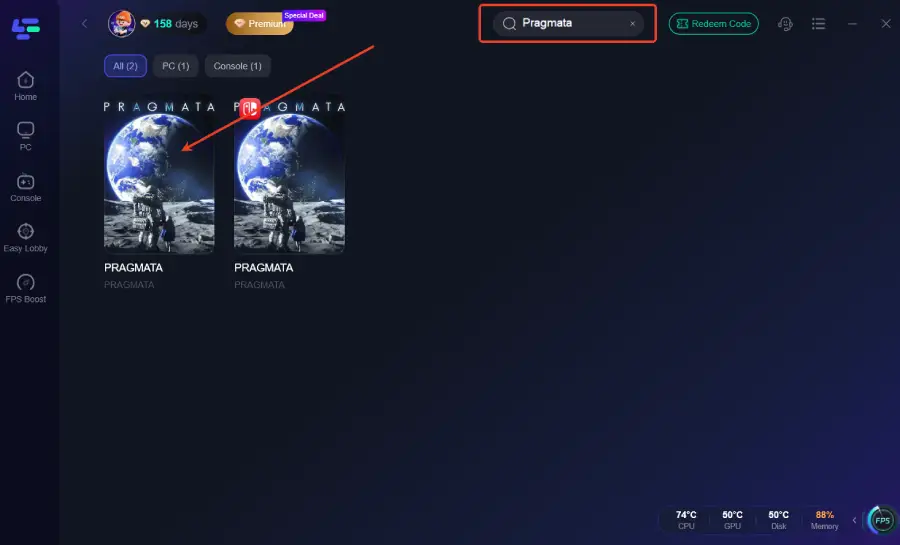
Step 2: After installation, search "Pragmata" in the search bar and select the game.
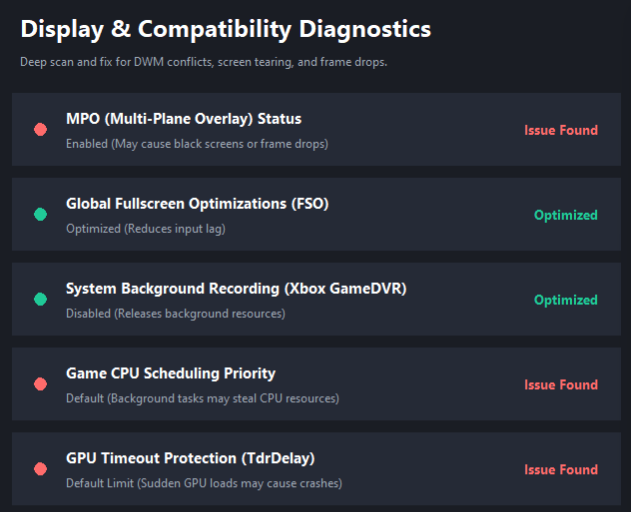
Step 3: Click the Fixed Game Crashes Tool on the right.
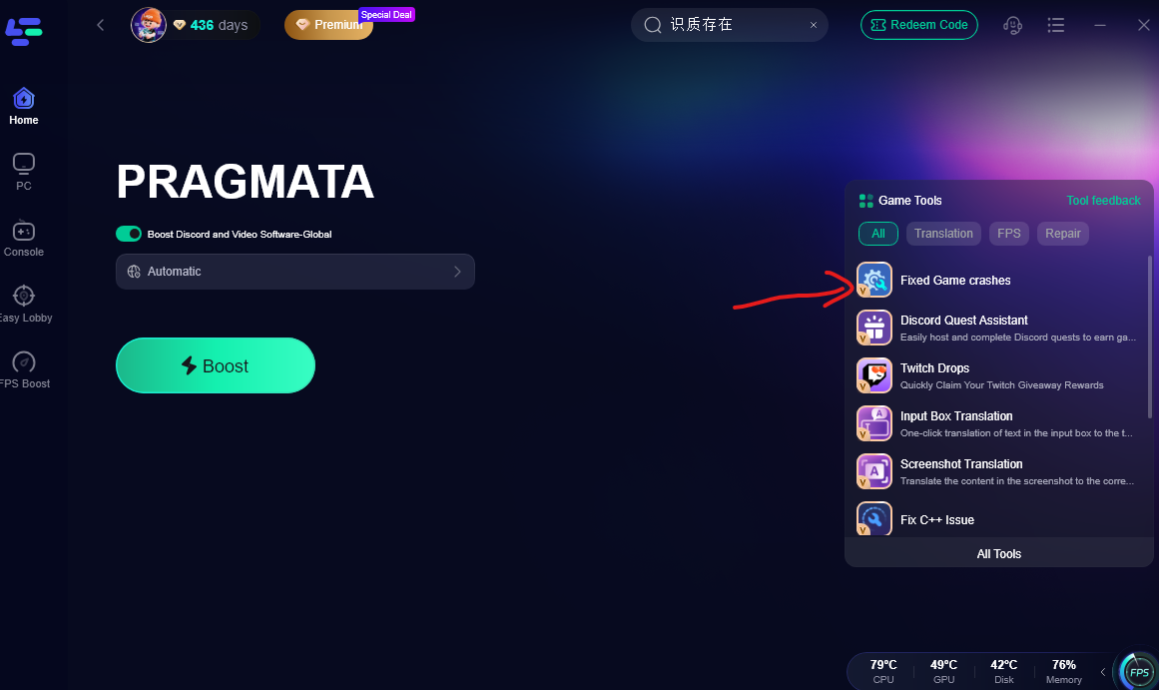
This tool can perform a deep diagnostic scan to identify and resolve display and compatibility issues, including DWM conflicts, screen tearing, and frame drops, ensuring smoother visuals and more stable performance during gameplay.
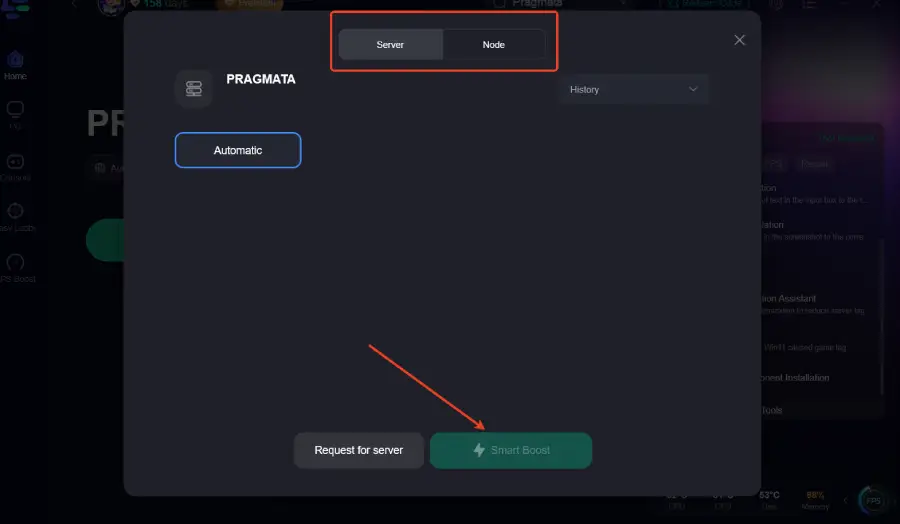
Step 4: Choose your preferred server node and click "Smart Boost" to start optimizing.
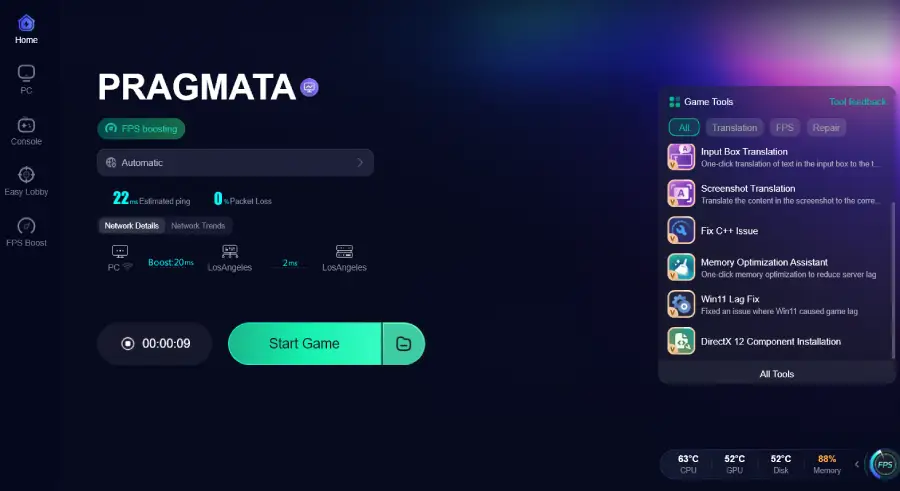
Step 5: Launch your game and enjoy smooth, optimized gameplay with lower ping and packet loss.
Verify Game Files
If Pragmata keeps crashing, the culprit is often a "broken" file within the installation folder. Steam provides a built-in tool to repair this without a full redownload.
Step 1: Open your Steam Library.
Step 2: Right-click on Pragmata and select Properties.
Step 3: Navigate to the Installed Files (or Local Files) tab.
Step 4: Click on Verify integrity of game files.
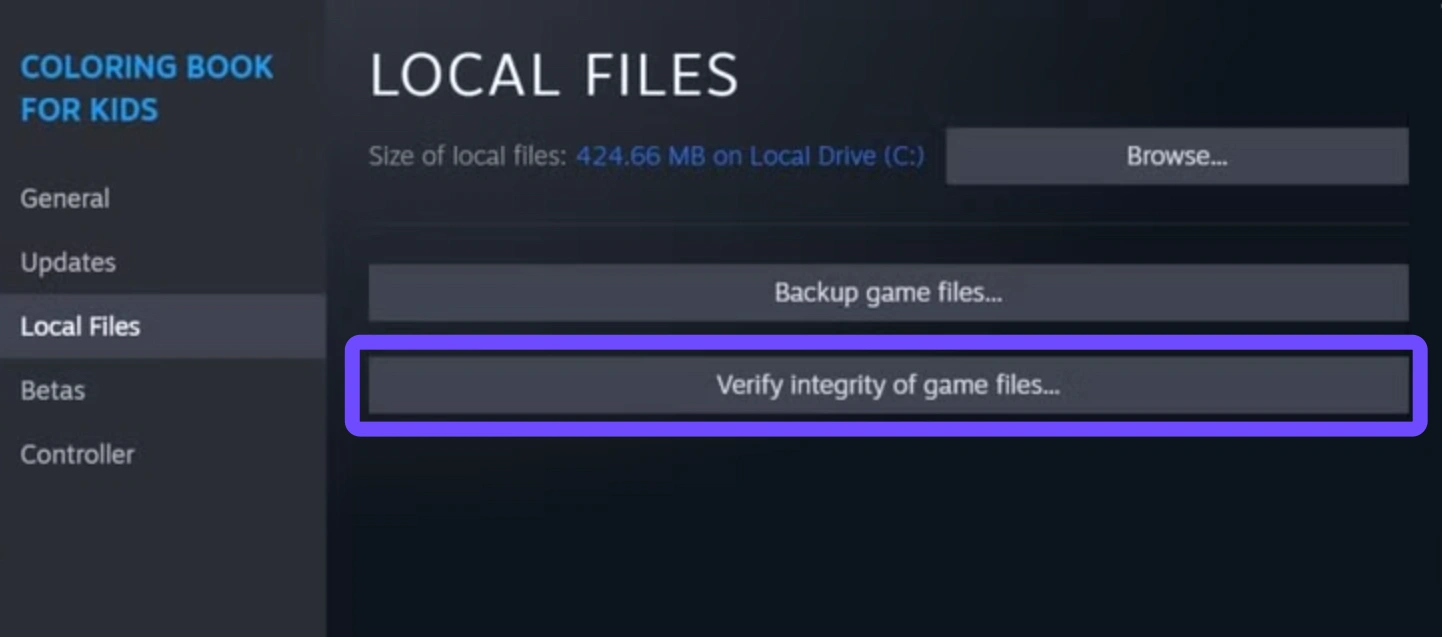
Step 5: Wait for the process to finish and restart Steam before launching the game.
Update Graphics Drivers
A Pragmata black screen is a classic symptom of outdated display drivers. GPU manufacturers frequently release "Game Ready" drivers specifically for high-profile releases like this.
Step 1: Press Win + X and select Device Manager.
Step 2: Expand Display adapters.
Step 3: Right-click your GPU (NVIDIA/AMD) and select Update driver.
Step 4: Choose Search automatically for drivers.
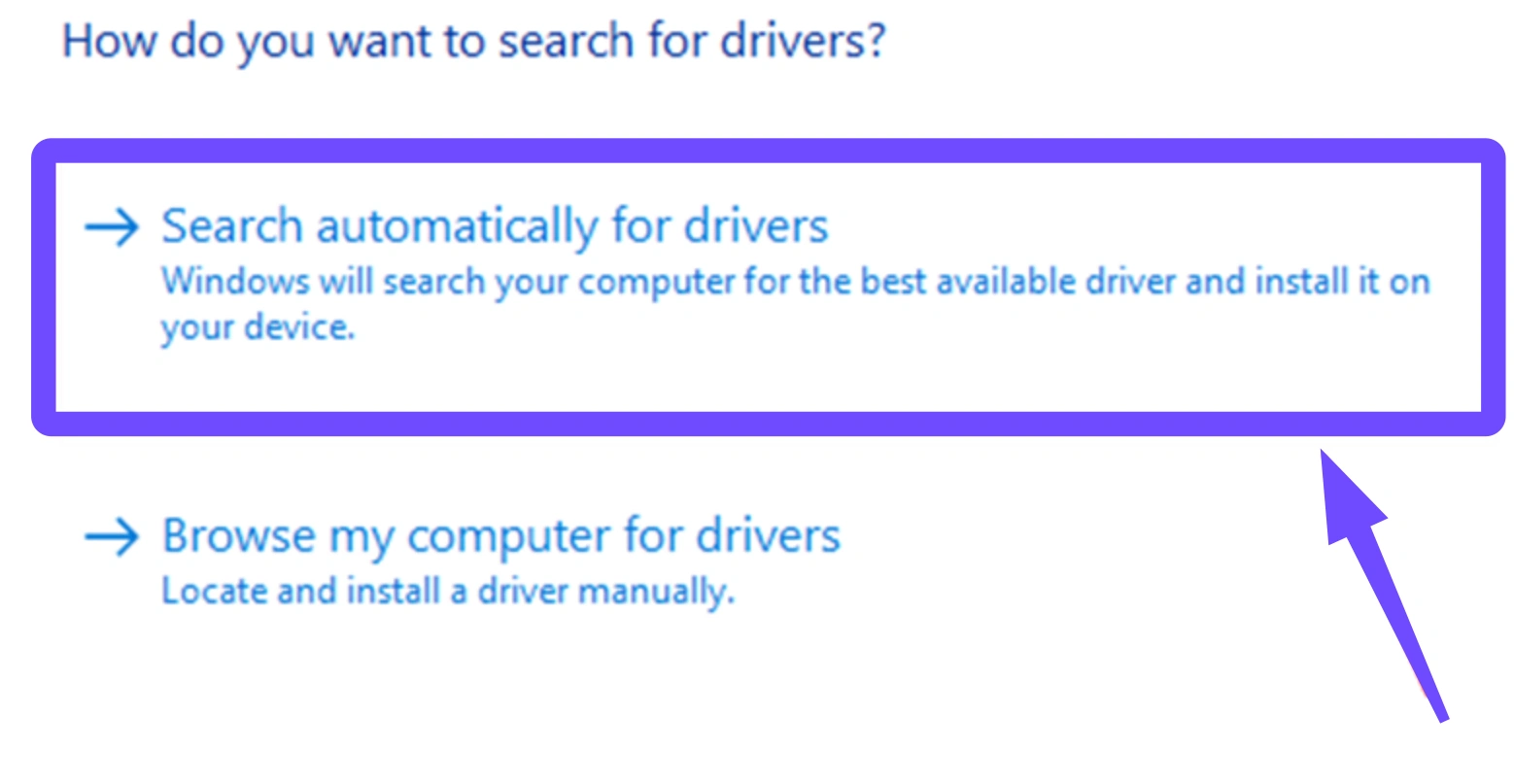
Step 5: Alternatively, download the latest version directly from the NVIDIA or AMD website for a clean installation.
Clear DirectX Shader Cache
Sometimes, the "memory" of how the game renders shapes becomes corrupted, leading to Pragmata freezing on PC. Clearing the shader cache forces the game to rebuild these files freshly.
Step 1: Type Disk Cleanup in your Windows search bar and open it.
Step 2: Select your C: Drive.
Step 3: Check the box next to DirectX Shader Cache (uncheck others if you don't want to delete them).
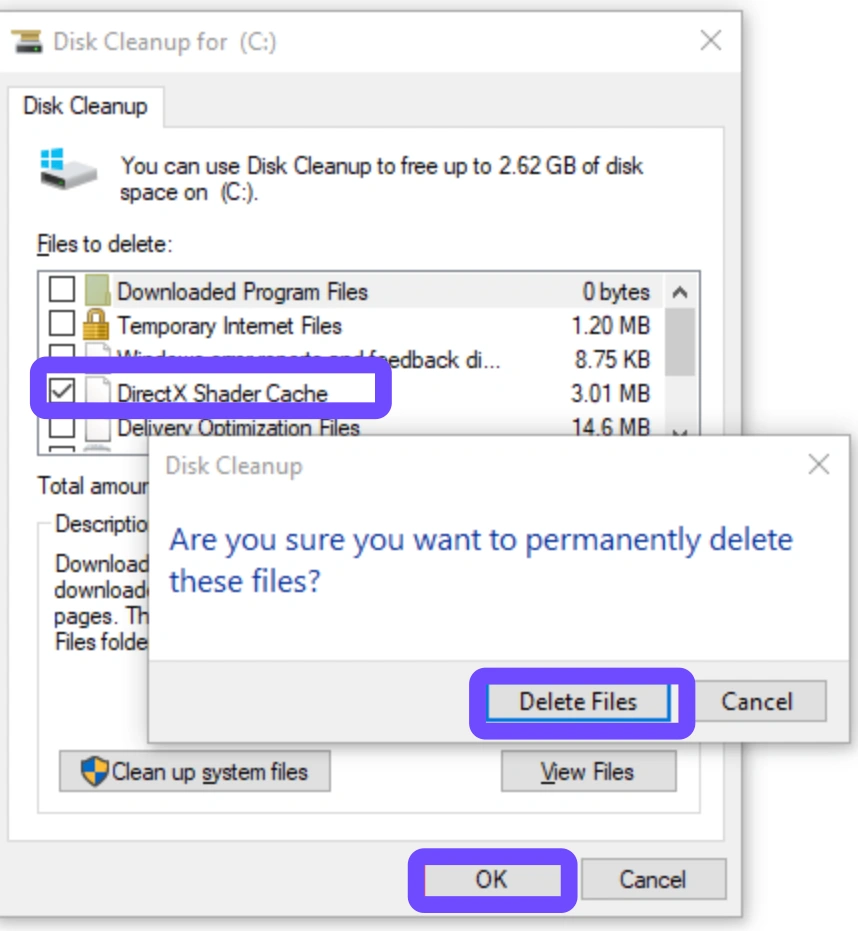
Step 4: Click OK and confirm the deletion.
Step 5: Launch the game; note that the first loading screen may take longer as it rebuilds the cache.
Disable Fullscreen Optimizations
Windows "Fullscreen Optimizations" can sometimes interfere with how high-demand games like Pragmata interact with the GPU, causing Pragmata still crashing not starting loops.
Step 1: Go to the Pragmata installation folder.
Step 2: Right-click the Pragmata.exe file and select Properties.
Step 3: Click the Compatibility tab.
Step 4: Check the box that says Disable fullscreen optimizations.
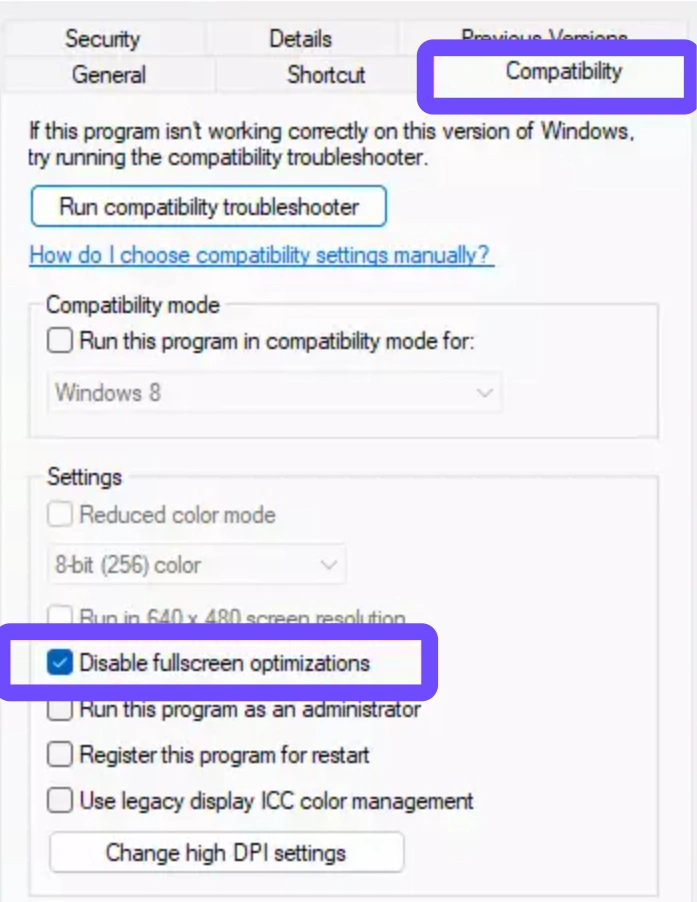
Step 5: Click Apply and then OK.
Part 4: Pragmata System Requirements
To avoid Pragmata not working, ensure your rig meets these specifications. Running the game below the minimum requirements is the primary cause of the Pragmata not loading/stuck on loading error.
|
Component |
Minimum Requirement |
Recommended Requirement |
|
OS |
Windows 10 (64-bit) |
Windows 11 (64-bit) |
|
Processor |
Intel Core i5-8400 / AMD Ryzen 5 2600 |
Intel Core i7-10700K / AMD Ryzen 7 3700X |
|
Memory |
12 GB RAM |
16 GB RAM |
|
Graphics |
NVIDIA GTX 1660 / RX 590 |
NVIDIA RTX 3070 / Radeon RX 6800 |
|
DirectX |
Version 12 |
Version 12 |
|
Storage |
60 GB available space (SSD) |
60 GB available space (NVMe SSD) |
Part 5: FAQs
Why does Pragmata give me a black screen on startup?
A Fix PRAGMATA black screen on PC usually involves updating your drivers or checking if your monitor's resolution matches the game's default settings. Try pressing Alt + Enter to force the game into windowed mode.
How do I fix the "stuck on loading screen" error?
If the game is stuck on loading on PC, it is often due to a slow HDD or a shader compilation stall. Moving the game to an SSD and using LagoFast to clear system bottlenecks usually resolves this.
Can an antivirus cause Pragmata to crash?
Yes. Sometimes security software flags the game's executable as a "false positive." Try adding the Pragmata folder to your antivirus exclusion list.
My PC meets the requirements, but Pragmata still freezes. Why?
Even powerful PCs can suffer from Pragmata freezing. This is often due to "Micro-stuttering" caused by background Windows updates or heavy browser tabs (like Chrome) consuming RAM.
Does Pragmata support older versions of Windows?
No, Pragmata requires DirectX 12, which is only fully supported on Windows 10 and 11. If you are on an older OS, the game will likely result in Pragmata not launching.
Conclusion
Dealing with a Pragmata crashing error is undeniably frustrating, especially when you’re eager to dive into its hauntingly beautiful world. By working through the steps of verifying your files, updating your drivers, and ensuring your hardware is up to par, you can eliminate the vast majority of technical hitches. For a seamless, "set-it-and-forget-it" solution, tools like LagoFast are invaluable for stabilizing performance and ensuring your PC is always game-ready. Don't let a black screen keep you grounded; fix your setup and get back to the stars today.
Boost Your Game with LagoFast for Epic Speed
Play harder, faster. LagoFast game booster eliminates stutter and lags on PC, mobile, or Mac—win every match!
Quickly Reduce Game Lag and Ping!
Boost FPS for Smoother Gameplay!