Pragmata, Capcom’s highly anticipated sci-fi action adventure built on the RE Engine, delivers cutting-edge visuals set in a futuristic lunar environment. However, as with many high-fidelity PC titles, players may encounter performance instability such as FPS drops, stuttering, and inconsistent frame pacing.
This guide is designed to help PC gamers solve Fix Pragmata FPS Drops & Stutters issues through structured optimization techniques, covering everything from hardware evaluation to advanced system tuning. Whether you are experiencing Pragmata FPS lock and stuttering or general performance dips, the solutions below aim to stabilize and maximize your gameplay experience.
Part 1. How to Increase FPS in Pragmata: Your Immediate Solutions
Part 2. Hardware Scaling: Does Your PC Run Pragmata?
Part 3. Unraveling the Mystery: Why Pragmata Experiences FPS Drops & Stutters
Part 4. Comprehensive Solutions to Fix Pragmata FPS Drops & Stutters
Part 5. Other Considerations for Pragmata Performance
Part 6. FAQs
Part 1: How to Increase FPS in Pragmata: Your Immediate Solutions
If you are facing Pragmata FPS drops or unstable frame rates, several immediate adjustments can deliver noticeable improvements without requiring hardware upgrades.
Low FPS in Pragmata is commonly caused by GPU overload, CPU bottlenecks, or inefficient system resource allocation. In many cases, applying quick optimizations can significantly improve Pragmata low FPS fix results.
Key immediate actions include:
- Lowering in-game graphics presets (especially shadows and reflections)
- Enabling upscaling technologies like DLSS or FSR
- Closing background applications consuming CPU/RAM resources
- Ensuring the game is installed on an SSD rather than HDD
These steps often provide the fastest path toward stabilizing performance and reducing stutter spikes.
Part 2. Hardware Scaling: Does Your PC Run Pragmata?
Minimum and Recommended System Requirements
Before applying software fixes, it is essential to evaluate whether your PC meets the performance demands of Pragmata.
Minimum (No Ray Tracing):
- GPU: GTX 1660 / RX 5500 XT
- Target: 1080p / ~45 FPS
Recommended (High Settings):
- GPU: RTX 2060 Super / RX 6600
- Target: 1080p / 60 FPS
Ray Tracing Entry Level:
- GPU: RTX 3060 / RX 6700 XT
- Target: 1080p / 60 FPS with RT enabled
High-End Performance Tier:
- GPU: RTX 4090-class or equivalent next-gen GPUs
- Target: 1440p–4K / 90–120+ FPS
A system below recommended specifications may struggle with Pragmata FPS drops & stutters, especially when ray tracing and high-resolution textures are enabled.
It is important to note that VRAM capacity (8GB or less) can become a limiting factor in higher resolutions, directly affecting stability and causing micro-stutters.
Part 3: Why Pragmata FPS Drops, Stutters, and FPS Lock Issues Happen
Understanding the causes of Pragmata FPS lock and stuttering is essential for applying effective fixes. The most common performance bottlenecks include:
Shader Compilation Delays:
Initial shader compilation is required when launching the game. Interruptions in this process can cause long-term stuttering.
VRAM Limitations:
High-resolution textures and ray tracing consume significant memory. Insufficient VRAM leads to sudden FPS drops and asset streaming delays.
Storage Speed Issues:
Running Pragmata on a traditional HDD can result in texture pop-ins and micro-stutters due to slow asset streaming.
Frame Pacing Instability:
Even with stable FPS, inconsistent frame delivery can cause perceived stuttering.
Background Applications:
Browser tabs, streaming tools, and system utilities can reduce available CPU and RAM resources.
Driver Instability:
Outdated or corrupted GPU drivers frequently contribute to performance degradation.
Part 4: How to Fix Pragmata FPS Drops & Stutters (Full Optimization Guide)
Monitoring and Identifying Bottlenecks
Start by tracking system usage using tools like MSI Afterburner or GPU control panel overlays. This helps determine whether performance is limited by CPU, GPU, RAM, or storage.
If GPU usage stays at 100% with low FPS, the GPU is the bottleneck. If CPU usage is high while GPU usage remains low, the CPU is limiting performance.
Shader Compilation Completion
Always allow the game to fully complete shader compilation during first launch. Interrupting this process often leads to long-term stuttering issues.
SSD Installation Requirement
Installing Pragmata on an SSD significantly reduces loading delays and eliminates many streaming-related stutters.
Driver Optimization
Ensure GPU drivers are fully updated. A clean installation is recommended for best stability and to reduce Pragmata FPS drops & stutters caused by legacy driver conflicts.
Enhancing Performance with LagoFast Game Booster
For players experiencing persistent Pragmata Max FPS & Performance issues, system optimization tools can help reduce background overhead and improve responsiveness.
LagoFast Game Booster is designed to:
- Optimize CPU and GPU resource allocation for gaming priority
- Reduce unnecessary background processes
- Improve network stability and reduce latency spikes
- Enhance overall system responsiveness during gameplay
Steps to use LagoFast:
Step 1: Click the Free Trial button to download and install LagoFast.
Free Trial
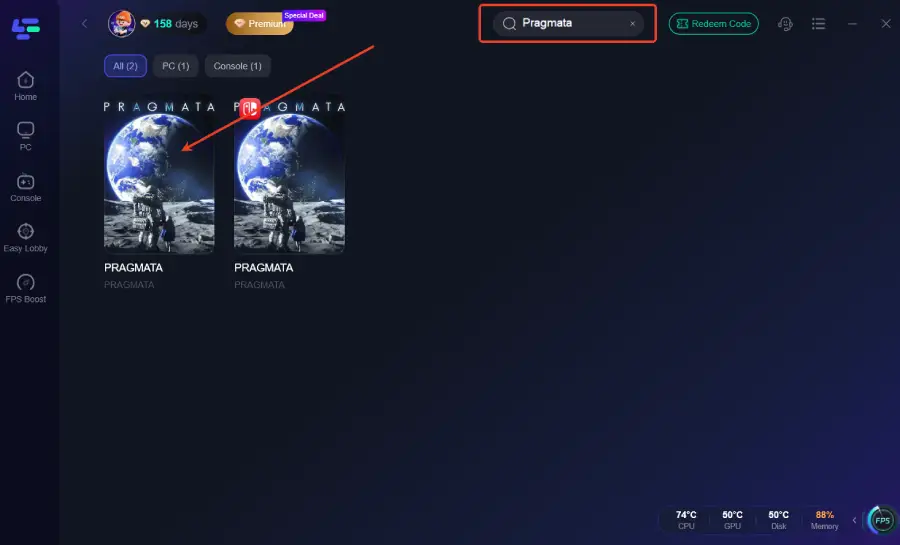
Step 2: After installation, search "Pragmata" in the search bar and select the game.
Step 3: Choose your preferred server node and click "Smart Boost" to start optimizing.
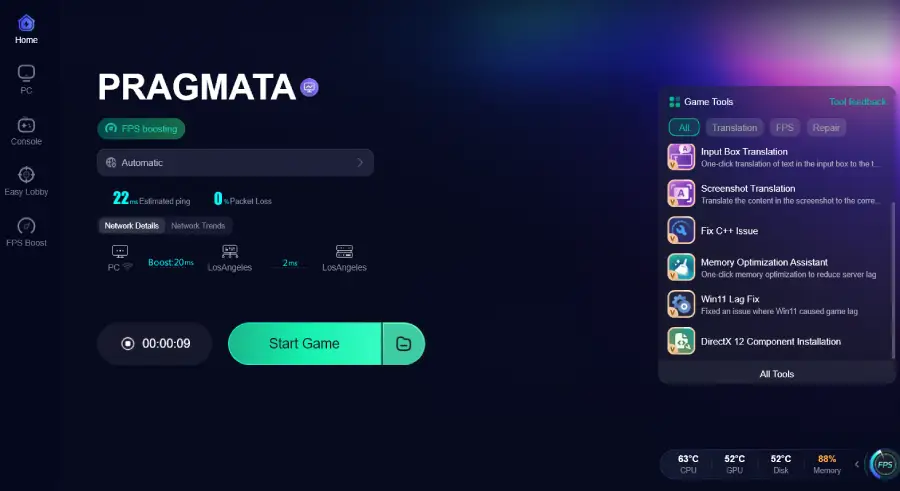
Step 4: Launch your game and enjoy smooth, optimized gameplay with lower ping and packet loss.
This can help reduce system congestion and improve stability, especially during graphically intense sequences.
In-Game Graphics Optimization
Adjusting in-game settings remains one of the most effective ways to improve performance:
- Ray Tracing: Disable or reduce if using mid-range GPUs
- Upscaling (DLSS/FSR): Enables higher FPS with minimal visual loss
- Shadow Quality: Lowering shadows provides significant gains
- Mesh Quality: Medium settings reduce VRAM load
- Dynamic Resolution: Helps stabilize FPS during combat-heavy scenes
- V-Sync: Use based on preference between smoothness and input lag
These settings directly impact whether you achieve stable Pragmata FPS lock and stuttering-free gameplay.
System-Level Optimization
Additional improvements can be made outside the game:
- Enable Windows Game Mode
- Set GPU power mode to maximum performance
- Increase shader cache size in GPU control panel
- Close unnecessary background applications
- Ensure sufficient cooling to avoid thermal throttling
For advanced users, controlled overclocking may further enhance Pragmata low FPS fix results, but should be done carefully.
Part 5: Additional Optimization Tips for Max FPS & Performance
To further enhance stability and achieve optimal Pragmata Max FPS & Performance, consider the following:
- Keep at least 16GB RAM or higher for modern gaming workloads
- Use dual-channel memory configuration for better bandwidth
- Avoid running overlays from multiple applications simultaneously
- Monitor temperatures to prevent CPU/GPU throttling
- Regularly clean system cache and temporary files
These optimizations help maintain consistent frame delivery and reduce long-term performance degradation.
Part 6: FAQs
Why do FPS drops happen suddenly in Pragmata?
Sudden FPS drops may result from overheating, background tasks, driver conflicts, or new in-game environments with higher rendering demands.
Is CPU responsible for stuttering?
Yes. CPU limitations often cause poor 1% low performance, resulting in micro-stutters even when average FPS appears stable.
Can low RAM affect FPS?
Yes. Insufficient RAM forces the system to use slower storage as virtual memory, which leads to significant performance drops.
Is very high FPS always beneficial?
Not always. While higher FPS improves smoothness, values above monitor refresh rates may offer diminishing returns for single-player experiences.
Conclusion
Improving performance in Pragmata requires a balanced approach combining hardware awareness, system optimization, and in-game tuning. By addressing shader compilation, VRAM usage, storage performance, and background processes, players can effectively resolve Fix Pragmata FPS Drops & Stutters issues.
With the right settings and tools, including upscaling technologies and system optimization utilities, achieving stable and smooth gameplay becomes significantly more achievable. Proper tuning ensures a consistent experience free from interruptions, allowing full immersion in Pragmata’s visually rich lunar world.