
Quick Answer
To resolve the blurry visuals in Wuthering Waves, navigate to Settings > Graphics and ensure your Resolution Scale is set to 100%. If the game still looks muddy, try switching from TAA to DLAA (for Nvidia users) or increasing the Sharpness slider to at least 50-70%. Disabling Motion Blur and Depth of Field also significantly improves clarity. For a one-click solution that enhances contrast and removes the "haze" effect without tanking your FPS, using the LagoFast Game Filter is the most effective external method for PC players.

- ✅ Reduce Lag and High Ping.
- ✅ Boost FPS at the Same Time.
- ✅ Change Server Without Latency.
- ✅ One-Click Translation Tool.
- ✅ End All Connection Issues.
- ✅ Multiplatform: PC, Mobile, Console
Part 1: Why Wuthering Waves Looks Blurry Even on Max Settings
Part 2: The TAA Trouble: How Temporal Anti-Aliasing Affects Clarity
Part 3: Optimizing DLSS and FSR for a Sharper Image
Part 4: Fix Wuthering Waves Muddy Textures and Loading Issues
Part 5: Best Wuthering Waves Sharpness Settings for PC
Part 6: Advanced Engine.ini Tweaks for Maximum Visual Fidelity
Part 7: How to Enhance Your Game Experience with LagoFast Game Filter
Part 1: Why Wuthering Waves Looks Blurry Even on Max Settings
Many Resonators have noticed a frustrating trend: even with a high-end RTX 40-series GPU and every setting cranked to "Epic," Wuthering Waves can still appear surprisingly soft or "muddy." This isn't necessarily a hardware limitation but rather a combination of post-processing techniques and engine-level optimization choices.
The primary culprit is often the game's internal resolution scaling and its reliance on aggressive anti-aliasing. In some cases, the game may default to a lower resolution scale to maintain performance, which results in a pixelated or hazy look. Additionally, certain effects like Bloom and Depth of Field are tuned quite high by default, which can smear fine details across the screen, making the lush environments of Solaris-3 look like a watercolor painting rather than a sharp, next-gen RPG.
Part 2: The TAA Trouble: How Temporal Anti-Aliasing Affects Clarity
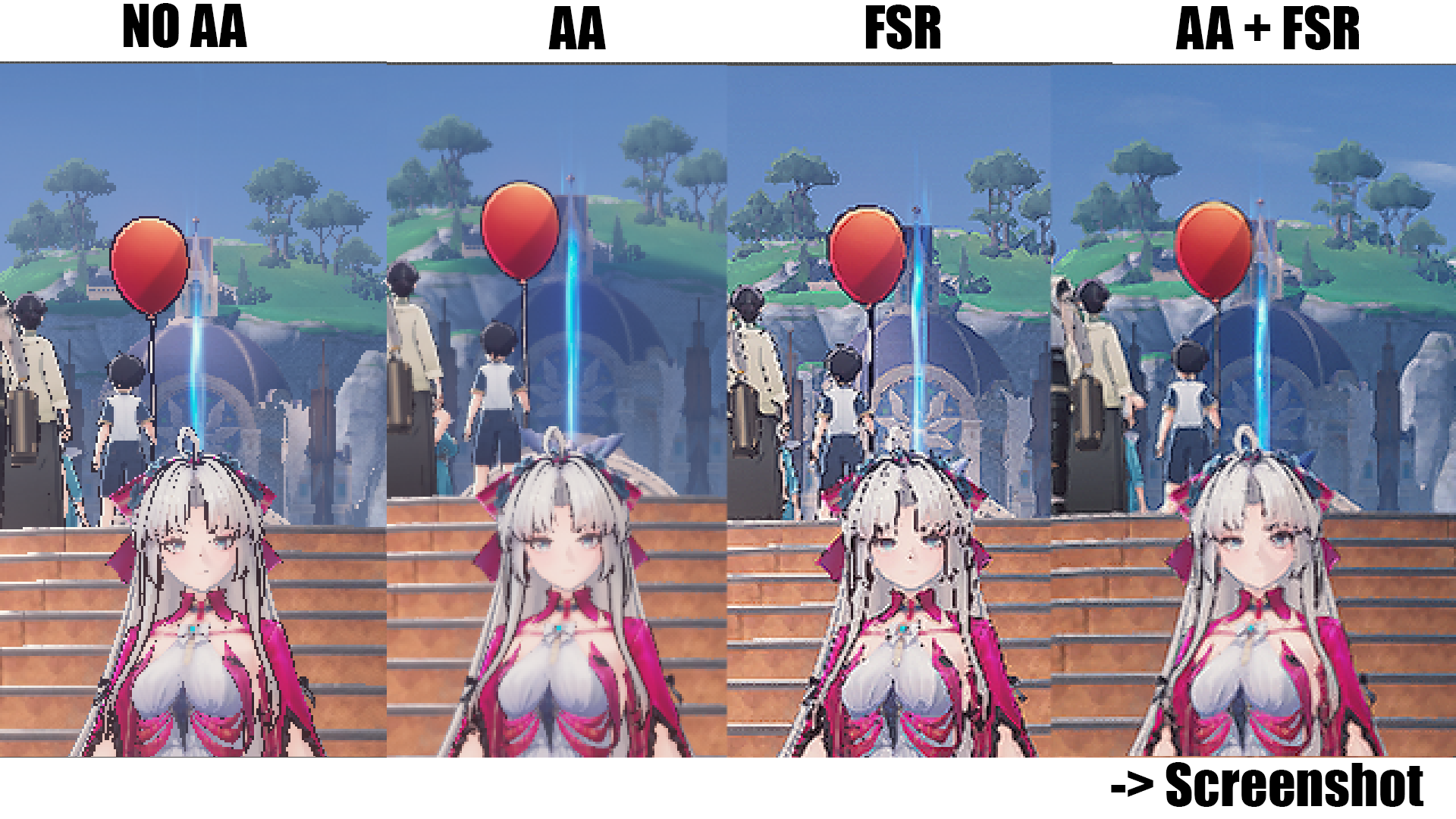
Temporal Anti-Aliasing (TAA) is the industry standard for removing jagged edges, but in Wuthering Waves, the implementation can be quite heavy-handed. TAA works by using information from previous frames to smooth out the current one. While this is great for stability, it often introduces a significant amount of "ghosting" or "blur" when the camera is in motion.
If your Wuthering Waves looks blurry specifically when you are running or rotating the camera, TAA is likely the reason. Unfortunately, the game does not always allow you to disable anti-aliasing entirely through the UI. To counteract this, you must rely on the Sharpness slider in the graphics menu. Setting this to a value between 0.6 and 0.8 can help "recover" some of the detail lost to TAA, though it can sometimes create a slightly "noisy" look if pushed too far.
Part 3: Optimizing DLSS and FSR for a Sharper Image
For players using AI upscaling technologies like Nvidia's DLSS or AMD's FSR, the "blurry" issue can be even more pronounced. While these tools are essential for hitting high frame rates at 4K, they can sometimes struggle with the fine textures and character outlines in an anime-styled game.
If you are an Nvidia user, the best Wuthering Waves DLSS blurry fix is to switch to DLAA (Deep Learning Anti-Aliasing). DLAA uses the same AI tech as DLSS but applies it at your native resolution, providing the best possible image quality without the upscaling artifacts. If you must use DLSS for performance, ensure it is set to "Quality" mode. For AMD users, FSR 2.0 can sometimes look better than TAA, but it requires a careful balance of the sharpness slider to avoid a "shimmering" effect on distant foliage.
Part 4: Fix Wuthering Waves Muddy Textures and Loading Issues
Sometimes the blurriness isn't about anti-aliasing at all, but rather muddy textures that refuse to load in high resolution. This is a common issue on PC where the game's texture streaming doesn't properly utilize your VRAM, leaving you with low-res environmental assets even when "Texture Quality" is set to high.
To fix muddy textures, first ensure the game is installed on an SSD. Wuthering Waves struggles significantly on traditional HDDs, leading to slow asset loading. If you are already on an SSD and still see pixelated ground or character outfits, try clearing your shader cache in your GPU control panel. Some players have also found success by manually editing the game's configuration files to force a higher texture pool size, ensuring the engine has enough memory to keep high-res assets in view.
Part 5: Best Wuthering Waves Sharpness Settings for PC
Finding the "sweet spot" for sharpness is crucial for a clear experience. The in-game sharpness setting in Wuthering Waves acts as a post-process filter that attempts to define edges more clearly.
- For 1080p Players: You will likely need a higher sharpness setting (around 70-80%) to combat the lower pixel density and TAA blur.
- For 1440p/4K Players: A more moderate setting (40-50%) is usually sufficient. Over-sharpening at high resolutions can make the game look artificial and strain your eyes.
If the in-game slider isn't enough, many veteran players recommend using the LagoFast Game Filter. This tool provides a more sophisticated sharpening algorithm than the native one, allowing you to enhance clarity and color vibrance simultaneously with a single click. It's particularly effective at removing the "grey haze" that many players complain about, making the world feel much more vivid.
Part 6: Advanced Engine.ini Tweaks for Maximum Visual Fidelity**
For the tech-savvy Resonators, the ultimate Wuthering Waves blurry fix involves diving into the Engine.ini file. This allows you to bypass some of the game's forced post-processing settings that aren't available in the standard menu.
You can find this file in your Local/Wuthering Waves/Saved/Config/WindowsNoEditor directory. By adding specific lines of code, you can disable the forced "Film Grain" and "Chromatic Aberration," both of which contribute heavily to a perceived lack of sharpness. Additionally, you can force the TAA to use a more "sharpening-focused" algorithm. However, always make a backup of your .ini files before making changes, as incorrect settings can cause the game to crash or behave unexpectedly.
Part 7: How to Enhance Your Game Experience with LagoFast Game Filter
Achieving a sharp, clear image is only half the battle; maintaining a high, stable frame rate is equally important for a smooth experience in Solaris-3. When the game stutters or the ping spikes, even the sharpest graphics won't save your gameplay. This is why many PC players use LagoFast Game Booster.
LagoFast isn't just about reducing ping; it's a comprehensive optimization tool. Its Game Filter feature is a standout for Wuthering Waves players. It allows you to apply professional-grade visual presets that can instantly fix the "washed out" and "blurry" look of the game. Whether you want a more vibrant, high-contrast look or a crisp, cinematic aesthetic, you can switch styles with one click.
Steps to Use LagoFast for Wuthering Waves:
Step 1: Click the Free Trial button to download and install LagoFast.
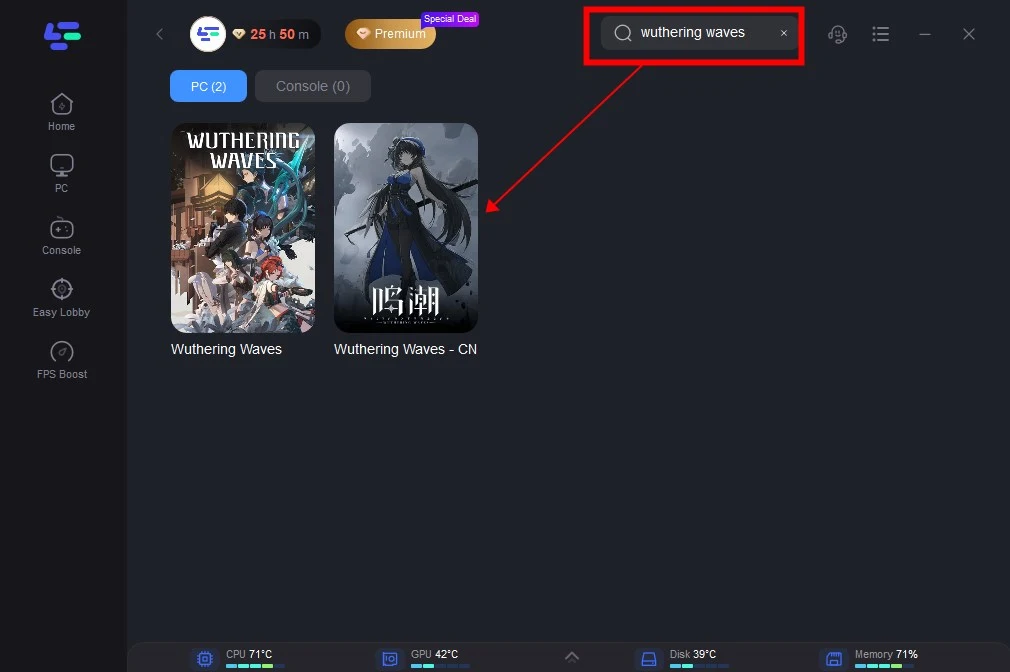
Step 2: Open LagoFast then click the PC button on the left and search Wuthering Waves in the search bar, click it after appearing.
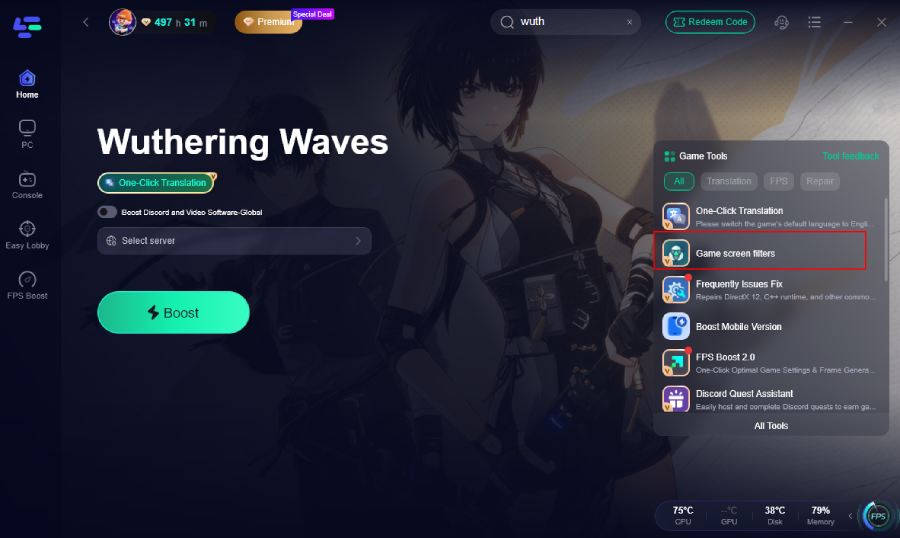
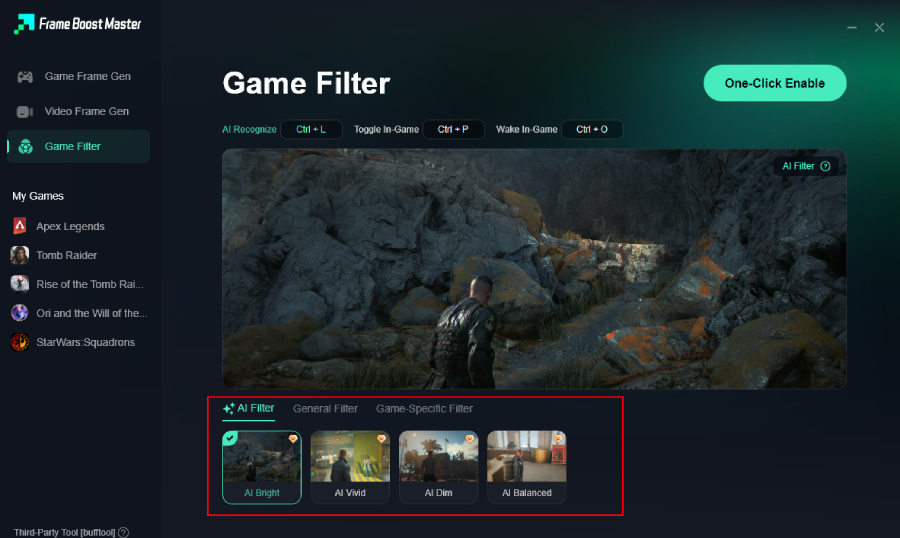
Step 3: Click the Game Screen Filter Tool on the right.
Step 4. Select your preferred filter like AI Bright and click One-Click Enable button to unlock the new experience.
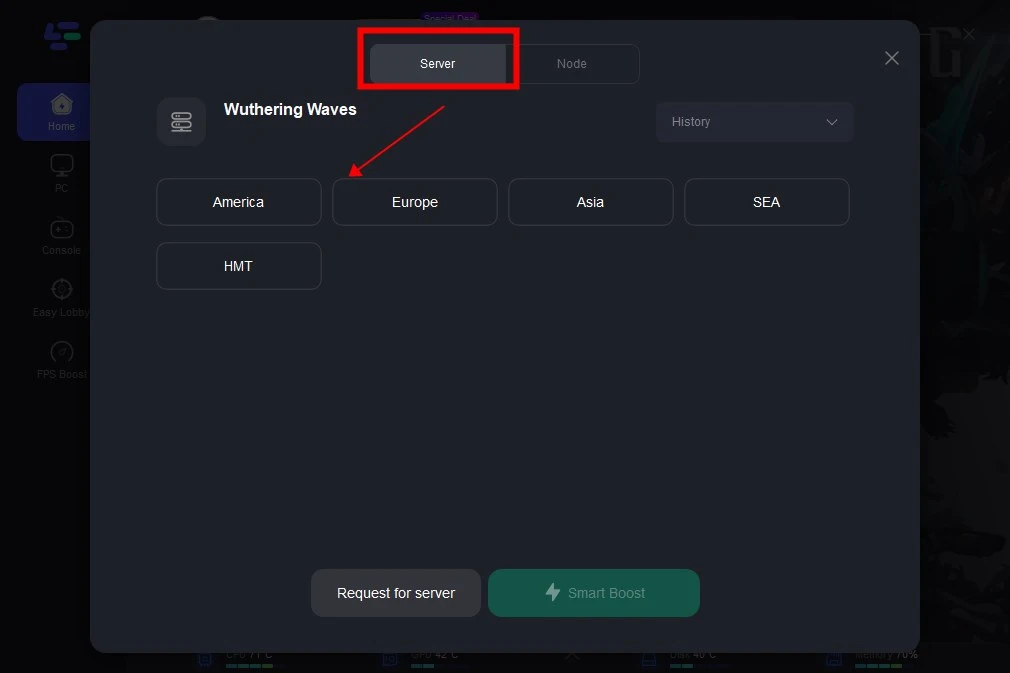
Step 5: Click on “Server” to change to a better server that ensures the gaming experience, then click on “Smart Boost”.
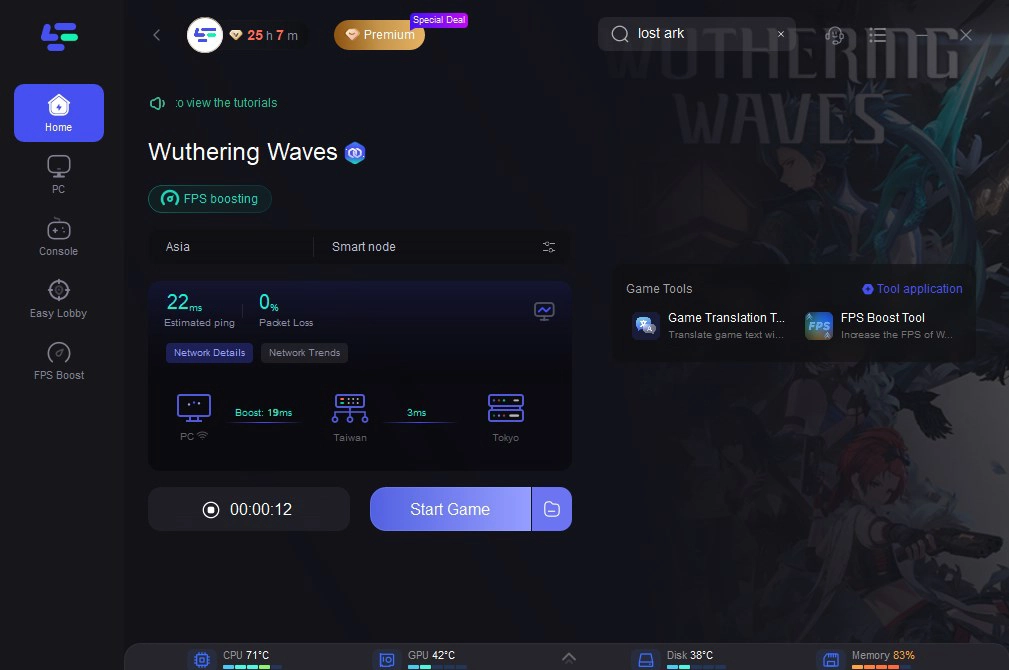
Step 6: Check the specific game ping, packet loss, and multiple path connection on the right side. Finally, click the “Start Game” to play the game.
Part 8:FAQs
Q1: Why does Wuthering Waves look blurry on my high-end PC?
A1: This is usually due to the implementation of TAA (Temporal Anti-Aliasing) and a default "Film Grain" effect. Even on max settings, these post-processing layers can soften the image. Adjusting the in-game sharpness or using external filters can resolve this.
Q2: Does disabling Motion Blur help with the blurry look?
A2: Absolutely. Motion Blur smears the image whenever you move the camera. Disabling it is one of the fastest ways to make the game feel "snappier" and clearer during combat and exploration.
Q3: Is DLSS or FSR better for clarity in Wuthering Waves?
A3: Generally, DLSS (especially in "Quality" mode or as DLAA) provides a superior and sharper image compared to FSR in this specific game engine. FSR can sometimes introduce more "shimmering" on fine details like grass and hair.
Q4: How do I fix pixelated or muddy textures?
A4: Ensure the game is on an SSD and that your "Texture Quality" is set to high. If the issue persists, try clearing your GPU shader cache or checking if your VRAM is being maxed out by other background applications.
Q5: Can I fix the blurriness without using third-party software?
A5: Yes, by setting your Resolution Scale to 100%, turning off Motion Blur/Depth of Field, and cranking the in-game Sharpness slider to 70%+. However, third-party filters often provide a more refined look that the in-game settings can't quite match.
Key Takeaway
Fixing the "blurry" issue in Wuthering Waves is essential for fully appreciating the game's stunning art direction. By understanding the impact of TAA, optimizing your DLSS settings, and fine-tuning sharpness, you can transform a muddy experience into a crisp, high-fidelity masterpiece. For the ultimate "set it and forget it" solution, the LagoFast Game Filter provides a powerful way to enhance clarity and color with a single click, ensuring your journey through Solaris-3 is as beautiful as it is smooth. Download LagoFast today and see the difference for yourself!
Boost Your Game with LagoFast for Epic Speed
Play harder, faster. LagoFast game booster eliminates stutter and lags on PC, mobile, or Mac—win every match!
Quickly Reduce Game Lag and Ping!
Boost FPS for Smoother Gameplay!