
“I just press ‘Play’ in steam library and nothing happens.” Others have described stuck loading, launching failed errors, black screens, and fatal-error style crashes.
Windrose is set to release in Early Access on April 14, 2026.
If Windrose won’t start on PC, the most common causes are simple: you’re trying to launch before the game is actually unlocked, your system misses key minimum requirements, the local game files are damaged, Windows compatibility or runtime components are broken, or the demo is hitting a known saved-data issue.
The fastest way to fix it is to check launch availability first, then work through file verification, admin launch, compatibility mode, demo save cleanup, GPU driver cleanup, and Visual C++ repair.

- ✅ Lower ping and fewer disconnects.
- ✅ More FPS and better PC performance.
- ✅ Support for 8000+ games.
- ✅ Stable connections and region switching.
Why Windrose may not be launching right now
There are real startup problems players have already run into with the demo and current PC builds. Reports include:
- pressing Play and getting no response
- getting stuck on a loading screen
- black screen on startup
- launching failed messages
- fatal error behavior after opening
So before you assume it’s a server issue, treat it as either:
- a timing/unlock problem, or
- a local PC or launcher problem
Hot Related: Windrose Max Players: How Many Can Play Co-op Together?
First checks that fix the most cases fast
Do these in order before trying deeper fixes:
1) Make sure Windrose is actually unlocked
If you’re trying to play close to release, confirm the build is live on your platform first. The Steam store page lists the release date as April 14, 2026, and exact unlock timing can matter if Play does nothing.
If you’re using the demo, make sure you’re launching the installed demo build and not an outdated shortcut or stale launcher entry.
2) Restart Steam or Epic, then restart your PC
A stuck launcher process is one of the easiest causes to miss. Fully close Steam or Epic Games Launcher, then reboot your PC and try again.
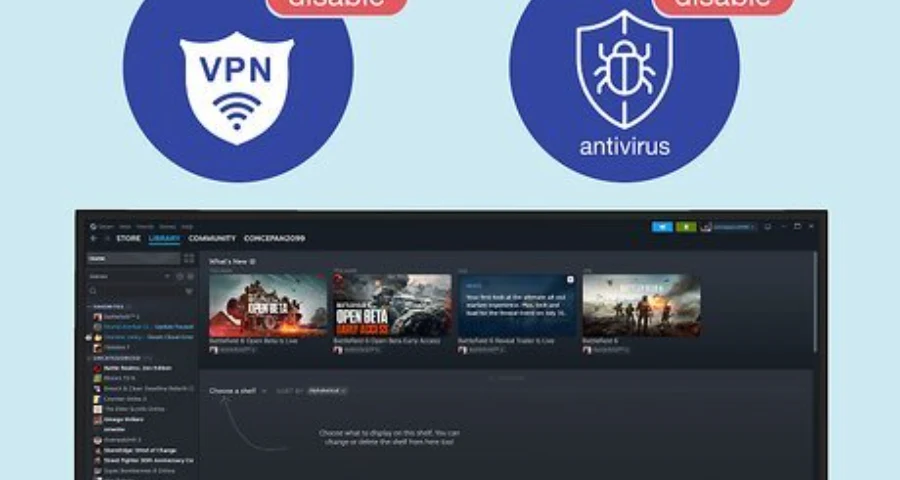
3) Verify the game files
Corrupted or incomplete files are a common reason for startup failure.
On Steam:
-
Open your Library
-
Right-click Windrose
-
Open Properties
-
Go to Installed Files
-
Run Verify integrity of game files
If you’re launching through Epic, use the launcher’s verify option for the install.
4) Run the launcher or game as administrator
Right-click Steam, Epic Games Launcher, or the Windrose executable and choose Run as administrator. This can help if the game is failing because of permissions or blocked file access.
Check whether your PC meets the launch requirements
If your hardware misses the baseline, Windrose may fail before it ever reaches the menu.
The minimum compatibility checks that matter most here are:
-
64-bit processor and operating system
-
Windows 10 64-bit minimum
-
16 GB RAM minimum
-
minimum CPU class around Intel Core i7-8700K / AMD Ryzen 7 2700X
-
enough free storage space for the install
If your system falls short on RAM, OS, or CPU class, a no-launch or instant-close problem is possible. This is especially worth checking if the launcher opens but the game window never appears.
You can compare your setup against the Windrose system requirements.
Targeted fixes for Windrose not starting
If the basic checks didn’t work, these are the fixes most worth trying next.
Use Windows 8 compatibility mode
This has worked for at least some players dealing with the demo not launching.
One Steam discussion fix was straightforward: “Try loading the game in windows 8 compatibility mode. Worked for me.”
To try it:
-
Find the Windrose executable
-
Right-click it and open Properties
-
Open the Compatibility tab
-
Check Run this program in compatibility mode for:
-
Select Windows 8
-
Apply, then launch again
Delete the demo’s RocksDB folder if it hangs on loading
If the Windrose demo opens but gets stuck loading, this is the most specific fix in the current reports.
A player-reported fix says deleting the RocksDB folder from this path solved the problem:
SteamLibrary\steamapps\common\Windrose Demo\R5\Saved\RocksDB
After deleting that folder, launch the demo again. This is mainly a demo loading fix, not a guaranteed fix for every full-game startup issue.
Clean-install your GPU driver
If Windrose is throwing a black screen, instant crash, or fatal error near launch, your graphics driver is worth resetting properly.
Instead of only doing a quick update, do a clean installation of your AMD, NVIDIA, or Intel GPU driver. A clean install is more useful when older driver files or profiles are causing conflicts.
Install or update Microsoft Visual C++ Redistributables
Missing or broken runtime files can stop PC games from launching with no useful error.
If Windrose won’t open at all, repair or install the current Microsoft Visual C++ Redistributables, then restart your PC.
Steam and Epic checks that are easy to miss
Sometimes the game is fine, but the launcher environment is not.
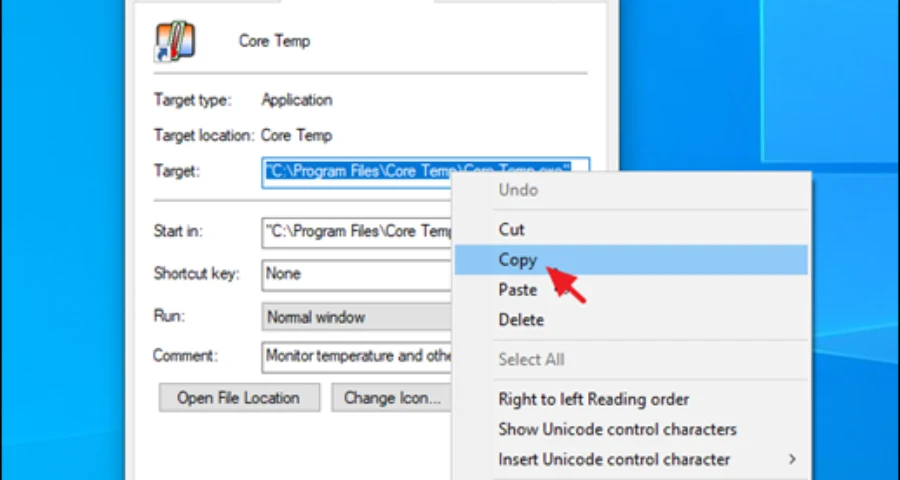
End stuck Windrose processes in Task Manager
If you clicked Play once and nothing visible happened, the game may still be hanging in the background.
Open Task Manager and close:
-
Windrose
-
Windrose Demo
-
Steam bootstrap or launcher child processes if they look stuck
-
Epic-related game processes if you’re using Epic
Then try launching again.
Disable overlays
Disable launcher and third-party overlays before testing again, especially if you get a black screen or instant close.
Check things like:
-
Steam Overlay
-
Epic overlay features
-
Discord overlay
-
GPU software overlays
Make sure the correct build is installed and updated
If you’re using the demo, fully update it. Branch or build mismatches can cause startup and join issues, especially around public test or demo versions.
Recheck install path and permissions
If the game is installed to a restricted folder, external drive, or a path with permission issues, moving it to a normal local library path can help.
If Windrose opens but gets stuck on login or online initialization
This is where you should separate local startup problems from connection problems.
Some Windrose demo builds have had co-op and connectivity instability, including disconnects and session problems. Dedicated servers were also noted as not being part of the demo build, which means some online issues are not the same thing as the game failing to boot.
If the game opens but hangs during login, online setup, or connection-dependent startup flow, first do the local fixes above. After that, make sure the launcher is fully updated, your connection is stable, and everyone in your group is on the same build.
Related Article: Best Windrose Dedicated Server Hosting (2026 Guide)
Related Article: How to Create & Set up a Windrose Dedicated Server
Optimize Your Gaming Experience with LagoFast
If you're still experiencing issues with Windrose not launching or connecting properly, it might be worth considering how your network performance could be impacting your gameplay. Network instability can lead to frustrating experiences, especially in online games. This is where a game booster like LagoFast can come into play, helping to optimize your connection and enhance your overall gaming experience. Learn more about LagoFast.
How to Use LagoFast for Better Performance
To get started, download LagoFast for free and see how it can enhance your gaming experience.
LagoFast can help optimize your network connection for smoother gameplay, reducing lag and improving stability when launching games, Windrose.
With LagoFast, you can easily manage your network settings to ensure that overlays and other applications do not interfere with your gaming sessions.
By using LagoFast, you can enjoy a more reliable connection, minimizing issues like disconnects and session problems, which are crucial for multiplayer gaming.
If you are specifically stuck on host/join flow rather than the game executable failing to open, switching the host player can also help because player-hosted co-op depends partly on the host machine and route quality.
When it’s probably not a server issue
Don’t blame servers for every no-launch case.
If pressing Play does nothing, the game never creates a window, or it closes immediately, that usually points to one of these:
-
game not unlocked yet
-
missing minimum requirements
-
corrupted local files
-
bad permissions
-
compatibility problems
-
broken runtimes or GPU drivers
Server-side or online issues are more likely when:
-
the game opens first
-
you reach login or online initialization
-
co-op session creation fails
-
join or host attempts return you to menu
Still not working? What to send support
If none of the fixes above work, contact the official Windrose support channel through the game’s official pages or launcher support path.
Include these details so you don’t lose time going back and forth:
-
whether this is the full game or the demo
-
your platform launcher: Steam or Epic Games Store
-
exact behavior: Play does nothing, black screen, fatal error, stuck loading, returns to launcher
-
whether the game ever opens a window
-
your Windows version
-
your CPU, GPU, and RAM
-
whether your system meets minimum requirements
-
whether you already verified files
-
whether admin mode and Windows 8 compatibility mode were tested
-
whether you deleted
R5\Saved\RocksDBfor the demo -
whether you clean-installed GPU drivers
-
whether you repaired or reinstalled Visual C++ Redistributables
-
any crash message, screenshot, or log you can provide
-
a DxDiag report
If available, attach launcher logs and crash details from the install or local app data folders.
FAQ
Why does Windrose say Play on Steam but nothing happens?
Usually because the build is not unlocked yet, the files are corrupted, a stuck background process is blocking launch, or Windows permissions and runtime components are preventing the executable from opening.
Can low RAM or unsupported hardware stop Windrose from launching?
Yes. Windrose requires a 64-bit OS, Windows 10 64-bit minimum, 16 GB RAM, and at least an Intel Core i7-8700K or AMD Ryzen 7 2700X class CPU. Missing those can stop the game before it reaches the menu.
Does deleting the RocksDB folder fix Windrose startup problems?
It can fix a specific demo issue where the game gets stuck on loading. The reported path is SteamLibrary\steamapps\common\Windrose Demo\R5\Saved\RocksDB. It is not a universal fix for every launch problem.
Should I use Windows compatibility mode for Windrose?
It’s worth trying if Windrose or the demo won’t launch normally. Windows 8 compatibility mode has worked for some players.
The fixes with the best chance of working
If you want the shortest path, do these first:
-
Confirm Windrose is actually unlocked on your platform and time zone
-
Restart Steam or Epic and reboot your PC
-
Verify game files
-
Run the launcher or game as administrator
-
Try Windows 8 compatibility mode
-
If it’s the demo and loading hangs, delete
R5\Saved\RocksDB -
Clean-install your GPU driver and repair Visual C++ Redistributables
That covers the most likely reasons Windrose won’t start without wasting time on random fixes.
Boost Your Game with LagoFast for Epic Speed
Play harder, faster. LagoFast game booster eliminates stutter and lags on PC, mobile, or Mac—win every match!
Quickly Reduce Game Lag and Ping!
Boost FPS for Smoother Gameplay!