

Windrose co-op works fine at first, but once lag spikes or your host’s connection starts dropping, the experience can start to feel unstable. That’s usually when players begin to notice how much the game relies on the player hosting the world. A Windrose Dedicated Server helps reduce that dependency by separating the world from any single player’s connection. In this guide, you’ll learn why it matters and how to set it up step by step in a simple way.

- ✅ Reduce Lag and High Ping.
✅ Boost FPS at the Same Time.
✅ Support 2000+ Popular Online Games.
✅ Change Server without Latency.
✅ Boost Game Loading Speed.
Part 1: Why Need to Set up a Dedicated Server for Windrose
Part 2: Co-op vs Dedicated Server (Key Differences)
Part 3: How to Create & Set Up a Windrose Dedicated Server
Part 4: How to Improve Windrose Server Stability with LagoFast
Part 1: Why Need to Set up a Dedicated Server for Windrose
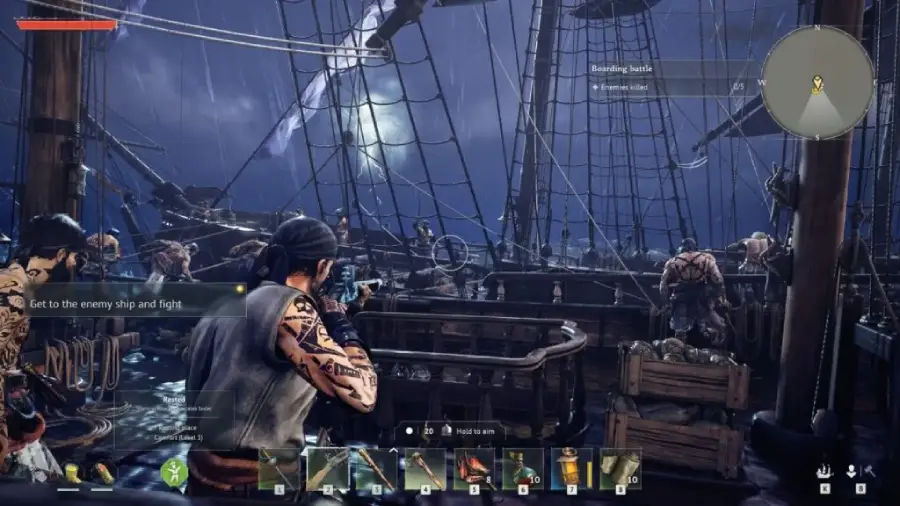
Host Dependency Issues
Windrose co-op relies on the player hosting the world. If that player’s connection becomes unstable or leaves, the session can lag, pause, or disconnect for everyone.
More Stable Gameplay
A Windrose Dedicated Server helps reduce that dependency by keeping the world running independently, which can make gameplay feel more consistent overall.
Easier Multiplayer Scheduling
With a dedicated server, players don’t need to wait for a specific host to be online. Anyone in the group can join when they’re available, making it easier to play across different schedules.
Better Progress Consistency
In co-op sessions, progress is tied to the host’s world. A dedicated server keeps everything in one persistent world, so builds and progression are less affected by session changes.
More Reliable Long Sessions
For players who stick with the same group, a dedicated server offers a more stable setup for longer sessions focused on building or exploring.
Part 2: Co-op vs Dedicated Server (Key Differences)
|
Aspect |
Co-op (Standard Multiplayer) |
Dedicated Server |
|
Core Nature |
Multiplayer via one host player |
Independent server system |
|
Server Source |
Player-hosted (P2P) |
Dedicated machine (local or cloud) |
|
Host Requirement |
Required |
Not required |
|
Stability |
Moderate, depends on host |
More stable overall |
|
Player Scale |
Small groups (~4 players) |
Scalable, community potential |
|
Data Storage |
Stored on host’s device |
Stored on server |
|
Best Use Case |
Playing casually with friends |
Long-term world or community servers |
What This Actually Means
Co-op mode works fine for short sessions, but everything still depends on one player hosting the world, which can affect stability and access.
A Windrose Dedicated Server separates the world from any single player, making it a better option for groups that play regularly.
Part 3: How to Create & Set Up a Windrose Dedicated Server
Before setting up your server, make sure your system can handle the extra load, since a dedicated server is more demanding than normal gameplay. You’ll need at least 8GB RAM (16GB recommended), a stable internet connection with good upload speed, and a Windows or Linux system with Steam installed, plus access to firewall or router settings if needed. If your PC already struggles to run Windrose, hosting a server on the same machine may affect performance.
Step-by-Step Setup
Step 1: Install the Dedicated Server
- Open Steam on the machine you want to use as the host
- Go to Library → Tools
- Find Windrose Dedicated Server and install it
- After installation, files are usually located in your Steam directory under the dedicated server folder
Step 2: Launch the Server
Open the installation folder
Start the server using:
- StartServerForeground.bat (shows logs, useful for setup)
- WindroseServer.exe (background mode)
Wait for full initialization
An Invite Code or connection info may appear in the console for players to join (depending on setup version)
Step 3: Network Setup
- Windrose typically handles connections automatically, so port forwarding is often not required
- Enable UPnP on your router if available
- Allow Steam and server executable through Windows Firewall
If players can’t join, it’s usually related to firewall or network restrictions rather than server issues.
Step 4: Configure Your Server
- Configuration files are generated after first launch
- Adjust settings like server name or world options if needed
- Always stop the server before editing files to prevent overwriting changes
- Restart the server after updates
- Share Invite Code or connection details with friends
Part 4: How to Improve Windrose Server Stability with LagoFast
Even with a properly set up Windrose Dedicated Server, network issues like lag spikes, packet loss, or unstable routing can still affect gameplay.
LagoFast is a game performance platform designed to improve the gaming experience. It helps optimize network performance and stabilize connections during gameplay.
Key features include:
- Reduce ping and improve routing paths
- Fix packet loss and improve connection stability
- Provide more consistent network performance during gameplay
- Game translation tool for better in-game understanding
With these features, LagoFast helps make the overall Windrose multiplayer experience smoother and more stable.
How to Use LagoFast Boost Windrose
Step 1: Click the Free Trial button to download and install LagoFast.
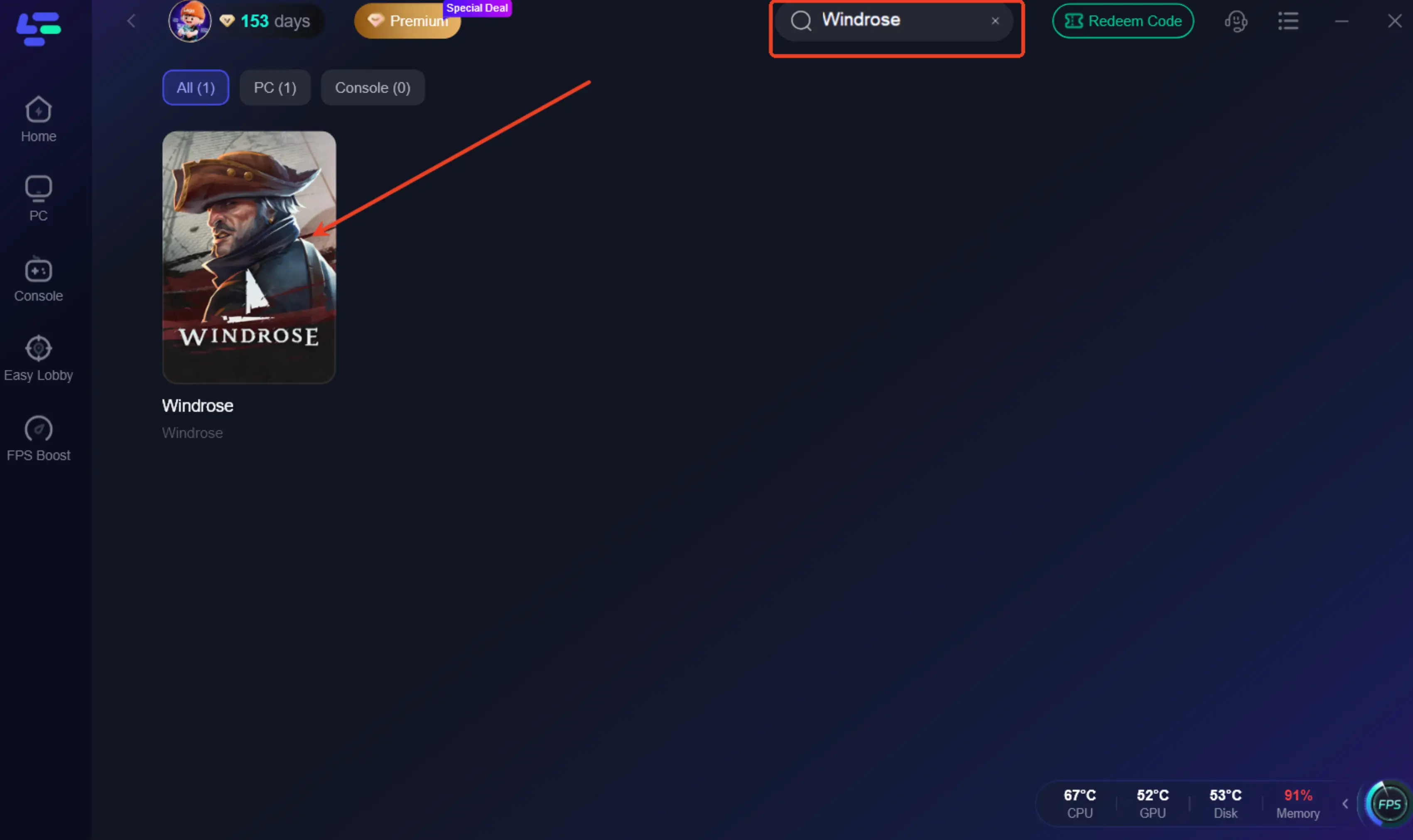
Step 2: After installation, search for "Windrose" in the search bar and select the game.
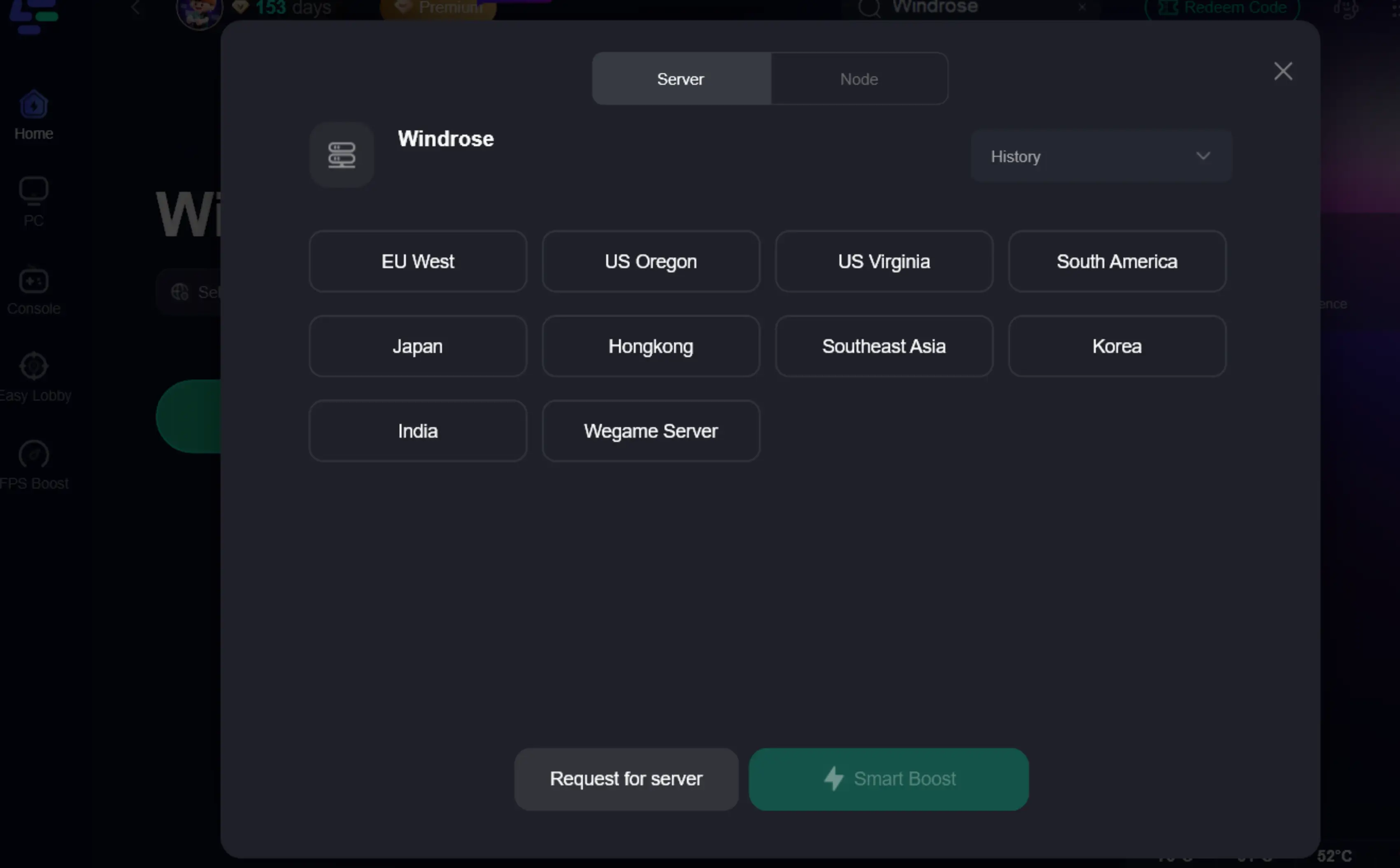
Step 3: Choose your preferred server node and click "Smart Boost" to start optimizing.
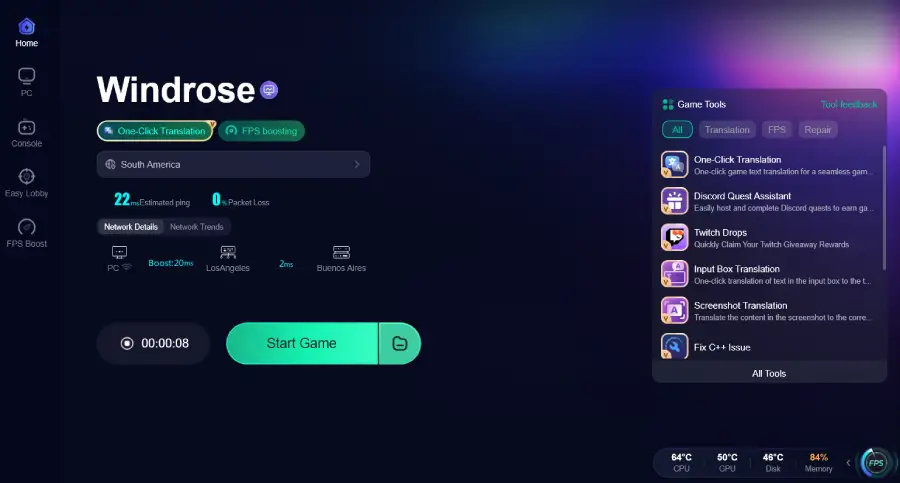
Step 4: Launch your game and enjoy smooth, optimized gameplay with lower ping and no stutter.
Part 5: Windrose FAQs
1. What’s the difference between a dedicated server and co-op in Windrose?
Co-op mode usually depends on one player hosting the world, while a dedicated server runs separately and is designed to provide a more stable shared environment for multiple players.
2. Can I run a Windrose server on my own PC?
Yes, as long as your system can handle the extra load and you’re okay with keeping it running while hosting. Performance may vary depending on your hardware.
3. Why do Windrose servers sometimes feel unstable?
This is often related to network conditions, hardware limits, or routing issues rather than the game mode itself.
4. Do I need to forward ports for a Windrose dedicated server?
In many setups, connection is handled automatically, so port forwarding may not always be required. However, network settings like firewall or router permissions can still affect connectivity depending on your environment.
5. What should I check if friends can’t join my server?
Common causes include firewall restrictions, incorrect permissions, or unstable network settings. It’s usually worth checking network access first before adjusting server configuration.
Conclusion
Setting up a Windrose Dedicated Server can make multiplayer sessions more stable and flexible compared to co-op play. While setup takes a bit of time, it gives you more control over your world and how you play with friends. If network issues appear, tools like LagoFast can further help improve connection stability and reduce lag-related problems.

Boost Your Game with LagoFast for Epic Speed
Play harder, faster. LagoFast game booster eliminates stutter and lags on PC, mobile, or Mac—win every match!
Quickly Reduce Game Lag and Ping!
Boost FPS for Smoother Gameplay!