
Windrose does support online co-op for up to four players on PC. It does not appear to offer local split-screen co-op.
If you are trying to join a friend and keep getting errors, the problem is usually setup order, world mode, or an Early Access connection issue rather than co-op being unavailable.
If Windrose co-op is not connecting, start with the three checks most likely to fix it fast:
-
Make sure the host is already fully loaded into the world
-
Make sure everyone has completed the tutorial first
-
Make sure the save is launched through Host a Game or Connect to Server, not left in Solo/Offline by mistake
Windrose is set to launch in Early Access on April 14, 2026 for PC storefronts including Steam, Epic Games Store, and Stove.

- ✅ Lower ping and fewer disconnects.
- ✅ More FPS and better PC performance.
- ✅ Support for 8000+ games.
- ✅ Stable connections and region switching.
What to expect from Windrose co-op
A few co-op rules are worth knowing so your group does not waste time testing things the game does not support.
-
Online co-op only: local split-screen is not indicated
-
Up to four players: one host plus up to three friends
-
Shared world contribution: your group works on the same world together
-
Progress carryover: players can carry over progress between worlds
-
No PvP against friends: multiplayer is co-op, not friend-vs-friend combat
Related Article: Windrose Max Players: How Many Can Play Co-op Together?
How Windrose co-op works
Windrose supports solo offline play and online co-op. The main multiplayer paths players need to know are:
-
Solo/Offline
-
Host a Game
-
Connect to Server
That matters because it is easy to load the right save in the wrong mode and assume co-op is broken.
If you already made a world offline, you can still use that world for co-op by loading it with Host a Game. Windrose also supports self-hosted and dedicated server options according to its Steam store page.
For party size, the safest confirmed expectation is up to four players total in co-op.
How to join friends in Windrose step by step
Use this order if you want the best chance of avoiding join errors.
1. Create or load the world
The host should open their save first. If needed, create a world in Solo/Offline, then return to the menu and relaunch that save as multiplayer.
2. Finish the tutorial
A common fix from player reports is simple: both the host and joining players should complete the tutorial before trying to play together.
If someone skips this step or tries to join too early, co-op may fail to connect properly.
3. Launch the save in the correct mode
The host should choose Host a Game for a friend session, or use Connect to Server if your group is joining through server options.
If the save is opened in Solo/Offline, friends will not be able to join.
4. Wait until the host is fully inside the world
Do not send invites too early. The host should be fully loaded in and already playing before the other player tries to connect.
This is one of the most repeated fixes for failed joins.
5. Invite your friend
Depending on how you are setting up the session, the host can:
-
Share an invite code
-
Set a password for the hosted world
-
Invite through the Steam overlay
6. Join only while the session is active
The joining player should try to connect only after the host session is live. If the host backs out to menu, reloads, or switches mode, the join may fail and you may need to retry the whole sequence.
Multiplayer Optimization with LagoFast
Windrose uses a host-based co-op system, similar to Palworld.
-
The host runs a local server on their own PC
-
All players connect directly to the host
-
Sessions are limited to up to 4 players
-
Joining is done via invite code (not IP)
Because of this structure, traditional server-based optimization or public matchmaking tools don’t apply here.
How LagoFast Improves Co-op Stability
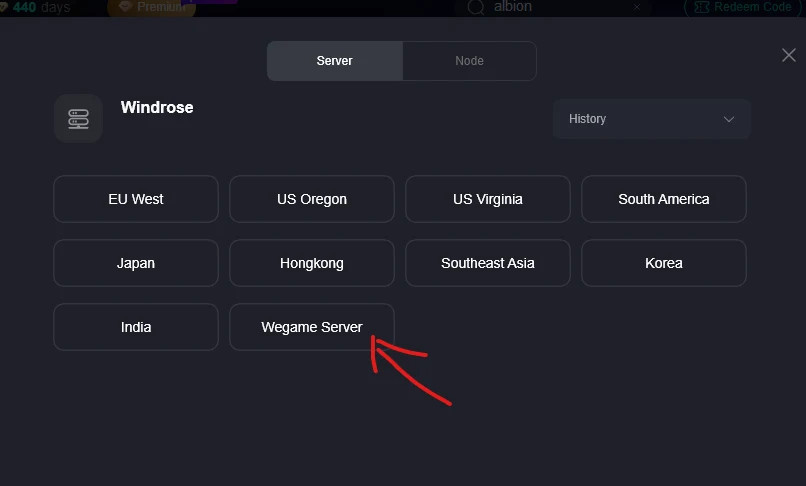
To handle this setup, LagoFast provides a dedicated co-op routing region specifically for host-based multiplayer.
What it does:
-
Optimizes the connection path between players and host
-
Reduces latency spikes and packet loss
-
Improves join success rate and session stability
-
Helps simulate a smoother LAN-like connection experience
This is especially useful when:
-
The host is far from other players
-
Players are connecting across regions
-
You experience frequent disconnects or failed joins
Common Windrose co-op connection issues and fixes
Here are the fixes most worth trying, ordered by how often they solve the problem.
The host is not fully loaded yet
If you try to join before the host is actually inside the world, the connection can fail.
Fix: Have the host enter the world first, wait a few seconds, then send the invite or share the code.
One or both players have not finished the tutorial
Some players have reported that co-op does not work correctly until the tutorial is done.
Fix: Complete the tutorial on both accounts, return to the menu, and launch the world again.
The save was opened in the wrong mode
A world loaded in Solo/Offline is not the same as a hosted multiplayer session.
Fix: If you started offline, back out to the main menu and reopen the same save with Host a Game.
Hosting kicks back to menu or joining throws an error
A player-tested workaround is to create the world offline first, complete the tutorial, then return to menu and relaunch that save into multiplayer with a password.
Fix order:
-
Create or load the save offline
-
Complete the tutorial
-
Return to the menu
-
Relaunch the save with Host a Game
-
Set a password or share the invite details
DNS or routing issues are getting in the way
This is not an official fix, but one community-tested step is switching to Google Public DNS on IPv4:
-
Preferred DNS: 8.8.8.8
-
Alternate DNS: 8.8.4.4
If your join attempts keep timing out or failing for only one player, this is worth trying after you confirm the session setup is correct.
Tips for a smoother crew session
Once your group is in, a little structure helps a lot.
-
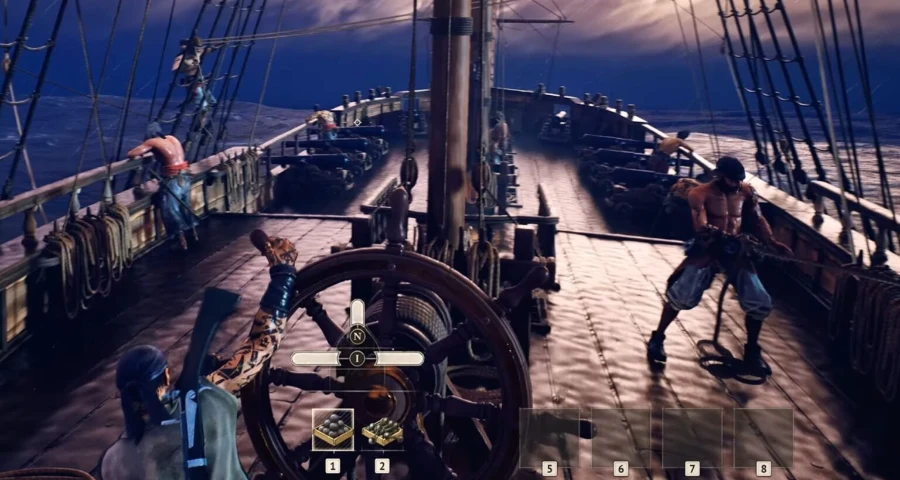
Assign roles on the ship so everyone is not scrambling for the same task
-
Communicate around navigation, weapons, and boarding pressure
-
Expect some variation between runs since Windrose uses procedural generation
-
If one session gets unstable, have the same host recreate it rather than swapping hosts repeatedly
Windrose is built around crew play, with players sharing command of the vessel and tackling the same world together, so organized groups tend to have a much smoother time once the connection works.
Related Article: How to Create & Set up a Windrose Dedicated Server
FAQ
Can you play Windrose co-op in an offline world?
Yes. If you already created a world offline, you can relaunch that same save with Host a Game to make it co-op.
Why can't I join my friend's Windrose world?
The most common reasons are that the host is not fully inside the world yet, one of you has not finished the tutorial, or the save was launched in Solo/Offline instead of Host a Game. If all of that is correct, you may be running into a temporary Early Access connection bug.
Does Windrose have local split-screen co-op?
No local split-screen co-op is indicated. The available multiplayer support points to online-only co-op.
How many players can play Windrose together?
Windrose supports co-op for up to four players total.
Final word
If Windrose co-op will not connect, do not start with complicated network changes. First confirm that both players finished the tutorial, the host launched the save with Host a Game, and the host is already fully inside the world before anyone tries to join.
If that still does not work, relaunch the world, retry from the menu, and then test the Google Public DNS step as a backup. In Early Access, some failed joins may come down to temporary multiplayer bugs rather than a bad setup on your side.
Boost Your Game with LagoFast for Epic Speed
Play harder, faster. LagoFast game booster eliminates stutter and lags on PC, mobile, or Mac—win every match!
Quickly Reduce Game Lag and Ping!
Boost FPS for Smoother Gameplay!