
Quick Answer
If Fortnite looks blurry on your PC, the most common culprits are Motion Blur being enabled, aggressive settings for upscaling technologies like TSR/DLSS/FSR, or low 3D Resolution. To fix this, disable Motion Blur, set your 3D Resolution to 100%, use your monitor’s native resolution, and adjust TSR/DLSS/FSR to Quality or Native. Stabilizing your FPS and ensuring optimal monitor settings also helps. While these core adjustments are key, LagoFast Game Screen Filters can further enhance visual clarity, sharpness, and color visibility, making your game look even crisper.

- ✅ Reduce Lag and High Ping
- ✅ Boost FPS in Real Time
- ✅ Get the Easiest Server in Fortnite
- ✅ End All Connection Login Issues.
- ✅ Support 2000+ Online Games.
- ✅ Fortnite Game Filter
Part 1: Why Fortnite Looks Blurry
Part 2: How to Fix Fortnite Blurry Graphics
Part 3: How to Make Fortnite Look Clearer While Moving
Part 1: Why Fortnite Looks Blurry
Experiencing blurry graphics in Fortnite can be incredibly frustrating, turning a vibrant, fast-paced battle royale into a muddy, indistinct mess. This isn't just an aesthetic annoyance; it directly impacts your ability to spot enemies, track movement, and react effectively in crucial moments. The sensation of a blurry screen, especially when moving, can lead to eye strain and a significant competitive disadvantage. Understanding the underlying causes is the first step toward achieving the crystal-clear visuals necessary for peak performance.
Blurriness in Fortnite can stem from a variety of sources, ranging from intentional graphical effects designed to simulate motion to unintended consequences of performance-enhancing settings. Modern game engines and display technologies offer a multitude of options, and misconfigurations can easily lead to a less-than-optimal visual experience. Let's delve into the specific reasons why your Fortnite might be looking blurry.
Motion Blur Is Turned On
Motion Blur is a graphical effect designed to simulate the blurring of objects in fast motion, mimicking how a camera captures movement. While it can add a cinematic feel to some games, in a competitive shooter like Fortnite, it's often detrimental. When enabled, it intentionally blurs the screen during rapid camera movements or when objects move quickly, making it harder to track targets and identify details. Many players find this effect disorienting and a primary cause of overall blurriness, especially during intense firefights or quick rotations.
TSR, DLSS, or FSR Makes the Image Soft
Temporal Super Resolution (TSR), Deep Learning Super Sampling (DLSS), and FidelityFX Super Resolution (FSR) are advanced upscaling technologies that render the game at a lower internal resolution and then intelligently reconstruct the image to your target display resolution. While these technologies are fantastic for boosting frame rates, especially on less powerful hardware, they can introduce a degree of softness or blurriness, particularly when set to aggressive "Performance" or "Ultra Performance" modes. The algorithms, while sophisticated, cannot perfectly recreate lost detail, leading to a less sharp image compared to native rendering.
Anti-Aliasing Causes a Blurry Look
Anti-aliasing (AA) techniques are used to smooth out jagged edges (aliasing) on objects. While essential for a clean image, some AA methods, particularly certain implementations of Temporal Anti-Aliasing (TAA), can introduce a slight blur or softness to the overall picture. This is a trade-off: you get smoother edges, but at the cost of some image sharpness. If your AA settings are too aggressive or poorly implemented, they can contribute to a blurry appearance.
Low FPS or Unstable Frame Time Makes Movement Look Fuzzy
Even with a high resolution, a low or unstable frame rate (FPS) can make the game appear blurry, especially during movement. When your FPS drops significantly, or your frame times are inconsistent, the game isn't rendering enough unique frames per second to create a smooth visual flow. This can result in a choppy, fuzzy, or smeared appearance, as your eyes struggle to process the rapidly changing, incomplete visual information. This is particularly noticeable when quickly turning your camera or tracking fast-moving opponents.
3D Resolution Is Too Low
Similar to pixelation, a low 3D Resolution setting is a major contributor to blurriness. This setting dictates the internal rendering resolution of the game's 3D elements. If it's set below 100% of your display resolution, the game is rendering at a lower resolution and then upscaling the image. This upscaling process inherently introduces blurriness and a lack of sharpness, as the game engine has to interpolate pixels to fill the screen, resulting in a less detailed and soft image.
Monitor Refresh Rate or Response Time Is Not Ideal
Your monitor's capabilities can also play a role. A low refresh rate (e.g., 60Hz) can make fast movements appear less fluid and more prone to motion blur, even if the in-game setting is off. Similarly, a slow monitor response time can lead to ghosting or smearing effects, where pixels take too long to change color, creating a blurry trail behind moving objects. While not directly an in-game setting, these monitor characteristics can significantly impact the perceived clarity of motion.
Part 2: How to Fix Fortnite Blurry Graphics
Addressing blurry graphics in Fortnite involves a systematic approach, focusing on key in-game settings and system configurations. By fine-tuning these options, you can significantly improve visual clarity and achieve a sharper, more responsive gameplay experience.
Turn Off Motion Blur
This is often the quickest and most impactful fix for overall blurriness, especially during movement. Navigate to Fortnite's Video settings and locate the "Motion Blur" option. Ensure it is set to Off. This will immediately remove the artificial blurring effect, making fast-paced action much clearer and easier to follow.
Set 3D Resolution to 100%
As discussed, a low 3D Resolution is a primary cause of blurriness. Go to your Video settings and set the "3D Resolution" slider to 100%. This ensures the game renders its 3D elements at your monitor's native resolution, providing maximum detail and sharpness. If performance becomes an issue, consider lowering other less critical settings like shadows or post-processing effects before reducing 3D Resolution.
Use Native Resolution
Always play Fortnite at your monitor's native resolution. You can find your monitor's native resolution in your Windows Display Settings. Then, in Fortnite's Video settings, ensure the "Resolution" option matches this native value. Playing at a non-native resolution forces scaling, which inevitably leads to a softer, blurrier image.
Change TSR / DLSS / FSR to Quality
If you are using upscaling technologies, adjust their settings for optimal clarity. In your Video settings, if you have options for TSR, DLSS, or FSR, change them from "Performance" or "Ultra Performance" to "Quality" or "Native" (if available). The Quality preset renders at a higher internal resolution, providing a much sharper image with minimal impact on performance compared to native rendering.
Stabilize FPS and Frame Time
Consistent high FPS is crucial for visual clarity during motion. Aim for a stable frame rate that matches or exceeds your monitor's refresh rate. To achieve this:
- Lower Other Settings: Reduce less critical graphical settings like Shadows, Post Processing, Effects, and View Distance (if not already Epic).
- Update GPU Drivers: Ensure your graphics card drivers are always up to date from NVIDIA, AMD, or Intel's official websites.
- Close Background Applications: Free up system resources by closing any unnecessary programs running in the background.
- Monitor Temperatures: Overheating components can throttle performance. Ensure your CPU and GPU are adequately cooled.
Adjust Monitor Refresh Rate
While not a direct fix for blurriness, a higher refresh rate monitor (e.g., 144Hz, 240Hz) can significantly improve the perceived smoothness and clarity of motion. Ensure your monitor is set to its highest available refresh rate in both Windows Display Settings and Fortnite's Video settings.
Part 3: How to Make Fortnite Look Clearer While Moving
Even after addressing the primary causes of blurriness, some players might still desire an extra edge in visual clarity, especially when tracking fast-moving targets or navigating complex environments. This section focuses on refining your visual experience to ensure every detail is crisp, even in the heat of battle.
Use Sharper Graphics Settings
Beyond the basic fixes, consider these advanced settings for maximum sharpness:
- Post Processing: Set to Low or Medium. High post-processing can sometimes add subtle blurring effects.
- Textures: Set to High or Epic, provided your VRAM can handle it. Higher texture quality means more detail, which contributes to overall sharpness.
- View Distance: Keep this at "Epic." While it can impact FPS, it ensures distant objects are rendered with maximum detail, preventing them from appearing as blurry blobs.
- Anti-Aliasing (Advanced): Experiment with different AA options. If TAA introduces too much blur, some players prefer FXAA or even turning AA off entirely for maximum sharpness, accepting some jaggies. However, this is a personal preference.
Improve Visibility with Filter Settings
This is where external tools, particularly game screen filters, can provide a significant boost to visual clarity. While they don't fix underlying rendering issues, they can enhance the final image to make details pop and enemies easier to spot. LagoFast offers a powerful Game Screen Filter tool that can be invaluable here.
LagoFast Game Screen Filter Capabilities:
LagoFast's Game Screen Filter tools are designed to fine-tune the visual output of your game, allowing for a personalized and optimized viewing experience. They operate on the rendered image, enhancing specific aspects to improve visibility and aesthetic appeal. While game-specific filters are available for titles like PUBG, Rainbow Six Siege, and the COD series, LagoFast's general AI filters and universal options can still significantly benefit Fortnite players.
What LagoFast Filters Can Improve in Fortnite:
- Sharpening: Filters can apply a sharpening effect to the entire image, making edges more defined and textures appear crisper. This is particularly useful if your game still looks slightly soft after optimizing in-game settings.
- Contrast Enhancement: By adjusting contrast, filters can make dark areas darker and light areas lighter, increasing the perceived depth and making objects stand out more from the background. This can be crucial for spotting enemies in shadows or against complex terrain.
- Color Vibrancy: If Fortnite's colors appear dull or washed out, filters can boost saturation, making the game world more vivid and easier to distinguish different elements. This can help in identifying environmental cues or player models.
- Visibility in Specific Areas: Filters can be configured to enhance visibility in typically problematic areas, such as grassy fields, dense foliage, or dimly lit interiors, where enemies might otherwise blend in.
How LagoFast Filters Complement Core Fixes:
It's important to reiterate that LagoFast Game Screen Filters are a complementary solution, not a replacement for fixing fundamental rendering issues. Once you've addressed problems like low 3D Resolution or Motion Blur, filters act as a final layer of polish, allowing you to extract maximum clarity and competitive advantage from your visuals. They help you fine-tune the image to your specific preferences and monitor characteristics, ensuring that every detail is as sharp and visible as possible.
How to Use a LagoFast Filter Tool to Fix Fortnite Blur
Step 1: Begin by clicking the Free Trial button to download and install the LagoFast Free Trial.
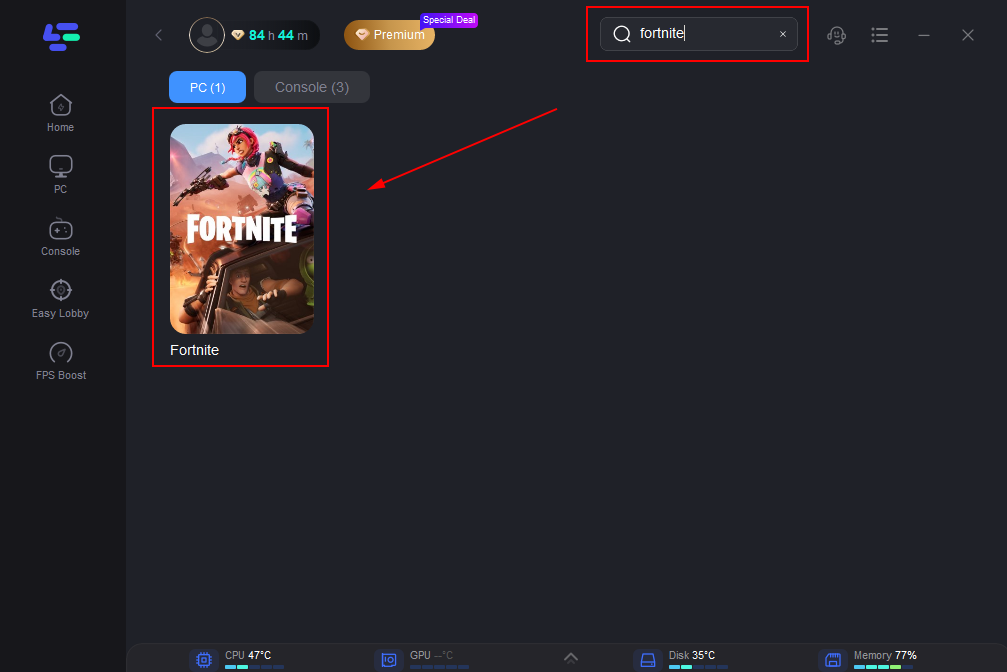
Step 2: After the installation is complete, launch LagoFast and use the search function to locate Fortnite and choose it from the list of results.
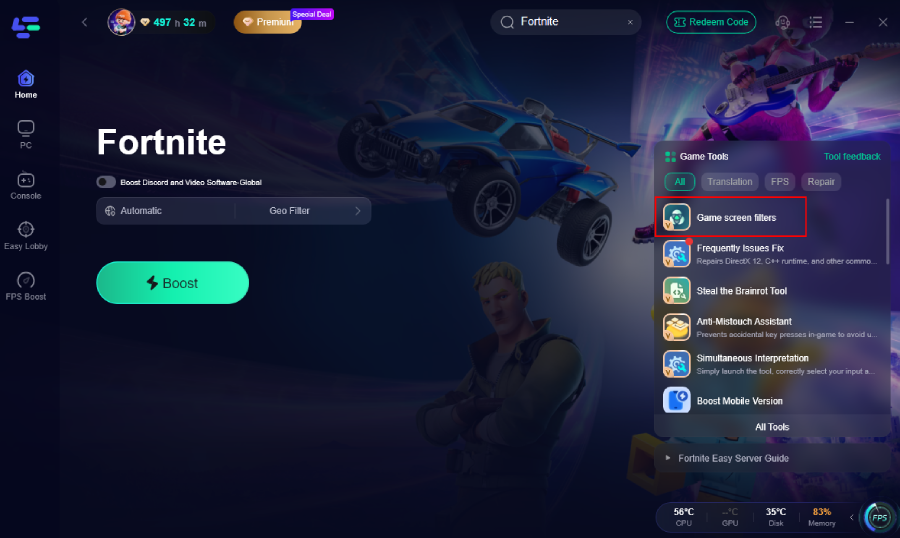
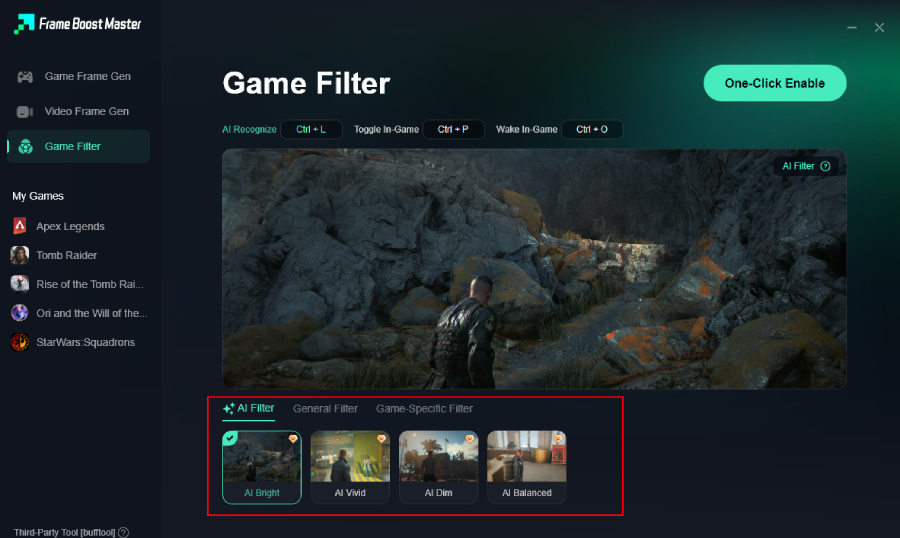
Step 3: Click the Game Screen Filter Tool on the right.
Step 4. Select your preferred filter like AI Bright and click One-Click Enable button to unlock the new experience.
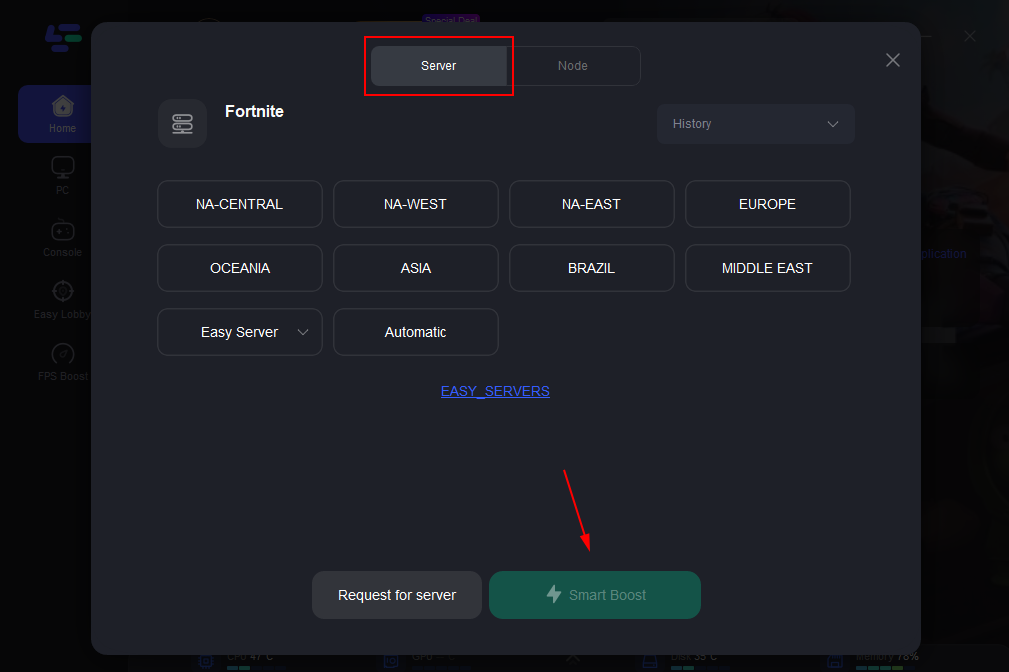
Step 5: Pick a server that is closest to your location or offers the lowest latency for optimal performance.
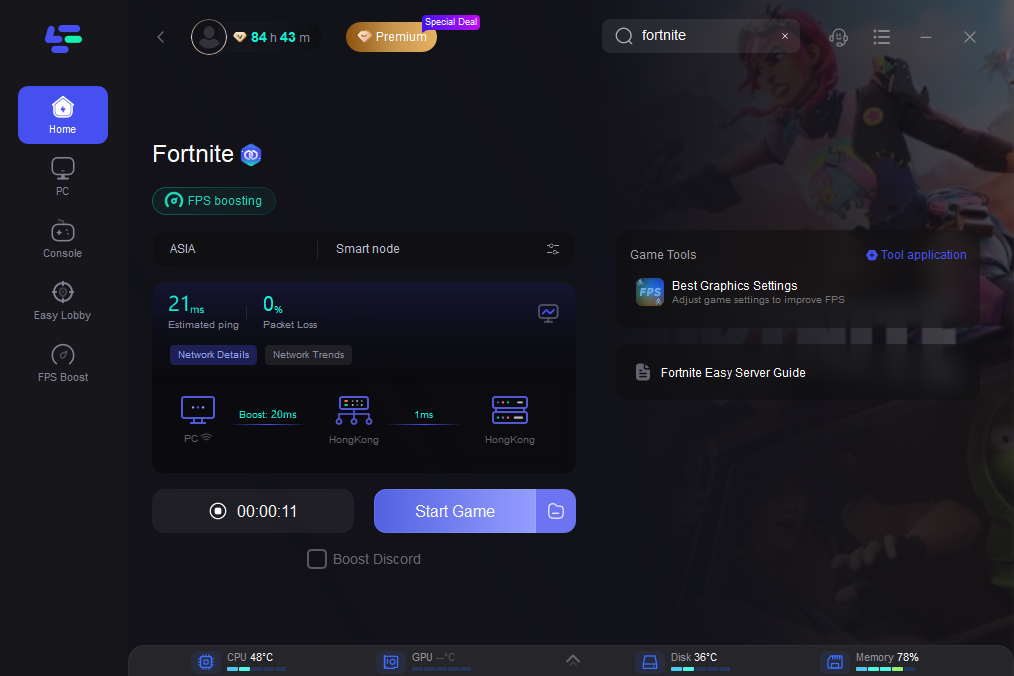
Step 6: Wait for the connection to establish, and enjoy a more stable gaming experience.
Visual Issues Comparison Table
To help you quickly identify the root cause of your visual problems and determine the best course of action, refer to this comparison table:
|
Visual Issue |
User Experience |
Primary Causes |
Is a Filter Tool Suitable? |
|
Fortnite Pixelated |
Blocky appearance, low resolution, blurry distance, jagged edges. |
Low 3D Resolution, non-native resolution, Performance Mode, low DLSS/TSR settings. |
No (Only for auxiliary sharpening). Must fix core settings first. |
|
Fortnite Looks Blurry |
Overall blurriness, smearing during movement, unclear distant objects. |
Motion Blur, aggressive TSR/DLSS, poor Anti-Aliasing, low render scale, unstable FPS. |
Yes (Can assist in improving clarity). |
|
Fortnite Looks Washed Out |
Colors lack vibrancy, low contrast, image appears covered in a gray film. |
HDR settings, brightness/contrast calibration, monitor color profiles, driver settings. |
Yes (Highly suitable for improvement). |
Part 4: FAQ
Q1: Does turning off Motion Blur improve FPS?
A: Yes, turning off Motion Blur can provide a slight boost to your FPS. Motion Blur requires the game engine to perform additional calculations to create the blurring effect. Disabling it frees up those resources, which can lead to a small performance improvement and make the game look clearer.
Q2: Why does my game look blurry even with 3D Resolution at 100%?
A: If your 3D Resolution is at 100% and you are playing at native resolution, the blurriness might be caused by Anti-Aliasing settings (like TAA), upscaling technologies (like DLSS or TSR set to Quality), or even your monitor's response time. Experiment with different AA settings or try using a sharpening filter (like those offered by LagoFast) to improve clarity.
Q3: Can a slow internet connection cause blurry graphics?
A: No, a slow internet connection (high ping or packet loss) causes lag, rubberbanding, and delayed actions, but it does not directly affect the rendering resolution or visual clarity of the game graphics on your PC. Visual blurriness is related to your hardware, in-game settings, and monitor.
Q4: Should I use DLSS/TSR if I want the sharpest image possible?
A: For the absolute sharpest image, native rendering (100% 3D Resolution with no upscaling) is generally best. However, DLSS and TSR set to "Quality" can provide an image that is very close to native while offering a significant performance boost. If you prioritize sharpness above all else and have the hardware to support it, native rendering is the way to go.
Q5: How do I know if my monitor is causing the blurriness?
A: If you experience "ghosting" or smearing trails behind moving objects, even when Motion Blur is off and your FPS is high, your monitor's response time might be too slow. You can test this by looking for specific monitor testing tools online (like the UFO test) to evaluate your display's motion clarity.
Key Takeaway
Fixing blurry graphics in Fortnite involves disabling Motion Blur, ensuring 100% 3D Resolution, and optimizing upscaling settings like DLSS/TSR. For an extra layer of visual clarity and sharpness, especially during movement, utilizing tools like LagoFast Game Screen Filters can provide a significant competitive advantage.

Boost Your Game with LagoFast for Epic Speed
Play harder, faster. LagoFast game booster eliminates stutter and lags on PC, mobile, or Mac—win every match!
Quickly Reduce Game Lag and Ping!
Boost FPS for Smoother Gameplay!