
Quick Answer:
If you are facing the "unable to connect to server" error in Subnautica 2, try these immediate fixes:
- Verify Game Version: Ensure all players in the co-op session are running the exact same version of the game.
- Check Firewall Settings: Add Subnautica 2 and your gaming platform (Steam/Epic/Xbox) to your Windows Defender Firewall exceptions list.
- Verify NAT Type: A Strict or Moderate NAT type can block peer-to-peer connections. Aim for an Open NAT type.
- Use a Game Booster: Tools like LagoFast can stabilize your connection and bypass regional routing issues.
Subnautica 2 has finally brought native 4-player co-op to the beloved underwater survival franchise. Exploring the depths of a new alien ocean with friends is an incredible experience, but technical hurdles can quickly dampen the excitement. One of the most common issues players encounter is the dreaded "unable to connect to server" error. Unlike the original game, which relied on third-party mods like Nitrox for multiplayer, Subnautica 2 features built-in co-op functionality. However, this new architecture comes with its own set of networking challenges. This guide will walk you through the most effective methods to resolve connection problems and get you back to building your underwater base.

- ✅ Reduce Lag and High Ping.
✅ Boost FPS at the Same Time.
✅ Support 2000+ Popular Online Games.
✅ Change Server without Latency.
✅ Boost Game Loading Speed. - ✅ Fix Game Stuttering Issues
Part 1: Why does it keep saying "unable to connect to server" Subnautica 2?
Part 2: Subnautica 2 Connection problems: can't connect to servers
Part 3: Unable to connect to subnautica 2 multiplayer server
Part 4: How to Fix Connection Issues Subnautica 2 (Advanced Methods)
Part 5: How to Fix Subnautica 2 Connection Error / Server Error (System Level)
Part 6: How to Enhance Your Game Experience with LagoFast Game Booster
Part 1: Why does it keep saying "unable to connect to server" Subnautica 2?
The "unable to connect to server" message in Subnautica 2 typically points to a failure in establishing a stable peer-to-peer connection between the host and the joining players. Because Subnautica 2's co-op often relies on one player hosting the session rather than dedicated central servers, the host's network environment plays a critical role.
Several factors can trigger this error. The most frequent culprit is a version mismatch. If the host has downloaded a recent hotfix but a joining player has not, the game will reject the connection to prevent synchronization errors. Another major factor is network address translation (NAT). If the host has a Strict NAT type, their router will actively block incoming connection requests from other players. Additionally, overly aggressive firewall software or antivirus programs can mistakenly identify the game's network traffic as a threat and block it. Finally, general network instability, high packet loss, or ISP routing issues can cause the connection attempt to time out before it can be fully established.
Part 2: Subnautica 2 Connection problems: can't connect to servers
When dealing with general connection problems in Subnautica 2, it is important to start with the basics before moving on to complex network configurations. First, check the official server status. While the game uses peer-to-peer for the actual gameplay, it still relies on backend matchmaking servers provided by the platform (Steam, Xbox Live, or Epic Games) to facilitate the initial handshake. If these platform services are experiencing an outage, you will not be able to connect to your friends, regardless of your local network setup.
Next, verify the integrity of your game files. Corrupted or missing files can cause the game to fail during the connection process. On Steam, you can do this by right-clicking the game in your library, selecting Properties, navigating to the Installed Files tab, and clicking "Verify integrity of game files." This process will scan your installation and replace any problematic files. Furthermore, ensure that your network drivers are up to date. Outdated drivers can cause intermittent connectivity drops that manifest as server connection errors in-game.
Part 3: Unable to connect to subnautica 2 multiplayer server
If you are specifically unable to connect to a Subnautica 2 multiplayer server hosted by a friend, the issue is likely localized to the interaction between your two networks. The first step is to ensure that both the host and the client have restarted their games and their routers. A simple router reboot can clear out stale UPnP (Universal Plug and Play) port mappings and resolve temporary routing glitches.
If a restart does not work, the host should check their in-game multiplayer settings. Ensure that the session is set to "Friends Only" or "Public" rather than "Invite Only," or make sure that a proper invitation has been sent and accepted through the platform's overlay. Additionally, if you are playing across different platforms (e.g., PC and Xbox), verify that crossplay is enabled in the game's options menu. Crossplay connections can sometimes be more fragile than same-platform connections, so ensuring both parties have stable, wired internet connections can significantly improve success rates.
Part 4: How to Fix Connection Issues Subnautica 2 (Advanced Methods)
When basic troubleshooting fails, you may need to adjust your network hardware settings to facilitate a better connection.
NAT Type and Port Forwarding
Your NAT type dictates how freely your router allows external devices to connect to your PC or console. For the best multiplayer experience, you want an Open (Type 1) NAT. If you have a Moderate (Type 2) or Strict (Type 3) NAT, you will likely experience connection failures. To fix this, you can enable UPnP in your router's administrative settings, which allows the game to automatically open the necessary ports. If UPnP is unreliable, you may need to manually forward the specific ports used by Subnautica 2 and your gaming platform. Consult your router's manual for instructions on how to access the port forwarding section.
DNS and Network Reset
Sometimes, your ISP's default Domain Name System (DNS) servers can be slow or unreliable, leading to connection timeouts. Switching to a public DNS, such as Google (8.8.8.8 and 8.8.4.4) or Cloudflare (1.1.1.1 and 1.0.0.1), can improve connection speed and reliability. You can change your DNS settings in the Windows Network and Sharing Center. If changing the DNS does not help, performing a full network reset in Windows can clear out corrupted network configurations. Go to Settings > Network & Internet > Advanced network settings > Network reset.
Part 5: How to Fix Subnautica 2 Connection Error / Server Error (System Level)
System-level software can often interfere with Subnautica 2's ability to communicate over the internet.
Firewall and Antivirus Exceptions
Windows Defender Firewall or third-party antivirus software may block Subnautica 2. To resolve this, you must add the game's executable file as an exception. Open the Windows Security app, navigate to Firewall & network protection, and click "Allow an app through firewall." Find Subnautica 2 in the list and ensure both the Private and Public boxes are checked. If you use a third-party antivirus, consult its documentation on how to whitelist an application.
Gaming Services and Store Updates
If you are playing the Microsoft Store or Xbox Game Pass version of Subnautica 2 on PC, the "Gaming Services" app is crucial for multiplayer connectivity. If this app is outdated or corrupted, it can cause server errors. Open the Microsoft Store, go to your Library, and click "Get updates" to ensure Gaming Services and the Xbox app are fully updated. You can also try repairing the Gaming Services app through the Windows Settings > Apps menu.
Part 6: How to Enhance Your Game Experience with LagoFast Game Booster
If you have tried all the technical fixes and are still experiencing connection drops, high ping, or the "unable to connect to server" error, the issue might lie with your ISP's routing to the host player. This is where a dedicated gaming VPN like LagoFast Game Booster becomes invaluable. LagoFast (LagoFast Game Booster - Get No Lag and Lower Ping) is designed specifically to optimize gaming traffic, reducing latency and stabilizing connections by routing your data through the most efficient pathways.
LagoFast can help bypass regional restrictions, stabilize peer-to-peer connections by providing a more direct route between players, and reduce packet loss. It is an excellent tool for ensuring a smooth Subnautica 2 co-op experience.
How to Use LagoFast Game Booster
Step 1: Click the Free Trial button to download and install LagoFast Free Trial.
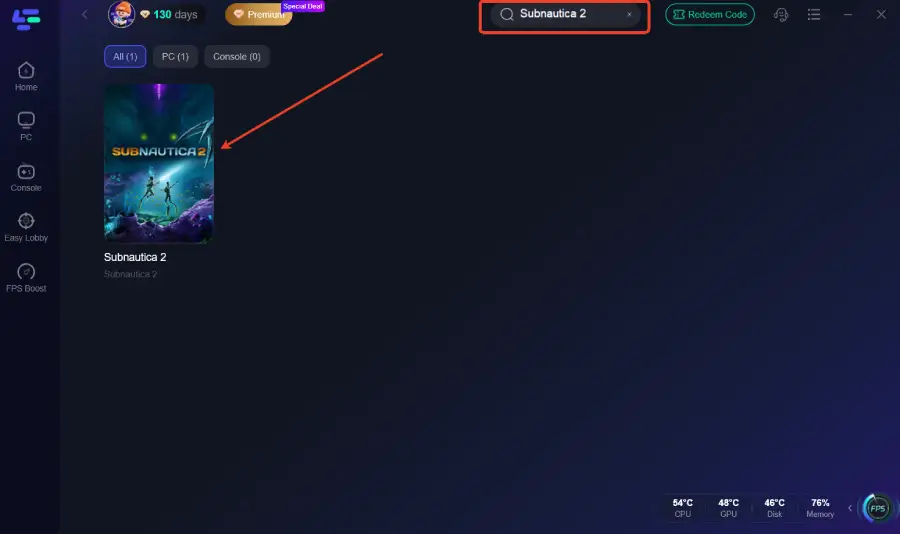
Step 2: In the search bar at the top, type "Subnautica 2" and select the game from the results.
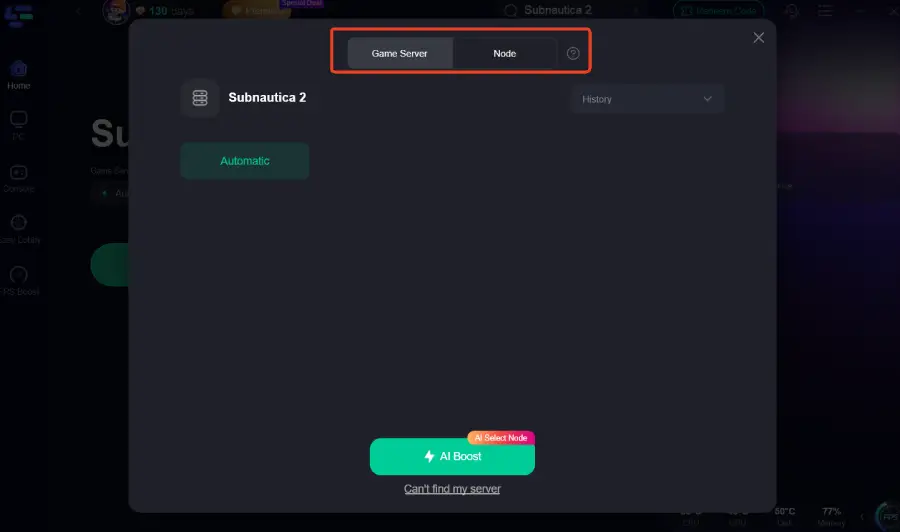
Step 3: Choose the server node that is geographically closest to the host player, or let LagoFast automatically select the optimal node.
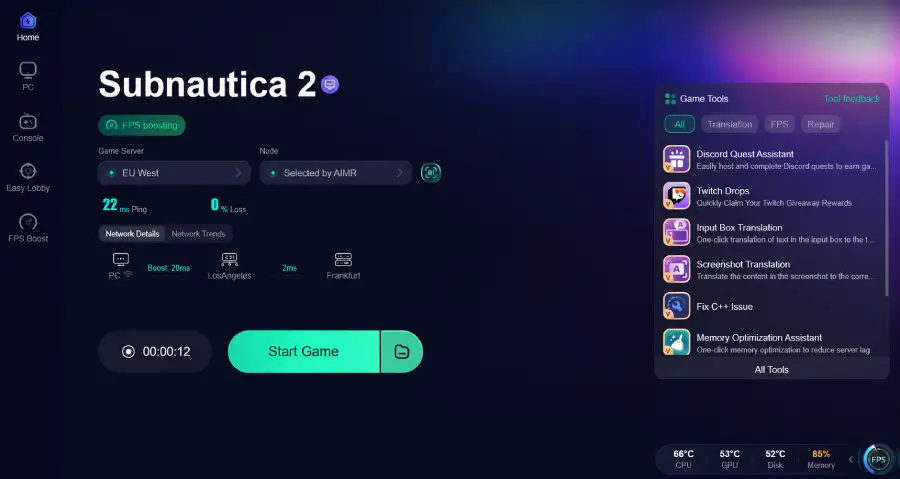
Step 4: Click the "Boost" button. LagoFast will optimize your connection. Once the boost is active, launch Subnautica 2 and join your multiplayer session.
Part 7: FAQs
1. Does Subnautica 2 have dedicated servers?
Currently, Subnautica 2 primarily utilizes a peer-to-peer hosting model for its 4-player co-op, meaning one player acts as the host for the session.
2. Can I play Subnautica 2 multiplayer cross-platform?
Yes, Subnautica 2 supports cross-platform play, allowing PC and console players to explore together. Ensure crossplay is enabled in the settings.
3. Why is my friend's server not showing up in the list?
This is often due to a version mismatch. Ensure both you and your friend have downloaded the latest updates for the game.
4. Does the host need a strong internet connection?
Yes, because the host is managing the game state for all players, a stable connection with good upload speed is crucial to prevent lag and disconnects for the joining players.
5. Will my progress save if I disconnect from a multiplayer session?
Character inventory and personal progress are generally saved, but world progress is tied to the host's save file.
Key Takeaway
Resolving the "unable to connect to server" error in Subnautica 2 requires a systematic approach. Start by ensuring version parity and checking your firewall settings. If issues persist, optimizing your NAT type and utilizing network optimization tools can provide the stability needed for a seamless underwater co-op adventure.

Boost Your Game with LagoFast for Epic Speed
Play harder, faster. LagoFast game booster eliminates stutter and lags on PC, mobile, or Mac—win every match!
Quickly Reduce Game Lag and Ping!
Boost FPS for Smoother Gameplay!