
Quick Answer
If Subnautica 2 feels unstable or drops FPS during gameplay, the fastest improvement usually comes from combining a LagoFast FPS booster with a few basic optimizations. Lower water quality, disable heavy effects like reflections and motion blur, reduce shadows, and keep the game installed on an SSD while closing background apps to reduce stutters and FPS drops.
If Subnautica 2 starts feeling laggy in deep ocean areas or visually dense environments, you’re not alone. Many players experience sudden FPS drops when the game loads large underwater scenes or heavy effects. The good news is that most of these issues can be improved with a few simple adjustments. This guide explains the most effective ways to fix Subnautica 2 low FPS and reduce stuttering without overcomplicating things.

- ✅ Reduce Lag and High Ping.
✅ Boost FPS at the Same Time.
✅ Support 2000+ Popular Online Games.
✅ Change Server without Latency.
✅ Boost Game Loading Speed.
Part 1: Why Subnautica 2 Has Low FPS & Stutters
Part 2: How to Use LagoFast to Boost FPS & Fix Lag in Subnautica 2
Part 3: How to Fix Subnautica 2 FPS Drops & Stuttering (General Fixes)
Part 4: Bonus Tips: Fix Subnautica 2 FPS Issues on High-End and Low-End PCs
Part 1: Why Subnautica 2 Has Low FPS & Stutters
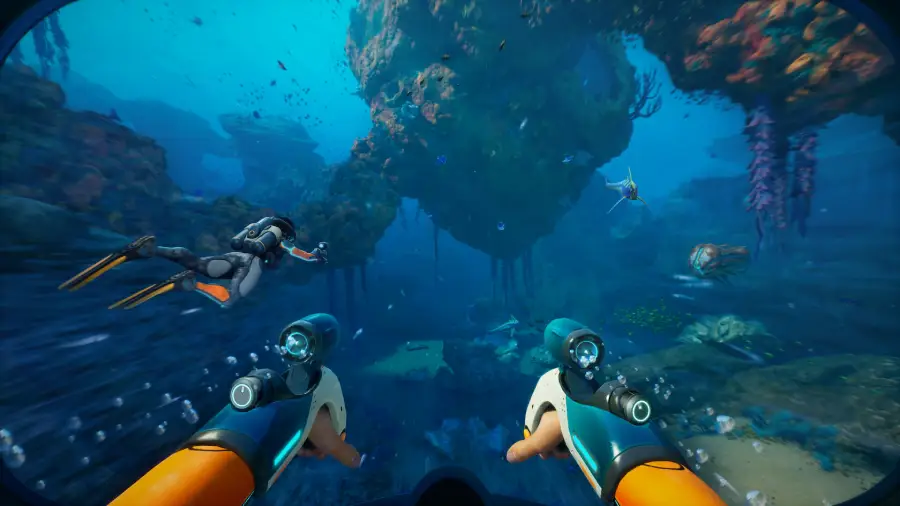
Subnautica 2 runs on Unreal Engine 5, which delivers high-quality visuals but also increases rendering demands, especially in underwater environments where lighting and effects are constantly active.
Common reasons behind performance issues include:
- Heavy underwater rendering load from lighting, fog, and water simulation
- High GPU usage caused by reflections, shadows, and post-processing effects
- Open-world streaming when moving between large ocean zones
- CPU spikes from AI, physics, and world simulation systems
- Background processes interfering with performance (such as browsers, Discord, or recording tools running in the background)
- Early optimization limitations during development stages
That’s why even powerful PCs can sometimes experience FPS drops during deep exploration or visually complex scenes.
Part 2: How to Use LagoFast to Boost FPS & Fix Lag in Subnautica 2
When Subnautica 2 starts dropping FPS during deep ocean exploration, it’s usually not only about hardware—it’s about how the game handles heavy performance loads in real time. This is where LagoFast helps improve stability and reduce sudden stutters.
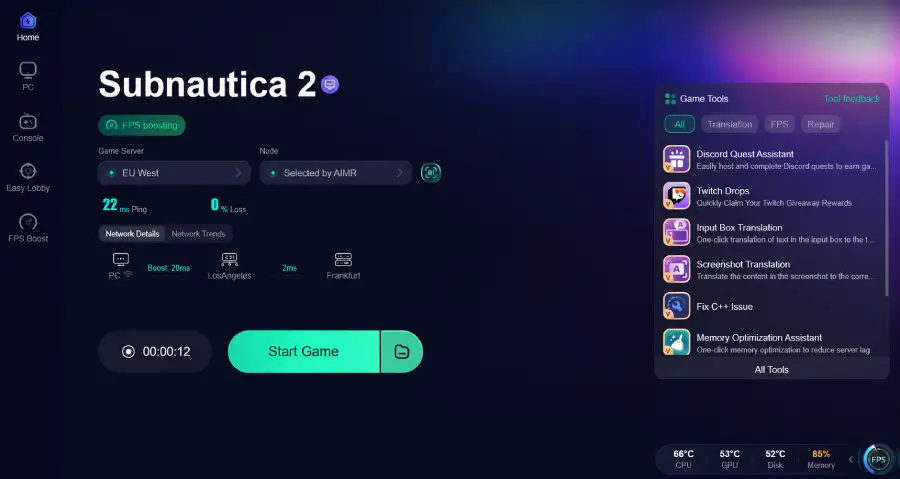
LagoFast provides FPS Boost optimization designed to make gameplay smoother and more consistent during demanding scenes, along with a variety of FPS optimization tools to further improve overall performance.
Instead of focusing only on in-game graphics settings, LagoFast helps improve overall gameplay stability during heavy load scenes:
- Keeps frame pacing more consistent, reducing sudden FPS drops during gameplay
- Improves responsiveness when the game is under heavy system load
- Smooths out performance spikes that may occur during large underwater exploration
- Helps maintain more stable performance across longer play sessions
Tutorial to Use LagoFast Fix Subnautica 2 Low FPS
Step 1: Click the Free Trial button to download and install LagoFast.
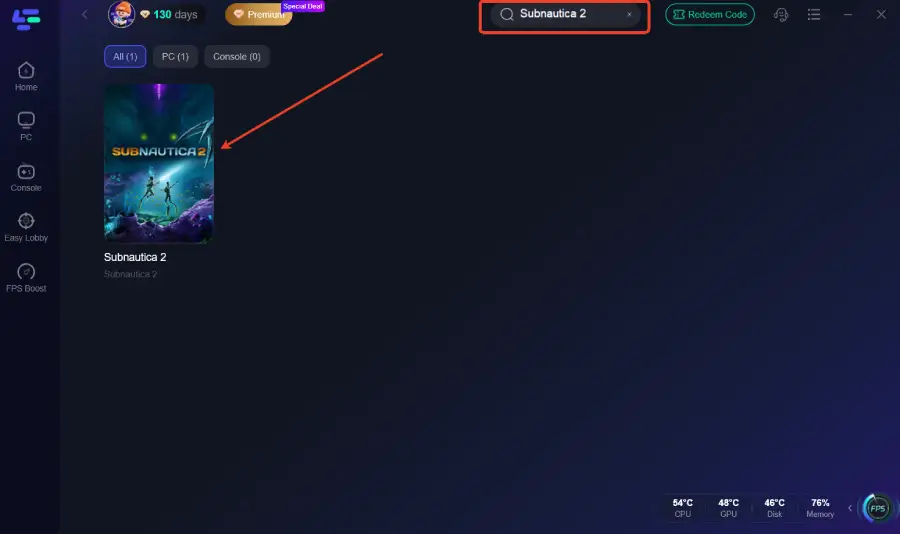
Step 2: After installation, search for "Subnautica 2" in the search bar and select the game.
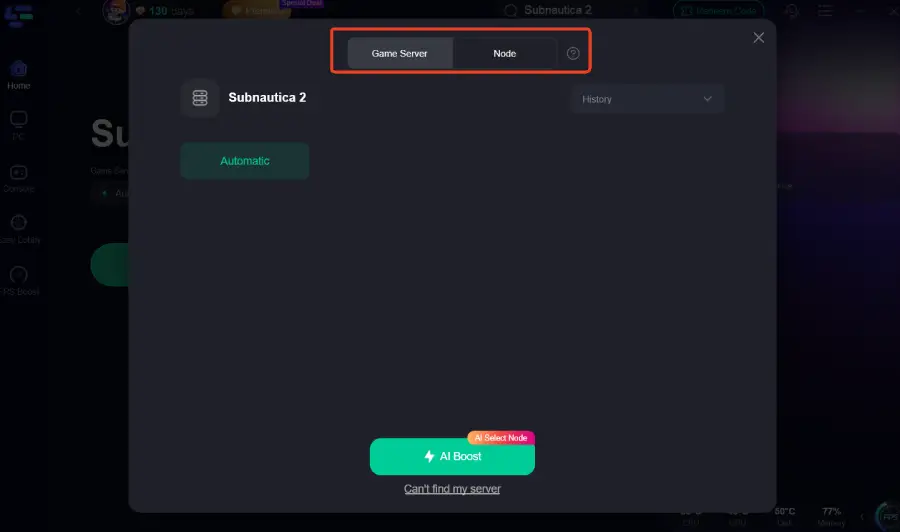
Step 3: Choose your preferred server node and click "Smart Boost" to start optimizing.
Step 4: Launch your game and enjoy smooth, optimized gameplay with lower ping and no stutter.
Part 3: How to Fix Subnautica 2 FPS Drops & Stuttering (General Fixes)
If Subnautica 2 is still stuttering even after basic tweaks, the issue usually comes down to how your system is handling load in demanding underwater areas. These fixes go a bit deeper and focus on improving overall stability rather than just lowering settings.
In-Game Graphics Settings (Highest Impact)
These are still the first things you should adjust, but the goal here is balance—not just going low for everything:
- Reduce water and volumetric effects to ease GPU pressure
- Turn off motion blur and other post-processing effects
- Lower shadow quality, especially in dense environments
- Adjust view distance so the game doesn’t over-render far assets
- Keep detail settings at a medium level instead of ultra
System & Configuration Tweaks
Sometimes FPS drops aren’t just in-game issues—they come from how your PC is handling background load and storage speed:
- Make sure Subnautica 2 is installed on an SSD for faster asset loading
- Shut down heavy background apps (browsers, Discord, recording tools)
- Update GPU drivers to ensure better game optimization
- Switch Windows power mode to performance-oriented settings
- Avoid unnecessary overlays that can interfere with rendering
Advanced Performance Fixes
If you’re still getting stutters, these deeper adjustments can help smooth out performance spikes:
- Slightly lower resolution scaling to reduce GPU strain
- Limit FPS to create more stable frame pacing
- Rebuild shader cache or verify game files if stutters appear suddenly
- Reboot the system before long play sessions to clear memory pressure
Part 4: Bonus Tips: Fix Subnautica 2 FPS Issues on High-End and Low-End PCs
Not all FPS problems come from “weak hardware.” Subnautica 2 can still stutter on both high-end and low-end PCs, just for different reasons. The key is adjusting what’s actually causing the bottleneck instead of blindly lowering everything.
Fix Subnautica 2 Low FPS on High-End PC
If your PC is powerful but the game still feels unstable, it’s usually caused by engine load spikes or background interference rather than raw performance limits.
Try focusing on removing unnecessary strain:
- Turn off overlays like Discord and Xbox Game Bar
- Lower ultra-level shadows and reflections that hit GPU hard in ocean scenes
- Keep GPU drivers updated for better engine optimization
- Close heavy background apps that compete for CPU or memory
- Make sure the game is installed on an SSD for smoother asset streaming
How to Run Subnautica 2 on a Low-End PC
If you’re on a weaker setup, the goal isn’t to make the game look perfect—it’s to keep it stable and playable without constant drops.
Focus on consistency over visuals:
- Use the Low graphics preset instead of manually tweaking everything
- Lower resolution scaling to reduce GPU pressure
- Disable reflections and motion blur completely
- Reduce shadow quality as much as possible
- Close all non-essential programs before launching the game
Part 5: FAQs
Why is Subnautica 2 FPS so low?
Subnautica 2 uses Unreal Engine 5 with advanced lighting, volumetric effects, and real-time rendering, which increases GPU load in large underwater environments.
Can Subnautica 2 run on a low-end PC?
Yes, but the experience depends heavily on settings. Low-end PCs will need to focus on performance rather than visuals, such as lowering shadows, reflections, and other post-processing effects to maintain smoother gameplay.
Why does Subnautica 2 stutter even with good hardware?
Even on stronger PCs, stuttering can still happen in certain situations. This is usually related to how the game streams large underwater areas, loads assets in real time, or handles background processes that compete for system resources.
Will Subnautica 2 be on GeForce NOW?
Subnautica 2 is expected to arrive on GeForce NOW during its Early Access period, although it may not be available at launch on day one.
What is the max player count in Subnautica 2?
Subnautica 2 supports up to 4 players in online co-op, with full single-player support also available.
Will Subnautica 2 be cross-platform PC and PS5?
Subnautica 2 will support cross-platform play between PC and Xbox at Early Access launch, while the PS5 version is planned for a later release. Full cross-platform support across all platforms may expand over time.
How many wishlists does Subnautica 2 have?
Subnautica 2 has surpassed 5 million wishlists across all platforms, according to Unknown Worlds, reflecting strong anticipation ahead of launch.
Key Takeaway
Subnautica 2 FPS drops are mainly caused by Unreal Engine 5 rendering demands and large-scale underwater streaming rather than just hardware limitations. Most performance issues can be improved through graphics optimization, system tweaks, and stability tools like LagoFast, resulting in smoother gameplay on both high-end and low-end PCs.
Boost Your Game with LagoFast for Epic Speed
Play harder, faster. LagoFast game booster eliminates stutter and lags on PC, mobile, or Mac—win every match!
Quickly Reduce Game Lag and Ping!
Boost FPS for Smoother Gameplay!