
Nothing kills the hype of a Counter-Strike session faster than a progress bar that refuses to move. Whether you’re facing a "download queued" loop or the game simply won't launch after an update, technical hiccups in Steam are incredibly frustrating. This guide provides comprehensive solutions to FIX for CS2 not downloading & starting, ensuring you spend less time troubleshooting and more time clicking heads.
Quick Fix
Before diving into deeper troubleshooting, here’s a quick summary of recommended fixes:
- Restart Steam & PC: Clears temporary cache and refreshes connections.
- Check Server Status: Make sure Steam servers are not down.
- Clear Download Cache: Steam → Settings → Downloads → Clear Cache.
- Run as Administrator: Avoid permission-related launch issues.
- Use LagoFast: Stabilize your connection and reduce ISP-related issues.

- ✅ Reduce Lag and High Ping.
✅ Boost FPS at the Same Time.
✅ Support 8000+ Online Games
✅ Change Server Without Latency.
✅ Multiplatform: PC, Console, Mobile.
✅End Connection & Crashing Issue
✅ Support Easy Lobby in all Cod Series
Part 1: Why CS2 Is Not Downloading and Won’t Start
Part 2: Full Fix Methods for CS2 Not Downloading
Part 3: Advanced Fix For Persistent CS2 Download and Launch Issues
Part 4: Common CS2 Download Problems Explained
Part 6: Bonus Tip: Improve Download Stability
Part 1: Why CS2 Is Not Downloading and Won’t Start
Understanding why is CS2 not downloading is the first step to a permanent fix. Usually, the culprit falls into one of three categories:
- Network Congestion: Your ISP may be throttling large file transfers, or your local network is overwhelmed by other devices.
- Software Conflicts: Firewalls, antivirus programs, or even Windows Defender might misidentify CS2 update files as a threat.
- Steam Client Glitches: Corrupted library folders or a bloated download cache can cause the "Download Queued" or "Stuck at 0%" bug.
- Hardware Bottlenecks: A failing HDD/SSD or insufficient disk space can prevent Steam from allocating the necessary "placeholders" for the CS2 files.
Part 2: Full Fix Methods for CS2 Not Downloading
If the quick fixes failed, it's time to get a bit more hands-on. Follow these steps sequentially to fix CS2 download incomplete errors.
Change Your Download Region
Steam tries to connect you to the nearest geographic server. However, if that server is overloaded, your CS2 download won't start.
Step 1. Go to Steam, select Settings, and click Downloads.
Step 2. Change the Download Region to a different city or even a nearby country.
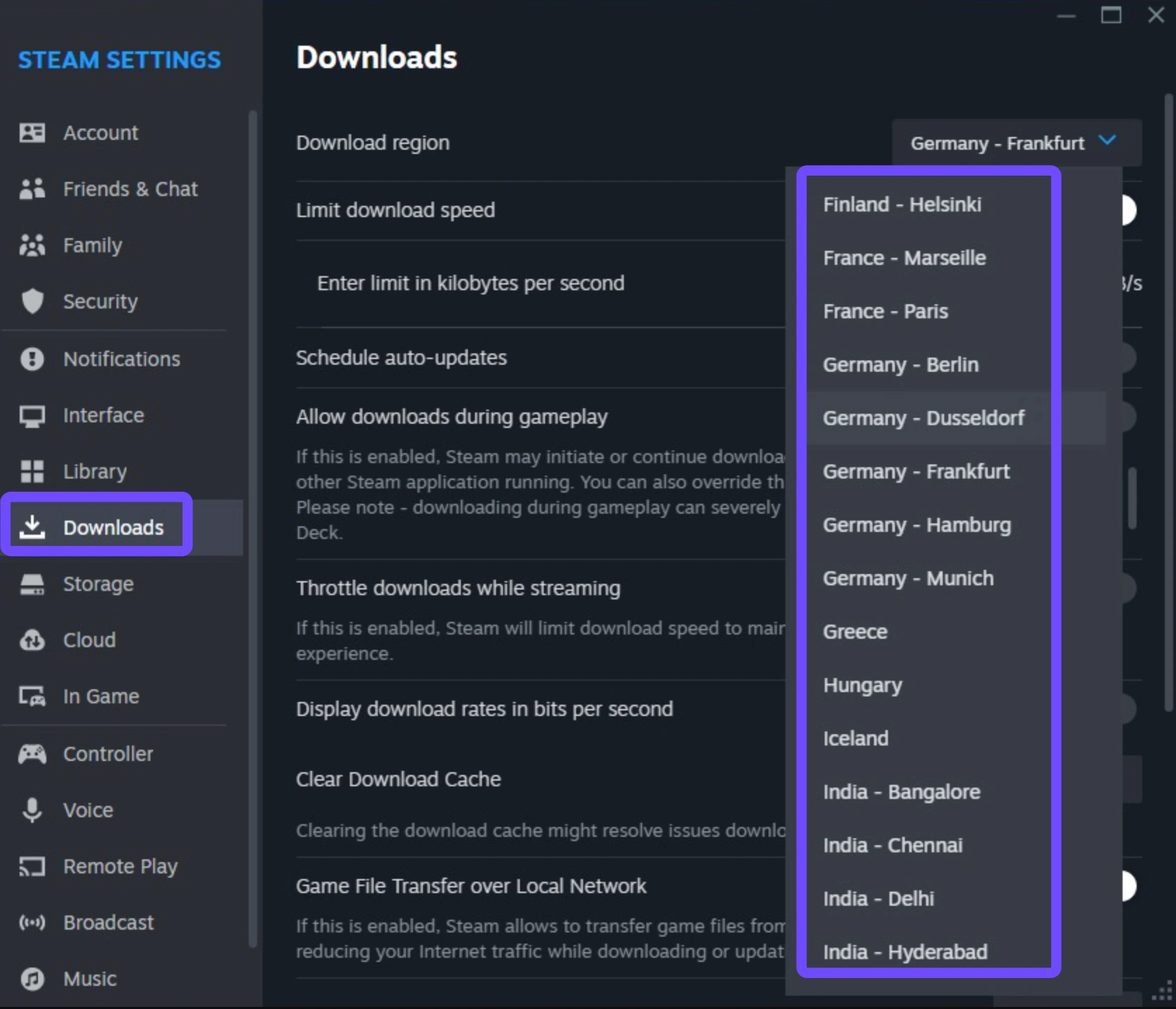
Step 3. Restart Steam and see if the speed picks up.
Verify Integrity of Game Files
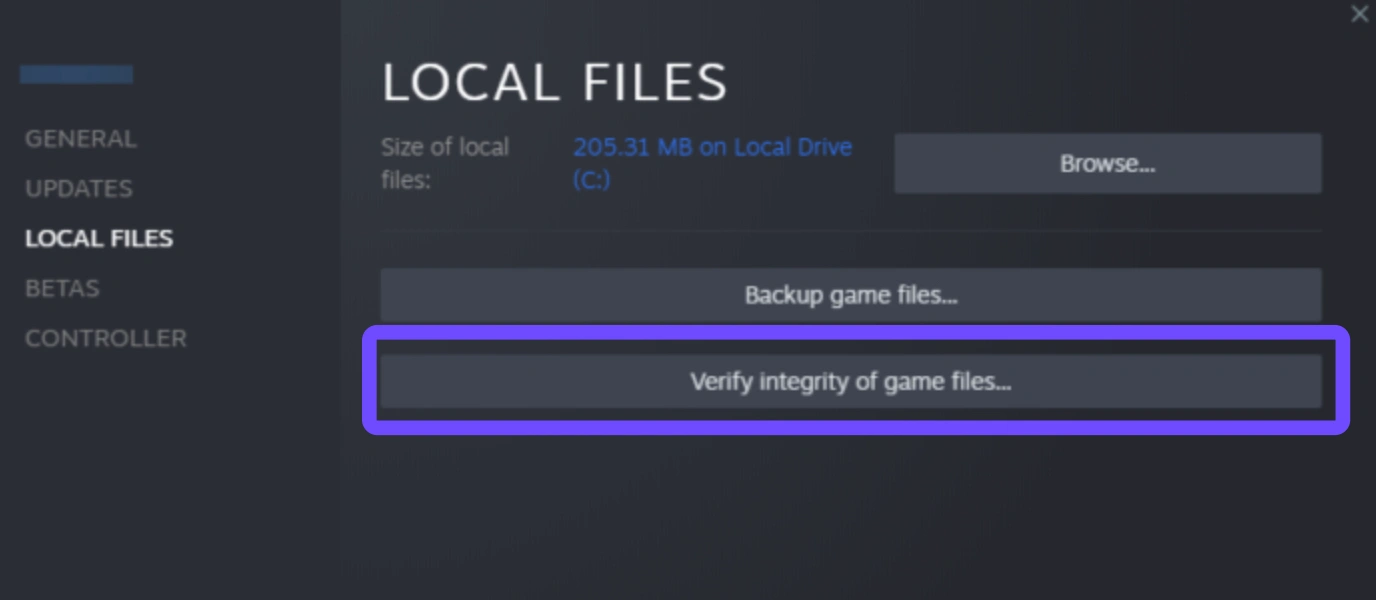
If the download is "stuck" near the end, some files might be corrupted.
Step 1. Right-click Counter-Strike 2 in your Library.
Step 2. Select Properties and click Installed Files.
Step 3. Click Verify integrity of game files. Steam will scan and replace any broken data.
Repair the Library Folder
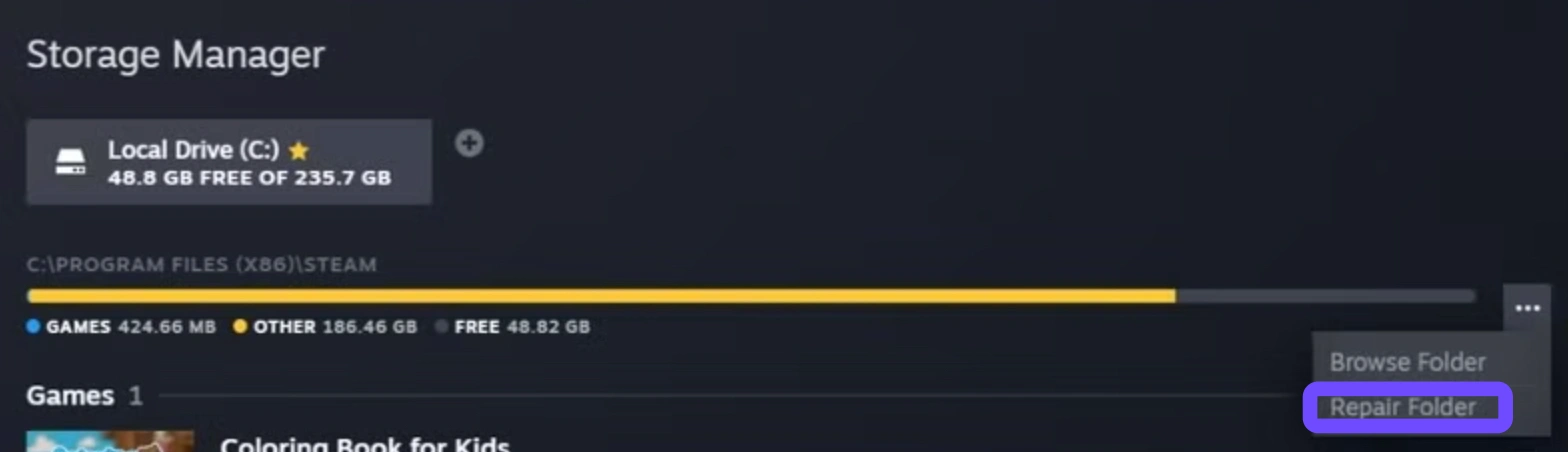
Sometimes the folder where Steam installs games loses its "write" permissions.
Step 1. Go to Steam, select Settings, and click Storage.
Step 2. Click the three dots (...) next to your drive and select Repair Folder.
Part 3: Advanced Fix For Persistent CS2 Download and Launch Issues
When you're asking "why is my CS2 not loading up" even after a successful download, the issue usually lies in the Windows environment or the DirectX shaders.
Disable Windows Firewall/Antivirus
Temporarily disable your real-time protection to see if it’s blocking the cs2.exe file. If the game starts, add an "Exclusion" for the Steam folder in your antivirus settings.
Reset Winsock
If your internet is fine but Steam won't connect, your network catalog might be corrupted.
Step 1. Open Command Prompt as Admin.
Step 2. Type netsh winsock reset and hit Enter.
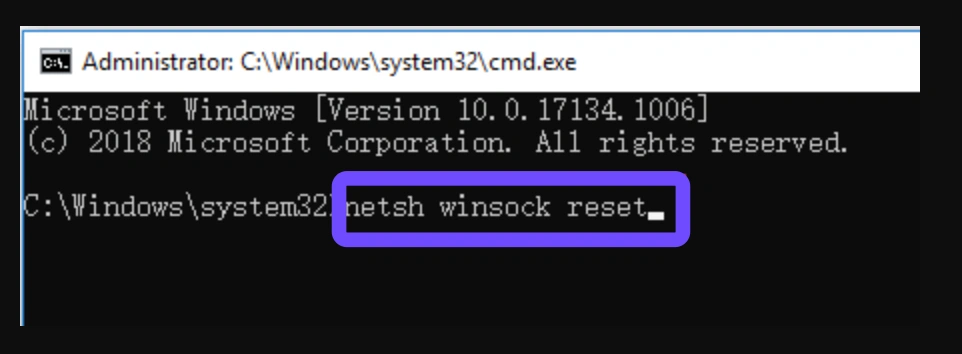
Step 3. Restart your computer.
Update GPU Drivers
CS2 runs on the Source 2 engine, which is much more hardware-intensive than CS:GO. Ensure your NVIDIA or AMD drivers are updated to the latest "Game Ready" version to prevent the game from crashing on launch.
Part 4: Common CS2 Download Problems Explained
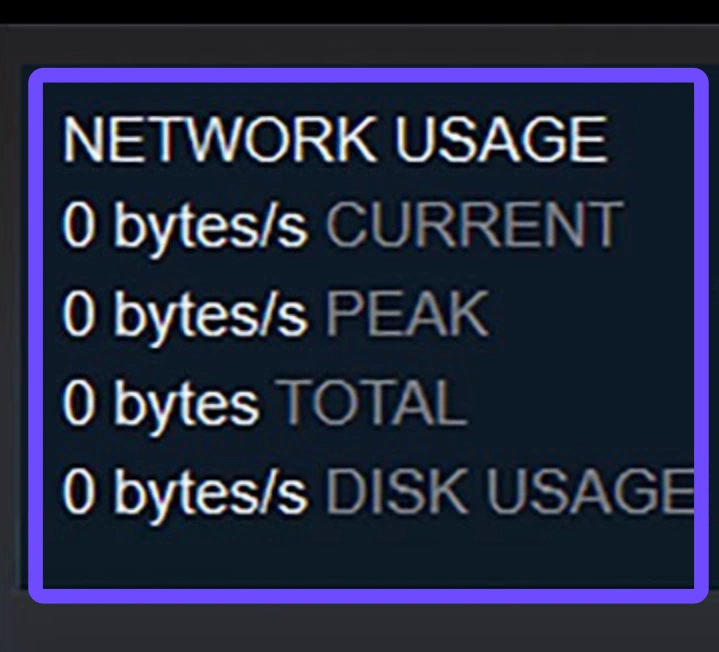
Stuck at 0 Bytes
This is often a Fix Download Queued Steam issue. It happens when Steam is pre-allocating space on your disk. If it stays at 0 for more than 10 minutes, it likely means your disk write speed is struggling or a background process is hogging the drive.
Download Stops Randomly
This is usually caused by unstable Wi-Fi. Steam requires a consistent handshake. If your ping spikes or you lose a packet, the download might pause. Using an Ethernet cable is the gold standard for large updates.
“Disk Write Error”
This is the most common reason for CS2 stuck on download queued. It means Steam cannot write data to your drive. Check if your drive is full or if the drive is set to "Read Only."

Update Loop
If CS2 finishes downloading and immediately starts again, delete the downloading folder located in SteamLibrary\steamapps\. This forces Steam to forget the "bad" update and start fresh.
Part 5: LagoFast: All-in-One Gaming Solution for CS2 Not Downloading and Improving Connection Stability
If you want a one-stop solution to Fix CS2 Download Incomplete, LagoFast is the professional choice. It doesn't just boost your in-game ping; it optimizes your entire connection to Valve's infrastructure. By utilizing a global network of dedicated nodes, it provides a stable path that bypasses ISP throttling and regional congestion, ensuring your download starts instantly.
Key Features of LagoFast:
- Multipath Connection: Automatically finds the fastest route for downloads and gameplay.
- One-Click Fix: Specifically designed to resolve "download queued" and login issues.
- High-Speed Updates: Bypasses local ISP bandwidth caps to maximize Steam's potential.
- Ping Reduction: Keeps your MS low and eliminates packet loss once you're in the game.
- FPS Boost: Increases your frame rate by automatically optimizing system resources, closing unnecessary background processes, and tweaking Windows settings for maximum gaming performance.
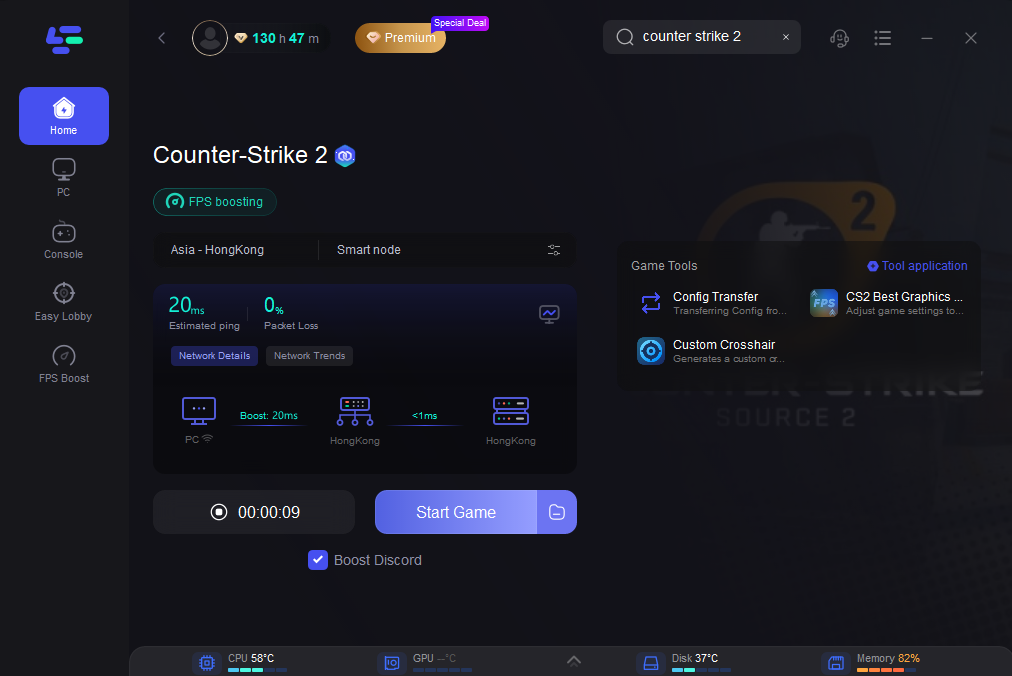
Tutorial to Use LagoFast to Fix CS2 Download Incomplete:
Step 1: Click the Free Trial button to download and install LagoFast Free Trial.
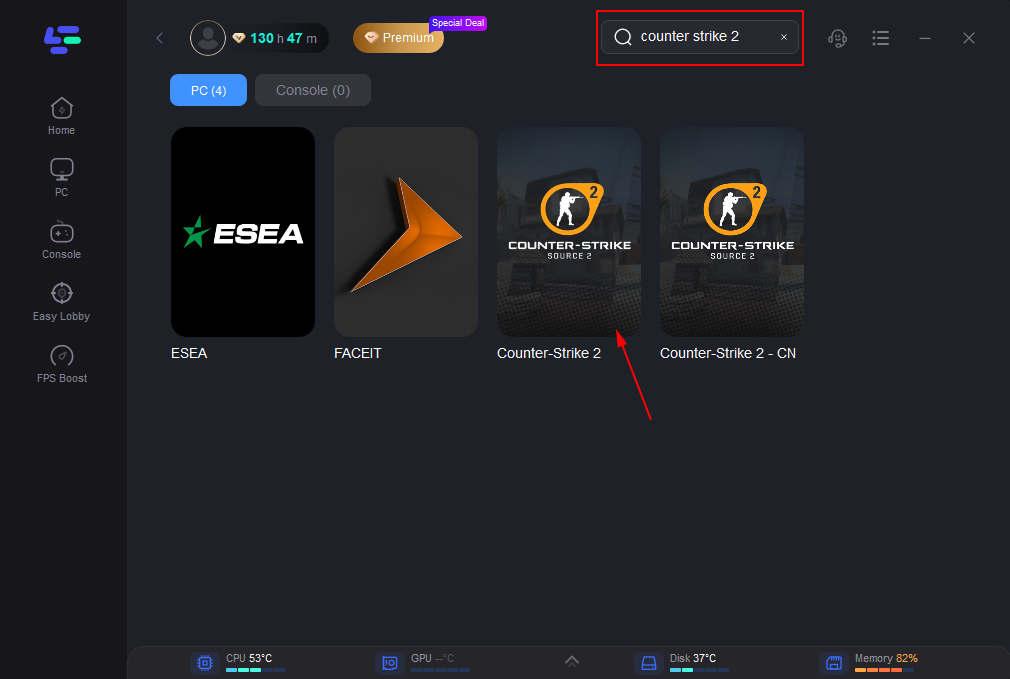
Step 2: Search for CSGO in the top search bar then click the result.
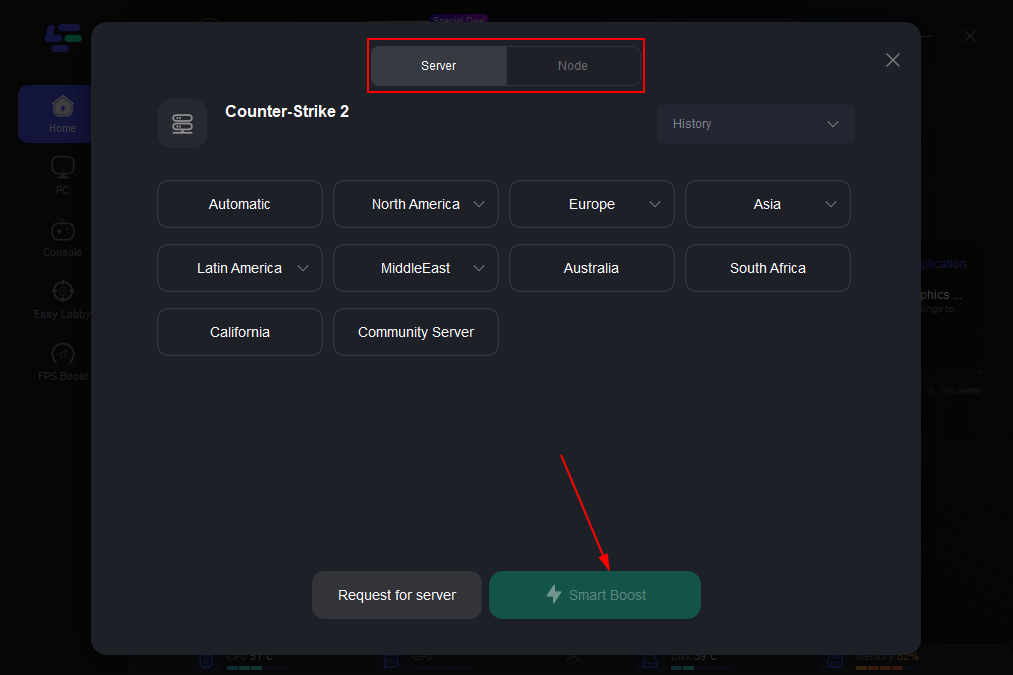
Step 3: Click on “Server” to change to a better server that ensures smooth gameplay, then click on “Smart Boost”.
Step 4: Check the specific game ping, packet loss, and multiple path connection on the right side. Finally, click the “Start Game” to play the game.
Part 6: Bonus Tip: Improve Download Stability
To ensure you never face a how to fix download not complete CS2 scenario again, limit Steam's bandwidth slightly.
Step 1. Go to Settings and select Downloads.
Step 2. Check Limit bandwidth to and set it to about 80% of your maximum internet speed.
Step 3. This prevents Steam from "choking" your router, which can actually lead to a more stable, faster overall completion time.
Part 7: FAQs
Why is CS2 stuck on "Verifying" after an update?
This is Steam checking the new files against your existing ones. On a slow HDD, this can take a long time. Moving the game to an SSD will solve this instantly.
Can I play other games while CS2 downloads?
By default, Steam pauses downloads when a game is running. You can change this in Settings during gameplay.
How much space do I need for CS2?
You should have at least 60GB of free space. Steam needs extra "buffer" space during the installation process.
Is a "Disk Write Error" a sign of a broken hard drive?
A: Not necessarily. It’s usually just a permissions issue or a full drive, though it can occasionally indicate failing sectors on an older HDD.
Why does my download speed drop to 0 periodically?
This happens when your CPU is busy decompressing the files Steam just downloaded. It’s a normal part of the Steam update process.
Conclusion
Dealing with a CS2 download queued but not downloading error is a rite of passage for many PC gamers, but it doesn't have to ruin your night. By clearing your cache, verifying file integrity, and using tools like LagoFast to stabilize your connection, you can bypass these hurdles easily. Keep your drivers updated and your library folders healthy, and you’ll find that most CS2 launch issues become a thing of the past. Now, get back into the match and secure that win!
Boost Your Game with LagoFast for Epic Speed
Play harder, faster. LagoFast game booster eliminates stutter and lags on PC, mobile, or Mac—win every match!
Quickly Reduce Game Lag and Ping!
Boost FPS for Smoother Gameplay!