
Few things test a gamer’s patience quite like clicking "Update" on the Riot Client, settling in for a night of grinding VALORANT or League of Legends, and watching the progress bar completely grind to a halt. If you have a high-speed fiber connection but your Riot Client download speed is limit-testing your sanity, you are not alone. Across Reddit and gaming forums, players constantly run into two massive roadblocks: either the Riot Client slow download speed makes a routine patch take hours, or the download completely panics and gets stuck downloading at exactly 0.1 KB/s or 0 speed.
This comprehensive, step-by-step guide covers why Riot games download slow, how to distinguish between a throttled connection and a dead lock, and how to fix the issue permanently so you can get back into the lobby.

- ✅ Reduce Lag and High Ping.
✅ Boost FPS at the Same Time.
✅ Support 8000+ Popular Online Games.
✅ Change Server without Latency.
✅ Boost Game Loading Speed.
Part 1: The Two Faces of Riot Client Download Issues
Part 2: Why Is Your Riot Client Update Slow?
Part 3: How to Fix Riot Client Slow Download Speed?
Part 4: Fixing Riot Client Stuck Downloading at 0.1 KB/s
Part 5: The Ultimate Fix: Bypass Throttling and Optimizing Paths via LagoFast
Part 6: Quick Summary: Fix Riot Client Slow Download Speed
Part 1: The Two Faces of Riot Client Download Issues
Before diving into the fixes, it helps to diagnose exactly what type of error you are facing. The player community generally divides Riot’s download issues into two distinct categories:
The General Crawler (Slow Download Speed)
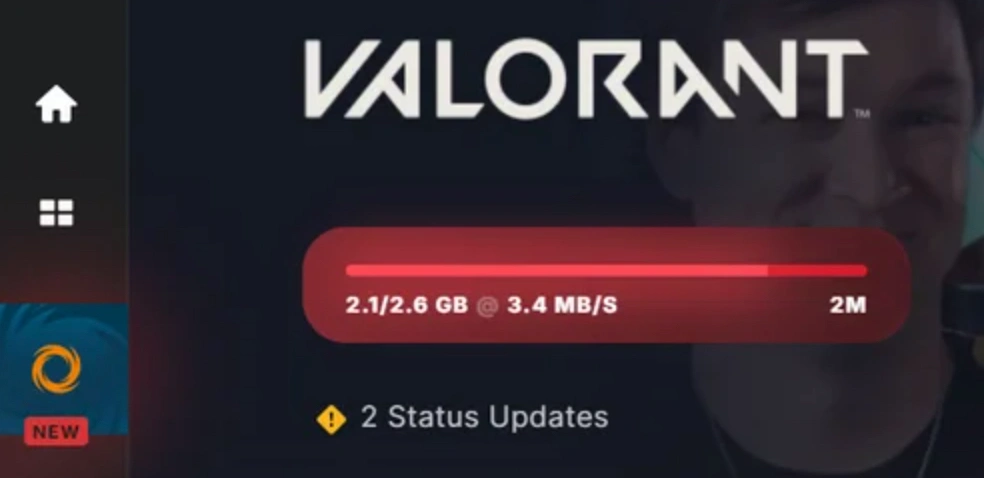
Your download is moving, but it’s painfully sluggish. You might have a 500 Mbps connection, but the client fluctuates between 2 MB/s and a few hundred KB/s. This general Riot Client download slow issue usually affects initial installations, major seasonal patches, or simultaneous updates across VALORANT, League of Legends, and Teamfight Tactics (TFT). It is typically caused by server congestion, ISP throttling, or incorrect client settings.
The Hard Freeze (Stuck at 0.1 KB/s or 0 Speed)
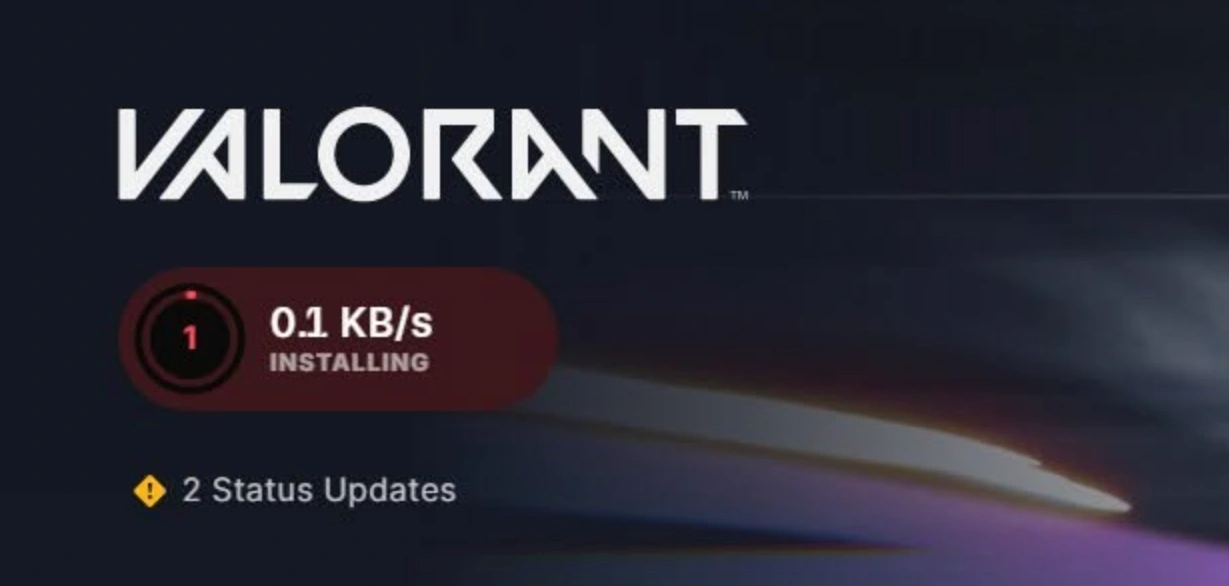
This is a hyper-specific, highly frustrating anomaly. The download progress bar stalls out entirely. The speed drops down to an exact riot client download speed 0 or hovers agonizingly at 0.1 KB/s. When this happens, the update is practically dead in the water. It won’t finish on its own, and it usually indicates a conflict between the client, your storage drive, or Riot’s anti-cheat system (Vanguard) rather than a simple slow internet connection.
Part 2: Why Is Your Riot Client Update Slow?
Riot Games doesn't handle updates the way a standard browser download works. When updating games like VALORANT, the Riot Client is simultaneously downloading data chunks, unpacking them, verifying files, and writing them to your drive.
Here are the primary reasons why your client might be lagging:
- Riot Client Bandwidth Limits: Hidden or accidental caps within the client’s software settings can choke your speeds.
- ISP Routing Bottlenecks: Your Internet Service Provider might be routing your traffic through inefficient data paths to reach Riot’s servers.
- Server Congestion: When a new VALORANT Act drops or a major League patch goes live, millions of players hit the servers at once.
- Disk Write Bottlenecks: If your hard drive or SSD is heavily fragmented, near maximum capacity, or struggling to process Vanguard’s security checks, the download speed will plummet to protect data integrity.
Part 3: How to Fix Riot Client Slow Download Speed?
Let’s start with the baseline configurations. If your client is simply moving slow, these internal tweaks and network adjustments can unlock your true bandwidth.
Remove the Riot Client Bandwidth Limit
The Riot Client includes a built-in feature to prevent game downloads from consuming your entire household internet. Sometimes, this setting turns on by default or glitches out after an update.
Step 1. Open the Riot Client and log into your account.
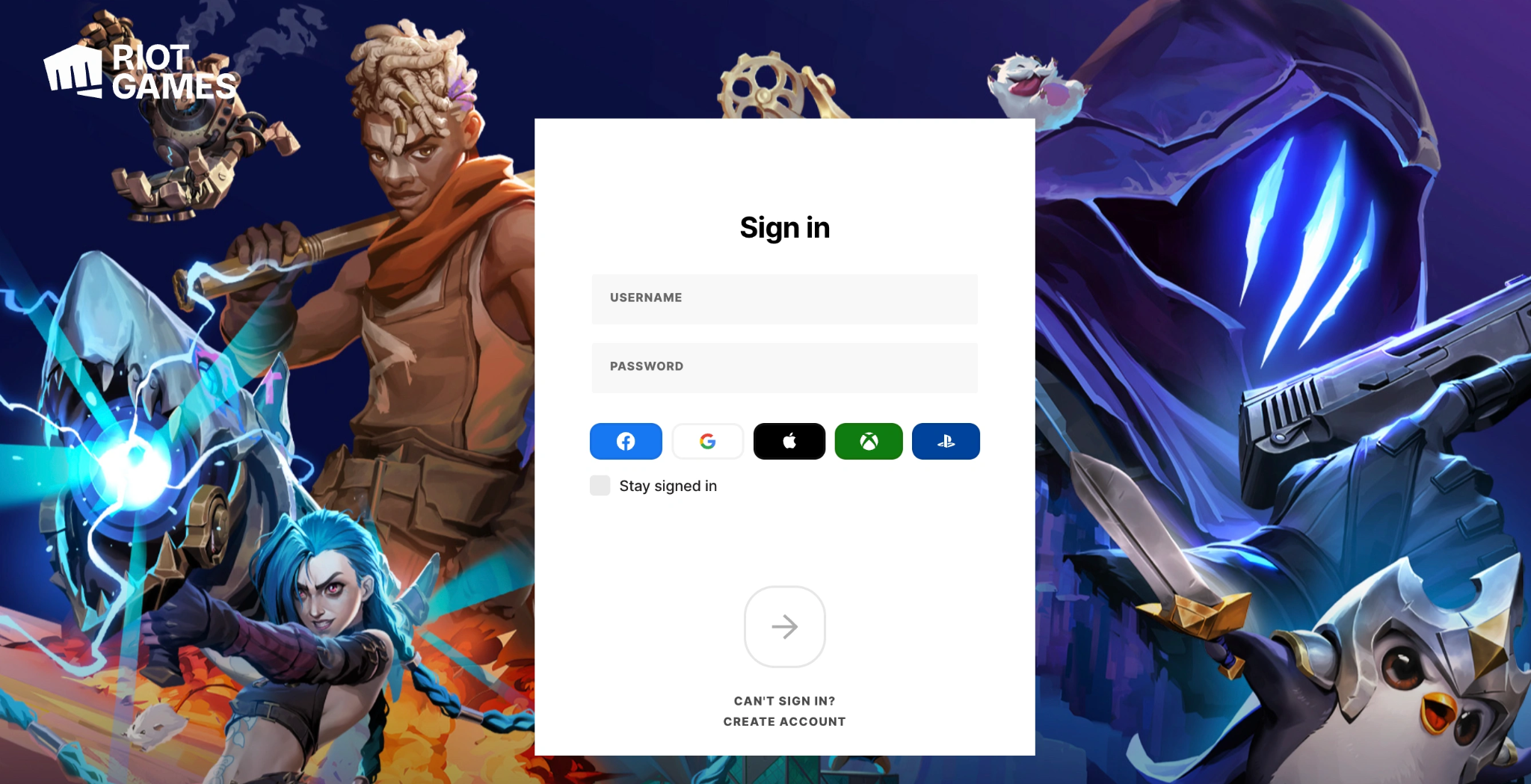
Step 2. Click on the Profile Icon in the top-right corner and select Settings.
Step 3. Navigate to the Riot Client general settings tab.
Step 4. Scroll down until you see the download settings or Bandwidth Limit options.
Step 5. If it is checked or limited, uncheck it entirely or manually input a massive number (e.g., 999999) to force the client to utilize your full connection capability.
Step 6. Restart the client to apply changes.
Change Your DNS Settings
Your default ISP Domain Name System (DNS) server might be struggling to efficiently resolve the addresses of Riot’s patch delivery networks. Swapping to a highly reliable public DNS like Google or Cloudflare can immediately boost throughput.
Step 1. Press Windows Key + I to open your system settings, then go to Network & Internet.
Step 2. Click on Change adapter options.
Step 3. Right-click your active connection (Wi-Fi or Ethernet) and select Properties.
Step 4. Double-click Internet Protocol Version 4 (TCP/IPv4).
Step 5. Select Use the following DNS server addresses and enter:
- Preferred DNS: 1.1.1.1 (Cloudflare) or 8.8.8.8 (Google)
- Alternate DNS: 1.0.0.1 or 8.8.4.4
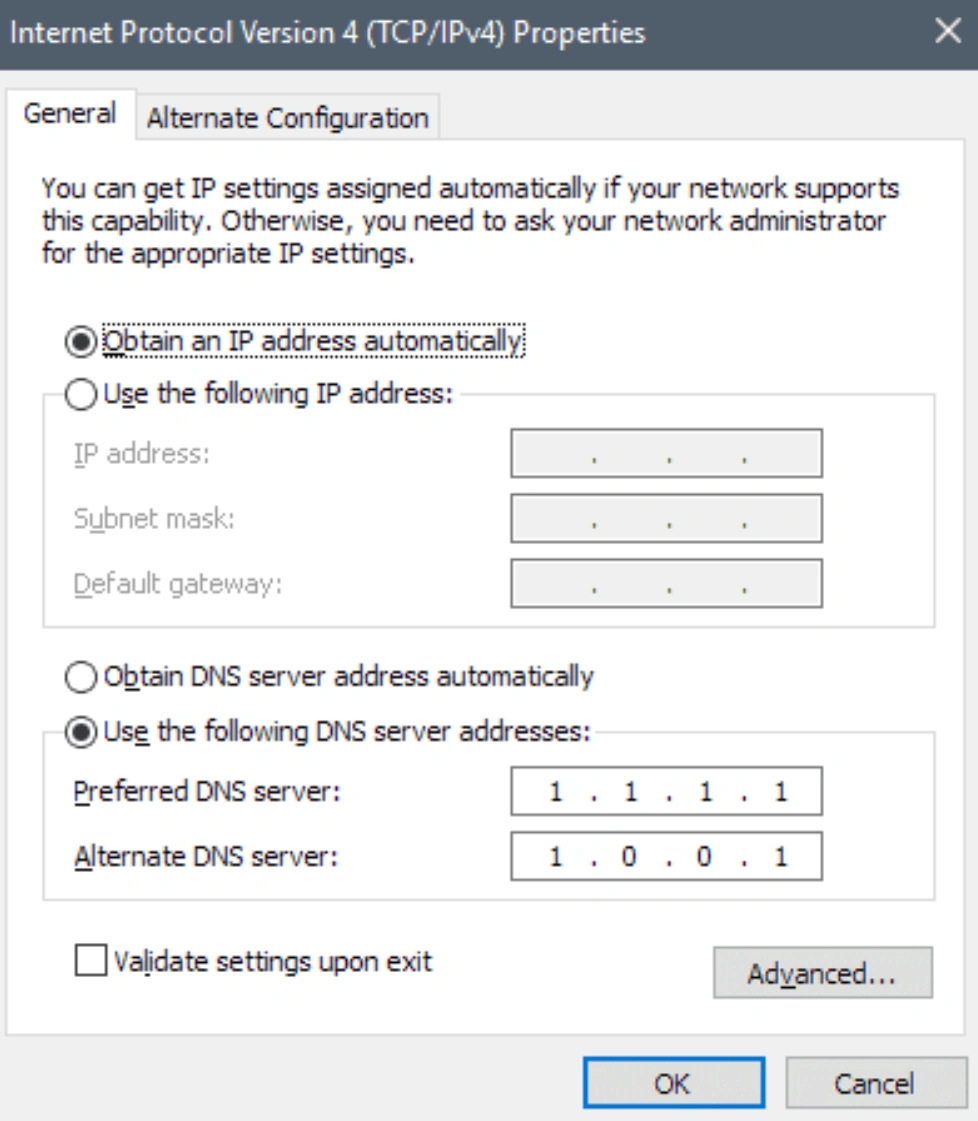
Step 6. Click OK to save and apply.
Grant Administrator Privileges
Because the Riot Client modifies root files and communicates directly with the kernel-level Vanguard anti-cheat software, a lack of administrative permissions can cause Windows to throttle the client’s disk-writing speed.
Step 1. Completely close the Riot Client (check your system tray to ensure it isn’t running in the background).
Step 2. Right-click the Riot Client shortcut on your desktop or search for it in the Start menu.
Step 3. Select Run as administrator.
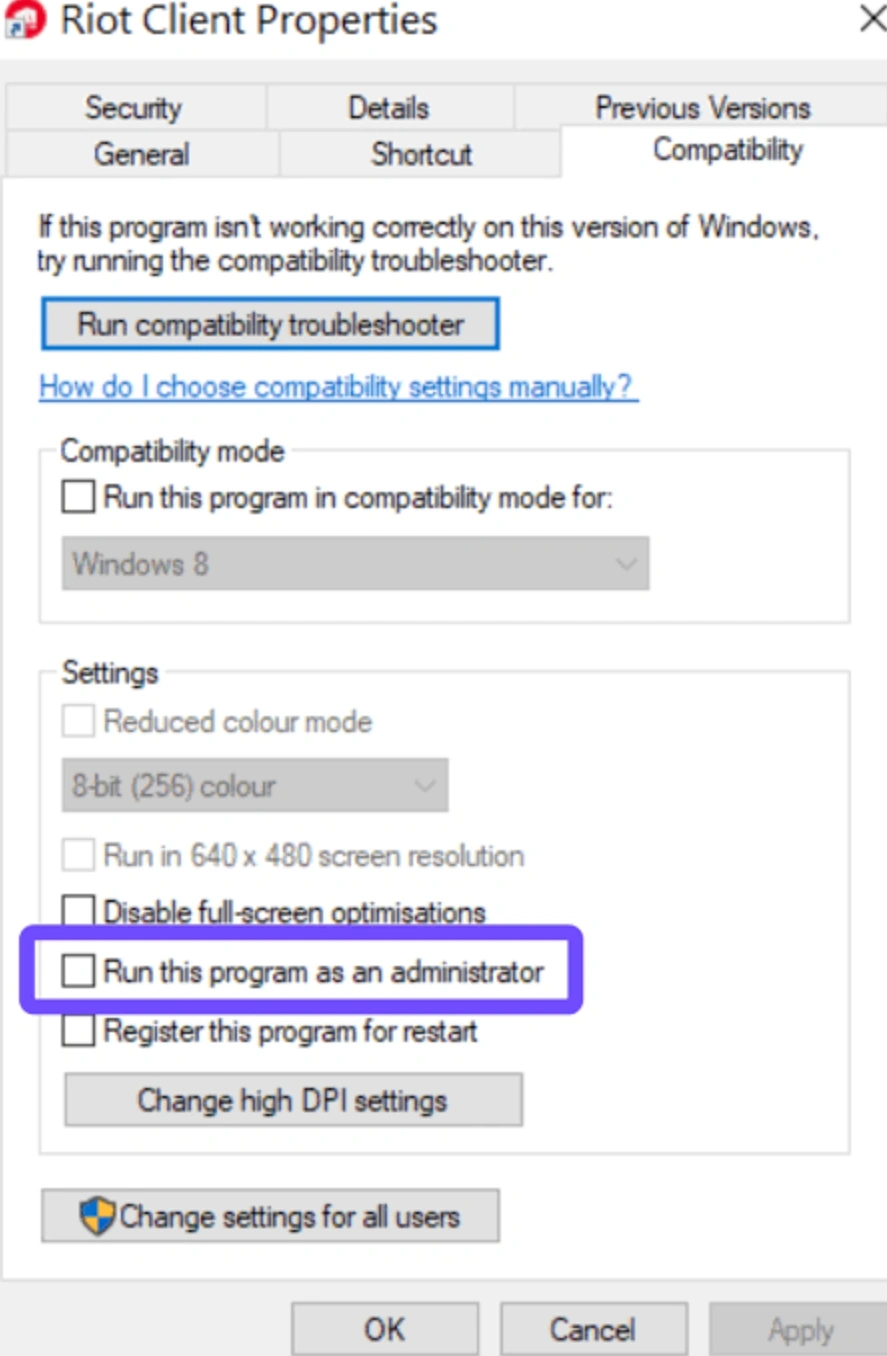
Step 4. Check if the download speed scales back up to your expected rates.
Part 4: Fixing Riot Client Stuck Downloading at 0.1 KB/s
If your client isn't just slow, but completely locked up at 0.1 KB/s or 0 speed, general network troubleshooting usually won't cut it. This state typically means the client is trapped in an endless loop trying to overwrite a locked file. Try these advanced steps to break the loop.
Method 1: The Vanguard Restart Loop
Vanguard runs constantly to protect game integrity. However, during a VALORANT update, it can sometimes flag the game's own newly downloaded patch chunks as suspicious, forcing the download to stall out completely at 0.1 KB/s.
Step 1. Look at your Windows System Tray (bottom right corner of your taskbar).
Step 2. Find the red Riot Vanguard icon, right-click it, and select Exit Vanguard.
Step 3. Confirm the prompt to turn it off.
Step 4. Bring up the Task Manager (Ctrl + Shift + Esc).
Step 5. Terminate all active tasks related to Riot, including RiotClientServices.exe and LeagueCrashHandler.exe.
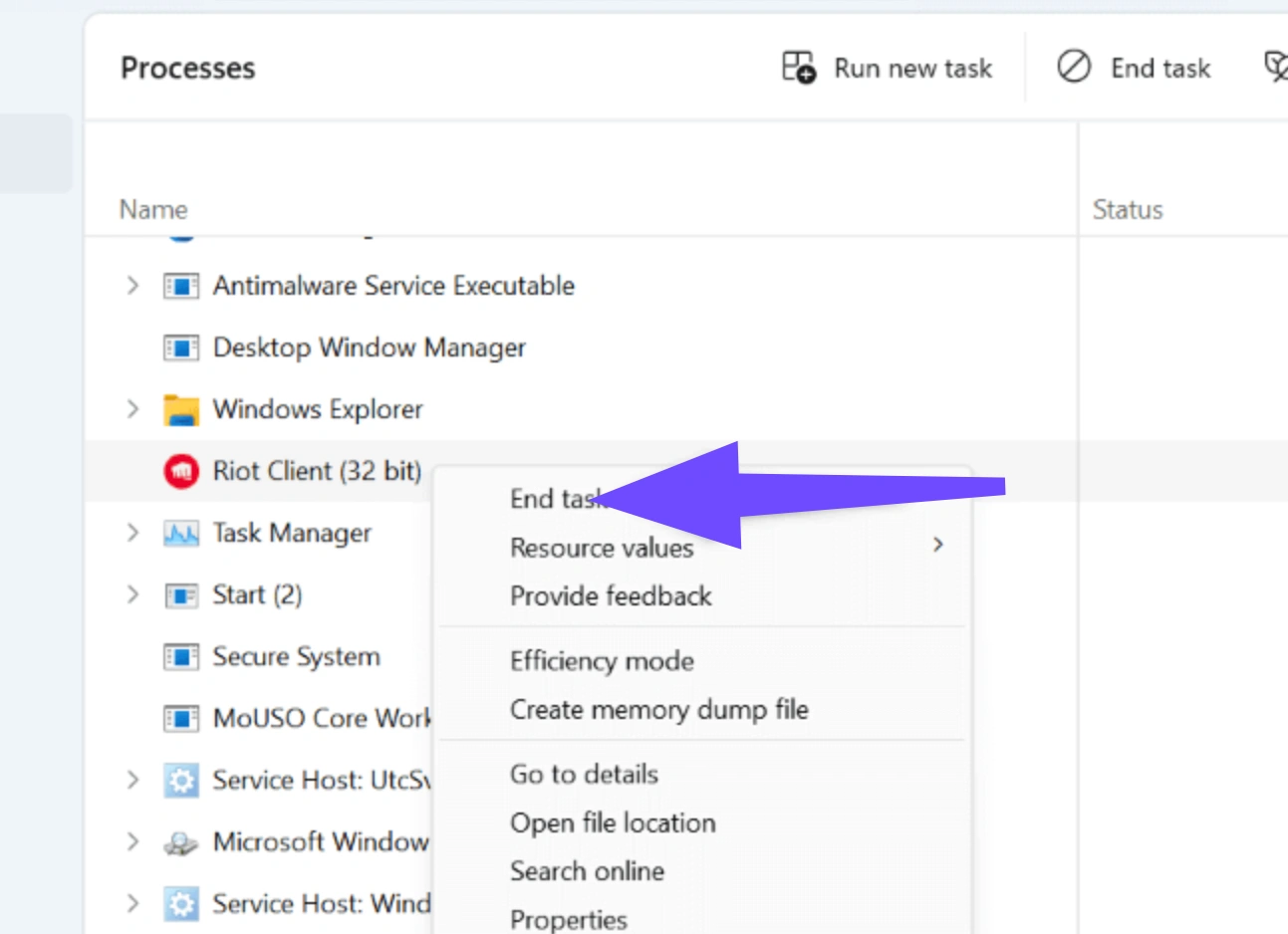
Step 6. Relaunch the Riot Client as an administrator. The client will initialize, safely reload Vanguard, and usually bypass the stuck 0.1 KB/s threshold.
Method 2: Clear the Riot Client AppData Cache
Corrupted cache files can trick the client into believing it has already downloaded parts of an update that don't actually exist, creating a deadlock.
Step 1. Close the Riot Client entirely.
Step 2. Press Windows Key + R to open the Run dialog box.
Step 3. Type %localappdata% and hit Enter.
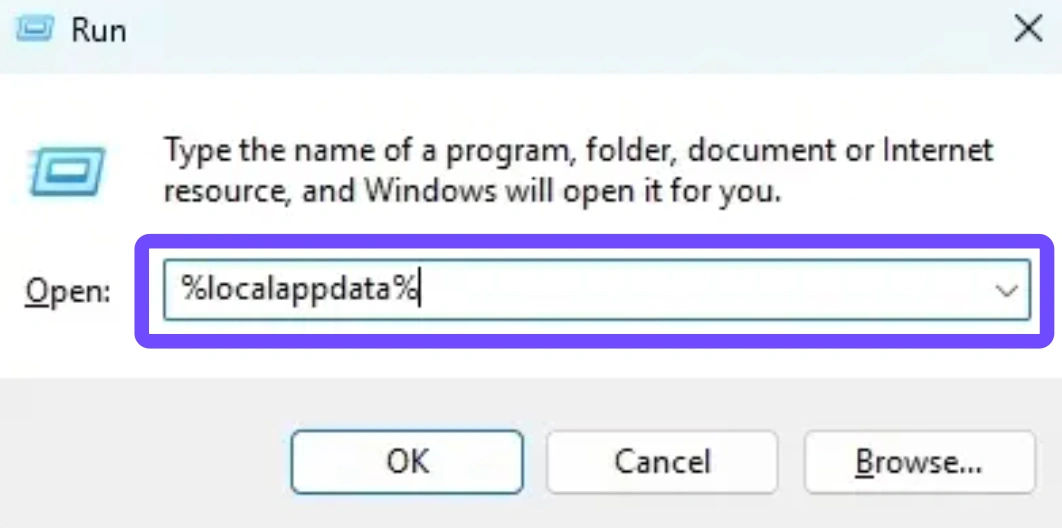
Step 4. Locate the folder named Riot Games.
Step 5. Delete the folder or open it and clear out the Installations and Data cache folders.
Step 6. Relaunch the client. It will perform a quick file verification scan and resume downloading smoothly.
Part 5: The Ultimate Fix: Bypass Throttling and Optimizing Paths via LagoFast
If you have tried the manual fixes above and your Riot Games download slow issues persist, the problem isn't your PC. It is your network routing.
When major updates launch, standard ISP connections route your data through crowded public servers, causing severe packet loss and heavy bandwidth congestion. This is exactly where a specialized gaming network optimizer like LagoFast becomes essential.
Why LagoFast Fixes Riot Download Speed Issues Instantly
LagoFast is a dedicated game booster built with proprietary data transfer protocols designed specifically for gamers.
- Forced High-Speed Routing: LagoFast allocates optimized, dedicated network paths between your machine and Riot’s deployment servers, entirely bypassing the local ISP congestion that causes your client to crawl.
- One-Click Download Acceleration: It features an internal system specifically configured to recognize game launcher downloads, actively pushing data through maximum-bandwidth channels to eliminate the riot client download speed limit bottleneck.
- Fixes the 0.1 KB/s Freeze: By stabilizing the network connection and eliminating packet loss during the file verification process, LagoFast prevents the Riot patcher from losing sync and dropping down to 0 speed.
How to Use LagoFast to Accelerate Your Riot Client
Step 1. Download and install LagoFast on your PC.
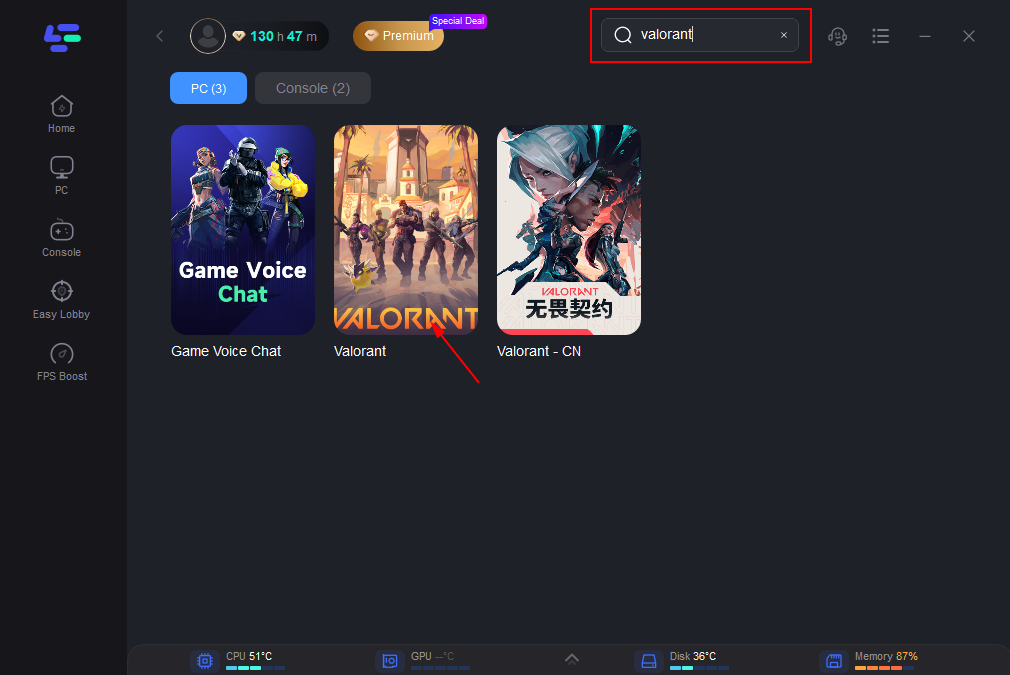
Step 2. Launch LagoFast and type Riot Games or the specific game you are trying to patch (like VALORANT or League of Legends) into the search bar.
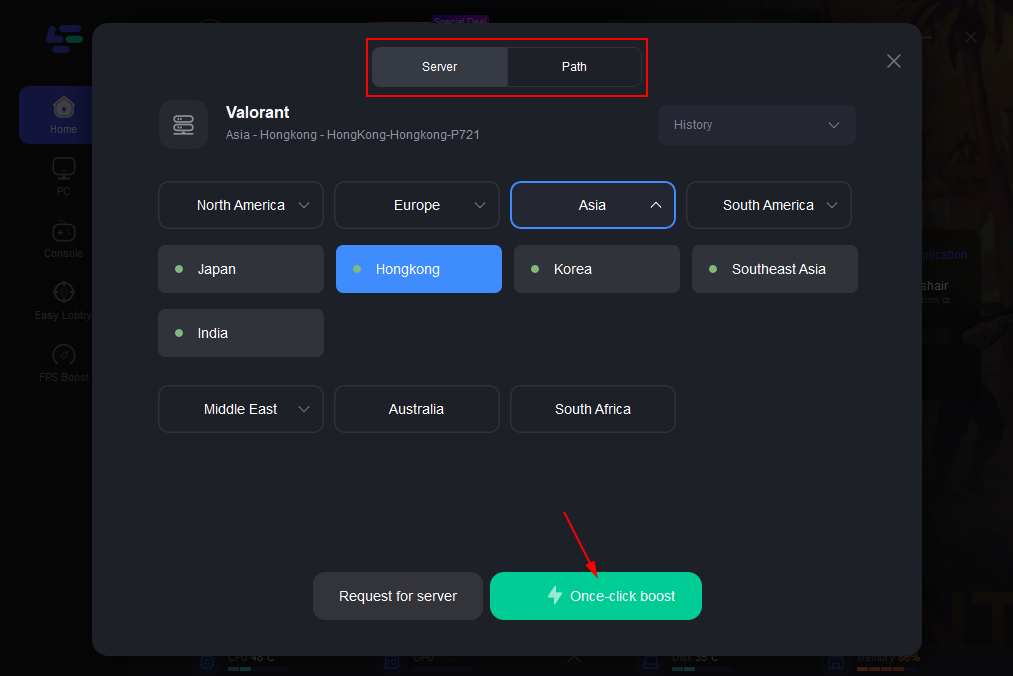
Step 3. Select the game node and choose the region closest to your actual location (or the server region you play on).
Step 4. Click the Boost button. LagoFast will instantly establish a clean, high-throughput path between your machine and the update delivery network.
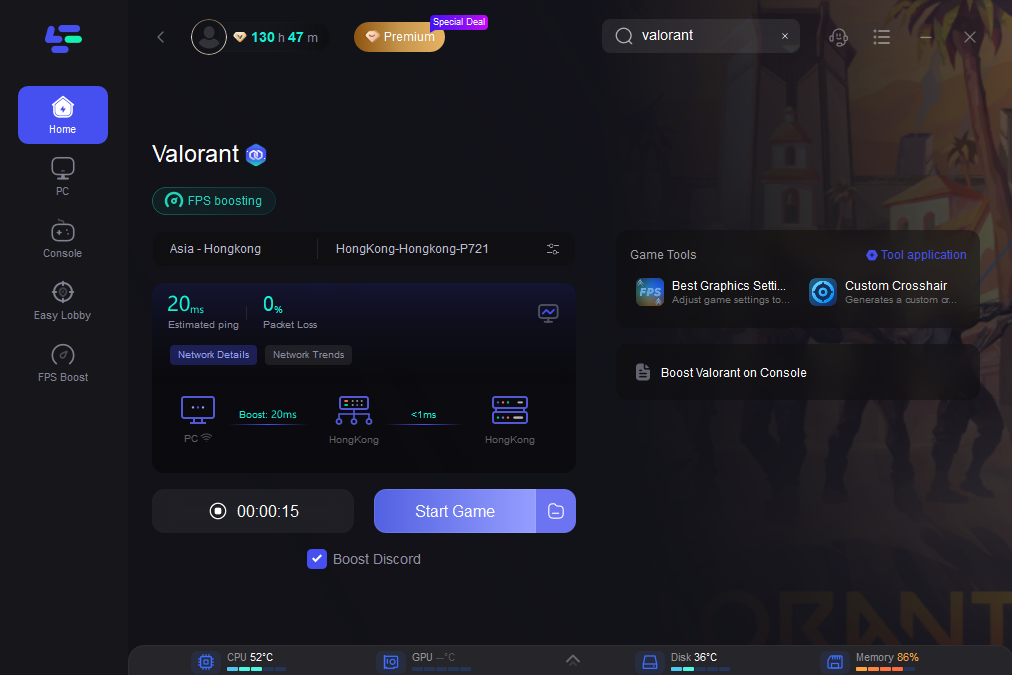
Step 5. Keep LagoFast active in the background and fire up your Riot Client. You should see your download speed jump straight to its maximum potential.
Part 6: Quick Summary: Fix Riot Client Slow Download Speed
|
Issue Symptom |
Most Likely Cause |
Best Solution |
|
Consistent low speeds (e.g., 1-5 MB/s) |
Client bandwidth cap or bad DNS routing |
Uncheck Bandwidth Limit / Change to Cloudflare DNS (1.1.1.1) |
|
Download drops to exactly 0.1 KB/s |
Vanguard conflict or disk write error |
Turn off Vanguard, close client via Task Manager, restart as Admin |
|
Download drops to 0 and stays stuck |
Corrupted cache or broken update loop |
Clear %localappdata% Riot Games cache folder |
|
Persistent slowness across all steps |
ISP server throttling or heavy regional traffic |
Activate LagoFast Game Booster to force optimize the route |
Part 7: FAQs
Why does my Riot Client download speed drop to exactly 0.1 KB/s?
When your download progress hits exactly 0.1 KB/s, the client has usually stopped downloading data from the internet and has shifted to unpacking, verifying, or writing files directly to your hard drive. Riot’s Vanguard anti-cheat also scans these files in real time. If your storage drive is slow (like an older HDD), fragmented, or if Vanguard gets stuck verifying a chunk of data, the network download speed drops to a near-zero placeholder while the disk catches up.
Does clearing the Riot Client cache delete my installed games?
No. Clearing the %localappdata%\Riot Games folder only removes temporary setup files, old login session tokens, and corrupted patch logs. Your actual game files for VALORANT or League of Legends are stored in a completely separate directory (usually C:\Riot Games), so your installations and in-game settings are completely safe.
Will a standard VPN fix my Riot Client download speed limit?
Typically, no. Standard VPNs encrypt your data, which adds processing overhead and often decreases your overall download speed. They also route your traffic through shared servers, which can easily get congested. To bypass ISP throttling and actually increase download speeds, you need a dedicated gaming network optimizer like LagoFast, which uses specialized multi-path routing specifically designed for high-speed game data transfer.
Why is my download slow even though I have a 1 Gigabit fiber connection?
Your internet speed is only as fast as its weakest link. Even with a Gigabit connection, your Internet Service Provider (ISP) might be routing your traffic through inefficient nodes to reach Riot’s Content Delivery Network (CDN). Additionally, on patch days (like a new VALORANT Episode launch), Riot’s servers are bombarded by millions of simultaneous requests, which automatically bottlenecks the distribution speed on their end regardless of your home network capacity.
Does pausing and resuming the update actually help?
Yes, it can. If your download speed is steadily declining, pausing the update for about 15 to 30 seconds and then resuming it forces the Riot Client to drop its current connection and request a new one. This will often connect you to a different, less congested CDN server, temporarily restoring your download speeds to normal levels.
Should I completely reinstall the Riot Client if the update is stuck?
Reinstalling should be your absolute last resort. A slow or stuck download is almost always a network routing issue, a disk-write bottleneck, or a Vanguard anti-cheat conflict rather than a broken client. Try clearing the %localappdata%\Riot Games cache, restarting your PC, or using a network booster like LagoFast first. Reinstalling the entire client from scratch forces you to re-download even more data, which will only make the process take longer if the underlying connection issue hasn't been fixed.
Conclusion
Dealing with a how to fix Riot client slow download speed rabbit hole is a headache no one wants before a gaming session. By checking your client settings, managing your administrative access, bypassing Vanguard hiccups, or utilizing a high-efficiency path optimizer like LagoFast, you can break past the artificial limits and get back onto the server in minutes rather than hours. Turn off those limits, clear your paths, and let your network fly!
Boost Your Game with LagoFast for Epic Speed
Play harder, faster. LagoFast game booster eliminates stutter and lags on PC, mobile, or Mac—win every match!
Quickly Reduce Game Lag and Ping!
Boost FPS for Smoother Gameplay!