

Quick Answer: To fix Halo Campaign Evolved Microsoft account linking failed or sign-in loops, first clear your Steam browser cache and cookies in the Steam settings. If the issue persists on PC, open the Windows Credential Manager, navigate to "Windows Credentials," and delete all entries starting with "XBL|Device" or "Xbl|3184". For PS5 users, ensure your Microsoft and PSN accounts are not already linked to other profiles, and try signing in through a web browser first to verify your credentials.

- ✅ Reduce Lag and High Ping.
✅ Boost FPS at the Same Time.
✅ Support 8000+ Popular Online Games.
✅ Change Server without Latency.
✅ Boost Game Loading Speed.
Part 1: Why Can’t You Sign In to Halo Campaign Evolved?
Part 2: Check Halo Campaign Evolved and Xbox Server Status First
Part 3: Clear the Halo Campaign Evolved Microsoft Sign-in Loop on Steam
Part 4: Remove Old Xbox Login Credentials from Windows
Part 5: Fix Microsoft Account Linking Failed on PS5
Part 6: How to Fix the Wrong Microsoft Account in Halo Campaign Evolved
Part 7: Fix Halo Campaign Evolved Login Connection Errors
Part 8: Fix Xbox Gamertag or Profile Not Showing
Part 9: Reinstall or Repair Xbox Gaming Services on PC
Part 10: Frequently Asked Questions
Part 1: Why Can’t You Sign In to Halo Campaign Evolved?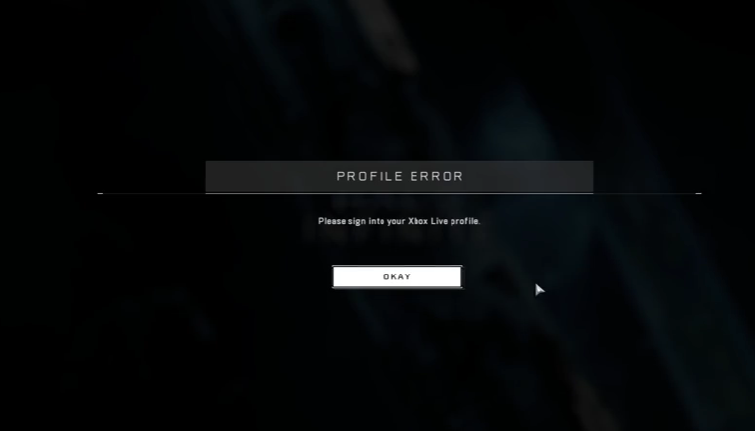
Halo Campaign Evolved requires a mandatory Microsoft account link, even for players on Steam or PlayStation 5. This cross-platform integration is the source of several frustrating login bugs.
Microsoft sign-in window is stuck or frozen
When you launch the game, the external sign-in window may appear blank or become unresponsive. This is often caused by a conflict with your system's default browser or outdated cached data in the Steam overlay.
Halo Campaign Evolved keeps returning to the login screen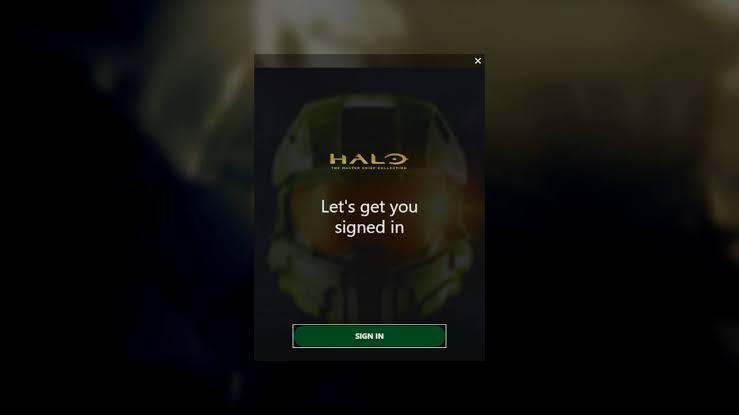
A common "sign-in loop" occurs where the game accepts your credentials but immediately prompts you to log in again. This usually indicates that the local authentication token is corrupted or the Xbox network cannot verify your profile.
The wrong Microsoft account is automatically selected
Windows often attempts to use the account currently logged into the Xbox App or Windows Store. If this account differs from the one you want to link to Halo, the process will fail or link to the incorrect profile.
Your Microsoft or PlayStation account is already linked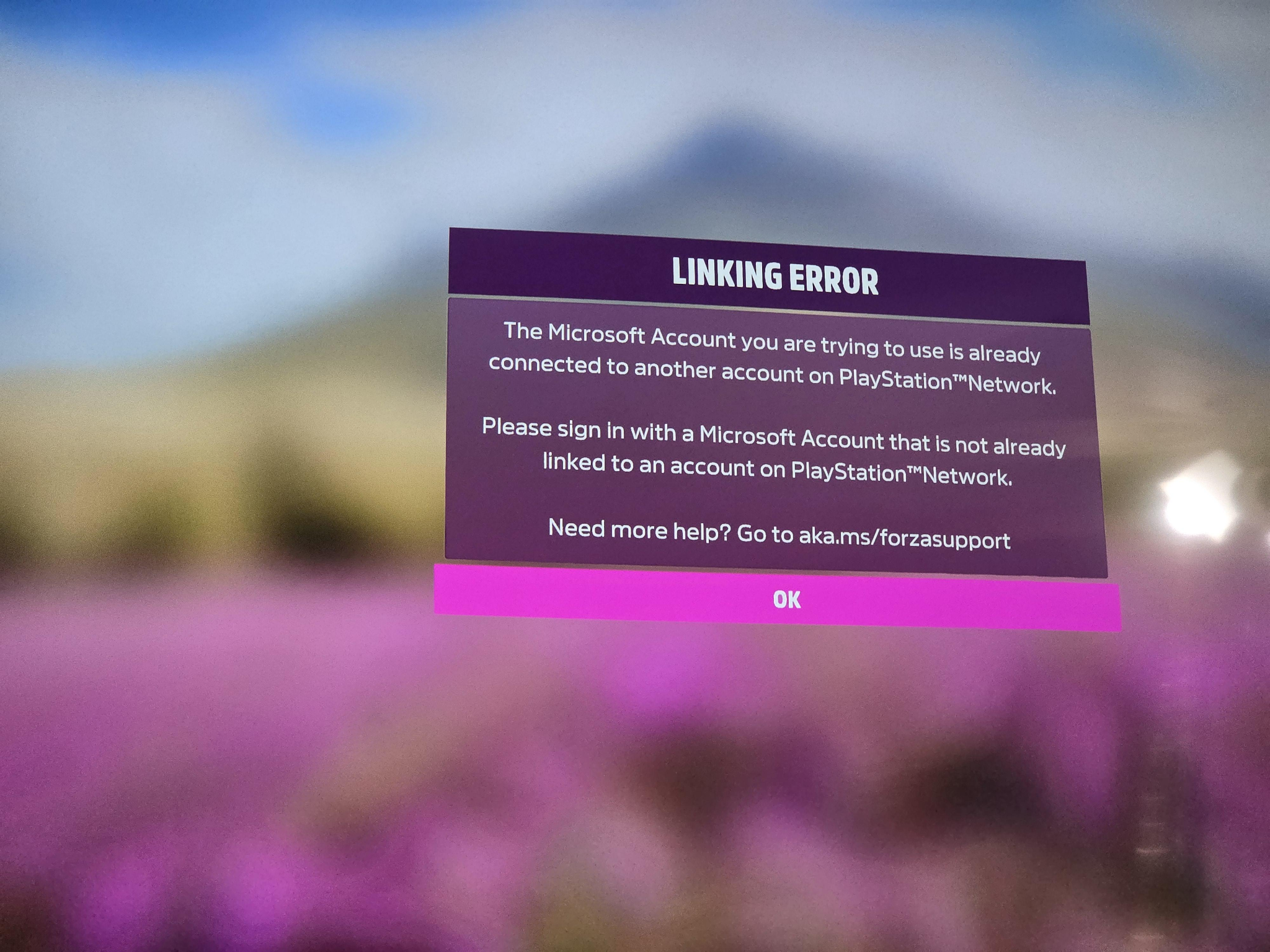
Account linking is often a one-to-one relationship. If your PSN ID was previously linked to a different Microsoft account for Minecraft or Sea of Thieves, you will receive a "Linking Failed" error.
Xbox network services are unavailable
If the authentication servers are down or your local network is blocking the connection, the game will fail to reach the login phase entirely.
Cached Steam or Windows Xbox credentials are corrupted
Over time, the "tokens" stored in your Windows Credential Manager or Steam's internal browser can become invalid, preventing a clean handshake between platforms.
Part 2: Check Halo Campaign Evolved and Xbox Server Status First
Before troubleshooting your local setup, ensure the problem isn't on the developer's end.
Check Halo Support for known login problems
Visit the official Halo Waypoint support page or follow @HaloSupport on X (formerly Twitter). They frequently post updates about known authentication issues during launch windows or after major patches.
Check Xbox network account and service status
Go to the Xbox Status website. Look specifically for "Account & profile" services. If these are showing an outage, you will not be able to link your account until the servers are back online.
Restart Halo Campaign Evolved, Steam, Xbox App, or PS5
A simple "cold boot" of your platform can clear temporary memory glitches. On PC, ensure you fully exit Steam and the Xbox App (check the system tray) before relaunching.
Part 3: Clear the Halo Campaign Evolved Microsoft Sign-in Loop on Steam
If you are a PC player stuck in a loop where the login window disappears and reappears, follow these steps:
- Open Steam Settings: Click "Steam" in the top-left corner and select "Settings."
- Navigate to In-Game: Find the "In-Game" tab.
- Delete Browser Data: Click the button to "Delete Web Browser Data" (this clears cache and cookies).
- Restart Steam: Close the client and launch Halo Campaign Evolved again.
This forces the game to open a fresh login prompt rather than trying to use a stale, broken session.
Part 4: Remove Old Xbox Login Credentials from Windows
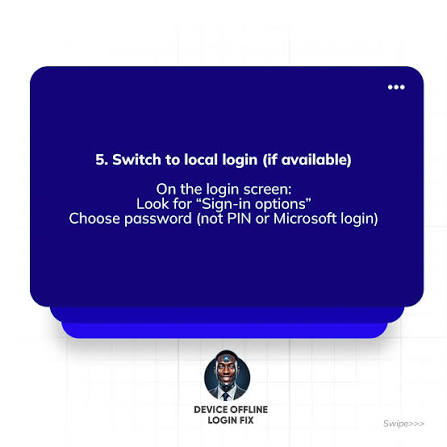
If clearing Steam data doesn't work, the issue likely resides in your Windows system settings.
- Open Credential Manager: Press the Windows Key and type "Credential Manager."
- Select Windows Credentials: Click on the "Windows Credentials" tab.
- Find Xbox Entries: Scroll down to the "Generic Credentials" section.
- Delete Corrupted Keys: Look for any entries that start with "XBL|Device" or contain the number "3184" (which is the identifier for Halo MCC/Infinite/Campaign Evolved services).
- Remove: Click the arrow next to each entry and select "Remove."
- Reboot: Restart your PC and launch the game. You will be prompted to sign in from scratch.
Part 5: Fix Microsoft Account Linking Failed on PS5
PS5 players face unique challenges, especially regarding split-screen play.
- Verified Linking: Go to a PC or mobile device and log into your Microsoft account. Check the "Linked Accounts" section to see if a PSN ID is already attached.
- Split-Screen Requirements: Remember that both players in a local split-screen session must have their own unique Microsoft account linked to their respective PSN profiles. You cannot use a "Guest" account for split-screen.
- Verification Code: If the QR code or link provided on-screen fails, manually go to https://www.microsoft.com/link and enter the code carefully.
Part 6: How to Fix the Wrong Microsoft Account in Halo Campaign Evolved
If the game automatically logs you into the wrong account:
- Sign Out Everywhere: Log out of the Xbox App, the Microsoft Store, and the Xbox website on your default browser.
- Clear Credentials: Follow the steps in Part 4 to remove the existing XBL tokens.
- Force Manual Login: When you next launch Halo, the game should no longer have a "remembered" account and will force you to enter your email and password manually.
Part 7: Fix Halo Campaign Evolved Login Connection Errors
Sometimes the login window won't load because your connection to the authentication servers is unstable.
Restart the router and switch to a stable connection
Wired connections are always preferred. If you are on Wi-Fi, ensure you aren't experiencing packet loss, which can cause the login handshake to time out.
Disable conflicting VPN, proxy, or DNS settings
Microsoft's authentication servers often flag VPNs as suspicious activity. Disable your VPN or proxy before attempting to link your account.
Allow Halo Campaign Evolved through Windows Firewall
Ensure HaloCampaignEvolved.exe and the GamingServices process are allowed through your firewall.
Optimize the connection to Xbox authentication services with LagoFast
Login failures are frequently caused by Login service connection timeouts or Xbox verification service unreachability. LagoFast Game Booster is specifically designed to solve these routing issues.
LagoFast(LagoFast Game Booster - Get No Lag and Lower Ping) uses a global network of dedicated nodes to stabilize your connection to the Xbox authentication servers. By eliminating Packet Loss and bypassing congested regional lines, LagoFast ensures that your login request reaches the server without timing out.
Detailed Steps to Use LagoFast Game Booster:
Click the Free Trial button to download and install LagoFast Free Trial.
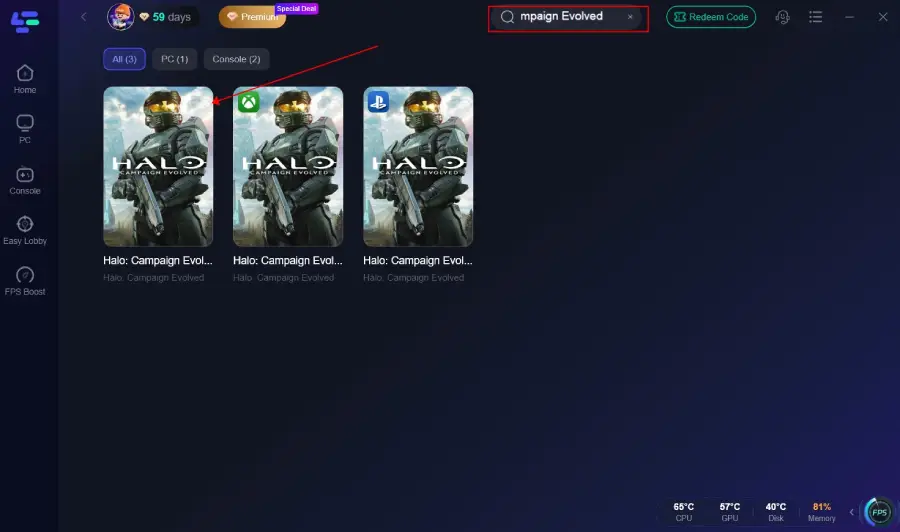
Search for Halo Campaign Evolved: Add the game to your boost list.
Select Your Region: Choose the node closest to the authentication servers (usually North America or your local region ).
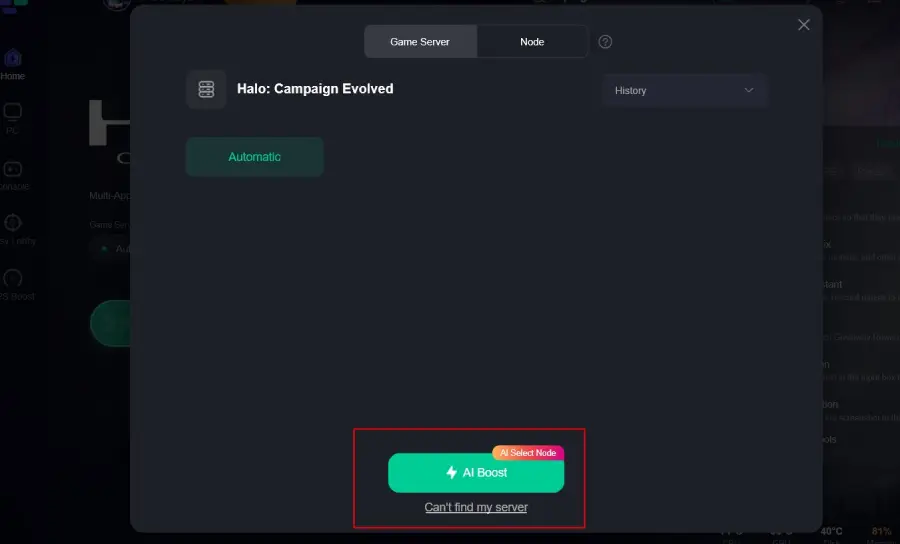
Boost: Click the "Boost" button to optimize your routing.
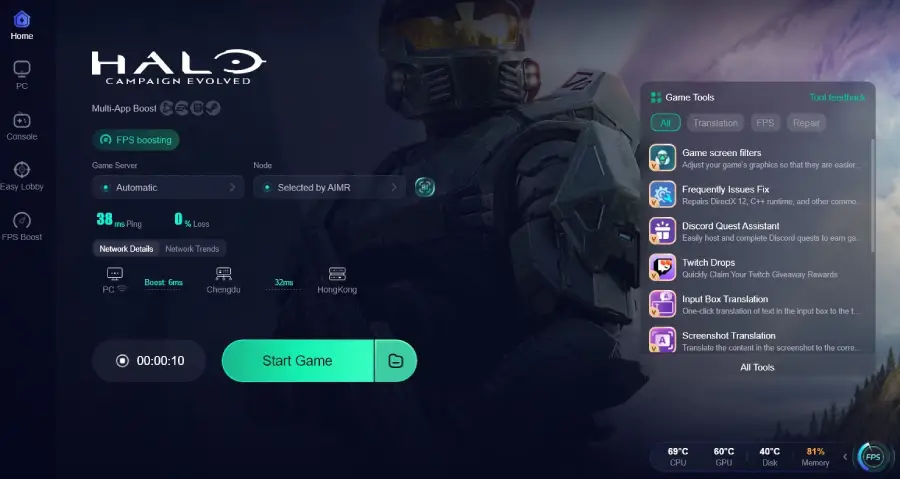
Launch Halo: Open the game. You will find that the sign-in window loads instantly and the "Linking Failed" errors disappear.
Part 8: Fix Xbox Gamertag or Profile Not Showing
If you have signed in but your Gamertag appears as "Guest" or a string of numbers:
- Sync Profile: Go to the Xbox website and ensure your Gamertag is properly set up.
- Privacy Settings: Check your Xbox Privacy settings to ensure "Others can see your profile" is allowed.
- Wait for Sync: During high-traffic periods, it can take up to 30 minutes for a newly linked account to display the correct Gamertag in-game.
Part 9: Reinstall or Repair Xbox Gaming Services on PC
If the login window never appears at all, your Windows Gaming Services might be broken.
- Right-click Start: Select "Windows PowerShell (Admin)."
- Run Command: Type get-appxpackage Microsoft.GamingServices | remove-AppxPackage -allusers and press Enter.
- Reinstall: Open the Microsoft Store, search for "Gaming Services," and reinstall it.
Part 10: Frequently Asked Questions
Q1: Do I need PlayStation Plus to link my account?
A: You do not need PS Plus to link your account or play local split-screen, but you will need it for online multiplayer modes.
Q2: Can I unlink my Microsoft account later?
A: Yes, but you must contact Halo Support or Microsoft Support to perform a manual unlink. There is often a cooldown period before you can link a new account.
Q3: Why does the sign-in window say "Something went wrong"?
A: This is usually a temporary server-side error. Wait 10 minutes and try again, or use LagoFast to ensure your connection isn't being dropped by your ISP.
Q4: Can I use the same Microsoft account on Steam and PS5?
A: Yes! Using the same account allows you to sync your progression, unlocks, and stats across both platforms.
Q5: Is a Microsoft account required for the offline campaign?
A: Yes. Halo Campaign Evolved requires an active Microsoft account link for all game modes, including the single-player campaign.
Key Takeaway
Fixing Halo Campaign Evolved Microsoft account linking failed errors usually involves clearing stale browser data or system credentials. By managing your Windows Credential Manager and ensuring a stable connection through LagoFast Game Booster, you can bypass the login loops and get back to the fight.
Boost Your Game with LagoFast for Epic Speed
Play harder, faster. LagoFast game booster eliminates stutter and lags on PC, mobile, or Mac—win every match!
Quickly Reduce Game Lag and Ping!
Boost FPS for Smoother Gameplay!