
Just downloaded PRAGMATA, but it won’t even launch. The screen turns black after the Capcom logo, or it crashes straight back to desktop. This situation is widely reported among players encountering various PRAGMATA common error issues right after installation, especially on PC platforms such as Steam (PC).
“Pragmata not launching”, sudden crashes, or the well-known PRAGMATA Black Screen problem can be extremely frustrating, especially for a visually ambitious title powered by Capcom’s RE Engine. While the game promises high-end visuals and next-generation rendering, early PC builds or system mismatches often lead to instability.
This guide explains every major issue in detail, including causes, fixes, and optimization methods, so you can stabilize your gameplay experience and reduce interruptions such as crashes, freezes, or performance drops.

- ✅ Reduce Lag and High Ping.
✅ Boost FPS at Fix Stuttering.
✅ Fix Crashing and Freezing Issues.
✅ Change Server without Latency.
✅ Boost Game Loading Speed. - ✅ PRAGMATA Translation Tool.
Part 1. Understanding Pragmata Common Error Types
Part 2. Common Causes Behind Pragmata Common Errors
Part 3. Pragmata Common Error Fix: Step-by-Step Solutions
Part 4. How to Enhance Your Game Experience with LagoFast Game Booster
Part 1: Understanding PRAGMATA Common Error Types
Before going into fixes, it is important to clearly identify what type of issue you are dealing with. Most PRAGMATA common error cases fall into a few recognizable categories, and each one usually points to a different underlying system problem.
1. PRAGMATA Not Launching / Startup Crashes
This is one of the most frustrating issues because the game fails before reaching the main menu.
- Immediate Crash to Desktop (CTD): The executable starts briefly, then closes without warning.
- Stuck on Loading Screen: The Capcom logo or PRAGMATA title freezes indefinitely.
- No Response on Launch: Steam shows “running” for a moment, but nothing appears.
In many cases, players describe this as PRAGMATA not launching at all even when system requirements appear to be met. This usually indicates driver instability, missing runtime components, or corrupted installation files.
2. PRAGMATA Black Screen Issue
A PRAGMATA Black Screen occurs when the game launches but fails to render visuals properly.
- Black Screen on Startup: Audio may play, but the screen stays completely black.
- Black Screen During Gameplay: Sudden loss of image during cutscenes or transitions.
This is typically related to GPU rendering conflicts, incorrect resolution initialization, or driver-level display issues within the RE Engine pipeline.
3. In-Game Crashes and Freezes
Even if the game successfully launches, instability may appear during gameplay sessions.
Random Crash to Desktop: The game closes without any error message.
Hard Freezes: The system stops responding and requires manual termination.
D3D / GPU Errors: DirectX or rendering pipeline failure caused by GPU communication loss.
These issues are often linked to unstable hardware conditions such as overheating, overclocking instability, or VRAM overload.
4. Performance Issues (Stuttering and Low FPS)
Not all issues involve crashes; performance degradation is also a major category.
- Low FPS: Consistent frame drops during gameplay.
- Stuttering / Hitching: Micro-freezes even when average FPS seems stable.
These symptoms are usually caused by background processes, shader compilation load, or insufficient GPU memory allocation.
Part 2: Common Causes Behind PRAGMATA Common Errors
Understanding root causes is essential for effective RE Engine troubleshooting, as many issues are system-level rather than game-specific.
Outdated or Corrupted Graphics Drivers
This is the most frequent cause. Improper driver versions can lead to black screens, crashes, or rendering failures.
System Requirements Not Fully Met
If your system does not meet minimum requirements (PC / Steam version), PRAGMATA may fail to launch or suffer severe performance drops.
Corrupted or Incomplete Game Files
Missing or damaged installation files often result in PRAGMATA not launching or crashing during startup.
DirectX or Runtime Component Issues
Missing DirectX libraries or outdated runtime frameworks can prevent proper GPU rendering and cause D3D errors.
Antivirus and Firewall Interference
Security software may mistakenly block game executables, resulting in startup failure or instability.
Background Applications and Overlay Conflicts
Overlays from Steam, Discord, or GPU software can interfere with rendering and reduce system performance.
Overheating and Power Instability
Thermal throttling or insufficient PSU capacity can cause sudden shutdowns or crashes during load spikes.
Windows System Corruption or Outdated Builds
Outdated Windows versions or corrupted system files can break compatibility with RE Engine-based titles.
Part 3: PRAGMATA Common Error Fix – Step-by-Step Solutions
This section provides structured solutions for resolving PRAGMATA common error issues effectively.
1. Confirm System Requirements First
Always verify your hardware against the official requirements. If you are near the minimum threshold, prioritize lower graphics settings for stability.
2. Perform Clean GPU Driver Installation
This is one of the most important fixes for PRAGMATA Black Screen issues and rendering failures.
Use Display Driver Uninstaller (DDU) to completely remove existing GPU drivers, then reinstall the latest NVIDIA or AMD drivers using a clean installation option.
3. Update DirectX and Windows System
Install the latest DirectX End-User Runtime and ensure Windows Update is fully completed. Missing system components are a common trigger for launch failures.
4. Verify Game File Integrity via Steam
Steam’s verification tool can repair corrupted or missing files that often cause PRAGMATA not launching or unexpected crashes.
5. Run Game and Steam as Administrator
This helps bypass permission-related restrictions that may block initialization or prevent proper file access.
6. Disable Overlays and Close Background Applications
Turn off overlays from Steam, Discord, and GPU utilities.
Close unnecessary programs through Task Manager to free CPU and RAM resources, improving stability.
7. Adjust In-Game Graphics Settings
Start with low settings and adjust gradually.
- Disable Ray Tracing / Upscaling Features: If crashes or instability occur
- Lower Resolution or Render Scale: If stuttering or FPS drops persist
This helps stabilize GPU load and reduces rendering stress.
8. Optimize Power Settings and Hardware Health
Switch Windows Power Mode to High Performance and monitor system temperatures using tools like MSI Afterburner. Disable CPU/GPU overclocking if instability is detected.
9. Clean Reinstallation of PRAGMATA
If issues persist, perform a full reinstall.
Uninstall the game, remove leftover folders manually, and reinstall a fresh copy to eliminate deep corruption issues.
Part 4: How to Enhance Your Game Experience with LagoFast Game Booster
Even after fixing system-level issues, external factors can still affect stability and performance consistency.
LagoFast Game Booster optimizes network routing and system resource allocation. While PRAGMATA is primarily a single-player title, it still relies on stable connections for updates, cloud saves, and background services.
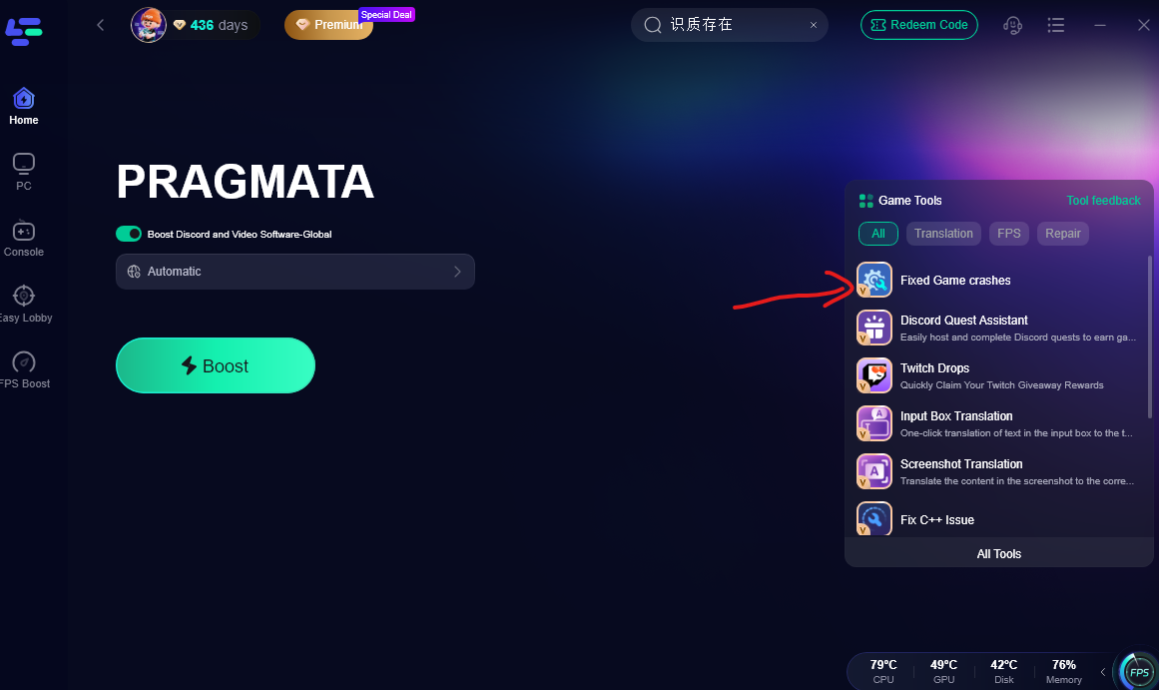
By improving routing paths and reducing packet loss, it helps ensure smoother background operations and reduces interruptions caused by network instability. It can also free up CPU and RAM resources by managing background network activity more efficiently. In addition, LagoFast offers a dedicated Fixed Game Crashes Tool for PRAGMATA, which automatically modifies configuration files to disable settings like ray tracing and DLSS. This helps resolve crash and launch issues caused by hardware strain or compatibility conflicts—no manual adjustments required, delivering a fast, precise, and reliable fix.
How to Use LagoFast Game Booster
Step 1: Click the Free Trial button to download and install LagoFast.
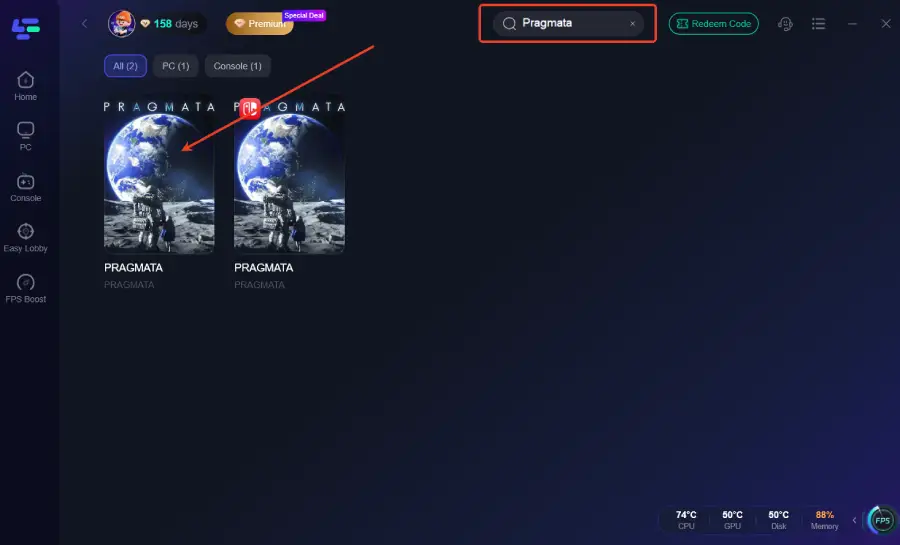
Step 2: After installation, search "Pragmata" in the search bar and select the game.
Step 3: Click the Fixed Game Crashes Tool on the right.
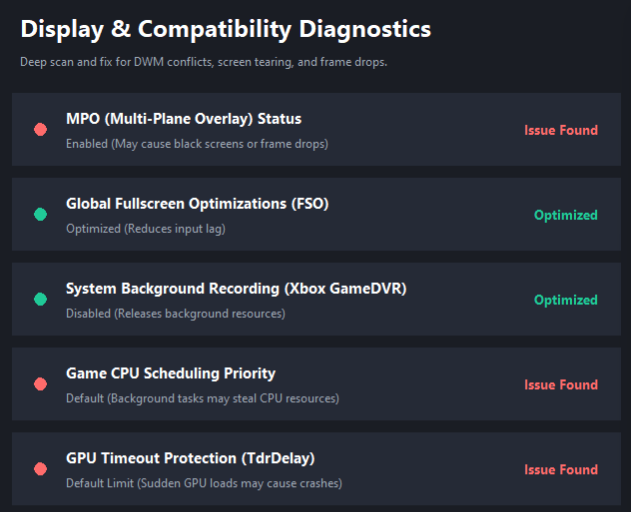
This tool can perform a deep diagnostic scan to identify and resolve display and compatibility issues, including DWM conflicts, screen tearing, and frame drops, ensuring smoother visuals and more stable performance during gameplay.
Step 4: Choose your preferred server node and click "Smart Boost" to start optimizing.
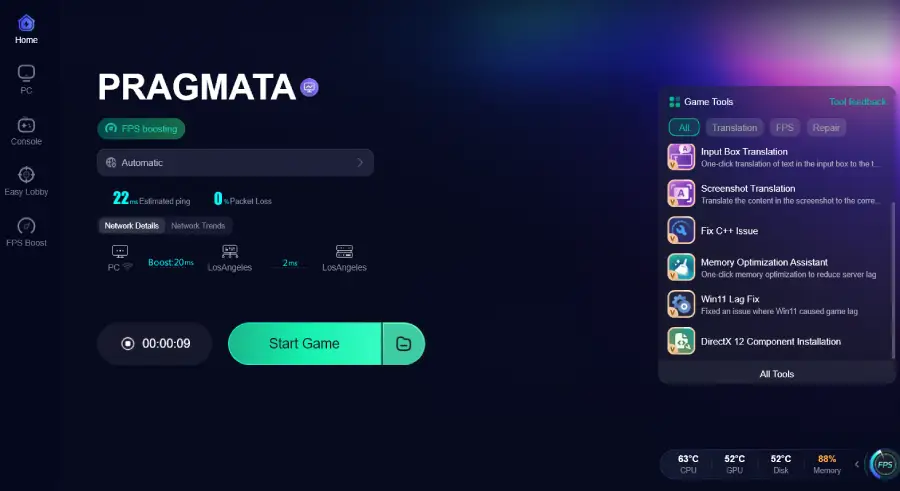
Step 5: Launch your game and enjoy smooth, optimized gameplay with lower ping and packet loss.
Part 5: FAQs
Why does PRAGMATA crash after the Capcom logo?
This is commonly caused by driver issues, corrupted game files, or missing DirectX components. Updating drivers and verifying files usually resolves it.
Why does PRAGMATA Black Screen happen but audio still plays?
This indicates a rendering or display initialization failure. Updating GPU drivers and adjusting fullscreen settings often fixes it.
What should I do if PRAGMATA not launching at all?
Start with Steam file verification, then check antivirus blocking and run the game as administrator.
Can antivirus software block PRAGMATA?
Yes, some security tools may incorrectly flag game files. Adding exclusions typically resolves this.
Why do I experience stuttering even with high FPS?
This may be caused by shader loading, VRAM limits, background processes, or system instability.
Is LagoFast safe to use?
Yes. It does not modify game files or inject into the game process. It only optimizes routing and system resource allocation.
Conclusion
Most PRAGMATA common error issues, including crashes, freezes, PRAGMATA Black Screen events, and PRAGMATA not launching problems, can be resolved through systematic troubleshooting.
By updating drivers, verifying game files, optimizing system performance, and reducing background conflicts, overall stability can be significantly improved. Combined with RE Engine troubleshooting best practices and tools like LagoFast Game Booster, the game experience becomes smoother and more consistent.
With a properly optimized system, PRAGMATA can deliver its intended high-quality visual experience without unnecessary interruptions.
Boost Your Game with LagoFast for Epic Speed
Play harder, faster. LagoFast game booster eliminates stutter and lags on PC, mobile, or Mac—win every match!
Quickly Reduce Game Lag and Ping!
Boost FPS for Smoother Gameplay!