

Quick Answer: What Is The Path of Exile 2 0.5.0 BEST Graphics Settings?
To instantly stabilize performance in the Path of Exile 2 0.5.0 update, use these optimal settings: Set Window Mode to Borderless Windowed, Renderer to DirectX 12 or Vulkan (depending on your GPU), and Texture Quality to Medium. Turn Shadow Quality to Medium, Global Illumination to Medium/Low, and enable Up-scaling (DLSS/FSR) on "Quality" or "Balanced" mode. This configuration strikes the perfect balance between keeping the dark, gritty atmosphere of the game intact while reclaiming 30% to 40% of your frame rate. Besides, using a game booster like LagoFast can further optimize your gaming performance.
Stepping into the dark, punishing world of Wraeclast in Path of Exile 2 is an incredible experience, but nothing kills a hardcore run faster than a sudden frame drop during a chaotic boss fight. The latest 0.5.0 update brings stunning visual upgrades, but it also introduces heavier demands on your hardware. If you are noticing stuttering, screen tearing, or sluggish input response, your default configuration is likely holding you back. This guide provides the ultimate optimized setups for PC, budget setups, and consoles so you can enjoy high frame rates without turning your game into a blurry mess.

- ✅ Reduce Lag and High Ping.
- ✅ Boost FPS at the Same Time.
- ✅ Support 8000+ Popular Online Games.
- ✅ End Stuck & Crashing Issues.
- ✅ Fix Server Queue Issue.
Part 1: Path of Exile 2 0.5.0 BEST Graphics Settings
Part 2: Path of Exile 2 0.5.0 BEST Graphics Settings for MAX FPS
Part 3: Path of Exile 2 0.5.0 Graphics Settings for Low-End PC
Part 4: Path of Exile 2 0.5.0 Best Graphics Settings PS5
Part 5: Beyond Graphic Settings: Advanced Gaming Performance Booster – LagoFast
Part 1: Path of Exile 2 0.5.0 BEST Graphics Settings
The 0.5.0 update optimized how the engine handles volumetric rendering and particle assets, but it also increased the baseline load on modern graphics cards. Below is a comprehensive comparison of how the game performs with the baseline default settings versus our fully optimized 0.5.0 setup, which aims to maximize clarity while freeing up system resources.
|
Graphic Setting |
Default Configuration |
Optimized 0.5.0 Settings |
Performance Impact & Visual Reasoning |
|
Window Mode |
Fullscreen |
Borderless Windowed |
Minimizes alt-tab crashes and integrates better with modern OS scheduling. |
|
Renderer |
DirectX 11 |
DirectX 12 / Vulkan |
DX12 handles modern multi-core CPUs better; Vulkan reduces stuttering on AMD cards. |
|
Texture Quality |
High |
Medium (or High if >8GB VRAM) |
Medium significantly frees up video memory without sacrificing environmental detail. |
|
Shadow Quality |
Ultra |
Medium |
Ultra shadows drain massive GPU resources; Medium keeps the grit with double the frames. |
|
Global Illumination |
High |
Medium |
Controls dynamic bouncing light. Dropping to Medium gives an immediate 15% FPS boost. |
|
Volumetric Fog |
High |
Low |
Volumetric effects are incredibly heavy during dense combat maps. |
|
Water Detail |
High |
Medium |
Affects specific zones; lowering it prevents sudden drops near rivers or coastlines. |
|
Anti-Aliasing |
TAA High |
TAA Medium |
TAA is necessary to prevent jagged edges, but Medium keeps the image sharper. |
|
Anisotropic Filtering |
16x |
8x or 16x |
Minimal performance impact on modern cards, keeps textures crisp at sharp angles. |
Part 2: Path of Exile 2 0.5.0 BEST Graphics Settings for MAX FPS
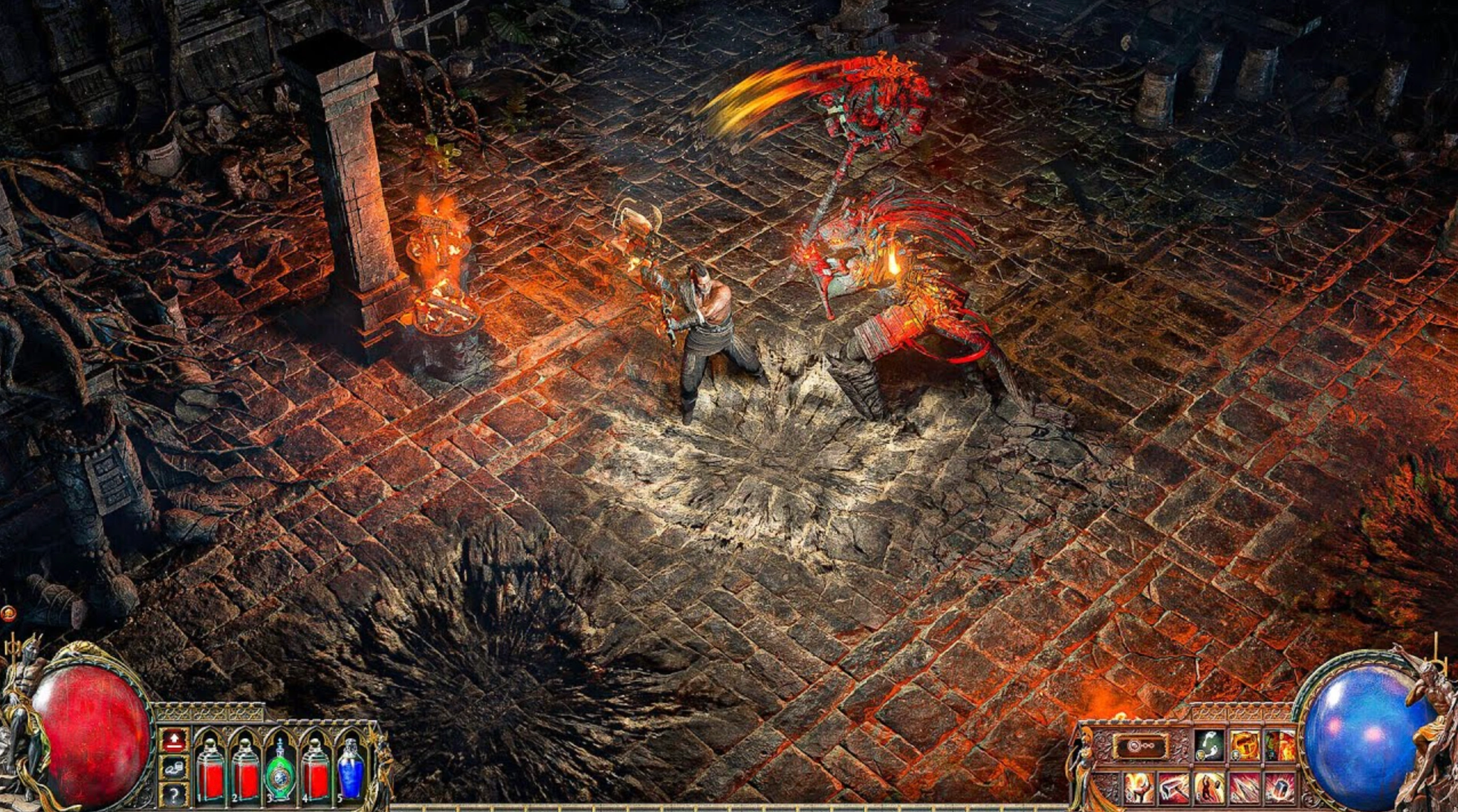
When your main goal is competitive responsiveness, every single frame matters. If you are pushing high-tier maps with hundreds of monsters exploding simultaneously on your screen, you need a configuration designed to maintain a rock-solid frame rate during intense encounters.
|
Graphic Setting |
Max FPS Choice |
Impact on Gameplay and Frames |
|
Dynamic Resolution |
Enabled |
Automatically lowers internal resolution during heavy combat to protect your frame rate. |
|
Target Frame Rate |
Match Monitor Refresh (e.g., 144) |
Tells the dynamic resolution engine exactly when to scale down to prevent dips. |
|
Upscaling Technology |
DLSS / FSR / XeSS |
Essential for high frames. Set to Balanced or Performance for a massive boost. |
|
Shadow Quality |
Low |
Removes intricate shadow filtering, saving crucial processing power in dense packs. |
|
Global Illumination |
Low |
Drops complex light calculations, maximizing your GPU's frame throughput. |
|
Bloom |
25% or Disabled |
Reduces the visual clutter of spell effects, making it easier to see ground hazards. |
|
Depth of Field |
Disabled |
Removes cinematic blurring, sharpening your peripheral vision and saving resources. |
|
Texture Filtering |
4x Anisotropic |
Drastically eases memory bandwidth overhead during fast movement. |
Part 3: Path of Exile 2 0.5.0 Graphics Settings for Low-End PC
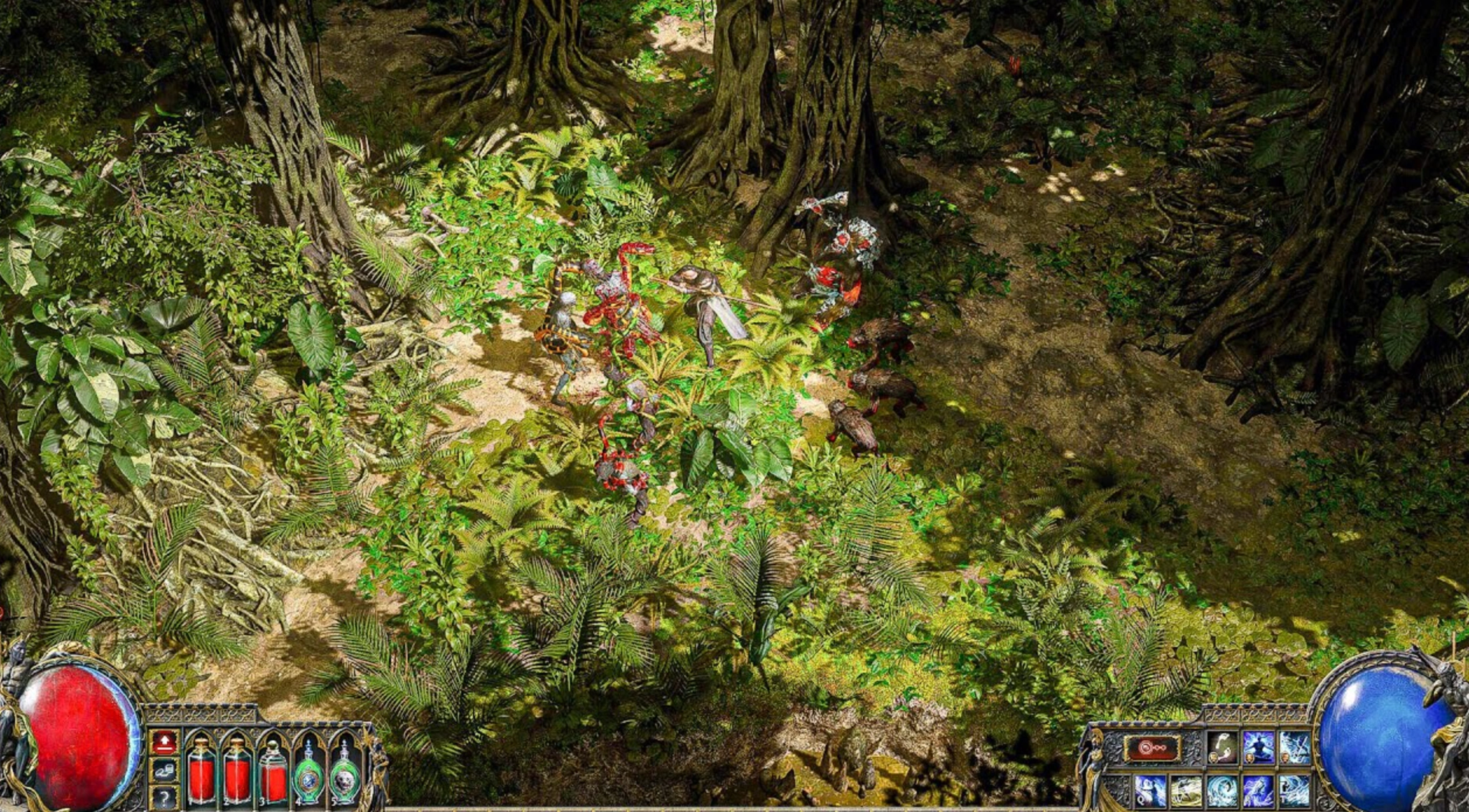
Running a game as modern as Path of Exile 2 on an older graphics card or a budget gaming laptop requires careful compromise. The goal here is to strip away heavy atmospheric post-processing while keeping the gameplay legible so you can dodge incoming boss mechanics reliably.
|
Setting Parameter |
Budget / Low-End Choice |
Optimization Reason |
|
Resolution |
1920x1080 (or 1600x900 native) |
Lowering the baseline resolution is the fastest way to save older graphics cards. |
|
Renderer |
Vulkan |
Vulkan generally offers much smoother frame times and less hardware stuttering on older PCs. |
|
Texture Quality |
Low / Medium |
Low is recommended if your graphics card has 4GB of VRAM or less to avoid massive stutters. |
|
Shadow Quality |
Low |
Keeps basic shadows for depth perception but avoids performance-heavy soft shadowing. |
|
Volumetric Effects |
Disabled / Lowest |
Completely eliminates heavy smoke, fog, and dust calculations that crush older hardware. |
|
Dynamic Resolution Target |
60 FPS |
Forces the engine to aggressively drop resolution whenever things get too hectic to maintain 60 FPS. |
|
Upscaling Mode |
FSR "Performance" |
Reconstructs a lower-resolution image to give you playable frame rates on budget hardware. |
|
Ambient Occlusion |
Disabled |
Disables contact shadows in corners, resulting in an immediate, noticeable jump in frames. |
Part 4: Path of Exile 2 0.5.0 Best Graphics Settings PS5
The PlayStation 5 version offers excellent optimization right out of the box, but the 0.5.0 update introduces specific adjustments to give console players better control over their visual and performance balance. Use these settings to ensure smooth target tracking during couch co-op or intense endgame mapping.
|
Console Setting Option |
Recommended PS5 Choice |
Expected Performance & Visual Outcome |
|
Display Mode |
Performance Mode |
Prioritizes a stable 60 FPS target over native 4K resolution, keeping inputs responsive. |
|
Motion Blur |
Disabled |
Removes camera motion smearing, making it much easier to track fast moving monsters. |
|
HDR Calibration |
Adjusted per monitor |
Enhances contrast in dark dungeons without crushing the deep black levels. |
|
Dynamic Resolution Scaling |
Enabled (Default) |
Allows the console to scale cleanly during massive screen-clearing spell chains. |
|
Controller Input Response |
High / Instant |
Reduces internal processing latency for tighter movement and dodging. |
|
Audio Channels |
Medium / Stereo |
Reducing audio channels slightly can actually save minor CPU overhead during heavy combat. |
Part 5: Beyond Graphic Settings: Advanced Gaming Performance Booster – LagoFast
Optimizing your in-game graphics menu is only half the battle. You can have a high-end graphics card pushing 200 FPS, but if your connection to the game server is unstable, you will still experience rubberbanding, micro-stutters, and devastating latency deaths. When in-game menus reach their limit, true hardware and network optimization requires a dedicated gaming tool.
LagoFast is an all-in-one game booster engineered specifically to eliminate network lag, stabilize frame rates, and ensure a completely fluid gaming experience. LagoFast focuses entirely on game data routes and real-time hardware optimization.
- One-Click FPS Boost: Instantly cleans up background system processes, optimizes CPU/GPU power distribution, and frees up RAM to maximize your frame rate with a single click.
- Smart Multi-Path Latency Reduction: Uses a globally distributed network of dedicated gaming routes to automatically find the fastest, most stable path to the game servers, dropping your ping significantly.
- Packet Loss and Jitter Correction: Constantly monitors your connection to eliminate packet loss, preventing the frustrating rubberbanding that causes unexpected deaths in hardcore leagues.
- Game Crash Fix Tool: Features a built-in diagnostic tool that identifies and fixes common game stability issues and startup crashes with one click.
- Easy Server Switching: Allows you to change game regions easily to play with friends worldwide without enduring high ping penalties.
Tutorial to Optimize Your PoE 2 Gaming Experience with LagoFast:
Step 1: Click the Free Trial button to download and install LagoFast.
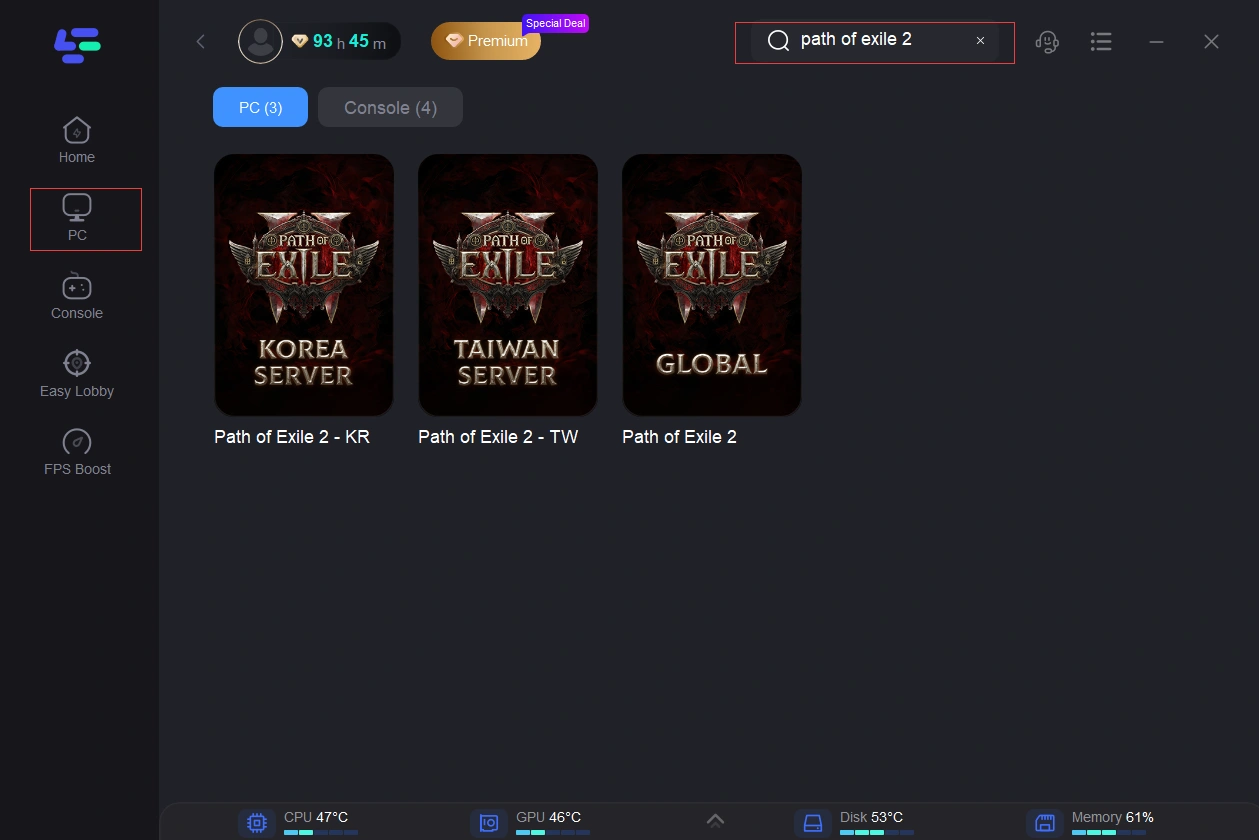
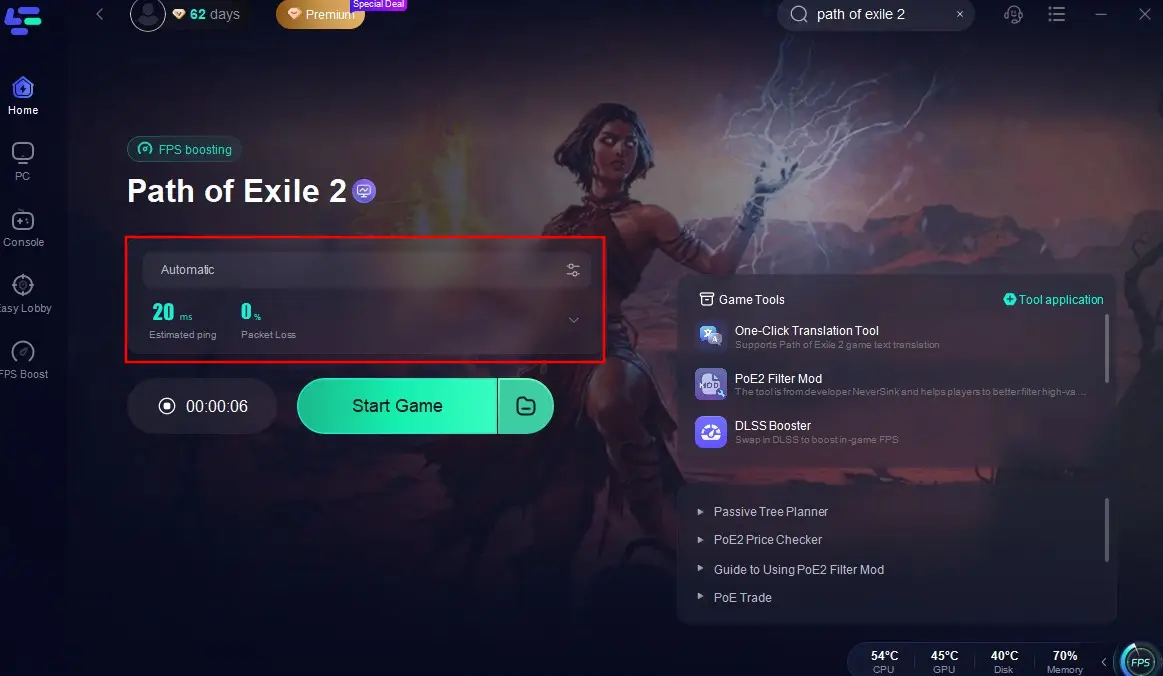
Step 2: Open LagoFast, then click the PC button on the left, search for Path of Exile 2 in the search bar, and click it after it appears.
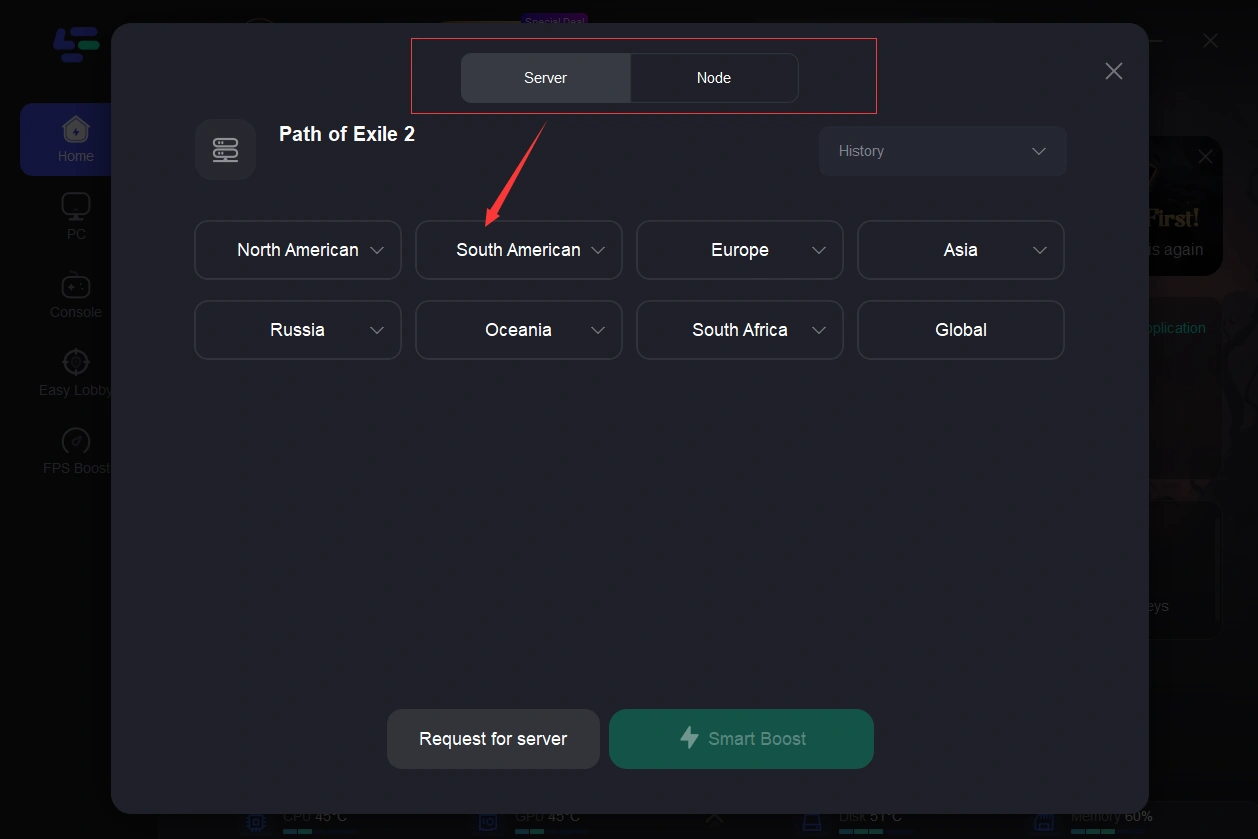
Step 3: Click on “Server” to change to a better server that provides a smooth gaming experience, then click on “Smart Boost” to fix Path of Exile 2 common issues.
Step 4: Check the specific game ping, packet loss, and multiple path connections on the right side. Finally, click “Start Game” to play the game.
Part 6: FAQs
Should I choose DirectX 12 or Vulkan for Path of Exile 2 0.5.0?
For most modern NVIDIA graphics cards, DirectX 12 offers the most stable framework and higher overall frames. If you are running an AMD graphics card or experiencing frequent micro-stutters, switching to Vulkan can provide much smoother frame pacing and reduce sudden performance drops.
Why does my frame rate drop suddenly when opening packs or mechanics?
This is typically caused by the sudden rendering of complex particle assets, micro-transactions, and sound effects all at once. Lowering your Volumetric Fog and Shadow Quality settings, alongside enabling Dynamic Resolution, will significantly reduce these sudden performance dips.
Does changing graphics settings fix network rubberbanding?
No. Graphics settings only impact how your computer processes visuals. If your character is teleporting backward or actions are delayed, you are experiencing network latency or packet loss. Utilizing a specialized gaming booster like LagoFast is the most effective way to resolve these routing issues.
What does the Dynamic Resolution setting actually do?
Dynamic Resolution dynamically lowers the internal rendering resolution of the game during visually intense moments to preserve your target frame rate. The game might look slightly blurry for a split second during massive explosions, but your frames will stay incredibly smooth.
Is it better to play Path of Exile 2 on an SSD or an HDD?
An SSD is strictly required for an optimal experience. The game constantly streams textures, zone data, and audio assets in real time. Running the game on an older HDD will cause severe loading delays, invisible enemies, and massive asset-streaming stutters.
How can I safely lower input lag on the PS5 version?
First, ensure your television is set to "Game Mode" to minimize display processing lag. Inside the console settings, turn off Motion Blur and select Performance Mode to guarantee a consistent 60Hz update rate for the fastest possible button response.
Conclusion
Achieving smooth performance in Path of Exile 2 0.5.0 requires balancing your visual preferences with your hardware's actual capabilities. By adjusting resource-heavy options like shadows, fog, and global illumination using our guide, you can enjoy a massive boost in frames without losing the game's iconic atmosphere. Pair these settings with LagoFast to optimize your hardware and network, and you will be fully prepared to conquer the toughest encounters across Wraeclast without a single hitch.

Boost Your Game with LagoFast for Epic Speed
Play harder, faster. LagoFast game booster eliminates stutter and lags on PC, mobile, or Mac—win every match!
Quickly Reduce Game Lag and Ping!
Boost FPS for Smoother Gameplay!