
Neverness to Everness is live now on PC, PS5, Android, and iOS, and if it is not working for you, the usual cause is launch-time confusion, server congestion, broken update files, low storage, unsupported hardware/software, or mobile optimization problems.
The official launch time was April 29, 2026 at 11:00 (UTC+8), which is 3:00 UTC, so one of the first things to check is whether you were trying to log in before your region actually unlocked. If you were early, the game could look broken when it was really just not open yet.
If you are past launch and NTE still will not open, update, or load into a server, work through the checks below in order. That is the fastest way to figure out whether this is your device, your install, or a temporary game-side issue.
One mobile player review on TapTap sums up a big part of the problem: “this needs optimization. they should've made it for pc only, this thing can't run on mobile smoothly.” If you are on an older phone or tablet, poor optimization may be the real reason the game keeps freezing, crashing, overheating, or failing to load well.

- ✅ Lower ping and fewer disconnects.
- ✅ More FPS and better PC performance.
- ✅ Support for 8000+ games.
- ✅ Stable connections and region switching.
Why is Neverness to Everness not working right now?
Start with this list before you reinstall anything:
You tried to play before the official unlock time.
The servers are under heavy launch-day pressure.
You picked a crowded or distant server.
Your game update failed or some install files are incomplete.
You do not have enough free storage.
Your PC is below the minimum spec.
Your Windows version is too old, or the system lacks proper DirectX 11 support.
Your phone can technically install the game, but performance is too unstable to run it properly.
NTE has four independent servers: Asia, America, Europe, and SEA. Your progress does not transfer between them, so server choice matters. A wrong or overloaded region can make login, patching, or connection feel broken even when the client itself is fine.
If the problem is login instability, long authentication, failed handshakes, or server-route issues rather than the game client itself, a network path fix can help.
Quick Fix : Use LagoFast to Optimize the Connection
LagoFast can help when the game cannot connect, keeps loading, disconnects, or fails to enter the server.
How to use LagoFast
Download and install LagoFast.
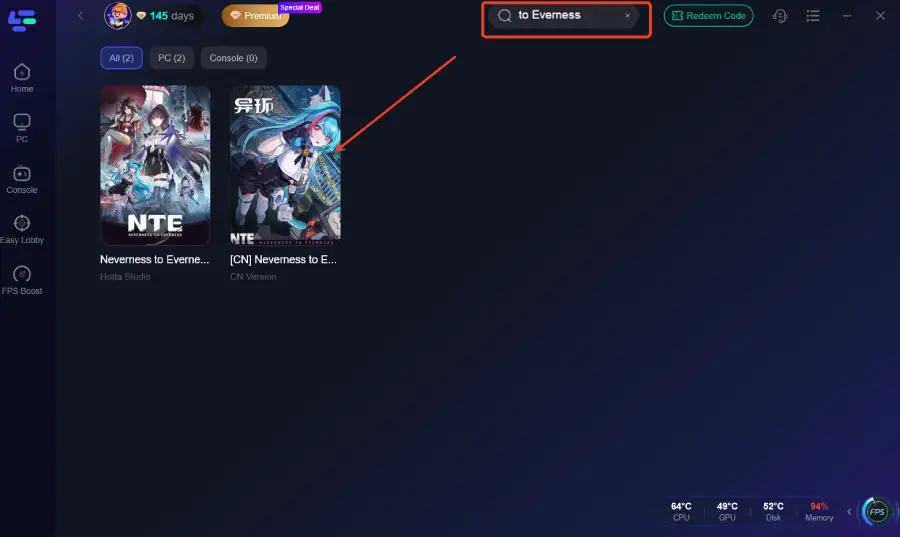
Open LagoFast and search for Neverness to Everness.
Choose the best available server route.
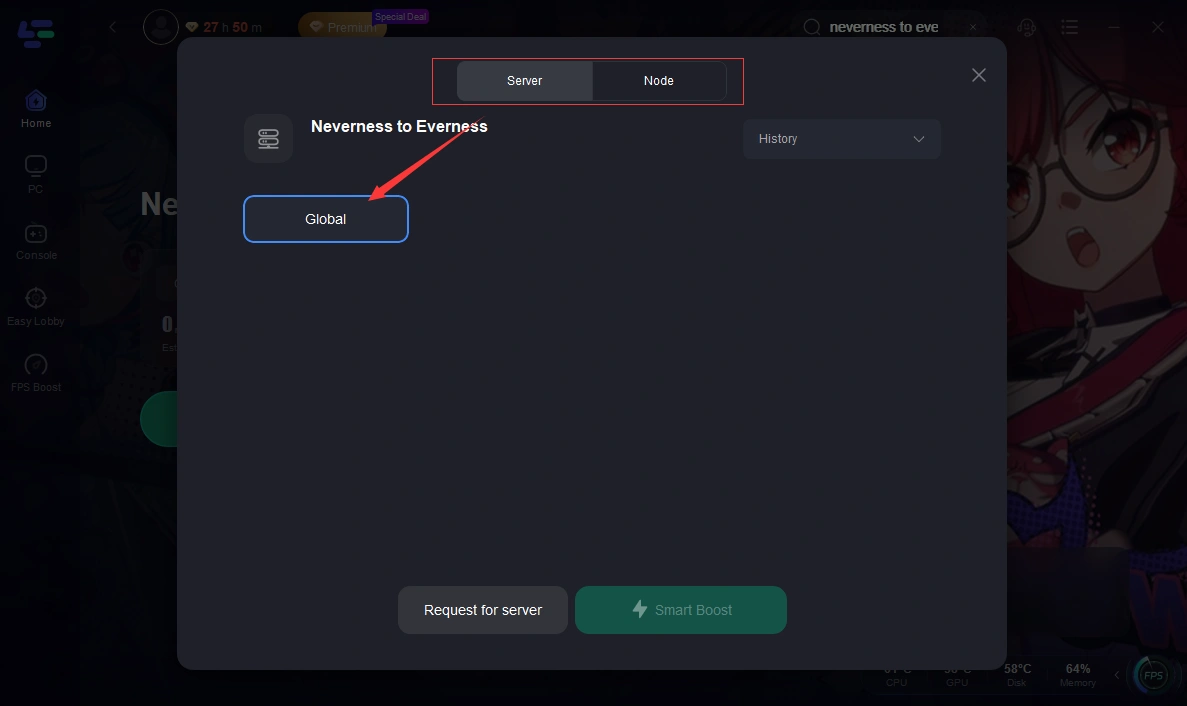
Click Smart Boost.
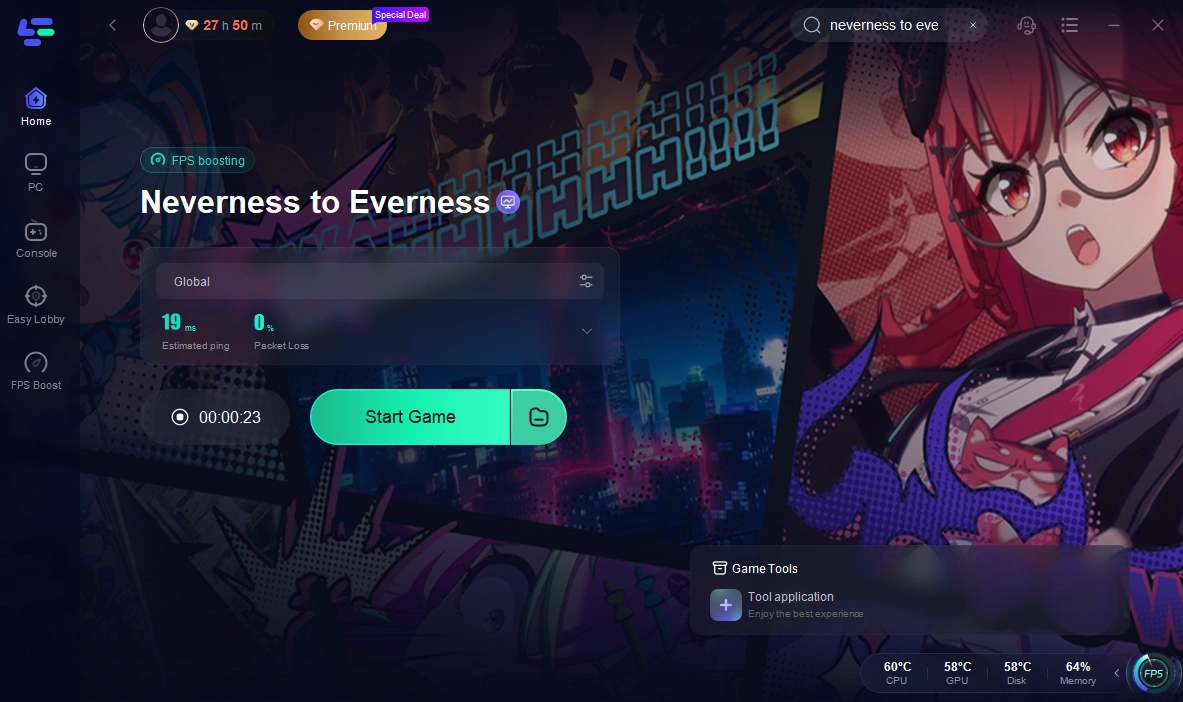
Launch the game from LagoFast.
Check whether the game loads, connects, or enters the server normally.
This is useful if the game works only sometimes, gets stuck on login, or fails to connect without a stable route.
What should you check first if NTE will not open or start?
Check these first, in this exact order:
Confirm it is already past the official launch time in your region.
Restart your PC, phone, or PS5.
Make sure the game has fully updated.
Check free storage before trying another patch or reinstall.
Make sure your device actually meets the baseline requirements.
This order matters because most launch-week failures are not advanced bugs. They are usually timing, storage, update, or compatibility problems.
How to fix Neverness to Everness not working on PC
If NTE does nothing when you launch it, crashes on startup, or gets stuck on a black screen, use this order:
1. Check storage first
NTE needs about 60GB free to install properly on PC. Some sources list roughly 45GB to 60GB, but the safest move is to keep at least 60GB free on the install drive. If you are close to full, patches can fail halfway and leave you with broken files.
2. Verify your PC meets minimum requirements
The reported minimum PC baseline is:
Windows 10 64-bit or higher
Intel Core i7-10700 or equivalent
NVIDIA GeForce GTX 1660 or equivalent
16GB RAM
DirectX 11 support
If your PC is below that, the game may launch poorly, stutter hard, crash, or fail to open at all.
3. Do not try to run it on Windows 7
There are reports tied to DirectX 11 and DLL load errors on unsupported older Windows setups. If you are on Windows 7, that is a likely hard stop, not a tweakable setting issue.
If you are seeing errors like kernel32.dll, KERNELBASE.dll, or LoadLibrary failures, treat that as a compatibility problem first.
4. Update Windows and your GPU driver
If the game used to open but now crashes, or if it black screens after launch, install pending Windows updates and update your graphics driver. Launch builds are often more sensitive to outdated system files than older games.
5. Repair or reinstall if the patch broke
If the launcher says updated but the game still will not start, your local files may be incomplete. Reinstalling is worth trying after you confirm storage and specs.
6. Lower settings if it launches but keeps crashing
If you can reach menus or gameplay but it crashes during loading or open-world play, lower the graphics preset. On weaker PCs, lower texture settings and traffic-related settings can reduce load and improve stability.
How to fix Neverness to Everness not working on Android or iPhone
Mobile problems are often different from PC problems. On phone, the game may technically launch but still be effectively unplayable because of optimization, memory pressure, heat, or storage limits.
1. Check your device baseline
For Android, the reported baseline includes:
Android 10 or higher
Snapdragon 855-class chip
6GB RAM minimum
Around 20GB free memory for the mobile version
If your phone is weaker than that, expect crashes, force closes, long loading, and severe frame drops.
2. Free more space than you think you need
NTE is heavy on mobile too. Players have reported very large storage demands, and low free space can break updates or cause endless install loops.
3. Restart the phone
This is especially useful on iPhone. The official FAQ recommends restarting the device to clear system cache and refresh available storage. If NTE stopped updating or refuses to finish patching on iOS, try this before deleting the app.
4. Update the app fully
A partial mobile update can leave you stuck on loading, “not responding,” or repeated crashes. Check the game page on your app store and make sure the update is actually complete.
5. Lower graphics if it gets into the game but runs badly
If NTE opens but stutters, overheats, drains battery, or force closes during gameplay, reduce graphics settings immediately. Some mobile complaints point to frequent lag, high battery drain, and very long first loads.
6. Watch for overheating on older devices
If your phone gets hot fast and then closes the game, that is usually a device-side performance limit, not a login bug. Older iPhones and weaker Android phones are more likely to hit this wall.
What if NTE is stuck on updating or says download failed?
This is usually a storage or file problem first.
Try this:
Pause the update and retry it once
Restart the device
Check free storage again
Make sure you are updating the correct client version
Reinstall if the patch keeps failing at the same point
If a patch repeatedly fails at a similar percentage, that often points to corrupted local files or not enough working free space during unpacking.
Is this a server problem or a problem on your device?
Use this quick split:
More likely server-side or game-side
You can open the game, but login hangs forever
Server entry fails after launch-time rush
Multiple players are reporting queue, login, or server access trouble at the same time
You can get into one server region but not another
More likely your side
The app will not open at all
The launcher crashes before login
You get storage, DLL, DirectX, or compatibility errors
Your phone overheats or force closes during loading
The game only breaks on one old device while working elsewhere
Be careful not to assume every failure is a confirmed outage. Right now, the safer read is temporary congestion or service instability in some cases, not a proven full global shutdown.
What if NTE opens but keeps crashing or freezing?
That usually means the game is working, but your system is struggling to run it cleanly.
Try these fixes in order:
Lower graphics settings
Close background apps
Restart the device
Update drivers or OS
Switch to the correct regional server
Reinstall if crashes started after an update
On low-end PCs, frame drops and crashes are more common. On mobile, optimization complaints are already a real pattern, so crashes after loading are not always something you can fully fix yourself.
What to do if Neverness to Everness still will not start
If nothing above works, stop guessing and collect useful evidence before contacting support.
Send them:
Your platform: PC, PS5, Android, or iPhone/iPad
Device model or full PC specs
OS version
Selected server: Asia, America, Europe, or SEA
Exact error text
Screenshot or short video of the issue
When the crash happens: launch, login, loading screen, update, or in-game
What you already tried
That gives support something actionable instead of a vague “game not working” report.
FAQ
Why does Neverness to Everness say it is not available yet?
Usually because you tried before the official unlock time in your region, or your client had not fully updated yet. NTE officially launched at April 29, 2026, 11:00 (UTC+8) / 3:00 UTC.
How much storage space does NTE need to install properly?
On PC, keep at least 60GB free to avoid failed installs or broken patches. On mobile, requirements are lower than PC but still heavy enough that low storage can absolutely stop installs and updates.
Can old PCs or phones cause NTE to crash or not open?
Yes. PCs below the Windows 10, GTX 1660, i7-10700, and 16GB RAM baseline may struggle badly. Older phones can also hit optimization, overheating, memory, and battery issues that lead to force closes or poor loading.
What should I send support if NTE still will not start?
Send your platform, device model or PC specs, OS version, selected server, exact error message, screenshots or video, and a short list of the fixes you already tried.
Boost Your Game with LagoFast for Epic Speed
Play harder, faster. LagoFast game booster eliminates stutter and lags on PC, mobile, or Mac—win every match!
Quickly Reduce Game Lag and Ping!
Boost FPS for Smoother Gameplay!