
Quick Answer: How to Fix PUBG Keeps Crashing?
To instantly fix PUBG crashing issues, you need to eliminate the underlying trigger, whether it is a broken game file, a driver conflict, or system instability. The fastest way to achieve this is by running a dedicated repair tool like LagoFast Game Booster. With its built-in, one-click Game Crash Fix tool, it scans your environment, optimizes resources, and repairs runtime conflicts instantly. For players who prefer manual troubleshooting, verifying the integrity of your game files on Steam or performing a clean graphics driver installation using DDU are the most effective traditional steps to restore stability.
Few things are more frustrating than preparing for a chicken dinner only to have your game freeze, stall, or disappear entirely. If PUBG keeps crashing on your PC, you are far from alone. Whether you are dealing with an annoying PUBG unknown crash mid-match, a hard freeze right after a major patch, or a game that flat-out refuses to launch from your desktop, these stability problems point to deep-seated conflicts between your local machine and the battle royale's heavy engine. This complete guide breaks down exactly why these errors happen and how you can fix them for good.

- ✅ Reduce Lag and High Ping.
✅ Boost FPS at the Same Time.
✅ Support 8000+ Online Games
✅ Change Server Without Latency.
✅ Multiplatform: PC, Console, Mobile.
✅ End Stuck, Connection & Crashing Issues
Part 1: PUBG Keeps Crashing: Technical Overview
Part 2: Full Manual Solution: Fix PUBG Keeps Crashing
Part 3: One-Click Solution: Fix PUBG Keeps Crashing Instantly With LagoFast
Part 4: LagoFast VS Manual Solutions: Which One is Better?
Part 1: PUBG Keeps Crashing: Technical Overview
Understanding the behavior of your game client helps narrow down the solution. The table below lists the most frequent symptoms that PC players experience, alongside their typical root causes and the recommended paths toward resolution.
|
Crash Symptom |
Potential Root Cause |
Recommended Fix |
|
PUBG crashing on startup / launch |
Missing administrative permissions, corrupted launch scripts, or broken local assets. |
Run as Administrator / Verify game file integrity. |
|
PUBG crash after update |
Incompatibilities between new game patches and legacy GPU drivers or outdated OS build files. |
Perform a clean graphics driver reinstall / Update Windows. |
|
PUBG unknown crash (Random mid-game) |
Memory leaks, aggressive hardware overclocks (XMP/RAM/GPU), or third-party background software overlays. |
Disable hardware overclocking / Turn off overlay applications. |
|
Desktop drop with no error code |
Insufficient virtual memory page files, or system overheating causing safety shutdowns. |
Increase Windows Pagefile size / Clean hardware cooling systems. |
Part 2: Full Manual Solution: Fix PUBG Keeps Crashing
If you want to troubleshoot the underlying system parameters manually, work your way through these four technical solutions. Follow each step carefully to avoid creating further configuration conflicts.
Solution 1: Verify the Integrity of Game Files
During large downloads, network drops, or hard drive errors, essential game assets can easily become corrupted or misplaced. This leads directly to a PUBG unknown crash because the engine cannot load specific textures or maps during gameplay.
Step 1: Open your Steam client and navigate directly to your personal Library tab.
Step 2: Locate PUBG: BATTLEGROUNDS in your games list, right-click it, and select Properties.
Step 3: From the left-hand menu pane, click on the Installed Files tab.
Step 4: Click the button labeled Verify integrity of game files.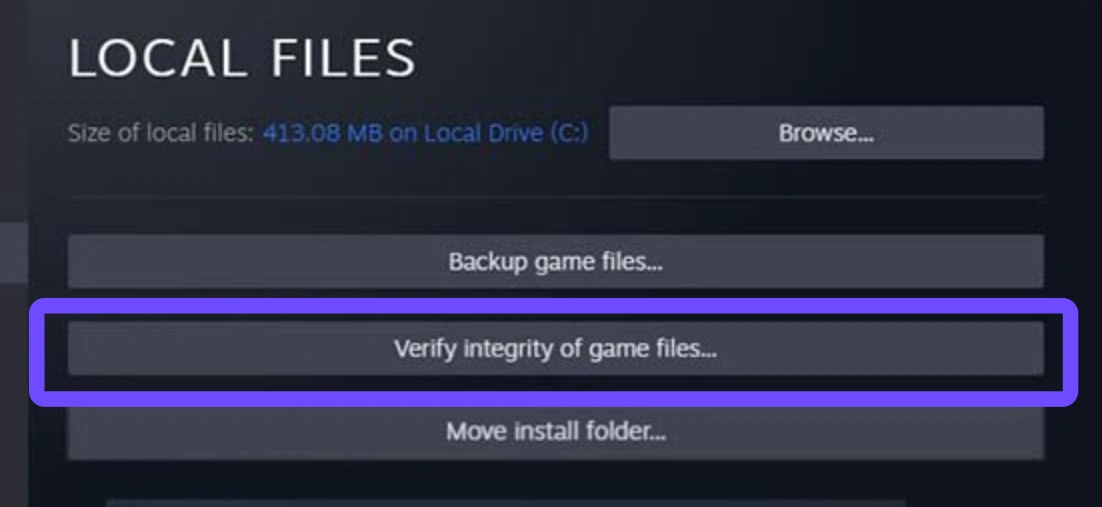
Step 5: Wait for Steam to scan your local installation directory. If the utility finds any broken or missing data, it will automatically re-download those specific blocks.
Solution 2: Run Steam and PUBG with Administrative Privileges
Windows security restrictions can occasionally prevent the battle royale's anti-cheat services (like BattlEye or Wellbia) from initiating properly. When these anti-cheat utilities are blocked from checking system memory, you will experience PUBG crashing pc on launch.
Step 1: Completely close out of Steam by right-clicking the Steam icon in your Windows system tray and choosing Exit.
Step 2: Right-click your desktop Steam shortcuts icon and choose Properties.
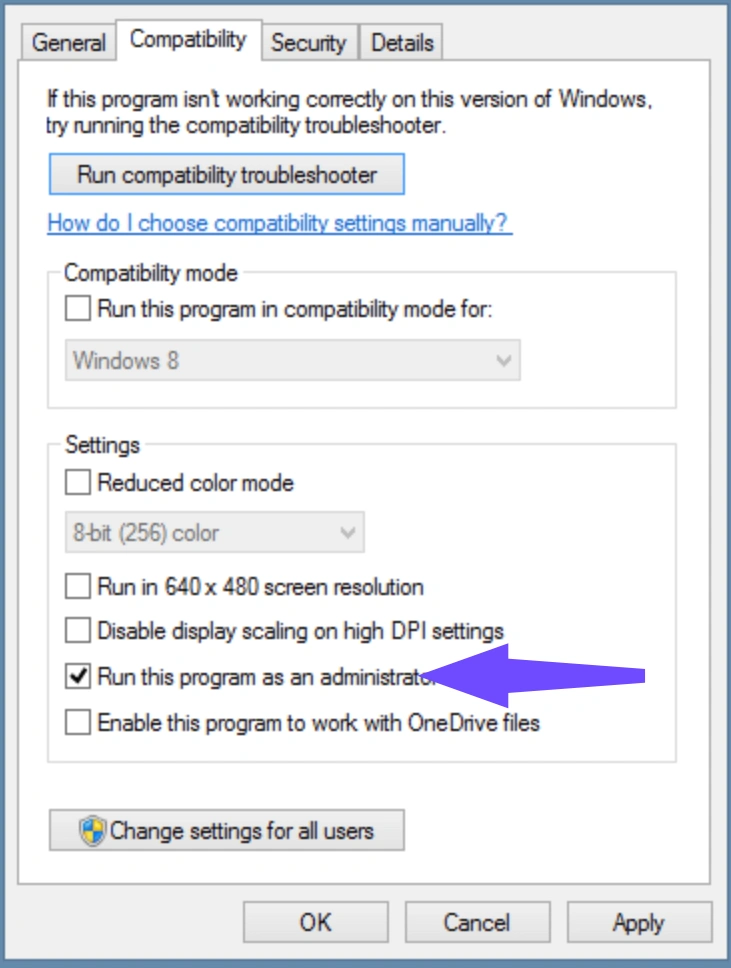
Step 3: Head to the Compatibility tab along the top of the properties panel.
Step 4: Check the box next to Run this program as an administrator, click Apply, and then hit OK.
Step 5: Repeat this identical process for the main game executable file, which is located inside your directory at Steam\steamapps\common\PUBG\TslGame\Binaries\Win64\TslGame.exe.
Solution 3: Perform a Clean Graphics Driver Reinstallation
Outdated, corrupted, or fragmented display drivers are the single largest reason why PUBG keeps crashing after a major content deployment. Simply clicking "Update" inside your software suite sometimes leaves old file fragments behind. A completely clean installation resolves these conflicts.
Step 1: Download the official, latest display driver package directly from the NVIDIA or AMD website that matches your specific graphics card model.
Step 2: Download DDU (Display Driver Uninstaller) from a trusted repository and extract the files to your desktop.
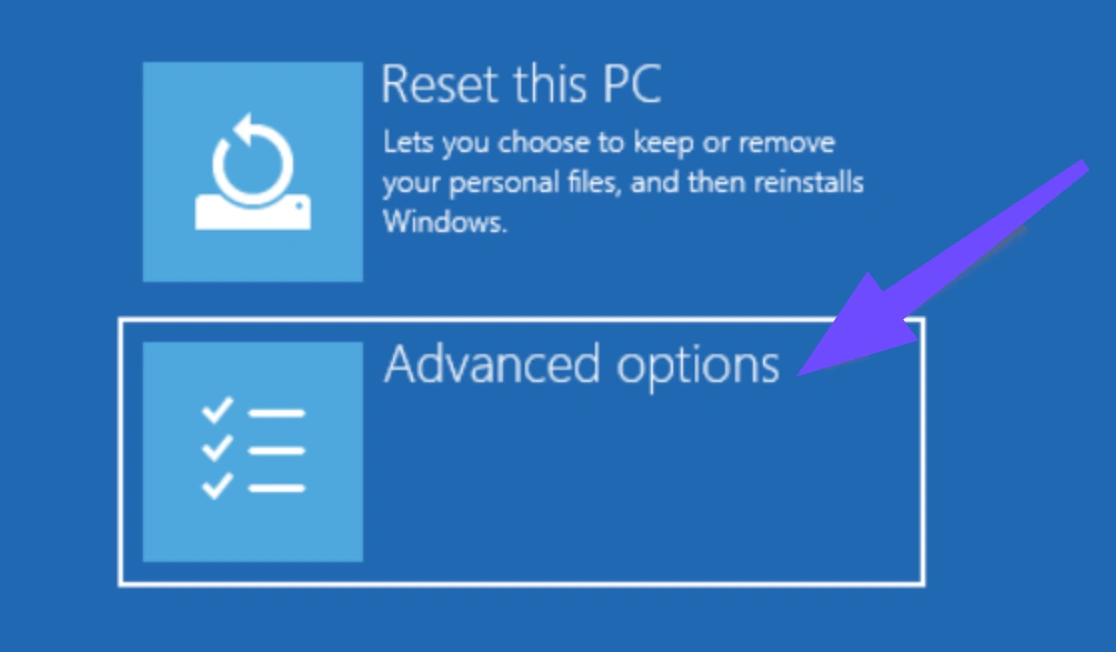
Step 3: Reboot your Windows PC into Safe Mode (Hold Shift while clicking Restart, select Troubleshoot, select Advanced Options, and click Startup Settings).
Step 4: Launch the DDU utility, select your device type (GPU), and click Clean and restart.
Step 5: Once your desktop reboots back into normal Windows, open the driver installer you downloaded in Step 1, select the Custom (Advanced) install option, and check the box for Perform a clean installation.
Solution 4: Disable Hardware Overclocking and XMP Profiles
While maximizing system frequencies gives you a welcome performance increase in casual applications, the Unreal Engine setup powering the battle royale is incredibly sensitive to memory timings. Aggressive overclocks frequently result in memory allocation errors that trigger a sudden PUBG crash.
Step 1: Shut down your PC completely, turn it back on, and repeatedly tap the Delete or F2 key to enter your motherboard's BIOS/UEFI settings menu.
Step 2: Navigate to the advanced frequency configuration screen, which is often named OC Tweaker, Extreme Tweaker, or MIT.
Step 3: Locate your memory parameters and change the XMP (Extreme Memory Profile) setting from "Enabled" back to Disabled or Auto.
Step 4: If you have used software utilities to push your CPU or GPU core clocks higher, reset those configurations completely back to factory defaults.
Step 5: Save your changes, exit the BIOS screen, and allow your operating system to boot normally to see if stability returns.
Part 3: One-Click Solution: Fix PUBG Keeps Crashing Instantly With LagoFast
While diving into Windows system registries, safe mode menus, and BIOS settings can eventually isolate the issue, manual fixes take significant time and carry the risk of user error. For an automated, worry-free alternative, utilizing LagoFast Game Booster is the definitive way to stabilize your gaming environment.
LagoFast is an advanced, all-in-one gaming optimization client engineered specifically to address deep-level system errors, high network latency, and driver bottlenecks simultaneously. Instead of leaving you to research obscure Windows diagnostics, LagoFast handles the optimization work on the back end to provide a stable deployment environment.
Core Performance Features of LagoFast:
- One-Click Game Crash Fix: Contains an integrated diagnostics engine that instantly identifies broken system pathways, updates missing DirectX/Visual C++ runtime resources, and resolves anti-cheat service conflicts to completely eliminate startup loops and random mid-game drops.
- Smart Multi-Path High Ping Reducer: Dynamically routes your connection across an exclusive global network of data paths, automatically picking the shortest line to the server to prevent network lag-induced disconnects.
- One-Click FPS Boost: Optimizes your operating system's processor priority queue, terminates hidden background resource drains, and balances GPU allocation to maximize frame rates and remove stuttering.
Tutorial to Use LagoFast to Fix PUBG Crashing Error:
Step 1: Click the Free Trial button to download and install LagoFast.
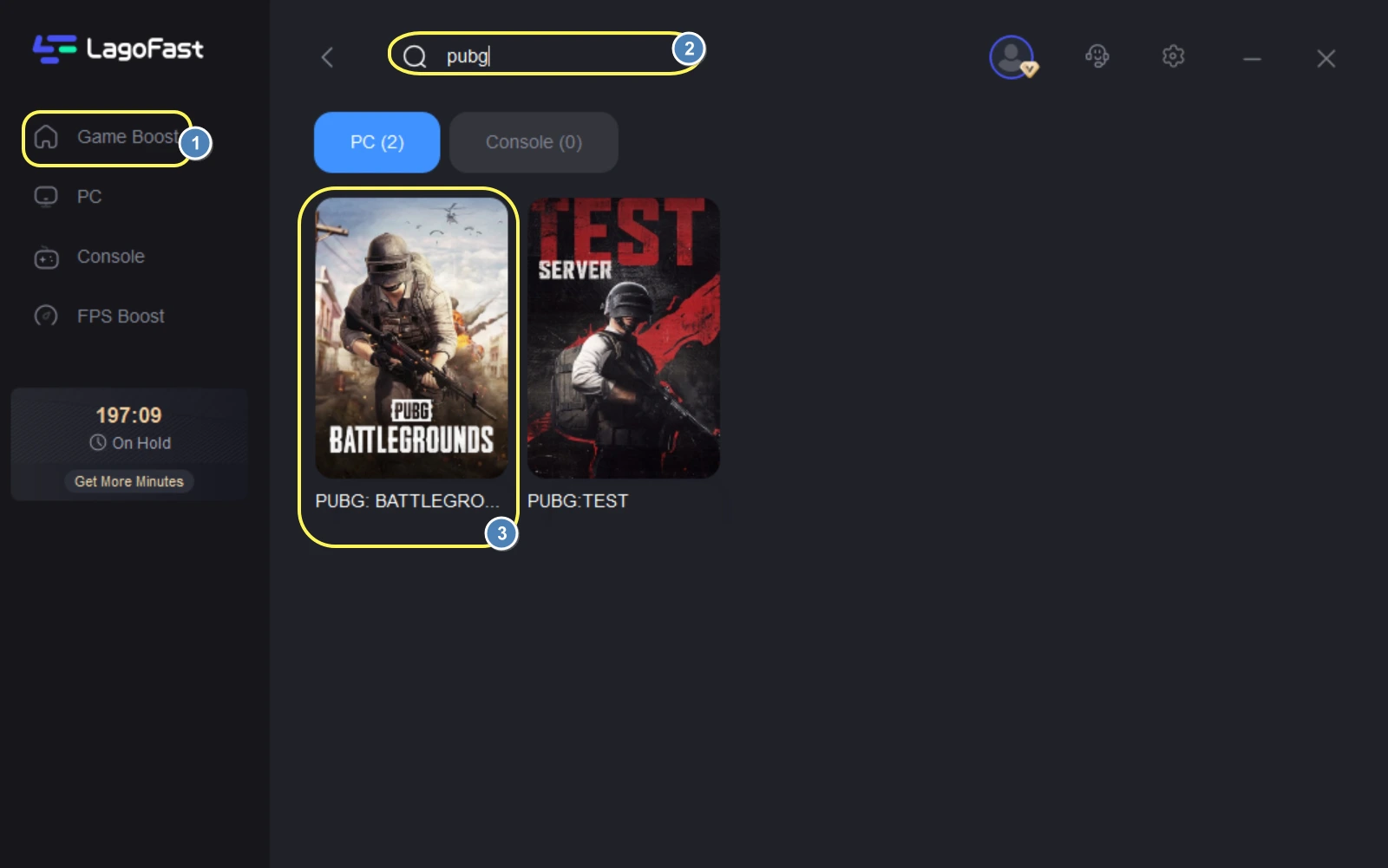
Step 2: Open LagoFast, then click the PC button on the left, search for PUBG in the search bar, and click it after it appears.
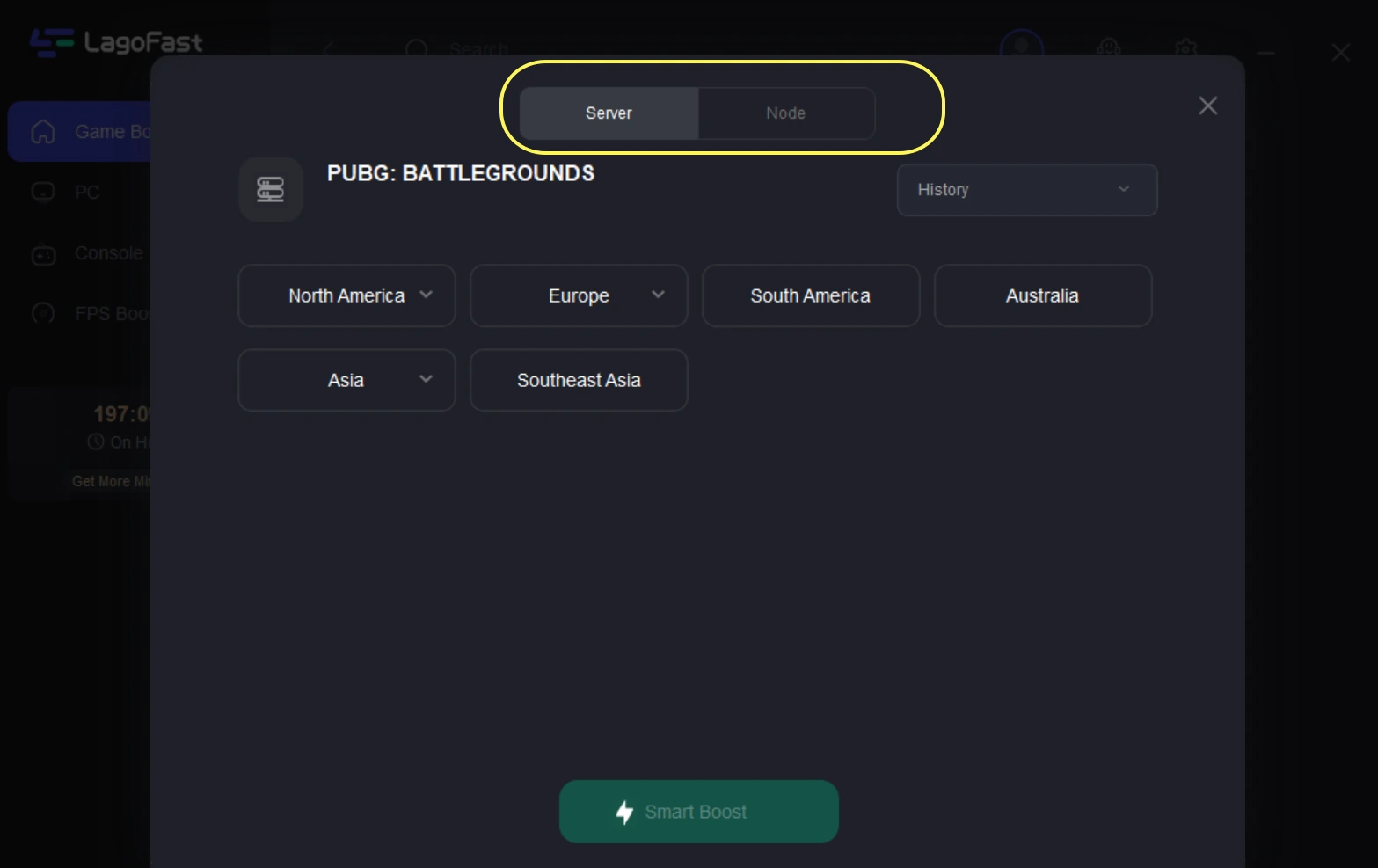
Step 3: Click on “Server” to change to a better server that ensures a better gaming experience, then click on “Smart Boost” to fix the PUBG crashing error.
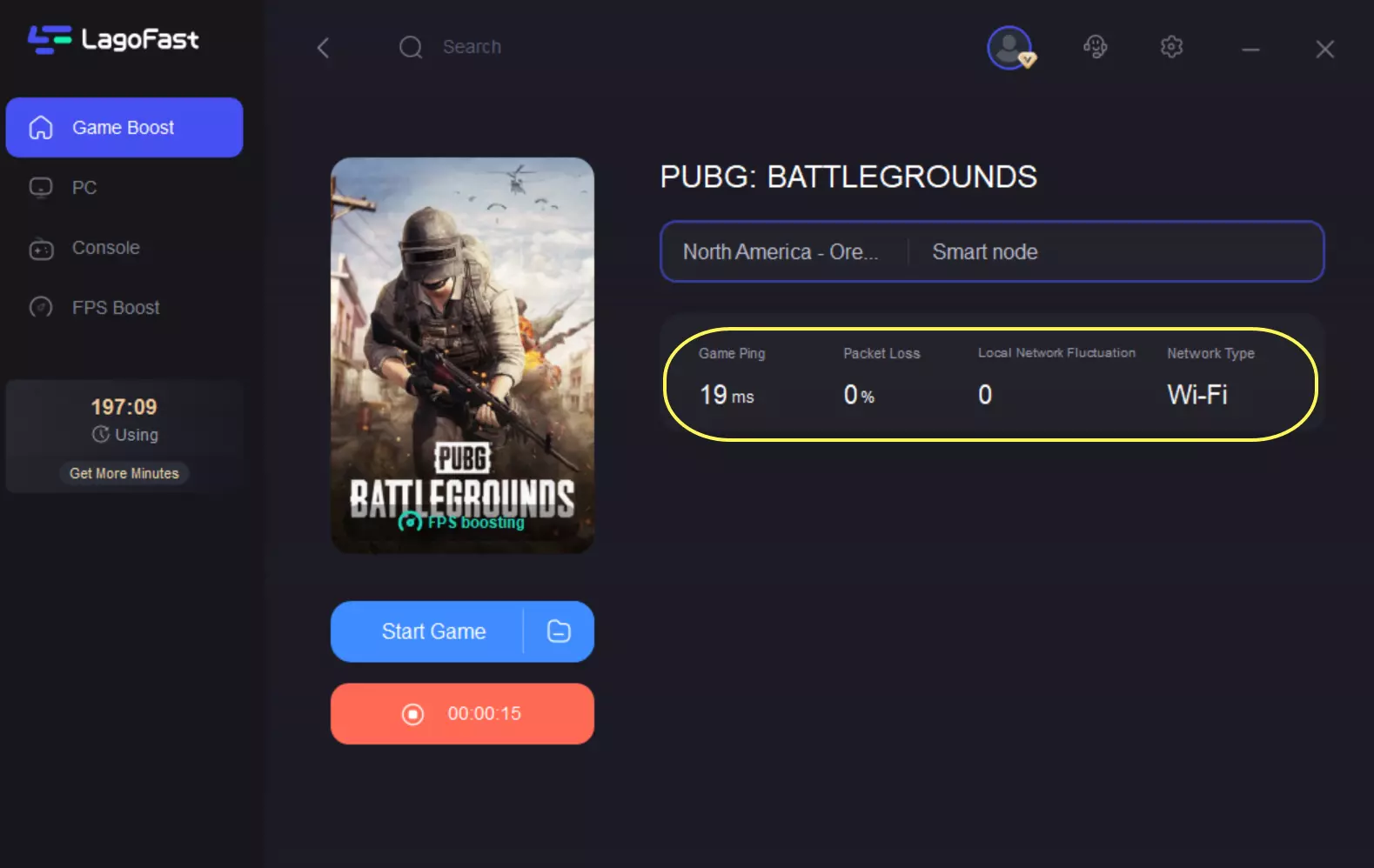
Step 4: Check the specific game ping, packet loss, and multiple path connections on the right side. Finally, click “Start Game” to play the game.
Part 4: LagoFast VS Manual Solutions: Which One is Better?
When it comes to maintaining a stable competitive environment, players have to weigh the efficiency of an automated toolkit against the tedious trial-and-error approach of individual system adjustments.
|
Evaluation Metric |
Traditional Manual Troubleshooting |
LagoFast Game Booster |
|
Time Required |
30 to 60 minutes of manual research, downloading tools, and system restarts. |
Under 2 minutes with automated, one-click optimization triggers. |
|
Technical Skill Needed |
High. Requires modifying Windows folders, display drivers, and BIOS configurations. |
None. Designed with an accessible interface built for everyday gamers. |
|
Risk of System Errors |
High. Modifying deep system settings incorrectly can create unexpected operating system bugs. |
Zero risk. Safely tweaks game prioritization profiles without altering hardware thresholds. |
|
Network & Framerate Help |
Does not help network routing or server connection paths. |
Full optimization. Combines crash fixes with real-time ping reduction and FPS optimization. |
Manual fixes certainly have their place for isolating specific hardware flaws, but they lack coordination. You might fix a corrupted asset file only to discover your game still freezes due to a minor memory routing bug or network packet drop. LagoFast is a vastly superior, highly stable alternative. It approaches optimization from every angle at once, wrapping crash protection, network stabilization, and frames-per-second optimization into a single utility. It completely takes the guesswork out of system maintenance.
Part 5: FAQs
Why does PUBG crash when I start the game?
This launch failure is almost always caused by missing administrative permissions or corrupted local game configuration assets. If your launcher does not have deep enough access to initialize its anti-cheat files upon startup, Windows will forcefully drop the client back to the desktop. Running your game client as an administrator and validating your data directory fixes this issue.
Why do I keep getting kicked out of PUBG?
Getting suddenly dropped mid-game typically points to a momentary break in network data transmission or an anti-cheat verification failure. If your home network experiences a sudden spike in packet loss, the server will drop your connection to preserve match integrity. Utilizing LagoFast’s smart multi-path routing paths stabilizes this connection data to protect against server drops.
How to fix pubg crashing pc after a major patch?
When the game client receives a major content patch, it often depends on modern rendering structures that older graphics drivers cannot recognize. To fix this, use Display Driver Uninstaller (DDU) to wipe out your old display files while in Safe Mode, then install the absolute newest driver package from your graphics card manufacturer.
Can an unstable internet connection cause a PUBG unknown crash?
Yes. If your network connection suffers from extreme jitter or sudden packet drops, the game engine can struggle to update player positions fast enough. This can trigger a fatal allocation error within the game client, resulting in an abrupt drop to your desktop accompanied by an unhelpful "unknown crash" report.
Why does the game crash on high-end PC builds?
High-end computers often experience stability issues because components are pushed to their upper limits using profiles like XMP or third-party overclocking utilities. While these systems excel in synthetic hardware benchmarks, the game's engine can crash if your system memory drops a single cycle during high-intensity asset streaming.
What should I do if the crash reporter says "our engineers will look into this problem"?
This is a generic message from the battle royale's integrated crash reporting tool, meaning the client encountered an unexpected memory layout exception. While the development logs are sent off for inspection, the underlying issue is usually a local resource mismatch or a blocked background anti-cheat utility that you can fix immediately using LagoFast’s built-in repair tools.
Conclusion
Dealing with constant game drops is an incredibly frustrating roadblock, but it doesn't mean your machine cannot handle the action. By working through our detailed manual troubleshooting steps or deploying the automated, one-click crash fix tool in LagoFast, you can clean up conflicting background tasks and enjoy a completely stable game. Clean out those system blockages, optimize your network paths, and jump back into the match with confidence!

Boost Your Game with LagoFast for Epic Speed
Play harder, faster. LagoFast game booster eliminates stutter and lags on PC, mobile, or Mac—win every match!
Quickly Reduce Game Lag and Ping!
Boost FPS for Smoother Gameplay!