
Quick Answer: How to Fix Valorant FPS Drops and Low Client FPS
To fix Valorant FPS drops after Patch 13.01, start by restarting your PC and the Riot Client to clear temporary cache. Update your graphics drivers to the latest version or roll them back if the issue started immediately after a driver update. Disable all third-party overlays (Discord, Xbox Game Bar, GeForce Experience) and set your Windows Power Plan to "Best Performance." If you see the "Low Client FPS" warning, try capping your FPS slightly below your monitor's refresh rate and disabling V-Sync. For a more comprehensive solution, use LagoFast Game Booster to optimize your system resources and stabilize frame times automatically.
The arrival of Patch 13.01 was supposed to be about agent balances and bug fixes, but for a significant portion of the community, it has introduced a new battle: the fight against stuttering. On platforms like Reddit, players have been reporting massive performance hits. One user on the ValorantTechSupport subreddit mentioned their frame rate tanking from a steady 175 FPS down to single digits every few seconds on a 5600G system. Others on "potato" laptops are seeing their usual 60 FPS cut in half, accompanied by high CPU usage from Vanguard. These aren't isolated incidents; they point to a systemic issue with how the latest update interacts with various hardware configurations.

- ✅ Reduce Lag and High Ping.
✅ Boost FPS at the Same Time.
✅ Support 3000+ Popular Online Games.
✅ Change Server without Latency.
✅ Boost Game Loading Speed.
Part 1: Why Is Valorant FPS Dropping After Patch 13.01?
Part 2: What Does Low Client FPS Mean in Valorant?
Part 3: Common FPS Problems Reported After Valorant Patch 13.01
Part 4: Check Whether Valorant Is CPU-Bound or GPU-Bound
Part 5: Quick Fixes for Valorant FPS Drops After Patch 13.01
Part 6: Fix Valorant FPS Drops Caused by Riot Vanguard
Part 7: Update or Roll Back the Graphics Driver
Part 8: Repair Valorant and Riot Client Files
Part 9: Windows Fixes for Valorant Low Client FPS
Part 10: Improve Valorant FPS and Frame-Time Stability with LagoFast
Part 11: Optimize Valorant Graphics Settings for Stable FPS
Part 12: Valorant Low Client FPS FAQ
Why Is Valorant FPS Dropping After Patch 13.01?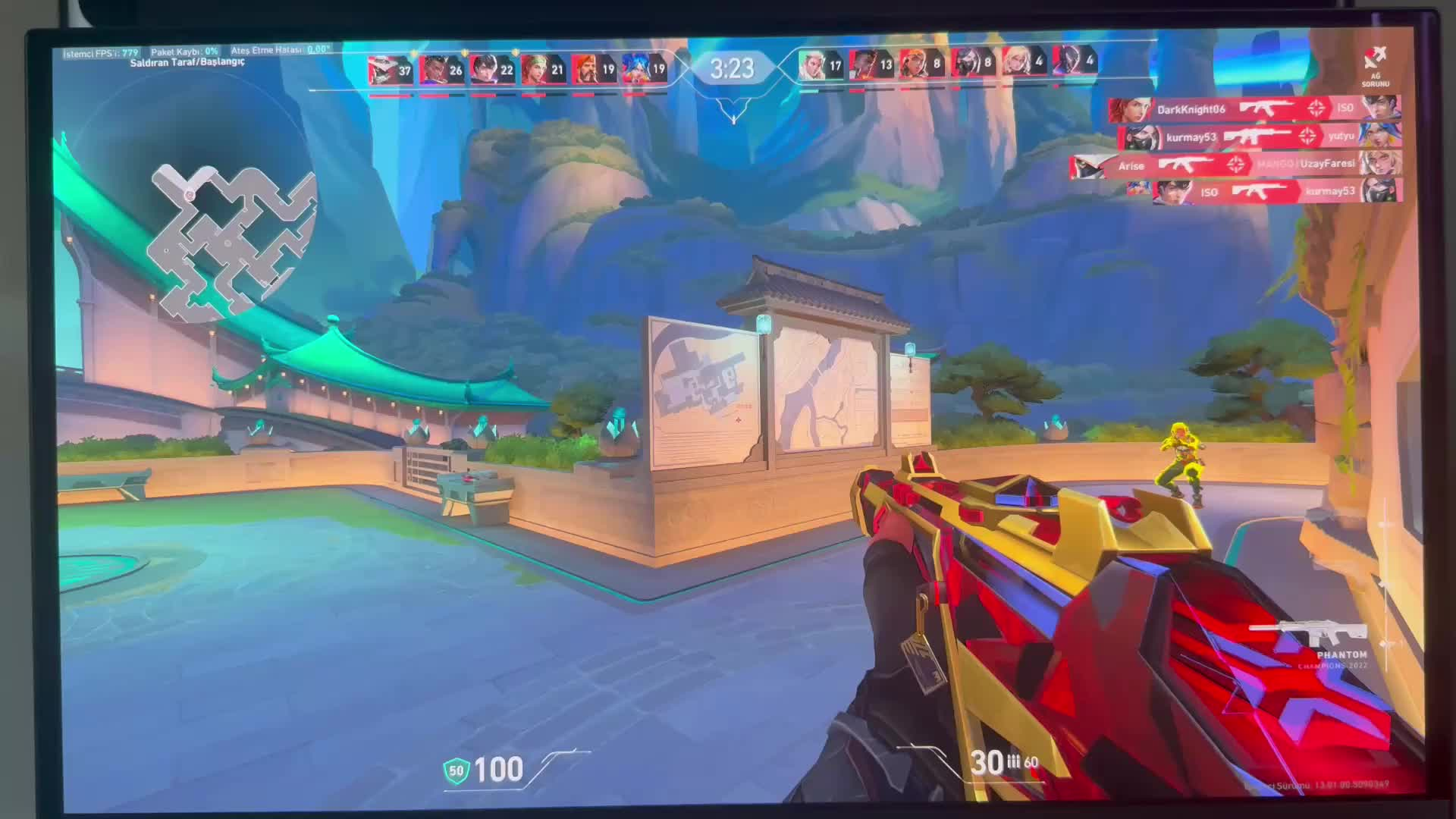
Understanding the "why" is the first step toward a permanent fix. Several factors typically contribute to performance degradation after a major Riot update.
New Patch Files and Shader Processing
Every time a new patch is installed, the game may need to re-cache shaders or process new assets. During the first few matches after Patch 13.01, your system might struggle as it compiles these files in the background. This often manifests as "stuttering" during the first time you see a specific ability or enter a new area of a map.
Riot Vanguard and VGC Resource Usage
Vanguard is the heart of Valorant's security, but it's also a common culprit for performance issues. After an update, the Vanguard service (vgc.exe) might experience higher-than-normal CPU usage as it scans new game files or handles updated security protocols. If Vanguard is hogging 20-30% of your CPU, your in-game FPS will inevitably suffer.
GPU Driver Compatibility Problems
Graphics card manufacturers like NVIDIA and AMD often release "Game Ready" drivers. However, sometimes a new game patch can conflict with an older driver, or even a brand-new driver can have bugs that only appear in specific games. If your drivers aren't synced with the changes in 13.01, you'll see erratic frame rates.
Graphics Settings Reset After the Update
It is not uncommon for a patch to reset your in-game settings to "Default" or "Auto-Detected." If the game suddenly decides you should be playing on "High" settings when your hardware prefers "Low," you will notice an immediate drop in performance.
Background Applications and Overlay Conflicts
Patch 13.01 introduced new social features, including a deeper Discord integration. These new hooks can sometimes clash with existing overlays from Discord, Steam, or specialized recording software, leading to frame-time spikes.
CPU, GPU, RAM, and Temperature Bottlenecks
While the patch might be the trigger, it often exposes underlying hardware limits. If your RAM is nearly full or your CPU is hitting 90°C, the added stress of a new update can push your system into thermal throttling, causing those rhythmic FPS drops every few seconds.
What Does Low Client FPS Mean in Valorant?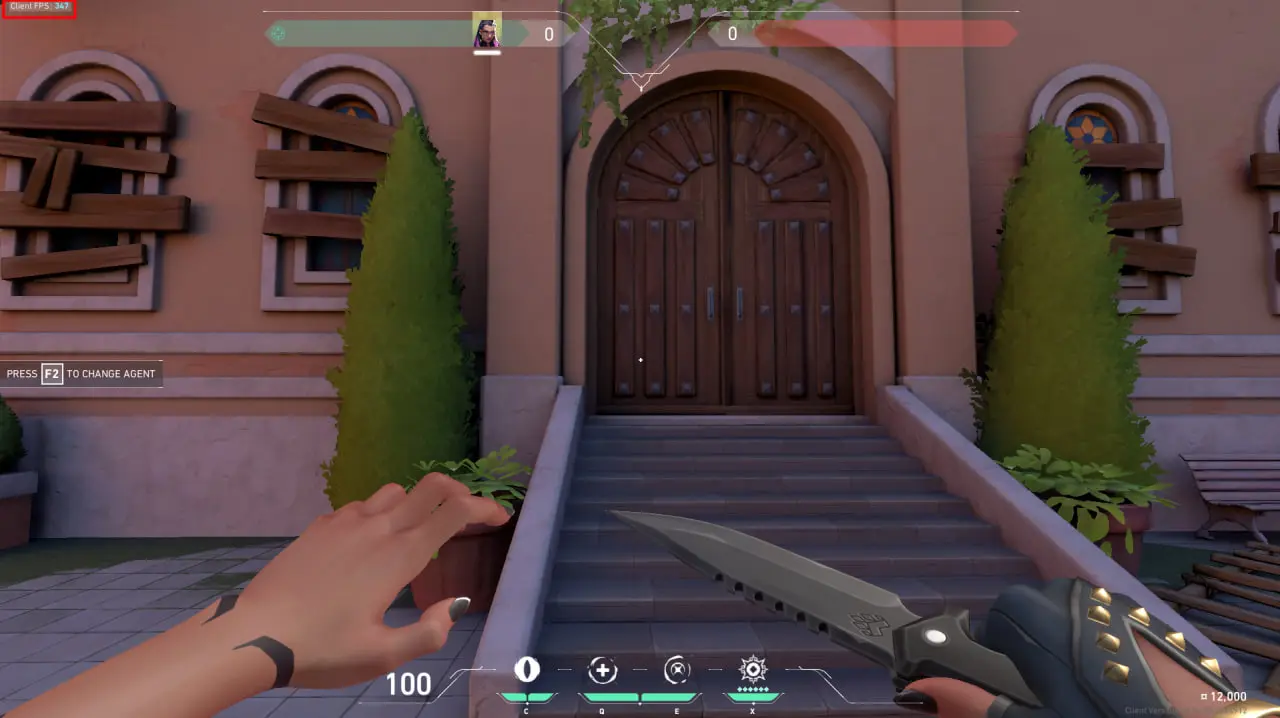
Many players confuse "Low Client FPS" with network lag, but they are fundamentally different.
Low Client FPS Warning vs Critical Warning
The white "Low Client FPS" text in the top right corner is a warning that your PC is struggling to render the game frames fast enough. A "Critical" warning usually means your frame rate has dropped below a playable threshold (often 30 FPS or lower), making it nearly impossible to win gunfights.
Low Client FPS vs Low Server FPS
Low Client FPS is a hardware problem—your PC is the bottleneck. Low Server FPS, on the other hand, means Riot's servers are struggling. If everyone in the match is lagging at the same time, it's a server issue. If it's just you, it's a client issue.
Low Client FPS vs Network Problem
"Network Problem" icons (like high ping or packet loss) mean your connection to the server is poor. You might see players "teleporting." Low Client FPS looks like a slideshow or a choppy video; the game feels heavy and unresponsive to your mouse movements.
Why Low Client FPS Can Appear on a High-End PC
Even if you have an RTX 4090 and an i9 processor, you can still see this error. It often happens due to "Full-screen Optimizations" in Windows, conflicting background processes, or a bug where the game doesn't properly utilize your dedicated GPU.
Common FPS Problems Reported After Valorant Patch 13.01
The community feedback for this patch has highlighted several specific scenarios where performance fails.
FPS Is Lower Than Before the Update
The most common complaint is a general reduction in average frame rate. A player who previously sat at 240 FPS might now find themselves struggling to maintain 180 FPS. This is usually due to increased CPU overhead from the new patch files.
Sudden FPS Drops During Gunfights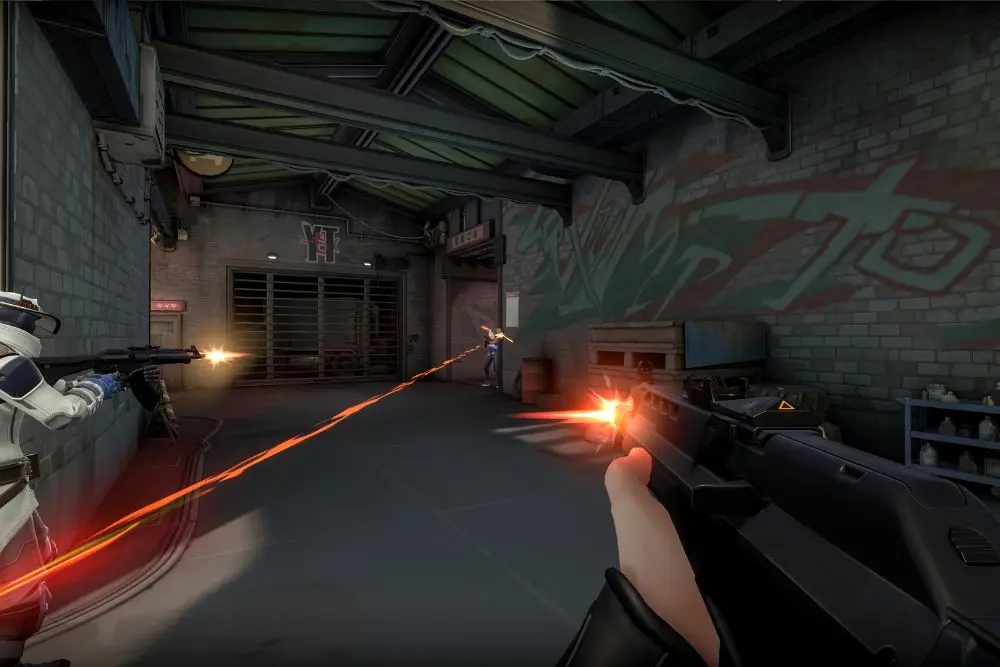
This is the most frustrating issue. The game runs fine while you're walking around, but the moment an enemy appears or a bullet is fired, the FPS drops to 10. This is often a sign of shader cache issues or CPU spikes related to sound processing.
Microstutters and Frame-Time Spikes
Even if your FPS counter shows a high number, the game can feel "choppy." This is caused by inconsistent frame times. If one frame takes 4ms to render and the next takes 50ms, you'll feel a microstutter.
FPS Drops After Several Rounds
If your game starts smooth but gets laggier the longer you play, you're likely facing a "memory leak" or thermal throttling. The game is failing to clear old data from your RAM, or your hardware is getting too hot.
FPS Drops When Agent Abilities Are Used
Complex visual effects, like Viper's ult or Brimstone's smokes, put a heavy load on the GPU. Patch 13.01 seems to have made certain ability interactions more taxing on mid-range systems.
FPS Drops on Haven During KAY/O Ultimate
Specific map and agent combinations often trigger bugs. Reports suggest that KAY/O's pulse on maps with high asset density like Haven is causing significant frame-time spikes in the current patch.
Riot Client or Vanguard Using High CPU
If you open Task Manager and see "Riot Central" or "Vanguard User Mode Service" eating up a large chunk of your CPU while the game is running, that's a direct drain on your in-game performance.
Check Whether Valorant Is CPU-Bound or GPU-Bound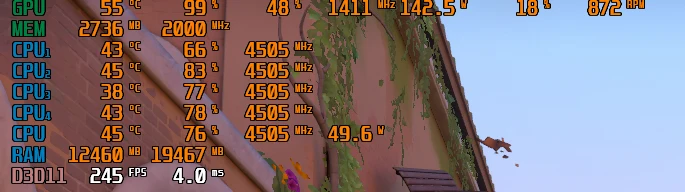
To fix the problem effectively, you need to know which part of your PC is struggling.
- Open Valorant and go to Settings > Video > Stats.
- Turn on "CPU Game Time" and "GPU Render Time" (set to "Both").
- Enter a Practice Range or a Deathmatch.
- Look at the numbers. If "CPU Game Time" is consistently higher than "GPU Render Time," your CPU is the bottleneck. If "GPU Render Time" is higher, your graphics card is the one struggling.
Quick Fixes for Valorant FPS Drops After Patch 13.01
Before diving into deep system changes, try these basic steps that solve 80% of performance issues.
Restart Valorant, Riot Client, and the PC
It sounds simple, but a full system reboot clears out "ghost" processes and resets the Vanguard driver. Always do this first after a patch.
Close Browser Tabs and Background Applications
Chrome and Edge are notorious for using high amounts of RAM and CPU. Close them entirely. Also, check your system tray (bottom right) and exit apps like Spotify, Epic Games Launcher, or heavy peripheral software (Razer Synapse, etc.).
Disable Discord, Xbox Game Bar, and GPU Overlays
Overlays are a primary cause of "Low Client FPS." Disable the Discord overlay in Discord settings. In Windows settings, turn off "Xbox Game Bar." Also, disable "Instant Replay" in NVIDIA ShadowPlay or AMD ReLive.
Set Windows Power Mode to Best Performance
Windows often tries to save energy, which limits your CPU speed.
- Press the Windows key and type "Power Plan."
- Select "Choose a power plan."
- Pick "High Performance" or "Ultimate Performance."
- Run Valorant on the Dedicated GPU
Laptop users often find the game accidentally running on integrated graphics.
- Right-click the desktop and select Display Settings > Graphics.
- Find Valorant in the list (or browse for the .exe).
- Click Options and select "High Performance" (your dedicated GPU).
Limit Menu and Background FPS
Don't let your PC work harder than it needs to.
- In Valorant settings, go to Video > General.
- Set "Limit FPS in Menus" to 60.
- Set "Limit FPS in Background" to 30.
This saves resources for when you're actually in a match.
Fix Valorant FPS Drops Caused by Riot Vanguard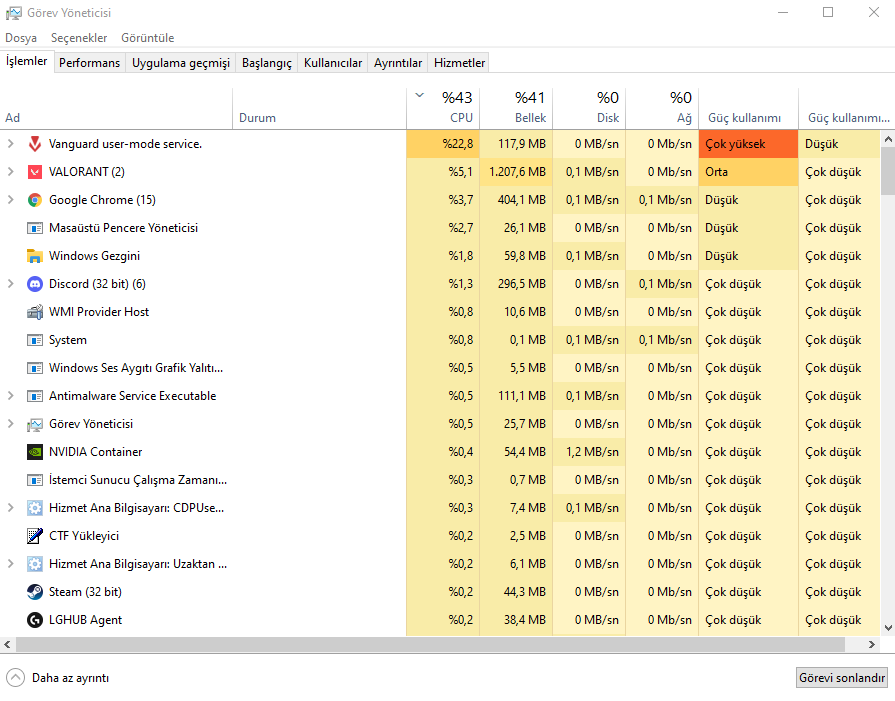
Vanguard's deep integration means it can often be the source of the stutter.
Check Vanguard and VGC CPU Usage
Open Task Manager while Valorant is in the menu. If vgc.exe is using more than 5% CPU, something is wrong.
Restart the VGC Service
- Press Win + R, type services.msc, and hit Enter.
- Find "vgc" in the list.
- Right-click it and select Restart.
- Ensure the "Startup type" is set to Automatic.
Reinstall Riot Vanguard
If Vanguard files are corrupted:
- Exit the Riot Client.
- Go to Add or Remove Programs and uninstall Riot Vanguard.
- Restart your PC.
- Open the Riot Client; it will prompt you to reinstall Vanguard. Restart again once finished.
Disable Conflicting Monitoring and Overlay Software
Some hardware monitoring tools like MSI Afterburner or HWInfo can conflict with Vanguard's anti-cheat hooks. Try closing them to see if your FPS stabilizes.
Check Whether Vanguard Was Recently Updated
Riot often pushes silent updates to Vanguard. If your FPS drops suddenly on a Tuesday or Wednesday, check the Valorant subreddit to see if a new Vanguard build is causing issues for everyone.
Update or Roll Back the Graphics Driver
Drivers are the bridge between your hardware and the game.
- Update: If you haven't updated in months, go to the NVIDIA or AMD website and download the latest version.
- Roll Back: If you just updated your driver and then the lag started, go to Device Manager > Display Adapters, right-click your GPU, go to Properties > Driver, and click "Roll Back Driver."
Repair Valorant and Riot Client Files
The patch installation might have skipped a file or corrupted a texture.
- Open the Riot Client.
- Click on your Profile Icon in the top right and select Settings.
- Go to Valorant and click the Repair button.
The client will scan all files and redownload anything that's broken.
Windows Fixes for Valorant Low Client FPS
Windows itself has settings that can hinder gaming performance.
- Disable Full-screen Optimizations: Find the Valorant Win64 shipping .exe (usually in Riot Games\VALORANT\live\ShooterGame\Binaries\Win64). Right-click it, go to Properties > Compatibility, and check "Disable full-screen optimizations."
- Game Mode: Ensure "Game Mode" is turned ON in Windows settings. This tells Windows to prioritize game processes.
Improve Valorant FPS and Frame-Time Stability with LagoFast
While manual tweaks can help, they often require constant maintenance. LagoFast(LagoFast Game Booster - Get No Lag and Lower Ping) Game Booster offers a more streamlined way to handle these performance hurdles.
Optimize Valorant Performance with LagoFast
LagoFast isn't just about ping; it includes a dedicated "FPS Boost" feature. It automatically tweaks hidden Windows settings, stops unnecessary background services, and prioritizes Valorant's CPU access. This ensures that every bit of your hardware's power is directed toward the game.
Reduce FPS Drops and Stuttering
One of the main benefits of using LagoFast is the stabilization of frame times. By reducing system jitter and ensuring that network packets are handled efficiently, it helps eliminate those microstutters that occur when your PC is momentarily overwhelmed.
Monitor FPS Changes Before and After Optimization
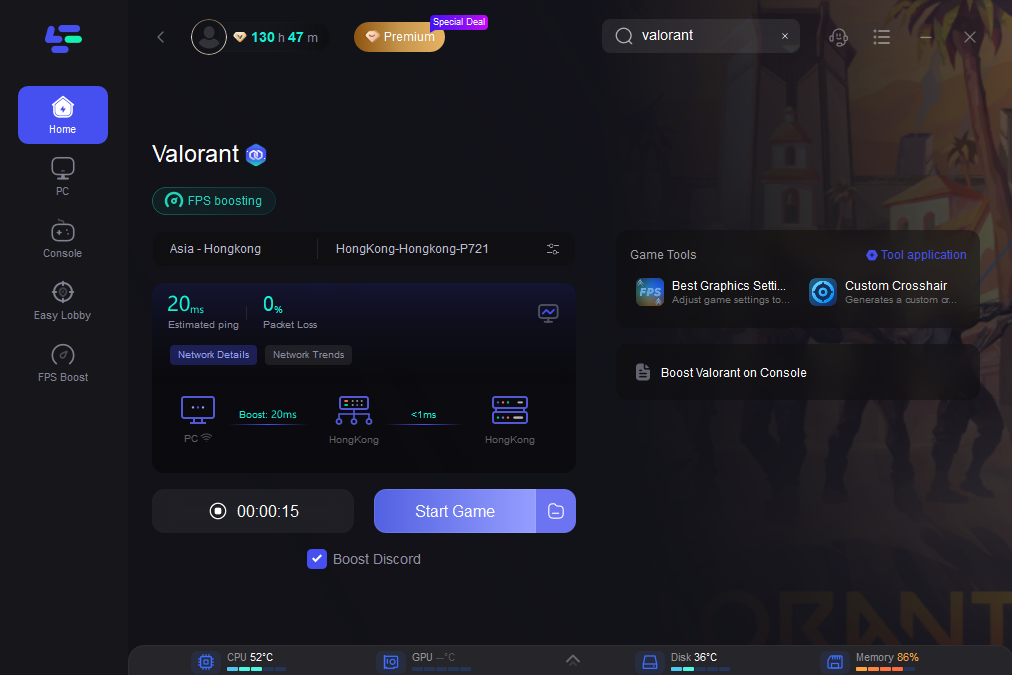
LagoFast provides an easy-to-read dashboard where you can see your performance metrics. By toggling the boost on and off, you can clearly see the impact on your average FPS and the consistency of your frame delivery.
Distinguish Local FPS Problems from Ping and Packet Loss
Sometimes what looks like an FPS drop is actually a "lag spike" or packet loss. LagoFast's diagnostic tools help you identify exactly where the bottleneck is. If your FPS is high but the game feels laggy, LagoFast will show you the network path issues and fix them with its multi-path connection technology.
How to Use LagoFast for Valorant:
Click the Free Trial button to download and install LagoFast Free Trial.
Search: Type "Valorant" in the search bar.
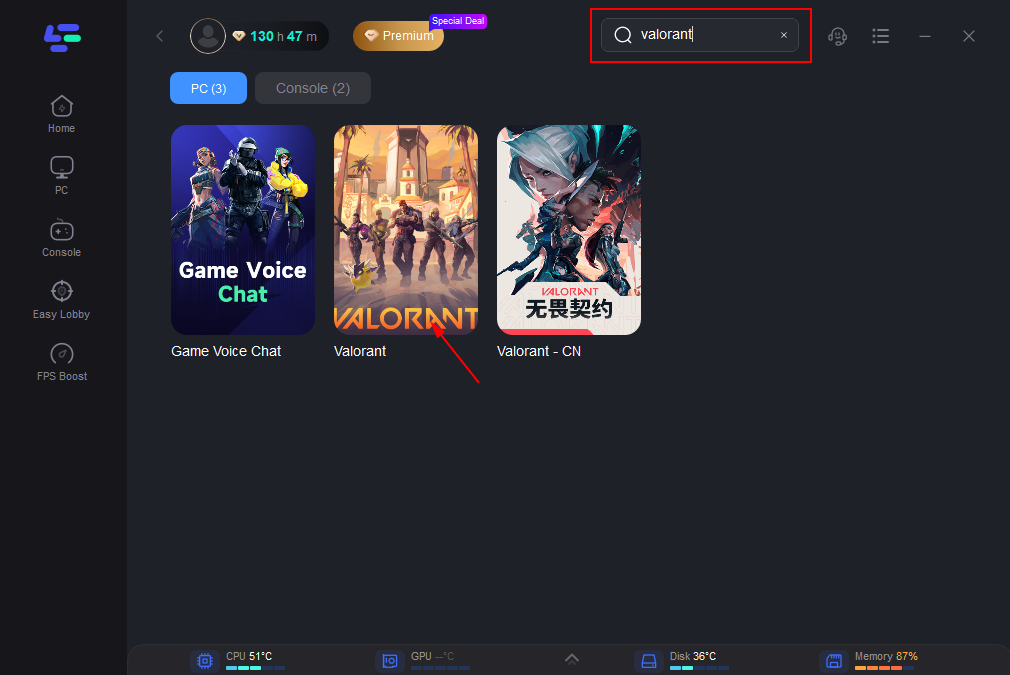
FPS Boost: Navigate to the "FPS Boost" tab and ensure the optimization settings are enabled.
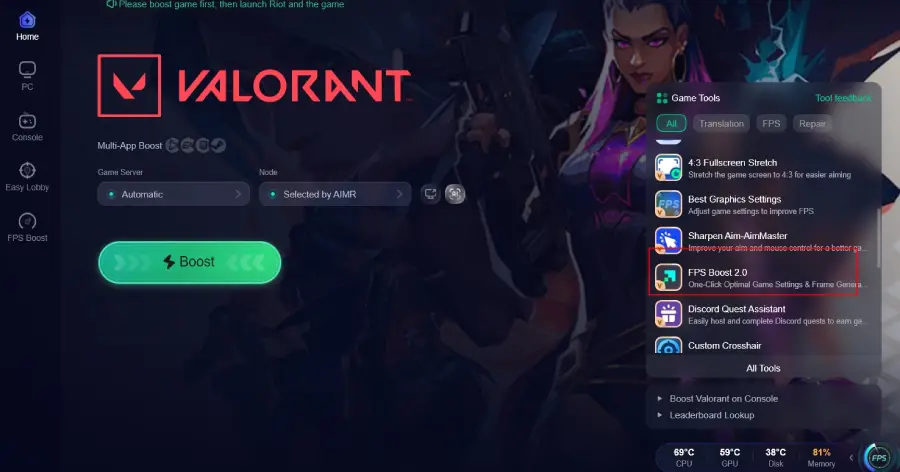
Boost: Click the "Boost" button before launching the game. LagoFast will handle the background optimizations for you.
Optimize Valorant Graphics Settings for Stable FPS
For the most stable experience, use these settings:
- Multithreaded Rendering: Always ON (if available).
- Material/Texture/Detail Quality: Low or Medium.
- V-Sync: OFF.
- Anti-Aliasing: None or MSAA 2x.
- Anisotropic Filtering: 1x.
- Improve Clarity: OFF.
- Bloom/Distortion/Cast Shadows: OFF.
- NVIDIA Reflex Low Latency: On + Boost.
Valorant Low Client FPS FAQ
Q: Can I fix Low Client FPS without buying new hardware?
A: Yes, in most cases. It is often caused by software conflicts, outdated drivers, or incorrect Windows settings. Follow the "Quick Fixes" and "Windows Fixes" sections above.
Q: Does capping my FPS help with stuttering?
A: Yes. If your FPS fluctuates wildly (e.g., jumping between 140 and 200), it can cause stuttering. Capping it at a stable number (like 144) can lead to a much smoother feeling.
Q: Why does my FPS drop only when I use a certain agent?
A: Some agents have more complex particle effects. If your GPU is older, it might struggle with these specific renders. Lowering "Detail Quality" usually helps.
Q: Is "Low Client FPS" related to my internet speed?
A: No. It is strictly related to your PC's hardware performance. However, high packet loss can sometimes trick the game's UI into showing performance warnings.
Q: Should I reinstall Windows to fix Valorant lag?
A: This is an extreme measure. Try repairing the game files and updating drivers first. Reinstalling Windows should only be considered if you have performance issues in all your games, not just Valorant.
Key Takeaway
Performance issues after Patch 13.01 are often a combination of new game code interacting poorly with specific hardware and driver versions. By systematically checking for CPU/GPU bottlenecks, repairing Vanguard, and using tools like LagoFast to automate system optimization, you can eliminate stutters and the "Low Client FPS" error. Remember to keep your background processes lean and your drivers updated to ensure the smoothest tactical shooting experience.

Boost Your Game with LagoFast for Epic Speed
Play harder, faster. LagoFast game booster eliminates stutter and lags on PC, mobile, or Mac—win every match!
Quickly Reduce Game Lag and Ping!
Boost FPS for Smoother Gameplay!