
Neverness to Everness (NTE) is shaping up to be one of the most visually ambitious open-world action RPGs, powered by Unreal Engine 5 and packed with fast-paced combat, vehicle traversal, and online elements. However, many players are already reporting Neverness to Everness lag, stuttering, and high ping issues on both PC and mobile after the beta testing. Whether it’s delayed inputs, rubber-banding, or sudden frame drops, these connection problems can seriously break immersion. This guide explains why NTE ping gets so high and provides separate fixes for PC and mobile players.

- ✅ Reduce NTE Lag and High Ping.
- ✅ Boost FPS and Improve Game Performance.
- ✅ Play NTE Globally in Any Language.
- ✅ Fix Neverness to Everness Errors.
Part 1: Why is Neverness to Everness So Laggy?
Part 2: How to Fix Neverness to Everness High Ping on PC
Part 3: How to Fix Neverness to Everness High Ping on Mobile
Part 4: Neverness to Everness High Ping vs FPS Lag
Part 1: Why is Neverness to Everness So Laggy?
Neverness to Everness is a technically demanding game that combines an open world, multiplayer features, real-time combat, and detailed city environments. Neverness to Everness high ping and lag usually come from a mix of network instability, server distance, device limitations, and background interference. Because Neverness to Everness runs across multiple platforms, the causes can differ depending on whether you’re playing on PC or mobile.

Common Causes on PC:
On the PC side, the issues usually stem from a tug-of-war between high-fidelity settings and system resources.
- Unstable Network or Poor Routing: Server distance, congested ISP routes, or unstable Wi-Fi can cause NTE high ping, delayed inputs, and sudden ping spikes.
- Frame Generation Issues: Some PC players report severe Neverness to Everness stuttering when Frame Generation is enabled, particularly when opening menus, maps, or cutscenes.
- Inconsistent Frame Times: High average FPS doesn't always mean smooth gameplay. Players have reported frequent stutters and poor 1% lows even on powerful PCs.
- Graphics and System Load: High graphics presets, background apps, drivers, and CPU/GPU load can contribute to Neverness to Everness performance issues and FPS drops.
Common Causes on Mobile
Mobile players face unique challenges due to the compact nature of smartphone hardware.
- Thermal Throttling: Intense rendering causes the phone to heat up, forcing the CPU to slow down and creating lag.
- Signal Fluctuations: Switching between 5G and Wi-Fi can cause packet loss and massive ping spikes.
- RAM Management: Background apps on Android and iOS often compete for the 6GB+ RAM required by Neverness to Everness.
- Battery Saver Mode: Most mobile OS platforms limit GPU performance when the battery drops, leading to stuttering.
Part 2: How to Fix Neverness to Everness Lagging and High Ping on PC
If you are experiencing Neverness to Everness high ping on PC, try the following fixes to improve connection stability and reduce lag.
Fix 1: Optimize Your Network Route with LagoFast
If you want a definitive Neverness to Everness lag fix that works across all platforms, LagoFast is the answer. As an all-in-one game booster, LagoFast is specifically engineered to handle the complex network demands of open-world gacha titles like Neverness to Everness. It functions as both a Neverness to Everness ping reducer and an FPS optimizer, ensuring that your connection takes the fastest path to the game servers while your hardware stays focused on performance.
Key Features of LagoFast:
- Multipath Connection: Uses unique smart routing technology to find the most stable path, avoiding congested nodes that cause high ping.
- Real-Time Optimization: Dynamically adjusts your connection to prevent packet loss and sudden "teleporting" in-game.
- One-Click FPS Boost: Automatically optimizes your PC or mobile system settings to maximize frame rates and reduce stuttering.
- Cross-Platform Support: Seamlessly works on PC, Android, iOS, and even consoles like the PS5.
- Global Server Network: With servers in over 60 countries, you can always connect to the closest Neverness to Everness node.
Compared to traditional fixes, LagoFast delivers consistent results without sacrificing speed or stability.
Tutorial To Use LagoFast To Fix Neverness to Everness Lag and High Ping
Step 1: Click the Free Trial button to download and install LagoFast.
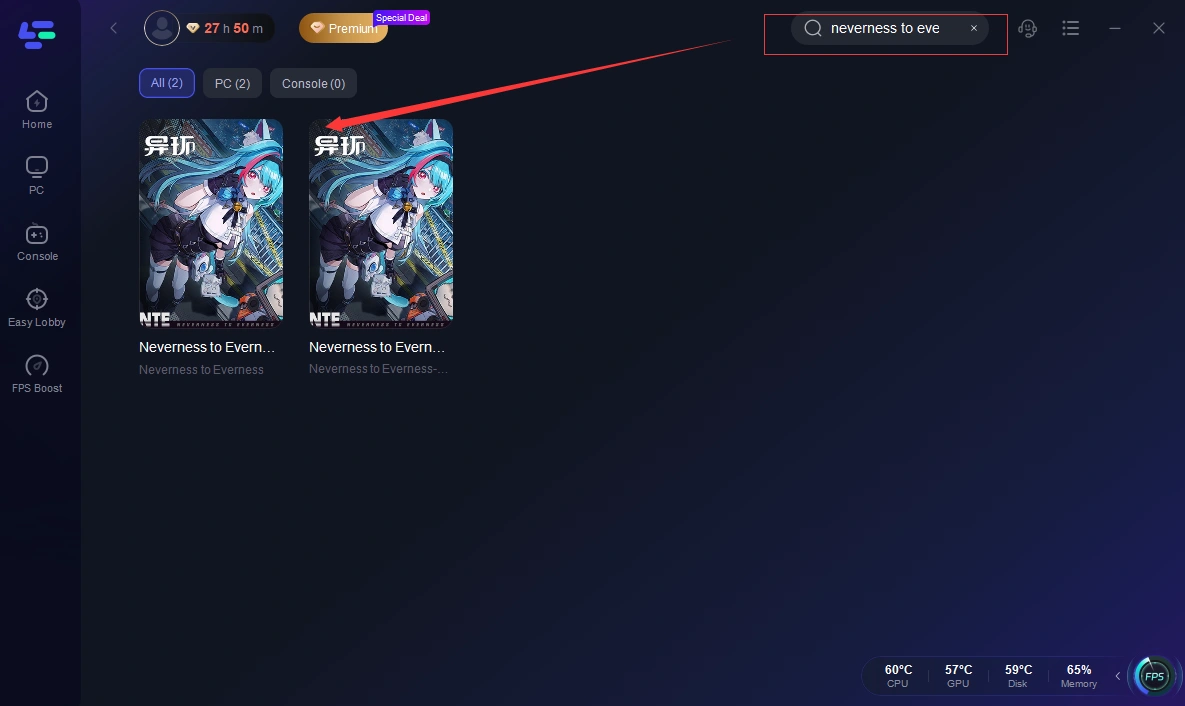
Step 2: Open LagoFast, then click the PC button on the left and search Neverness to Everness in the search bar, and click it after it appears.
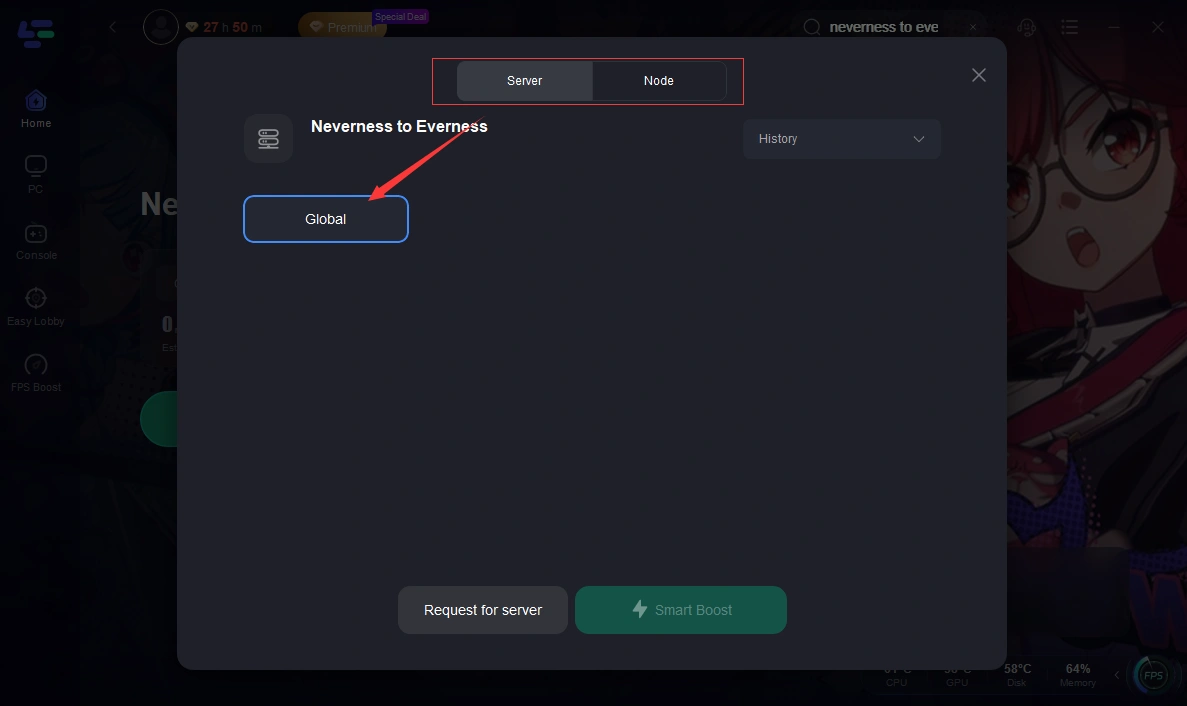
Step 3: Click on “Server” to change to a better server that ensures a better gaming experience, then click on “Smart Boost” to fix lag & high ping issues.
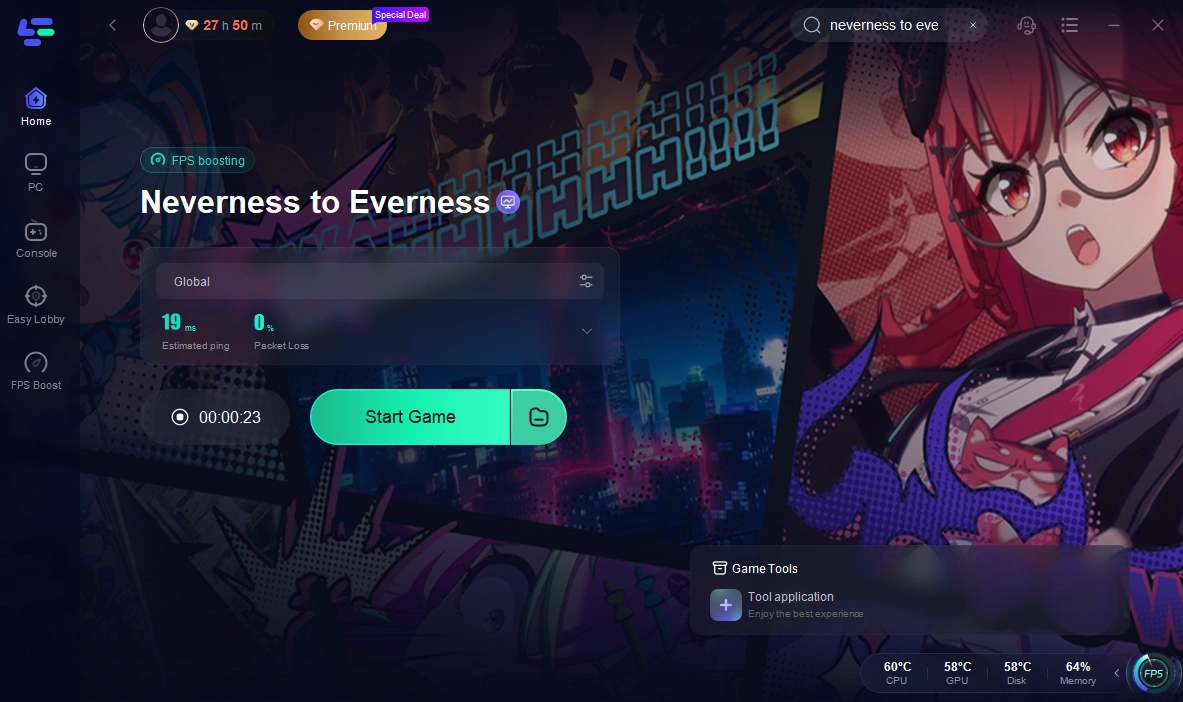
Step 4: Check the specific game ping, packet loss, and multiple path connections on the right side. Finally, click “Start Game” to play the game.
Fix 2: Update Graphics Drivers
Your GPU needs the latest instructions to render complex lighting.
Step 1: Identify your GPU (NVIDIA, AMD, or Intel).
Step 2: Visit the official manufacturer’s website.
Step 3: Download the latest "Game Ready" driver.
Step 4: Run the installer and select "Clean Install" if possible.
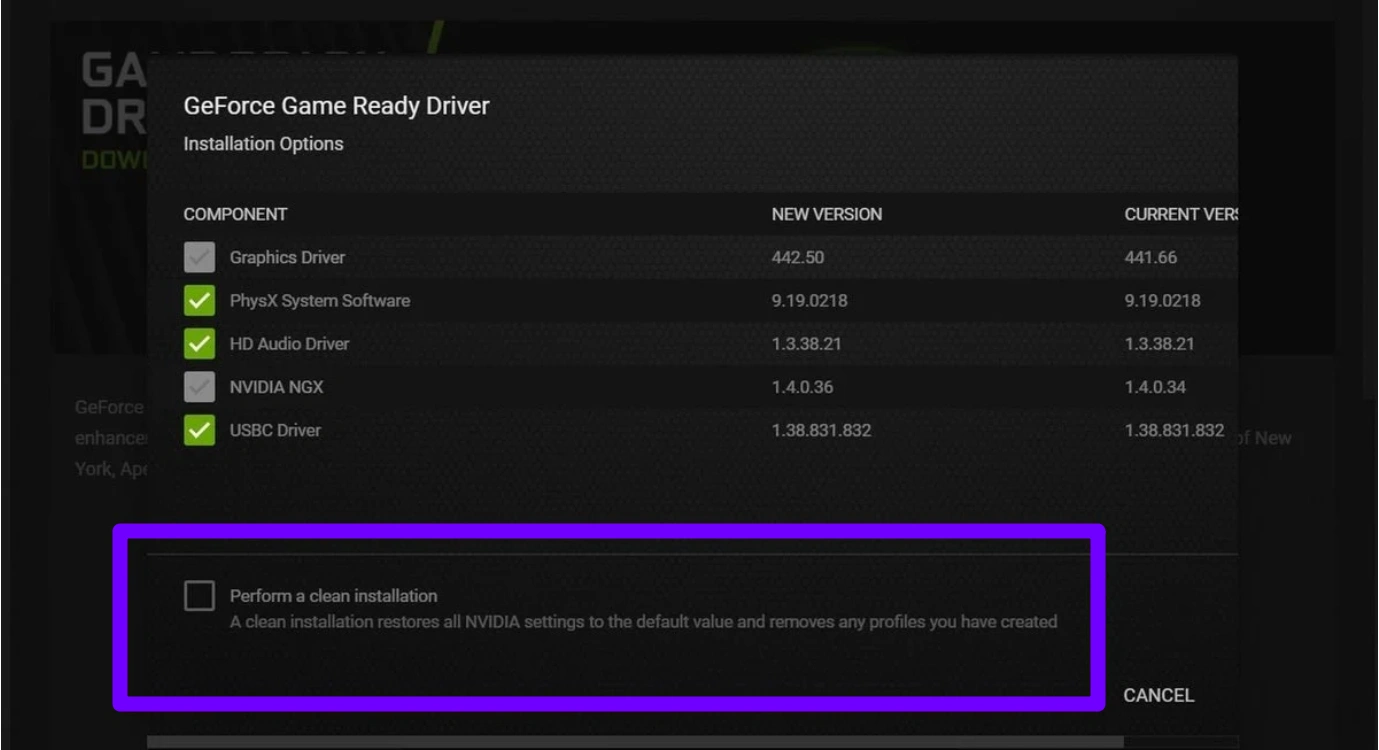
Step 5: Restart your PC and launch Neverness to Everness.
Fix 3: Change DNS Settings
Standard ISP DNS servers are often slow and contribute to Neverness to Everness high ping.
Step 1: Open "Control Panel" and go to "Network and Sharing Center."
Step 2: Click "Change adapter settings."
Step 3: Right-click your connection and select "Properties."
Step 4: Select "Internet Protocol Version 4 (TCP/IPv4)" and click Properties.
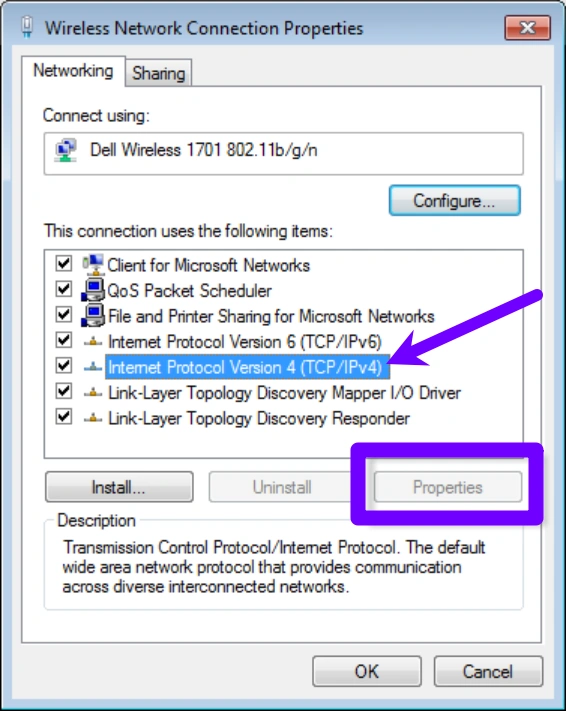
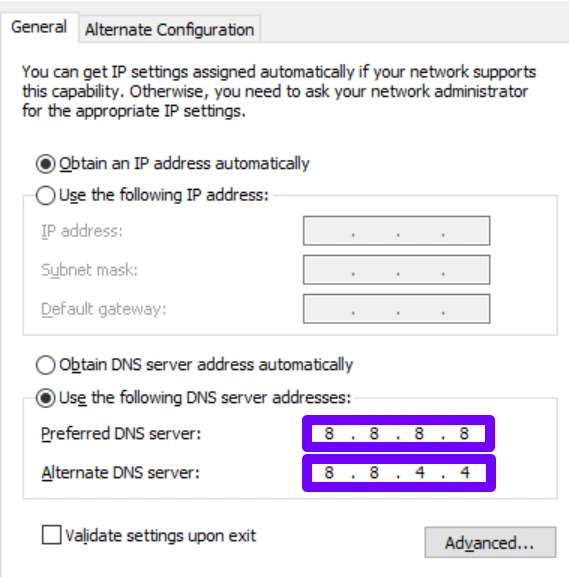
Step 5: Enter 8.8.8.8 (Primary) and 8.8.4.4 (Secondary) for Google DNS.
Fix 4: Set Windows Power Plan to "High Performance"
Windows often limits your CPU speed, which acts as a hidden cause of Neverness to Everness lag.
Step 1: Type "Choose a power plan" in the Windows search bar.
Step 2: Click on "Additional power settings."
Step 3: Select the "High Performance" or "Ultimate Performance" circle.
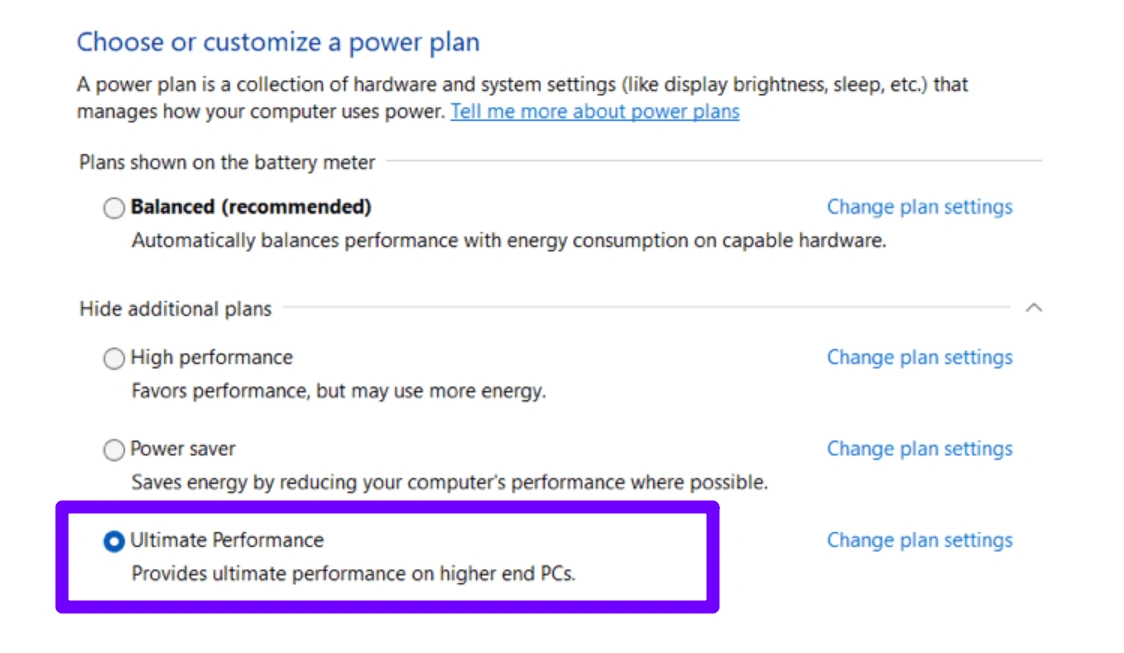
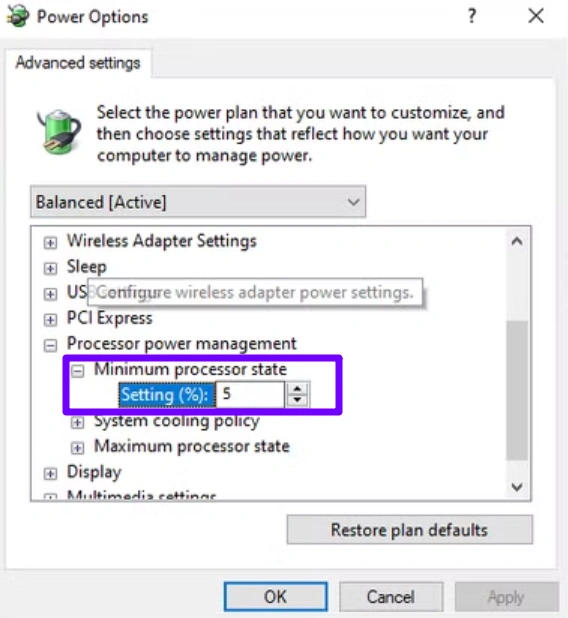
Step 4: Go to "Change plan settings" and select "Advanced power settings."
Step 5: Ensure "Minimum processor state" is set to 100%.
Fix 5: Verify Game Files
Corrupted data can cause the game to stutter while trying to load assets.
Step 1: Open the Neverness to Everness Launcher or your game platform.
Step 2: Go to the game settings or library entry.
Step 3: Select "Verify" or "Repair."
Step 4: Wait for the system to scan and redownload missing files.
Step 5: Launch the game to check if the stuttering persists.
Neverness to Everness Lag Fix on Mobile
Mobile lag in Neverness to Everness is usually related to unstable connections, device performance limits, overheating, or background resource usage. Try the following fixes to improve stability and reduce lag.
Fix 1: Use LagoFast Mobile to Reduce Neverness to Everness Lag and High Ping
If you are experiencing Neverness to Everness high ping, connection drops, or unstable mobile gameplay, LagoFast Mobile helps optimize your route and connect you to a more stable server.
Step 1: Search “LagoFast Mobile booster” in the Google App Store or Apple App Store. Alternatively, click here to download the APK File.

Step 2: Click the “Download” button, then install and launch LagoFast Mobile Booster.
Step 3: Start Neverness to Everness, then switch to LagoFast Mobile and search for it.
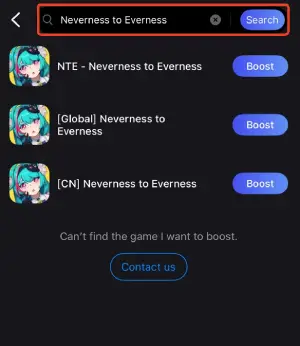
Step 4: Select and click Neverness to Everness in the interface.
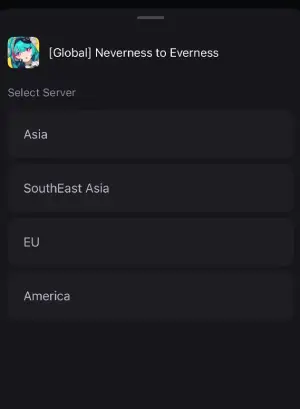
Step 5: Enter the server selection interface, where you can change to a stable server, then click the “Boost” button to fix lag, high ping, and enhance the gaming experience
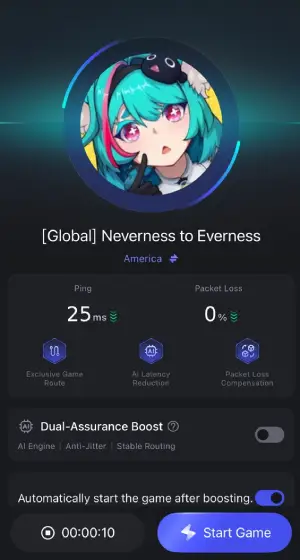
Step 6: Finally, go back to Neverness to Everness and start playing it without any lag.
Fix 2: Close Background Apps and Clear Cache
Too many background apps can consume RAM and system resources, causing Neverness to Everness lagging.
Step 1: Open your phone's "Settings."
Step 2: Navigate to "Apps" or "App Management."
Step 3: Find "Neverness to Everness" in the list.
Step 4: Tap "Storage" and select "Clear Cache" (do not clear data).
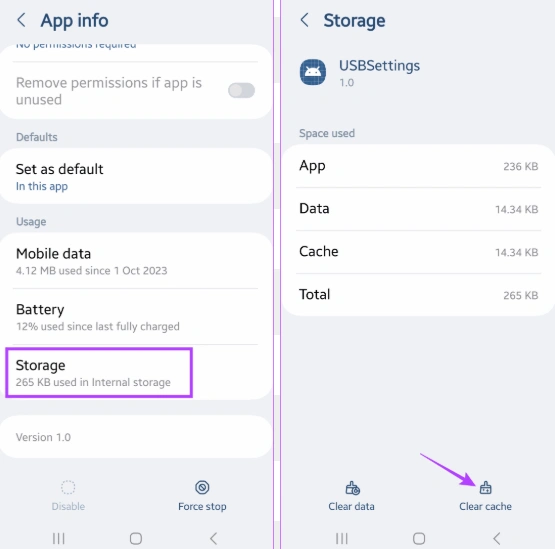
Step 5: Close all other open apps before restarting the game.
Fix 3: Disable Battery Optimization
Your phone may be "starving" Neverness to Everness of power to preserve the battery.
Step 1: Go to "Settings" and select "Battery."
Step 2: Find "App Battery Management" or "Optimized Battery Usage."
Step 3: Locate Neverness to Everness and set it to "Don't Optimize" or "Allow Background Activity."
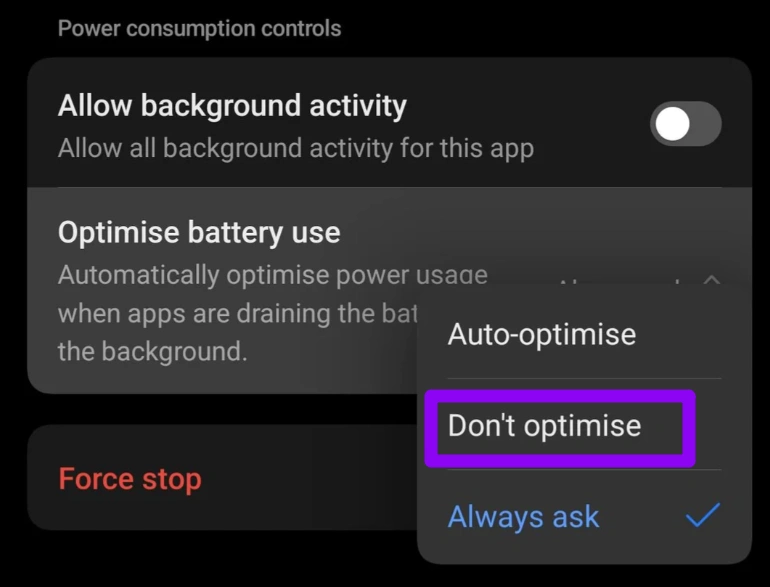
Step 4: Ensure "Lower Power Mode" is turned off in your quick settings.
Step 5: Launch the game and test the stability.
Fix 4: Use a Stable 5GHz Wi-Fi Connection
A weak or unstable Wi-Fi connection can cause Neverness to Everness high ping and sudden lag spikes. Using a 5GHz Wi-Fi network can provide a faster and more stable connection when your device is close to the router.
Step 1: Access your Wi-Fi settings.
Step 2: Look for your network name with a "-5G" suffix.
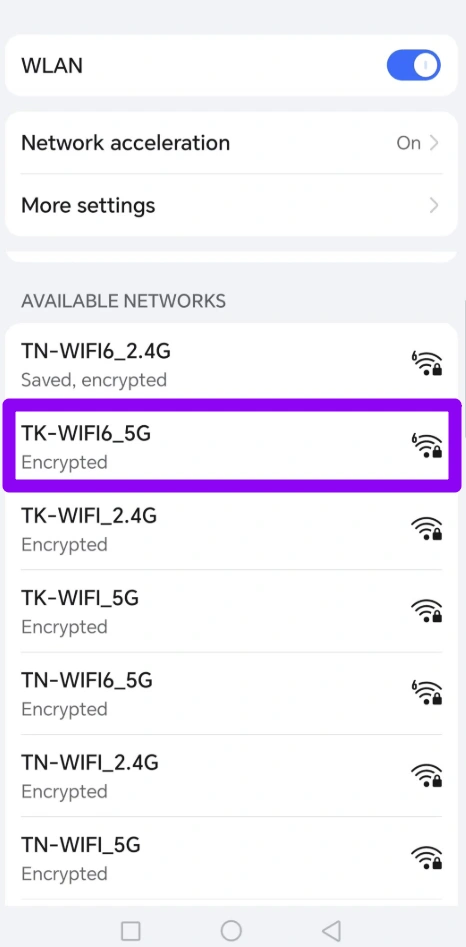
Step 3: Connect to this band if your router supports it.
Step 4: Stay in the same room as the router for the best signal.
Step 5: Disable "Bluetooth" as it can interfere with some mobile Wi-Fi antennas.
Fix 5: Adjust In-Game Graphic Presets
If your ping is normal but Neverness to Everness still feels laggy, the issue may be related to device performance rather than your connection.
Step 1: Open Neverness to Everness and go to the "Settings" menu (gear icon).
Step 2: Navigate to the "Graphics" or "Visuals" tab.
Step 3: Set "Resolution" and "Shadow Quality" to Medium or Low.
Step 4: Cap the "Frame Rate" at 30 or 60 to prevent thermal throttling.
Step 5: Turn off "Motion Blur" and "Anti-Aliasing" to free up resources.
Fix 6: Prevent Your Phone From Overheating
Neverness to Everness uses Unreal Engine 5 and features a large open world with detailed environments and dynamic lighting, which can put significant load on mobile hardware. During long gaming sessions, rising temperatures may reduce CPU/GPU performance and cause FPS drops or stuttering.
Tips:
- Avoid playing while charging.
- Remove thick phone cases.
- Close unnecessary apps.
- Take short breaks during long sessions.
Part 4: Neverness to Everness High Ping vs FPS Lag
Many players label any lack of smoothness as "lag," but high ping and FPS lag are two distinct issues. Misidentifying the problem leads to using the wrong solution.
| Issue | Symptoms | Main Cause | Fix |
|---|---|---|---|
| High Ping | Delayed attacks, slow response, rubber-banding, sudden latency spikes | Server distance, ISP routing, unstable Wi-Fi, network congestion | Optimize connection route, use stable network |
| FPS Drops | Low frame rate, choppy visuals, sudden frame drops | GPU/CPU load, graphics settings, overheating | Lower graphics settings, optimize hardware |
| Stuttering | Short freezes, inconsistent movement, hitching even with high FPS | Frame pacing issues, Frame Generation settings, shader or performance issues | Adjust graphics settings and performance options |
If Neverness to Everness shows high ping, focus on network-related fixes. If your ping is normal but the game still feels laggy, the problem is more likely related to FPS stability or system performance.
Some PC players have reported stuttering even with high average FPS, including sudden drops in 1% low FPS. Others found Frame Generation could cause severe FPS drops when opening menus or cutscenes.
Part 5: FAQs on NTE Lag Fix
Why is Neverness to Everness so laggy?
Neverness to Everness lag can be caused by unstable network connections, high ping, device limitations, graphics settings, or background resource usage. First check whether the problem is network-related or caused by FPS drops.
Why is Neverness to Everness stuttering even with high FPS?
High FPS does not always mean smooth gameplay. Stuttering can happen because of unstable frame times, Frame Generation issues, graphics settings, or 1% low FPS drops. Some players reported noticeable stuttering despite having high average FPS.
How can I fix Neverness to Everness FPS drops on mobile?
Reduce graphics settings, disable battery-saving modes, close background apps, and prevent overheating. Mobile devices may reduce performance when running demanding games for extended periods.
What is a good ping for Neverness to Everness?
A lower ping provides a smoother experience. For most online games, ping below 100ms is generally playable, while 200ms or higher can cause noticeable delays, lag, and rubber-banding. Learn more about what is a good ping for gaming.
Is 200ms ping good or bad for gaming?
A 200ms ping is considered high for most online games. You may experience delayed inputs, slow responses, and noticeable lag, especially during real-time combat.
Conclusion
Neverness to Everness lag and high ping issues are common due to the game’s demanding engine, online features, and global server structure. While basic tweaks like lowering graphics or switching networks may offer small improvements, they don’t solve the root problem. If you want a stable, long-term fix, LagoFast stands out as the most effective Neverness to Everness lag reducer and ping reducer across PC and mobile. With intelligent routing and one-click optimization, it delivers smoother combat, faster response times, and a noticeably better overall experience in Hethereau.
Boost Your Game with LagoFast for Epic Speed
Play harder, faster. LagoFast game booster eliminates stutter and lags on PC, mobile, or Mac—win every match!
Quickly Reduce Game Lag and Ping!
Boost FPS for Smoother Gameplay!