
Quick Answer: To fix the Mistfall Hunter "Please Restart Steam Client" loop, you must ensure that both Steam and the game are running with the same administrative privileges. Completely close all Steam and Mistfall Hunter processes in the Task Manager, then right-click the Steam shortcut and select "Run as Administrator" before launching the game. If the error persists, verify your game files in the Steam Library and check if your Windows Firewall is blocking the game's authentication request.

- ✅ Reduce Lag and High Ping.
- ✅ Higher FPS and better performance.
- ✅ Support for 8000+ games.
- ✅ Stable connection and region switching.
- ✅ Mistfall Hunter Translation Tool
Part 1: What Is the Mistfall Hunter “Please Restart Steam Client” Error?
Part 2: Why Mistfall Hunter Keeps Asking You to Restart Steam
Part 3: Fix 1: Completely Close Mistfall Hunter and Steam
Part 4: Fix 2: Run Steam and Mistfall Hunter as Administrator
Part 5: Fix 3: Give Steam Full Permissions on Windows
Part 6: Fix 4: Confirm Steam Is Online and Properly Logged In
Part 7: Fix 5: Repair Mistfall Hunter and Steam Files
Part 8: Fix 6: Check Firewall and Antivirus Permissions
Part 9: Fix 7: Resolve Mistfall Hunter Running Without Opening
Part 10: What to Do If Steam Login Failed Is Followed by Fatal Error
Part 11: How to Improve Mistfall Hunter Connection Stability with LagoFast
Part 12: Mistfall Hunter Steam Login Failed FAQ
Part 1: What Is the Mistfall Hunter “Please Restart Steam Client” Error?
Steam Login Failed and Restart Loop Symptoms
The error typically manifests as a pop-up window stating, "Steam login failed. Please restart Steam client." When you click OK, the game might close or return you to the main menu. The "loop" occurs when you restart Steam as instructed, but the same error message appears immediately upon the next launch attempt. In some cases, the game might even show as "Running" in your Steam Library, but no window appears on your desktop, further complicating the troubleshooting process.
Why Restarting Steam Does Not Always Fix the Error
Simply clicking "Restart" in the Steam menu often leaves background services active. If the specific service responsible for account authentication is hung or stuck in a "zombie" state, a standard restart won't clear the corrupted data. Furthermore, if the underlying cause is a Windows permission conflict, restarting the software without changing its execution level will never resolve the core issue.
How the Error Can Lead to Fatal Error or Launch Failure
If the game repeatedly fails to authenticate with Steam, it may eventually trigger a "Fatal Error" crash. This happens because the game's engine (Unreal Engine) expects a valid user ID to initialize certain game systems. Without this ID, the game encounters a null pointer exception, leading to a total crash or a permanent "Not Launching" state where the process starts and then immediately terminates.
Part 2: Why Mistfall Hunter Keeps Asking You to Restart Steam
Steam Does Not Have the Required Windows Permissions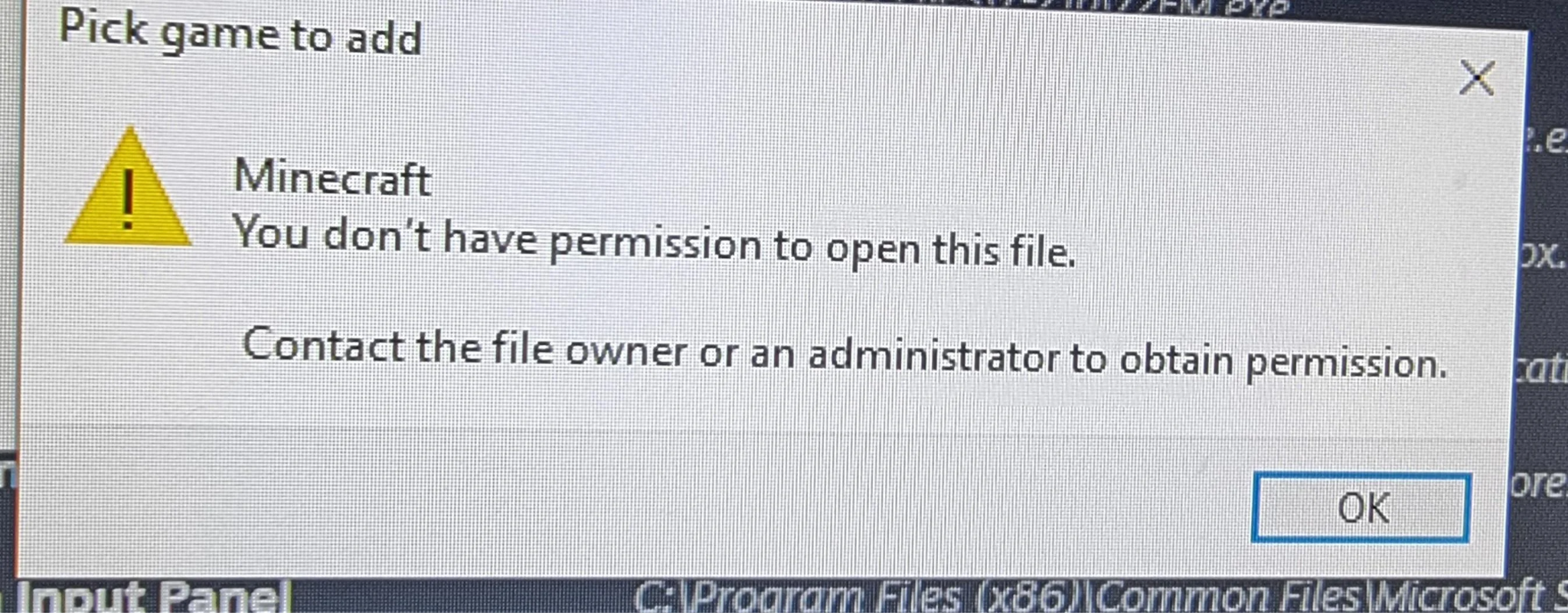
Windows 10 and 11 have strict security protocols. If Mistfall Hunter tries to access Steam's data but Steam is running at a lower "User" level while the game is trying to run at an "Admin" level (or vice versa), the communication link is severed. This mismatch is the primary driver of the restart loop.
Mistfall Hunter Cannot Authenticate Your Steam Account
During the launch sequence, the game sends a request to the Steam client to verify your ownership and account status. If the Steam client is busy, in Offline Mode, or experiencing a temporary glitch, it fails to respond to the game's "handshake," resulting in the login failed message.
Steam or Mistfall Hunter Is Still Running in the Background
Sometimes, a previous crash leaves a hidden MistfallHunter.exe or Steam.exe process active in the background. When you try to launch the game again, the new process detects the old one and assumes a session is already active, but because the old session is unresponsive, the authentication fails.
A Secondary Windows User Account Is Blocking Steam Access
If you share your PC and another user is logged in with Steam running in the background, Windows may prevent your current session from accessing the necessary Steam sockets. This is common on family computers where multiple users have their own Windows profiles.
Corrupted Game Files or Steam Components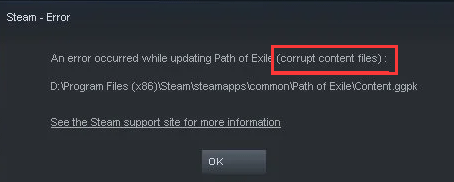
A partial update or a sudden power outage can corrupt the small DLL files that handle the Steam-to-game connection. If these files are unreadable, the game will default to the "Please Restart Steam" error because it cannot find the necessary instructions to talk to the client.
Antivirus, Firewall, or Security Software Interference
Aggressive security suites may flag the game's authentication request as suspicious behavior. By blocking the outgoing signal to Steam, the antivirus effectively "mutes" the game, leaving it unable to confirm that you are logged in.
Part 3: Fix 1: Completely Close Mistfall Hunter and Steam
End Mistfall Hunter Processes in Task Manager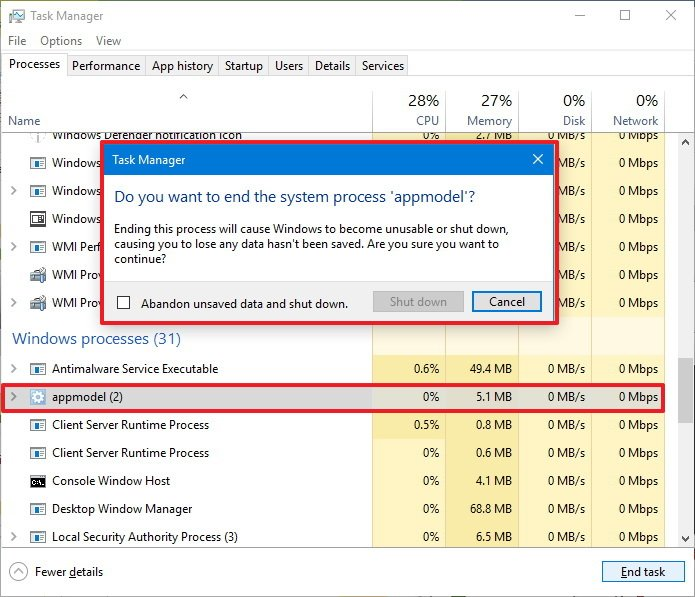
Press Ctrl + Shift + Esc to open the Task Manager. Look for any instance of Mistfall Hunter or UE-MistfallHunter. Right-click them and select End Task. It is crucial to ensure the game is completely dead before attempting a restart.
End All Steam Background Processes
In the same Task Manager window, find all Steam-related processes, including Steam Client Bootstrapper, Steam Web Helper, and Steam Service. End all of them. This forces Steam to perform a "cold boot" the next time you open it, which clears out temporary cache errors.
Reopen Steam Before Launching the Game
Do not launch the game directly from a desktop shortcut. Instead, open the Steam client first, wait for it to load your library and check for updates, and only then click the Play button for Mistfall Hunter.
Part 4: Fix 2: Run Steam and Mistfall Hunter as Administrator
Run Steam with Administrator Permissions
Find your Steam shortcut, right-click it, and select Properties. Go to the Compatibility tab and check the box that says Run this program as an administrator. Click Apply and OK. This ensures Steam has the authority to communicate with other high-level processes.
Check Mistfall Hunter Executable Permissions
Navigate to the game's installation folder (usually SteamLibrary\steamapps\common\Mistfall Hunter). Find the main .exe file, right-click it, and also set it to Run as administrator. Having both the client and the game at the same privilege level is the most effective way to break the restart loop.
Avoid Running Steam and the Game at Different Permission Levels
If you run the game as an admin but Steam as a standard user, the game will be "blocked" from reading Steam's data. Always ensure they match. If you use a game launcher or a third-party tool, that tool must also be running as an administrator.
Part 5: Fix 3: Give Steam Full Permissions on Windows
Check Permissions When Using a Second Windows Account
If you are not using the primary Administrator account on your PC, you may need to manually grant your user profile permission to access the Steam folder. Right-click the Steam folder, go to Security, and ensure your username has "Full Control" checked.
Grant Full Control to the Steam Installation Folder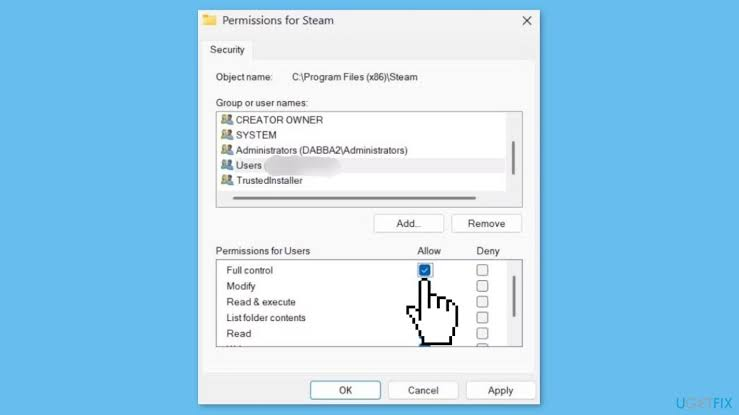
Sometimes Windows "Read-Only" attributes get stuck on the Steam folder. Uncheck the Read-only box in the folder properties and apply it to all subfolders. This allows Steam to write the temporary authentication tokens needed by Mistfall Hunter.
Test the Game from the Main Windows Administrator Account
If all else fails, try logging into the primary Windows Administrator account. If the game works there, you know the issue is strictly related to your specific Windows user profile's permissions.
Part 6: Fix 4: Confirm Steam Is Online and Properly Logged In
Sign Out and Sign Back Into Steam
Go to the top-left corner of Steam, click Steam, and select Change Account. This will log you out completely. Log back in with your credentials. This refreshes your login token, which is often what the game is struggling to read.
Disable Steam Offline Mode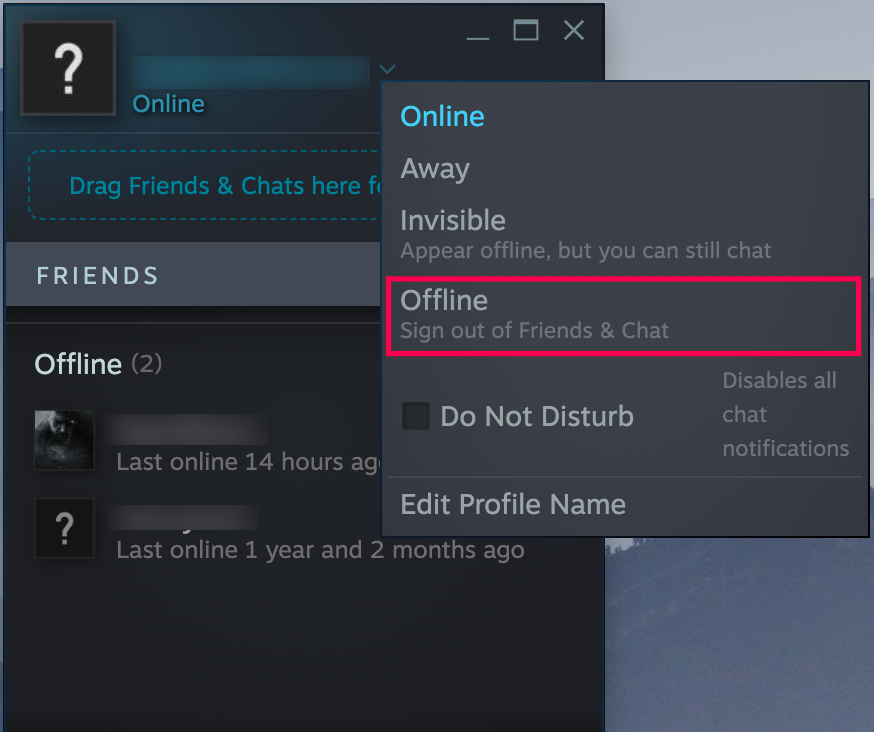
Mistfall Hunter requires an active connection to verify your account. If Steam is in Offline Mode, the game will immediately throw the "Restart Steam" error. Ensure you are "Online" in the Steam menu.
Check Whether Steam Authentication Services Are Available
Occasionally, Steam's own servers go down for maintenance (usually on Tuesdays). If Steam's API is down, no game can authenticate. Check a site like steamstat.us to see if "WebAPI" or "Logon" services are operational.
Part 7: Fix 5: Repair Mistfall Hunter and Steam Files
Verify Mistfall Hunter Game File Integrity
- Open your Steam Library.
- Right-click Mistfall Hunter and select Properties.
- Go to Installed Files and click Verify integrity of game files.
Steam will scan for missing or corrupted data and redownload anything that is broken.
Clear the Steam Download Cache
In Steam, go to Settings > Downloads and click Clear Cache. This will log you out of Steam but will also remove any corrupted temporary files that might be interfering with the game's launch sequence.
Repair or Reinstall Steam Without Deleting Installed Games
You can "repair" Steam by running the Steam installer again and choosing the repair option. Alternatively, you can delete everything in your Steam folder except for the steamapps folder and steam.exe, then run steam.exe to force a full client rebuild.
Part 8: Fix 6: Check Firewall and Antivirus Permissions
Allow Steam and Mistfall Hunter Through Windows Firewall
Go to Control Panel > System and Security > Windows Defender Firewall > Allow an app or feature. Ensure both Steam and Mistfall Hunter are checked for both "Private" and "Public" networks.
Temporarily Disable Conflicting Security Software
If you use third-party antivirus like Avast, Norton, or Bitdefender, try disabling them for 10 minutes and launching the game. If the game works, you need to add the game's folder to the antivirus "Exclusions" or "Whitelist."
Restore Security Settings After Testing
Never leave your firewall off permanently. Once you identify the conflict, add the specific exceptions and turn your security back on to keep your PC safe.
Part 9: Fix 7: Resolve Mistfall Hunter Running Without Opening
End the Hidden Game Process
If Steam says the game is running but you see nothing, it's likely a "ghost process." Use the Task Manager to kill the process as described in Fix 1. This usually happens when the game's window fails to initialize due to a resolution mismatch or a failed Steam handshake.
Disable Conflicting Steam and Third-Party Overlays
Overlays from Steam, Discord, or Nvidia GeForce Experience can sometimes prevent the game window from appearing. Disable the Steam Overlay in the game's properties and see if the window finally pops up.
Restart Windows and Launch Steam First
A full system restart clears the RAM and resets all hardware drivers. After restarting, open Steam first and let it sit for a minute before trying to launch Mistfall Hunter.
Part 10: What to Do If Steam Login Failed Is Followed by Fatal Error
Separate the Steam Authentication Error from the Fatal Error
If you fix the Steam login issue but then get a "Fatal Error," you are dealing with two separate problems. The Fatal Error is usually hardware or driver-related, whereas the Steam error is software and permission-related.
Update GPU Drivers and Windows
Outdated Nvidia or AMD drivers are a common cause of Fatal Errors in Unreal Engine games. Use GeForce Experience or AMD Adrenaline to ensure you are on the latest version. Also, check for Windows Updates, as the game may require specific C++ Redistributable packages found in newer Windows builds.
Check Crash Logs Before Reinstalling the Game
Navigate to %localappdata%\MistfallHunter\Saved\Logs. Open the latest log file and scroll to the bottom. If you see "Out of Video Memory," you may need to lower your graphics settings or increase your Windows Page File size.
Part 11: How to Improve Mistfall Hunter Connection Stability with LagoFast
Even after you fix the Steam login loop, you might encounter lag, high ping, or "Connection Failed" errors once you get into the game. This is where a dedicated game booster becomes essential. LagoFast(LagoFast Game Booster - Get No Lag and Lower Ping) Game Booster is designed to optimize the path your data takes from your PC to the Mistfall Hunter servers, bypassing congested ISP routes that cause authentication timeouts.
Why Use LagoFast for Mistfall Hunter?
- Fixes Login Timeouts: By providing a stable, dedicated route, LagoFast ensures that the "handshake" between your game and Steam's servers doesn't time out during the launch sequence.
- Reduces Packet Loss: If your internet is prone to micro-stutters, LagoFast's multipath technology keeps your connection alive even if one route fails.
- One-Click Optimization: It can automatically adjust your Windows network settings to be more "game-friendly," potentially preventing the permission issues that cause the Steam loop.
Step-by-step tutorial for optimizing Mistfall Hunter with LagoFast
Click the Free Trial button to download and install LagoFast Free Trial.
Search for the Game: In the LagoFast search bar, type "Mistfall Hunter."
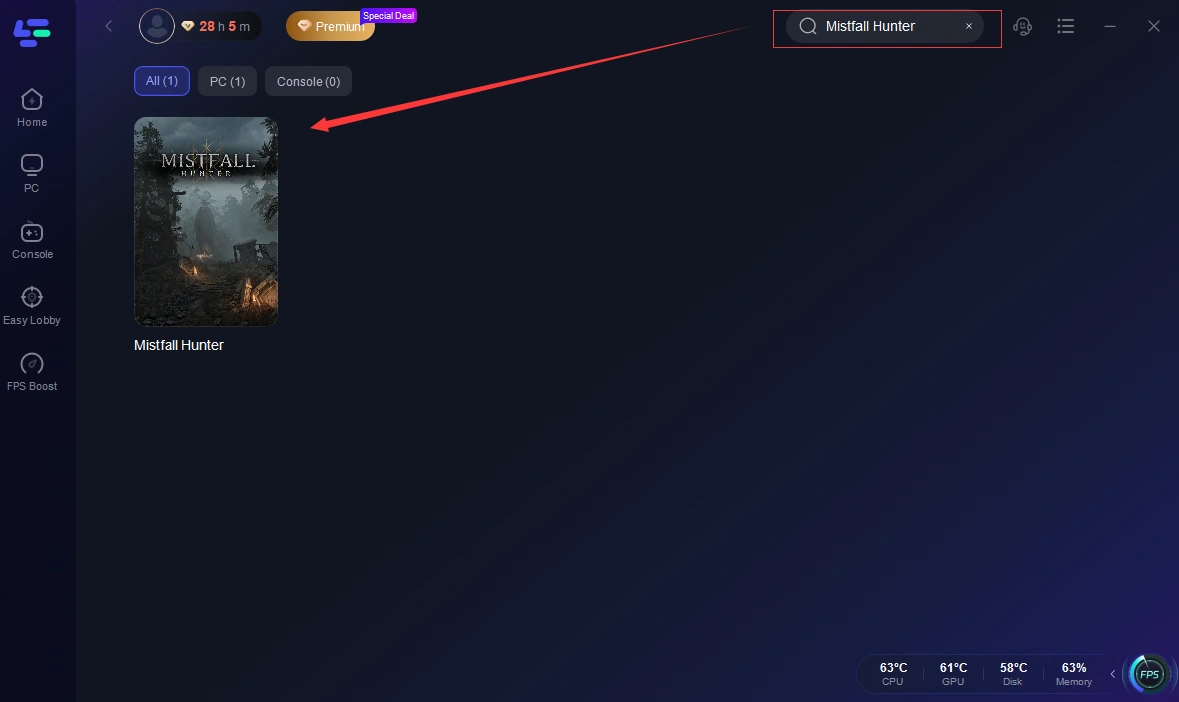
Select Your Region: Click on the game icon and choose the server region that matches where you play (e.g., North America, Europe, or Asia).
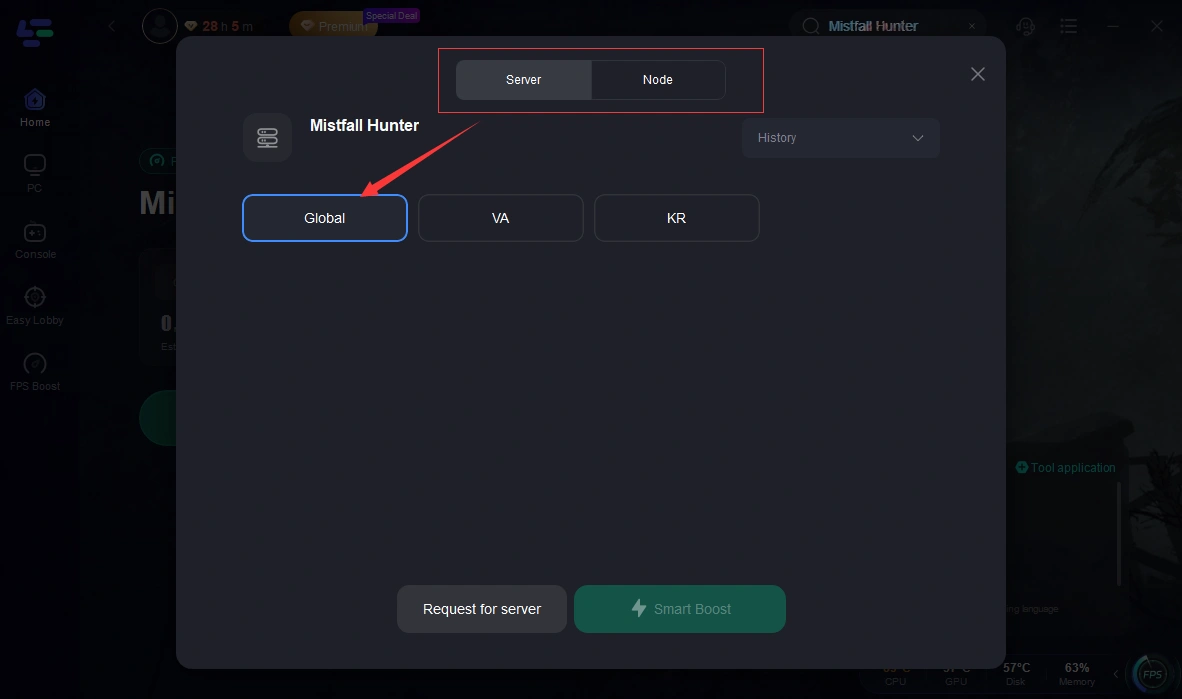
Smart Boost: Click the Boost button. LagoFast will analyze all available routes and select the one with the lowest latency and zero packet loss.
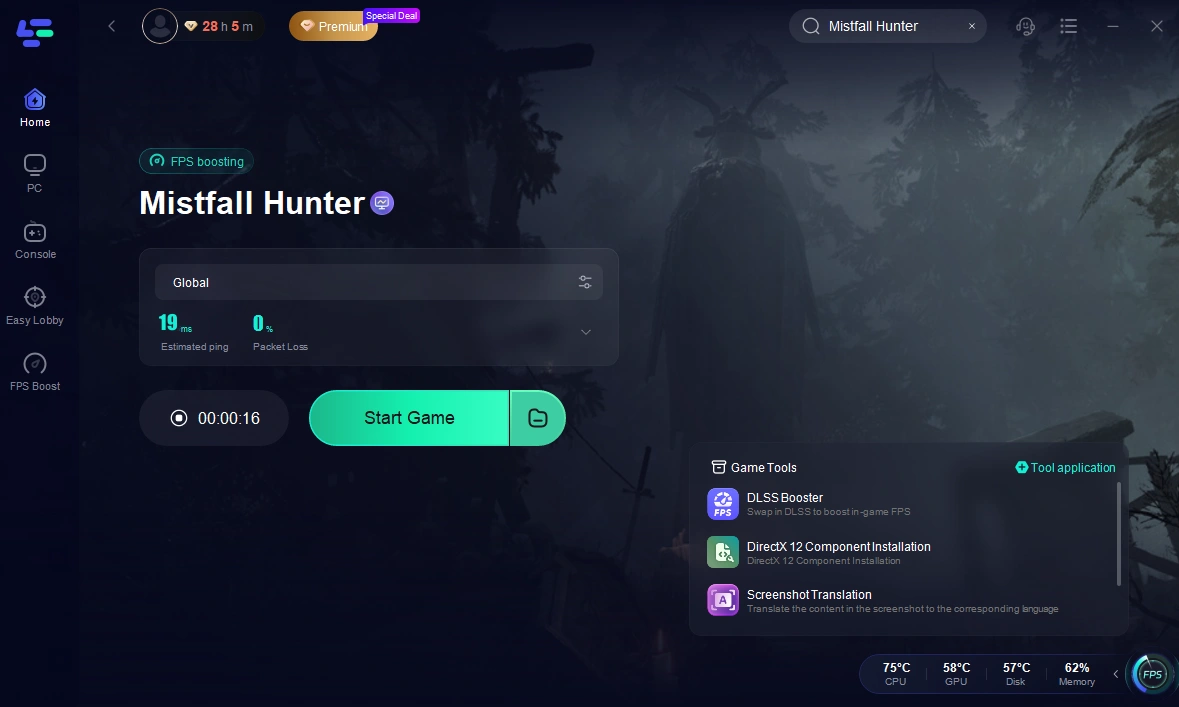
Launch the Game: With the boost active, launch Mistfall Hunter through Steam. You should find that the login process is much faster and more reliable.
Part 12: Mistfall Hunter Steam Login Failed FAQ
1. Why does the game keep saying "Please Restart Steam" even after I did it?
This usually happens because the Steam process didn't fully close or there is a permission mismatch. Ensure you kill all Steam tasks in Task Manager and run Steam as an administrator.
2. Can I play Mistfall Hunter without Steam?
No, the game relies on Steam's API for account authentication, social features, and anti-cheat. You must have a working Steam connection to play.
3. Will verifying game files delete my character progress?
No. Your character progress is stored on the game's servers, not in your local files. Verifying files only checks the game's installation data on your hard drive.
4. Does disabling my firewall make my PC unsafe?
Temporarily disabling it for testing is fine, but you should always add an exception for the game and turn the firewall back on immediately to maintain security.
5. What if I've tried everything and the loop still happens?
Check if you have any "Intel AI Boost" or similar motherboard optimization software running. Some players have reported that disabling these specific hardware boosters in the Device Manager fixes the Steam login loop.
Key Takeaways
- Admin Rights are Key: Running both Steam and Mistfall Hunter as an administrator fixes 90% of "Steam login failed" loops.
- Clean Restarts Matter: Use Task Manager to kill all background processes; don't just click the "X" on the window.
- Check Your Network: Use LagoFast to ensure your connection to Steam's authentication servers is stable and fast.
- Verify Files: If the error persists, use Steam's built-in repair tool to fix corrupted DLLs.
- Stay Updated: Keep your GPU drivers and Windows OS current to avoid secondary "Fatal Error" crashes after fixing the login loop.
Boost Your Game with LagoFast for Epic Speed
Play harder, faster. LagoFast game booster eliminates stutter and lags on PC, mobile, or Mac—win every match!
Quickly Reduce Game Lag and Ping!
Boost FPS for Smoother Gameplay!