
You finally launch RF Online Next, ready to play, and then get hit with a “Can’t Connect to Server” error. Since release, many players have faced the same issue—login failures, connection timeouts, server unavailable messages, or endless loading screens. In most cases, it’s not your account or device. It usually comes down to server status, region mismatch, unstable routing, or launcher issues. This guide breaks down what’s actually causing it and how to fix it.

- ✅ Reduce Lag and High Ping.
✅ Boost FPS at the Same Time.
✅ Support 2000+ Popular Online Games.
✅ Change Server without Latency.
✅ Boost Game Loading Speed.
Why RF Online Next Won’t Connect to the Server
Common RF Online Next Connection Error Messages
Best Server Region for RF Online Next
Fix 1: Use LagoFast to Improve RF Online Next Connection
Fix 2: Check RF Online Next Server Status and Launch Time
Fix 3: Choose the Correct Server Region
Fix 4: Use the Global Client Instead of KR/JP/TW Client
Fix 5: Update Netmarble Launcher and RF Online Next
Fix 6: Allow RF Online Next Through Windows Firewall
Fix 7: Flush DNS and Reset Winsock
Fix 8: Disable Conflicting VPN, Proxy, or DNS Tools
Fix 9: Switch Network on Mobile
Why RF Online Next Won’t Connect to the Server
If you’re stuck on the login screen, the issue usually isn’t random. Most connection problems in RF Online Next come from a few common causes, and once you understand them, it becomes much easier to narrow things down.
Server Launch or Maintenance
The most common reason is simple server instability. During updates, maintenance, or peak hours, servers can get overloaded, which leads to failed logins or timeout errors.
Wrong Server Region
Choosing a server that doesn’t match your location or client version can easily cause connection issues. The farther the server, the higher the chance of errors or unstable login behavior.
Unstable Routing or High Ping
Even with good internet, poor routing between your ISP and the game server can break the connection. This often shows up as disconnects, long loading screens, or login failures.
Netmarble Launcher Issue
Since the game depends on the Netmarble Launcher, any sync or update problem there can block access entirely, even if the servers are fine.
Firewall, DNS, or VPN Conflict
Security tools or network settings like firewall, antivirus, VPN, or custom DNS can interfere with game traffic and prevent a stable connection.
Wrong Regional Client
Using the wrong version of the game (Global, KR, JP, or TW) is a common mistake. If the client doesn’t match the server, login errors are almost guaranteed.
Common RF Online Next Connection Error Messages
When RF Online Next won’t let you in, it usually shows an error instead of failing silently. Each message points to a different cause, helping you quickly identify whether it’s a server issue, network problem, or something on your end.
Can’t Connect to Server
This is the most general error. It usually means your game client can’t establish a stable connection with the server at all, often due to server instability or routing issues.
Server Connection Error
This one often shows up when the connection is unstable rather than completely blocked. It can be triggered by server overload, maintenance, or inconsistent network routing.
Server Unavailable
When you see this, the server is typically offline, under maintenance, or temporarily disabled. In most cases, there’s nothing wrong on your end.
Connection Timed Out
This happens when the request takes too long to reach the server or doesn’t get a response in time. It’s commonly linked to high ping, packet loss, or unstable routing.
Login Failed
A login failure usually points to authentication problems. This can come from launcher issues, incorrect credentials, or region/client mismatches.
Stuck on Connecting
If the game stays on the connecting screen without moving forward, it often means the handshake between your client and the server is stuck, usually due to network or launcher-related issues.
Network Error
This is the most vague message. It generally indicates unstable internet conditions, such as packet loss, DNS problems, or interference from VPNs or security tools.
Best Server Region for RF Online Next
Server choice matters more than most players think. Even if your PC and internet are fine, picking the wrong region can easily lead to lag, login failures, or unstable connections. Here’s a simple breakdown of how to choose the best server based on where you are.
RF Online Next Server Locations
RF Online Next is split into different regional services, including the Global version and localized servers such as KR, JP, and TW. These are not fully interchangeable, so your location and client version both matter.
Best Server for Europe
If you’re in Europe, the Global servers are usually the safest option. They offer the most stable connection, especially when you pick the EU-facing server with the lowest ping.
Best Server for Russia
Russian players typically get better stability on Global EU servers. The closer routing helps reduce latency and lowers the chance of disconnects.
Best Server for SEA
For Southeast Asia (Singapore, Malaysia, Thailand, Indonesia, Philippines), the Asia-Pacific servers are usually the best choice. They offer lower ping and more stable gameplay compared to EU or KR routes.
Best Server for Middle East
Players in the Middle East generally perform better on EU-based Global servers. They tend to have more consistent routing than other distant regions.
Best Server for East Asia
If you’re in South Korea, Japan, or Taiwan, it’s best to stick with your local KR, JP, or TW clients. These servers are designed for regional traffic and usually provide the smoothest experience.
Fix 1: Use LagoFast to Improve RF Online Next Connection
A lot of RF Online Next connection problems don’t actually come from your internet speed. The real issue is often the route your connection takes to the game server—especially if you’re playing on overseas servers.
How LagoFast Helps with Routing, Ping, and Packet Loss
Instead of changing your internet, LagoFast optimizes the route between you and the game server, helping reduce unstable connections.
In practice, it helps with things like:
- Smoother routing to game servers
- Lower ping spikes during login and gameplay
- Reduced packet loss
- More stable overall connection
- Fewer timeout and login failures
It’s especially useful if you’re playing outside your server’s region and dealing with inconsistent routing.
How to Boost RF Online Next with LagoFast
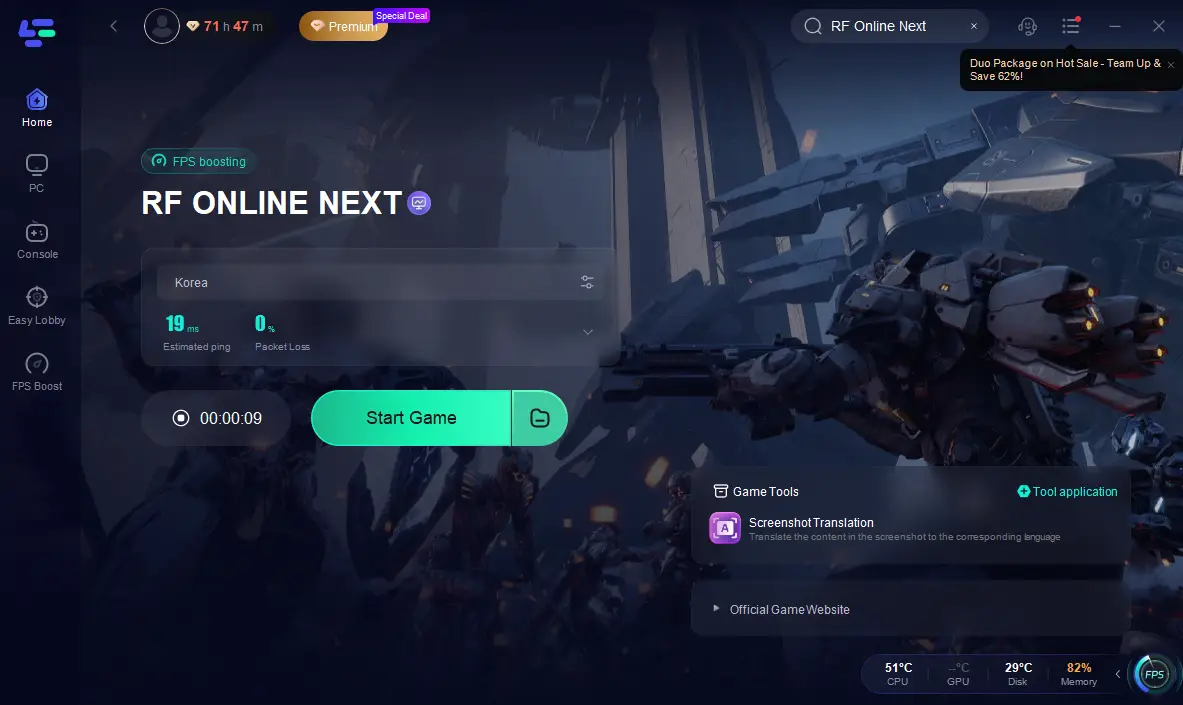
Step 1: Click the Free Trial button to download and install LagoFast.
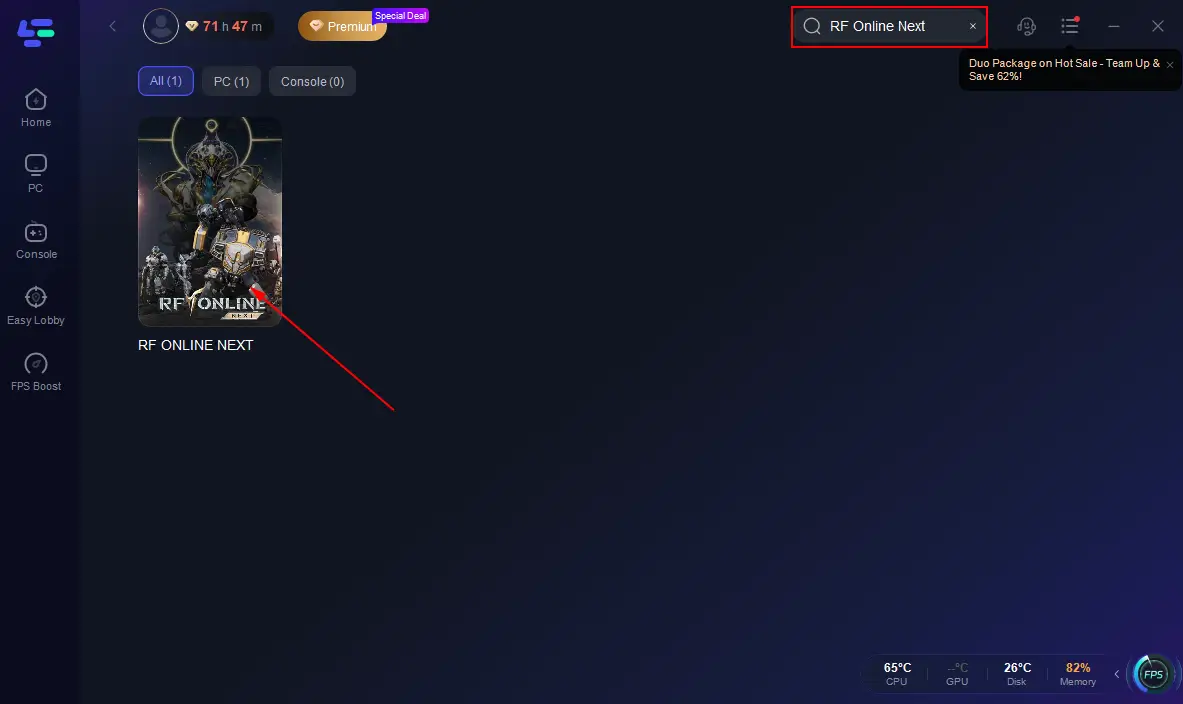
Step 2: After installation, search "RF Online Next " in the search bar and select the game.
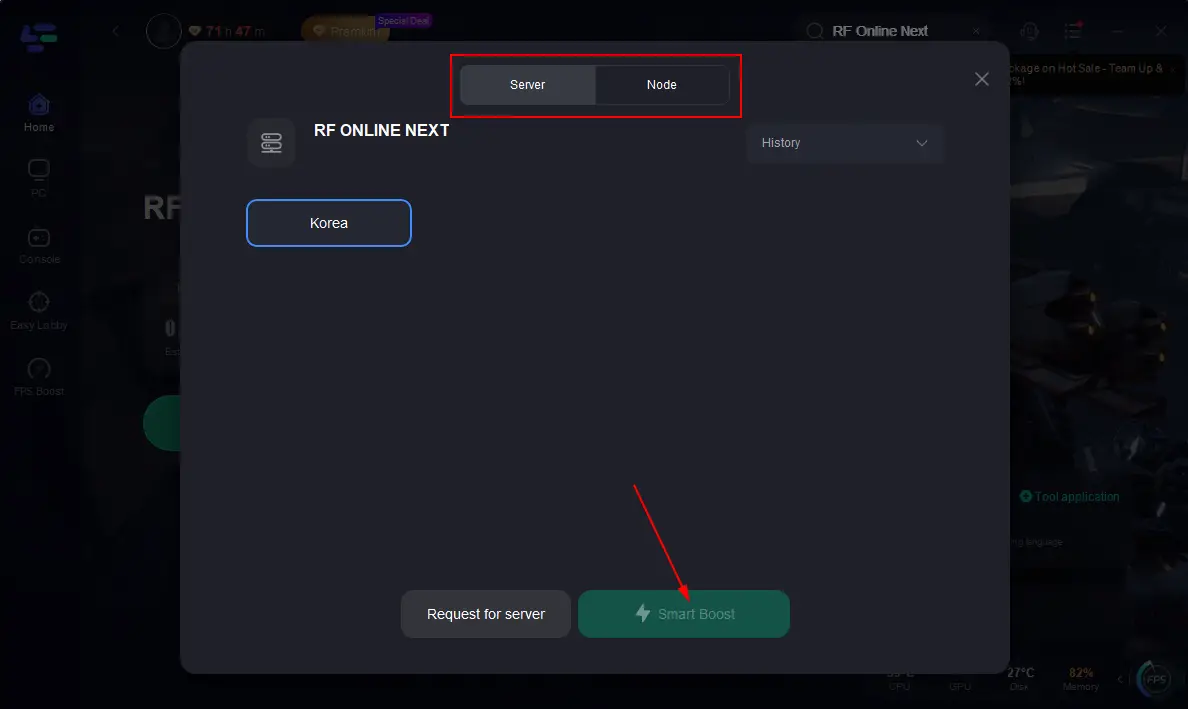
Step 3: Choose your preferred server node and click "Smart Boost" to start optimizing.
Step 4: Launch your game and enjoy smooth, optimized gameplay with lower ping and packet loss.
Fix 2: Check RF Online Next Server Status and Launch Time
Before tweaking anything on your side, make sure the servers are actually online. Maintenance or launch congestion is one of the most common causes of connection failure. If the servers are down, there’s nothing to fix locally—just wait until they’re back.
Fix 3: Choose the Correct Server Region
Picking the right region can instantly improve stability.
A closer server usually means:
- Lower ping
- Faster login
- Fewer disconnects
- More stable gameplay
Always match the server to your physical location whenever possible.
Fix 4: Use the Global Client Instead of KR/JP/TW Client
If you’re outside Korea, Japan, or Taiwan, the Global Client is usually the safest choice. Using the wrong version often leads to login or authentication issues.
Wrong client = common problems like:
- Login failed
- Server unavailable
- Connection errors
Fix 5: Update Netmarble Launcher and RF Online Next
Outdated launcher files can easily break the connection process.
Try:
- Closing the launcher completely
- Restarting it as administrator
- Letting all updates finish
- Verifying game files (if available)
Fix 6: Allow RF Online Next Through Windows Firewall
Sometimes Windows blocks the game without you noticing.
Steps:
- Open Windows Defender Firewall
- Go to “Allow an app through firewall”
- Find RF Online Next and Netmarble Launcher
- Enable both Private + Public networks
- Restart the game
Fix 7: Flush DNS and Reset Winsock
Network cache issues can also block proper connections.
Open Command Prompt as Administrator and run:
ipconfig /flushdns
netsh winsock reset
Then restart your PC.
Fix 8: Disable Conflicting VPN, Proxy, or DNS Tools
Extra network tools can sometimes interfere with game authentication.
Temporarily turn off:
- VPN services
- Proxy settings
- Custom DNS tools
- Network filtering apps
Then try logging in again.
Fix 9: Switch Network on Mobile
If you’re on mobile, testing another network is a quick way to isolate the problem.
Try switching between:
- Wi-Fi
- Mobile data
- Hotspot from another device
If one works and another doesn’t, the issue is likely your ISP or network route.
FAQ
What should I check first when RF Online Next won’t connect?
Start with the basics: check whether the servers are online or under maintenance. If everything is running normally, the issue is more likely related to your network, client version, or routing path.
Can RF Online Next connection issues go away on their own?
If the problem is caused by server overload or temporary routing instability, it may improve after peak hours or once traffic stabilizes. However, issues related to settings or client mismatch usually require manual fixes.
Does reinstalling RF Online Next fix connection problems?
Not usually. Reinstalling only helps if your game files or launcher are corrupted. If the issue is related to server status, region, or network routing, reinstalling won’t make a difference.
Can changing DNS improve connection stability?
It can help in some situations, especially if your default DNS is slow or unstable. However, it won’t fix server-side issues, maintenance, or major routing problems between regions.
Is wired internet better than Wi-Fi for RF Online Next?
Yes, in most cases. A wired connection is generally more stable and less affected by interference. Wi-Fi can still work fine, but it has a higher chance of packet loss or short spikes in latency during gameplay.
Conclusion
If you’re facing the RF Online Next can’t connect to server error, it’s not always a server outage. In many cases, the issue comes from something simpler like wrong server selection, unstable routing, launcher problems, or network conflicts. Start by checking the server status, making sure you’re using the correct client, and choosing the right region for your location. If the issue still persists, a network optimization tool like LagoFast can help improve routing stability and reduce packet loss, making the connection more consistent.

Boost Your Game with LagoFast for Epic Speed
Play harder, faster. LagoFast game booster eliminates stutter and lags on PC, mobile, or Mac—win every match!
Quickly Reduce Game Lag and Ping!
Boost FPS for Smoother Gameplay!