
Quick Answer
To fix FPS drops and stutters in Marvel Tokon: Fighting Souls, go to Graphics Settings and run the Shader Warmup manually. Additionally, ensure your GPU drivers are updated to the latest version, disable background recording software like Discord Overlay or Xbox Game Bar, and set the game to Fullscreen mode. For persistent network lag and latency, using a specialized tool like LagoFast Game Booster can stabilize your connection and reduce ping significantly.
The launch of Marvel Tokon: Fighting Souls has brought the chaotic energy of the Marvel Universe into a high-octane 4v4 tag-team format. While the combat is deep and visually stunning, the PC port has faced criticism for inconsistent performance. In a game where frame-perfect execution determines the outcome of a match, even a minor stutter can result in a lost combo or a failed defensive maneuver.
Part 1: Marvel Tokon Fighting Souls FPS Drop: Why Your Performance is Tanking
Part 2: Fixing Marvel Tokon Lag and Network Latency
Part 3: How to Stop Marvel Tokon Stutters and Frame Spikes
Part 4: Reducing Marvel Tokon Input Delay for Competitive Play
Part 5: Optimal Graphics Settings for High FPS
Part 6: How to Enhance Your Game Experience with LagoFast Game Booster
Marvel Tokon Fighting Souls FPS Drop: Why Your Performance is Tanking
PC players have reported several common FPS issues in Marvel Tokon:
- FPS stuck around 57–59 and unable to maintain a stable 60 FPS.
- Sudden FPS drops into the 40s or 50s during gameplay.
- Low FPS even after lowering graphics settings or resolution.
- High CPU usage and shader-related slowdowns causing FPS drops or stuttering.
Common causes include high CPU load, shader compilation, GPU drivers, background apps, overlays, Windows power settings, and current game optimization issues. Shader Warmup may help some players, but it doesn't fix low FPS on every PC.
Fixing Marvel Tokon Lag and Network Latency

In the realm of online fighting games, network health is just as critical as raw hardware power. Marvel Tokon lag often manifests as "teleporting" characters or hits that don't register correctly. This is frequently caused by high jitter or packet loss rather than just high ping. Because the game utilizes a specific netcode architecture, any instability in your local network can lead to a desynchronized match.
To mitigate latency, always prioritize a wired Ethernet connection over Wi-Fi. Wireless signals are prone to interference from other household devices, leading to the dreaded "lag spikes" that ruin competitive matches. If you are stuck on a shared network, consider configuring Quality of Service (QoS) settings on your router to prioritize gaming traffic, ensuring that background downloads or streaming services don't consume your available bandwidth.
Tips: If you encounter other issues with MARVEL Tokon, you can check MARVEL Tōkon: Fighting Souls Common Errors and learn how to fix them fast.
How to Stop Marvel Tokon Stutters and Frame Spikes
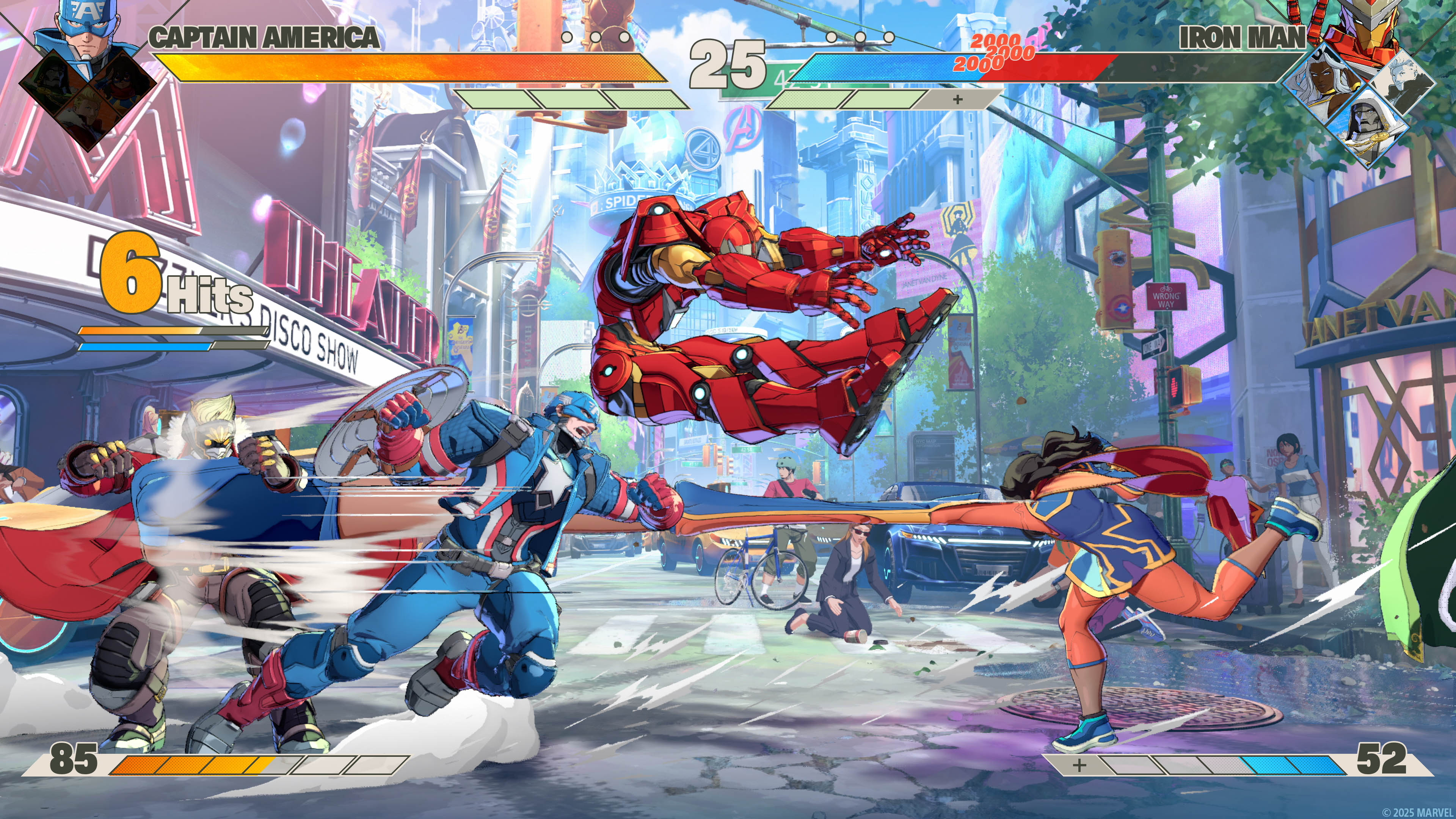
Stuttering in Marvel Tokon: Fighting Souls is often linked to the way the game handles shader compilation. Unlike some modern titles that force a long compilation process at the start, this game sometimes attempts to compile shaders in real-time. This results in "micro-stutters" every time a new character uses an ability for the first time in a session. The community-verified fix is to navigate to the graphics menu and trigger a manual shader warmup, which pre-caches these assets.
Another common source of stutters is the interference from third-party overlays. Software like Steam Overlay, Discord, and various hardware monitoring tools can conflict with the game's rendering pipeline. Disabling these overlays frees up system interrupts and allows the GPU to focus entirely on the game's frame delivery.
Reducing Marvel Tokon Input Delay for Competitive Play
Input delay is the silent killer in fighting games. It refers to the time elapsed between pressing a button and the action appearing on screen. In Marvel Tokon, even a few milliseconds of delay can make it impossible to "tech" throws or react to fast overhead attacks. High input latency is often caused by V-Sync, which synchronizes the game's frame rate with your monitor's refresh rate but adds significant buffering.
To achieve the lowest possible latency, disable V-Sync in the game settings and use a monitor with a high refresh rate (144Hz or higher). If you have an Nvidia GPU, enable "Nvidia Reflex Low Latency" in the settings menu. This technology optimizes the communication between the CPU and GPU, significantly reducing the "render queue" and making the game feel much more responsive to your commands.
Optimal Graphics Settings for High FPS
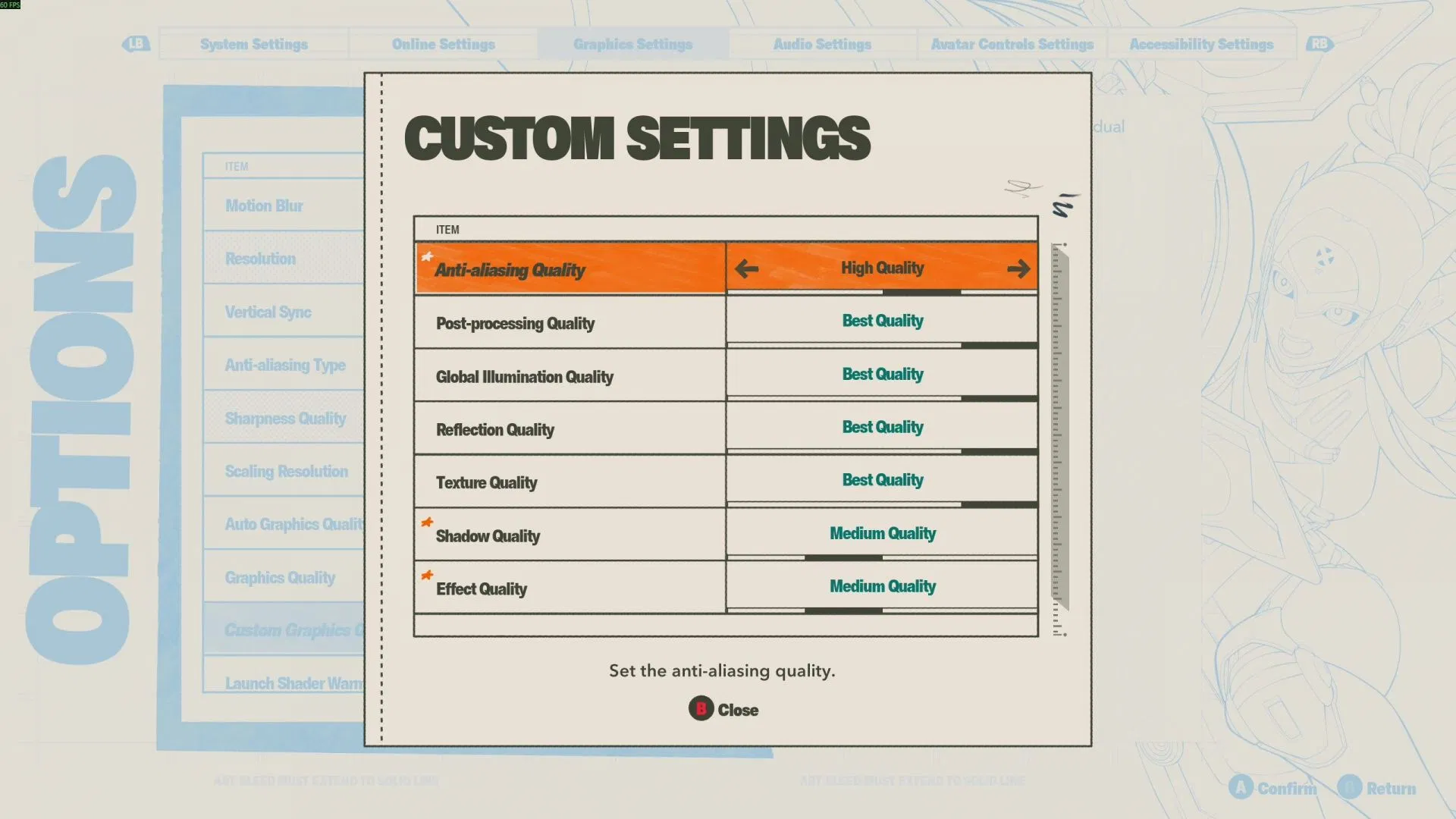
Finding the balance between visual fidelity and performance is key to a smooth experience. While the game looks fantastic at "Epic" settings, the competitive advantage of a stable 60+ FPS far outweighs the benefit of high-resolution shadows. For the best results, consider the following adjustments:
|
Setting |
Recommended Value |
Impact |
|
Display Mode |
Fullscreen |
Reduces desktop window manager latency |
|
Shadow Quality |
Medium/Low |
Significant FPS boost; shadows are CPU-intensive |
|
Effects Quality |
Medium |
Reduces frame drops during 4v4 ability spam |
|
Post-Processing |
Low |
Improves visual clarity and reduces GPU load |
|
Anti-Aliasing |
TAA or DLSS |
DLSS (Quality) provides better FPS on Nvidia cards |
Lowering the "Effects Quality" is particularly important for 4v4 matches, as it reduces the complexity of particle systems that often cause the engine to chug during chaotic team fights.
How to Enhance Your Game Experience with LagoFast Game Booster
For players who want a "one-click" solution to both network and system performance issues, LagoFast Game Booster is a highly effective tool. It is designed specifically to address the unique demands of PC gaming, offering a suite of features that simultaneously optimize your connection path and system resources. Routing your data through dedicated gaming servers bypasses congested public internet nodes that cause lag and high latency.
Follow these steps to optimize Marvel Tokon: Fighting Souls with LagoFast.
Step 1. Download LagoFast on PC
Click the Free Trial button to download and install LagoFast Free Trial.
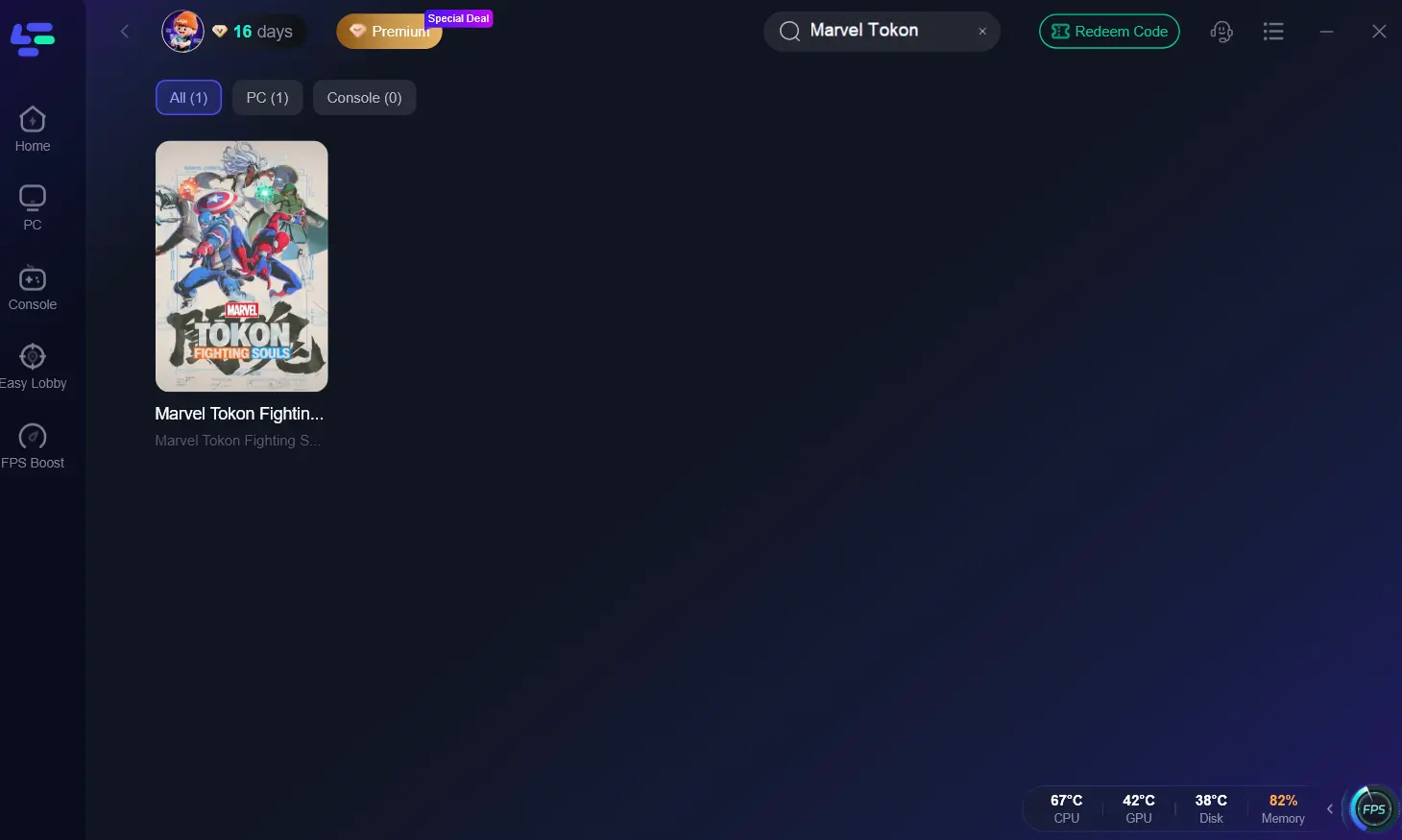
Step 2. Search for the Game
Open the application and type "Marvel Tokon: Fighting Souls" or "Marvel Tokon" into the search bar.
Step 3. Select Your Server
Choose the server location closest to your actual physical location or the game's regional server to ensure the lowest possible ping.
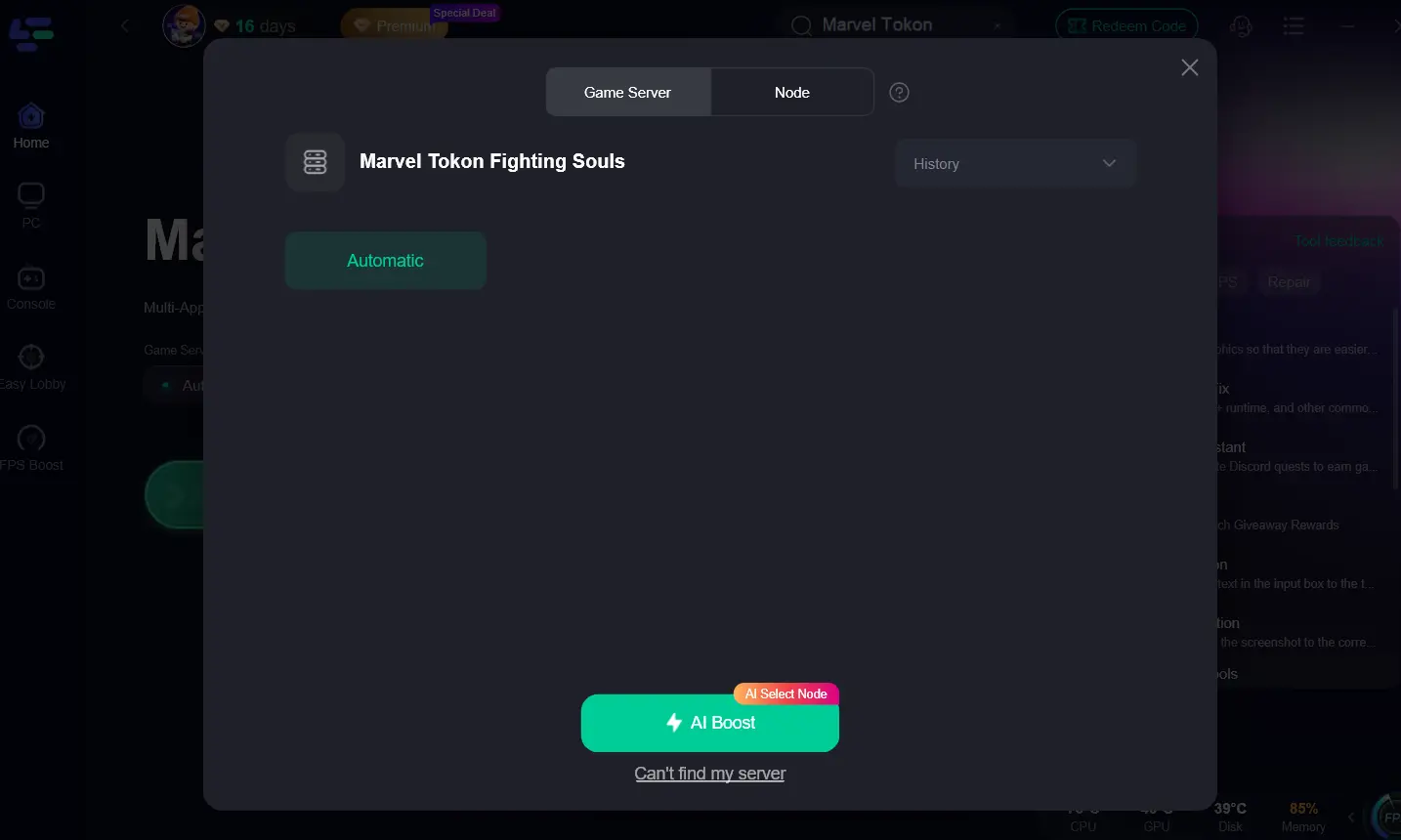
Step 4. Boost Performance
Click the "AI Boost" button. LagoFast will automatically optimize your network route and can also be configured to close unnecessary background processes to free up RAM and CPU cycles.
Step 5. Launch the Game
Start the game directly through the LagoFast interface to ensure all optimizations are active.
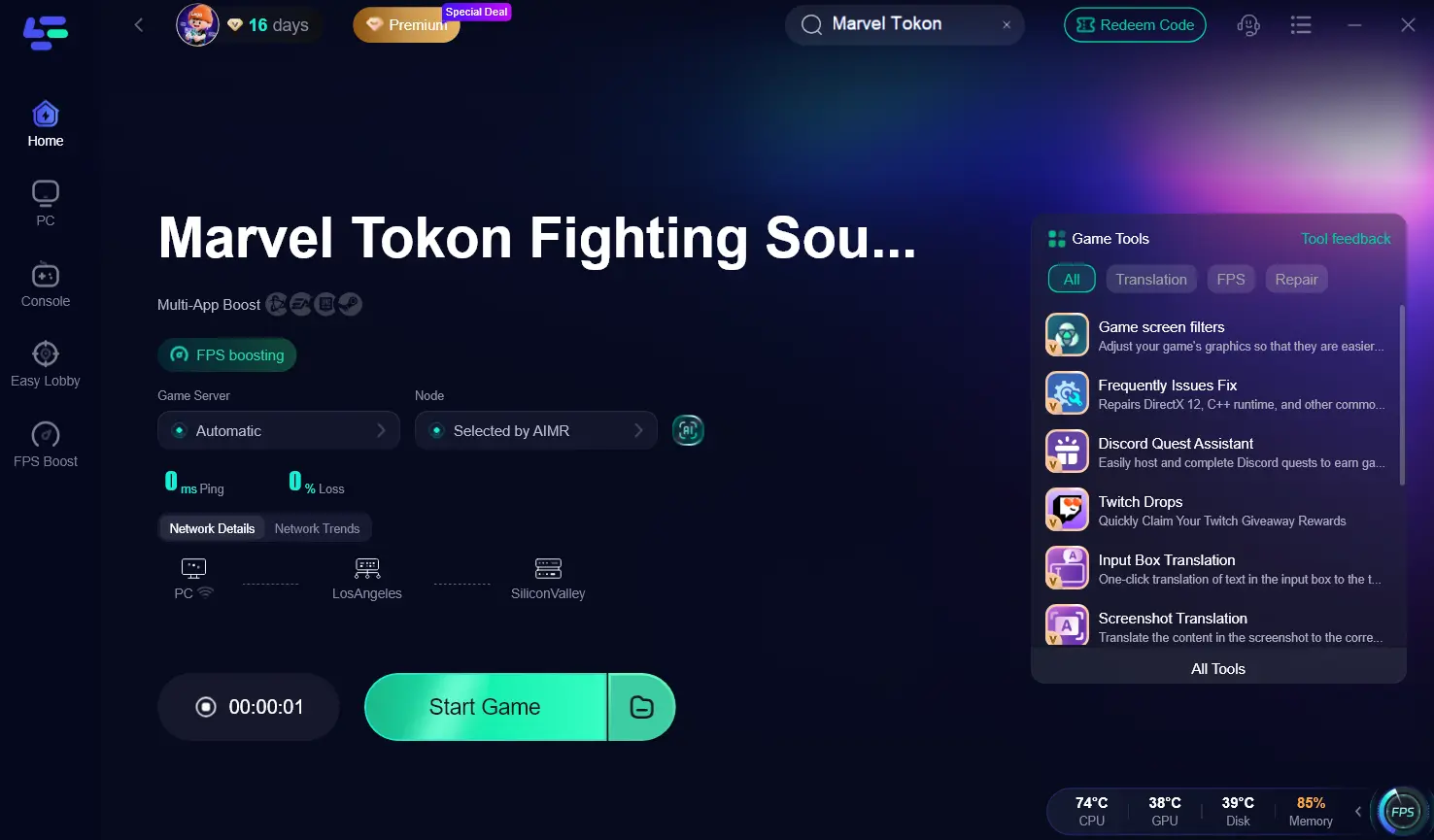
By using LagoFast, you can achieve a more stable connection, which is vital for maintaining the flow of 4v4 combat and ensuring your inputs are registered instantly.
FAQs
1. Why does Marvel Tokon: Fighting Souls keep crashing on my PC?
Crashing is often related to outdated GPU drivers or corrupted game files. Use the "Verify Integrity of Game Files" feature on Steam to ensure your installation is intact and update your drivers to the latest version provided by Nvidia or AMD.
2. Is 60 FPS enough for Marvel Tokon: Fighting Souls?
While 60 FPS is the standard for fighting games, a stable frame rate is more important than peak FPS. Inconsistent frame pacing (stuttering) is much more detrimental to gameplay than a locked 60 FPS.
3. Does disabling Windows Game Mode help with FPS drops?
Actually, for most modern Windows 10 and 11 systems, keeping "Game Mode" ON is recommended. It helps the OS prioritize game processes and prevents Windows Update from installing drivers in the background while you play.
4. Can I play Marvel Tokon: Fighting Souls on a laptop?
Yes, provided your laptop meets the minimum system requirements. However, ensure your laptop is plugged into power and set to "Best Performance" mode, as battery-saving features will severely throttle the GPU.
5. What is the "Shader Warmup" setting everyone is talking about?
It is a graphics option that forces the game to pre-compile visual assets. Running this before your first match of the day can eliminate micro-stutters that occur when the game loads these assets during active combat.
Key Takeaway
To achieve the best performance in Marvel Tokon: Fighting Souls, prioritize shader compilation, optimize in-game settings, and use a dedicated game booster like LagoFast to stabilize your connection and frame rates. Consistent performance is the foundation of any competitive victory in the 4v4 arena.
Boost Your Game with LagoFast for Epic Speed
Play harder, faster. LagoFast game booster eliminates stutter and lags on PC, mobile, or Mac—win every match!
Quickly Reduce Game Lag and Ping!
Boost FPS for Smoother Gameplay!