
Summary: This article covers step-by-step troubleshooting solutions for common MARVEL Tōkon: Fighting Souls technical issues, ranging from PSN login failures and startup crashes to network lag and performance optimization using LagoFast.
Arc System Works and Sony Interactive Entertainment have brought fast-paced 4v4 tag-team battles to life in MARVEL Tōkon: Fighting Souls. However, server authentication hiccups, Unreal Engine 5 startup crashes, and sudden frame drops can ruin your online combos. Whether you are facing PlayStation Network (PSN) login errors on PC or struggling with severe packet loss during competitive ranked matches, technical glitches disrupt your gameplay. This guide breaks down every major technical problem and provides straightforward solutions to get you back into the fighting arena.
Part 1: MARVEL Tōkon: Fighting Souls Common Errors Overview
Part 2: Fix MARVEL Tōkon: Fighting Souls PlayStation Account & Login Errors
Part 3: Fix MARVEL Tōkon: Fighting Souls PC Launch Errors
Part 4: Fix MARVEL Tōkon: Fighting Souls Performance Issues
Part 5: How to Play Marvel Tokon More Smoothly?
Part 6: MARVEL Tōkon: Fighting Souls FAQs
Part 1: MARVEL Tōkon: Fighting Souls Common Errors Overview
To help you quickly diagnose what is interrupting your fighting sessions, the table below organizes the most common error codes, launch bugs, and network glitches reported by players, along with their primary causes.
|
Error |
Symptoms |
Primary Causes |
|
PSN Sign-in Failed |
Cannot access online lobbies or play network modes on PC/PS5 |
Disconnected Sony account, corrupted auth tokens, or PSN service outages |
|
Error message stating PSN is unavailable in your country/region |
Playing from a region without native PSN registration support |
|
|
Server & Connection Errors |
Random disconnections during 4v4 tag matches or lobby idling |
Game server maintenance, high ISP jitter, or local firewall blocks |
|
Network Error |
"Network Connection Lost" pop-up returning you to the main menu |
Strict NAT types, temporary routing loops, or unstable Wi-Fi signals |
|
Matchmaking Unavailable |
Infinite waiting in online ranked queues without finding opponents |
Crossplay desync, temporary matchmaking server overload, or local region lock |
|
Crash on Startup |
Game shuts down instantly upon launch or triggers UE5 crash logs |
Outdated graphics drivers, missing DirectX/VC++ files, or corrupted installation |
|
Black Screen |
Game loads audio and HUD elements, but the display remains black |
Outdated GPU drivers, resolution scaling conflicts, or overlay app interference |
|
Stuck Loading |
Title screen or match loading bar gets stuck indefinitely |
Slow mechanical hard drive speeds, corrupt shader cache, or saved data sync errors |
|
Error Code D0000207 |
Unique code appearing during initial Steam-to-PSN account linking |
Steam WebBrowser overlay failure or cached authorization token corruption |
|
High Ping & Lag |
Severe input delay, delayed assist calls, and rollback stuttering |
Bad ISP network routing, server distance, or background download bandwidth hogs |
|
FPS Drops & Stuttering |
Frame rate dips below 60 FPS during heavy wall breaks or ultimate skills |
Outdated graphics drivers, high V-Sync overhead, or unoptimized graphic settings |
|
High CPU Usage |
CPU utilization hits 100%, causing system heat and frame hitching |
Background application conflicts, inefficient multi-threading, or active shader compilation |
Part 2: Fix MARVEL Tōkon: Fighting Souls PlayStation Account & Login Errors
PlayStation 5 players often run into roadblocks before even reaching the character select screen. Account authentication glitches, server communication breakdowns, and regional lockouts can prevent you from playing online. Luckily, most of these PlayStation network hiccups can be resolved by adjusting your system network settings or refreshing your console's connection data.
Fix PSN Sign-in Failed
When the marvel tokon PSN sign-in failed message pops up, your console is struggling to verify your PlayStation Network credentials with the game servers. Try this sequence to restore your account access:
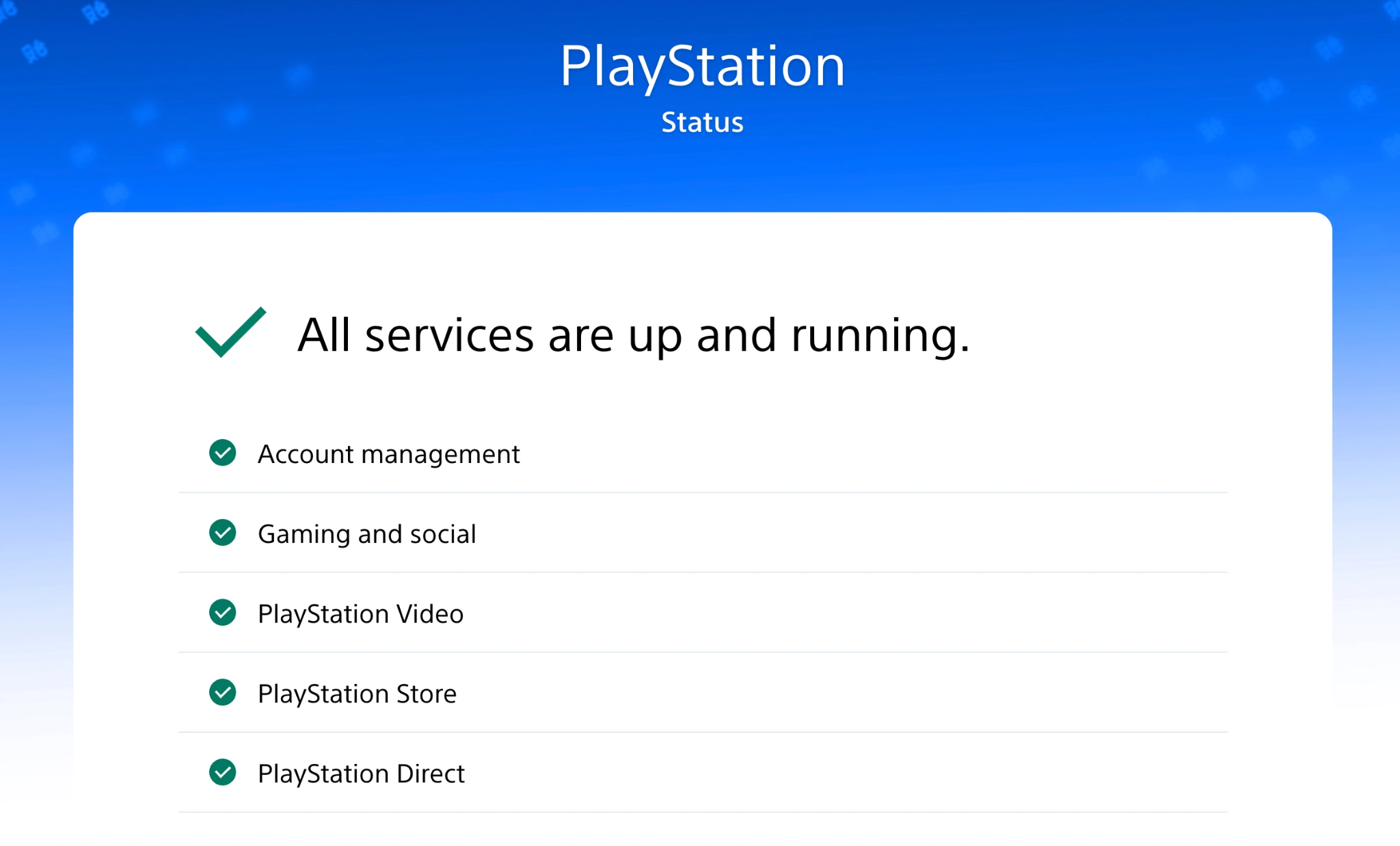
Step 1. Check the official PlayStation Network status page on your smartphone or PC to confirm there are no active server outages or scheduled maintenance windows.
Step 2. Log out of your PlayStation Network account directly from your console's main user profile settings menu.
Step 3. Shut down your PS5 completely, unplug the power cord from the wall for 30 seconds, and plug it back in to clear the system cache.
Step 4. Power the console back on and sign in to your PSN account, making sure to accept any new terms of service prompts if they appear.
Step 5. Launch the game again to verify that the authentication handshake completes without dropping the connection.
Tip: Marvel Tokon Fighting Souls PSN Down? How to Fix Can't Sign In
Fix Region Locked and PSN Unsupported
Sony enforces strict regional guidelines for online multiplayer matchmaking. If your game version does not match your registered PSN account region, you might get blocked from accessing online lobbies.
Step 1. Check the game disc or digital store listing to verify the exact region code of your copy of MARVEL Tōkon: Fighting Souls.
Step 2. Ensure that your primary PlayStation Network account region matches the country or region where you purchased the game.
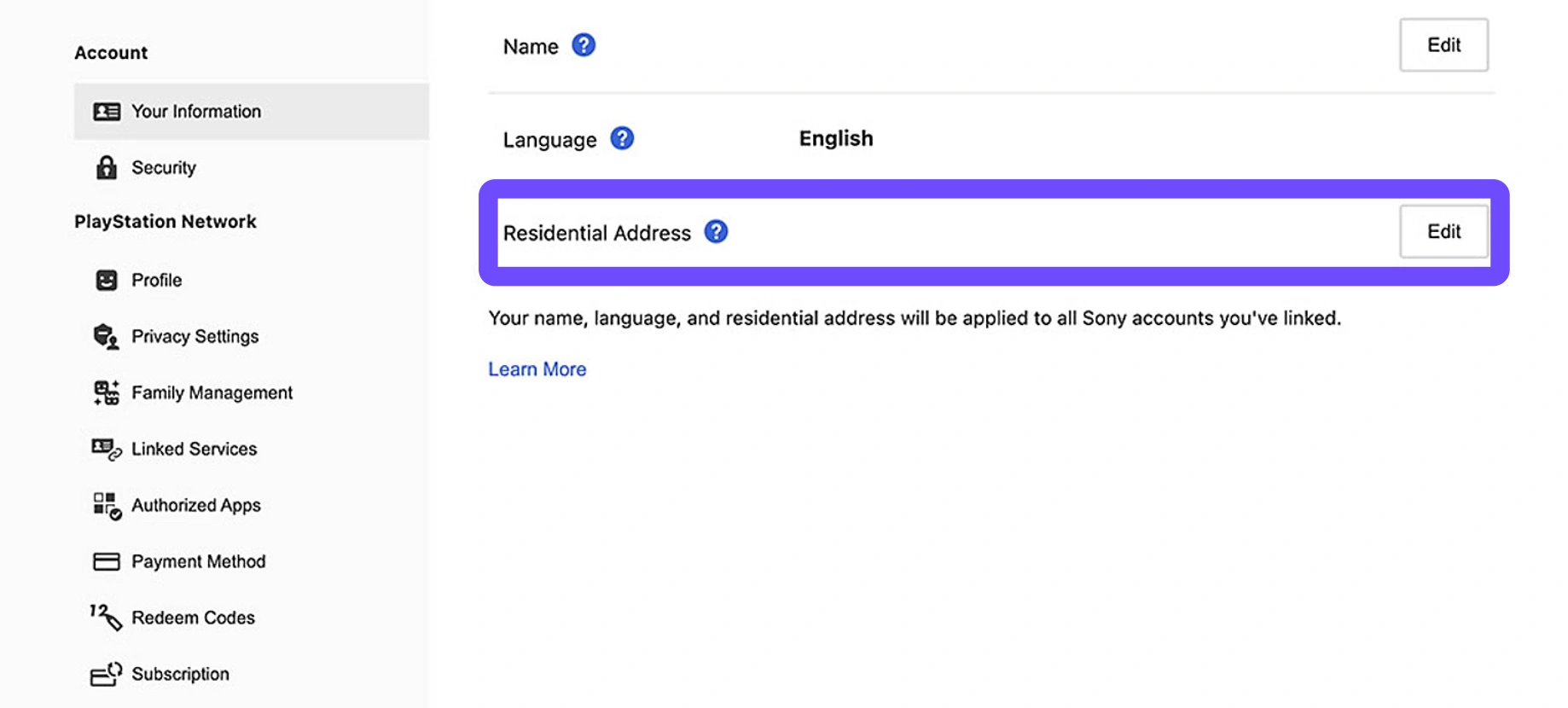
Step 3. If you bought the game from a foreign regional storefront, create a secondary PSN account mapped to that specific country or territory.
Step 4. Enable "Console Sharing and Offline Play" on that regional account through the PS5 Users and Accounts settings menu.
Step 5. Switch back to your primary account to access the game with full networking privileges enabled.
Fix Server & Connection Errors
Random server disconnections usually happen when your console drops communication packets with the game's central hosting servers. Adjusting your DNS settings gives you a much cleaner route.
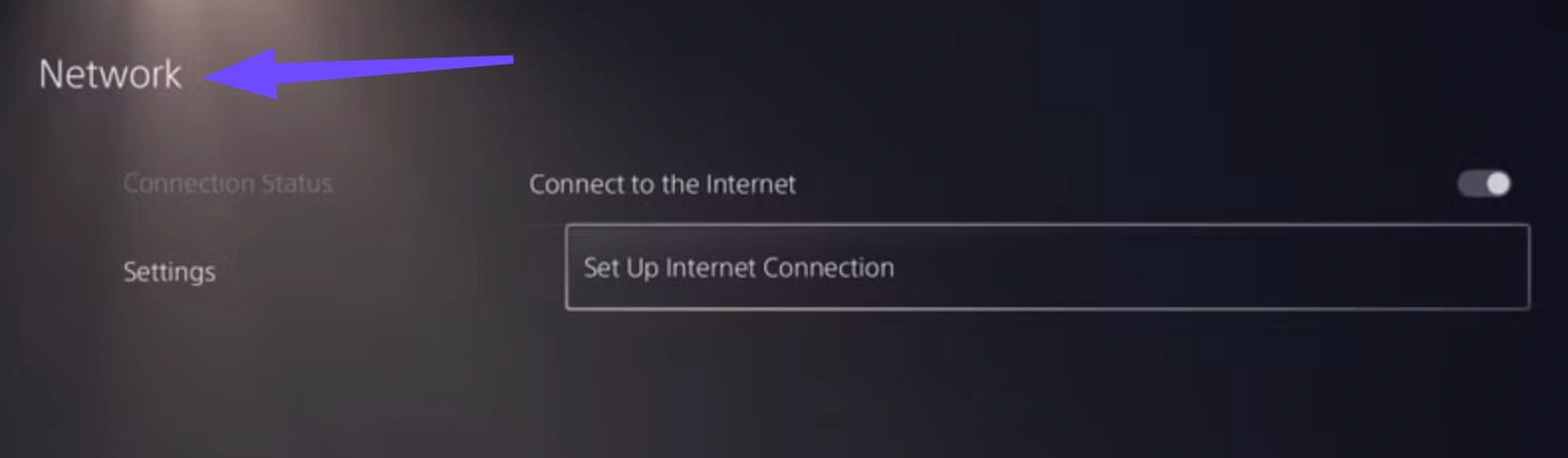
Step 1. Open the PS5 Settings menu, navigate to Network, and select Settings followed by Set Up Internet Connection.
Step 2. Highlight your active Wi-Fi or Ethernet connection, press the Options button on your controller, and select Advanced Settings.
Step 3. Change the DNS Settings option from Automatic to Manual so you can enter custom DNS server addresses.
Step 4. Type 8.8.8.8 as your Primary DNS and 8.8.4.4 as your Secondary DNS (or use Cloudflare's 1.1.1.1 and 1.0.0.1).
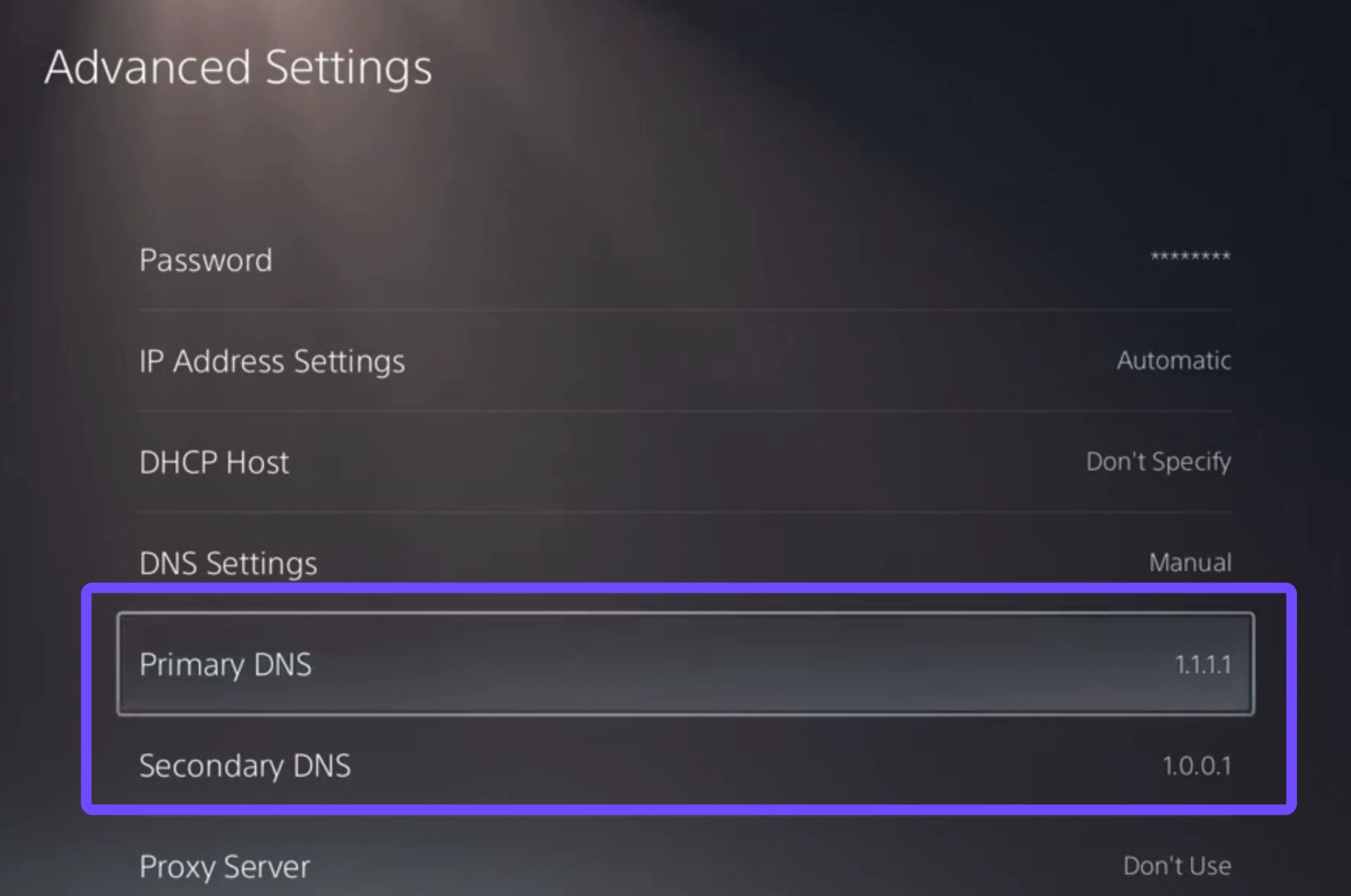
Step 5. Save the new settings, allow the console to run a quick network test, and relaunch the game.
Fix Network Error
A generic marvel tokon network error usually means your local router is blocking the ports required for peer-to-peer fighting game connections or experiencing firewall conflicts.
Step 1. Unplug your home modem and router from the power outlet and wait at least two full minutes before plugging them back in.
Step 2. Connect your PlayStation 5 directly to your router using a Category 6 or Category 7 Ethernet cable instead of relying on Wi-Fi.
Step 3. Access your router's admin panel via a web browser and check that your console's NAT Type is set to Open (Type 1) or Moderate (Type 2).
Step 4. Enable UPnP (Universal Plug and Play) in your router security settings to allow the game to automatically open necessary communication ports.
Step 5. Restart your console and test your online connection in the PS5 network menu before booting up the game.
Fix Matchmaking Unavailable
If the game lets you log in but greys out online lobbies or fails to find opponents, your local client might be out of sync with the current matchmaking patch.
Step 1. Highlight the game icon on your PS5 home screen, press the Options button, and select Check for Update to ensure you are on the latest patch.
Step 2. Verify that your PlayStation Plus subscription is active, as online multiplayer matchmaking requires an ongoing subscription.
Step 3. Go to your PS5 Network settings and toggle the connection off and on to force a new IP address assignment from your router.
Step 4. In the game's online options menu, temporarily broaden your matchmaking region settings to search for players globally rather than locally.
Step 5. Enable crossplay in the multiplayer settings if it was previously disabled, as this dramatically expands the available player pool.
Part 3: Fix MARVEL Tōkon: Fighting Souls PC Launch Errors
PC gaming offers incredible visual fidelity, but hardware diversity means launch failures happen frequently. Whether your desktop crashes instantly upon loading or gets stuck on a black screen, these PC launch errors usually stem from corrupted game installation files, outdated graphics card drivers, or background software conflicts. Here is how to fix them.
Fix MARVEL Tōkon Crash on Startup
Dealing with a MARVEL Tōkon crash on startup right after clicking play is usually caused by missing visual C++ libraries, outdated GPU drivers, or overlay software interference.
Step 1. Open your graphics card management software (Nvidia GeForce Experience, AMD Adrenalin, or Intel Arc Control) and download the latest game-ready driver update.
Step 2. Open your Steam or Epic Games Store library, right-click the game, select Properties, go to Installed Files, and click Verify Integrity of Game Files.
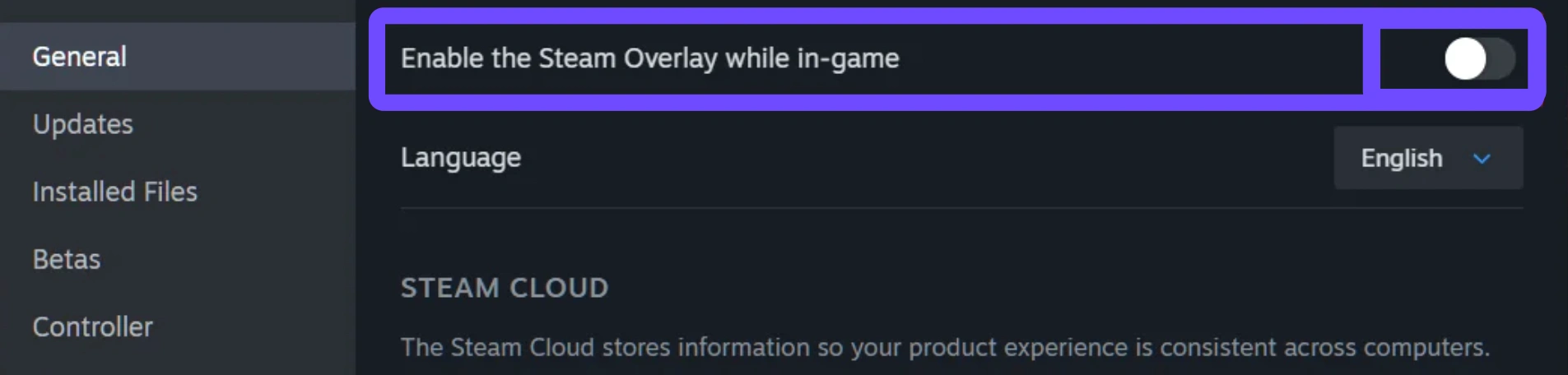
Step 3. Disable all background overlay software, including Discord overlays, Steam Overlay, Nvidia ShadowPlay, and third-party FPS counters.
Step 4. Navigate to the game's main installation folder, right-click the primary .exe file, select Properties, go to Compatibility, and check Run this program as an administrator.
Step 5. Install or repair your Windows Visual C++ Redistributables and DirectX runtime libraries using the official web installers from Microsoft.
Fix MARVEL Tōkon Black Screen
A Marvel Tōkon black screen on launch usually occurs when the game tries to render at a resolution or refresh rate that your monitor does not natively support.
Step 1. When the screen goes black, press Alt + Enter on your keyboard to force the game into Windowed mode, which often restores visuals immediately.
Step 2. Press Ctrl + Shift + Win + B to reset your graphics card display driver without needing to reboot your entire computer.
Step 3. Locate the game's configuration file in your Windows AppData folder and manually edit the launch resolution to match your native desktop display resolution.
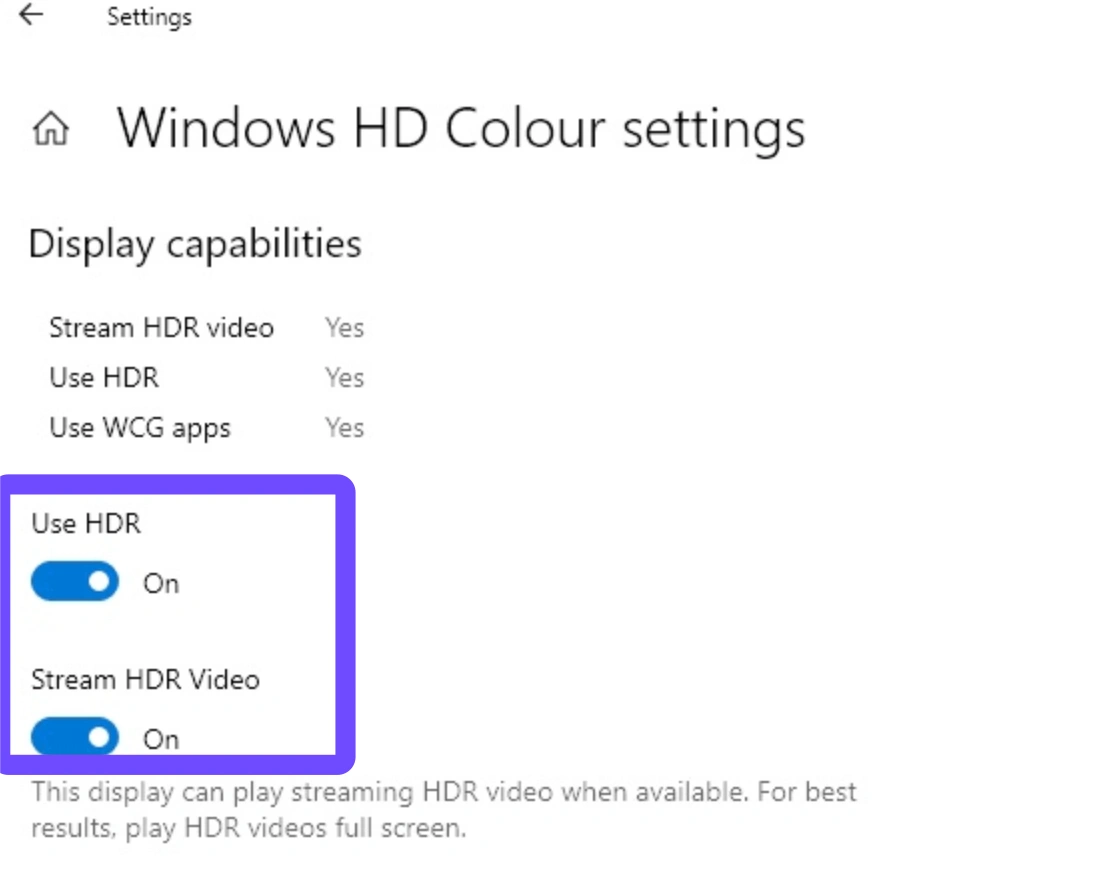
Step 4. Disable any active HDR settings in both your Windows display settings and monitor hardware menu, as improper HDR handshakes cause black screens.
Step 5. In your Steam launch options for the game, type -windowed or -borderless to force the game to bypass exclusive fullscreen mode on startup.
Fix MARVEL Tōkon Stuck Loading
If your game gets frozen on the initial splash screen or transitions indefinitely between matches, a marvel tokon stuck loading issue is likely tied to slow storage read speeds.
Step 1. Make sure the game is installed on a high-speed NVMe or SATA SSD rather than an older mechanical hard drive (HDD).
Step 2. Open the Windows Task Manager using Ctrl + Shift + Esc, find the game process, right-click it, go to Details, and set Priority to High.
Step 3. Add the entire MARVEL Tōkon: Fighting Souls installation folder to your Windows Defender or third-party antivirus exclusion list to prevent real-time scanning delays.
Step 4. Clear your temporary Windows cache by pressing Win + R, typing %temp%, pressing Enter, and deleting all files inside the folder.
Step 5. Increase your Windows Virtual Memory (Pagefile) allocation on your primary SSD to ensure the system has enough overflow memory during heavy asset loading.
Fix MARVEL Tōkon D0000207 Error
The Marvel Tokon D0000207 error is a specific runtime code indicating that anti-cheat software failed to initialize or that a security service is blocking the game executable.
Step 1. Close the game completely and restart your PC to clear any lingering ghost processes tied to the anti-cheat system.
Step 2. Go to the game's installation directory, find the dedicated anti-cheat setup folder, and run the installer as an administrator to select "Repair Service."
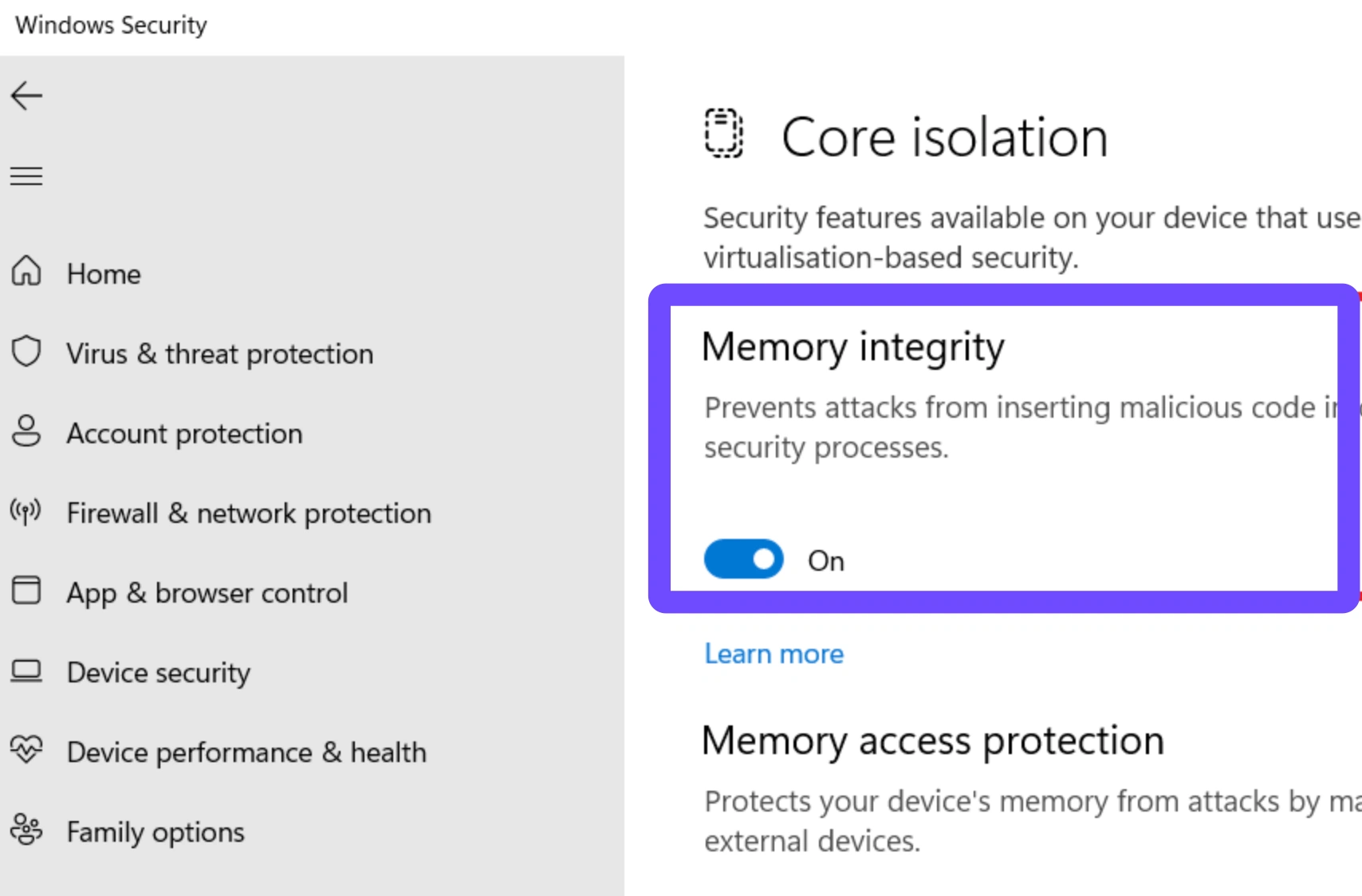
Step 3. Open your Windows Security settings, navigate to Virus & Threat Protection, and temporarily disable Core Isolation / Memory Integrity, which can conflict with kernel-level drivers.
Step 4. Open your Windows Command Prompt as an administrator, type sfc /scannow, and hit Enter to repair any corrupted underlying Windows system files.
Step 5. If the error code persists, uninstall the game completely, restart your computer, and reinstall a fresh copy directly onto your primary C: drive.
Part 4: Fix MARVEL Tōkon: Fighting Souls Performance Issues
Even if you boot into the game successfully, poor performance will ruin your competitive edge. In a fast-paced fighting game where individual frames dictate victory or defeat, network lag and stuttering animations are unacceptable. Here is how to optimize your system to keep your gameplay smooth, responsive, and lag-free.
Fix MARVEL Tōkon High Ping
When your inputs feel sluggish and opponents teleport across the stage, high latency is to blame. You need a stable routing path to fix marvel tokon lag/stuttering during online matches.
Step 1. Stop any background downloads, cloud file syncs, or 4K video streams running on other devices connected to your home network.
Step 2. Switch from a wireless Wi-Fi connection to a direct Ethernet wired connection to eliminate wireless packet loss and signal interference.
Step 3. In the game's network settings menu, restrict your matchmaking preferences to only accept matches with connections rated at 4 or 5 bars.
Step 4. Check if your Internet Service Provider is throttling your gaming traffic during peak evening hours and restart your modem to secure a fresh routing path.
Fix MARVEL Tōkon FPS Drops and Stuttering
Sudden MARVEL Tōkon FPS drops during chaotic tag-team supers can mess up your combo timing. Tweak your graphical rendering settings to keep framerates locked at 60 FPS.
Step 1. Lower hardware-heavy graphical settings in the options menu, specifically turning down Volumetric Fog, Shadow Quality, and Post-Processing effects.
Step 2. Turn on Nvidia DLSS, AMD FSR, or Intel XeSS upscaling technologies in the display menu, setting the mode to "Balanced" or "Performance."
Step 3. Disable V-Sync in the in-game settings and instead use your graphics control panel to cap your maximum frame rate at your monitor's native refresh rate.
Step 4. Turn off Windows Game Mode or hardware-accelerated GPU scheduling in your Windows display settings if you notice micro-stutters during character tag-ins.
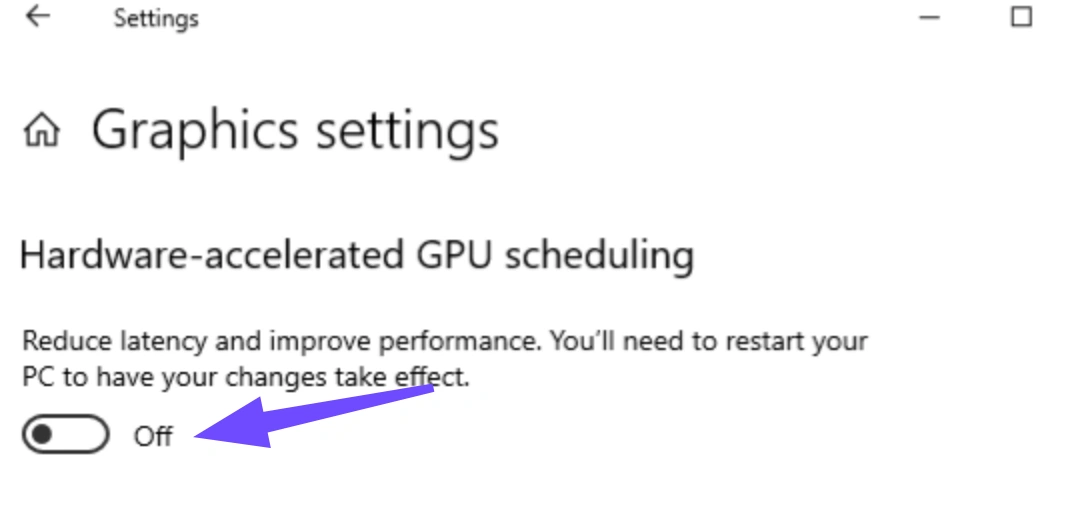
Step 5. Make sure your laptop or desktop power plan is set to "High Performance" or "Ultimate Performance" rather than "Power Saver" in the Windows Control Panel.
Fix MARVEL Tōkon High CPU Usage
Modern fighting games calculate complex hitboxes and rollback physics frames constantly. If you experience marvel tokon high cpu usage, your processor is getting overwhelmed by background tasks.
Step 1. Open Windows Task Manager before launching the game and force-close resource-heavy web browsers, video rendering software, and unnecessary background trays.
Step 2. Disable hardware acceleration in background desktop apps like Discord, Spotify, and Steam to free up processor cycles for the game engine.
Step 3. In the in-game audio settings, lower the sound quality or reduce the maximum number of simultaneous audio channels, as audio processing hits the CPU heavily.
Step 4. Update your motherboard BIOS and chipset drivers to ensure your operating system manages CPU multi-threading and core clock speeds efficiently.
Step 5. Clean dust out of your PC case and check your CPU temperatures with monitoring software to confirm your processor is not thermal throttling under load.
Part 5: How to Play Marvel Tokon More Smoothly? Quickly Fix High Ping, FPS Issues, and High CPU Usage
Dealing with manual network troubleshooting, driver updates, and firewall rules takes valuable time away from gaming. If you want a simple, all-in-one solution to fix Marvel Tokon lag or stuttering, high ping, and frame drops simultaneously, LagoFast is your best option.
LagoFast is a professional game booster engineered specifically to optimize connection routes and system hardware performance for competitive gamers. Instead of sending your game data through congested, multi-hop public internet routes, LagoFast utilizes exclusive global server nodes to create a direct, ultra-low-latency pathway between your gaming rig and the MARVEL Tōkon: Fighting Souls servers. At the same time, its built-in FPS boost tools optimize your CPU and GPU allocation with a single click, shutting down background bloatware and ensuring your hardware focuses entirely on maintaining smooth gameplay.
Key Features of LagoFast:
- Smart Routing Technology: Automatically detects and connects you to the lowest-latency server nodes, drastically reducing ping and eliminating packet loss.
- One-Click FPS & CPU Optimization: Frees up memory and stops CPU-draining background processes to stabilize frame rates during heavy visual combat.
- Cross-Platform Support: Works seamlessly for PC gamers while also offering specialized acceleration features for mobile setups.
- Real-Time Network Diagnosis: Monitors your connection quality continuously and switches routes dynamically if spikes occur mid-match.
Tutorial: Use LagoFast to Boost MARVEL Tōkon: Fighting Souls
Step 1. Download and install the LagoFast game booster onto your PC.
Step 2. Launch the application and type "MARVEL Tokon: Fighting Souls" into the search bar located on the home dashboard.
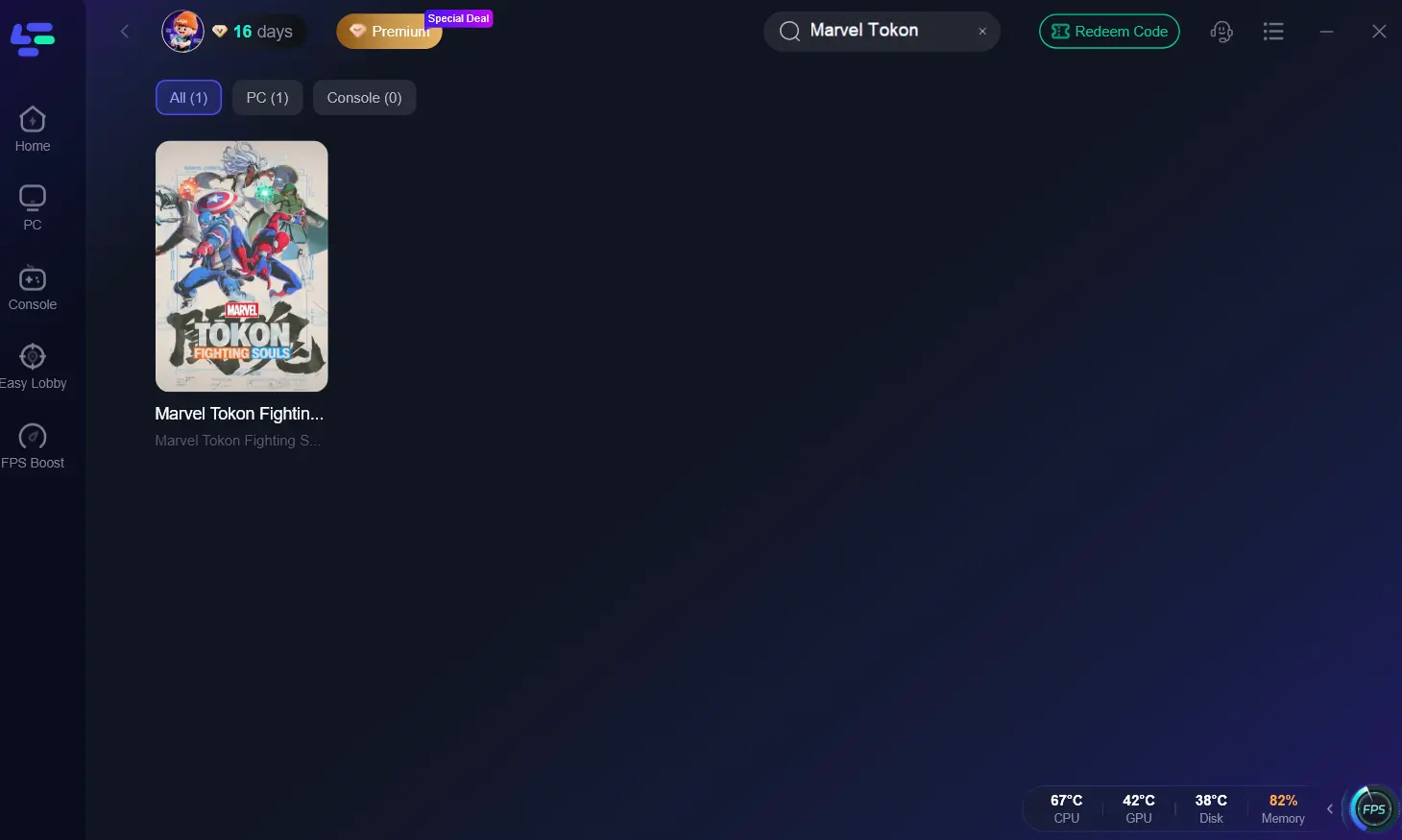
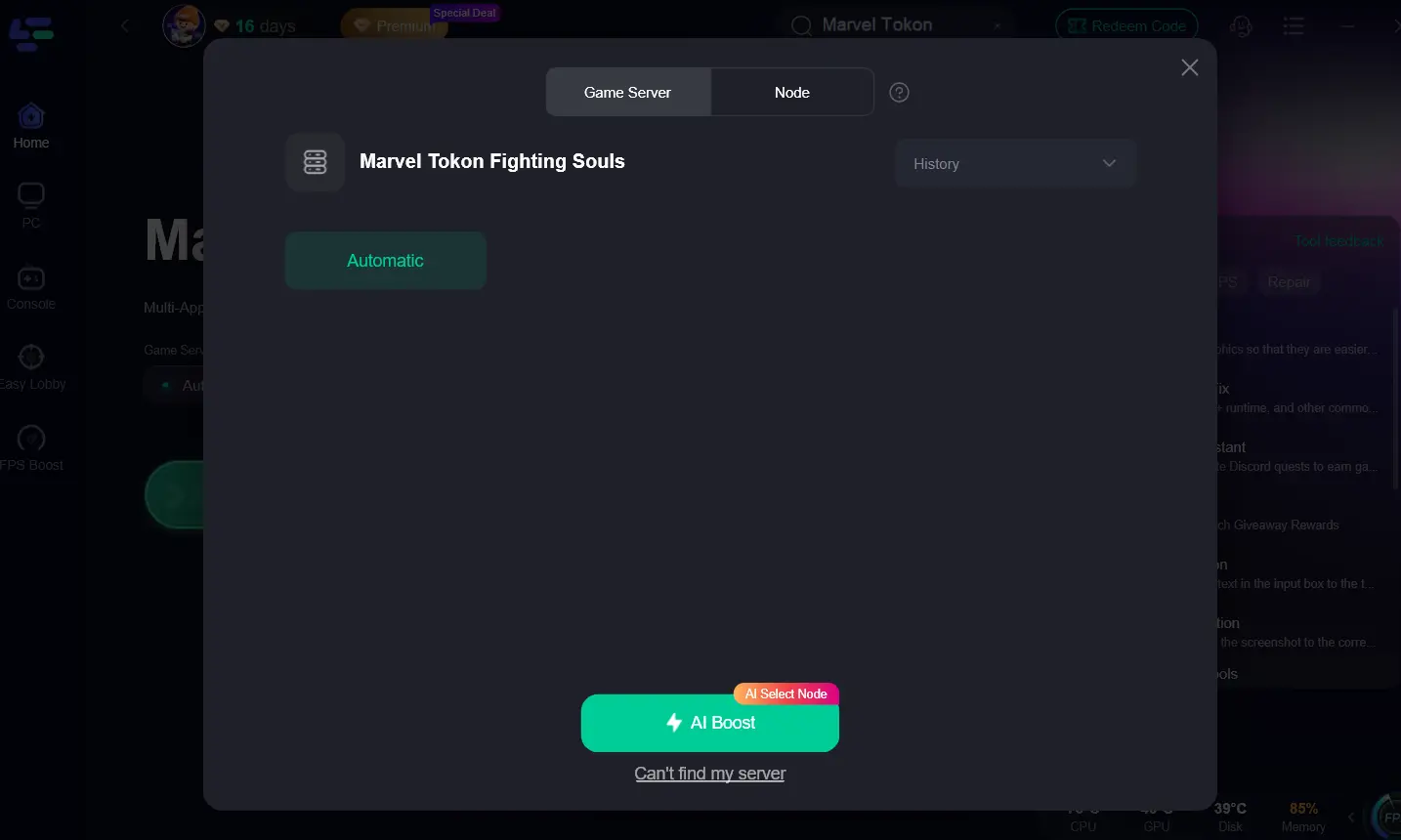
Step 3. Click on the game icon, then select your desired server region and optimal connection node using the Smart Boost recommendations.
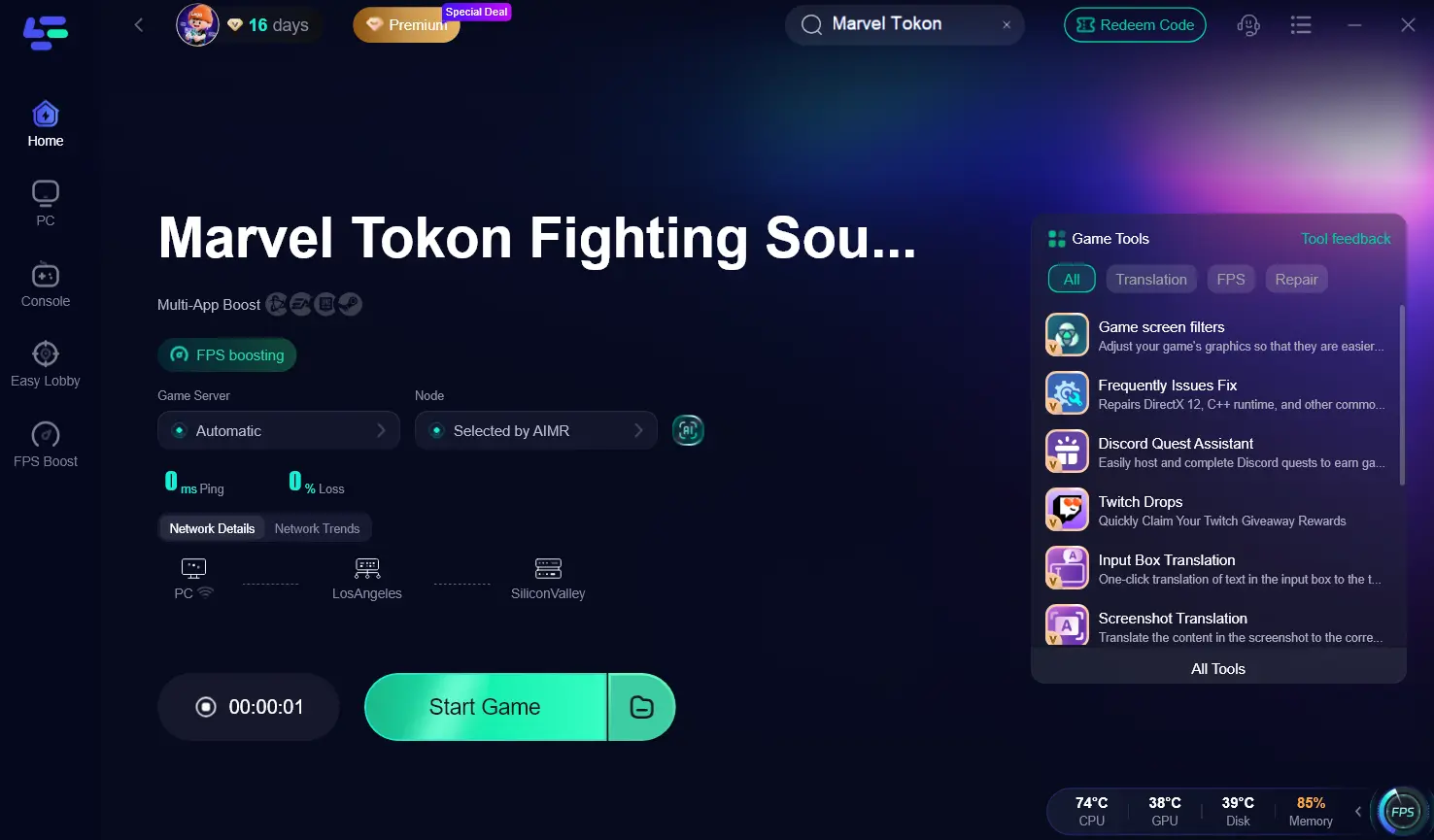
Step 4. Click the "AI Boost" button to initiate specialized network routing and hardware optimization simultaneously.
Step 5. Once boosted, launch the game directly through the LagoFast interface to enjoy locked framerates and lag-free online multiplayer matches.
Part 6: MARVEL Tōkon: Fighting Souls FAQs
Why is my MARVEL Tōkon: Fighting Souls game crashing on my PC startup?
Crashing on startup is typically caused by outdated graphics drivers, missing DirectX or Visual C++ redistributable files, or interference from third-party overlay software like Discord or Steam Overlay. Verifying your game files and updating your GPU drivers solves this in most cases.
Can I play MARVEL Tōkon: Fighting Souls offline if PSN servers are down?
Yes, you can play local offline game modes like Episode Mode and local versus matches even if the PlayStation Network is experiencing an outage. However, online multiplayer lobbies, ranked matchmaking, and cloud save syncing will remain unavailable until servers stabilize.
How much RAM is recommended to avoid loading freezes in MARVEL Tōkon?
While the game can boot on 8GB of RAM, having at least 16GB of dual-channel DDR4 or DDR5 RAM is strongly recommended. This prevents background OS tasks from fighting for memory, eliminating freeze-ups on the loading screen and character select transitions.
Does MARVEL Tōkon: Fighting Souls support crossplay between PC and PS5?
Yes, the game supports cross-platform matchmaking between PlayStation 5 and PC players. If you are experiencing long matchmaking times, make sure you have not accidentally toggled the crossplay setting off in your online network preferences.
Why is my CPU usage hitting 100% when playing online matches?
Fighting games require intense real-time calculations for frame synchronization and rollback netcode. If your CPU usage hits 100%, background desktop applications, unoptimized power plans, or out-of-date motherboard BIOS firmware are likely competing with the game engine for processing power.
What is the fastest way to lower high ping in MARVEL Tōkon?
The fastest physical fix is switching from a Wi-Fi connection to a wired Ethernet cable. For software optimization, using LagoFast allows you to bypass congested ISP network paths and connect directly to optimized game server nodes, reducing latency instantly.
Conclusion
Technical difficulties shouldn't keep you from dominating the tag-team arena in MARVEL Tōkon: Fighting Souls. By working through these step-by-step troubleshooting methods for PlayStation and PC, you can easily resolve annoying crash loops, black screens, and login errors. For a permanent fix against lag spikes and framerate drops, launch LagoFast before your next match to ensure ultra-smooth performance and responsive gameplay.
Boost Your Game with LagoFast for Epic Speed
Play harder, faster. LagoFast game booster eliminates stutter and lags on PC, mobile, or Mac—win every match!
Quickly Reduce Game Lag and Ping!
Boost FPS for Smoother Gameplay!