
Jumping into Erinn should be a seamless and exciting experience, but encountering a Mabinogi Mobile login failed message can quickly ruin your gaming session. Whether you are dealing with an unexpected server connection error, getting indefinitely stuck on the loading screen, or facing client version mismatches, this comprehensive guide covers the most effective methods to resolve these roadblocks and get you back into the action.

- ✅ Reduce Lag and High Ping.
✅ Boost FPS at the Same Time.
✅ Support 8000+ Popular Online Games.
✅ Change Server without Latency.
✅ Boost Game Loading Speed.
Part 1: Mabinogi Mobile & PC Login Symptoms and Causes
Part 2: Step-By-Step Fix: Mabinogi Mobile Login Failure
Part 3: Step-by-step Fix: Mabinogi PC Client Login Failed
Part 4: One- Click Solution: Fix Mabinogi Mobile Login Failed and Lag Issues With LagoFast
Part 5: Recommending Mabinogi Mobile And PC Client System Requirements for Stable Login
Part 6: Bonus Tips: Mabinogi Mobile and PC Client Game Settings for Fixing Login Failed
Part 1: Mabinogi Mobile & PC Login Symptoms and Causes
Whenever Mabinogi Mobile can't log in, fixing the problem starts with identifying the exact error message or behavior you are experiencing. Because the mobile and PC versions share similar backend infrastructure but utilize completely different client applications, the way a connection drop manifests will vary. The table below outlines the most common symptoms you might encounter, what triggers them, and the fastest way to get around them.
|
Platform |
Symptom |
Primary Cause |
Quick Fix |
|
Mobile |
Mabinogi Mobile stuck on login screen |
Unstable cellular/Wi-Fi handoff |
Toggle Airplane mode or switch networks. |
|
Mobile |
Mabinogi Mobile failed to connect to server |
Nexon regional IP block or Server maintenance |
Use LagoFast to connect to a supported regional node. |
|
Mobile |
Mabinogi Mobile stuck on loading screen |
Corrupted app cache or outdated version |
Clear the app cache in device settings. |
|
PC |
Nexon Launcher spinning endlessly |
NGM (Nexon Game Manager) background glitch |
End the NGM process in Task Manager and restart. |
|
PC |
Authentication server timeout |
Strict firewall blocking the secure login port |
Whitelist the Nexon Launcher in Windows Defender. |
Part 2: Step-By-Step Fix: Mabinogi Mobile Login Failure
If your Mabinogi Mobile login not working issue persists, it is time to move beyond simple quick fixes. The mobile client relies heavily on constant, stable data streams and secure authentication tokens. Follow these targeted troubleshooting methods to resolve the problem permanently.
Verify Server Status and Region Compatibility
Before tweaking your device network settings, you must confirm that the servers are actually online. A Mabinogi Mobile server connection error often happens simply because Nexon is rolling out a weekly patch or geoblocking your current location.
Step 1: Open the official Mabinogi Mobile social media pages or community Discord to check for recent maintenance announcements.
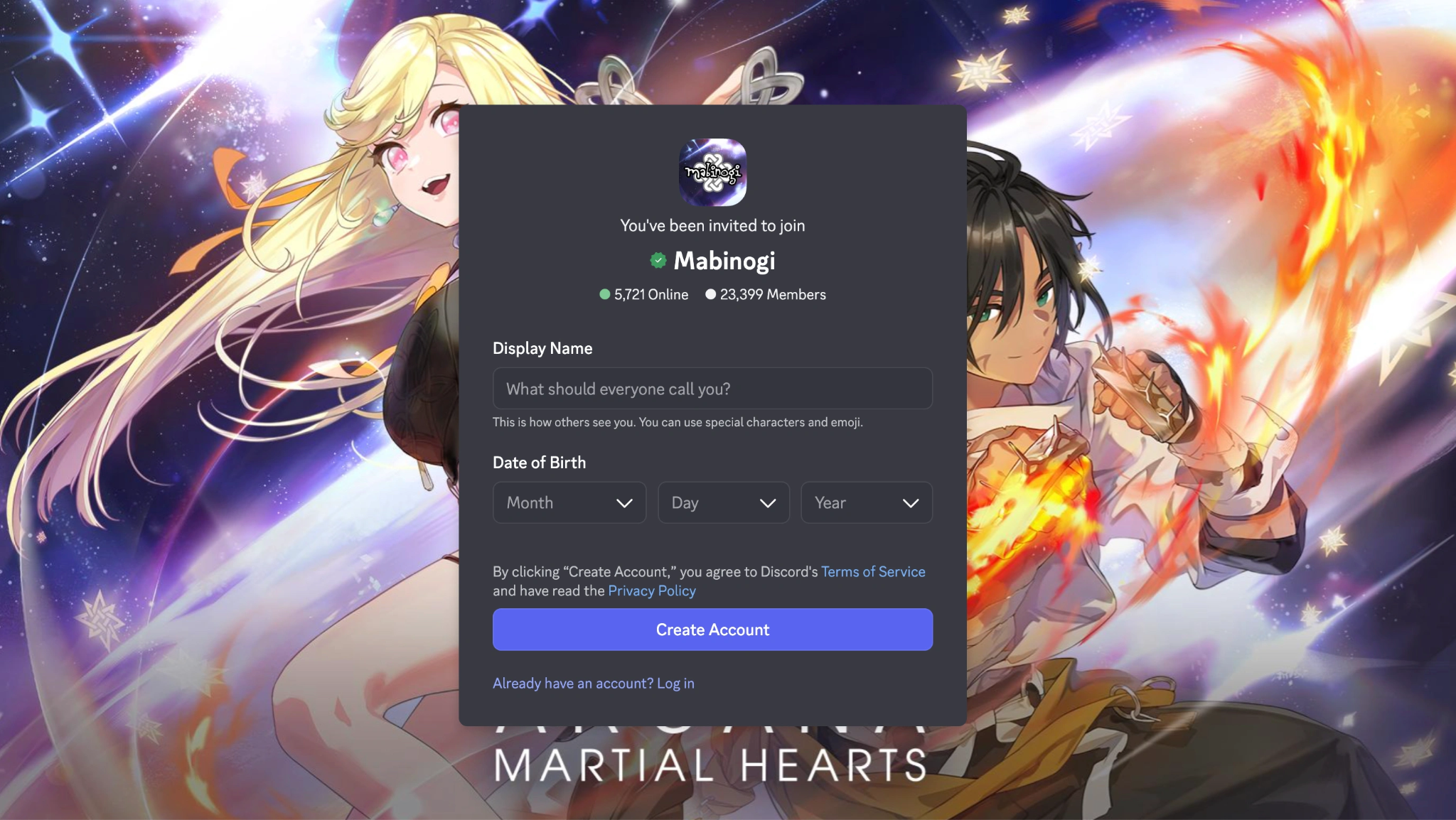
Step 2: Look for server status updates specifically for the Taiwan, Korean, or Global regions, depending on your installed client version.
Step 3: If the servers are fully operational but you still cannot connect, verify if your current IP address is restricted by Nexon's regional policies.
Step 4: Close the game completely from your phone's recent apps menu so the client stops attempting a dead connection loop.
Step 5: Prepare to use a dedicated gaming VPN like LagoFast to securely route your traffic through an authorized region.
Switch Between Wi-Fi and Cellular Data
Network fluctuation is the number one reason why Mabinogi Mobile unable to log in errors happen. Sometimes your mobile ISP routes gaming traffic poorly, or your local Wi-Fi router is silently dropping data packets needed for the secure login handshake.
Step 1: Swipe down from the top of your screen to access your phone’s quick settings menu.
Step 2: Tap the Wi-Fi icon to turn it off entirely, forcing your phone to rely on the cellular data network.
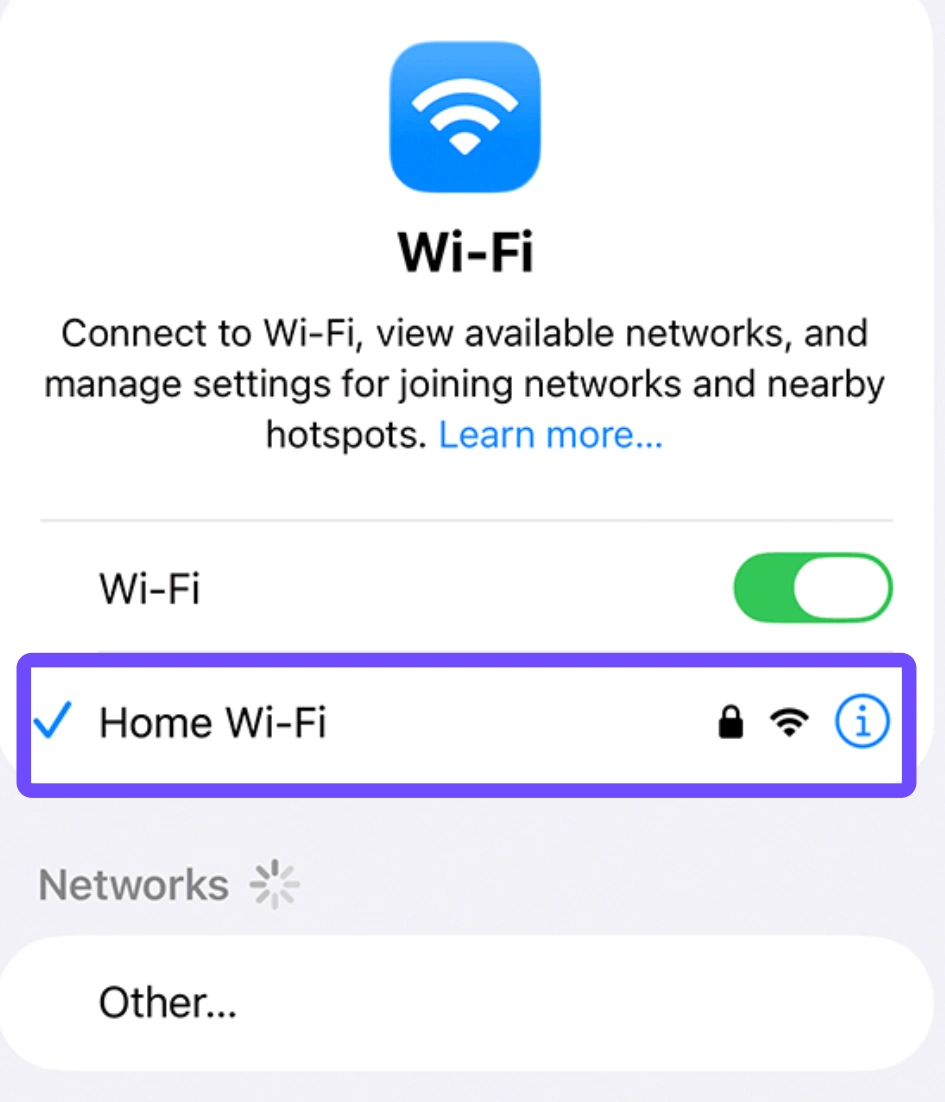
Step 3: Launch the game again and see if the login screen loads successfully and accepts your credentials.
Step 4: If you were already on cellular data, turn on Wi-Fi and connect to a stable 5GHz home network instead.
Step 5: If neither option works immediately, try toggling Airplane Mode on for 10 seconds and then off to completely refresh your network lease.
Clear the App Cache
When old login data conflicts with a freshly downloaded game update, you will frequently find Mabinogi Mobile stuck on loading screen. Clearing out the temporary cache files forces the app to pull fresh authentication data without deleting your precious character progress.
Step 1: Open your phone’s primary Settings app and navigate to the "Apps" or "App Management" section.
Step 2: Scroll down the list until you find Mabinogi Mobile, then tap on it to open the app info panel.
Step 3: Tap on "Storage" or "Storage & Cache" to view your local data usage details.
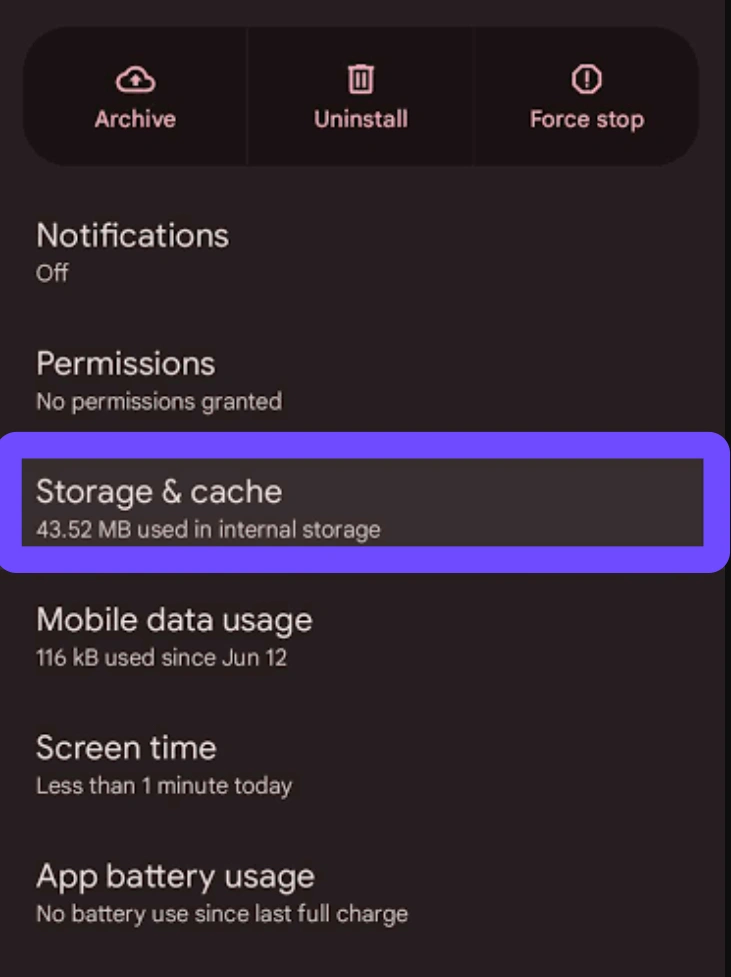
Step 4: Hit the "Clear Cache" button (make sure not to click "Clear Data," as that might require you to redownload massive patch files).
Step 5: Restart your mobile device entirely and open the game to attempt a fresh login session.
Re-Authenticate Your Linked Account
A Mabinogi Mobile login error can easily trigger if the secure token linking your Google, Apple, or Nexon account expires. This happens often if you log into multiple devices or haven't opened the game in several weeks.
Step 1: Open the game client and wait for the login prompt to appear on the start screen.
Step 2: Instead of tapping your usual login method immediately, look for a "Log Out" or "Switch Account" button in the corner.
Step 3: Tap it to completely sever the expired session token from your current device.
Step 4: Select your preferred login method (Nexon ID, Google, etc.) and carefully re-enter your credentials from scratch.
Step 5: Authenticate the login via your Two-Factor Authentication (2FA) app or SMS code if prompted by Nexon's security system.
Part 3: Step-by-step Fix: Mabinogi PC Client Login Failed
PC gamers deal with a different set of obstacles compared to mobile players. When the Nexon Launcher acts up or your local network blocks the required TCP/UDP ports, you will need to dig into your Windows settings. Here is how to conquer PC-specific login barriers.
Check the Nexon Game Manager (NGM)
The Nexon Game Manager (NGM) handles the background communication between your PC and the login authentication servers. If this background service hangs, crashes, or glitches, the launcher will simply refuse to authenticate your account.
Step 1: Right-click on your Windows taskbar at the bottom of the screen and select "Task Manager" from the context menu.
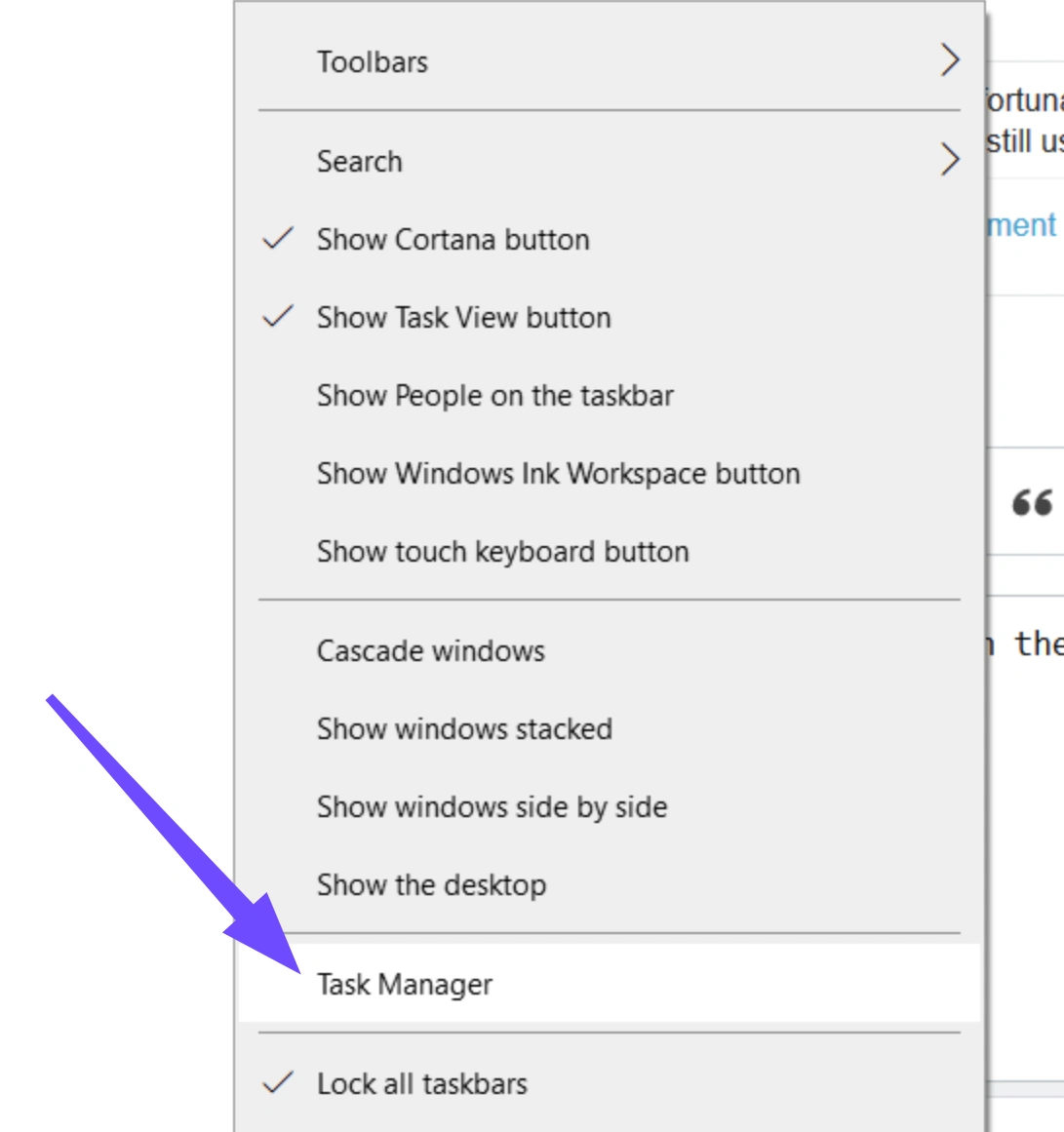
Step 2: Click on the "Processes" tab and scroll down until you locate "Nexon Launcher" or "Nexon Game Manager" running in the background.
Step 3: Right-click on the process and hit "End Task" to force it to shut down completely.
Step 4: Press the Windows key, type "Nexon Launcher" into the search bar, and right-click the app to select "Run as Administrator."
Step 5: Log back in with your registered email and password to see if the server connection is properly restored.
Flush Your DNS and Renew Your IP
Outdated DNS caches can send your game client looking for login servers at old, incorrect IP addresses. Flushing your DNS is a harmless, quick command-line trick that forces your PC to grab the most up-to-date server routing information available.
Step 1: Click the Windows Start button, type "cmd" into the search bar, right-click "Command Prompt," and choose "Run as Administrator."
Step 2: Type the command ipconfig /flushdns exactly as shown and press Enter. You should see a success message immediately.
Step 3: Next, type ipconfig /release and press Enter to drop your current IP address assignment from the router.
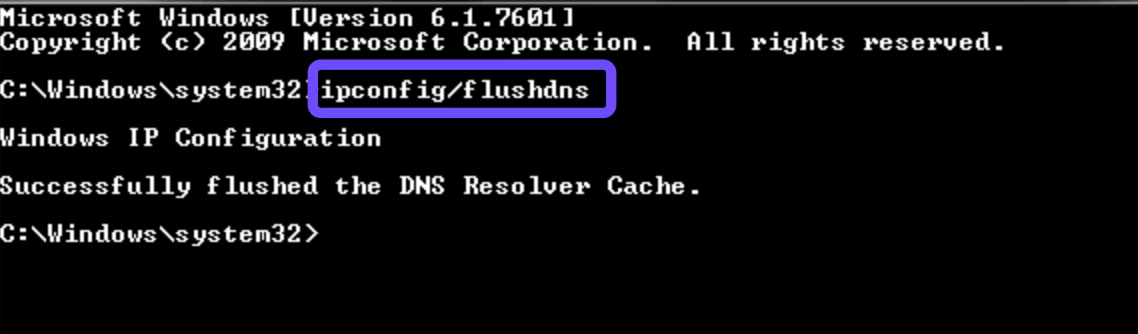
Step 4: Finally, type ipconfig /renew and press Enter to request a fresh, clean IP address from your network.
Step 5: Close the Command Prompt window completely and launch Mabinogi to test the network connection.
Bypass Restrictive Firewalls
Windows Defender or third-party antivirus software can sometimes mistake Mabinogi's anti-cheat engine or login protocols for malicious activity. When this happens, it silently blocks the network traffic, resulting in an instant Mabinogi Mobile connection failed equivalent on PC.
Step 1: Click the Start button, type "Windows Defender Firewall," and hit Enter to open the security control panel.
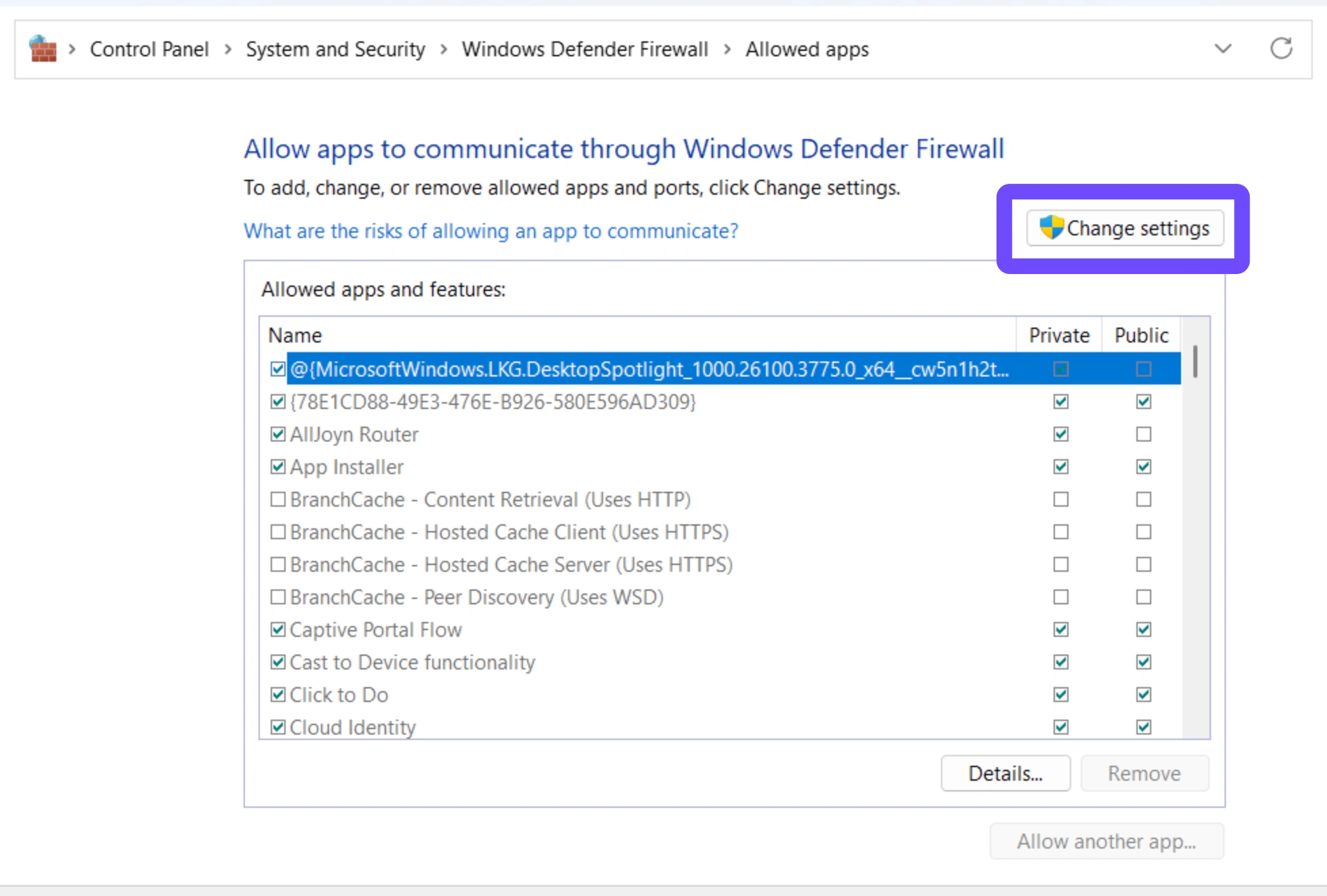
Step 2: On the left sidebar menu, click the text that says "Allow an app or feature through Windows Defender Firewall."
Step 3: Click the "Change settings" button at the top right (you will need administrator privileges to unlock this).
Step 4: Scroll down the list to find the Nexon Launcher and Mabinogi client, ensuring both the "Private" and "Public" network boxes are checked.
Step 5: Click OK at the bottom to save your changes and restart the Nexon Launcher to try again.
Repair Corrupted Installation Files
Sometimes the issue isn’t your network at all; missing or corrupted game files can break the login interface before it even tries to connect to the internet. Running a built-in file repair is much faster than completely reinstalling the massive game client from scratch.
Step 1: Open the Nexon Launcher and click on Mabinogi in your main game library.
Step 2: Look for the gear icon (Settings) located right next to the bright "Play" button.
Step 3: Select "Game Settings" from the drop-down menu that appears on your screen.
Step 4: Click the "Repair Installation" or "Verify Files" button and let the launcher scan your local folder for errors.
Step 5: Wait patiently for any missing files to automatically download and patch, then launch the game normally.
Part 4: One- Click Solution: Fix Mabinogi Mobile Login Failed and Lag Issues With LagoFast
If you are exhausted from trying manual network fixes and still seeing a Mabinogi Mobile connection failed warning, LagoFast is your ultimate lifeline. Built specifically for gamers, this powerful game booster eliminates high ping, bypasses strict regional IP blocks, and stabilizes your connection. Whether you're playing the PC client or the mobile version, LagoFast ensures your packets reach Nexon's servers without interruption, letting you focus on combat instead of network troubleshooting.
Key Advantages of Using LagoFast for Mabinogi Mobile:
- Dedicated Taiwan & Hong Kong Nodes: LagoFast utilizes multipath routing protocols to connect you directly to server nodes closest to Nexon’s game servers, reducing ping by up to 40-60%.
- Bypass Region & IP Restrictions: If Nexon enforces strict IP geolocation checks on game launchers or login portals, LagoFast allows you to bypass these restrictions instantly without changing your whole system setup.
- Fixes Packet Loss & Rubberbanding: Real-time action combat in Mabinogi Mobile requires precise dodge timing and skill combinations. LagoFast stabilizes packet delivery to eliminate rubberbanding during combat.
- Cross-Platform Support: LagoFast supports both Windows PC clients and mobile devices (iOS/Android), protecting your connection no matter where you choose to play.
- One-Click Acceleration: Simple, user-friendly interface requiring no complex manual proxy configs.
Tutorial: Use LagoFast to Fix Mabinogi PC Client Login Failed
Step 1. Download and install LagoFast on your PC.
Step 2. Search for the Game: Type "Mabinogi Mobile" or "瑪奇 Mobile" into the search bar.
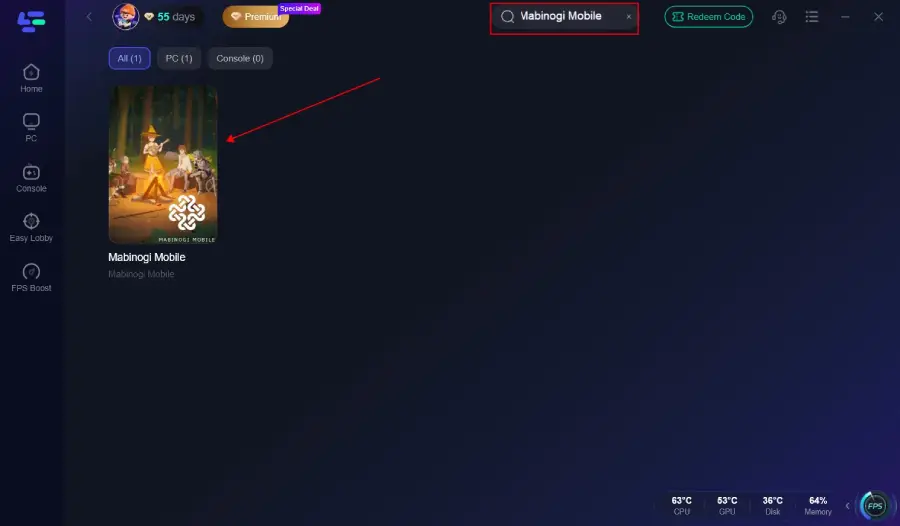
Step 3. Select Server & Node: Choose the Taiwan or Hong Kong server region. Select "Auto-Path" or pick the lowest-latency node provided.
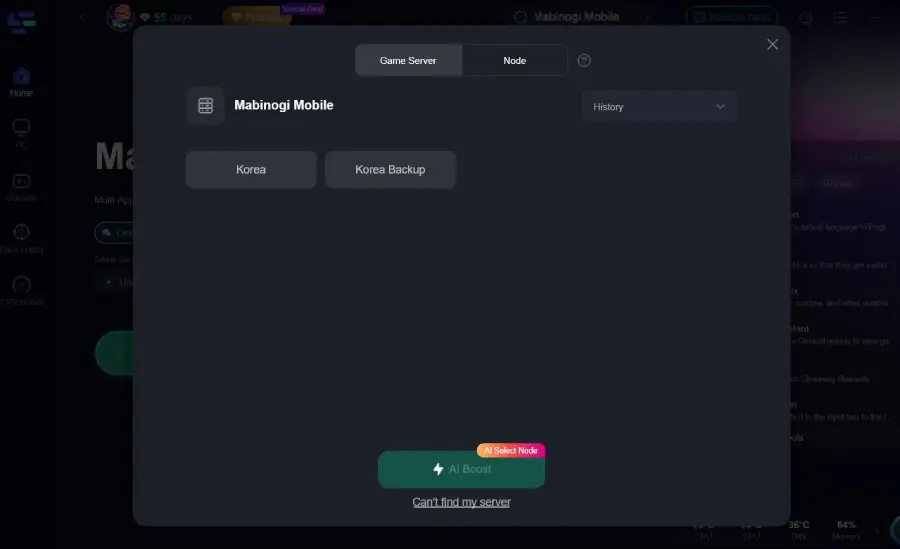
Step 4. Boost the Connection: Click the Boost button.
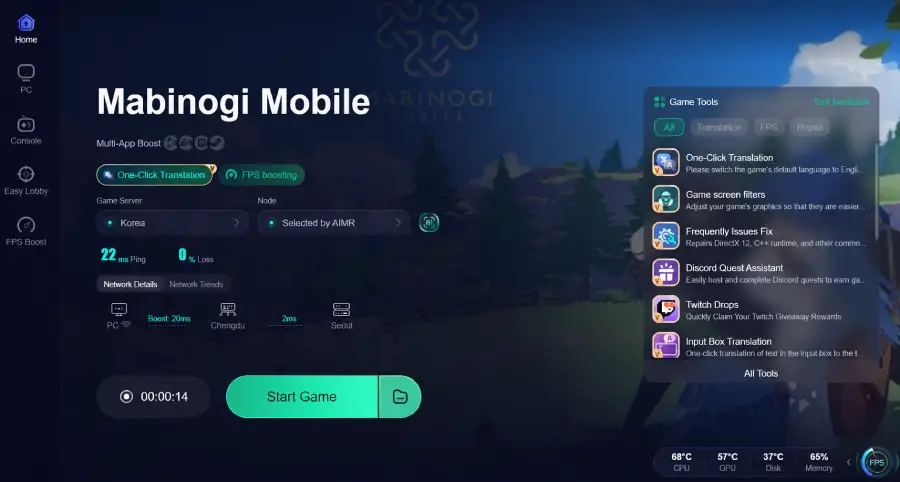
Step 5. Launch the Game: Keep LagoFast running in the background, open your Mabinogi Mobile PC client, and log in cleanly without region lock restrictions.
Tutorial: Use LagoFast to Fix Mabinogi Mobile Login Failed
Step 1: Search for “LagoFast Mobile Booster” in the Google Play Store or Apple App Store.
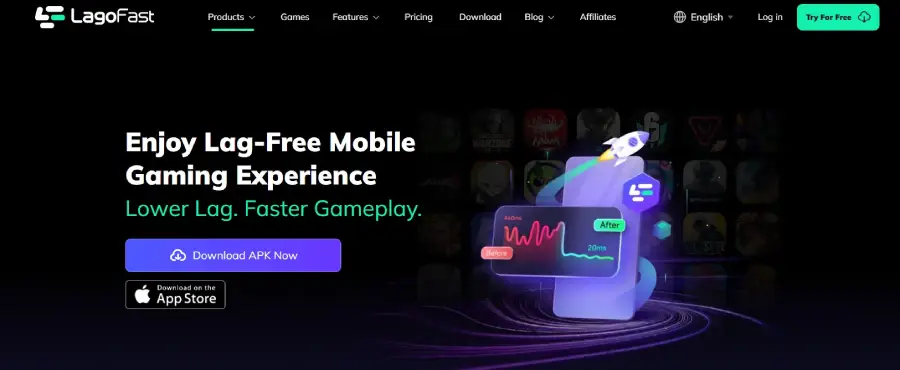
Step 2: Tap “Download”, then install and launch LagoFast Mobile Booster.
Step 3: Open Mabinogi Mobile, then switch back to LagoFast Mobile and search for the game.
Step 4: Select Mabinogi Mobile from the list in the app.
Step 5: Enter the server selection screen, choose the Taiwan or Hong Kong server region, and tap “Boost” to fix login failures and improve performance.
Step 6: Return to Mabinogi Mobile and enjoy smooth login and lag-free gameplay.
Part 5: Recommending Mabinogi Mobile And PC Client System Requirements for Stable Login
Running the game on hardware that doesn't meet minimum spec thresholds can cause the client to hang, essentially freezing the login token request before it ever reaches Nexon. Ensure your devices meet these hardware benchmarks to prevent client-side timeouts during the heavy initial loading sequence.
|
Platform |
Minimum Requirement |
Recommended Requirement |
|
Mobile (Android) |
Android 11.0, 4GB RAM, Snapdragon 845 |
Android 12.0+, 8GB RAM, Snapdragon 8 Gen 1+ |
|
Mobile (iOS) |
iOS 14.0, iPhone 11, 4GB RAM |
iOS 16.0+, iPhone 13 or newer, 6GB+ RAM |
|
PC (Windows) |
Windows 10, Core i3 2.5GHz, 4GB RAM, GeForce 8600GT |
Windows 10/11, Core i5/i7, 8GB+ RAM, GTX 1060+ |
|
Storage Space |
10GB free space (PC) / 5GB (Mobile) |
NVMe SSD with 20GB+ free space |
|
Network |
Stable 4G LTE or 10Mbps Broadband |
5GHz Wi-Fi / Ethernet with 50Mbps+ Broadband |
Part 6: Bonus Tips: Mabinogi Mobile and PC Client Game Settings for Fixing Login Failed
Optimizing your in-game settings can surprisingly impact how reliably you connect to the servers, especially if your device struggles during the heavy asset-loading phase immediately following authentication.
- Disable High-Resolution Texture Streaming on Startup: If available in the pre-login options menu, turn off high-resolution asset streaming. Pulling massive textures while simultaneously negotiating a secure login connection often overwhelms average mobile networks.
- Lower Background Framerate Limits: On PC, cap your background framerate to 30 FPS. This prevents the game from maxing out your GPU while sitting on the login screen, ensuring your system resources remain focused on establishing the network connection.
- Toggle IPv6 Compatibility: Some ISPs poorly implement IPv6 routing, causing Mabinogi Mobile login not working scenarios. If your router settings allow it, force your device to use IPv4 formatting. This often resolves obscure routing black holes that swallow your login requests.
Part 7: Mabinogi Mobile FAQs
Why does Mabinogi Mobile say my region is blocked?
Nexon frequently limits mobile game beta testing and regional releases to specific geographic areas (such as Korea or Taiwan). If your device's IP address doesn't match the designated region, you will see a connection error. Using a trusted tool like LagoFast can securely route your traffic to a supported node to bypass this check.
Will clearing my app cache delete my characters or premium items?
No, absolutely not. Clearing the app cache only removes temporary files, outdated textures, and old login session data on your phone. Your characters, inventory items, and premium currency are safely stored on Nexon's secure cloud servers.
Can I play Mabinogi Mobile on an emulator to fix mobile login issues?
Yes, playing on Android emulators like BlueStacks or LDPlayer can actually bypass certain mobile network restrictions. Just ensure you run a PC game booster in the background to maintain a stable, uninterrupted connection to the emulator's virtual network adapter.
What should I do if the secondary password screen is bugged?
Nexon has largely transitioned to modern Two-Factor Authentication (2FA) instead of the old secondary password system. If you are stuck on an old legacy prompt, you need to update your game client entirely or log into the official Nexon website to manage your account security settings.
Why is my ping so high after finally logging in?
High ping usually means you are connecting to a server located halfway across the world from your physical location. Utilizing dedicated routing paths via a gaming booster is the absolute best way to physically shorten the distance your data travels.
Does my Wi-Fi speed affect login failures?
Login authentication requires very little overall bandwidth, but it requires incredibly high stability. Packet loss is a much bigger threat to logins than slow download speeds. Switching to a less crowded 5GHz Wi-Fi band or utilizing cellular data usually solves packet loss issues instantly.
Conclusion
A Mabinogi Mobile login failed error doesn't have to spell the end of your gaming session. By taking the time to verify server status, switch networks, or repair PC client files, you can usually push past the annoying loading screen. For an absolutely frictionless experience devoid of regional blocks and connection drops, letting LagoFast handle your network routing is the smartest upgrade you can make. Download it today, lock in your secure connection, and dive back into Erinn without missing a beat!
Boost Your Game with LagoFast for Epic Speed
Play harder, faster. LagoFast game booster eliminates stutter and lags on PC, mobile, or Mac—win every match!
Quickly Reduce Game Lag and Ping!
Boost FPS for Smoother Gameplay!