
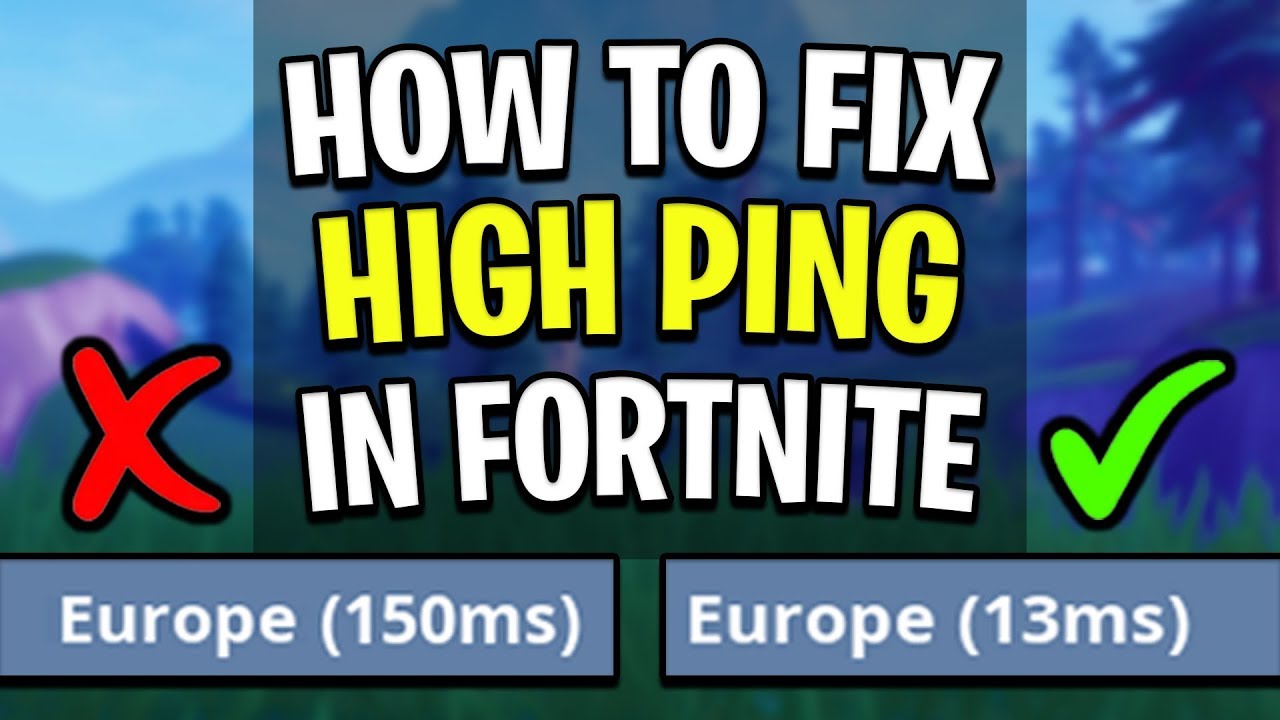
If Fortnite feels delayed, high ping is not always the only reason. Ping spikes, packet loss, FPS drops, Wi-Fi congestion, and server-side lag can all make your shots register late, edits feel slow, builds place after a delay, or your character rubber-band during fights.
The fastest way to lower ping in Fortnite is to check your network stats first, then fix the right issue. Start with Net Debug Stats, choose the best matchmaking region, reduce local network congestion, and test a route optimization tool like LagoFast only when your connection to Fortnite servers is unstable.
This guide will help you find out whether your Fortnite lag comes from the game server, your home network, your PC performance, or your ISP route, so you can apply the right fix instead of changing random settings.

- ✅ Reduce Lag and High Ping.
- ✅ Boost FPS at the Same Time.
- ✅ End All Connection Login Issues.
- ✅ Support Easy Server, Bot Lobby.
- ✅ Support 8000+ Online Games.
Quick Fix Checklist: How to Lower Ping in Fortnite Fast
Try these checks first:
- Turn on Net Debug Stats in Fortnite.
- Check whether the problem is high ping, ping spikes, or packet loss.
- Set Matchmaking Region to Auto or the lowest stable region.
- Check whether Fortnite servers are having issues.
- Use Ethernet instead of Wi-Fi if possible.
- Pause downloads, cloud sync, streams, and background updates.
- Restart your modem and router.
- Test your ping to Fortnite data centers.
- Lower graphics settings only if you also have FPS drops.
- Use LagoFast if your local network is fine but your route to Fortnite servers is unstable.
The goal is not only to get the lowest ping number. The real goal is to keep your connection stable during fights, edits, builds, and fast rotations.
Video Guide for How to Lower Ping in Fortnite Quickly
Some players prefer a visual walkthrough before changing every setting one by one. This Fortnite PC optimization video covers practical steps for reducing ping, stopping lag, and improving connection stability. It also matches the current SERP pattern, where many top-ranking results for Fortnite lower-ping queries are video tutorials rather than only text guides.
Why Is My Ping So High in Fortnite?
High ping in Fortnite means your input takes longer to travel from your device to the Fortnite server and back. Epic explains latency, or ping, as the time it takes data to travel from your device to Fortnite servers and return, measured in milliseconds. Epic also notes that bandwidth, throughput, and routing can all affect ping.
Common causes of high ping in Fortnite include:
- You are connected to a faraway Fortnite server.
- Your matchmaking region is not the best option.
- Your Wi-Fi signal is weak or crowded.
- Other devices are streaming, downloading, or uploading.
- Background apps are using bandwidth.
- Your router is overloaded or poorly placed.
- Your ISP route to Fortnite servers is unstable.
- Fortnite servers are under maintenance or degraded.
- Your PC has FPS drops that feel like network lag.
Before trying to lower ping, you need to know which issue you are actually dealing with.
High Ping vs Ping Spikes vs Packet Loss vs FPS Drops
Not every Fortnite delay is caused by high ping. Use this table to match your symptoms with the most likely cause.
|
Problem |
What It Feels Like in Fortnite |
Most Likely Cause |
Best First Check |
|
High ping |
Shots, edits, and builds feel delayed for the whole match |
Long distance to server, wrong region, poor routing |
Net Debug Stats and matchmaking region |
|
Ping spikes |
Game feels smooth, then suddenly delays or freezes |
Wi-Fi interference, router congestion, unstable route |
Ping changes during fights |
|
Packet loss |
Rubber-banding, teleporting, missed shots, voice stutter |
Network instability or packet drops |
Packet loss percentage |
|
Low FPS |
Game looks choppy, even when ping is normal |
PC performance, graphics settings, driver issue |
FPS counter and frame drops |
|
Server lag |
GMany players report lag at the same time |
Fortnite server issue or maintenance |
If your ping is low but Fortnite still feels delayed, do not only chase a lower ping number. Check packet loss, FPS, and server status too.
What Fortnite Players Say on Reddit: Fast Internet Does Not Always Mean Low Ping
A common pattern in Fortnite player discussions for Reddit is that “fast internet” does not always mean low in-game ping. In one r/FortniteCompetitive discussion, a player said they were using fiber internet and Ethernet, and speed tests showed very low latency, but Fortnite still displayed 40+ ping in-game. This is a useful real-world example because it shows why generic speed tests are not enough for diagnosing Fortnite lag.
Several replies pointed out three important ideas:
- Distance to the Fortnite server still matters. Even with fiber and Ethernet, players cannot always get ultra-low ping if they are physically far from the active Fortnite data center.
- Speedtest results can be misleading. A speed test may connect to a nearby test server, not the same route your connection uses to reach Fortnite servers.
- Routing can affect the final result. One player described testing route optimization software and said it helped reduce ping and packet loss on a long-distance route, but this was an individual experience, not a guaranteed result for everyone.
This matches what many Fortnite players experience: your download speed can be excellent, your PC can be connected by Ethernet, and your Fortnite ping can still be higher than expected because the problem is not raw bandwidth. It may be server distance, ISP routing, packet loss, or desync.
That is why this guide focuses on diagnosis first. Before trying any tool, check your Fortnite Net Debug Stats, matchmaking region, packet loss, server status, and local network stability.
Step 1: Turn On Net Debug Stats in Fortnite
Net Debug Stats is the best first step because it shows your ping and packet loss while you are actually in a match.
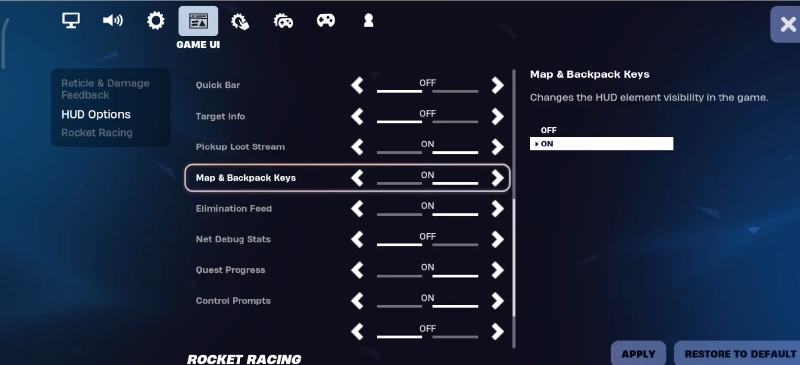
To turn it on:
- Open Fortnite.
- Open the menu and go to Settings.
- Go to the Game UI tab.
- Find the HUD section.
- Turn on Net Debug Stats.
- Join a real match and watch your ping and packet loss during gameplay.
Pay attention to three things:
- Is your ping always high?
- Does your ping jump suddenly during fights?
- Do you see packet loss above 0%?
A stable ping is often better than a ping number that looks low but spikes all the time. For example, a stable 35 ms connection can feel better than a 20 ms connection that jumps to 120 ms during box fights.
Step 2: Choose the Best Matchmaking Region
The easiest Fortnite ping fix is choosing the right matchmaking region.
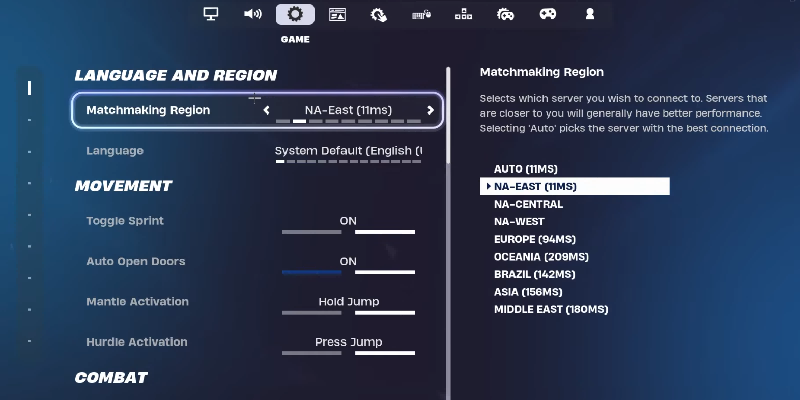
To check it:
- Open Fortnite.
- Go to Settings.
- Open the Game tab.
- Find Matchmaking Region.
- Choose Auto or manually select the region with the lowest ping.
- Apply the change and test it in a real match.
In most cases, you should choose the closest stable region. However, the lowest displayed number is not always the best if that region has packet loss or unstable routing. Test the region in real matches and watch Net Debug Stats while playing.
Do not keep switching regions just because one match feels bad. Test at least a few matches before deciding whether a region is actually unstable.
Step 3: Check Fortnite Server Status
Sometimes Fortnite lag is not caused by your PC, router, or ISP. If Fortnite servers are under maintenance or having degraded performance, you may see high ping, matchmaking issues, login problems, or sudden lag even when your own network is fine.
Before changing your setup, check:
- Epic Games server status
- Fortnite Status updates
- Whether other players are reporting the same problem
If the issue is server-side, the best option is to wait until the incident or maintenance is resolved. Restarting your router or changing settings will not fix a Fortnite server outage.
Step 4: Test Your Ping to Fortnite Data Centers
If your in-game ping looks abnormal, you can test your connection to Fortnite data centers from your PC.
Epic lists ping test addresses for Fortnite regions, including NA-East, NA-Central, NA-West, Europe, Oceania, Brazil, Asia, and Middle East. Epic also provides a Windows command example that sends 50 packets and shows average latency.
On Windows 11, open Command Prompt and test a region with:
ping ping-nae.ds.on.epicgames.com -n 50
You can replace the address with the region closest to you:
NA-East: ping-nae.ds.on.epicgames.com
NA-Central: ping-nac.ds.on.epicgames.com
NA-West: ping-naw.ds.on.epicgames.com
Europe: ping-eu.ds.on.epicgames.com
Oceania: ping-oce.ds.on.epicgames.com
Brazil: ping-br.ds.on.epicgames.com
Asia: ping-asia.ds.on.epicgames.com
Middle East: ping-me.ds.on.epicgames.com
When reading the result, look for:
- Average ping
- Packet loss
- Big jumps between minimum and maximum ping
If the average ping is reasonable but your maximum ping jumps much higher, your problem may be ping spikes or route instability rather than simple high ping.
Step 5: Use Ethernet Instead of Wi-Fi
Wi-Fi is convenient, but it is also one of the most common causes of Fortnite ping spikes and packet loss. Walls, distance, router placement, interference, and crowded Wi-Fi channels can all make your connection unstable.
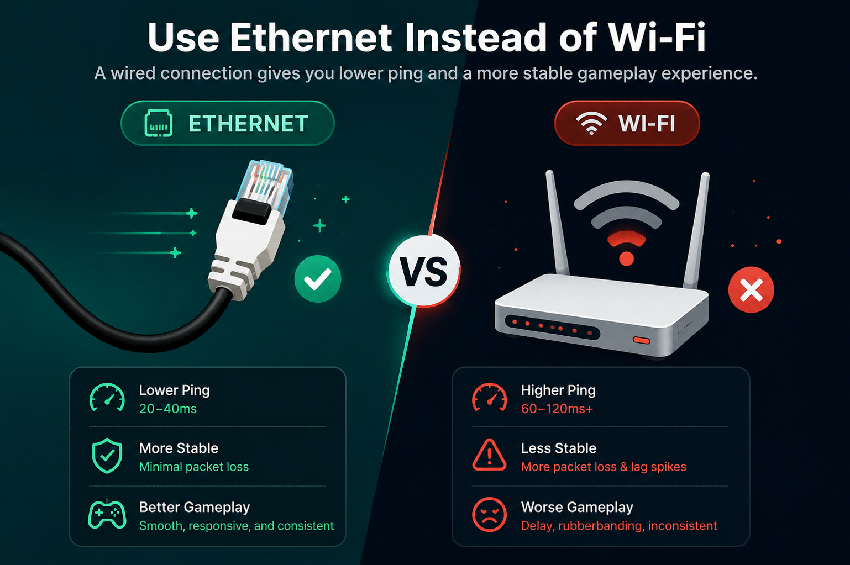
Epic also recommends using a wired Ethernet connection because wireless connections can cause lag due to signal loss. Epic’s troubleshooting guide also suggests restarting your modem and router, placing the router in a better location, updating router firmware, and testing 2.4 GHz vs 5 GHz Wi-Fi bands.
For a more stable Fortnite connection:
- Use an Ethernet cable if possible.
- Keep your router in an open location.
- Avoid placing the router in a closet, basement, or behind large objects.
- Restart your modem and router.
- Update your router firmware.
- Test both 2.4 GHz and 5 GHz Wi-Fi if you cannot use Ethernet.
In general, 5 GHz Wi-Fi can be faster at short range, while 2.4 GHz can reach farther but may be more crowded. Test both and use the one that gives you the most stable ping and lowest packet loss.
Step 6: Stop Background Apps and Network Congestion
Fortnite does not need huge bandwidth, but it does need a stable connection. If someone on your network is downloading large files, streaming in high resolution, uploading videos, or syncing cloud files, your ping can spike during fights.
Before playing, close or pause:
- Game downloads and updates
- Cloud backup tools
- Video streaming
- Large file uploads
- Browser tabs using heavy media
- Other game launchers downloading updates
- Background apps using network bandwidth
Also check other devices on the same network. A smart TV, console, phone, or another PC can still affect your Fortnite connection even if your own computer looks fine.
Step 7: Fix Packet Loss in Fortnite
Packet loss means some data does not reach the Fortnite server or your PC correctly. Even small packet loss can make Fortnite feel much worse than the ping number suggests.
Signs of packet loss include:
- Rubber-banding
- Teleporting
- Shots not registering
- Sudden stutter
- Voice chat cutting out
- Movement feeling inconsistent
To reduce packet loss:
- Use Ethernet instead of Wi-Fi.
- Restart your modem and router.
- Stop background downloads and uploads.
- Move closer to your router if using Wi-Fi.
- Test a different Wi-Fi band.
- Check whether packet loss happens only in Fortnite or in other online games too.
- Contact your ISP if packet loss continues across multiple games.
If packet loss happens only in Fortnite, the issue may be related to Fortnite server routing or a temporary server-side problem. If packet loss happens in every online game, your router, Wi-Fi, modem, or ISP, you may also want to check our guide on how to fix packet loss in online games.
Step 8: Separate FPS Drops from Network Lag
Many Fortnite players search for “lower ping” when the real issue is low FPS or frame drops. Ping affects network delay, while FPS affects how smoothly your PC displays the game.
If your ping is stable but Fortnite still feels choppy, check FPS-related issues:
- Lower graphics settings.
- Try Performance Mode.
- Update your graphics driver.
- Verify Fortnite game files.
- Close background programs.
- Use a Windows power mode that supports gaming performance.
- Make sure your PC meets Fortnite system requirements.
Lowering graphics settings may make Fortnite feel more responsive because it improves frame rate, but it does not directly fix your network ping. Treat FPS fixes and ping fixes as two different troubleshooting paths. If your ping is stable but the game still feels choppy, follow our separate guide to fix fortnite FPS drops.
Step 9: When LagoFast Can Help with Fortnite High Ping
If you already use Ethernet, have good internet speed, and choose the correct matchmaking region, but Fortnite still shows higher ping than expected, your issue may be the route between your PC and Fortnite servers.
This is the same type of problem many players discuss online: their speed test looks fine, but Fortnite still feels delayed or shows higher in-game ping. In that case, the problem is usually not raw download speed. It may be routing, packet loss, or unstable connection paths.
LagoFast can help PC players test a more stable route to Fortnite servers. It is most useful when:
- your ping changes a lot between matches;
- you see ping spikes during fights;
- Fortnite shows packet loss even after local network fixes;
- your nearest matchmaking region still feels unstable;
- speed tests look fine, but Fortnite still feels delayed.
How to Get Better Ping and Reduce Lag with LagoFast Game Booster
Step 1: Start the download process for LagoFast by hitting the "Free Trial" button
Step 2: Search for "Fortnite" and click on the game to select it
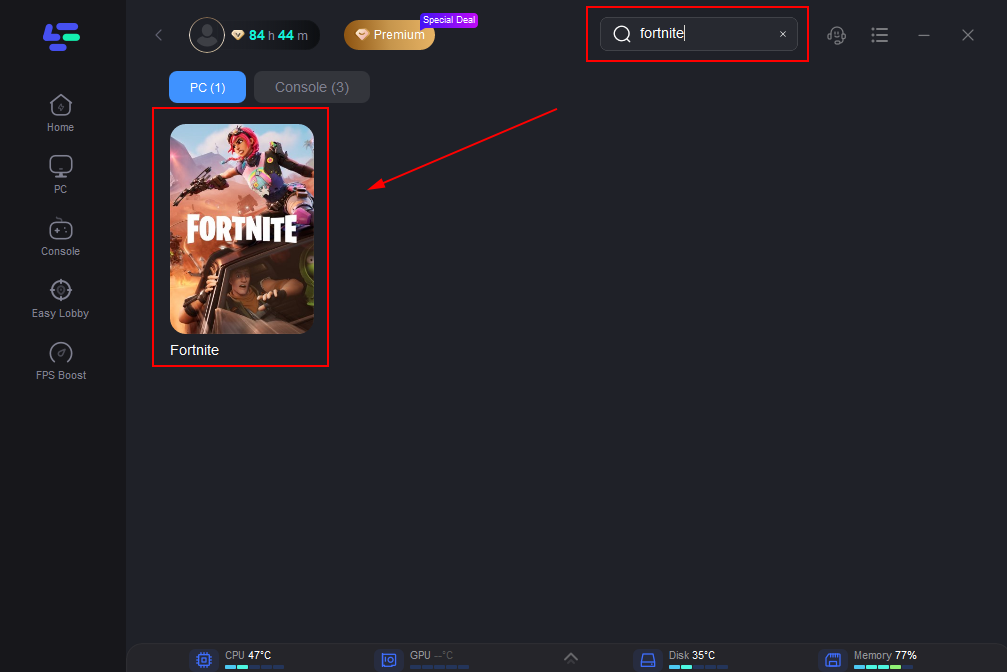
Step 3: Select the recommended server for your region from the "Server" menu
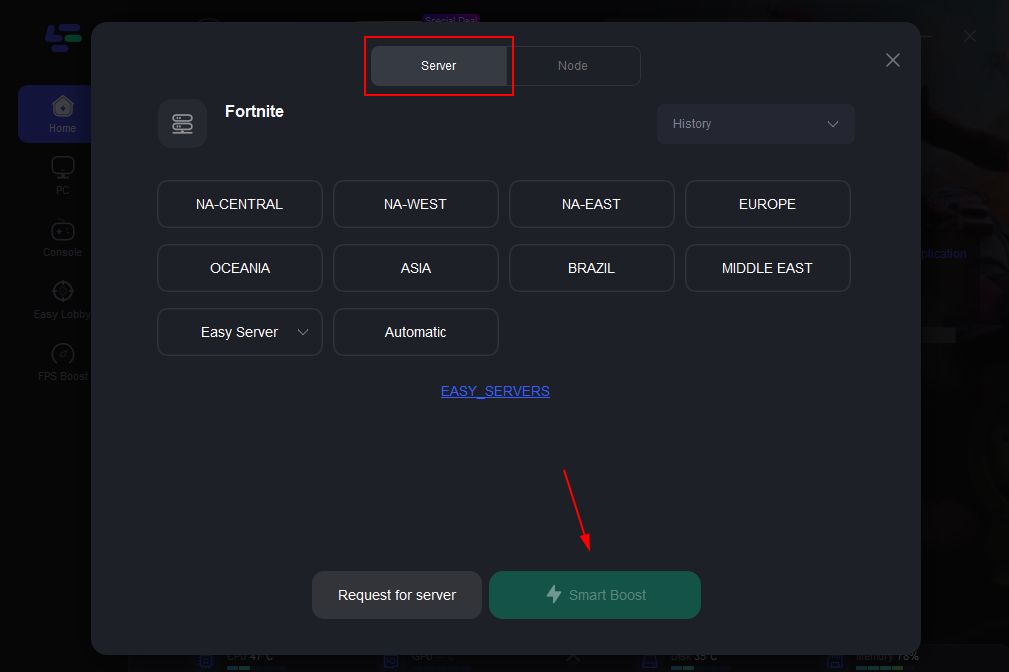
Step 4: Activate the "Smart Boost" for a smoother experience
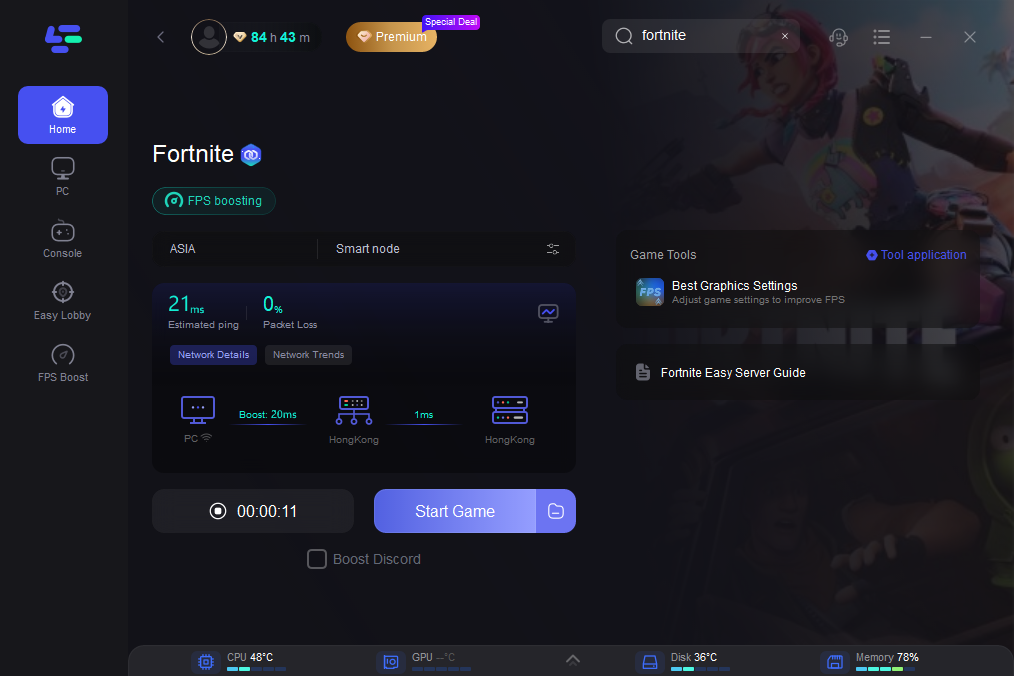
LagoFast cannot fix Fortnite server outages, weak Wi-Fi, or low FPS. But if your issue comes from unstable routing, it may help reduce high ping, smooth out ping spikes, and make your Fortnite connection feel more consistent.
Step 10: What Not to Do If You Want Lower Ping
Some popular “ping fixes” can waste time or make your connection worse. Avoid these mistakes:
Do not choose a random faraway region
A different matchmaking region may look tempting, but distance usually increases ping. Only switch regions when the new region has both lower ping and better stability.
Do not confuse FPS with ping
If Fortnite looks choppy but your ping is stable, focus on graphics settings, drivers, and PC performance first.
Do not rely on Creative maps to lower ping
A different map may feel smoother because it has fewer players or less action, but it does not fix your connection to Fortnite servers.
Do not ignore packet loss
A low ping number with packet loss can still feel terrible. Always check both ping and packet loss.
Do not keep changing settings without testing
Change one thing at a time, then test it in a real match. Otherwise, you will not know which fix actually helped.
Best Settings to Help Fortnite Feel More Responsive
These settings do not guarantee lower ping, but they can help reduce input delay, FPS drops, or unnecessary system load.
Recommended checks:
- Turn on Net Debug Stats.
- Use the lowest stable matchmaking region.
- Use Ethernet when possible.
- Close background downloads.
- Enable Performance Mode if your PC struggles with FPS.
- Lower shadows and heavy graphics settings.
- Keep your graphics driver updated.
- Restart your router before long sessions.
- Test LagoFast if routing remains unstable.
A stable connection, low packet loss, and consistent FPS usually matter more than chasing the lowest possible ping number.
Conclusion
Lowering ping in Fortnite is not about one magic setting. The best approach is to diagnose the issue first. Turn on Net Debug Stats, check your matchmaking region, test for packet loss, use Ethernet, reduce local network congestion, and separate FPS drops from real network lag.
Real player discussions also show that fast internet does not always mean low Fortnite ping. Even with fiber and Ethernet, routing, server distance, and packet loss can still affect how Fortnite feels in-game.
If your home network is stable but Fortnite still has high ping or ping spikes, the problem may be your route to the game servers. In that case, LagoFast can help PC players test a more stable route and improve connection consistency.
FAQ
What is the best way to lower ping on Fortnite?
The best way to lower ping in Fortnite is to check Net Debug Stats, choose the best matchmaking region, use Ethernet, reduce background network usage, and test your connection to Fortnite data centers. If your local network is fine but routing remains unstable, you can test LagoFast to optimize your PC route to Fortnite servers.
Why is my Fortnite ping high even with fiber internet?
Fiber internet can improve connection quality, but it does not guarantee the lowest Fortnite ping. Your ping also depends on your distance to the Fortnite server, matchmaking region, ISP routing, packet loss, and server-side conditions. In Reddit discussions, some players report very low speed test latency but higher in-game Fortnite ping because speed tests do not always use the same route as Fortnite servers.
Why does Speedtest show low ping but Fortnite shows higher ping?
Speedtest usually connects to a nearby test server. Fortnite connects to Epic’s game servers, which may be farther away or reached through a different ISP route. That is why you should check Fortnite’s own Net Debug Stats and test Epic’s region-specific ping addresses instead of relying only on a general speed test.
How do I check packet loss in Fortnite?
Turn on Net Debug Stats in Fortnite’s Game UI settings, then join a match. The overlay will show ping and packet loss during gameplay. If packet loss appears, use Ethernet, restart your router, stop background downloads, and check whether the issue also happens in other online games.
Does lowering graphics settings reduce ping in Fortnite?
Lowering graphics settings usually improves FPS, not network ping. It can make Fortnite feel smoother, but it will not directly fix high ping caused by server distance, packet loss, or unstable routing.
Is Ethernet better than Wi-Fi for Fortnite?
Yes. Ethernet is usually more stable than Wi-Fi because it avoids wireless interference, weak signal, and crowded Wi-Fi channels. If you have ping spikes or packet loss, switching to Ethernet is one of the best first fixes.
Can LagoFast lower ping in Fortnite?
LagoFast may help reduce high ping or stabilize ping spikes when the problem comes from unstable routing between your PC and Fortnite servers. It should be tested after you check matchmaking region, server status, local network congestion, and packet loss.
Why do I get packet loss only in Fortnite?
If packet loss happens only in Fortnite, the issue may involve your route to Fortnite servers, temporary server problems, or Fortnite-specific network conditions. If packet loss happens in every online game, your router, Wi-Fi, modem, or ISP is more likely the cause.
What ping is good for Fortnite?
Lower and more stable ping is better. Many players consider under 50 ms playable, but stability matters more than one number. A stable 40 ms can feel better than a 20 ms connection that spikes during fights.
Can Fortnite servers cause lag?
Yes. If Fortnite servers are under maintenance or degraded, you may experience lag, matchmaking issues, or connection instability. Check Fortnite server status before changing your own settings.

Boost Your Game with LagoFast for Epic Speed
Play harder, faster. LagoFast game booster eliminates stutter and lags on PC, mobile, or Mac—win every match!
Quickly Reduce Game Lag and Ping!
Boost FPS for Smoother Gameplay!