
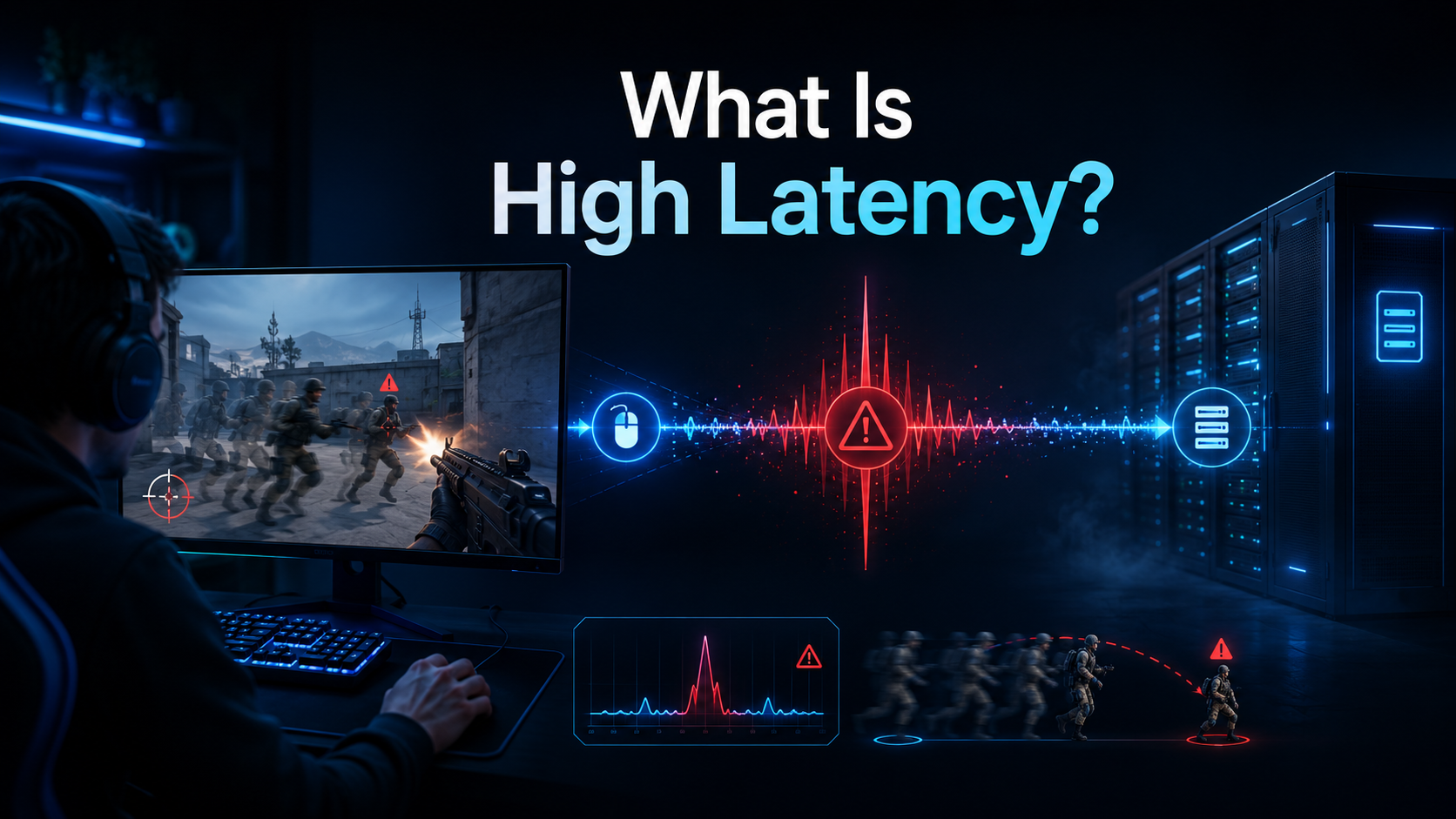
What Is High Latency? High latency means your actions take too long to travel between your PC and the game server. In games, it often feels like delayed shots, slow skill response, input delay, rubberbanding, lag spikes, or random disconnects. This guide explains how to fix high latency, identify the real cause of game lag, and apply the right solution to lower ping and improve connection stability on PC.
Quick Guide:
Part 1: Is It Really High Latency? Start With These Symptoms
Part 2: Quick Fixes for High Latency in Games
Part 3: How to Test High Latency on PC
Part 4: What Causes High Latency in Games?
Part 5: What Is a Good Latency for Gaming?
Part 6: How LagoFast Helps Reduce High Latency on PC
Part 7: Latency vs Ping vs Jitter vs Packet Loss vs FPS Drops
Part 8: FAQs About High Latency on PC Games
Is It Really High Latency? Start With These Symptoms
Before learning how to lower latency, first check what type of lag you are experiencing.
|
What You Notice |
Possible Issue |
What It Feels Like |
|
Your shots register late |
High latency / high ping |
You react fast, but the game responds late |
|
Skills or abilities trigger slowly |
High latency |
A delay appears between pressing a key and seeing the action |
|
Your character snaps back |
Jitter / packet loss |
Rubberbanding or unstable movement |
|
Other players teleport |
Packet loss |
Some game data does not arrive correctly |
|
The game looks choppy but ping is normal |
FPS drops |
Visual stutter rather than network delay |
|
Everyone in the match lags |
Game server issue |
Local fixes may not help |
|
Lag only happens at night |
Network congestion |
Peak-hour slowdown |
|
Lag only happens in one game |
Server distance/routing |
Other games and apps may work normally |
From the symptoms above, you can usually tell that:
- Delayed actions usually point to high ping or latency, while rubberbanding and teleporting are more commonly linked to jitter or packet loss (find what packet loss is).
- Choppy visuals with normal ping are more likely caused by FPS drops rather than a network problem.
- To better identify the issue, compare jitter vs latency vs ping before applying a fix.
Quick Fixes for High Latency in Games
Once you confirm that network delay is the real problem, start with the fixes below. These steps cover the most common local causes of high latency and can help you learn how to lower latency before moving on to more advanced testing.
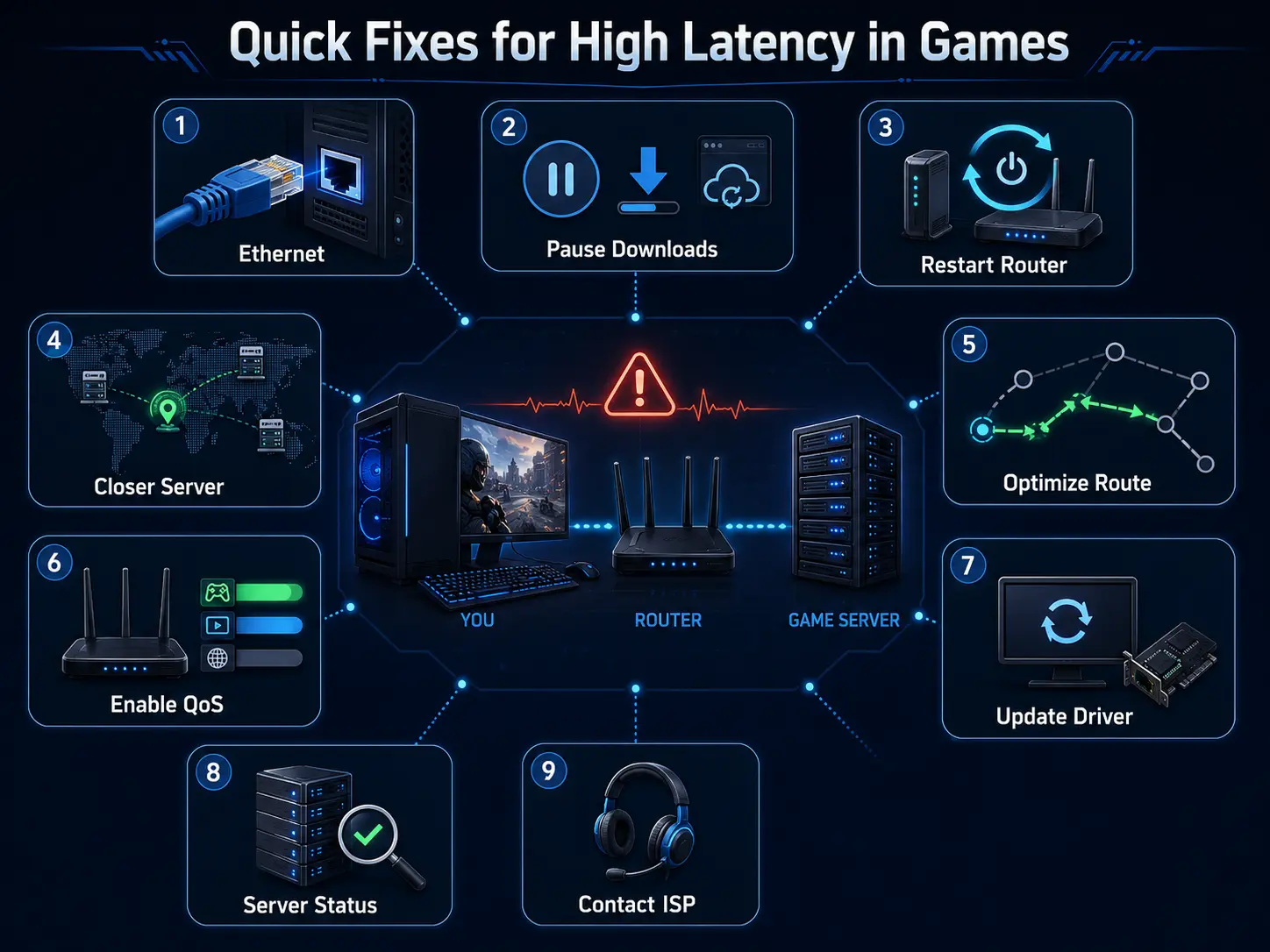
Fix 1. Switch to Ethernet
Wi-Fi is one of the most common reasons for unstable latency, ping spikes, and rubberbanding. A wired Ethernet connection gives your PC a more stable route to the router.
Fix 2. Close Downloads and Background Apps
Pause Steam, Epic Games, Windows Update, OneDrive, Google Drive, browser downloads, and video streaming before playing. These activities compete with game traffic and can increase latency when the connection becomes congested.
Fix 3. Restart Your Router and Modem
Temporary router or modem issues can cause unstable connections even when your normal internet speed looks fine. Turn off both devices, wait about 30 seconds, power the modem back on first, and then restart the router.
Fix 4. Choose a Closer Game Server
If your game lets you select a region, choose the nearest stable server. Cross-region servers almost always add extra latency.
Fix 5. Optimize the Game Route
If your internet speed is fine but one game still has high ping, the problem may be ISP routing. LagoFast game booster can optimize the connection path to supported game servers, select alternative server nodes, and reduce packet loss. This is especially useful when learning how to fix latency spikes caused by unstable or inefficient game routing.
Fix 6. Enable QoS on Your Router
QoS can prioritize gaming traffic when several people are using the same network. Open your router settings and look for options such as QoS, Device Priority, Traffic Prioritization, or Gaming Mode. Prioritize your gaming PC, but remember that QoS cannot fix a slow or overloaded game server.
Fix 7. Update Your Network Driver
If only one PC has high latency while other devices work normally, the network adapter or its driver may be responsible. Open Device Manager > Network adapters, identify your Ethernet or Wi-Fi adapter, and follow Microsoft’s guide to update your network adapter driver through Device Manager.
Fix 8. Verify Whether the Game Server Is Down
Check the game’s official status page, launcher notices, support channels, or platform-status page for outages and maintenance. If an incident is listed or many players report the same problem, the latency is likely server-side.
Fix 9. Contact Your ISP
Contact your ISP when high latency affects several devices, continues over Ethernet, or repeatedly appears during the same hours each day. Ask the provider to check for line faults, congestion, packet loss, or routing problems between its network and the game server.
How to Test High Latency on PC
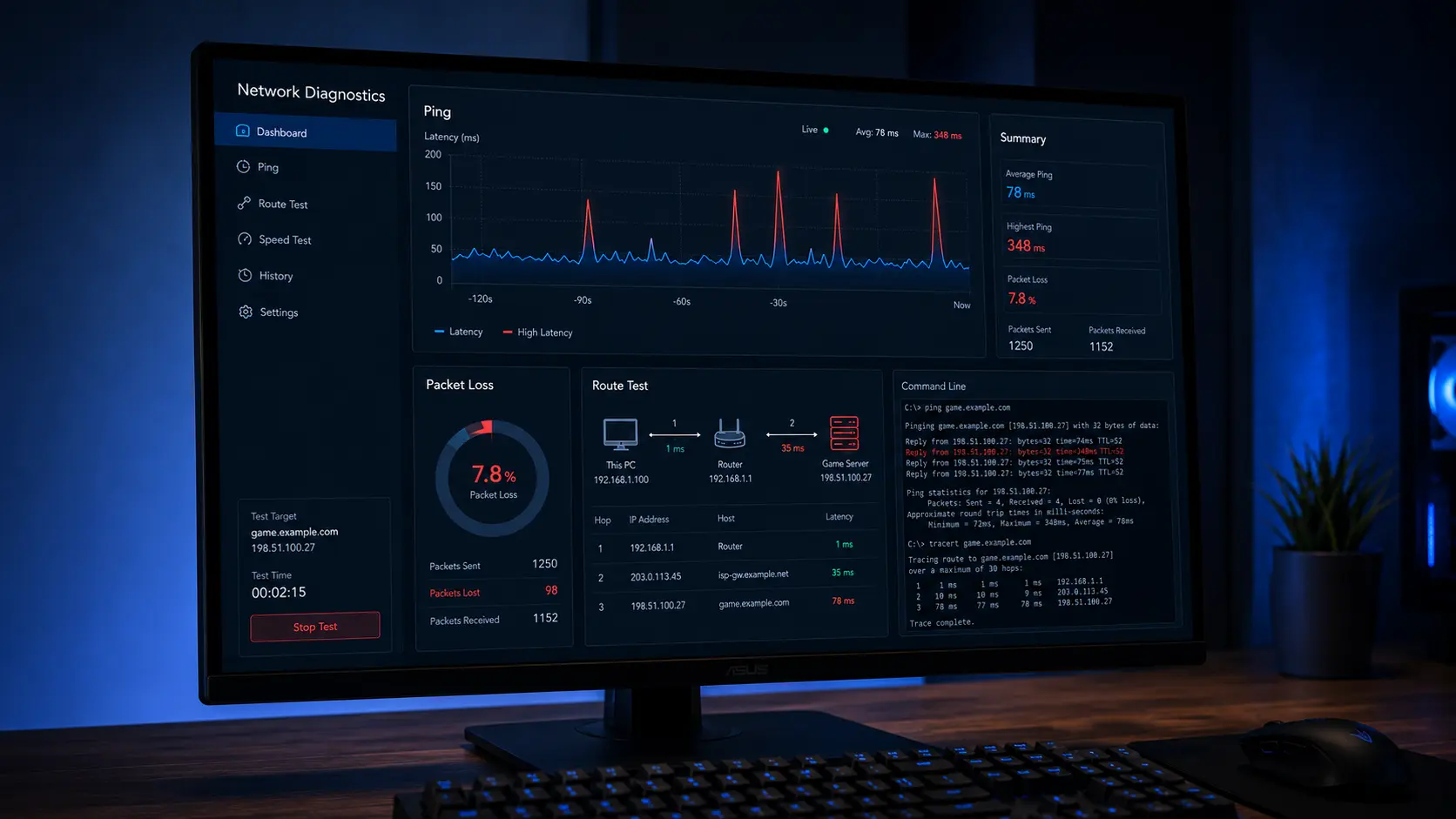
After applying the fixes, test your connection again instead of judging only by how the game feels. The following methods help measure latency, detect sudden ping changes, and identify possible packet-loss or routing problems.
Method 1. Check the In-Game Ping Display
Look at both your average ping and sudden jumps. For example, 40ms is fine, but jumping from 40ms to 180ms means the connection is unstable.
Method 2. Monitor Ping and Packet Loss with LagoFast
LagoFast can show real-time ping and packet loss for supported games, which helps you compare the connection before and after boosting.
Method 3. Test Ping with Windows Command Prompt
Open Command Prompt and run: ping google.com -n 20. Look for high average time, request timeouts, or big jumps between the lowest and highest results.
Method 4. Use Tracert or Pathping to Check Routing
When only one game or server region has high latency, use “tracert” to see the route your connection takes: tracert server-address. A sharp and persistent increase at a later hop may suggest congestion or inefficient routing.
What Causes High Latency?

Why is my latency so high? The most common causes include:
- Long distance from the game server: the farther the server, the longer the data trip.
- Wrong server region: the game may place you on a far server.
- Poor ISP routing: your internet speed may be fast, but the route to the game server may still be inefficient.
- Wi-Fi instability: walls, interference, and weak signal can cause ping spikes.
- Network congestion: downloads, streaming, and shared home networks can increase delay.
- Router or driver issues: old routers or outdated network drivers can cause unstable latency.
- Game server overload: new updates, events, or server maintenance can make everyone lag.
A faster internet plan does not always fix high latency, because latency is affected by routing, distance, congestion, and stability, not just download speed.
What Is a Good Latency for Gaming?
A good latency depends on the type of game you play. Competitive FPS and fighting games require faster responses, while slower-paced RPGs and casual games remain playable at higher latency.
|
Game Type |
Good Latency |
Playable Latency |
Bad Latency |
|
Competitive FPS |
Under 30ms |
30–60ms |
100ms+ |
|
Fighting Games |
Under 30ms |
30–60ms |
80ms+ |
|
MOBA Games |
Under 40ms |
40–80ms |
120ms+ |
|
MMO / RPG |
Under 80ms |
80–120ms |
150ms+ |
|
Racing Games |
Under 30ms |
30–70ms |
100ms+ |
|
Casual Online Games |
Under 100ms |
100–150ms |
200ms+ |
Stability matters as much as the average number. In reaction-sensitive games such as VALORANT, Street Fighter 6, League of Legends, and Forza Motorsport, a stable 60ms connection can feel smoother than one that repeatedly jumps between 30ms and 150ms.
How LagoFast Helps Reduce High Latency on PC
LagoFast is most useful when high latency is caused by routing problems, unstable game connections, packet loss, or cross-region gameplay. It helps optimize the connection path between your PC and supported game servers.
Key Features of LagoFast:
- Optimize the route between your PC and the game server.
- Select a more stable game server and network node.
- View real-time ping and packet loss.
- Compare connection quality before and after boosting.
- Reduce routing-related ping spikes and improve connection stability.
How to Use LagoFast to Lower Latency
Follow these steps to check your connection and learn how to fix high latency in games with LagoFast.
Step 1. Tap Free Trial to download and install LagoFast on your PC.
Step 2. Log in and search for the game you want to play. For example, type Battlefield 6, you can see the game in the results.

Step 3. Click Game Server and choose your game region. Select a recommended network Node, or use the automatic server option. Click AI Boost to optimize the game route.
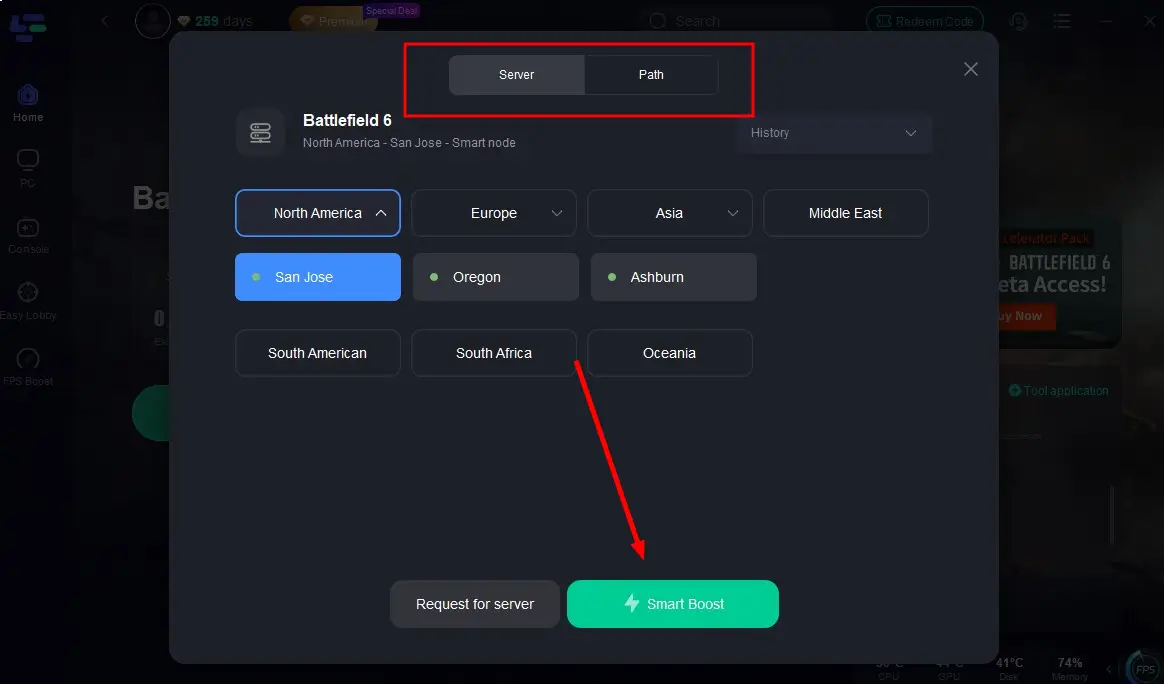
Step 4. Start boosting with LagoFast to check ping, reduce ping spikes, and improve connection stability for your games.
Latency vs Ping vs Jitter vs Packet Loss vs FPS Drops
Many players call all of these problems “lag,” but high latency, jitter, packet loss, and FPS drops require different fixes.
|
Term |
What It Means |
Common Symptoms |
Main Fix Direction |
|
Latency |
Delay between your PC and the game server |
Input delay, delayed hit registration |
Reduce distance, improve routing, stabilize connection |
|
Ping |
The number used to measure latency, usually in ms |
80ms, 120ms, 200ms ping |
Test and compare server routes |
|
Jitter |
Ping changes up and down constantly |
Lag spikes, rubberbanding |
Stabilize Wi-Fi, routing, congestion |
|
Packet Loss |
Game data fails to arrive |
Teleporting, missing actions, disconnects |
Fix unstable network or route |
|
FPS Drops |
Your PC renders frames slowly |
Screen stutter, choppy animation |
Lower graphics settings, update drivers, boost FPS |
FAQs High Latency on PC Games
1. What causes high latency in games?
High latency is usually caused by server distance, poor ISP routing, Wi-Fi instability, network congestion, background downloads, router issues, or game server problems.
2. Is latency the same as ping?
No. Latency is the actual delay between your PC and the server. Ping is the common measurement used to test that delay.
3. Is 100 ms latency bad for gaming?
A stable 100ms connection may still be playable for casual games and slower-paced RPGs, but the delay is usually noticeable in competitive FPS, fighting, racing, and MOBA games.
4. Why is my latency high even with fast internet?
Fast download speed does not always mean low latency. Your ping can still be high because of server distance, ISP routing, congestion, jitter, or packet loss.
5. Is 60ms Latency Good for Gaming?
Yes. A stable 60ms latency is generally acceptable for most online games, although competitive players (like VALORANT players) may prefer a lower ping.
Conclusion
High latency can come from Wi-Fi, background traffic, router issues, ISP routing, server distance, or the game server itself. The fastest way to fix it is to check the symptom first, test your ping and packet loss, then apply the fix that matches the cause. For routing-related high ping, lag spikes, and unstable game connections, LagoFast can help optimize your game route and improve connection stability for supported PC games.

Boost Your Game with LagoFast for Epic Speed
Play harder, faster. LagoFast game booster eliminates stutter and lags on PC, mobile, or Mac—win every match!
Quickly Reduce Game Lag and Ping!
Boost FPS for Smoother Gameplay!