
Quick Answer
If Fortnite appears too dark and you struggle to see enemies, the primary culprits are often suboptimal in-game brightness and contrast settings, monitor calibration issues, or certain graphics modes that deepen shadows. To fix this, adjust your in-game brightness, use a colorblind mode for better contrast, and calibrate your monitor. While these fundamental adjustments are crucial, advanced tools like LagoFast Game Filters can significantly enhance dark area visibility, sharpen enemy outlines, and boost overall contrast, giving you a critical competitive edge.

- ✅ Reduce Lag and High Ping
- ✅ Boost FPS in Real Time
- ✅ Get the Easiest Server in Fortnite
- ✅ End All Connection Login Issues.
- ✅ Support 2000+ Online Games.
- ✅ Multiplatform: PC, Mobile, Console
Part 1: Why Is Fortnite So Dark?
Part 2: Common Signs of Fortnite Visibility Problems
Part 3: Can a Game Filter Help When Fortnite Is Too Dark?
Part 4: Use LagoFast Game Filter to Improve Fortnite Visibility
Part 5: How to Make Fortnite Brighter
Part 6: Best Fortnite Visibility Settings to See Enemies Better
Part 7: Best Fortnite Color Settings for Better Visibility
Part 8: Best Filter Settings to See Enemies in Fortnite
Part 9: What to Do If Fortnite Still Looks Too Dark
Part 10: Fortnite Too Dark vs Black Screen: Are They the Same Problem?
Part 11: FAQs About Fortnite Too Dark and Visibility Settings
Part 1: Why Is Fortnite So Dark?
In the high-stakes world of Fortnite, visibility is king. Every second counts, and the ability to spot an enemy before they spot you can be the difference between a Victory Royale and an early exit. Few things are as frustrating as navigating a dimly lit building or a shadowy corner of the map, only to be eliminated by an opponent you couldn't even see. The perception of Fortnite being "too dark" or having poor visibility is a common complaint among players, and it stems from a combination of in-game design choices, personal settings, and hardware configurations.
Fortnite's dynamic lighting and shadow systems, while adding to the game's aesthetic appeal, can sometimes create environments where enemies blend seamlessly into the background. This isn't always a bug; sometimes, it's an intended part of the game's visual design. However, when combined with other factors, it can lead to a genuinely frustrating experience where your vision is constantly impaired. Understanding these underlying causes is the first step toward illuminating your gameplay and gaining a clearer view of the battlefield.
Fortnite’s lighting and shadows can make enemies hard to see
Fortnite features a complex lighting engine that creates realistic shadows and varied illumination across its diverse map. While visually impressive, these shadows can become a double-edged sword. Deep shadows in buildings, under trees, or during certain times of the in-game day can effectively camouflage opponents. Players often exploit these dark areas, making it incredibly difficult to distinguish their character models from the environment. This is particularly true for players using darker skins, which can merge almost perfectly with shadows, turning them into near-invisible threats.
Brightness, HDR, and monitor settings may be too low
The most straightforward reason for a dark game is often the simplest: your brightness settings are too low. This can be a combination of in-game brightness, your monitor's brightness, or even your operating system's display settings. If your monitor is not properly calibrated, or if you're playing in a brightly lit room without adjusting your display accordingly, the game can appear significantly darker than intended. High Dynamic Range (HDR) settings, if incorrectly configured or not supported by your monitor, can also lead to a washed-out or overly dark image.
Color and contrast settings can make dark areas look worse
Beyond brightness, your color and contrast settings play a crucial role in how well you perceive details in dark areas. If your contrast is too low, the distinction between different shades of dark will be minimal, causing shadows to appear as uniform black blobs rather than areas with discernible features. Similarly, certain color profiles or colorblind modes, while beneficial for some, might inadvertently reduce the visibility of enemies in specific lighting conditions if not chosen carefully.
Some graphics modes reduce visibility in shadows or indoor areas
Fortnite offers various rendering modes, including Performance Mode, DirectX 11, and DirectX 12. While Performance Mode prioritizes frame rates, it often achieves this by simplifying lighting and shadow rendering, which can sometimes make dark areas even more opaque. Similarly, certain post-processing effects or global illumination settings in DirectX 11/12 can, if not optimized, create shadows that are excessively deep, hindering visibility.
Filters or driver color settings may change how Fortnite looks
Many players use third-party filters (like NVIDIA Freestyle or AMD Radeon Image Sharpening) or adjust their GPU driver's color settings to enhance their game's appearance. While these tools can be powerful, an incorrect configuration can inadvertently make the game darker, reduce contrast, or alter colors in a way that makes enemies harder to see. For instance, boosting saturation too much without adjusting brightness can crush blacks, making dark areas indistinguishable.
Related Article: How to Fix Fortnite Washed Out Colors: Guide to Dull Screen & Low Contrast
Part 2: Common Signs of Fortnite Visibility Problems
Recognizing the symptoms of poor visibility is the first step toward diagnosing and fixing the problem. If you frequently encounter these issues, it's a clear indication that your Fortnite settings need attention:
Fortnite looks too dark
This is the most obvious sign. The overall game world appears dim, lacking vibrancy, and shadows seem to dominate the landscape. You might find yourself squinting to make out details, even in areas that should be adequately lit.
You can’t see enemies clearly
Enemies, especially those at a distance or in shadowy spots, appear as indistinct shapes or blend into the background. You might find yourself reacting slowly because you couldn't clearly identify an opponent, leading to frustrating eliminations.
Dark areas, buildings, and caves are hard to see
Navigating indoor environments, underground tunnels, or heavily forested areas becomes a chore. These zones feel like black holes, where you're constantly at a disadvantage, unable to see incoming threats or loot effectively.
Shadows look too deep or black
Instead of nuanced shadows that provide depth, you see large patches of pure black where details are completely lost. This "crushed blacks" effect means any enemy within these areas is effectively invisible.
The game looks dull, grey, or low contrast
Beyond just darkness, the entire color palette might appear muted or washed out. This lack of contrast makes it difficult to differentiate between objects, terrain, and enemy models, reducing overall visual clarity and making the game feel less engaging.
Part 3: Can a Game Filter Help When Fortnite Is Too Dark?
Game filters are powerful tools that can significantly alter the visual presentation of your game. When Fortnite is too dark, many players turn to these filters for a quick solution. It's important to understand their capabilities and limitations to use them effectively.
What a Fortnite filter can improve
Game filters operate on the final rendered image, allowing for real-time adjustments to various visual parameters. They are highly effective at:
- Boosting Brightness and Exposure: Filters can globally increase the brightness of the scene, making dark areas more visible without overexposing already bright areas.
- Enhancing Contrast: By fine-tuning contrast, filters can make the distinction between light and dark areas more pronounced, revealing details that were previously lost in shadows.
- Sharpening: Filters can apply a sharpening effect, making edges more defined and textures appear crisper, which helps in identifying enemy outlines.
- Adjusting Color Vibrancy: Filters can boost color saturation, making the game world more vivid and helping enemy models stand out against the environment.
- Improving Dark Area Visibility: Specific filter settings can be tweaked to lift the black levels, effectively brightening shadows and revealing hidden enemies or pathways.
How filters help with brightness, sharpness, and contrast
Filters provide granular control over the image. For instance, you can increase overall brightness, then selectively adjust the gamma to brighten only the darker tones, preserving detail in highlights. Sharpening filters can make blurry textures or distant objects appear more defined, aiding in target acquisition. By manipulating contrast, you can ensure that enemies don't blend into the background, making them pop out more effectively.
Why filters are useful for seeing enemies in dark areas
Filters are particularly useful for competitive players because they can be customized to prioritize enemy visibility. By enhancing dark area visibility and sharpening outlines, filters allow you to spot opponents who might otherwise be perfectly camouflaged by the game's natural lighting and shadows. This can provide a crucial advantage in close-quarters combat or when scanning for distant threats.
What filters cannot fix
It's crucial to understand that filters are post-processing tools. They modify the image after it has been rendered by the game engine. Therefore, they cannot fix fundamental rendering issues such as:
- Black Screen/Launch Failures: Filters cannot resolve issues where the game fails to launch or displays a completely black screen. These are typically driver, game file, or system compatibility problems.
- Pixelation caused by low 3D Resolution: If your 3D Resolution is set too low, the game is rendering at a reduced resolution. A filter can sharpen the resulting pixelated image, but it cannot magically restore lost detail or make it high-resolution.
- Performance Mode Limitations: Filters cannot restore the complex lighting, shadows, or high-resolution textures that Performance Mode intentionally disables to boost FPS.
- Corrupted Game Files: Filters cannot fix issues stemming from corrupted game files or outdated drivers.
When to adjust in-game settings first
Before relying solely on filters, always ensure your core in-game and system settings are optimized. Filters are best used as a complementary tool to fine-tune your visuals, not as a primary fix for fundamental problems. Address issues like low 3D Resolution, incorrect display settings, or outdated drivers first, then use filters to enhance the already improved image.
Visual Issues Comparison Table
To clarify the distinction between different visual issues and the appropriate solutions, refer to this table:
|
Visual Issue |
User Experience |
Primary Causes |
Is a Filter Tool Suitable? |
|
Fortnite Pixelated |
Blocky appearance, low resolution, blurry distance, jagged edges. |
Low 3D Resolution, non-native resolution, Performance Mode, low DLSS/TSR settings. |
No (Only for auxiliary sharpening). Must fix core settings first. |
|
Fortnite Looks Blurry |
Overall blurriness, smearing during movement, unclear distant objects. |
Motion Blur, aggressive TSR/DLSS, poor Anti-Aliasing, low render scale, unstable FPS. |
Yes (Can assist in improving clarity). |
|
Fortnite Looks Washed Out |
Colors lack vibrancy, low contrast, image appears covered in a gray film. |
HDR settings, brightness/contrast calibration, monitor color profiles, driver settings. |
Yes (Highly suitable for improvement). |
Part 4: Use LagoFast Game Filter to Improve Fortnite Visibility
For competitive Fortnite players, every visual advantage counts. When the game is too dark, or enemies are hard to spot, a dedicated game filter tool can be a game-changer. LagoFast, renowned for its network optimization, also offers a powerful Game Screen Filter feature that can significantly enhance your visual clarity and enemy identification in Fortnite.
LagoFast's Game Screen Filter is designed to give you granular control over your game's visual output, allowing you to customize brightness, contrast, sharpness, and color settings in real-time. This is particularly beneficial for Fortnite, where environmental lighting can often obscure opponents.
Make dark areas brighter
LagoFast's filters allow you to increase the overall brightness and adjust gamma curves, effectively lifting the dark areas of the game without washing out the highlights. This means those shadowy corners in buildings or dense foliage will become more transparent, revealing enemies who might be lurking there.
Improve contrast and enemy visibility
By fine-tuning contrast, LagoFast helps differentiate enemy models from the background. You can increase the dynamic range, making the blacks deeper and the whites brighter, which in turn makes enemy outlines more distinct and easier to spot, even in visually busy environments.
Sharpen the image for clearer movement
LagoFast's sharpening filters can make the entire image crisper, reducing any residual softness from in-game anti-aliasing or upscaling. This enhanced sharpness is crucial for tracking fast-moving targets and ensuring that distant enemies appear as clear figures rather than blurry pixels.
Adjust color depth for better visibility
With LagoFast, you can tweak color saturation and vibrancy. Sometimes, adjusting the color palette can make certain elements, like enemy skins or environmental cues, stand out more effectively. This can be particularly useful in conjunction with Fortnite's colorblind modes to create a highly optimized visual profile.
Apply filter presets quickly without changing core game files
One of the biggest advantages of LagoFast's Game Screen Filter is its ease of use. You can apply and switch between different filter presets on the fly, without needing to delve into complex in-game settings or modify game files. This allows for quick adjustments based on the map, time of day, or even your personal preference during a match.
While LagoFast currently offers game-specific filters for titles like PUBG, Rainbow Six Siege, and the COD series, its general AI filters and universal adjustment options are highly effective for enhancing Fortnite's visual clarity. By using LagoFast, you're not just getting a network booster; you're gaining a powerful visual enhancement tool that can significantly improve your ability to see and react to enemies.
LagoFast is a powerful game optimization tool built to help PC and mobile gamers enjoy a smoother online experience. It uses a proprietary data transmission protocol along with a large global network of optimized servers.
By intelligently routing your Fortnite traffic through the most efficient pathways, LagoFast helps lower ping, minimize packet loss, and stabilize your connection. That means your in-game actions register more quickly, with fewer delays—so you can stay sharp in fast-paced gunfights and intense building moments.
How to Use LagoFast for Fortnite
Step 1: Begin by clicking the Free Trial button to download and install the LagoFast Free Trial.
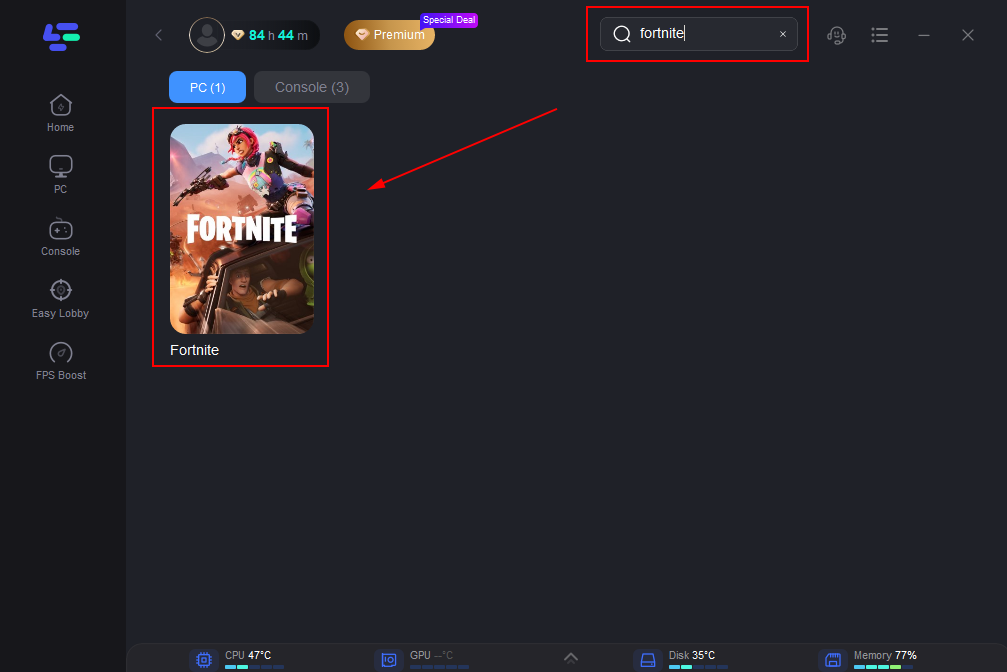
Step 2: After the installation is complete, launch LagoFast and use the search function to locate Fortnite and choose it from the list of results.
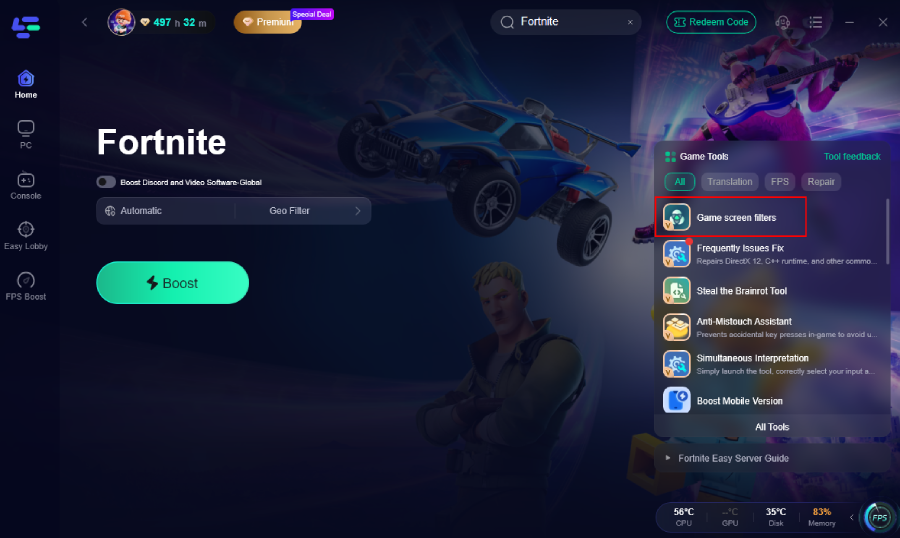
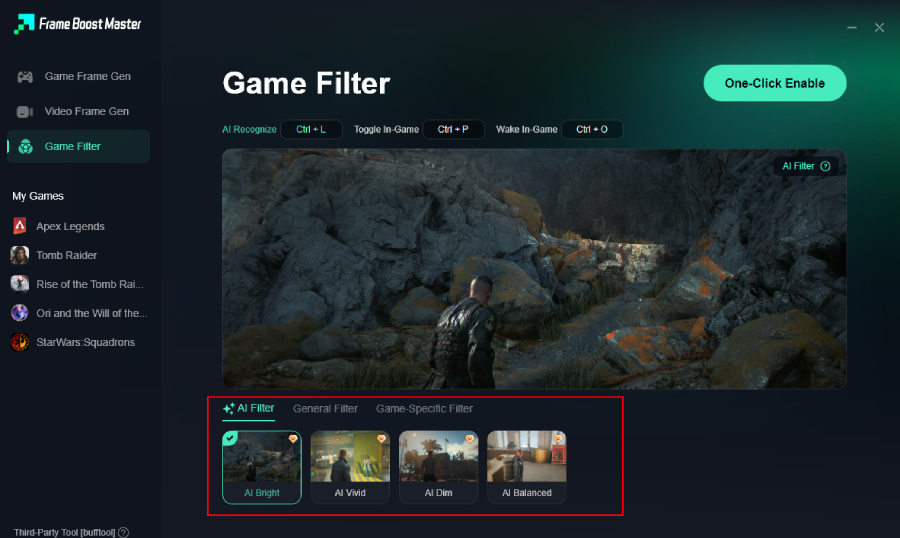
Step 3: Click the Game Screen Filter Tool on the right.
Step 4. Select your preferred filter like AI Bright and click One-Click Enable button to unlock the new experience.
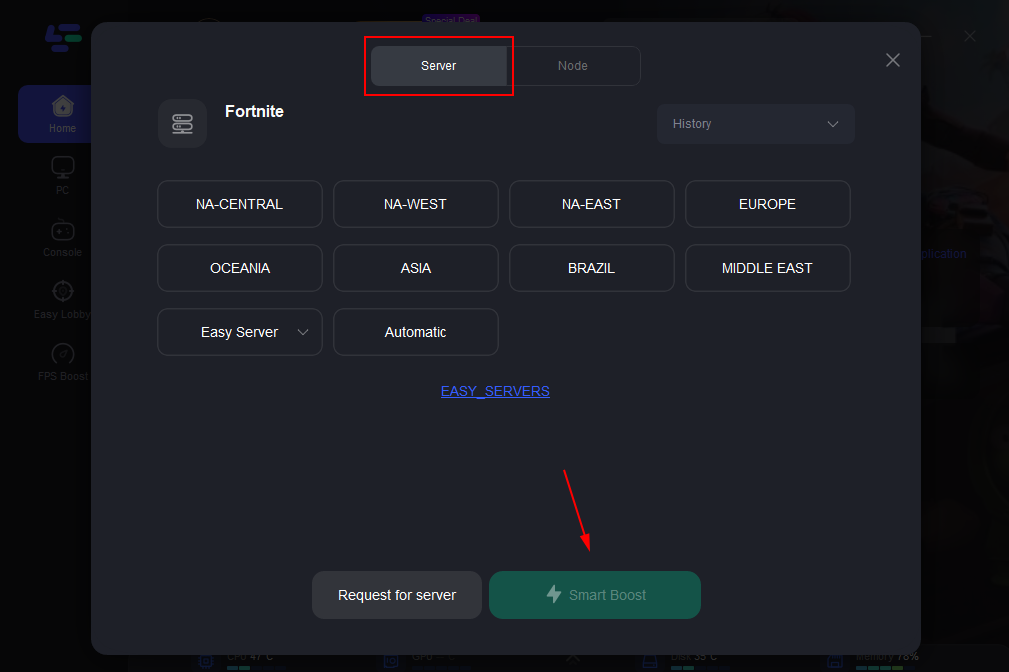
Step 5: Pick a server that is closest to your location or offers the lowest latency for optimal performance.
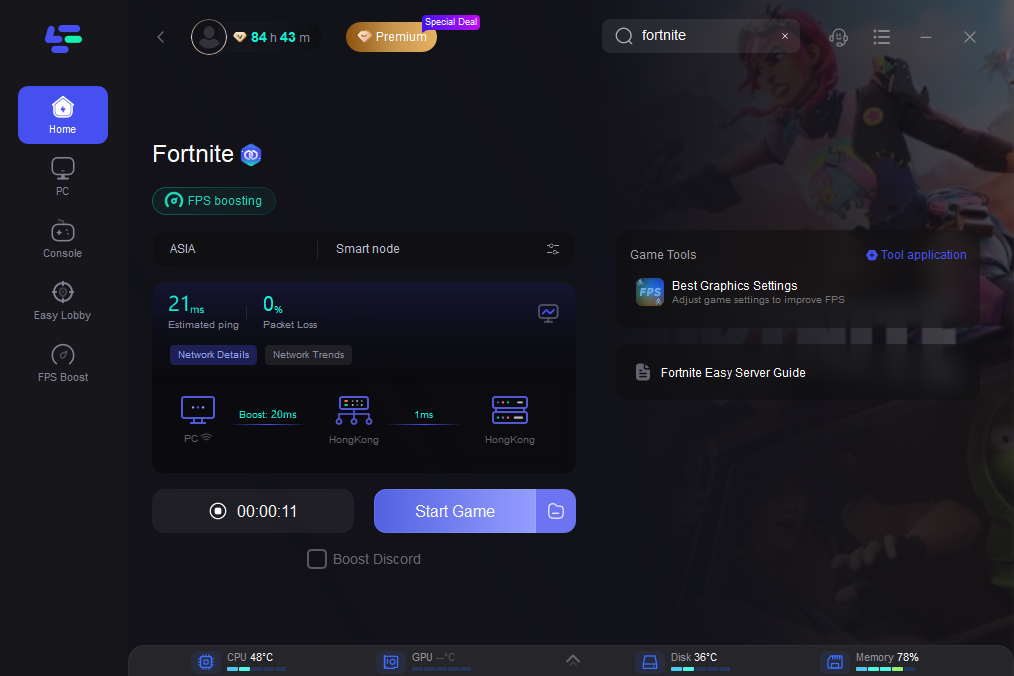
Step 6: Wait for the connection to establish, and enjoy a more stable gaming experience.
Part 5: How to Make Fortnite Brighter
Making Fortnite brighter is often the first step to improving visibility. Here's a systematic approach:
- In-Game Brightness: Navigate to Fortnite's Video settings. Adjust the "Brightness" slider. Start by increasing it gradually until dark areas are more visible without making the rest of the screen too washed out. Many players find a setting between 100-120% to be optimal.
- Gamma Correction: Also in Video settings, adjust "Gamma Correction." This primarily affects the mid-tones and shadows. Increasing it can brighten dark areas without affecting highlights as much as overall brightness.
- Monitor Brightness/Contrast: Use your monitor's physical controls or its on-screen display (OSD) menu to adjust its brightness and contrast. Ensure your monitor is set to a comfortable level for your viewing environment. A well-calibrated monitor is fundamental.
- Windows Display Settings: Check your Windows display settings for any global brightness or HDR settings that might be overriding your game or monitor settings. Ensure HDR is properly configured if your monitor supports it, or turn it off if it causes issues.
Part 6: Best Fortnite Visibility Settings to See Enemies Better
Beyond just brightness, several in-game settings can be tweaked to maximize enemy visibility:
- 3D Resolution: 100% - This ensures the game renders at your monitor's native resolution, providing the sharpest possible image. Lowering this will introduce blurriness and make enemies harder to distinguish.
- View Distance: Epic - This is crucial. Setting View Distance to Epic ensures that distant objects and, more importantly, distant enemies are rendered with maximum detail, preventing them from appearing as blurry blobs.
- Textures: High/Epic - Higher texture quality helps differentiate enemy models from the environment. Ensure your GPU has enough VRAM to handle this.
- Meshes: High - High meshes provide more detailed character models, making them easier to spot.
- Shadows: Off/Low - Shadows can hide enemies. Turning them off or setting them to low removes potential hiding spots and improves overall visibility, especially in dark areas.
- Post Processing: Low - High post-processing can sometimes add subtle blurring or atmospheric effects that hinder visibility.
- Effects: Low - Similar to post-processing, complex effects can obscure enemies during combat.
- Anti-Aliasing: TAA (or Off for maximum sharpness) - While TAA smooths jaggies, some players find it introduces a slight softness. Experiment to find what works best for you. If you prioritize raw sharpness, turning it off might be an option, accepting some jaggies.
Part 7: Best Fortnite Color Settings for Better Visibility
Fortnite offers colorblind modes that, paradoxically, can significantly improve visibility for all players, not just those with colorblindness. These modes adjust the game's color palette to enhance contrast and make certain elements stand out.
- Colorblind Mode: Deuteranope (Strength 5-10) - Many professional players and streamers use Deuteranope mode. This mode typically makes the storm circle more vibrant and often makes enemies appear more distinct against the environment, especially in grassy or shadowy areas. Experiment with the strength slider to find your optimal setting.
- Contrast: Adjust this in your monitor settings or GPU control panel (NVIDIA Control Panel/AMD Radeon Software). Increasing contrast can make enemies pop more, but be careful not to overdo it, as it can crush blacks or blow out whites.
- Digital Vibrance (NVIDIA) / Saturation (AMD): These settings in your GPU control panel can boost the overall color vibrancy of your game. A slight increase can make colors more distinct, helping enemies stand out. Again, moderation is key to avoid an oversaturated, unnatural look.
Part 8: Best Filter Settings to See Enemies in Fortnite
When it comes to using filters to see enemies better, the goal is to enhance clarity, contrast, and brightness without making the game look unnatural or causing eye strain. While specific settings can vary based on personal preference and monitor, here's a general approach using a tool like LagoFast Game Filter:
1. Brightness/Exposure: Start by slightly increasing the overall brightness. Then, use a gamma or exposure slider to selectively brighten the darker areas. The aim is to reveal details in shadows without making the entire scene too bright.
2. Contrast: Increase contrast to make the distinction between light and dark more pronounced. This helps enemy models stand out from the background. Find a sweet spot where details in both bright and dark areas are visible.
3. Sharpening: Apply a moderate sharpening filter. This will make edges crisper and textures more defined, which is invaluable for identifying enemy outlines, especially at a distance.
4. Color/Vibrancy: A slight boost in color vibrancy can make enemy skins and environmental elements more distinct. Experiment with saturation levels to find a balance that makes the game visually appealing and enemies easily identifiable.
5. Dark Details/Shadow Boost: Many advanced filters offer specific settings to enhance dark details or boost shadows. These are specifically designed to make objects in dimly lit areas more visible.
Remember, the best filter settings are subjective. Experiment with different combinations and presets within LagoFast to find what works best for your eyes and helps you spot enemies most effectively.
Part 9: What to Do If Fortnite Still Looks Too Dark
If, after trying all the above suggestions, Fortnite still appears too dark, it's time to dig a little deeper:
- Check Monitor Settings Again: Double-check your monitor's brightness, contrast, gamma, and picture mode settings. Some monitors have specific "gaming modes" that might be too dark or have aggressive contrast settings. Try resetting your monitor to factory defaults and then adjusting.
- GPU Control Panel Settings: Ensure there are no conflicting settings in your NVIDIA Control Panel (e.g., "Adjust desktop color settings" or "Video color settings") or AMD Radeon Software that are overriding your game settings.
- Reinstall Graphics Drivers: Perform a clean installation of your graphics drivers. Use a tool like Display Driver Uninstaller (DDU) to completely remove old drivers before installing the latest version.
- Verify Game Files: Corrupted game files can sometimes lead to rendering issues. Use the Epic Games Launcher to verify Fortnite's game files.
- Check for Software Conflicts: Other background applications or overlays might be interfering with the game's rendering. Try closing all unnecessary programs.
- Consider Your Environment: The lighting in your room can significantly impact how you perceive your screen. Playing in a dimly lit room can make your screen appear brighter, while a brightly lit room can make it seem darker. Adjust your room lighting accordingly.
Part 10: Fortnite Too Dark vs Black Screen: Are They the Same Problem?
No, "Fortnite too dark" and a "black screen" are fundamentally different problems, although both result in poor visibility.
- Fortnite Too Dark: This refers to a situation where the game is running, you can hear audio, and interact with the game world, but the visual output is simply too dim, making it hard to see details or enemies. This is typically a settings-related issue (brightness, contrast, gamma, in-game lighting, filters).
- Black Screen: This is a more severe issue where the game launches but displays a completely black screen, often with no audio or interaction possible. This usually indicates a critical error, such as a driver crash, a game file corruption, or a compatibility problem with your hardware or operating system. A black screen means the game is not rendering correctly at all, whereas "too dark" means it is rendering, but poorly illuminated.
If you encounter a black screen, troubleshooting should focus on driver updates, game file verification, checking system requirements, and looking for crash logs, rather than adjusting brightness settings.
Part 11: FAQs About Fortnite Too Dark and Visibility Settings
Q1: Will increasing my monitor's brightness affect my competitive performance?
A: While increasing brightness can help you see enemies, excessively high brightness can wash out colors and reduce contrast, potentially causing eye strain and making it harder to distinguish fine details. The goal is optimal visibility, not just maximum brightness. Find a balance that works for you.
Q2: Is it better to use in-game brightness or monitor brightness?
A: It's generally best to first adjust your in-game brightness to a comfortable level, then fine-tune with your monitor's brightness and contrast controls. This allows for game-specific adjustments while maintaining a consistent base calibration for your display.
Q3: Does colorblind mode actually help non-colorblind players see better?
A: Yes, many non-colorblind players find that certain colorblind modes, particularly Deuteranope, enhance contrast and make specific elements (like the storm or enemy outlines) more distinct against the background. It's a widely adopted competitive setting.
Q4: Can my GPU driver settings make Fortnite too dark?
A: Yes, your GPU control panel (NVIDIA Control Panel or AMD Radeon Software) has color and display settings that can override in-game settings. If these are incorrectly configured (e.g., low digital vibrance, incorrect gamma), they can make Fortnite appear darker or washed out.
Q5: What's the difference between brightness and gamma?
A: Brightness generally adjusts the overall luminance of the image. Gamma, on the other hand, specifically affects the mid-tones and shadows, making them brighter or darker without significantly impacting the brightest parts of the image. Adjusting gamma is often more effective for revealing details in dark areas without overexposing the entire scene.
Key Takeaway
Overcoming a dark Fortnite experience and improving enemy visibility is a multi-faceted task involving careful adjustment of in-game settings, monitor calibration, and strategic use of colorblind modes. For an unparalleled competitive edge, integrating LagoFast Game Filters can provide real-time, granular control over brightness, contrast, and sharpness, ensuring you never miss an enemy lurking in the shadows again.
Boost Your Game with LagoFast for Epic Speed
Play harder, faster. LagoFast game booster eliminates stutter and lags on PC, mobile, or Mac—win every match!
Quickly Reduce Game Lag and Ping!
Boost FPS for Smoother Gameplay!