
Quick Answer: How to Fix Fortnite When It Looks Washed Out
If your Fortnite looks washed out, grey, or lacks vivid contrast, the fastest solution is a mismatch in your display settings, most notably Windows HDR, in-game gamma, or unoptimized monitor color profiles. While tweaking hardware menus can take time, using an advanced tool like LagoFast Game Screen Filters allows you to instantly bypass complex graphics panels and inject sharp, high-contrast, vibrantly balanced visuals directly into your game with a single click.
Introduction
Ever jumped out of the Battle Bus only to feel like someone threw a heavy blanket of fog over your screen? When Fortnite looks grey and flat, tracking targets across the map becomes an absolute nightmare. Let’s dive straight into exactly why your screen looks so dull and how to restore its competitive, vivid edge.

- ✅ Reduce Lag and High Ping
- ✅ Boost FPS in Real Time
- ✅ Get the Easiest Server in Fortnite
- ✅ End All Connection Login Issues.
- ✅ Support 2000+ Online Games.
- ✅ Multiplatform: PC, Mobile, Console
Part 1: Why Fortnite Looks Washed Out
Part 2: How to Fix Washed-Out Fortnite Colors
Part 3: LagoFast - Best Fortnite Filters for Visibility
Part 1: Why Fortnite Looks Washed Out
Every game engine handles lighting, shadows, and color spaces a little differently. Because of these distinct rendering pipelines, your default monitor or GPU configurations might look amazing on a desktop workspace but leave your battle royale matches looking completely drained of life. Players experiencing this issue typically notice a specific set of visual issues.
|
Visual Symptom |
What You Actually See on Screen |
Primary Root Cause |
|
Fortnite looks grey |
Shadows lack depth; blacks look like milky charcoal. |
Poor black level tuning or active Windows HDR bugs. |
|
Fortnite colors look dull |
Greens, blues, and shields look muddy and flat. |
Low digital vibrance or incorrect color space profiles. |
|
Fortnite too bright and washed out |
High-exposure areas are blinding; details are lost. |
In-game Gamma set too high or monitor white balance issues. |
|
Game looks flat / lacks depth |
Enemies blend directly into structures and walls. |
Low contrast ratios and unoptimized game filters. |
HDR Is Causing Washed-Out Colors
Windows High Dynamic Range (HDR) is notorious for breaking color profiles if your hardware doesn't fully support high peak brightness. When HDR maps a standard color spectrum incorrectly, it stretches the image across an incompatible profile, making your colors look dull and leaving a strange white haze over the entire environment.
Brightness or Gamma Is Too High
If your in-game configuration is set to maximize visibility in dark corners, you might have raised your settings too far. Pushing brightness beyond its ideal threshold raises the absolute floor of your black levels, turning rich shadows into light grey blocks and making the entire map look like it's covered in smog.
Display Color Settings Are Incorrect
Your operating system relies on ICC (International Color Consortium) color profiles to translate digital signals into actual light on your screen. If Windows defaults to a generic sRGB profile that restricts color depth, your panel won't output the rich, high-saturation tones the developers originally intended.
NVIDIA / AMD Color Settings Are Not Optimized
Graphics cards leave a massive amount of performance and visual real estate on the table by defaulting to standard factory baselines. Without stepping up the digital vibrance or saturation levels directly within your GPU control panel, the raw output can feel incredibly flat during fast-paced competitive play.
Monitor Color Mode Makes the Game Look Flat
Many modern gaming monitors come packaged with specialized factory presets like "FPS Mode" or "RTS Mode." Ironically, these profiles often hyper-inflate shadow brightness to expose campers in dark corners, which simultaneously destroys the screen's contrast and makes your game look washed out.
Fortnite’s Default Colors Look Too Soft for Competitive Play
Epic Games designs Fortnite to appeal to an enormous, diverse player base, prioritizing soft, accessible tone mapping over sharp, high-contrast separation. For casual players, this looks fine. For competitive players trying to track a moving target against a chaotic background, it can feel incredibly weird and washed out.
Part 2: How to Fix Washed-Out Fortnite Colors
Fixing your visual environment requires adjusting your software, GPU, and monitor step-by-step until the flat, muddy look completely disappears.
Turn Off or Adjust HDR
If your monitor lacks true local dimming zones or high peak brightness, turning HDR off completely will instantly restore your color depth.
Step 1. Press Windows Key + I to open your system Settings.
Step 2. Navigate directly to System, then select Display.
Step 3. Locate the Use HDR toggle and switch it to Off.
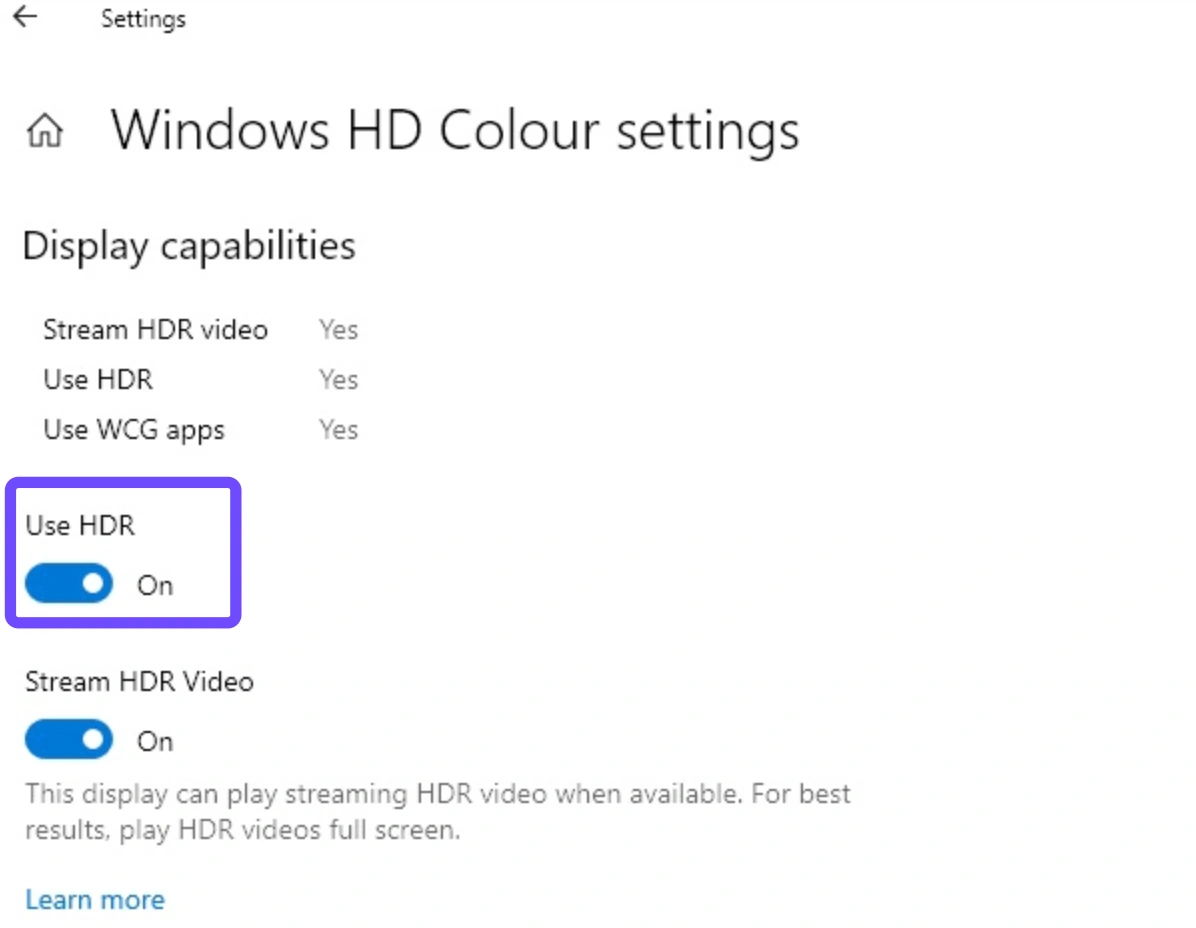
Step 4. Restart Fortnite to allow the game engine to re-align with your standard dynamic range.
Lower Brightness or Gamma
Adjusting the foundational lighting inside your game ensures that shadows stay dark and highlights don't overexpose.
Step 1. Launch Fortnite and open the main menu, then navigate to Settings.
Step 2. Select the Video tab (indicated by the monitor icon).
Step 3. Scroll down to the Display section and locate Brightness.
Step 4. Lower the slider down toward 100% or slightly below until the test patterns show clear distinction between dark lines.
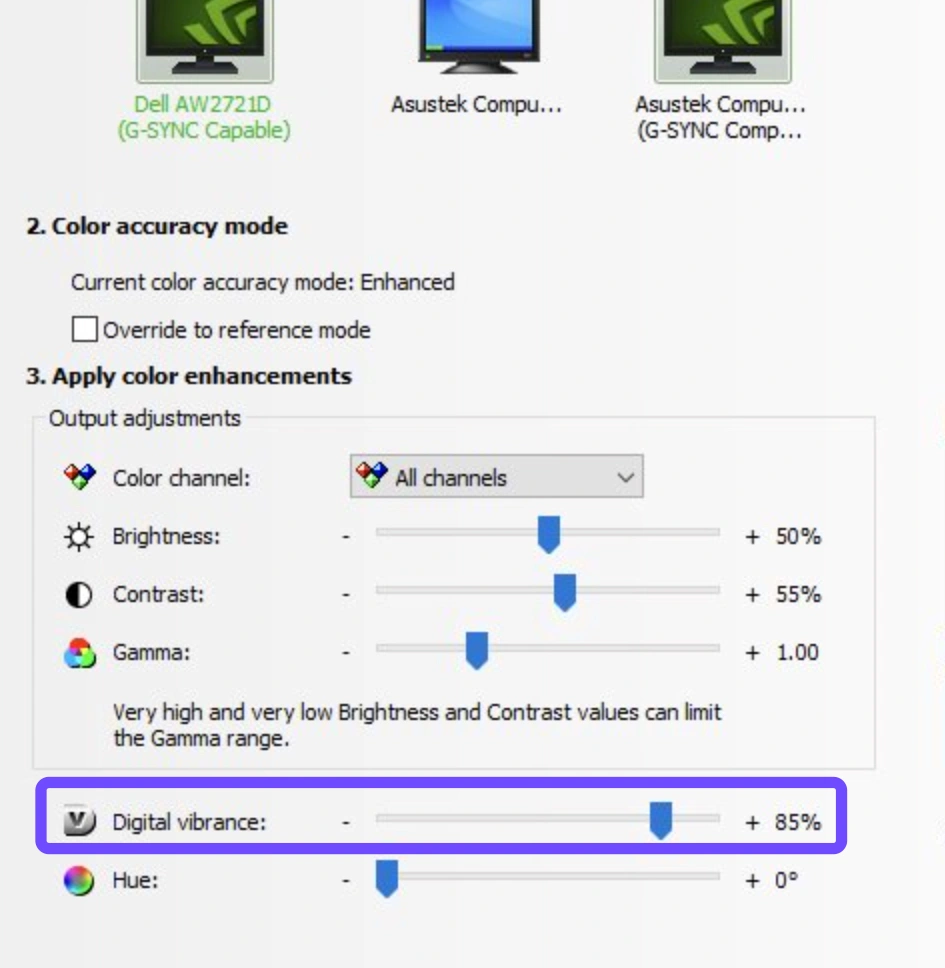
Adjust Digital Vibrance or Saturation
Forcing your GPU to output richer tones directly overrides the flat color profiles of generic displays.
For NVIDIA Users:
Step 1. Right-click your desktop and open the NVIDIA Control Panel.
Step 2. Expand the Display category on the left sidebar and click Adjust desktop color settings.
Step 3. Move down to the Digital Vibrance slider and increase it from 50% up to 70% - 80%.
For AMD Users:
Step 1. Open the AMD Software: Adrenalin Edition.
Step 2. Navigate to Gaming, select Games, and choose Fortnite.
Step 3. Toggle Custom Color to Enabled.
Step 4. Raise the Saturation slider slightly past its default baseline to deepen the game's color palette.
Check Monitor Color Mode
Hardware presets can completely distort your image calibration.
Step 1. Press the physical buttons on your monitor to open the On-Screen Display (OSD) menu.
Step 2. Locate the Picture or Game Settings tab.
Step 3. Switch your current profile away from "FPS" or "Eco" modes, opting instead for Standard, User, or sRGB.
Step 4. Ensure your monitor’s manual Gamma setting is configured to 2.2 (the universal standard for gaming).
Use Better Contrast and Visibility Settings
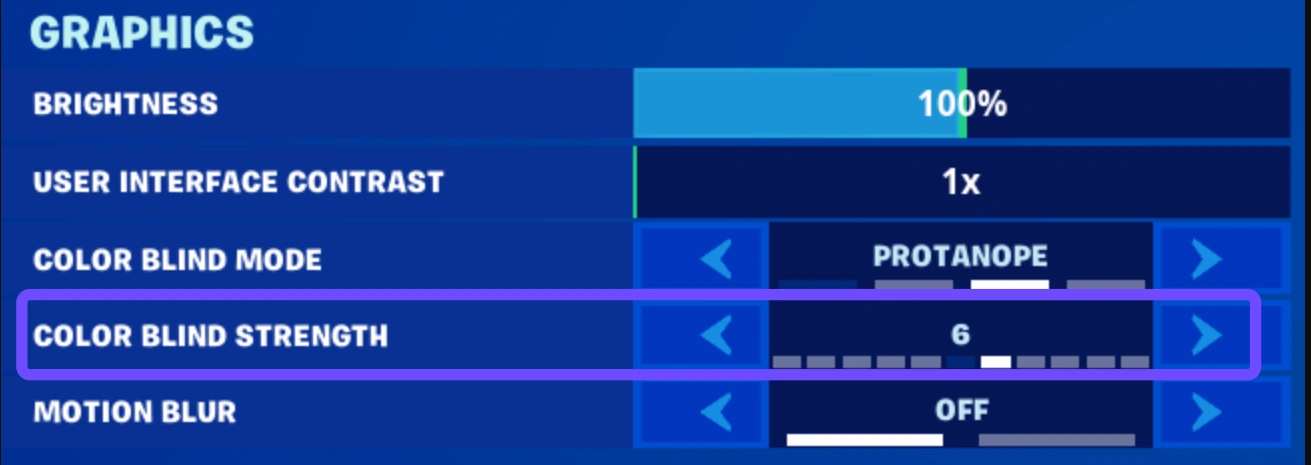
Fortnite includes native accessibility features designed for colorblind players, which can double as excellent visibility enhancers for competitive play.
Step 1. Go to the Video Settings menu inside Fortnite.
Step 2. Scroll to the Color Blind configuration section.
Step 3. Set the mode to Deuteranope or Tritanope.
Step 4. Push the Color Blind Strength slider up to 5 or 6 to naturally deepen color contrast without blowing out your white levels.
Part 3: LagoFast - Best Fortnite Filters for Visibility
Manually tweaking your monitor settings every time you switch from working on your desktop to playing a game can be an exhausting chore. Because different game engines handle lighting in unique ways, a hardware configuration that looks pristine in one game might leave Fortnite looking like a grey, muddy mess.
This is exactly why players rely on specialized visual management tools. LagoFast Game Screen Filters gives you a dedicated path tool to completely fix washed out colors in Fortnite with a single click.
Instead of forcing you to hunt through confusing GPU control panels or click through physical monitor buttons, LagoFast uses specialized overlay layers to instantly inject clarity into your game. Currently, the tool offers three distinct levels of customization:
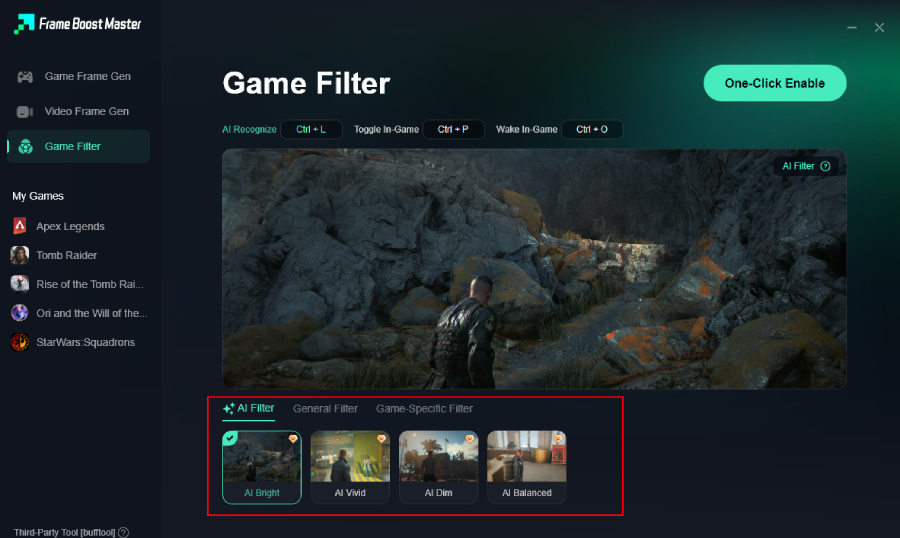
- AI Filters: Intelligent, real-time optimization layers that dynamically read your display data to balance exposure.
- Universal Filters: Highly versatile presets designed to instantly lift saturation and sharpen lines across any competitive title.
- Game-Specific Filters: Tailor-made, pixel-perfect profiles crafted specifically for high-stakes shooters (with current dedicated support for PUBG, Rainbow Six Siege, Rainbow Six Extraction, and the Call of Duty franchise).
Increase Sharpness
LagoFast filters clean up blurry, anti-aliased edges around distant geometry. By pulling textures into sharp focus, you can easily distinguish structural elements from background environments without needing to run performance-heavy resolutions.
Improve Color Depth
The filter engine actively strips away that frustrating white "fog" layer that plagues unoptimized setups. It remaps color channels instantly, boosting dark tones to give your screen rich, deep contrast while making game colors better in Fortnite.
Make Enemies Easier to See
When your contrast is optimized, character silhouettes pop cleanly off walls, floors, and builds. You'll spot opponents rotating through storms or hiding inside dark structures far faster, giving you an immediate competitive advantage.
Avoid Over-Saturated Filter Settings
Unlike basic monitor settings that simply blind you with neon colors when turned up too high, LagoFast applies sophisticated color balance filters. Your blues, reds, and shield hues become beautifully vivid and vibrant without ever getting so bright that they cause eye strain or ruin your overall visibility.
Beyond the screen filters, LagoFast optimizes your gaming experience and ensures you have the best performance.
How to Use a Fortnite Filter Tool to Improve Color, Contrast, and Visibility
Step 1: Begin by clicking the Free Trial button to download and install the LagoFast Free Trial.
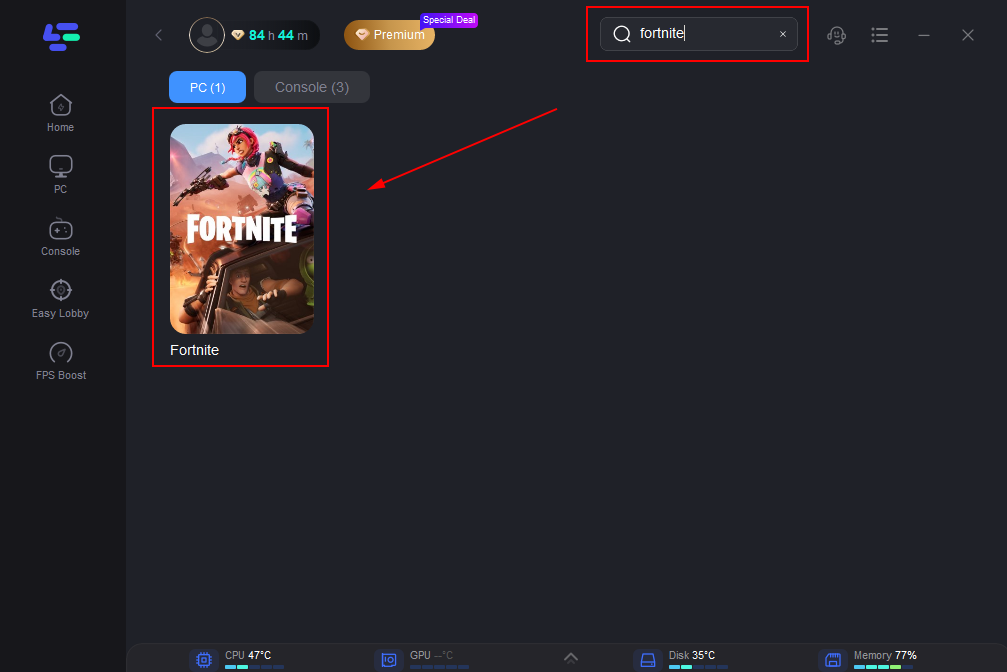
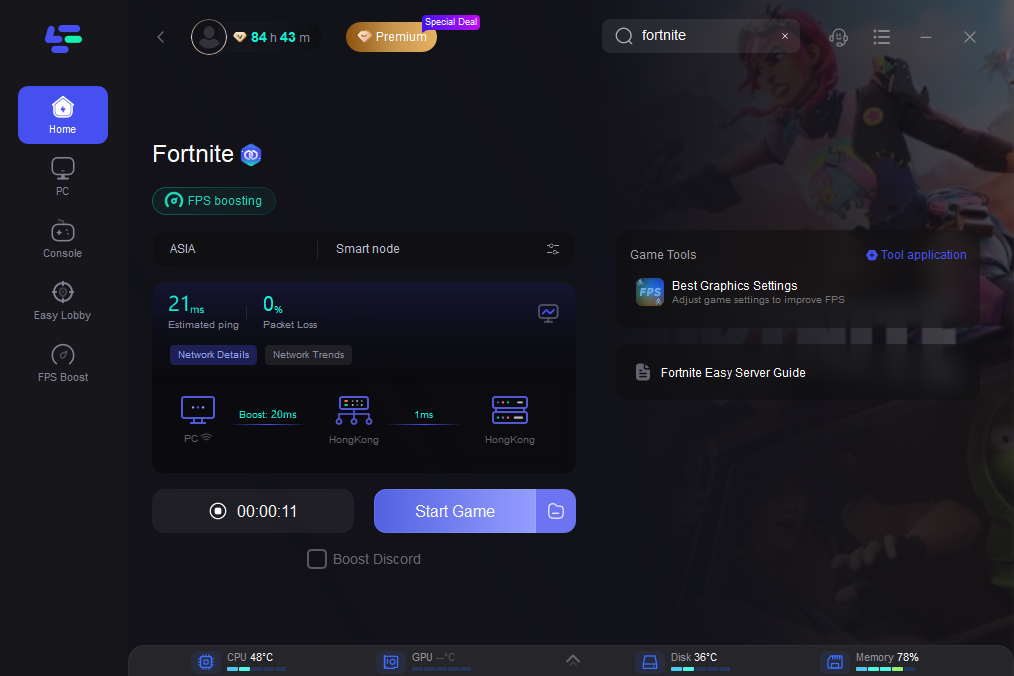
Step 2: After the installation is complete, launch LagoFast and use the search function to locate Fortnite and choose it from the list of results.
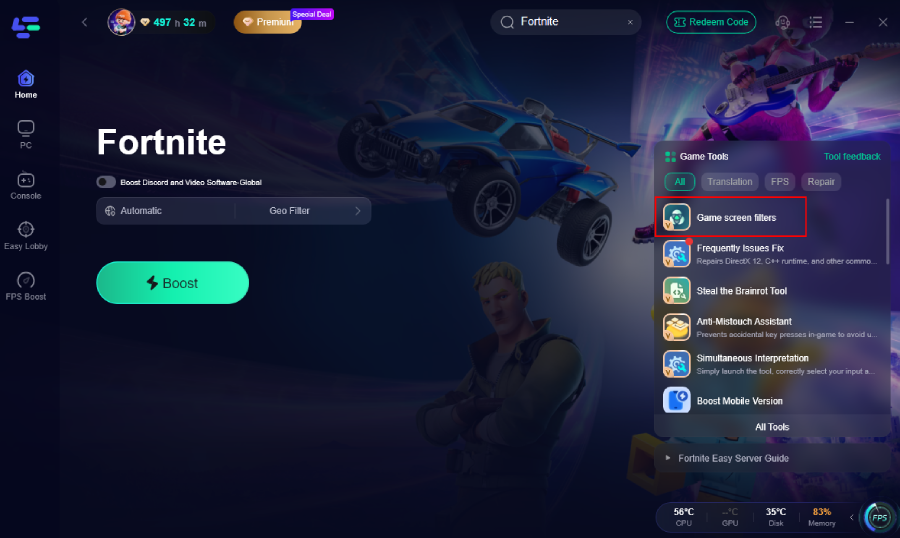
Step 3: Click the Game Screen Filter Tool on the right.
Step 4. Select your preferred filter like AI Bright and click One-Click Enable button to unlock the new experience.
Step 5: Pick a server that is closest to your location or offers the lowest latency for optimal performance.
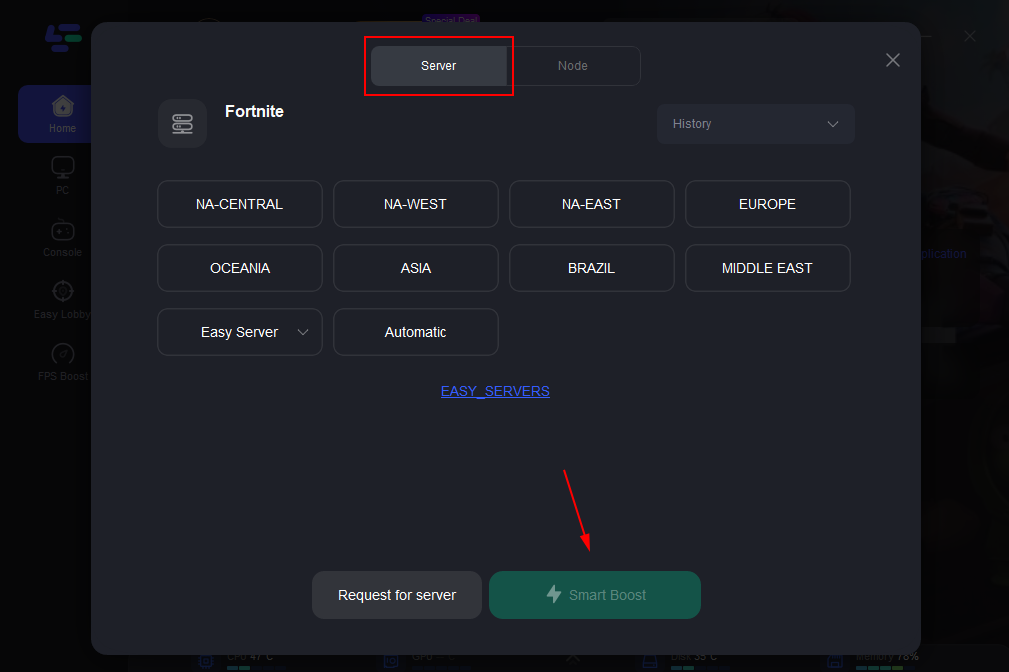
Step 6: Wait for the connection to establish, and enjoy a more stable gaming experience.
Part 4: FAQs
Why does Fortnite feel so weird now?
The game feels weird because major engine updates change how lighting and contrast operate. When Fortnite shifts to newer lighting pipelines, it completely changes how shadows and exposure react with your old monitor settings, resulting in a flat or heavily washed out look.
Why does my Fortnite look so bad after a graphics driver update?
Graphics driver updates frequently reset custom GPU control panel parameters back to factory defaults. If your custom digital vibrance or color profiles get cleared out, your display will drop back down to its flat, standard look.
Will changing game filters lower my FPS in Fortnite?
Standard hardware overlays can sometimes cause minor micro-stuttering, but highly optimized path tools like LagoFast inject color corrections smoothly, allowing you to maximize clarity without experiencing noticeable drops in frames per second.
Can I fix washed-out colors without altering my desktop settings?
Yes. Using software-based game screen filters allows you to apply vivid presets that activate exclusively when your game is running, keeping your standard desktop color profile perfectly balanced for normal daily work.
Does turning up Fortnite's brightness help you see enemies better?
No. Pushing your brightness settings too high actively harms your vision by destroying contrast. It turns dark shadows grey and washes out vital details, making it much harder to track targets against bright backgrounds.
Why does my game look grey even though HDR is turned off?
If HDR is deactivated and your screen still looks flat, your monitor's internal color temperature or OSD black-stabilization levels are likely misconfigured, causing the panel to artificially inflate shadow levels.
Conclusion
Fixing washed out colors in Fortnite comes down to mastering your contrast and color paths. While sorting through hardware menus takes time, using dedicated tools like LagoFast Game Screen Filters lets you bypass the headache entirely, giving you back those vivid colors, sharp targets, and smooth wins instantly.

Boost Your Game with LagoFast for Epic Speed
Play harder, faster. LagoFast game booster eliminates stutter and lags on PC, mobile, or Mac—win every match!
Quickly Reduce Game Lag and Ping!
Boost FPS for Smoother Gameplay!