
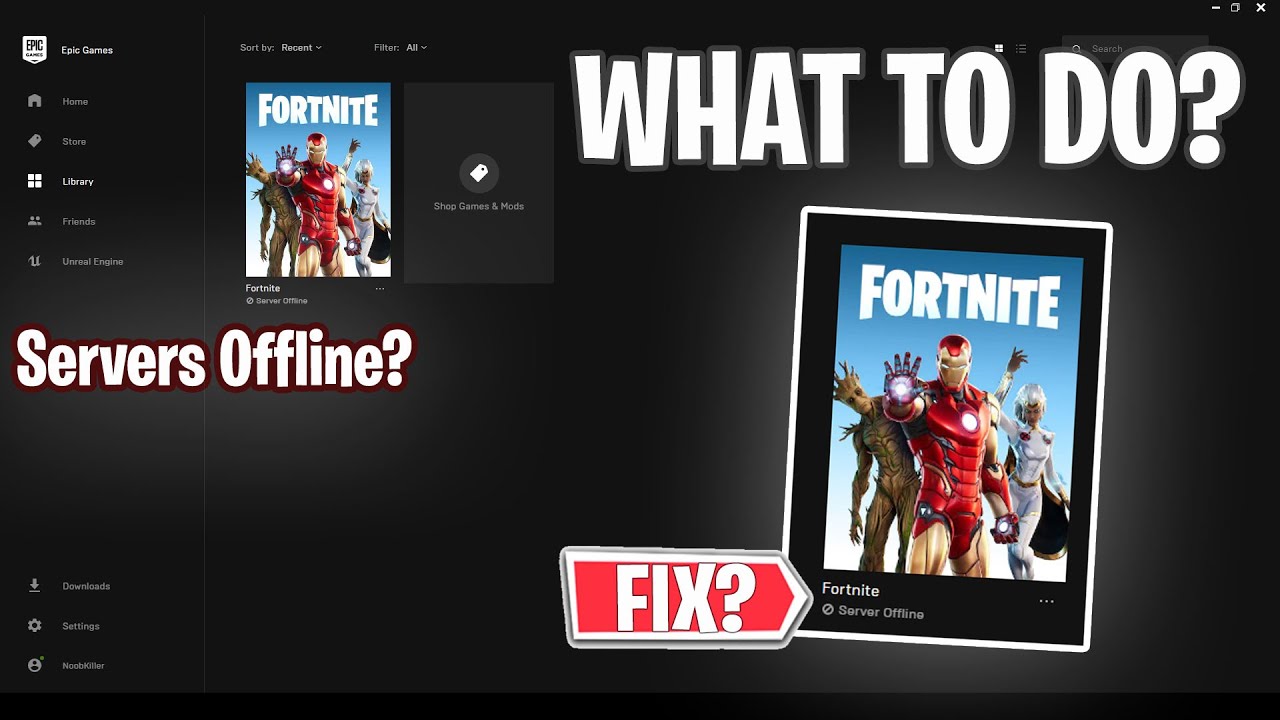
One of the most frustrating experiences that Fortnite players can face is when the Fortnite server is offline or the Fortnite server is not responding. If Fortnite says “Server Offline” or “server not responding,” check the official Epic Games server status first. When Fortnite is under scheduled downtime, maintenance, or a wider outage, the issue cannot usually be fixed from your device, and you need to wait until Epic brings the servers back online.
When this happens, players are unable to play the game, which can lead to disappointment and frustration. If you're facing this issue, don't worry, as there are ways to fix it. In this article, we'll discuss the reasons behind the Fortnite server issues and share some of the best tips and tricks for a Fortnite server offline fix so that you get back to playing Fortnite.

- ✅ Reduce Lag and High Ping.
- ✅ Boost FPS at the Same Time.
- ✅ Get Bot Lobbies Without Latency
- ✅ Support 8000+ Popular Online Games.
- ✅ End All Connection Issues
Check First: Is Fortnite Actually Down?
Before troubleshooting, check these official sources:
- Epic Games Public Status - use this as the main source for service availability and scheduled maintenance.
- @FortniteStatus on X - check for live Fortnite-specific login, matchmaking, and outage updates.
- Fortnite official announcements - check whether a new update, event, or season launch has scheduled downtime.
- Epic Games Help pages - check live issues, known bugs, and maintenance explanations.
Important: This article does not display live server status. Always treat Epic Games Public Status and official Fortnite channels as the source of truth for real-time downtime.
Why Does Fortnite Say Server Offline
Before we dive into the fixes, it's important to understand the reasons behind the Fortnite server being offline. The server being offline can occur due to several reasons, such as maintenance, updates, or glitches. So, why is the Fortnite server offline? Well, the Fortnite servers need to undergo regular maintenance to ensure smooth gameplay and updates to introduce new features or remove any bugs. During these periods, the server goes offline, and players are unable to access the game in certain locations. Additionally, glitches or bugs in the game's code can cause the server to crash, resulting in the server being offline.
LagoFast - Best Way To Fix the Fortnite Server Offline Issue & Stabilize the Network Connection
When Fortnite services are operational but you still see “Server Offline,” get disconnected from servers, or experience unstable matches, the issue may come from your local network, ISP route, firewall restrictions, or regional connection path. LagoFast helps stabilize your Fortnite network connection by optimizing the route between your device and the game server, reducing the chance of server disconnections, high ping, packet loss, and lower ping.
It can also help improve gameplay smoothness by optimizing network and system performance for issues such as ping, lag, low FPS, and FPS drops. In addition, LagoFast provides Fortnite bot lobby support for players seeking an easier lobby experience for practice, quests, or casual gameplay.
Step 1: First, download and install LagoFast.
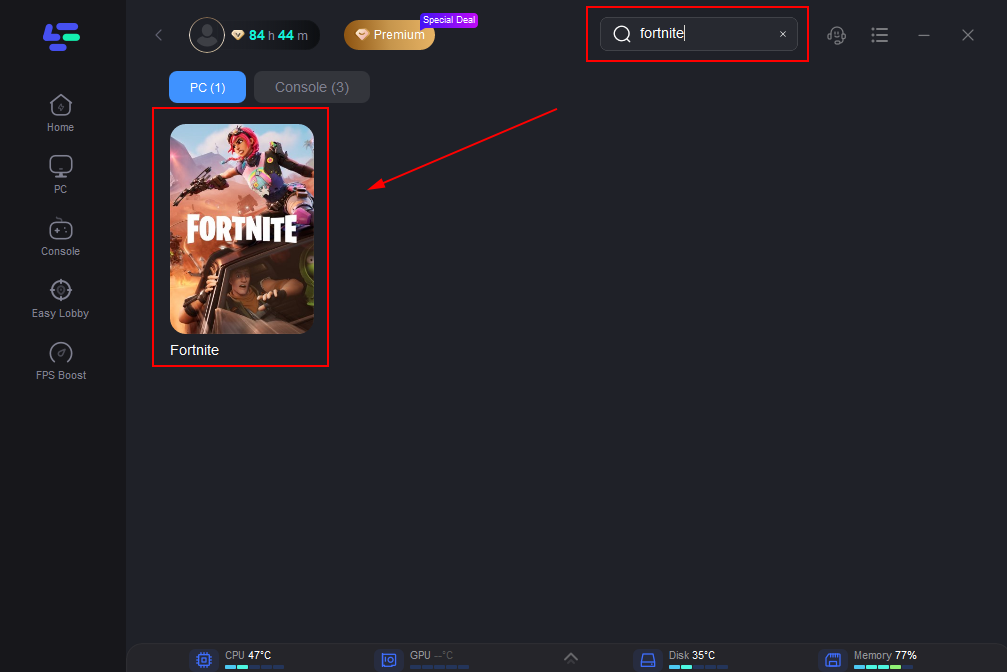
Step 2: Once installed, launch the program and search ‘Fortnite’ in the search bar.
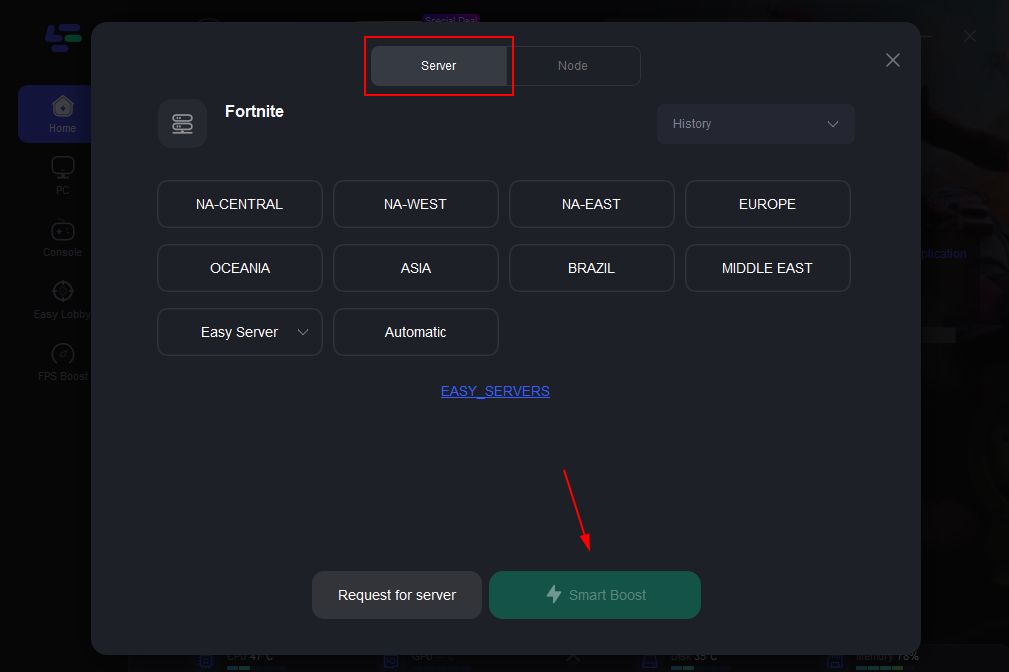
Step 3: LagoFast will identify the best server according to your internet connection, select the recommended Fortnite server location and click on ‘Smart Boost’.
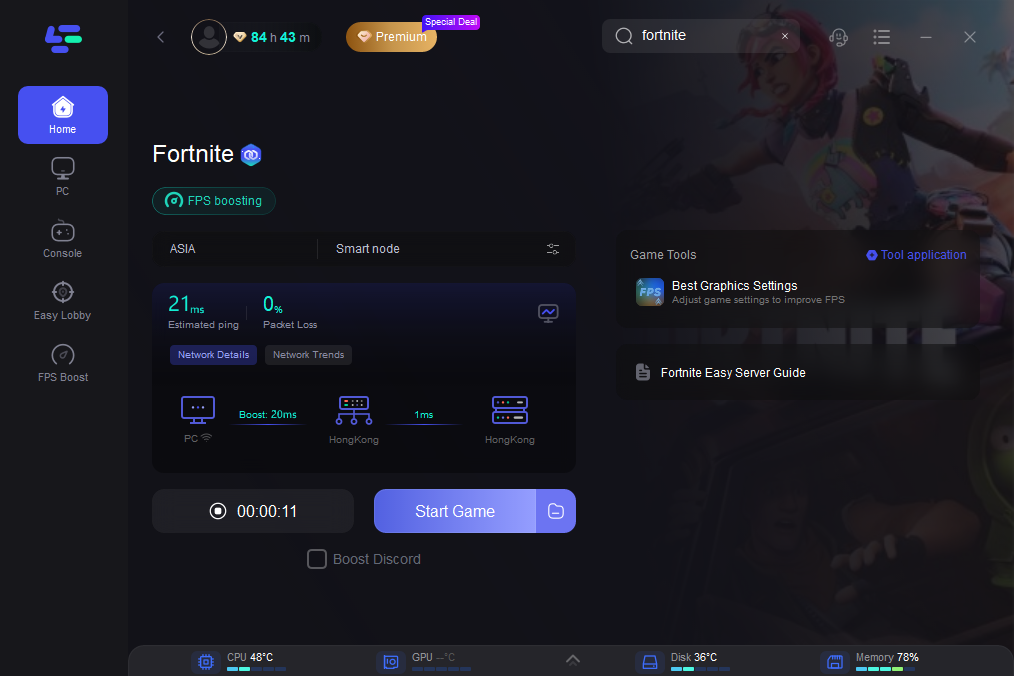
Step 4: You will notice improved ping and the Fortnite offline server error will be fixed.
Step-by-Step Fixes When Fortnite Is Not Officially Down
1. Restart Epic Games Launcher and Your PC
Close Fortnite and fully exit Epic Games Launcher from the system tray. Reopen the launcher, sign in again, and start Fortnite from your Library instead of a shortcut. This refreshes the launcher session and can clear temporary offline states.
2. Launch Fortnite from the Library
If the shortcut or taskbar icon shows an offline error, open Epic Games Launcher, go to Library, and start Fortnite from there. This helps confirm whether the launcher recognizes the installed game and your account session correctly.
3. Log Out and Log Back In
An expired login session can sometimes make Fortnite fail to connect even when the service is online. Sign out of Epic Games Launcher, close it, reopen it, and sign in again.
4. Clear Epic Games Launcher Cache
If the launcher continues to show incorrect status, clear the launcher web cache. On Windows, close Epic Games Launcher, open the local AppData folder, find the EpicGamesLauncher Saved folder, and remove webcache folders. Then restart the launcher.
5. Check Firewall, Proxy, and VPN Settings
Firewall rules, proxy settings, or a general VPN can block Epic services or route the launcher incorrectly. Allow Epic Games Launcher and Fortnite through the firewall, disable unknown proxies, and test without a general-purpose VPN if connection errors persist.
6. Flush DNS and Restart Your Router
If Fortnite is operational but your connection still fails, flush DNS on your device and restart your router. This can resolve stale local DNS records or temporary router state problems.
7. Test a Different Network
Try a mobile hotspot or another Wi-Fi network for a short test. If Fortnite works on the second network, the issue is likely your router, ISP, DNS, firewall, or route to Epic services.
9. Wait If It Is Official Downtime
If the official status page confirms scheduled maintenance or a Fortnite outage, do not repeatedly reinstall the game or change advanced network settings. Wait for Epic to mark the service operational, then restart the launcher and try again.
Bonus tips: Fortnite Server Offline vs Connection Error
|
Situation |
What It Usually Means |
How to Check |
What to Do |
|
Epic status shows Fortnite outage or maintenance |
Official server downtime |
Check Epic Games Public Status and Fortnite Status posts |
Wait for Epic to complete maintenance or resolve the outage |
|
Server Offline after a new update |
Scheduled downtime or patch deployment |
Check update announcement and status page timeline |
Wait, then restart launcher after services return |
|
Epic status operational but only your PC shows Server Offline |
Launcher cache, session bug, login token issue, local install state |
Restart Epic Games Launcher and log in again |
Relaunch from Library, clear launcher cache, verify game files if needed |
|
Can log in but cannot matchmake |
Matchmaking, party, or region-specific service issue |
Check Fortnite Status and test another game mode or region |
Wait if widespread; test region and party leader if isolated |
|
Only one network cannot connect |
Router, DNS, proxy, firewall, or ISP route issue |
Test mobile hotspot or another network |
Flush DNS, disable proxy/VPN, check firewall, test route optimizer |
|
Region-specific connection failure |
CDN/routing problem between your ISP and Epic services |
Ask friends in other regions or test another network |
Use a stable network or test LagoFast route optimization |
|
Launcher says offline while internet works |
Epic launcher bug, blocked service, account session issue |
Open Epic launcher, sign out/in, restart PC |
Clear launcher web cache and check firewall/proxy |
FAQ
Why does Fortnite say Server Offline?
It may mean official downtime, scheduled maintenance, a launcher/session issue, a local network block, or a regional routing problem.
How do I check if Fortnite servers are down?
Check Epic Games Public Status first, then @FortniteStatus and official Fortnite announcements for update-related downtime.
Can I fix Fortnite Server Offline during scheduled maintenance?
No. If the official server is offline for maintenance, players need to wait for Epic to bring it back online.
Why does Fortnite show Server Offline when Epic status is operational?
The issue may be local: launcher cache, account session, firewall, proxy, DNS, router, ISP route, or regional connectivity.
Can LagoFast fix Fortnite Server Offline?
LagoFast can help when the problem is routing-related and Epic services are operational. It cannot restore official Fortnite downtime or maintenance.
Conclusion
If Fortnite shows Server Offline, first confirm whether Epic Games servers are actually down. If the official status is normal, the issue may come from your launcher, local network, DNS, firewall, or routing path. Start with basic fixes like restarting the launcher, reconnecting your network, and checking your settings. When the problem is related to unstable routing, high ping, packet loss, or frequent disconnections, LagoFast can help optimize your Fortnite connection and improve overall gameplay stability.

Boost Your Game with LagoFast for Epic Speed
Play harder, faster. LagoFast game booster eliminates stutter and lags on PC, mobile, or Mac—win every match!
Quickly Reduce Game Lag and Ping!
Boost FPS for Smoother Gameplay!