
Fortnite Mobile lag is not always the same problem. Low FPS, overheating, high ping, packet loss, storage pressure, background apps, and new-season cache loading can all make the game feel delayed or choppy. The right fix depends on whether your lag comes from the device, the network, or a recent update.
This guide explains how to identify the type of Fortnite Mobile lag you are dealing with, choose the best mobile settings for smoother gameplay, reduce FPS drops and overheating, and test LagoFast Mobile when your issue is high ping, packet loss, or unstable routing.

- ✅ Reduce Lag and High Ping
- ✅ Boost FPS in Real Time
- ✅ Get the Easiest Server in Fortnite
- ✅ End All Connection Login Issues.
- ✅ Support 8000+ Online Games.
- ✅ Multiplatform: PC, Mobile, Console
Part 1: Why Is Fortnite Mobile Lagging
Fortnite mobile lag can be a frustrating roadblock that affects gameplay and reduces the overall experience. Before diving into solutions, it’s crucial to understand the factors that cause lag. Common reasons include mobile phone specifications, network connection, and in-game settings. By addressing these areas, you’ll pave the way for smoother, more enjoyable gaming sessions.
Insufficient processing power
Mobile devices come in a variety of specifications. For example, If your Android phone has a low specification that may potentially limit processing power, it may struggle to keep up with the demands of Fortnite Mobile, finally causing Fortnite mobile lag android.
Inside game setting
A suitable game setting is crucial to stop Fortnite mobile from lagging, some players may incorrectly adjust their game setting, for instance, setting a too-high resolution or frame rate will easily cause Fortnite mobile lag because their mobile devices can not run smoothly in this setting.
Device cache data
Over time, cached data accumulates as you use various apps, including Fortnite Mobile. For example, If your Android phone storage is nearly full, it can lead to slower performance and Fortnite mobile lag. When the available storage space is limited, the system may struggle to manage the constant read and write operations necessary for optimal app performance finally causing Fortnite mobile lag android.
Extensive Background Applications
When multiple applications run in the background, they compete for system resources like RAM in your Android mobile phone, but Fortnite Mobile requires a lot of these resources to run smoothly, therefore, if a background application consumes a significant portion of these resources, it may cause Fortnite mobile lag during gameplay.
Hot Related: Get Bot Lobbies in Fortnite with Lowest Ping
Part 2: How To Fix Fortnite Mobile Lag
Best Solution: Utilise LagoFast MobileTo 100% Fix Fortnite Mobile Lag
In the high-competitive Fortnite Mobile ranked matches, every moment matters to players. Speed and efficiency become crucial when dealing with the Fortnite Mobile lag issues. LagoFast Mobile Booster is an excellent solution designed to reduce latency quickly and effectively.
Here are benefits LagoFast can bring to Fortnite players:
- Easy-to-use interface : Its most important feature is the intuitive interface, which ensures that gamers can instantly open LagoFast Mobile Booster if they encounter sudden lag and fix it with a single click.
- Server location choices : Through a complex data transfer mechanism, LagoFast can accurately identify the status of nodes and switch to a better one, thereby enhancing your Fortnite Mobile connection immediately.
- Real-time monitoring of server status : In multiplayer games like Fortnite Mobile, LagoFast goes one step further, dynamically analysing and updating server status in real-time, which ensures the best connection to the most streamlined servers, which is essential for an uninterrupted gaming experience.
- Offering free trial : Now it offers a free trial download, giving gamers a chance to test its effectiveness for themselves. With LagoFast, you can seamlessly improve your Fortnite Mobile performance like never before.
Gamers can follow the tutorial to use LagoFast fix Fortnite mobile lag:
Step 1: Search “LagoFast Mobile booster” in the App Store or Google Play, as it is globally available. Or scan the QR code below to start a free trial.

Step 2: Click the “Download” button, then launch “LagoFast Mobile Booster”.
Step 3: Launch Fortnite Mobile then search “Fortnite Mobile” in LagoFast Mobile Booster.
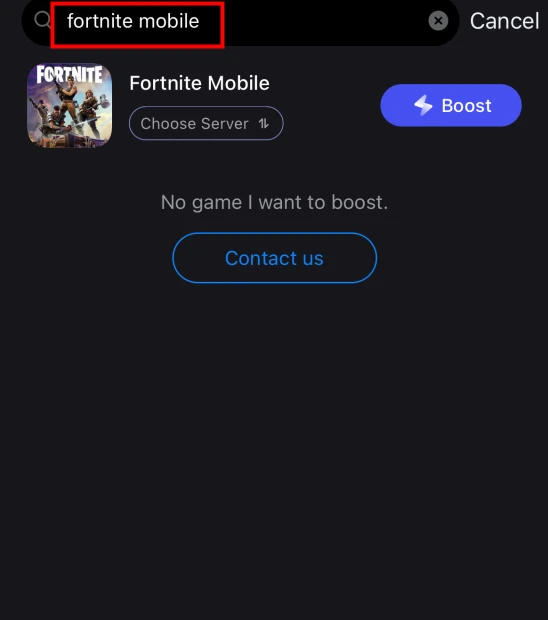
Step 4: When you find Fortnite Mobile in LagoFast Mobile Booster, click the “Boost” button.
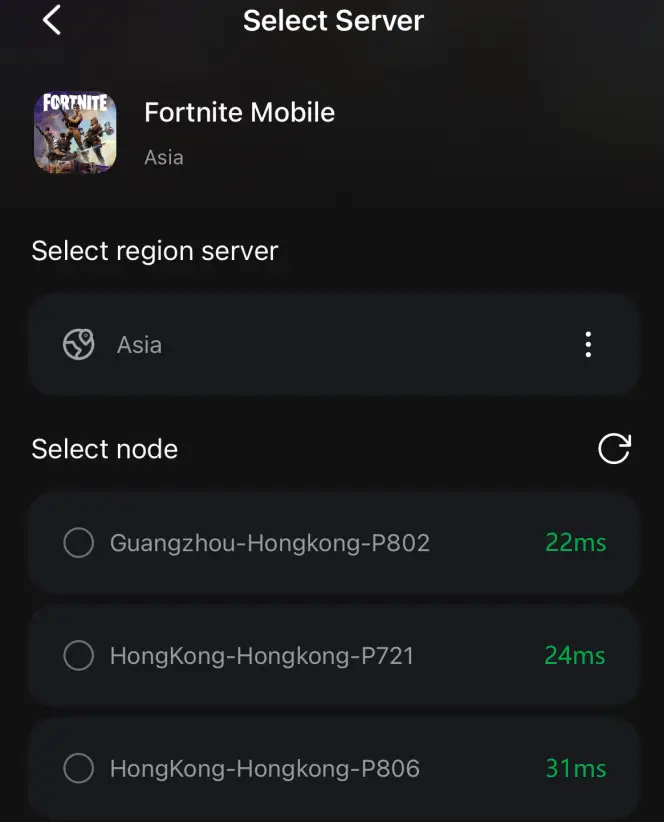
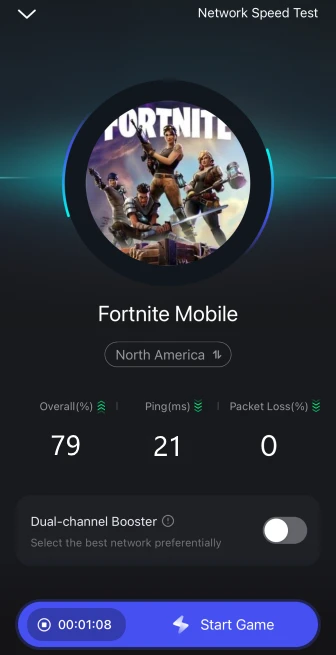
Step 5: Finally, go back to Fortnite Mobile and start playing it without any lag.
Solution 2: Best Fortnite Mobile Settings for No Lag
Use these settings as a starting point, then adjust based on your device temperature, FPS stability, and ping. The goal is not maximum graphics; it is stable gameplay.
- Quality Preset: Low for most phones, Medium only on high-end devices that stay cool.
- 3D Resolution: 35-50% on low-end Android, 50-75% on mid/high-end devices, and higher only if FPS stays stable.
- FPS: Use the highest stable option your device supports, such as 30, 45, 60, or 90 FPS. Do not choose a higher cap if it causes overheating or unstable frames.
- High-Resolution Textures: Disable automatic downloads if your device has limited storage or stutters after updates.
- Show FPS: Turn it on so you can confirm whether lag is FPS-related or network-related.
- Battery Saver: Turn it off while playing, or use a gaming/performance mode if your device provides one.
- Background Apps: Close social apps, browsers, cloud backup, screen recording, and overlays before launching Fortnite.
- Network: Use stable Wi-Fi, avoid downloads/streams during matches, and test LagoFast Mobile if ping or packet loss is unstable.
Solution 3 : Clear Device Cache
Over time, cached data can accumulate and impact system performance, therefore, clearing the cache on your Android device can free up valuable resources and potentially resolve lag issues in Fortnite Mobile.
Solution 4 : Manage Background Apps
Close unnecessary background apps to allocate more resources to Fortnite Mobile because running multiple apps simultaneously can strain your mobile phones’ capabilities, leading to Fortnite mobile lag during gameplay.
Part 3: How to Fix FPS Drops and Low FPS on Fortnite Mobile
1. Lower Quality and 3D Resolution
Start with Low quality and reduce 3D Resolution until FPS becomes stable. A slightly lower resolution with stable FPS usually feels better than sharper graphics with constant frame drops.
2. Use a Stable FPS Cap
Do not force 60 or 90 FPS if your device overheats or drops frames. A stable 30 or 45 FPS can feel smoother than an unstable higher cap.
3. Stop Overheating and Thermal Throttling
Remove thick phone cases, avoid direct sunlight, do not play while charging if it causes heat, and take short breaks during long sessions. Overheating can reduce CPU/GPU performance and create FPS drops.
4. Close Background Apps and Overlays
Screen recording, voice chat overlays, social apps, downloads, and browser tabs can use RAM, CPU, and network bandwidth. Close them before playing.
5. Free Storage and Control Texture Downloads
Low storage can increase loading issues and stutters. Keep enough free storage and avoid high-resolution texture downloads on devices with limited memory or storage.
Part 4: How to Fix Network Lag, High Ping, and Packet Loss on Fortnite Mobile
If your FPS is stable but you still see rubber banding, delayed shots, delayed builds, teleporting players, or packet loss icons, your problem is likely network-related rather than graphics-related.
- Use a stable Wi-Fi connection instead of a weak mobile signal when possible.
- Move closer to the router and use 5GHz/6GHz Wi-Fi if it is stable in your room.
- Stop downloads, cloud backup, streaming, and app updates during matches.
- Restart your router if ping spikes appear across multiple matches.
- Try a different network to check whether the issue is your ISP or router.
- Test LagoFast Mobile if ping, packet loss, or routing remains unstable.
FAQ
Why does Fortnite Mobile lag after an update
New textures, cache rebuilding, seasonal content, server load, and first-time loading of new POIs can temporarily increase stutters.
Can LagoFast Mobile fix Fortnite Mobile lag
LagoFast Mobile can help with network-related lag such as high ping, packet loss, and unstable routing. It cannot fully fix overheating or weak hardware by itself.
Should I use 60 FPS or 90 FPS on Fortnite Mobile
Use the highest FPS cap your device can maintain without overheating. Stable FPS is more important than a high number that constantly drops.
Conclusion
By implementing these tips, you can significantly improve your Fortnite Mobile experience. Remember that LagoFast is the best solution for you to fix various game issues, so don’t hesitate to download and use it to unlock seamless gaming. Utilise LagoFast and enjoy a lag-free adventure in Fortnite Mobile!

Boost Your Game with LagoFast for Epic Speed
Play harder, faster. LagoFast game booster eliminates stutter and lags on PC, mobile, or Mac—win every match!
Quickly Reduce Game Lag and Ping!
Boost FPS for Smoother Gameplay!