
Quick Answer:
If you are facing Fortnite Matchmaking Not Working issues, the fastest fix is to restart your game and router. For specific errors, ensure your Matchmaking Region is set to "Auto" and that you have cleared any Custom Matchmaking Keys. If the problem persists, verifying your game files in the Epic Games Launcher or using a dedicated tool like LagoFast Game Booster to optimize your network route can resolve deep-seated connection errors like #1, #2, and #3.
Fortnite remains one of the most popular battle royale titles in 2026, but its massive player base often puts a strain on matchmaking servers. Whether you're trying to queue for a Solo match or jumping into a Ranked session with friends, seeing a "Matchmaking Error" popup is the ultimate buzzkill. These errors are usually categorized by numbers—#1, #2, and #3—each pointing to a different part of the connection chain. This guide breaks down exactly what these errors mean and how to get back into the Battle Bus.

- ✅ Reduce Lag and High Ping
- ✅ Boost FPS in Real Time
- ✅ Get the Easiest Server in Fortnite
- ✅ End All Connection Login Issues.
- ✅ Support 8000+ Online Games.
- ✅ Multiplatform: PC, Mobile, Console
Part 1: Understanding Fortnite Matchmaking Errors #1, #2, and #3
Part 2: How to Fix Matchmaking Error #1 in Fortnite
Part 3: Resolving Fortnite Matchmaking Error #2
Part 4: Troubleshooting Fortnite Matchmaking Error #3
Part 5: Common Network Fixes for Fortnite Matchmaking Issues
Part 6: How to Enhance Your Game Experience with LagoFast Game Booster
Part 7: Fortnite Matchmaking FAQ
Part 8: Advanced Troubleshooting: Firewall and Antivirus Interference
Part 9: The Impact of ISP Throttling on Fortnite Matchmaking
Part 10: Final Thoughts on Maintaining a Stable Fortnite Connection
Part 1: Understanding Fortnite Matchmaking Errors #1, #2, and #3
When Fortnite Matchmaking is Not Working, the game often provides a specific error code to help diagnose the issue.
- Matchmaking Error #1: This is the most common "general" error. It typically means the game client failed to communicate with the matchmaking service entirely. It’s often described as "Weird. We couldn't connect to the match."
- Matchmaking Error #2: This error usually points to a synchronization issue between your party members. It often occurs when one player's client thinks the party is in a match while another thinks they are still in the lobby.
- Matchmaking Error #3: This is almost always a network-related error, specifically tied to your ISP's routing or a timeout during the "handshake" process with the Fortnite servers.
Part 2: How to Fix Matchmaking Error #1 in Fortnite
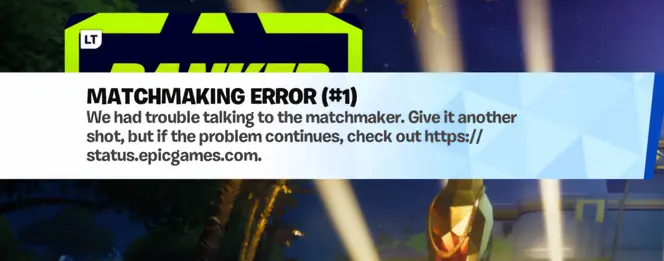
Matchmaking Error #1 is frequently caused by outdated game data or a temporary glitch in the lobby.
- Clear Custom Matchmaking Keys: Go to your game settings, navigate to the "Matchmaking" tab, and ensure the "Custom Matchmaking Key" field is completely empty. Even a single hidden space can trigger Error #1.
- The "Unready" Trick: If you are in a party, have everyone "Unready," then have the party leader promote someone else to leader. This forces the lobby to refresh its connection to the Epic servers.
- Verify Game Files: Open the Epic Games Launcher, go to your Library, click the three dots under Fortnite, select "Manage," and click "Verify." This will repair any corrupted files that might be blocking the matchmaking handshake.
Part 3: Resolving Fortnite Matchmaking Error #2
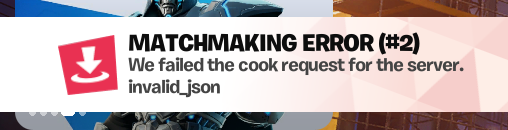
Matchmaking Error #2 is the "Party Desync" error. It happens when the server and the client are not on the same page regarding your party status.
- Re-form the Party: The most reliable fix is to have everyone leave the party and then re-invite them. This resets the session ID on Epic's backend.
- Check Parental Controls: In some cases, restrictive parental control settings on one party member's account can trigger Error #2 when trying to join certain game modes (like Creative or UEFN maps).
- Restart the Client: If re-forming the party doesn't work, a full game restart for all members is necessary to clear the local cache.
Part 4: Troubleshooting Fortnite Matchmaking Error #3
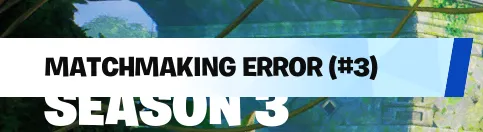
Matchmaking Error #3 is the most technical of the trio, often indicating that your connection is being blocked or throttled.
- Change Server Region: Go to Settings > Game > Matchmaking Region. If it's set to a specific region with high latency, switch it to "Auto." If it's already on "Auto," try manually selecting the region with the lowest MS (milliseconds).
- Disable VPNs: Fortnite has a strict anti-cheat system that often flags and blocks generic VPN IP addresses. If you are using a standard VPN, turn it off and try again.
- DNS Flush: Open Command Prompt as an admin and type ipconfig /flushdns. This clears old network paths that might be leading to a dead end on the Fortnite servers.
Part 5: Common Network Fixes for Fortnite Matchmaking Issues
If you are still experiencing Fortnite Matchmaking issues across all error codes, the problem likely lies with your overall network stability.
1.Wired Connection: Always use an Ethernet cable. Wi-Fi is prone to "packet bursts" which can interrupt the matchmaking process before it completes.
2.Router Power Cycle: Unplug your router for 60 seconds. This clears the router's internal memory and can resolve IP conflicts that cause matchmaking timeouts.
3.Check Epic Games Status: Before you tear your hair out, check the official Epic Games Status page. If "Matchmaking" is highlighted in yellow or red, the problem is on their end, and you simply have to wait.
Part 6: How to Enhance Your Game Experience with LagoFast Game Booster
For PC players who want a permanent solution to Fortnite Matchmaking Not Working, LagoFast(LagoFast Game Booster - Get No Lag and Lower Ping) Game Booster is the professional choice. Unlike standard VPNs that can get you banned or increase your ping, LagoFast uses a dedicated global network of high-speed nodes to optimize your connection specifically for Fortnite.
Detailed Steps to Fix Fortnite Matchmaking with LagoFast:
Click the Free Trial button to download and install LagoFast Free Trial
Search for Fortnite: Open LagoFast and type "Fortnite" in the search bar.
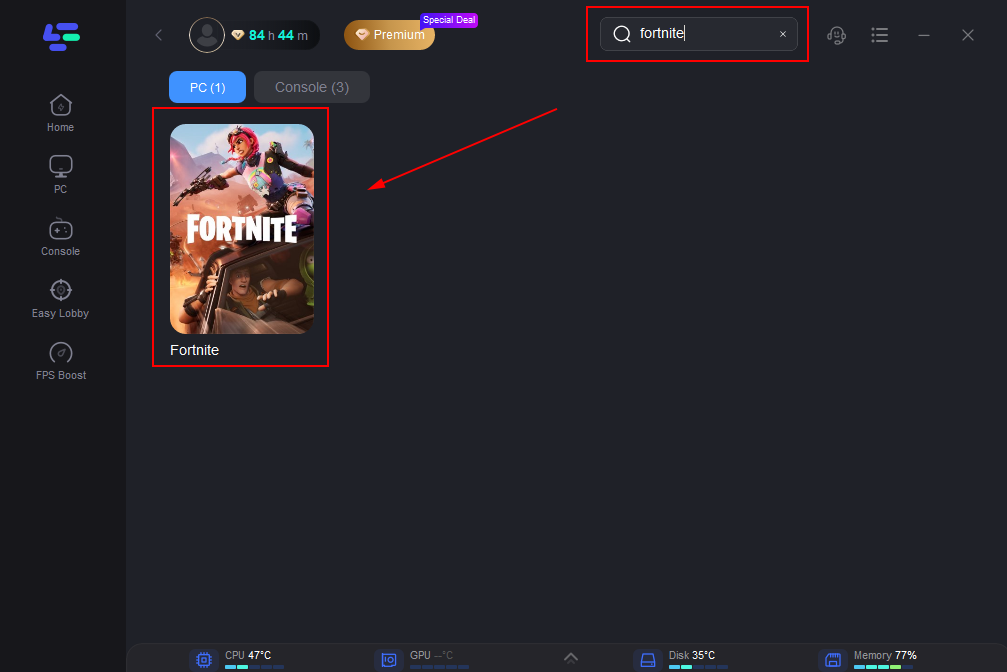
Select Your Region: Choose the server region you want to play in. LagoFast will show you the real-time ping for each available node.
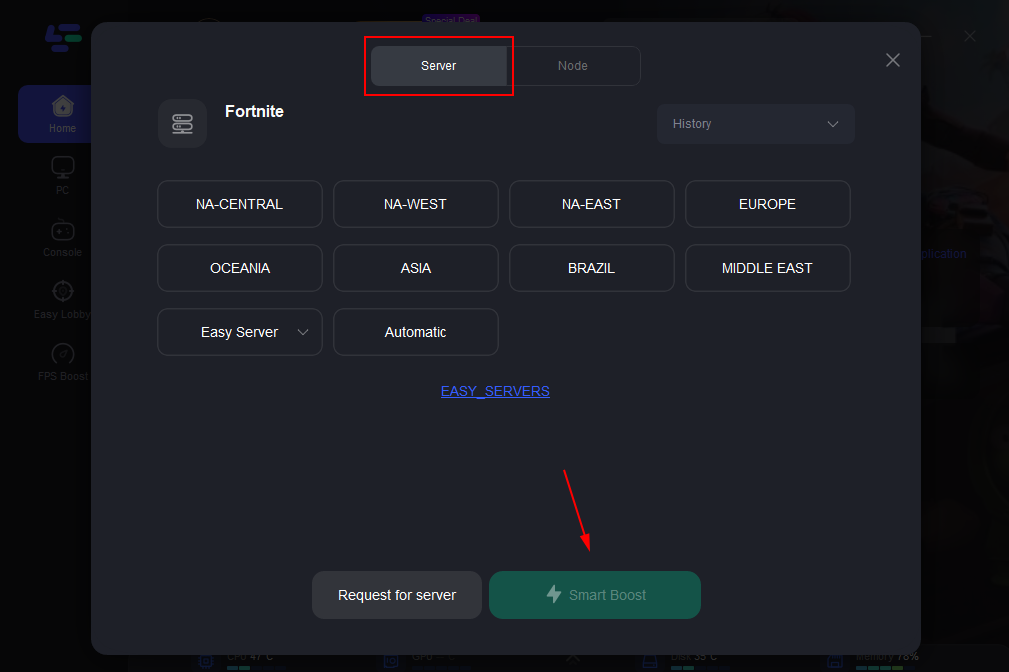
Smart Boost: Click the "Boost" button. LagoFast will automatically find the most stable and direct route to the Fortnite matchmaking servers, bypassing ISP congestion that causes Errors #1, #2, and #3.
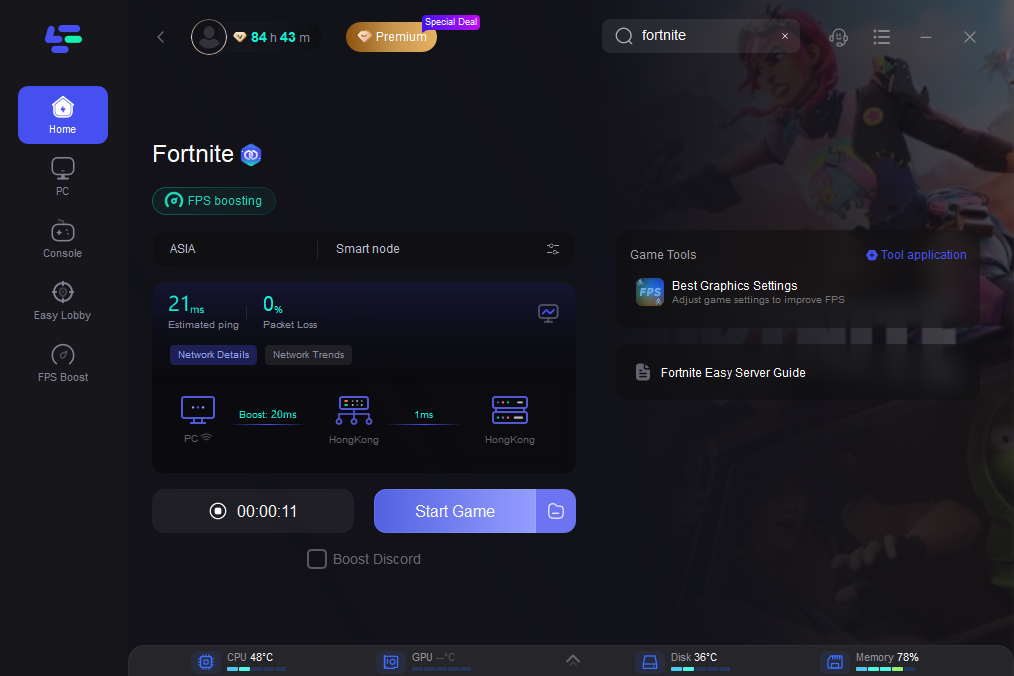
Launch Fortnite: Start the game through the LagoFast client. You will notice faster queue times and a significant reduction in in-game lag and packet loss.
Part 7: Fortnite Matchmaking FAQ
1. Why does Fortnite say "Matchmaking Error #1" even when my internet is fine?
Error #1 is often a "handshake" failure. Even with fast internet, if the path to the server is congested or your game files are slightly out of sync, the connection will fail.
2. Can I get banned for using a game booster like LagoFast?
No. LagoFast is not a cheat or a traditional VPN. it simply optimizes your network routing. It is fully compatible with Fortnite's Easy Anti-Cheat (EAC) and BattlEye systems.
3. Does changing my DNS help with matchmaking?
Yes. Using a public DNS like Google (8.8.8.8) or Cloudflare (1.1.1.1) can often resolve routing issues that cause Matchmaking Error #3.
4. Why can't I find a match in Creative mode?
Creative mode often uses different sub-servers. If you are getting a matchmaking error there, it's likely that the specific map creator's server is down or undergoing maintenance.
5. How long do Fortnite matchmaking outages usually last?
If it's a confirmed server-side issue, Epic Games usually resolves it within 1-2 hours. During major seasonal launches, it can take longer due to high traffic.
Part 8: Advanced Troubleshooting: Firewall and Antivirus Interference
Sometimes, the reason for Fortnite Matchmaking Not Working isn't your network or the game servers—it's your own PC's security software. Windows Defender or third-party antivirus programs can occasionally flag Fortnite's matchmaking packets as suspicious, leading to Error #1 or #3. This is especially common after a major Windows update or a new Fortnite season patch that changes how the game communicates with the backend.
To fix this, you should add Fortnite and the Epic Games Launcher as "Exclusions" in your antivirus settings. Additionally, ensure that "FortniteClient-Win64-Shipping.exe" is allowed through your Windows Firewall for both Private and Public networks. If you're unsure, you can temporarily disable your firewall for a single match to see if the error disappears. If it does, you've found your culprit and can proceed with setting up the proper permanent exceptions.
Part 9: The Impact of ISP Throttling on Fortnite Matchmaking
In 2026, many ISPs use "Deep Packet Inspection" to manage network traffic. During peak hours, some ISPs may throttle "UDP traffic"—the type of data used by Fortnite for matchmaking and gameplay—to prioritize simpler tasks like web browsing or video streaming. This throttling can cause the matchmaking handshake to take too long, resulting in a timeout and the dreaded Matchmaking Error #3.
This is where a tool like LagoFast becomes even more valuable. By encrypting your gaming traffic and routing it through a dedicated path, LagoFast prevents your ISP from identifying your data as "gaming traffic." This effectively bypasses any throttling or artificial delays imposed by your provider, ensuring that your matchmaking requests are always prioritized. If you notice that your matchmaking issues only happen in the evening or on weekends, ISP throttling is likely the hidden cause.
Part 10: Final Thoughts on Maintaining a Stable Fortnite Connection
Maintaining a stable connection in a fast-paced game like Fortnite requires a proactive approach. As the game continues to evolve with more complex Creative maps and larger-scale events, the technical requirements for a "perfect" connection will only increase. Regularly clearing your cache, updating your network drivers, and monitoring the Epic Games status page are all part of a pro gamer's routine.
Ultimately, the goal is to minimize downtime. By combining the local fixes for Errors #1, #2, and #3 with the professional-grade optimization of LagoFast Game Booster, you create a multi-layered defense against matchmaking failures. Don't let a simple routing error or a desynced party keep you out of the action. With the right setup, you can ensure that every time you hit "Play," you're heading straight for the island without interruption.
Key Takeaways
- Restart First: Most matchmaking errors are temporary and fixed by a simple restart.
- Clear Keys: Always ensure your Custom Matchmaking Key is empty unless you are in a private tournament.
- Sync Your Party: If Error #2 appears, re-form your party to reset the session ID.
- Optimize Your Route: Use LagoFast Game Booster to eliminate network-related errors like #3 and reduce your overall ping.
- Verify Files: Use the Epic Games Launcher to repair corrupted data that causes Error #1.
By following these steps, you can ensure that Fortnite Matchmaking Not Working becomes a thing of the past, allowing you to focus on what really matters—getting that Victory Royale.
Boost Your Game with LagoFast for Epic Speed
Play harder, faster. LagoFast game booster eliminates stutter and lags on PC, mobile, or Mac—win every match!
Quickly Reduce Game Lag and Ping!
Boost FPS for Smoother Gameplay!