
While Burglin' Gnomes is designed as a co-op experience, some players may run into failed lobby joins, connection errors, host disconnects, or problems joining friends. These issues can prevent multiplayer from working properly even when everyone is online. This guide explains the most common causes and fixes to help restore stable co-op sessions.

- ✅ Reduce Lag and High Ping.
✅ Boost FPS at the Same Time.
✅ Support 8000+ Popular Online Games.
✅ Change Server without Latency.
✅ Boost Game Loading Speed.
Part 1: Why Burglin' Gnomes Connection Issues Happen
Part 2: Quick Fixes for Burglin' Gnomes Connection Issues
Part 3: Advanced Fixes for Burglin' Gnomes P2P Problems
Part 4: LagoFast—Best Way to Reduce Burglin' Gnomes Lag and Disconnects
Part 5: Burglin' Gnomes Multiplayer FAQ
Part 1: Why Burglin' Gnomes Connection Issues Happen
Burglin' Gnomes uses a peer-to-peer (P2P) system, meaning players connect directly instead of using dedicated servers. Because of this, connection quality depends on network stability, NAT settings, firewall rules, and the host player's connection.
Burglin' Gnomes Can't Join Friends
If you're unable to join a friend's session, it is often caused by NAT restrictions, blocked traffic, or unstable host connections. In some cases, only one player is affected while others can join normally.
Burglin' Gnomes Failed to Connect to Lobby
Some players may receive an invite but fail to enter the lobby due to session sync issues. VPN usage or temporary network interruptions can also trigger this problem.
Burglin' Gnomes Host Disconnected
Since one player acts as host, the entire session depends on that connection. If the host experiences packet loss, unstable bandwidth, or sudden disconnection, all players may be removed from the session.
Burglin' Gnomes High Ping or Lag in Co-op
High ping and lag are common in P2P games, especially when players are in different regions. This may cause rubberbanding, delayed actions, or desync issues.
Burglin' Gnomes Friends Cannot See or Invite Each Other
If friends cannot appear online or invites fail, the issue is often related to platform services, privacy settings, or version mismatch between players.
Related Article: Burglin' Gnomes Can't Join Friends—Fix Lobby & Invite Issues
Part 2: Quick Fixes for Burglin' Gnomes Connection Issues
Before changing router settings or trying advanced fixes, start with these quick solutions. Most multiplayer issues come from temporary session errors, sync problems, or unstable network states and can often be resolved quickly.
Restart the Game and Recreate the Lobby
A corrupted or out-of-sync session is one of the most common reasons for failed matchmaking.
Close Burglin' Gnomes completely for all players, then have the host create a new lobby and send fresh invites. This ensures everyone is connecting to a clean session.
Check for Game Updates
Version mismatch is a frequent cause of failed joins or invisible lobbies.
Make sure all players are running the latest version of the game. Restart Steam if updates do not appear automatically.
Restart Steam and Re-send Invites
Steam’s friend and invite system can sometimes fail to sync correctly after long sessions.
Fully exit Steam, relaunch it, then reopen the game and send new invites instead of using old ones.
Disable VPN or Proxy
VPN routing can interfere with peer-to-peer connections and prevent players from joining lobbies.
Turn off VPN or proxy tools completely and restart the game before reconnecting.
Switch to a Wired Connection
Unstable Wi-Fi can cause packet loss, lag, or random disconnects in co-op sessions.
Use an Ethernet cable if possible. If Wi-Fi is required, stay close to the router and prefer a 5GHz network.
Restart Your Router
Routers can develop temporary routing or NAT issues that affect multiplayer stability.
Power off your router for 30–60 seconds, then restart it to refresh your network connection.
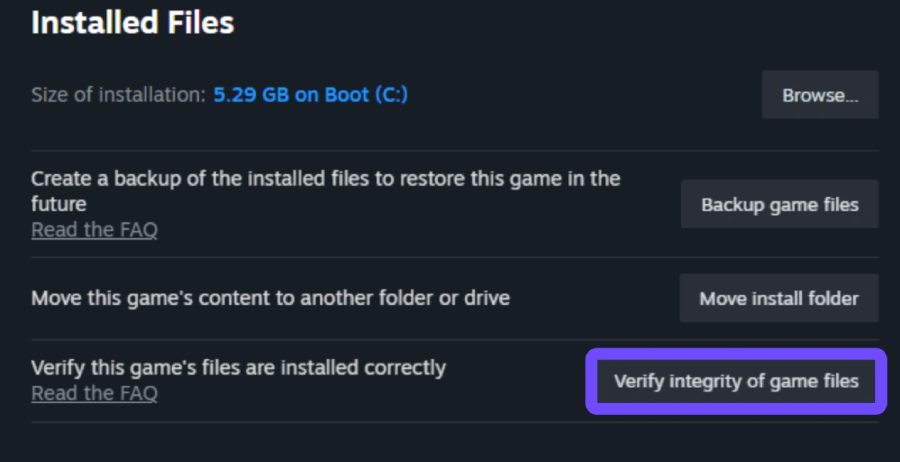
Verify Game Files (Steam)
Corrupted or missing files may break multiplayer synchronization or prevent proper matchmaking.
Use Steam’s “Verify integrity of game files” tool to automatically repair damaged files.
Part 3: Advanced Fixes for Burglin' Gnomes P2P Problems
If the basic fixes didn't help, the issue may be related to how your PC connects to other players. Since Burglin' Gnomes uses a peer-to-peer (P2P) system, connection problems can sometimes be caused by network settings rather than the game itself.
Check Your NAT Settings
A strict NAT type can make it harder to join friends or host a session successfully. If multiplayer connections keep failing, it's worth checking your router settings.
What to do:
- Log in to your router's settings page.
- Find the UPnP setting (usually under Advanced or Network Settings).
- Enable UPnP if it's currently disabled.
- Save the changes and restart your router.
- Relaunch Burglin' Gnomes and test the connection again.
Allow Burglin' Gnomes and Steam Through Your Firewall
Windows Firewall or security software can sometimes block the traffic required for P2P multiplayer.
What to do:
- Open Windows Firewall settings.
- Select "Allow an app through Firewall."
- Make sure both Burglin' Gnomes and Steam are allowed on Private networks.
- Apply the changes and restart Steam.
- Try joining the lobby again.
Close Bandwidth-Heavy Applications
Background downloads and streaming services can affect connection stability, especially if you're hosting the session.
Before launching the game, check for:
- Active Steam downloads
- Cloud sync applications
- Video streaming services
- Large file uploads
- Windows updates running in the background
Reducing network traffic can help prevent disconnects and lobby connection failures.
Choose the Best Player to Host
Because one player acts as the host, the quality of that player's connection affects everyone else in the lobby.
If multiplayer problems continue, try having a different player host the session. Ideally, the host should have:
- A stable internet connection
- Low latency
- Wired Ethernet instead of Wi-Fi
- A location that's reasonably close to other players
Switching hosts is often enough to reduce lag and improve connection stability for the entire group.
Part 4: LagoFast—Best Way to Reduce Burglin' Gnomes Lag and Disconnects
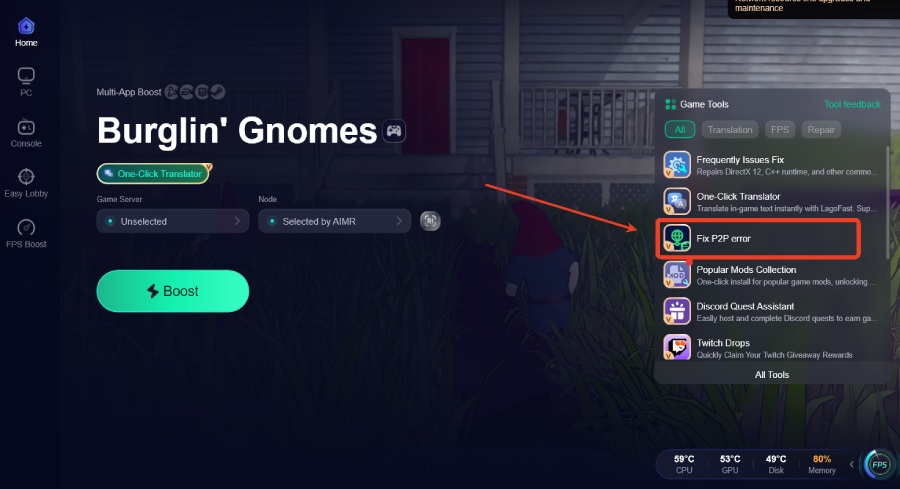
Multiplayer issues in Burglin' Gnomes are often linked to unstable P2P connections or network routing problems. LagoFast's Fix P2P Error tool can help resolve common issues such as failed lobby joins, connection errors, and problems joining a friend's session, making it easier to connect and stay connected.
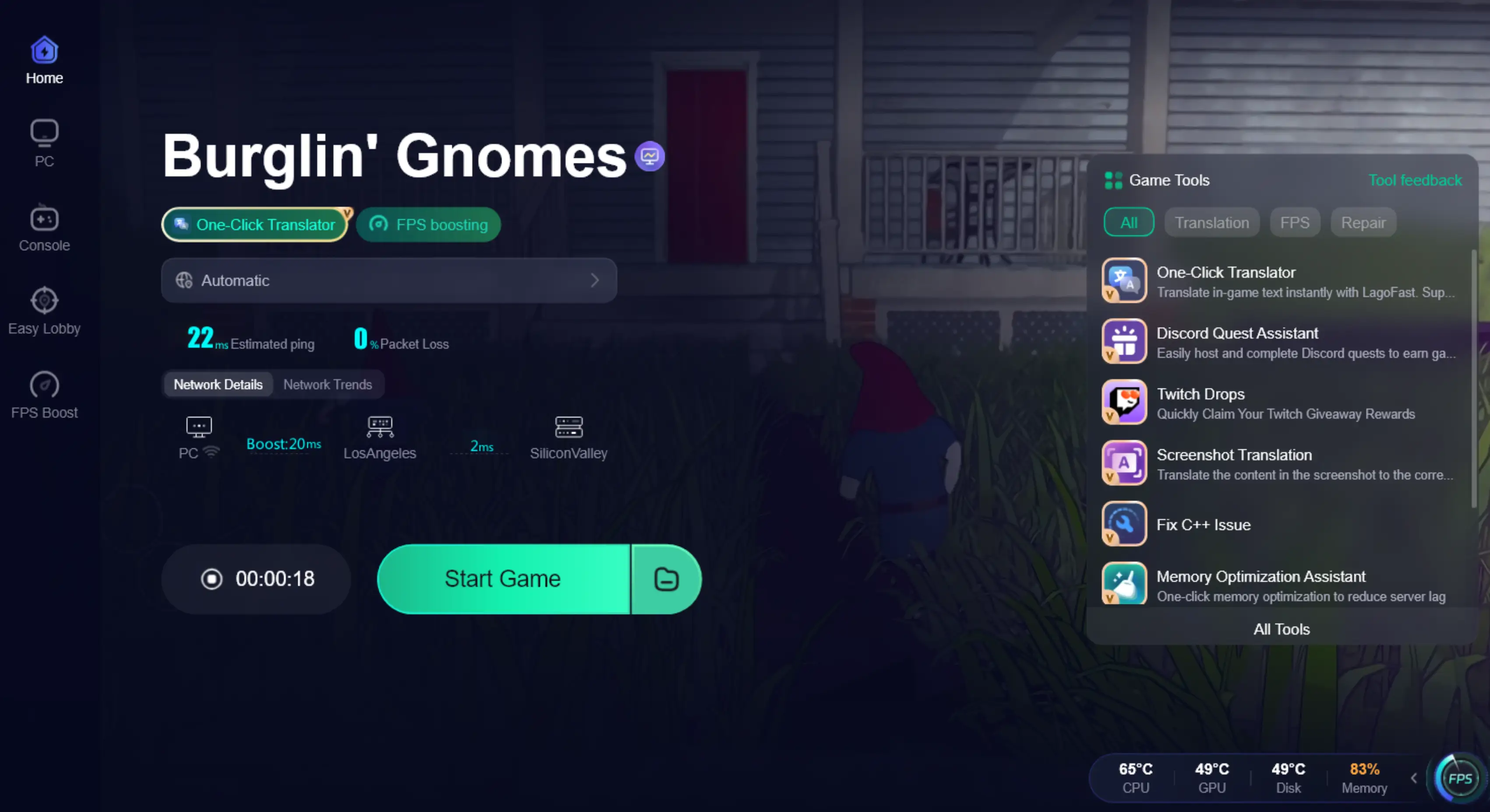
Beyond fixing connection issues, LagoFast can also help lower ping, reduce packet loss, stabilize your network, and optimize routing for smoother gameplay. It also includes Frequently Issues Fix tool that can quickly address common network-related problems, helping reduce lag and improve overall multiplayer stability in Burglin' Gnomes.
How to Use LagoFast Fix P2P Error tool
Step 1: Click the Free Trial button to download and install LagoFast.
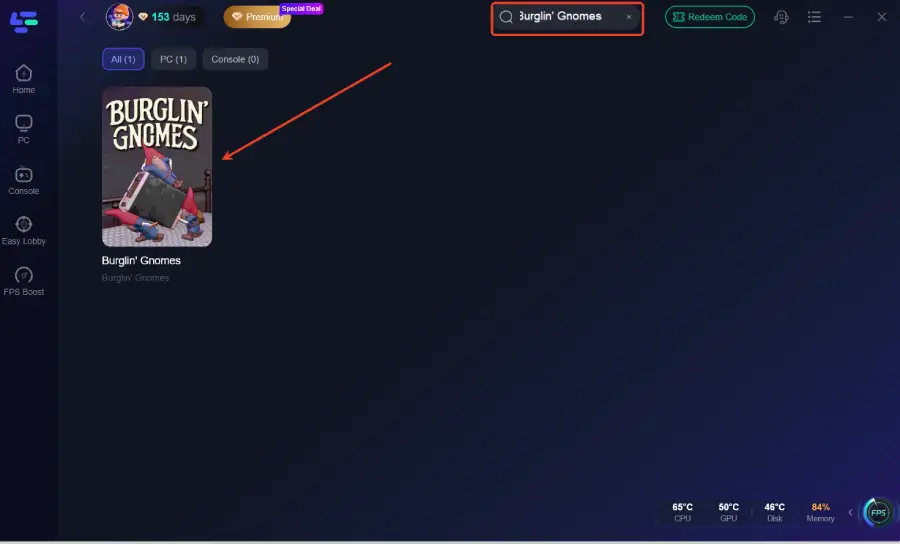
Step 2: After installation, search for "Burglin' Gnomes" in the search bar and select the game.
Step 3: Click the Fix P2P error tool in the bottom-right toolbox panel.
Step 4: Choose your preferred server node and click "Smart Boost" to start optimizing.
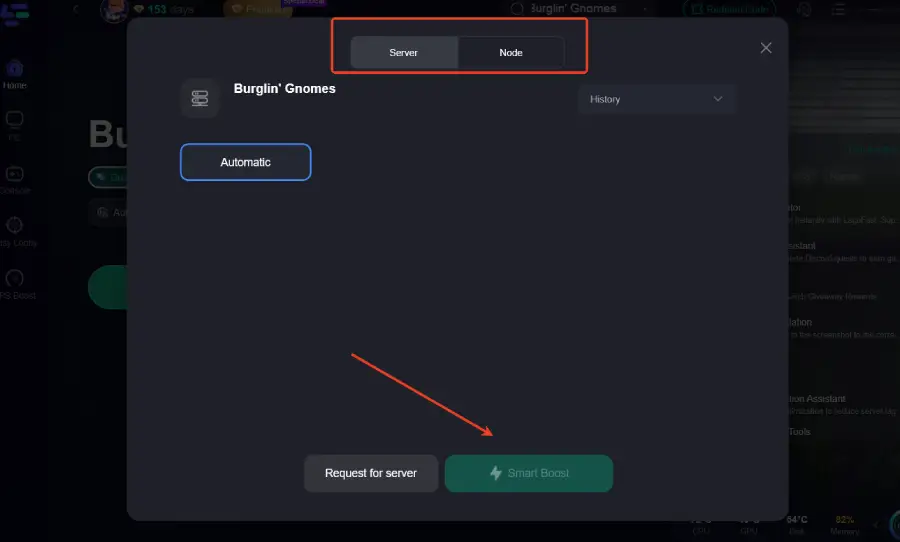
Step 5: Launch your game and enjoy smooth, optimized gameplay with lower ping and no stutter.
Part 5: Burglin' Gnomes Multiplayer FAQ
Does Burglin' Gnomes use dedicated servers?
No. Burglin' Gnomes uses a peer-to-peer (P2P) system, where one player hosts the session and others connect directly to them.
Can a VPN cause Burglin' Gnomes connection problems?
Yes. VPN routing can interfere with P2P connections and lead to failed lobby joins or connection errors. Turning off the VPN can help confirm whether it's causing the issue.
Do all players need the same game version to play together?
Yes. If players are on different versions of Burglin' Gnomes, they may not be able to join the same lobby or send invites successfully. Make sure everyone is updated before starting a session.
Can Wi-Fi cause multiplayer issues in Burglin' Gnomes?
Yes. Unstable Wi-Fi can lead to higher ping, packet loss, and random disconnects during co-op. A wired connection is usually more stable for multiplayer.
Why does Burglin' Gnomes keep disconnecting in co-op?
Frequent disconnects are usually caused by unstable connections, packet loss, or P2P routing issues between players. Restarting the lobby or switching host can often improve stability.
Conclusion
Most Burglin' Gnomes multiplayer issues are tied to P2P connections, network settings, or how sessions are synced between players. This often shows up as failed lobby joins, host disconnects, or co-op lag. In most cases, these problems can be fixed by adjusting basic network settings or applying the advanced troubleshooting steps above. If connection instability continues, tools like LagoFast can help further improve routing and overall multiplayer stability.
Boost Your Game with LagoFast for Epic Speed
Play harder, faster. LagoFast game booster eliminates stutter and lags on PC, mobile, or Mac—win every match!
Quickly Reduce Game Lag and Ping!
Boost FPS for Smoother Gameplay!