
If you’re trying to jump into co-op in Burglin' Gnomes but keep getting stuck on loading screens, kicked from lobbies, or unable to join friends at all, it’s a pretty common issue right now. These problems are often related to invite failures, lobby sync issues, or connection problems between players. In this guide, we’ll break down what’s actually causing it and walk through the most effective fixes to get you back into multiplayer quickly.

- ✅ Reduce Lag and High Ping.
✅ Boost FPS at the Same Time.
✅ Support 8000+ Popular Online Games.
✅ Change Server without Latency.
✅ Boost Game Loading Speed.
Part 1: Why You Can't Join Friends in Burglin' Gnomes
Part 2: Common Burglin' Gnomes Friend Join Problems
Part 3: How to Fix Burglin' Gnomes Friend Join Problems
Part 4: How to Invite Friends in Burglin' Gnomes Correctly
Part 1: Why You Can't Join Friends in Burglin' Gnomes
Burglin' Gnomes relies on players staying synchronized while joining a lobby, so even minor connection or session issues can prevent players from connecting successfully.
Burglin' Gnomes uses online co-op matchmaking
The game's co-op system requires all players to connect to the same lobby successfully before a session can begin. If one player encounters connection delays or synchronization issues, the join process may fail or become stuck.
Friend invite issues may come from Steam, lobby, or network settings
Not every join problem is caused by the game itself. Steam invites, overlay glitches, or privacy settings can stop invites from appearing or being accepted, even if everything looks normal in-game.
P2P-style connection problems can make joining unstable
Many friend join issues in Burglin' Gnomes behave similarly to peer-to-peer connection problems, where communication between players directly affects session stability. If one connection is weak, it can cause failed joins, freezing, or repeated loading loops.
Host network quality may affect the whole lobby
The host’s connection plays a big role in co-op stability. If they’re on unstable Wi-Fi, have high ping, or are running heavy background downloads, other players may struggle to join or get kicked shortly after connecting.
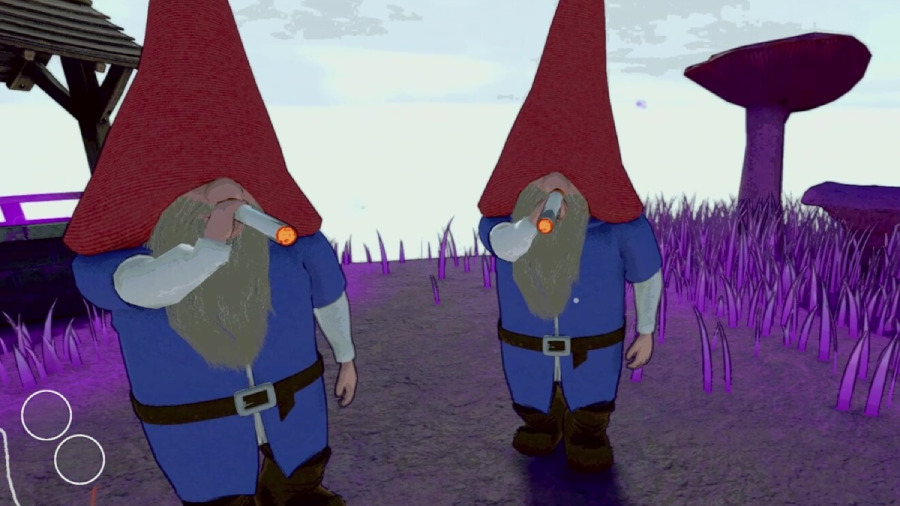
Part 2: Common Burglin' Gnomes Friend Join Problems
Here’s what usually goes wrong when players try to join co-op in Burglin' Gnomes. While these issues may look different, many of them are caused by the same underlying lobby, invite, or connection problems discussed above.
Can't invite friends
Invites either don’t send properly or never show up for the other player, making it impossible to start a lobby in the first place.
Steam invite not working
You click invite, but nothing happens on the other side—or your friend never receives the request even though Steam shows it sent.
Friends cannot see the lobby
The lobby exists on your end, but it doesn’t appear for friends, usually due to session sync or visibility issues.
Stuck joining game
The game freezes on the loading screen when trying to connect, with no progress or timeout in some cases.
Kicked from lobby
You manage to join, but get removed shortly after without any clear error message or warning.
Disconnected from host
The connection drops mid-join or right after loading in, often due to unstable host or network desync.
Lobby connection failed
A generic error appears when the game fails to complete the matchmaking handshake between players.
Can hear the game but the screen does not load
Audio loads normally, but the visual screen stays stuck or black, usually pointing to a severe sync or loading desync issue.
Part 3: How to Fix Burglin' Gnomes Friend Join Problems
The solutions below can help resolve the most common friend join, invite, and lobby issues in Burglin' Gnomes.
Fix unstable routing and P2P connection issues
If you're unable to join a friend's lobby, keep getting connection errors, or get stuck while connecting, the issue may be related to P2P communication between players. LagoFast's Fix P2P Error tool is designed to address these problems and can help restore stable co-op connectivity. In addition to its Fix P2P Error tool, LagoFast can help lower ping, reduce packet loss, improve connection stability, and provide a smoother online gaming experience.
How to Use LagoFast Fix P2P Error tool
Step 1: Click the Free Trial button to download and install LagoFast.
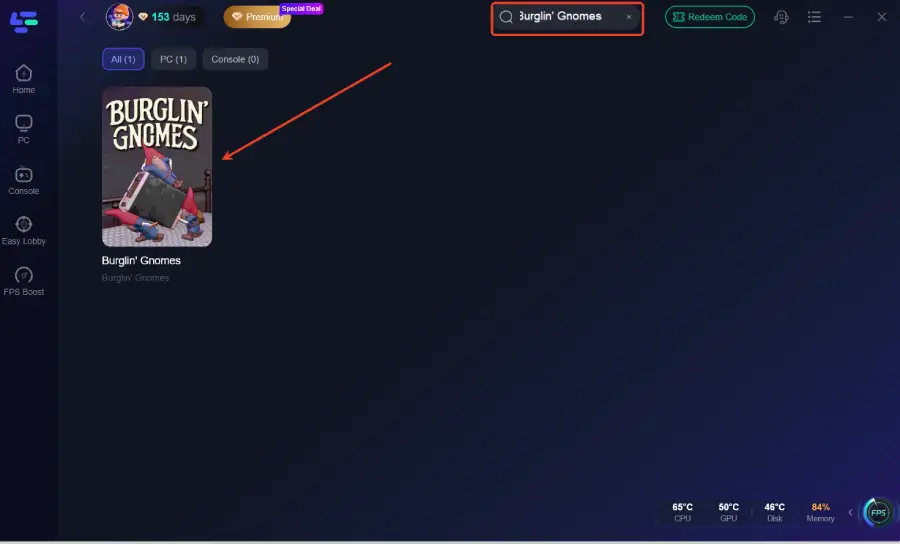
Step 2: After installation, search for "Burglin' Gnomes" in the search bar and select the game.
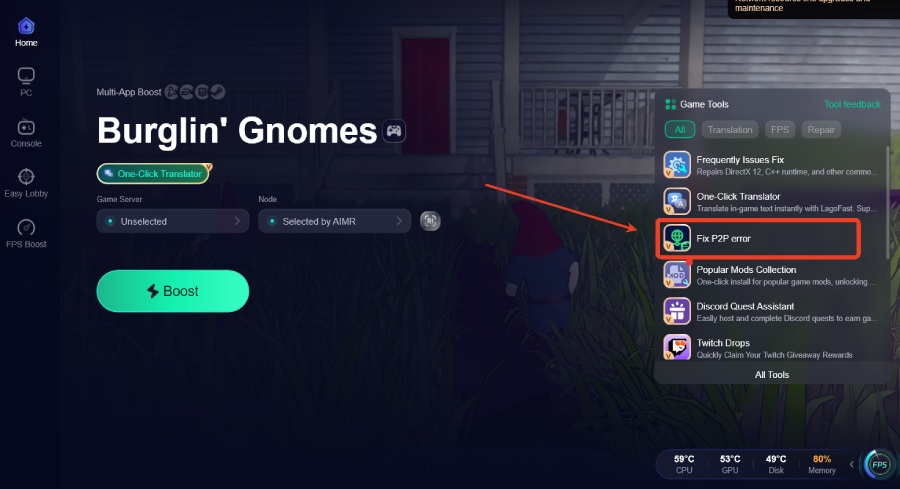
Step 3: Click the Fix P2P error tool in the bottom-right toolbox panel.
Step 4: Choose your preferred server node and click "Smart Boost" to start optimizing.
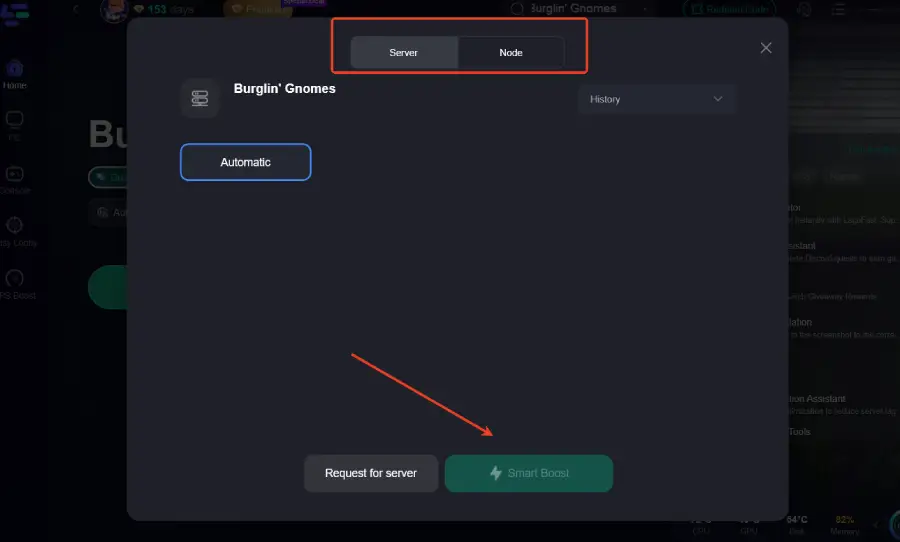
Step 5: Launch your game and enjoy smooth, optimized gameplay with lower ping and no stutter.
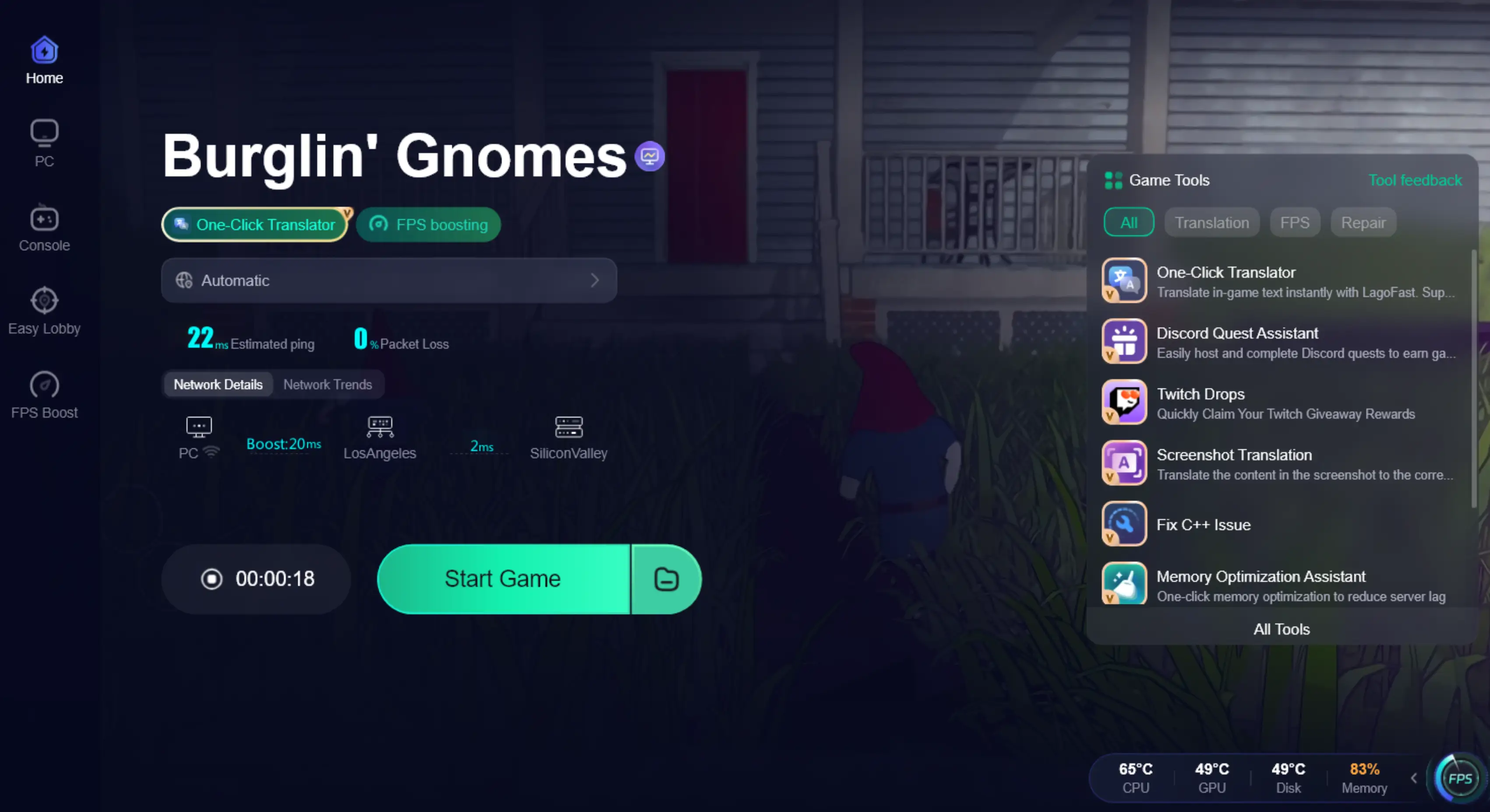
Restart the game, Steam, and your router
Temporary session bugs or lobby sync issues can sometimes prevent players from joining each other. Before trying more advanced fixes, perform a full restart:
- Close Burglin' Gnomes completely
- Exit Steam and reopen it
- Restart your router or modem
- Create a new lobby and try inviting friends again
Check Steam online status and overlay settings
Steam settings can occasionally interfere with invites and lobby visibility. Make sure:
- Your Steam status is set to Online
- Your profile isn't set to Invisible
- Steam Overlay is enabled
- Your friends can see and interact with your game session
Match all players to the same game version
Version mismatches are a common cause of failed joins. If one player is running a different build, the game may prevent connections entirely. Check for updates on Steam and make sure everyone is using the latest version before creating a lobby.
Switch lobby host
Because Burglin' Gnomes relies on player-hosted sessions, the host's connection can directly affect everyone in the lobby. If one player repeatedly gets stuck joining or disconnected, try having another friend create and host the session instead.
Close background network-heavy applications
Other applications can consume bandwidth or create connection instability while you're playing. Before launching the game, consider closing:
- Active downloads
- Streaming services
- Cloud backup or sync software
- VPN applications
- Other online games running in the background
This can help reduce packet loss and improve lobby stability when joining friends.
Part 4: How to Invite Friends in Burglin' Gnomes Correctly
To play Burglin' Gnomes with friends, the host must create a lobby before sending invites.
Invite Friends Through Steam
- Launch Burglin' Gnomes and select Host Game.
- Wait for the lobby to load completely.
- Press Shift + Tab to open the Steam Overlay.
- Open your Steam Friends List.
- Right-click your friend's name and select Invite to Game.
- Wait for your friend to accept the invite and join the lobby.
- Once everyone has connected, start the session.
If the invite is sent successfully but your friend still can't join, try refreshing the lobby, restarting Steam, or having another player host the session. If the problem persists, work through the troubleshooting methods covered above.
Bonus Tips: Different Types of Kicks Require Different Fixes
Not all disconnects happen for the same reason. Knowing when you get kicked can help narrow down the cause and choose the right fix.
|
When You Get Kicked |
Most Likely Cause |
Recommended Fix |
|
While joining a friend's lobby |
Invite issues, lobby sync errors, P2P connection problems |
Recreate the lobby, switch hosts, use Fix P2P Errors |
|
After the run starts |
Network instability, packet loss, connection drops |
Check network stability, close background apps, reconnect |
What to Do If You Get Kicked When Joining Friends
If you're removed from the lobby before fully joining, the issue is usually related to lobby synchronization, Steam invites, or P2P connectivity.
- Make sure all players are using the same game version
- Ask the host to create a new lobby
- Try a fresh Steam invite
- Switch lobby hosts
- Use LagoFast's Fix P2P Error tool if connection errors persist
What to Do If You Get Kicked When Starting a Run
If everyone joins the lobby successfully but gets disconnected when the match begins, the problem is more likely related to network stability during gameplay loading.
- Wait for all players to fully load before starting
- Close downloads and streaming applications
- Use a stable network connection whenever possible
- Reconnect and try again
- Check for packet loss if the issue happens repeatedly
Burglin' Gnomes Can't Join Friends FAQ
Does Burglin' Gnomes support online multiplayer?
Yes. Burglin' Gnomes supports online co-op multiplayer through Steam, allowing players to team up and play together.
Do all players need the same game version?
Yes. Players should be on the same game version. Version mismatches can prevent invites from working correctly or stop players from joining the same lobby.
Why can't my friend see my lobby?
If your friend can't see the lobby, make sure both players are online in Steam, using the same game version, and connected through a valid invite.
Why does my friend get stuck on joining?
This usually happens when the game fails to establish a stable connection between players. Restarting the lobby, switching hosts, or troubleshooting network issues can often help.
Does the host's connection matter?
Yes. An unstable host connection can affect lobby stability and make it harder for other players to join or stay connected.
Final Thought
Most Burglin' Gnomes friend join issues aren't caused by a single bug but by a combination of lobby syncing, invite failures, and connection problems between players. In many cases, simple fixes like recreating the lobby, checking Steam settings, or switching hosts are enough to get co-op working again. If you're still unable to join friends or keep running into connection errors, LagoFast's Fix P2P Error tool may help resolve player-to-player connection issues and improve overall session stability.
Boost Your Game with LagoFast for Epic Speed
Play harder, faster. LagoFast game booster eliminates stutter and lags on PC, mobile, or Mac—win every match!
Quickly Reduce Game Lag and Ping!
Boost FPS for Smoother Gameplay!