
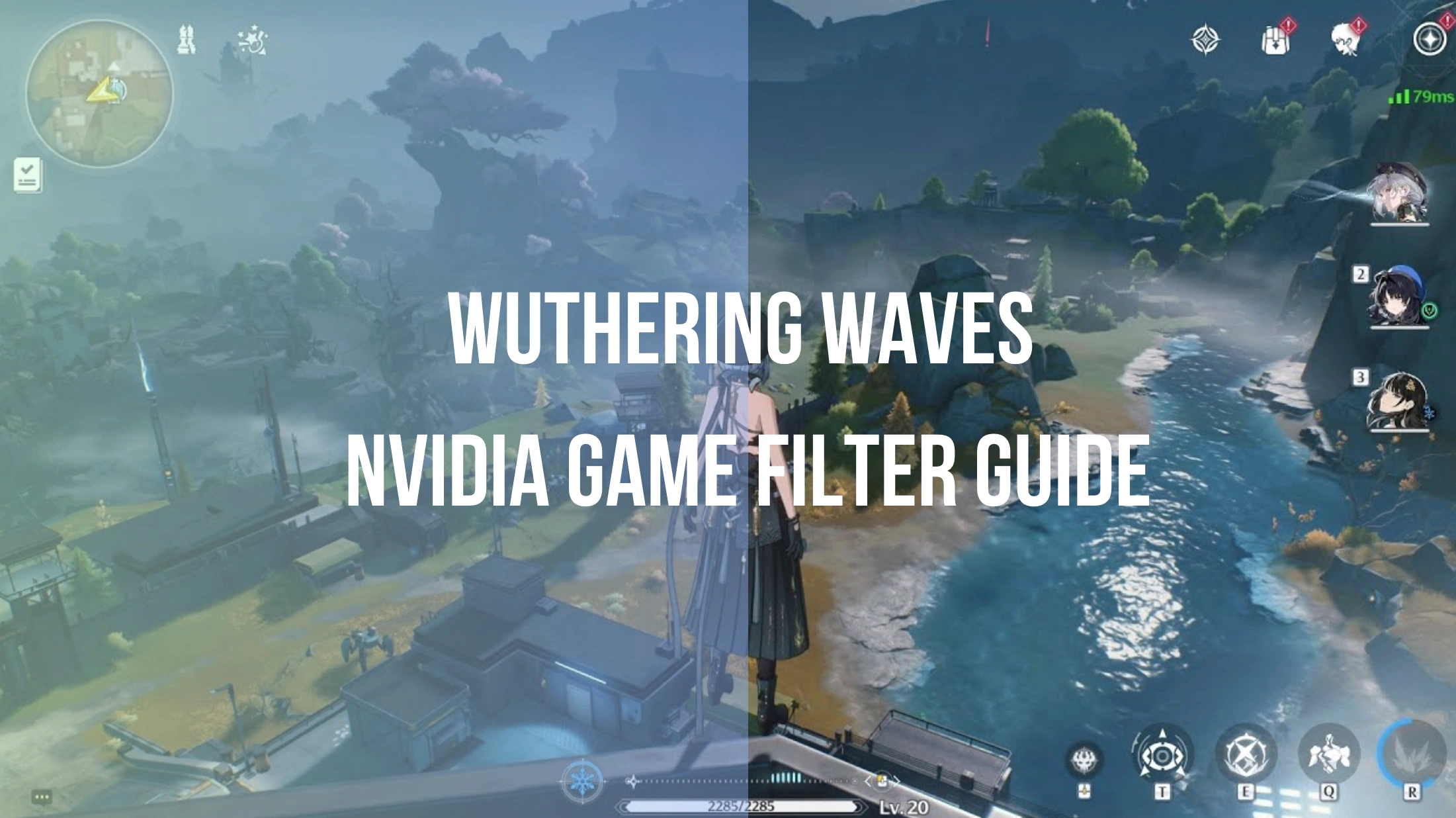
Quick Answer: How to Make Wuthering Waves Screen Color Look Good?
To make the visuals in Wuthering Waves pop, you can enhance the contrast and crispness using the Wuthering Waves NVIDIA Filter. Open the overlay in-game by pressing Alt + F3, then add the Details, Brightness/Contrast, and Color filters to adjust vibrancy and remove the default foggy overlay.
However, if you experience performance drops, find manual sliders tedious, or face the common issue where wuthering waves Nvidia filters not working, there is an easier path. You can switch to the LagoFast Game Filter tool. It provides a seamless, one-click solution that enhances graphics, injects rich colors, and optimizes network paths all without harming your frame rate.
Wuthering Waves offers a gorgeous, post-apocalyptic open world, but many players find the default graphics a bit washed out or blurry due to built-in anti-aliasing. If you want to transform your gameplay from a muted gray tone to a vibrant, high-fidelity masterpiece, tweaking your post-processing filters is essential. This guide covers how to set up the ultimate NVIDIA profile, fix common runtime bugs, and explore simpler automation tools.

- ✅ Reduce Lag and High Ping.
- ✅ Boost FPS at the Same Time.
- ✅ Change Server Without Latency.
- ✅ One-Click Translation Tool.
- ✅ End All Connection Issues.
- ✅ Multiplatform: PC, Mobile, Console
Part 1: What Is The Wuthering Waves NVIDIA Filter?
Part 2: Best Wuthering Waves NVIDIA Filter Settings
Part 3: How to Fix Wuthering Waves Nvidia Filters Not Working
Part 4: Wuthering Waves Filter Comparison
Part 1: What Is The Wuthering Waves NVIDIA Filter?
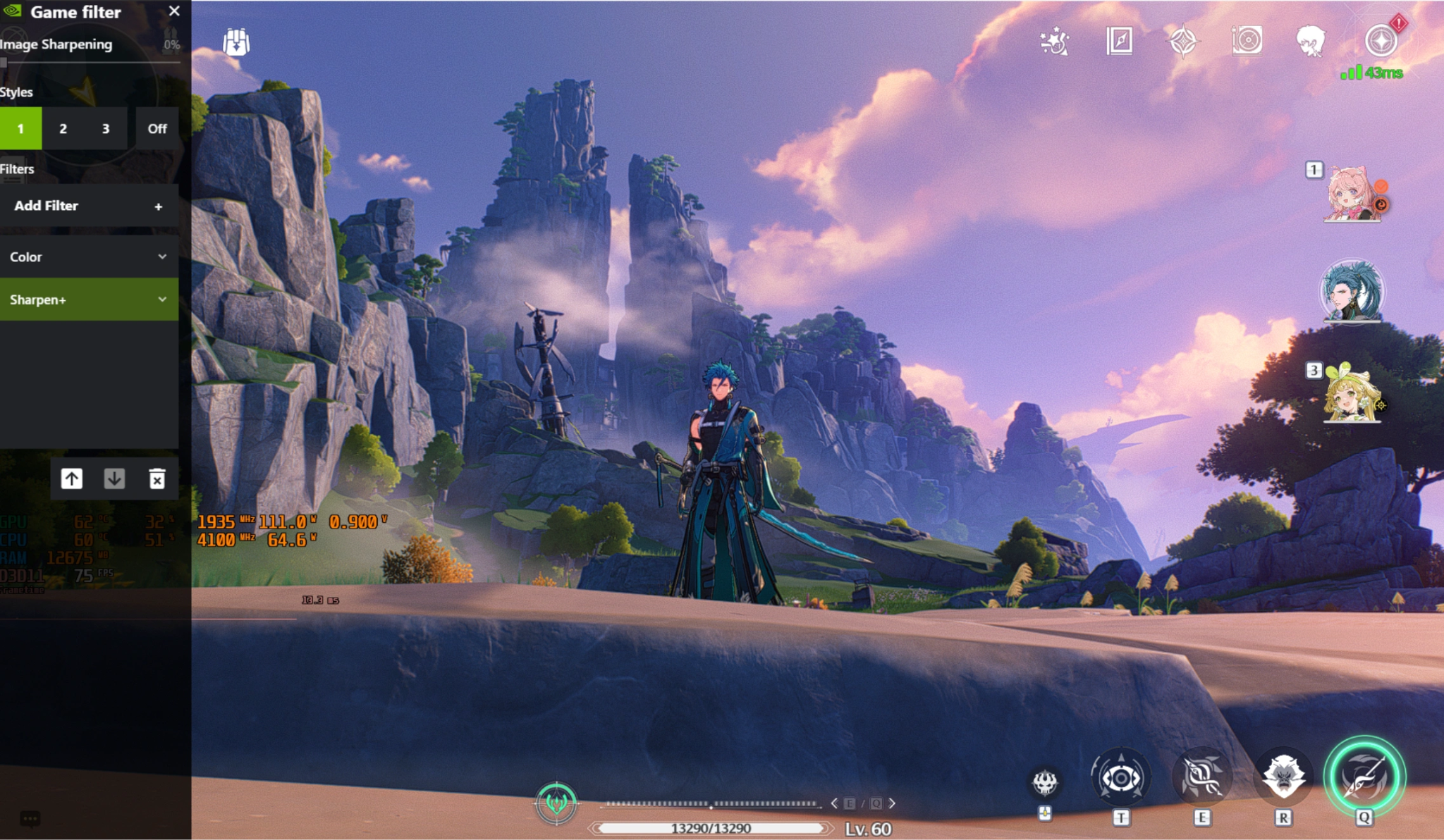
The wuthering waves NVIDIA game filter relies on NVIDIA Freestyle, a feature integrated into the NVIDIA App and GeForce Experience. It allows gamers to apply real-time post-processing filters directly over the game engine rendering pipeline.
Instead of changing game files or installing risky third-party modifications, this tool acts as an adjustable lens over your monitor. It intercepts the frame output right before it hits your display, allowing you to alter wuthering waves nvidia color settings, adjust shadow depth, or inject a wuthering waves sharpen nvidia filter profile to combat aggressive in-game blurring.
You May Like: Ultimate Wuthering Waves Filter Guide: Best Settings for Vibrant, Sharp Visuals
Part 2: Best Wuthering Waves NVIDIA Filter Settings
To unlock deep shadows, vibrant environments, and sharp character models without making the game look artificial or overly grainy, use this specific combination of three layered filters.
Sharpen+ (or Regular Sharpen)
This filter removes the soft, muddy look caused by Temporal Anti-Aliasing (TAA) and lower native render scales.
- Intensity: 15% to 25% (Keep it low to avoid harsh digital artifacts or grain)
- Texture Details: 60% to 100% (Brings out the texture definitions on clothes, weapons, and rock faces)
Brightness / Contrast
This setting removes the universal "foggy" tint that covers plains and ruined cities.
- Exposure: +4% to +10%
- Contrast: +24% to +34% (Gives the image its true depth)
- Highlights: -20% to +20% (Lower this if skills or UI text blind you during night battles)
- Shadows: +15% to +30% (Deepens shadows for a true three-dimensional look)
- Gamma: -10%
Color
Adjusting these variables ensures your combat effects and elemental skills look dramatic and vivid.
- Tint Color: 0% to 20%
- Tint Intensity: 0% to 10%
- Temperature: 0 to 4 (Slightly warm values make fields look inviting; neutral values keep things crisp)
- Vibrance: +50% (The main slider responsible for making the colors pop out)
Part 3: How to Fix Wuthering Waves Nvidia Filters Not Working
It is incredibly common for players to hit Alt + F3 only to receive errors like "A supported game is required to use this feature" or to find that their configurations reset completely after a small game update. Below are the steps to troubleshoot these errors.
Manual Fixes
- Manually Link the Shipping Executable: The NVIDIA overlay often fails to recognize the game because it looks at the main launcher rather than the running engine block.
Step 1. Open your NVIDIA App or GeForce Experience.
Step 2. Go to Settings and choose to manually add a game.
Step 3. Route the path directly to the folder: Wuthering Waves Game\Client\Binaries\Win64\Client-Win64-Shipping.exe.
Step 4. Restart your computer and test the overlay link.
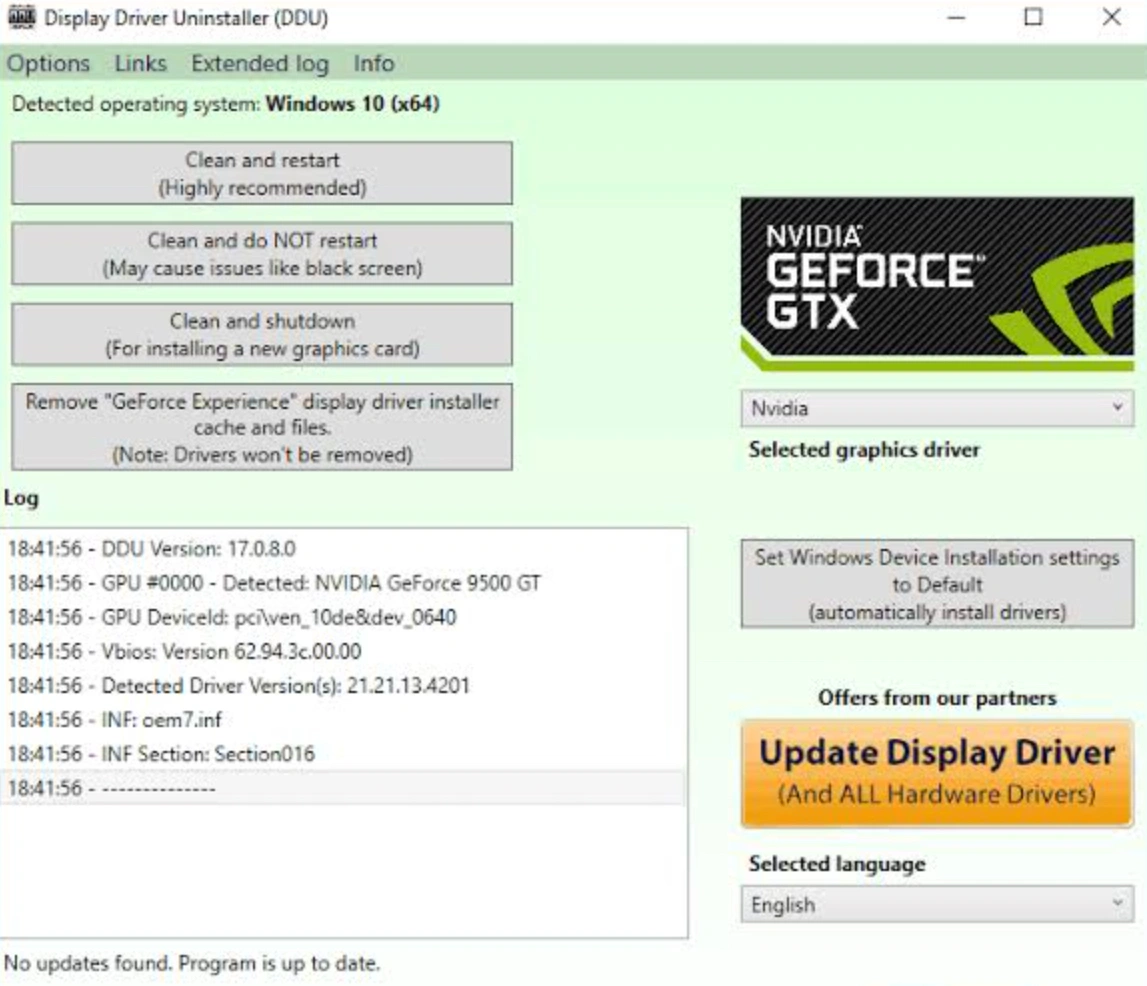
- Perform a Clean Driver Rollback: Recent graphics driver updates frequently break freestyle integration profiles. If an update breaks your configuration, use Display Driver Uninstaller (DDU) to wipe your graphics drivers, then install a stable previous version.
- Avoid Excessive Alt-Tabbing: Running the game in borderless windowed mode and frequently switching windows can cause the overlay to lose its active handle hook, leading to immediate feature crashes.
Alternative: LagoFast One-Click Filter Tool
If you want to skip manual configuration updates, slider micro-management, and driver bugs, the LagoFast Game Filter tool provides an automated approach.
LagoFast includes a built-in game screen filters toolkit featuring advanced AI filters, universal adjustments, and targeted game-specific styling profiles. Instead of adjusting multiple individual variables yourself, you can cycle through beautifully crafted visual presets instantly.
Key Features of LagoFast Game Screen Filters:
- One-Click Color Tone Switching: Instantly eliminate the default grey, foggy aesthetic with a single click. No tedious slider adjustments or technical expertise required.
- Better Screenshots Without Complex ReShade Setup: Capture breathtaking, vivid images directly in-game without having to install third-party injector tools that trigger anti-cheat software or ruin your performance.
- Switch Between Vibrant, Cute, Soft, and Cinematic Styles: Tailor your visual environment perfectly to your mood. Instantly shift from a hyper-vibrant anime aesthetic to an immersive, moody cinematic layout whenever you please.
Beyond improving visual performance, LagoFast acts as an all-in-one performance suite. It automatically optimizes your network pathways, lowers ping, eliminates micro-stutters, and secures higher frame rates, providing a smoother experience than raw overlay injections.
Step-by-Step Tutorial to Use LagoFast to Filter the Screen and Optimize Gaming Experience:
Step 1: Click the Free Trial button to download and install LagoFast.
Step 2: Open LagoFast then click the PC button on the left and search Wuthering Waves in the search bar, click it after appearing.
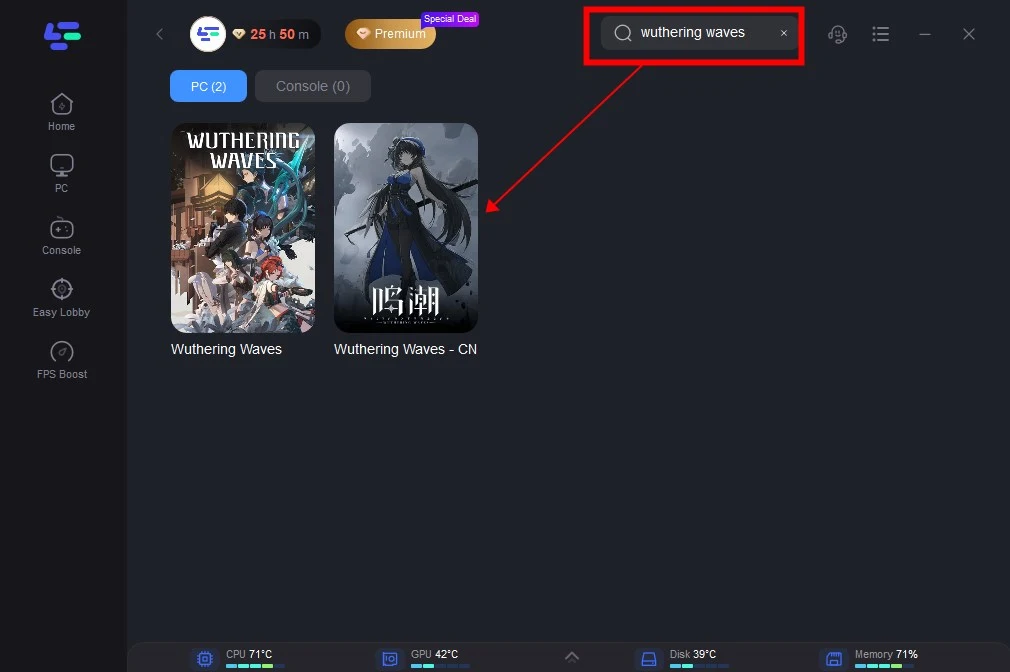
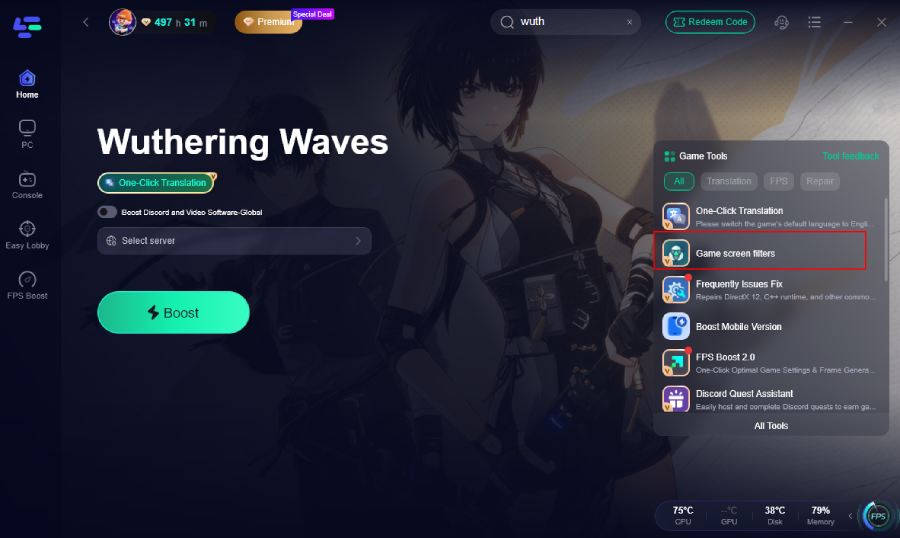
Step 3: Click the Game Screen Filter Tool on the right.
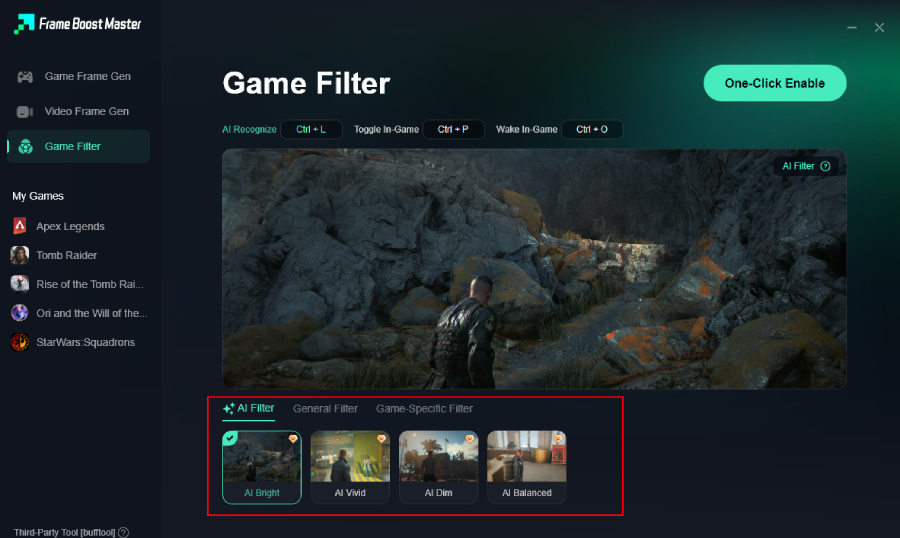
Step 4. Select your preferred filter like AI Bright and click One-Click Enable button to unlock the new experience.
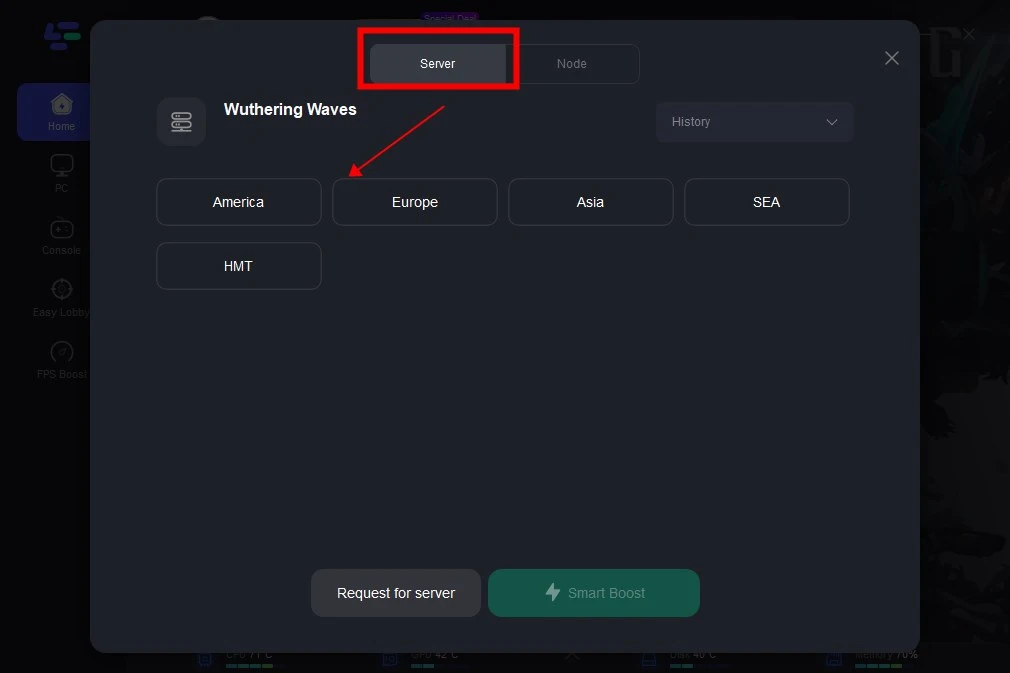
Step 5: Click on “Server” to change to a better server that ensures the gaming experience, then click on “Smart Boost”.
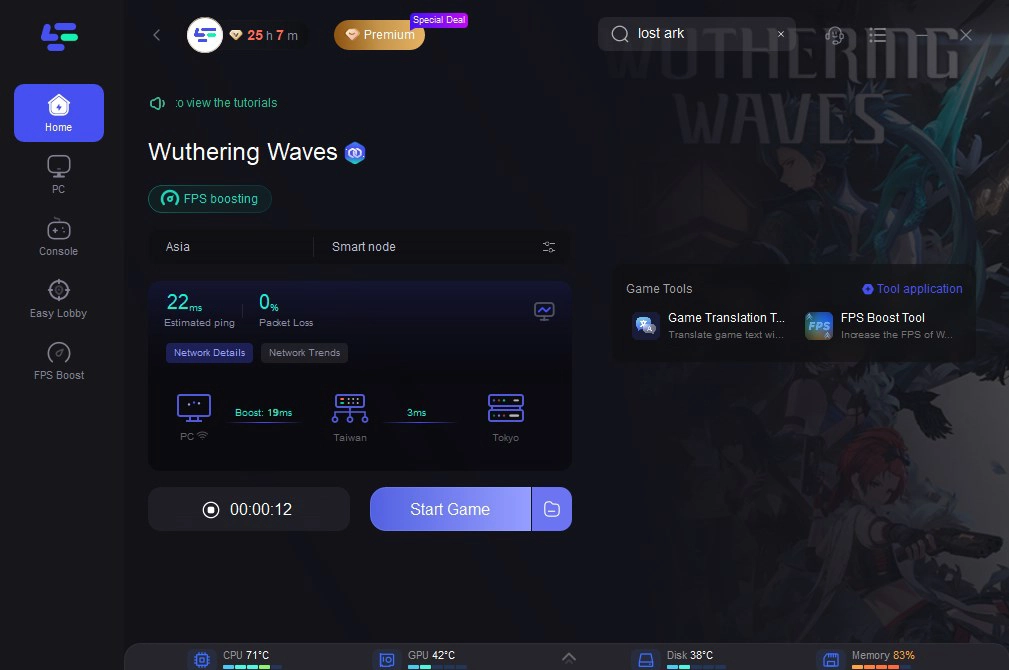
Step 6: Check the specific game ping, packet loss, and multiple path connection on the right side. Finally, click the “Start Game” to play the game.
Part 4: Wuthering Waves Filter Comparison
Different visual enhancement methods offer unique benefits and tradeoffs depending on your technical experience and computer specifications. The table below analyzes how each system compares across key parameters:
|
Feature |
Global In-Game Filter |
NVIDIA Filter Settings |
LagoFast Game Filter |
|
Ease of Use |
Simple, built-in options. |
Requires manual slider adjustments. |
One-click instant style swapping. |
|
Visual Quality |
Basic presets; limited contrast changes. |
Exceptional color depth and custom sharpness. |
Rich AI-driven enhancements and clear visibility. |
|
Performance Impact |
No frame loss. |
May cause a 10-15% FPS drop on older systems. |
Light execution footprint; includes FPS optimization. |
|
Reliability |
Completely stable. |
Frequently breaks after driver updates. |
Highly stable; bypasses overlay system errors. |
|
Target Audience |
Casual players using standard settings. |
Enthusiasts who enjoy deep, manual fine-tuning. |
Players who want excellent visuals with zero hassle. |
Part 5: FAQs
Does using NVIDIA Filters in Wuthering Waves cause a performance or FPS drop?
Yes, running real-time overlay shaders requires processing headroom. Depending on your graphics card generation and target resolution, using complex filters like Sharpen+ along with Contrast modifiers can lower your performance by 10 to 20 frames per second. If you need a zero-loss option, an optimized solution like LagoFast is highly recommended.
Why does my game look grainy after turning on the sharpen filter?
This happens when the sharpening intensity is set too high, which exaggerates edges and digital noise. To clean up the picture, lower your wuthering waves sharpen nvidia filter intensity slider below 25%, and rely on the Texture Details slider to clear up blurriness instead.
How do I fix the "Supported game is required" error on launch?
This error means the overlay engine missed the initialization hook of the game client. You can fix this by adding the game execution binary (Client-Win64-Shipping.exe) directly into your companion application directory settings rather than targeting the base launcher shortcut.
Why do my Wuthering Waves NVIDIA filter settings reset every time I close the game?
This is a known software bug tied to specific driver updates. Try updating to the latest stable release or switching from GeForce Experience to the newer NVIDIA App, which handles preset profile retention more reliably.
Why do my custom colors look great during the day but too dark at night?
High shadow contrast settings can make nighttime environments or dark ruins unreadable. When adjusting your values, always test them under different conditions, or use the LagoFast utility to switch profiles instantly when changing locations.
Are these filter profiles compatible with AMD or Intel graphics cards?
The integrated freestyle panel requires an active NVIDIA Geforce or RTX graphics card. If you use an AMD Radeon or Intel Arc graphics setup, you can use the universal overlay filters inside LagoFast to achieve the same visual enhancements.
Conclusion
Fine-tuning your graphics transforms Wuthering Waves from a muted, hazy world into a vivid, breathtaking masterpiece. While configuring manual slider profiles via NVIDIA offers precise control for high-end systems, using the LagoFast One-Click Paint tool gives you identical premium visual fidelity instantly and without performance stuttering. Try both methods to see which option fits your gaming setup best!

Boost Your Game with LagoFast for Epic Speed
Play harder, faster. LagoFast game booster eliminates stutter and lags on PC, mobile, or Mac—win every match!
Quickly Reduce Game Lag and Ping!
Boost FPS for Smoother Gameplay!