
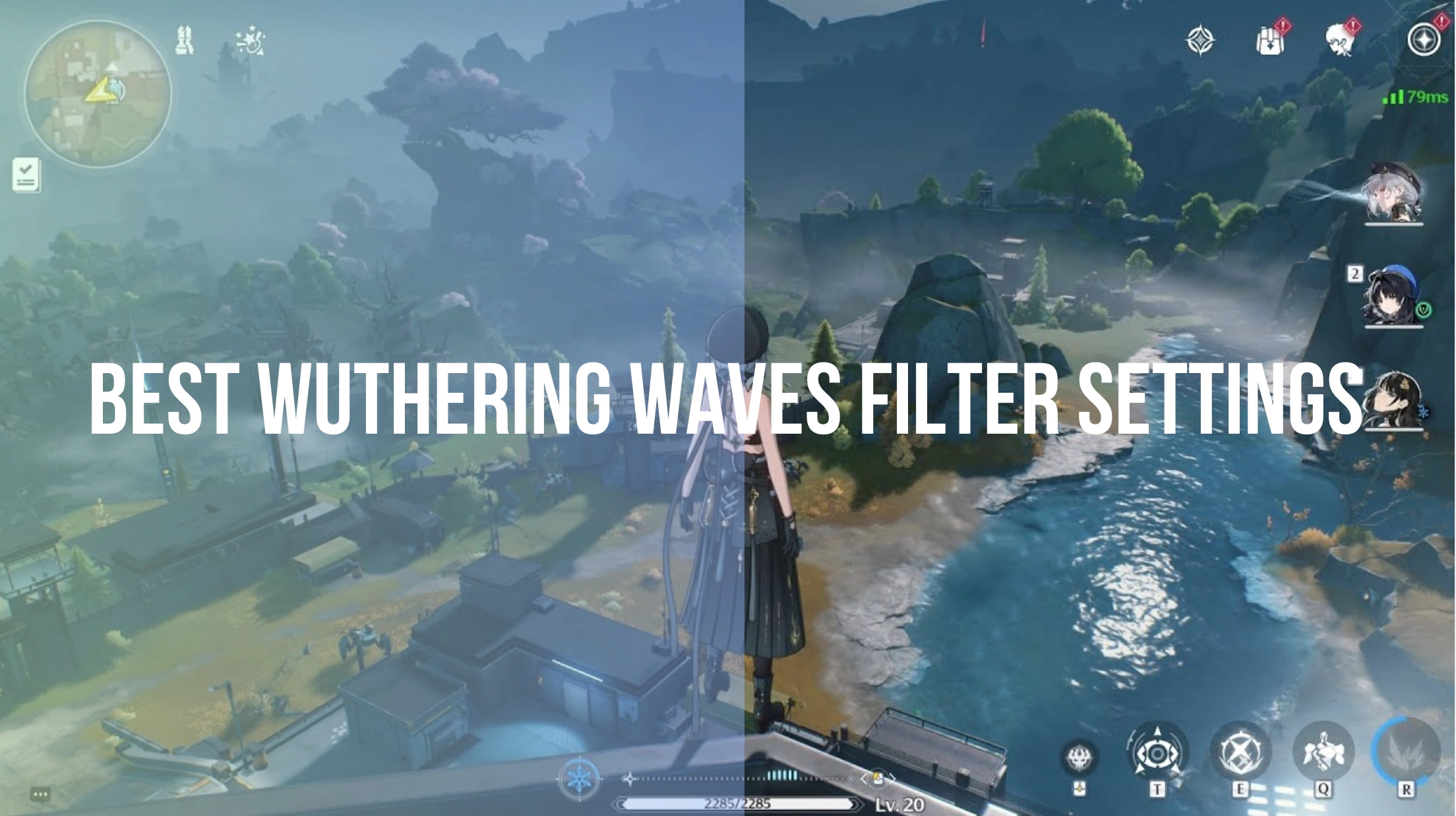
Quick Answer: What Are the Best Wuthering Waves Filter Settings?
To instantly fix the blurry, washed-out look in Wuthering Waves, use these optimized settings: Turn Brightness down to 45–48, enable NVIDIA Freestyle with Details (Sharpen 30%) and Color (Vibrancy +20%), and set the in-game camera to Cinematic or Default with custom adjustments.
If tinkering with individual settings feels overwhelming or tanks your frame rate, an all-in-one tool like LagoFast Game Booster features built-in AI game screen filters. It lets you switch between vibrant, cinematic, or soft graphics styles with a single click, cleaning up the game's visuals without complex configurations.
Wuthering Waves features a gorgeous, vast open world filled with fast-paced combat and beautifully designed anime characters. However, many Resonators notice upon launching the game that the default graphics can look a bit washed out, hazy, or lacking in sharp detail. Fortunately, you do not have to settle for a muted color palette. By fine-tuning your global settings, leveraging your graphics card, and utilizing smart software, you can transform Solaris-3 into a vivid, breathtaking masterpiece. This guide will walk you through the absolute best filter settings to maximize your game’s visual appeal.

- ✅ Reduce Lag and High Ping.
- ✅ Boost FPS at the Same Time.
- ✅ Change Server Without Latency.
- ✅ One-Click Translation Tool.
- ✅ End All Connection Issues.
- ✅ Multiplatform: PC, Mobile, Console
Part 1: Best Wuthering Waves Global Filter Settings
Part 2: Best Wuthering Waves Color Filter Settings
Part 3: Best Wuthering Waves NVIDIA Filter Settings
Part 4: Best Wuthering Waves Photo Mode Filter
Part 5: How to Fix Wuthering Waves Looking Gray or Blurry?
Part 6: LagoFast – One-Click Filter to Enhance Your Game Screen
Part 1: Best Wuthering Waves Global Filter Settings
Before diving into third-party tools or advanced graphics card filters, you need to lay a solid foundation using the game’s built-in global options. The default layout often leans heavily into a desaturated, post-apocalyptic gray aesthetic, which can make environments feel monotonous after a few hours of play.
To correct this at a baseline level, head to your Settings, and Graphics tab, and apply the following tweaks:
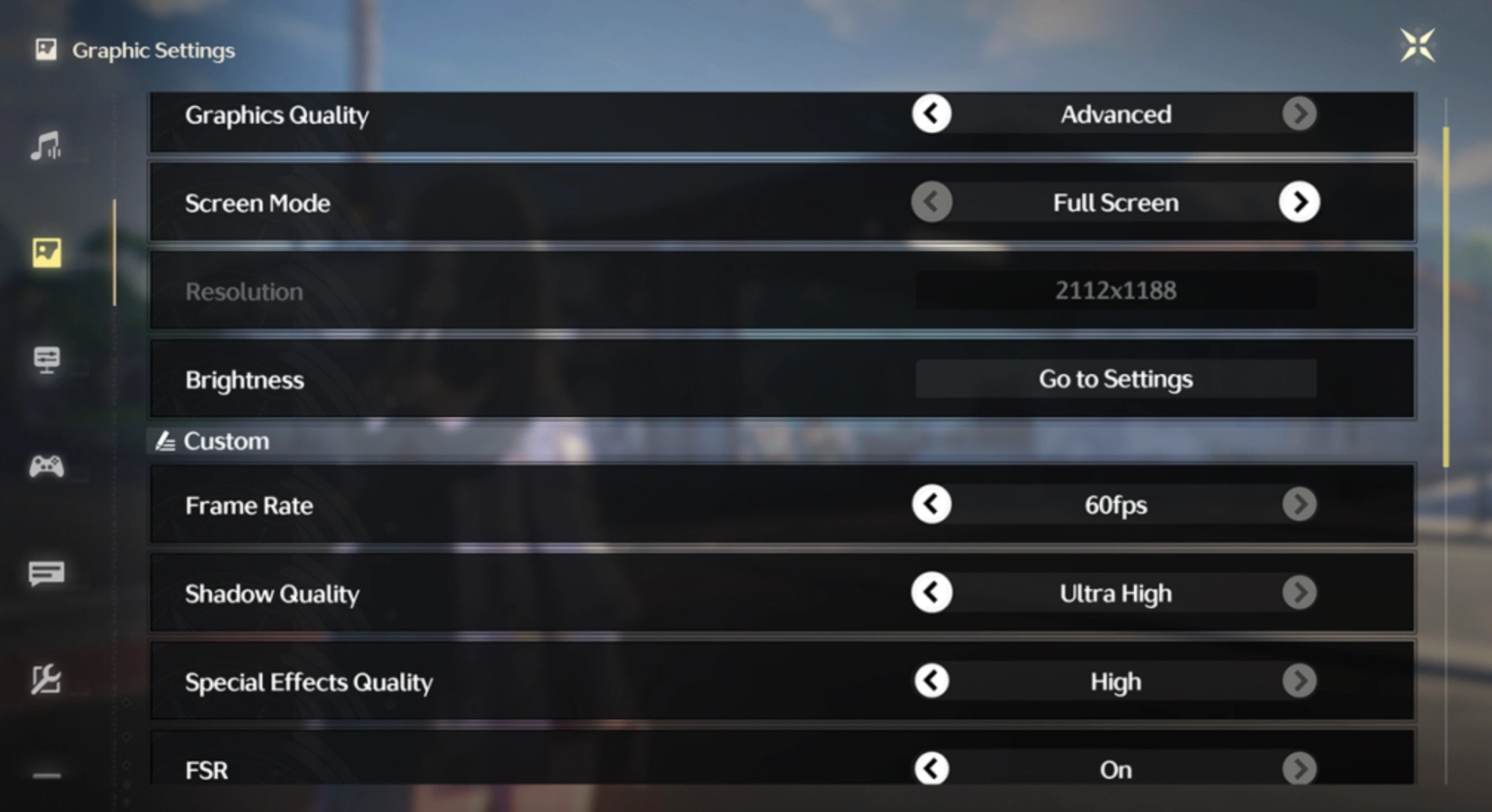
- Graphics Quality: Custom
- Resolution: Match your native monitor resolution (e.g., 1920x1080 or 2560x1440)
- Frame Rate: 60 FPS or 120 FPS (depending on your monitor's capabilities)
- Shadow Quality: Medium or High (Low makes the world look flat; Ultra can heavily impact performance)
- Special Effects Quality: High (Crucial for seeing vibrant combat animations and elemental bursts)
- FSR / DLSS: Enabled (Set to "Quality" mode to preserve sharp textures while boosting frame stability)
- Motion Blur: OFF (Disabling this immediately removes the sickening "smudge" effect when panning the camera)
- Anti-Aliasing: ON (Smooths out jagged edges on character hair and clothing models)
Adjusting these fundamental parameters ensures that any color overlay or filter you apply later won't simply be highlighting a low-resolution, blurry image base.
Part 2: Best Wuthering Waves Color Filter Settings
The primary culprit behind the game looking "dull" is the internal color grading. While the developers wanted a slightly moody atmosphere to fit the narrative of the Lament, players often prefer vibrant environments where grass looks green and neon elements pop.
Inside the game's display configuration, look for the color profiles and brightness sliders:
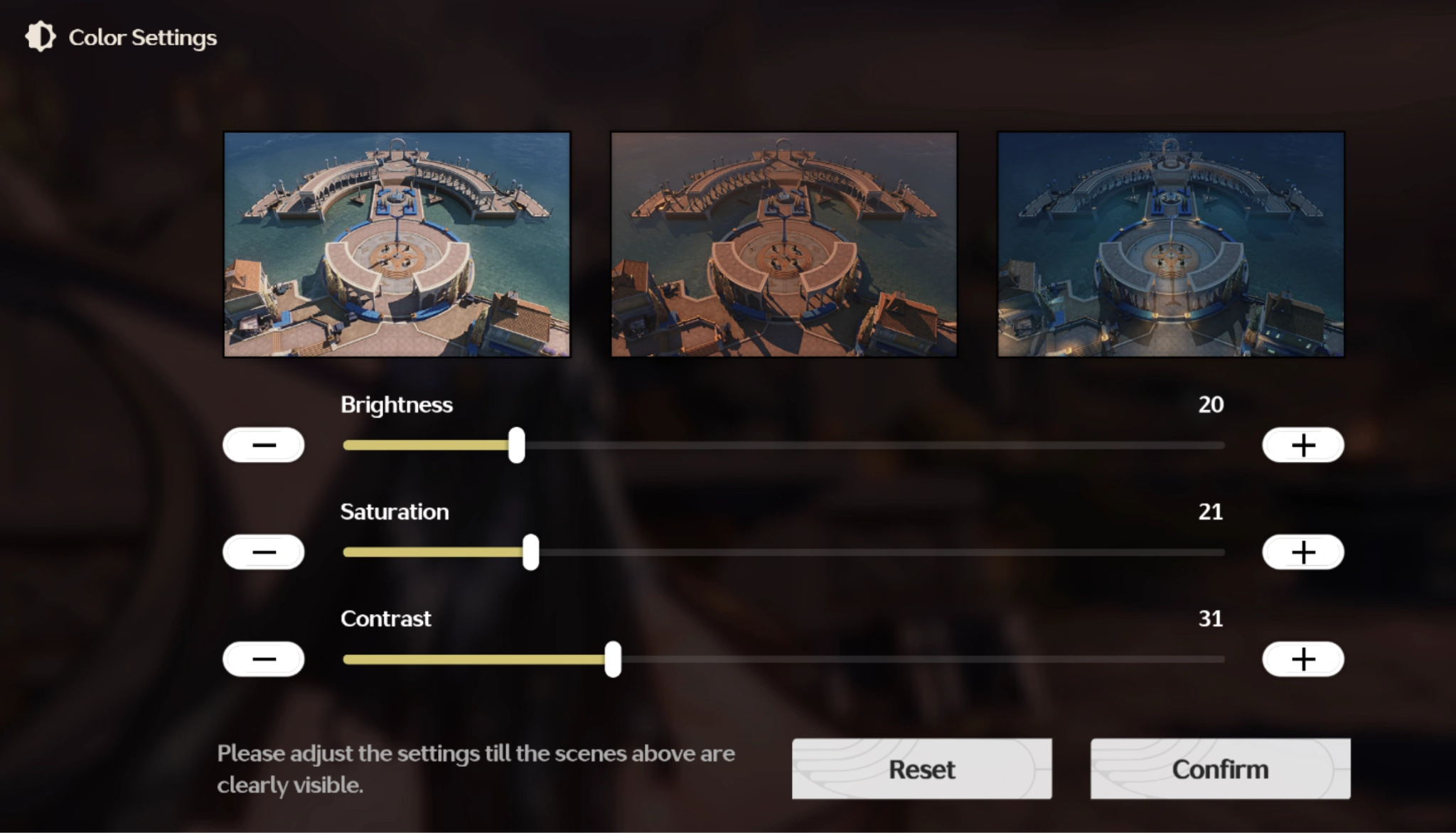
The Brightness Correction
By default, the game's brightness slider is set slightly too high for most modern monitors, causing black levels to look dark gray.
- Slide the In-Game Brightness down to 45% or 48%.
- This minor drop instantly crushes the foggy overlay, forcing deeper shadows and making the natural colors appear more saturated by contrast.
Color Style Selection
Wuthering Waves offers pre-baked color styles within the camera and display settings.
- Default Mode: Offers the most accurate color representation but lacks pop. Pairs perfectly with external filters.
- Cinematic Mode: Increases the overall contrast and darkens shadows significantly. This is excellent if you want a deeply atmospheric, anime-movie style aesthetic right out of the box without using external software.
Part 3: Best Wuthering Waves NVIDIA Filter Settings
For PC players using an NVIDIA graphics card, the NVIDIA GeForce Experience (or the updated NVIDIA App) provides a feature called Freestyle. This allows you to apply real-time post-processing filters directly over the game engine with negligible impact on performance. It is essentially a lightweight, safe alternative to ReShade.
To open the overlay in-game, press Alt + Z (or Alt + F3 to go straight to Game Filters). Add the following filters and adjust their percentages exactly as listed below:
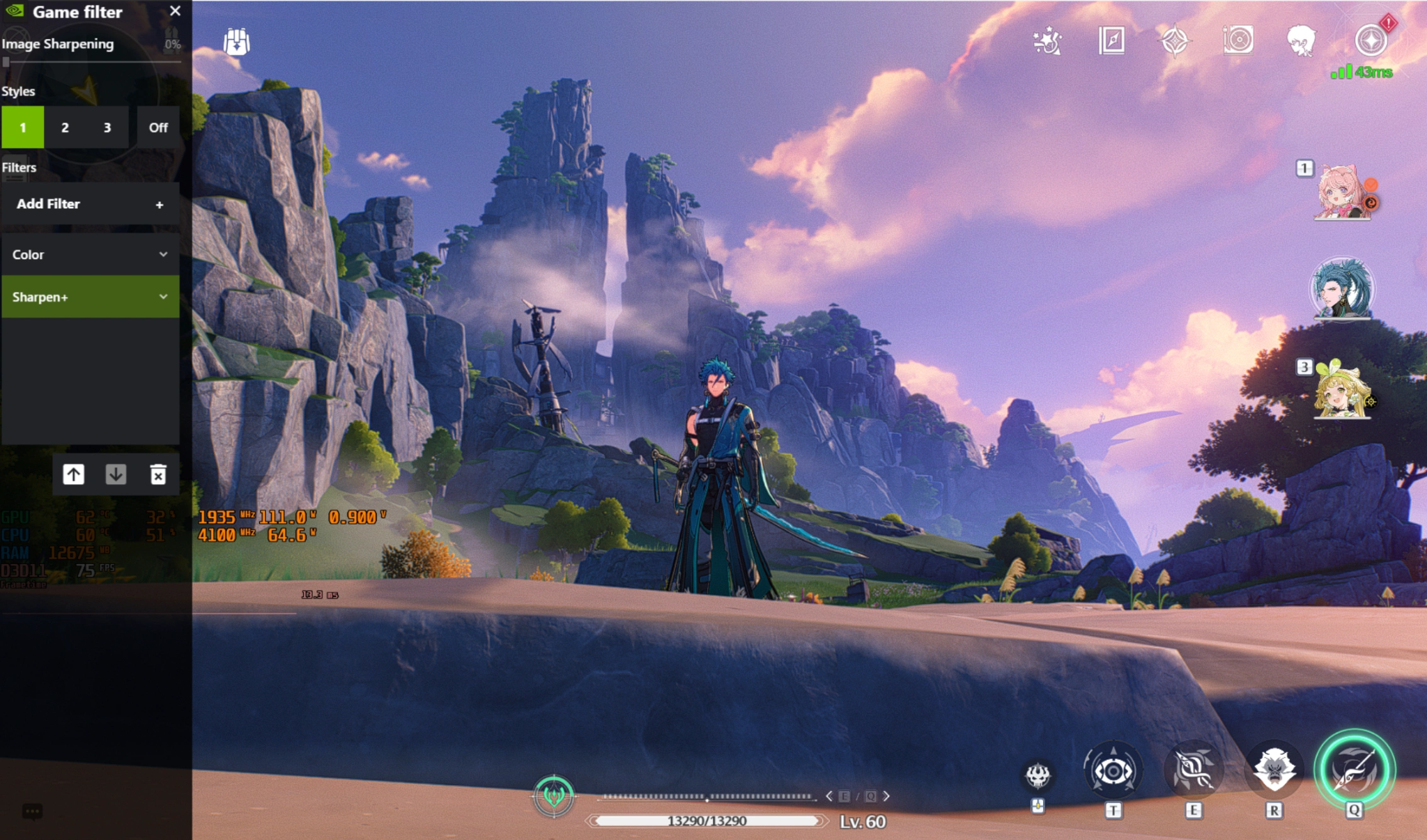
Filter 1: Details
This filter handles the "haziness" and restores texture clarity to rock faces, character outfits, and distant horizons.
- Sharpen: 30%
- Clarity: 15%
- HDR Toning: 10%
- Bloom: 0% (Keeping bloom low prevents skill animations from blinding you during combat)
Filter 2: Color
This filter directly addresses the washed-out color palette, making the world look incredibly lively.
- Tint Color: 0%
- Tint Intensity: 0%
- Temperature: 0 (Or -5 if you prefer a cooler, crisp blue-ish undertone)
- Vibrance: +20% to +25% (Do not go higher than 30%, or skin tones on characters like Jiyan or Rover will start looking unnaturally red)
Filter 3: Brightness / Contrast
If the in-game adjustment wasn't enough, use this to perfectly balance the lighting.
- Exposure: 0%
- Contrast: +10%
- Highlights: -5% (Tames overly bright skies)
- Shadows: +5% (Brings back details hidden in very dark corners)
- Gamma: 0%
Once applied, toggle the filter on and off to see the difference. The world will instantly look remarkably sharp, clear, and vividly colored.
Part 4: Best Wuthering Waves Photo Mode Filter
Taking gorgeous screenshots of your favorite characters is a massive part of the endgame experience. Wuthering Waves features a robust built-in Photo Mode, accessible via the terminal menu. However, standard gameplay graphics do not always translate well to a frozen frame.
To take stunning, high-tier character portraits and landscape shots, use this exact configuration inside the Photo Mode panel:
- Aperture (Depth of Field): Turn this ON. Set the slider to roughly 25–35%. This creates a beautiful, soft blur background (bokeh effect) that separates your character from the environment, making the portrait look professional.
- Focus Distance: Adjust this until your character’s eyes and outfit textures are perfectly sharp.
- Filter Style: Select Vivid or Warm. The Vivid filter boosts color saturation across the board, which looks exceptional for characters with bright designs like Changli or Encore. The Warm filter works brilliantly for golden hour sunset shots in the Central Plains.
- Filter Intensity: Set to 60%. Pushing it to 100% can look overly deep and artificial; keeping it around 60% blends the filter naturally with the game's lighting.
- Character Expression & Action: Don't forget you can pause character animations mid-attack or set them to look directly at the camera for a dynamic shot.
Part 5: How to Fix Wuthering Waves Looking Gray or Blurry?
If your game looks excessively foggy, gray, or "burnt" (over-saturated to the point of losing detail), you are likely experiencing a conflict between Windows settings, monitor settings, and game options. Here is how to fix it step-by-step:
Fixing the Gray/Foggy Look
Step 1. Disable HDR in Windows if your monitor doesn't properly support it. In Windows, auto-HDR often forces a gray wash over non-optimized games. Turn off Windows HDR via Settings, select Display, and select HDR, and see if the color richness returns.
Step 2. Change Display Mode. Switch from Borderless Windowed to Fullscreen. Fullscreen ensures your graphics card handles color profiles exactly as intended without Windows desktop window manager interference.
Fixing the Blurry/Burnt Look
Turn Off Chromatic Aberration. This option mimics a camera lens defect, causing slight color bleeding and fuzziness on the edges of your screen. Turning it OFF instantly cleans up the image.
Step 1. Adjust Resolution Scaling. Ensure your render resolution is set to 100%. If it drops to 90% or lower, the game engine renders at a lower quality and stretches it, resulting in a pixelated, muddy appearance.
Step 2. Check Hardware Sharpness. If using DLSS or FSR, always couple it with the "Sharpness" slider set to at least 0.4 or 0.5 to counteract the natural softness introduced by temporal upscaling.
Part 6: LagoFast – One-Click Filter to Enhance Your Game Screen
If tweaking multiple configuration files, adjusting NVIDIA control panels, or setting up complex ReShade configurations feels like too much work, LagoFast Game Booster offers a perfect solution.
Beyond its legendary ability to eliminate high ping and packet loss, LagoFast features an integrated Game Screen Filter tool. It uses smart algorithms to overlay beautiful, performance-optimized color profiles over your favorite games with a single click.
Key Features of LagoFast Game Filter:
- One-Click Color Tone Switching: Completely transform the mood of your game instantly without diving into tedious sub-menus.
- Better Screenshots Without Complex Setup: Get professional, high-vibrancy screenshots directly from live gameplay without installing heavy third-party shaders.
- Versatile Style Gallery: Quickly cycle between Vibrant, Cute, Soft, and Cinematic styles to match whatever region of Solaris-3 you are exploring.
- Zero Performance Drops: Improves game visuals through efficient system-level overlays, keeping your gameplay smooth and frame rates perfectly stable.
Step-by-Step Tutorial to Use LagoFast to Filter the Screen and Optimize Gaming Experience:
Step 1: Click the Free Trial button to download and install LagoFast.
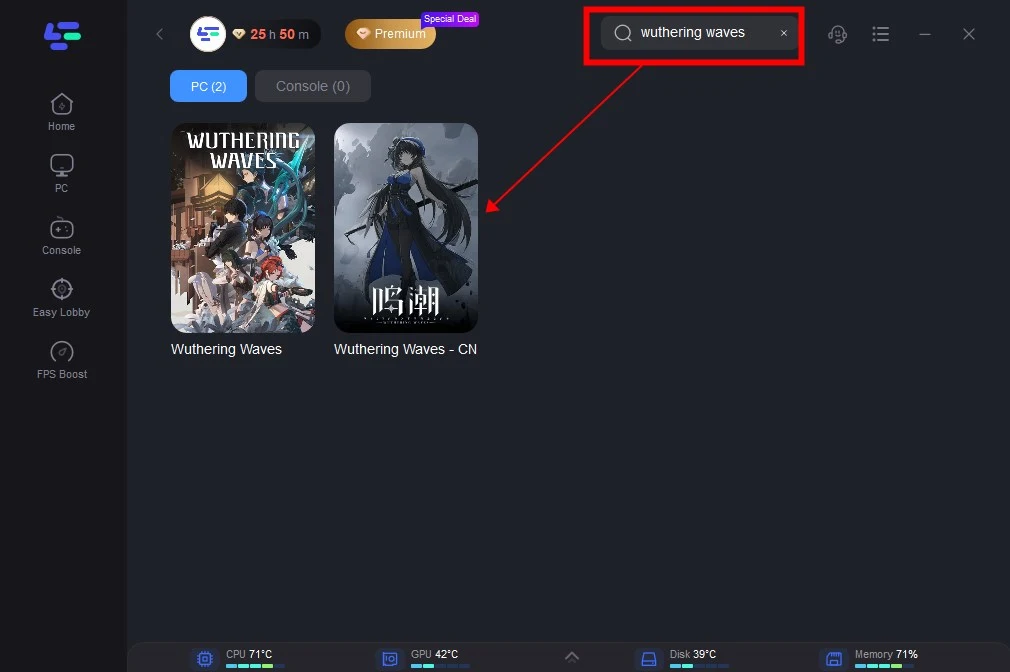
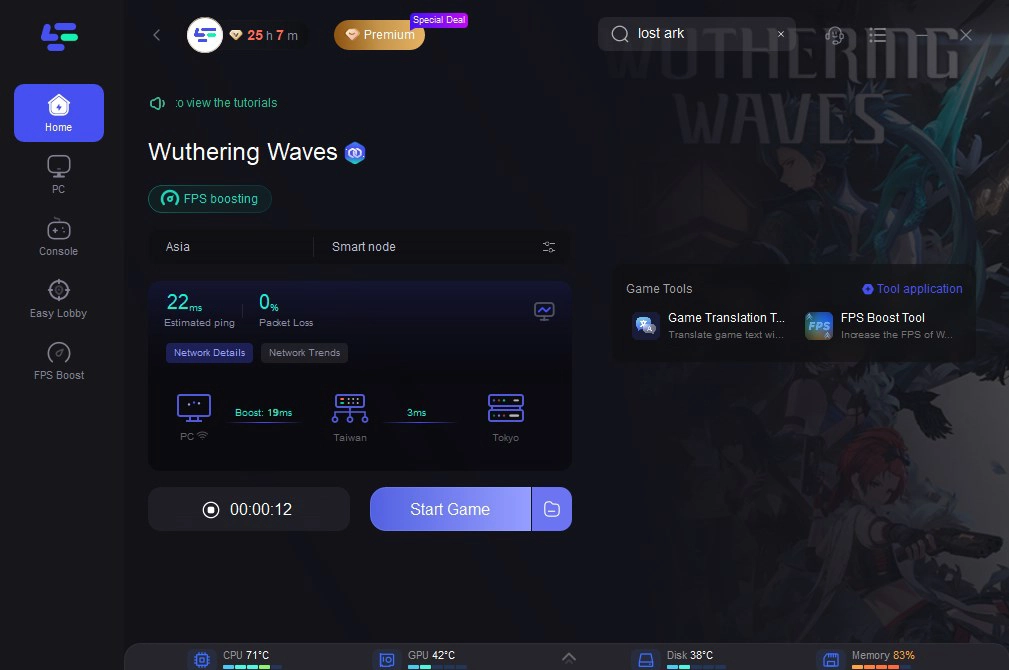
Step 2: Open LagoFast then click the PC button on the left and search Wuthering Waves in the search bar, click it after appearing.
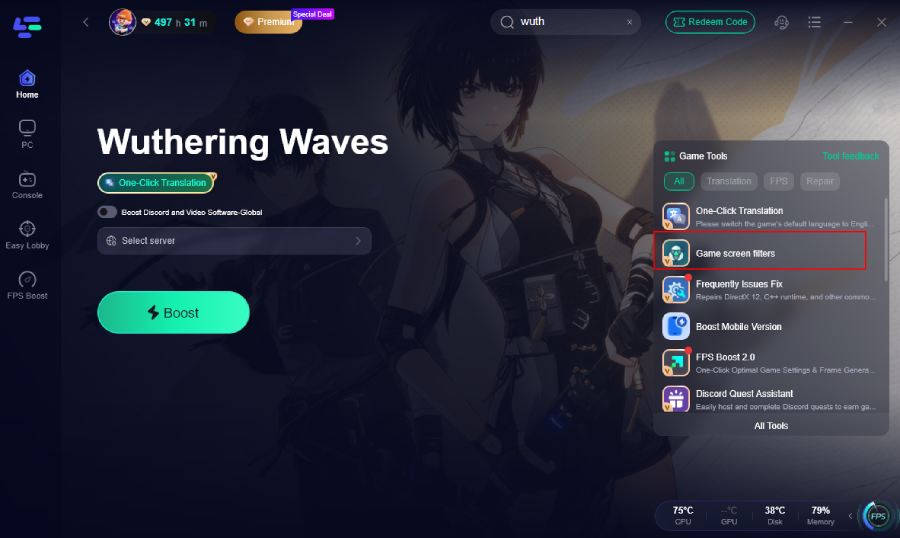
Step 3: Click the Game Screen Filter Tool on the right.
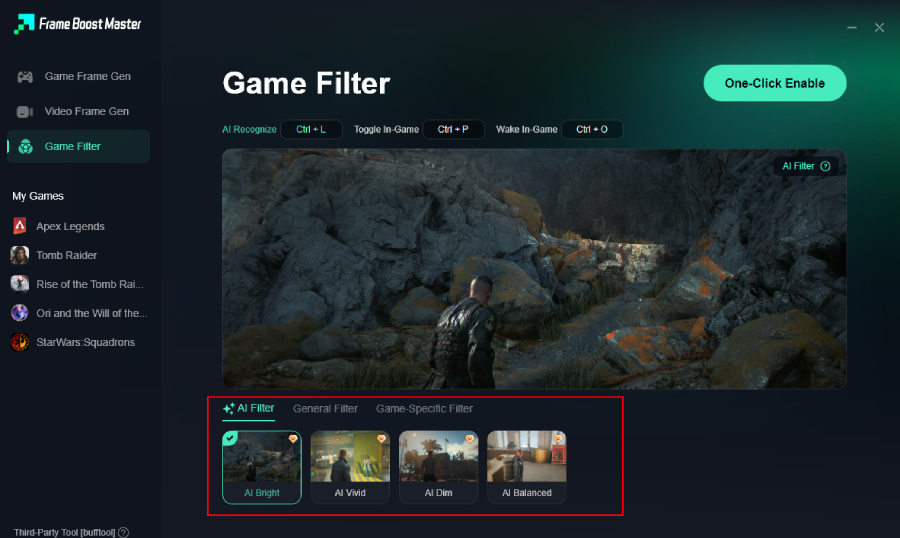
Step 4. Select your preferred filter like AI Bright and click One-Click Enable button to unlock the new experience.
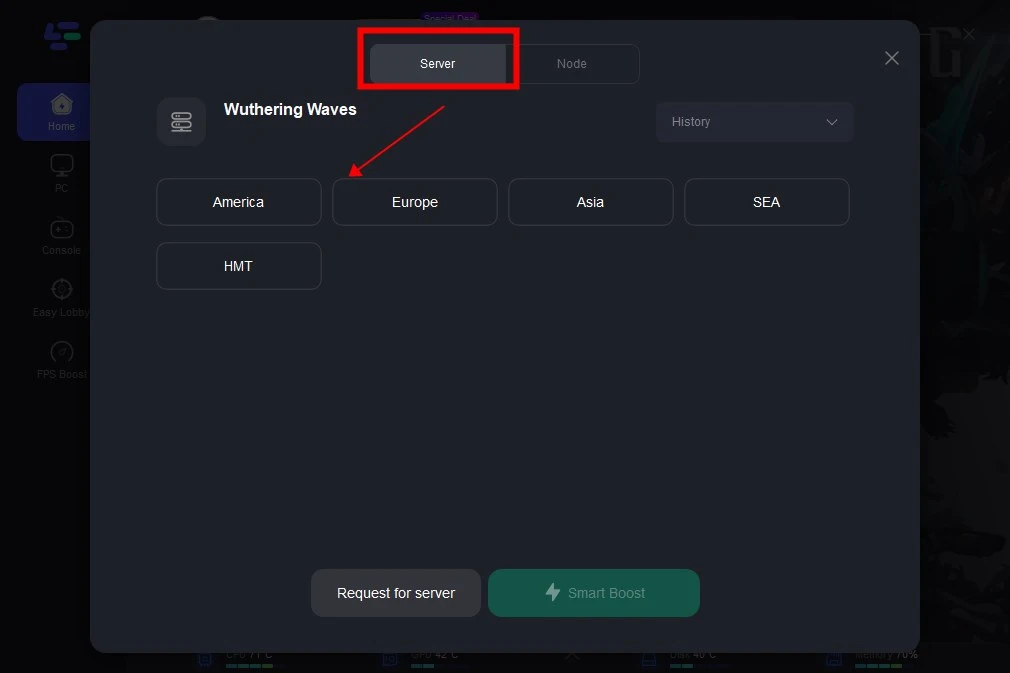
Step 5: Click on “Server” to change to a better server that ensures the gaming experience, then click on “Smart Boost”.
Step 6: Check the specific game ping, packet loss, and multiple path connection on the right side. Finally, click the “Start Game” to play the game.
Part 7: FAQs
Will using custom filters or NVIDIA Freestyle get me banned in Wuthering Waves?
No. NVIDIA Freestyle and system-level screen filters do not modify the game’s core files, code, or memory. They simply alter how the final image is displayed on your monitor, making them 100% safe and compliant with Kuro Games' terms of service.
Why does Wuthering Waves look so gray on high-end PCs?
The gray aesthetic is a deliberate design choice by the developers to emphasize a desolate, post-apocalyptic world. However, due to default brightness settings and monitor calibration variances, this artistic choice can often manifest as a distracting, washed-out fog.
Does changing filter settings lower my in-game FPS?
Basic in-game color style switches have zero impact on performance. Using NVIDIA Freestyle or LagoFast Game Filters might cost a negligible 1 to 2 FPS, which is virtually unnoticeable on almost all modern gaming setups.
What is the fastest way to fix blurriness when rotating the camera?
Go into your Graphics Settings and turn Motion Blur OFF. Additionally, ensure Chromatic Aberration is disabled and increase your camera sensitivity slightly so the game engine renders frame transitions cleanly.
Can I use these filter settings on mobile (Android/iOS) or console?
While you cannot use NVIDIA filters on mobile devices, you can achieve a similar effect on mobile or console by dropping the in-game brightness slider down to 45% and switching the Color Style to Cinematic within the standard settings menu.
What is the difference between ReShade and NVIDIA/LagoFast filters?
ReShade is a deep injector program that hooks directly into a game's rendering API, which can sometimes trigger aggressive anti-cheat systems or cause severe game crashes after a major update. NVIDIA Freestyle and LagoFast function safely on top of the display layer, ensuring total stability and absolute safety from bans.
Conclusion
Getting the absolute best visuals out of Wuthering Waves doesn't require a master's degree in graphics engineering. By lowering your in-game brightness, introducing a bit of sharpness, and utilizing streamlined tools like NVIDIA Freestyle or LagoFast's one-click game filters, you can completely eliminate the gray haze. Dive back into the game with your new settings and experience the vibrant world of Solaris-3 the way it was truly meant to be seen!

Boost Your Game with LagoFast for Epic Speed
Play harder, faster. LagoFast game booster eliminates stutter and lags on PC, mobile, or Mac—win every match!
Quickly Reduce Game Lag and Ping!
Boost FPS for Smoother Gameplay!