
Playing tactical shooters like WARDOGS requires clear communication, but encountering WARDOGS voice chat VOIP not working issues can ruin your entire tactical session. Many players report that their headset works fine in Windows and game audio tests, yet they suddenly face WARDOGS mic not working bugs upon joining a match. Whether you can't hear teammates or proximity chat drops completely, server routing and game bugs are often to blame. Using game boosters like LagoFast alongside simple in-game fixes can quickly get your squad communications back online.

- ✅ Reduce Lag and High Ping.
- ✅ Boost FPS at the Same Time.
- ✅ Support 8000+ Popular Online Games.
- ✅ Stable Server Connection
Part 1: Diagnosing the Root Cause: Hardware vs Game Server Issues
Part 2: Quick In-Game Workarounds for WARDOGS Voice Chat
Part 3: System and Windows Fixes for WARDOGS Mic Not Working
Part 4: Stabilizing WARDOGS VOIP Connections with LagoFast
Part 5: FAQs About WARDOGS Voice Chat VOIP Not Working
Part 1: Diagnosing the Root Cause: Hardware vs Game Server Issues
Before applying troubleshooting steps, it is important to identify whether your microphone is failing locally or if the game's voice server is causing the outage. Taking a moment to isolate the source saves time and prevents unnecessary hardware driver reinstalls.
|
Issue Indicator |
Local Hardware / Windows Issue |
WARDOGS Voice Server / VOIP Issue |
|
Windows Audio Test |
Mic produces no sound bar movement |
Mic works perfectly with clear input levels |
|
In-Game Mic Test |
Mic fails audio test in settings menu |
Audio test succeeds inside settings menu |
|
Match Performance |
Mic fails across all games and apps |
Mic stops working only inside live matches |
|
Squad / Proximity |
Teammates cannot hear you anywhere |
WARDOGS can't hear teammates or self |
|
Error Indicators |
Device error or muted in Windows |
Mute icon stuck on in-game scoreboard |
Understanding these differences helps you apply the right solution quickly. Closed Beta 02 testing revealed that third-party VOIP providers (such as Vivox) frequently undergo server disruptions during peak hours. When these services experience packet loss or high latency, your local mic remains functional, but the game fails to transmit your audio packets to squad members.
Part 2: Quick In-Game Workarounds for WARDOGS Voice Chat
When WARDOGS proximity chat not working errors strike during a match, you do not always need to quit the game. Try these quick in-game workarounds first to restore your voice channel without leaving your squad behind.
Method 1: Reset Voice Channel via the Scoreboard
Developers and community players have highlighted a built-in scoreboard shortcut that forces the game to reset its connection to the voice server.
Step 1: Press Tab during an active match to open the scoreboard interface.
Step 2: Press the U key once to toggle your voice chat status to muted.
Step 3: Press the U key a second time to attempt a fresh reconnection to the VOIP server.
Step 4: Repeat this sequence two or three times if the voice status does not immediately show Connected.
Method 2: Toggle Voice Chat Settings Off and On
Refreshing the audio engine inside the settings menu can clear temporary voice service glitches without requiring a full game restart.
Step 1: Open the main menu or pause menu and select Settings.
Step 2: Navigate to the Audio tab and locate the Voice Chat option.
Step 3: Switch Voice Chat to Disabled and click Apply Settings.
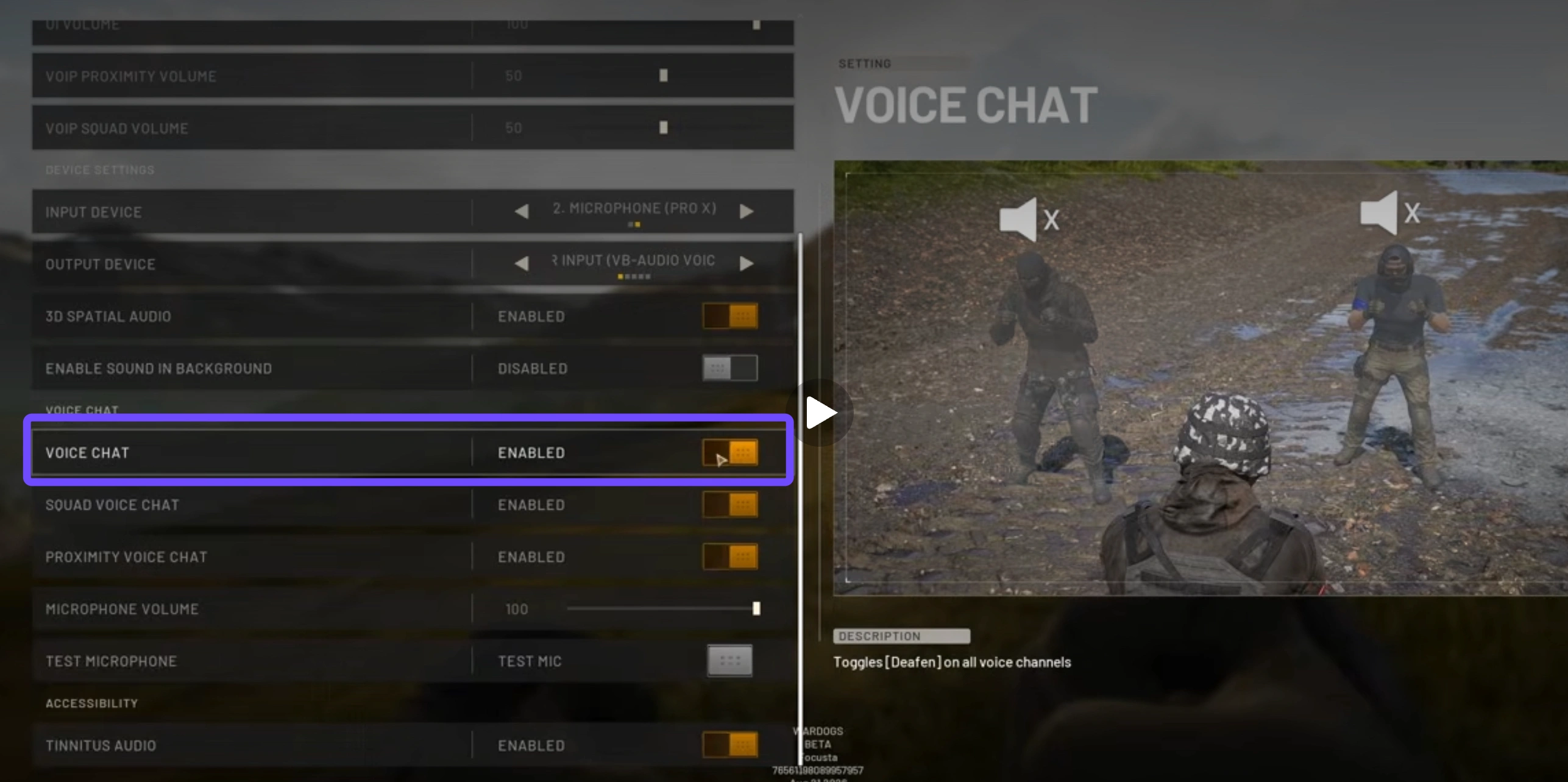
Step 4: Wait approximately five seconds to let the audio engine clear the existing channel.
Step 5: Change Voice Chat back to Enabled, apply changes, and test your mic with teammates.
Method 3: Switch Between Push To Talk and Open Mic
Sometimes the keybind registration for push-to-talk gets stuck, preventing WARDOGS microphone not working issues from resolving automatically.
Step 1: Navigate to Settings and select the Audio tab during your match.
Step 2: Change your Voice Chat Mode from Push-To-Talk to Open Mic.
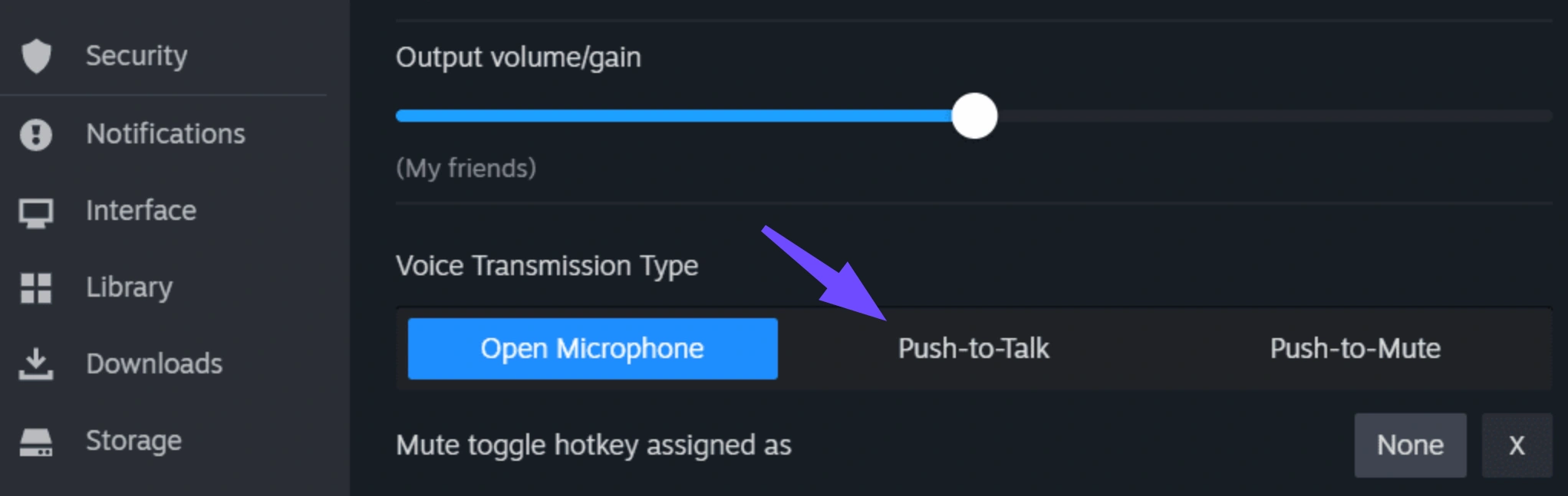
Step 3: Save settings, speak into your microphone to verify the voice icon appears, and then switch back to Push-To-Talk if preferred.
Part 3: System and Windows Fixes for WARDOGS Mic Not Working
If in-game shortcuts fail to restore your connection, system-level audio configurations or privacy permissions might be blocking WARDOGS VOIP not working features from accessing your microphone. Adjusting these settings ensures Windows hands full audio control to the game.
Configure Windows Input Devices and Privacy Permissions
Windows update patches or multi-device setups often reset default recording devices or restrict microphone access for background applications.
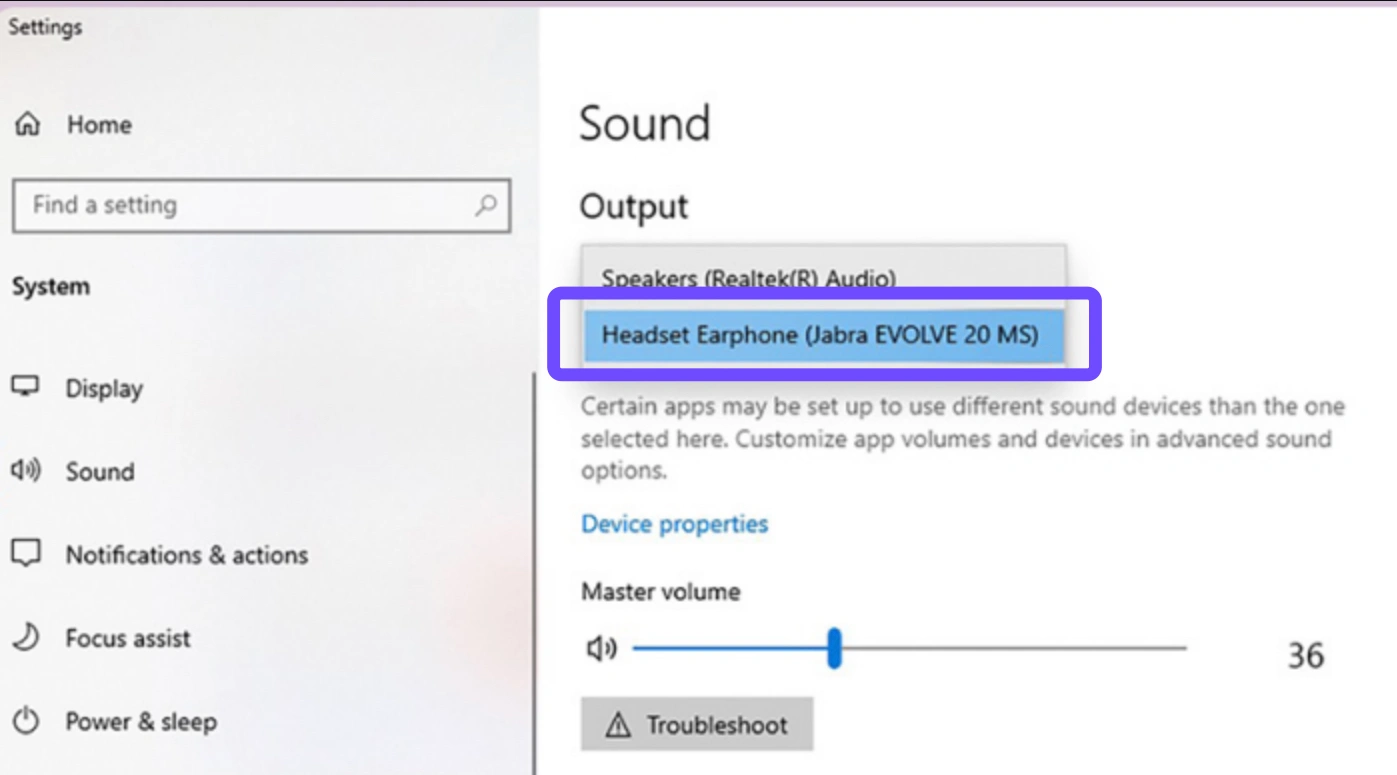
Step 1: Right-click the speaker icon in your Windows taskbar and choose Sound Settings.
Step 2: Scroll to Input and ensure your physical headset microphone is selected as the Primary Default Device.
Step 3: Go to Privacy & Security, select Microphone, and verify that Allow apps to access your microphone is toggled On.
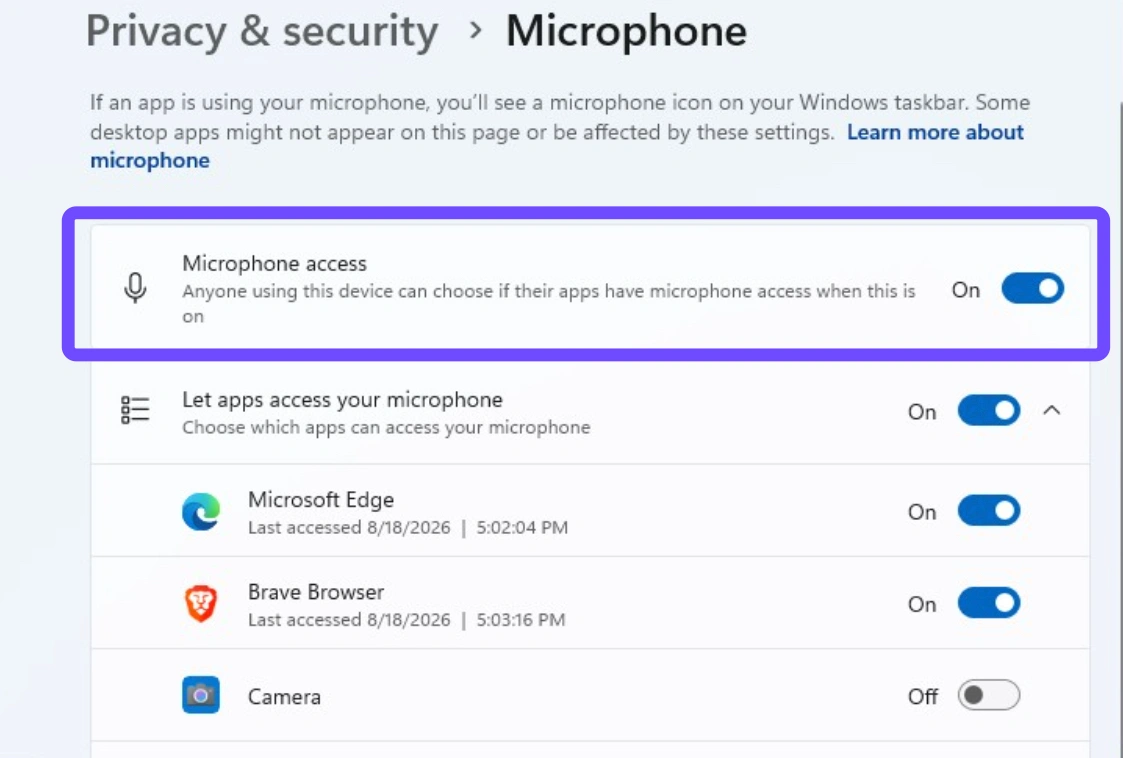
Step 4: Ensure Let desktop apps access your microphone is also enabled in the same menu.
Re-Configure Steam Input Settings
Since WARDOGS launches via Steam, conflicting audio input settings inside Steam can override in-game voice selections.
Step 1: Open Steam, click Steam in the top left corner, and select Settings.
Step 2: Select the Voice tab from the left side menu.
Step 3: Set your Voice Input Device explicitly to your active headset rather than System Default.
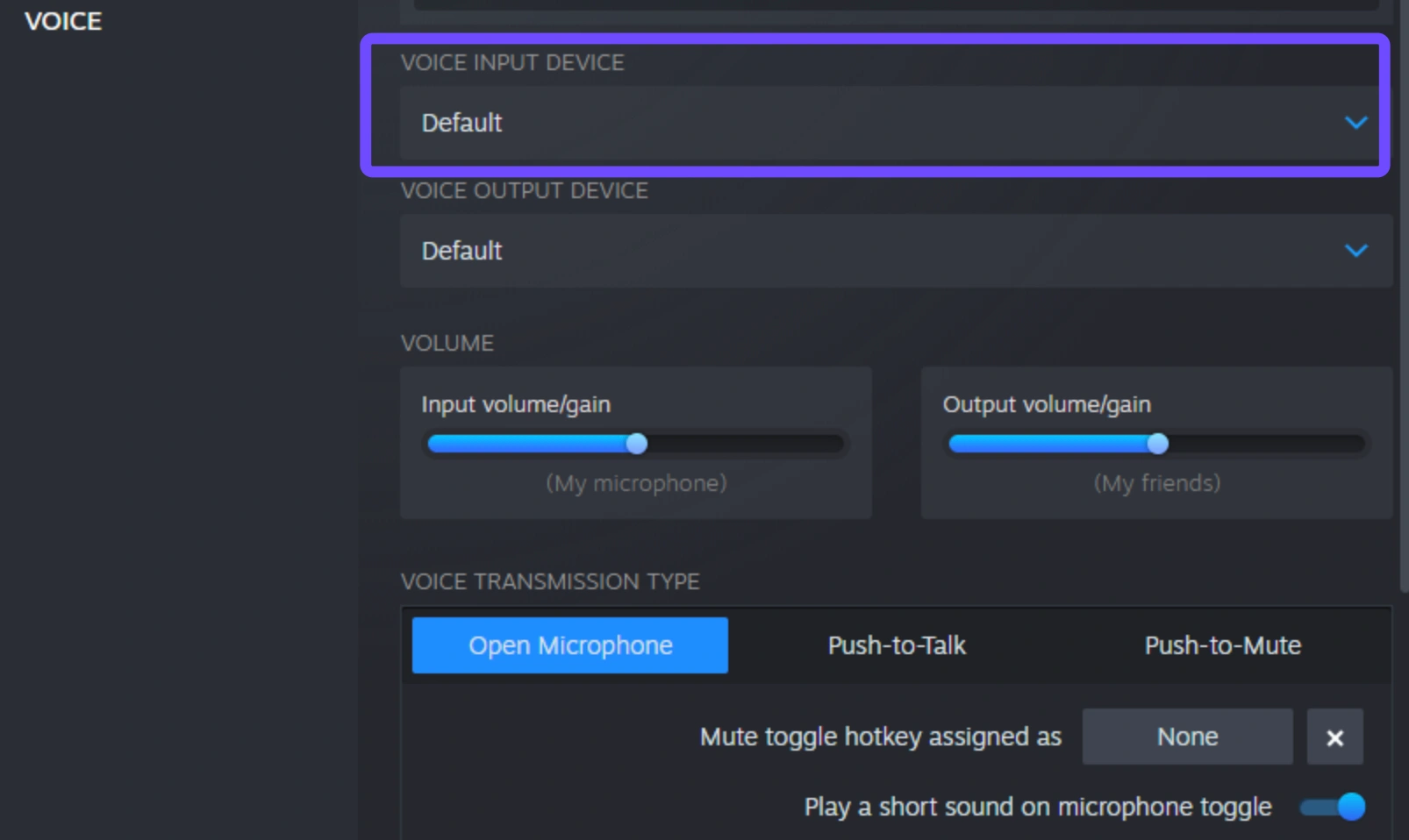
Step 4: Run the Steam Mic Test to verify clear audio input before re-launching WARDOGS.
Part 4: Stabilizing WARDOGS VOIP Connections with LagoFast
Network instability and severe packet loss frequently trigger WARDOGS voice chat not working errors, even when your local microphone operates perfectly.
LagoFast addresses these underlying connection drops by utilizing dedicated routing nodes that stabilize your connection directly to WARDOGS match servers and third-party VOIP relays. By eliminating packet loss and optimizing routing paths, LagoFast prevents sudden voice disconnects and resolves strict NAT obstacles that cause WARDOGS can't hear teammates issues. Beyond securing uninterrupted squad voice chat, LagoFast also lowers overall game ping and boosts FPS with a single click, providing a stable foundation for competitive tactical play.
How to Stabilize WARDOGS VOIP Connections with LagoFast:
Step 1: Download and install LagoFast.
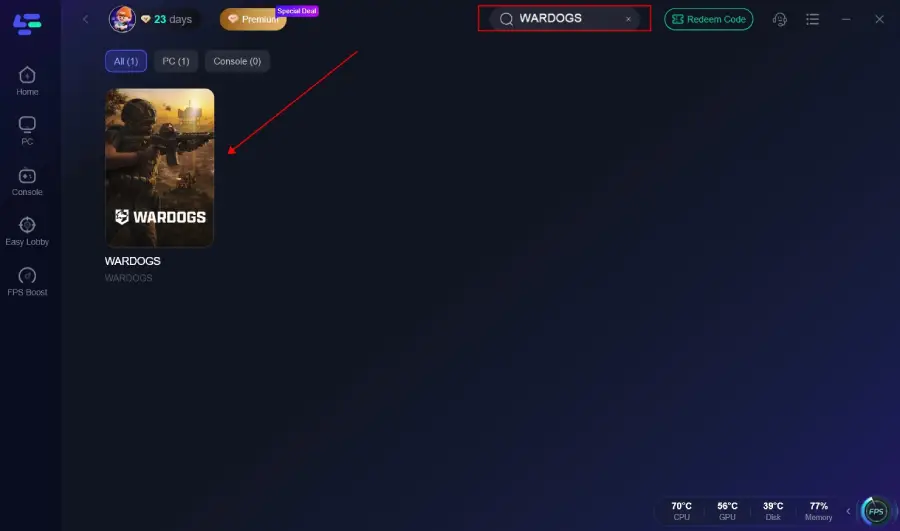
Step 2: Type WARDOGS into the top search bar and select the game from the search results.
Step 3: Click Select Server to choose your match region, then select an optimal network node to bypass packet loss on VOIP channels.
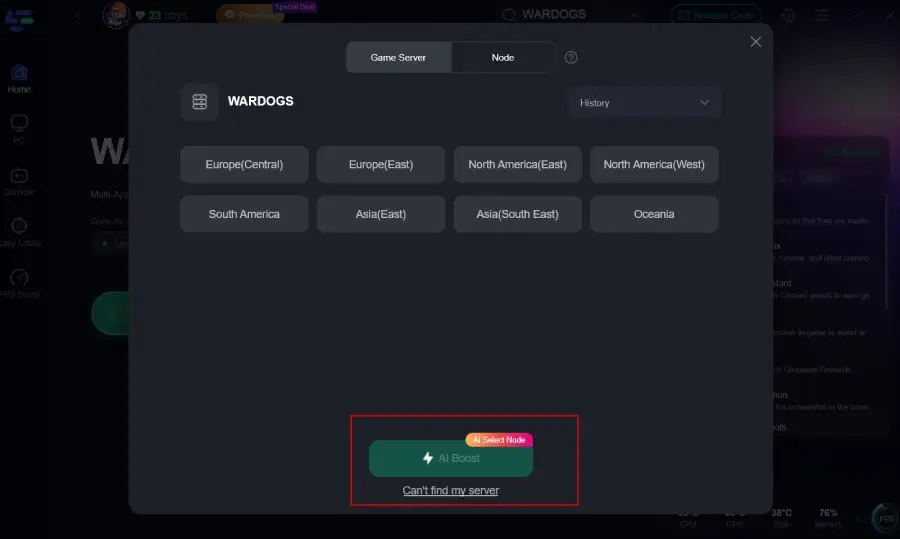
Step 4: Click the Smart Boost button to establish a dedicated, stable routing connection for game data and voice servers.
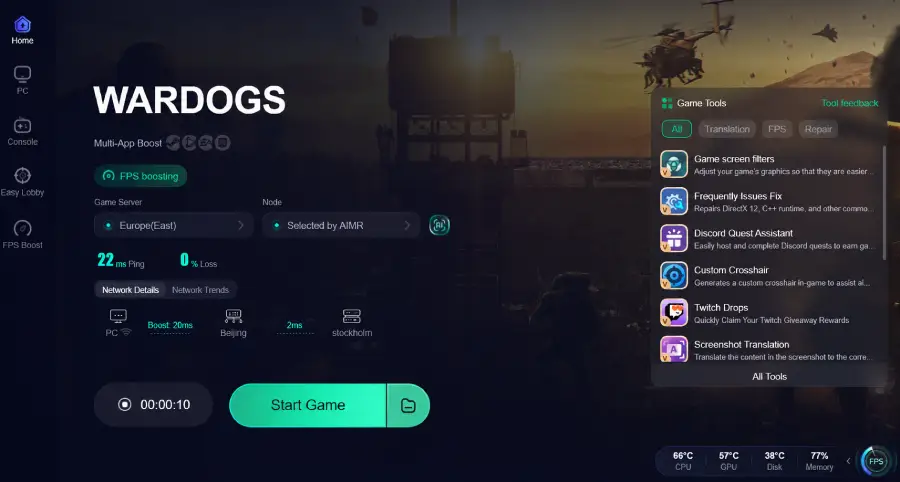
Step 5: Keep LagoFast running in the background and launch WARDOGS to play with clear squad audio and low ping.
Part 5: FAQs About WARDOGS Voice Chat VOIP Not Working
Understanding the specific mechanics of WARDOGS audio problems helps you resolve glitches faster when playing in squad lobbies.
Why is WARDOGS Voice Chat VOIP Not Working If My Mic Works in Windows?
When your microphone functions normally in Windows audio tests but fails in WARDOGS, the issue stems from the game server or third-party VOIP provider. During high-traffic periods or beta test phases, voice servers can disconnect active matches without dropping your main gameplay connection.
What Should I Do If I Can't Hear Teammates in WARDOGS Proximity Chat?
First, verify that Proximity Chat is enabled under Audio Settings. If enabled, open your scoreboard during the match and press the U key twice to reset the voice channel. If you still hear nothing, server-side VOIP routing may be temporarily offline.
How Do I Fix WARDOGS Microphone Not Working After Joining a New Match?
Switching servers between matches often breaks the voice channel bind. Try toggling Voice Chat Off and On in the settings menu, or restart your game client to reconnect to a fresh server instance.
Is WARDOGS VOIP Not Working Due to a Third-Party Server Outage?
Yes, WARDOGS utilizes external voice servers like Vivox for squad and local proximity audio. If these external servers experience outages, voice features will stop working for entire lobbies regardless of individual PC settings.
Why Does WARDOGS Proximity Chat Not Working Happen During Closed Beta 02?
Developers use beta phases to stress-test netcode and voice infrastructure. Closed Beta 02 specifically tests voice load handling, which leads to intermittent VOIP service drops as developers update server parameters.
Can LagoFast Resolve WARDOGS Proximity Chat and Squad Voice Connection Drops?
Yes, LagoFast fixes connection drops caused by poor network routing, high latency, or packet loss between your PC and VOIP servers. It optimizes your connection route to keep voice data packets flowing steadily during matches.
Conclusion
Dealing with WARDOGS voice chat VOIP not working issues can disrupt your coordination, but identifying the problem makes fixing it straightforward. Whether resetting your voice channel with the scoreboard shortcut, checking Windows permissions, or optimizing server routing with LagoFast, these solutions ensure your microphone and proximity chat stay fully operational. Stay updated on beta server patches, optimize your network settings, and keep your squad comms clear for every tactical engagement.

Boost Your Game with LagoFast for Epic Speed
Play harder, faster. LagoFast game booster eliminates stutter and lags on PC, mobile, or Mac—win every match!
Quickly Reduce Game Lag and Ping!
Boost FPS for Smoother Gameplay!