
Playing action RPGs with a controller should provide smooth, responsive, and natural movement. However, many players report frustrating gamepad problems, including character movement stutter, sprint cancellations, and severe input delay. Whether Coen keeps walking unexpectedly or your analog sticks feel unresponsive, these issues ruin combat immersion. In this guide, we break down the causes of the Blood of Dawnwalker controller issues and deliver proven solutions for PC and console players. Additionally, using game booster like LagoFast helps eliminate performance-related latency so your controller commands execute instantly.

- ✅ Reduce Lag and High Ping.
- ✅ Boost FPS at the Same Time.
- ✅ Support 8000+ Popular Online Games.
- ✅ Stable Connection
Part 1: What Is The Blood of Dawnwalker Controller Movement Bug?
Part 2: Why Does Coen Keep Walking or Stop Sprinting?
Part 3: How to Fix The Blood of Dawnwalker Controller Movement Bug
Part 4: Reduce Performance-Related Controller Delay with LagoFast
Part 5: Fix The Blood of Dawnwalker Controller Not Working
Part 6: PS5 DualSense & Xbox Controller Issues
Part 1: What Is The Blood of Dawnwalker Controller Movement Bug?
Understanding the exact symptoms helps determine whether you are facing an in-game input setting error or a hardware deadzone clash. Here is what players frequently report during gameplay.
The blood of dawnwalker controller movement bug primarily affects character motion and responsiveness during combat and exploration. When the bug occurs, Coen fails to execute continuous movement commands, leading to awkward gameplay stops.
Common symptoms include:
- Coen drops from a sprint into a slow walk without user input.
- Analog sticks register diagonal inputs inconsistently.
- Camera panning feels sticky or delayed.
- Character movement stutters when changing directions quickly.
- Full push of the left stick fails to reach maximum run speed.
Part 2: Why Does Coen Keep Walking or Stop Sprinting?
Several underlying technical factors trigger these movement glitches. Rather than a total hardware failure, the issue usually stems from how the game engine interprets raw controller signals.
- Controller Deadzone Defaults: The blood of dawnwalker deadzone settings are often set too tightly or too broadly by default. A high inner deadzone ignores micro-movements, while an incorrect outer deadzone prevents the analog stick from reaching full 100 percent velocity values.
- Diagonal Stick Input Mapping: Modern gamepads process motion on a circular axis, but the game engine may process inputs on a square grid. Moving diagonally can cause the input signal to drop below the sprint trigger threshold.
- Run/Sprint Activation Threshold: The game requires a continuous high-value input signal to sustain sprinting. Minor stick wear or slight voltage fluctuations signal the game that the stick was released, dropping Coen back into a walk.
Part 3: How to Fix The Blood of Dawnwalker Controller Movement Bug
If you are experiencing the blood of dawnwalker controller bug on PC, you can resolve it through software adjustments and input recalibration. Follow these fixes to restore full control.
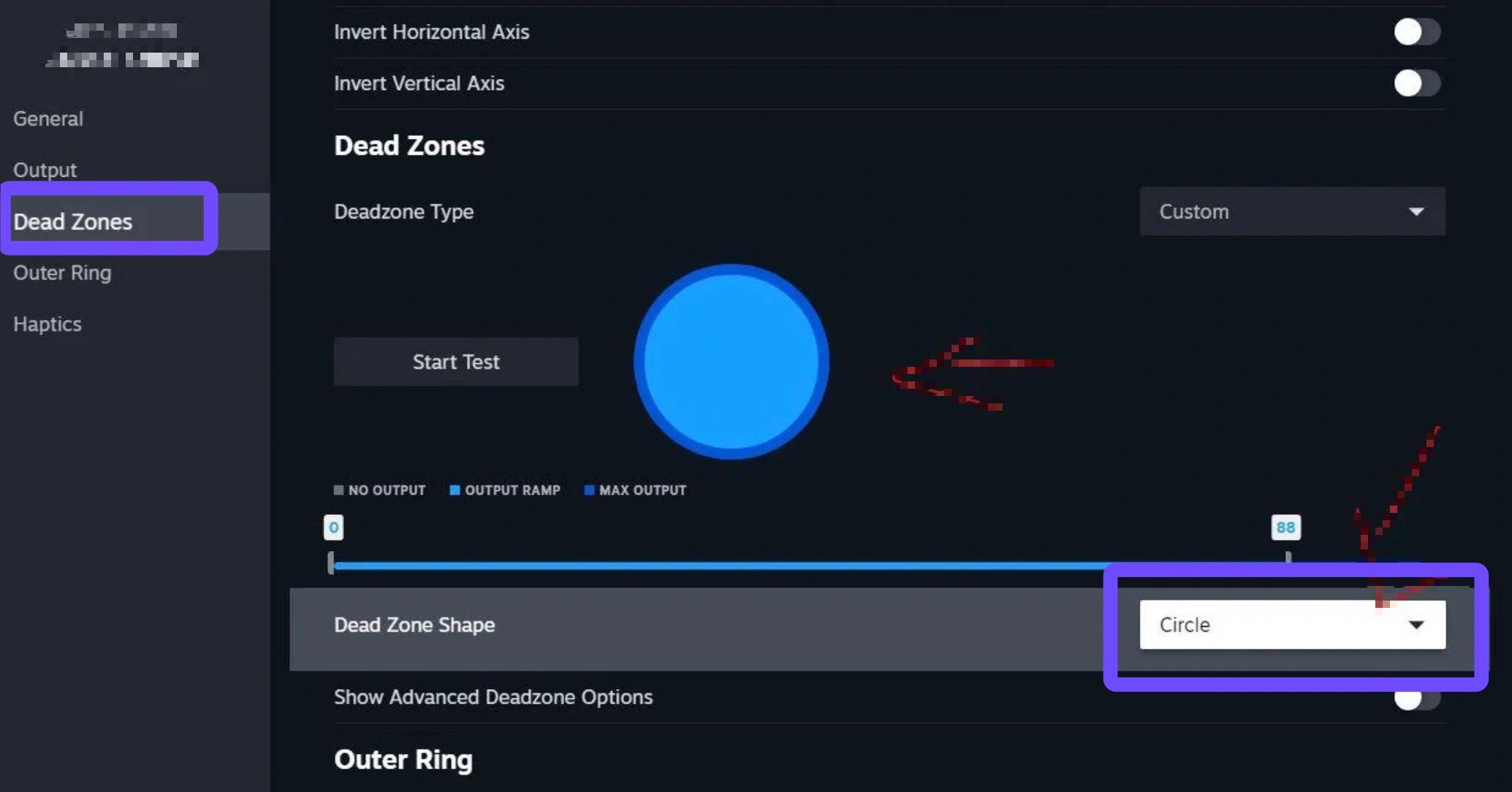
Fix 1: Change Deadzone Shape to Raw/Square
Standard circular deadzones often restrict diagonal acceleration. Converting the input shape forces the system to register maximum velocity across all angles.
Step 1: Open Steam and navigate to your Game Library.
Step 2: Right-click The Blood of Dawnwalker and select Properties.
Step 3: Go to the Controller tab and select Controller Configuration.
Step 4: Click on the Left Stick settings and change Deadzone Shape from Circle to Square or Raw.
Fix 2: Adjust Controller Deadzone
Fine-tuning inner and outer deadzones prevents Coen from stopping mid-sprint while eliminating unwanted drift.
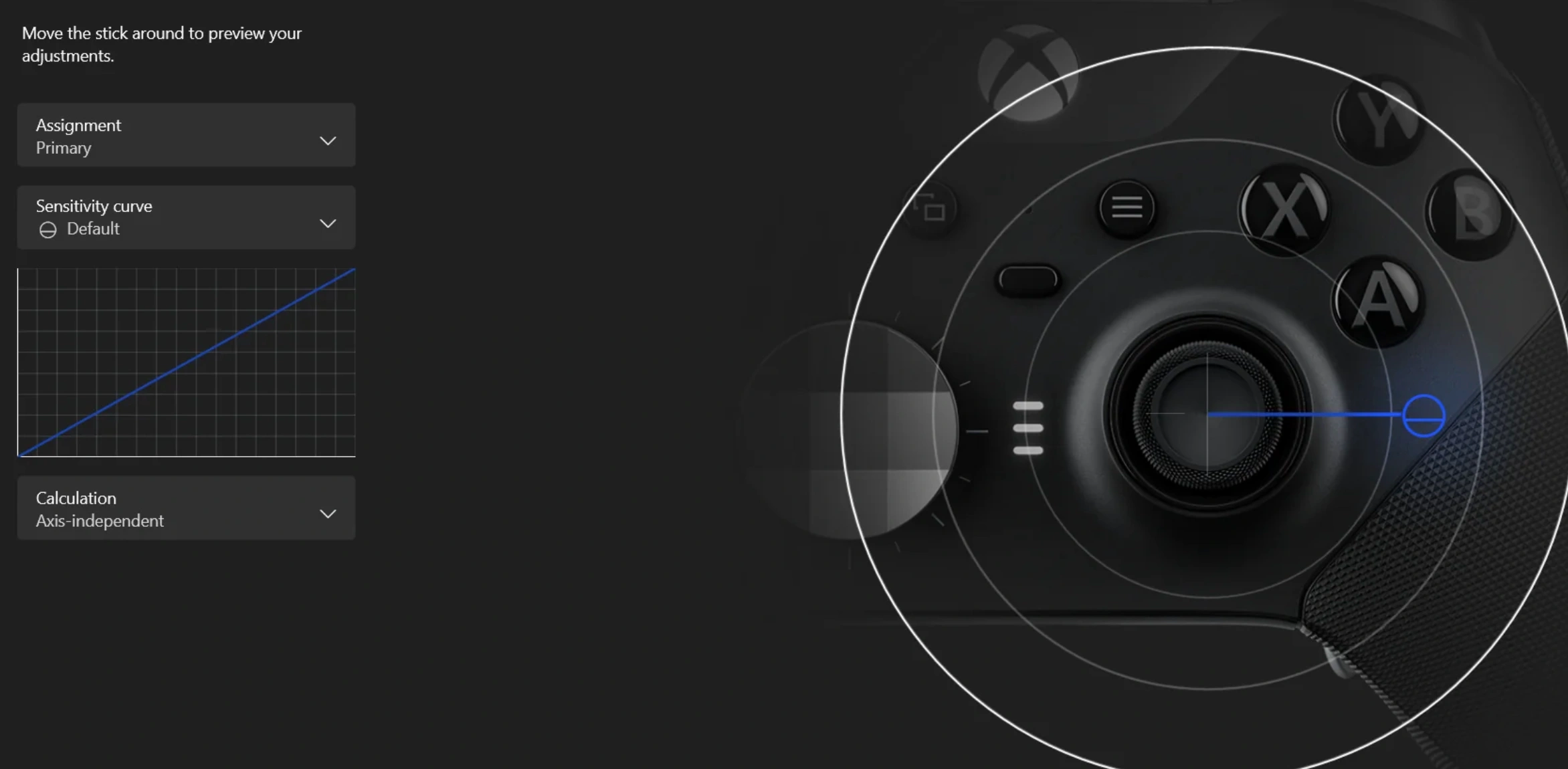
- Inner Deadzone: Lower the inner deadzone to 5% or 8% for faster responsiveness.
- Outer Deadzone: Set the outer deadzone limit to 90% or 92%. This allows full sprint speed even if your analog stick cannot physically reach the extreme edge.
Fix 3: Lower Controller Sensitivity
High sensitivity settings can cause input clipping, confusing the game's movement code during rapid stick changes.
Step 1: Launch the in-game settings menu.
Step 2: Locate the Control or Input tab.
Step 3: Reduce Left Stick Sensitivity by 10% to 15%.
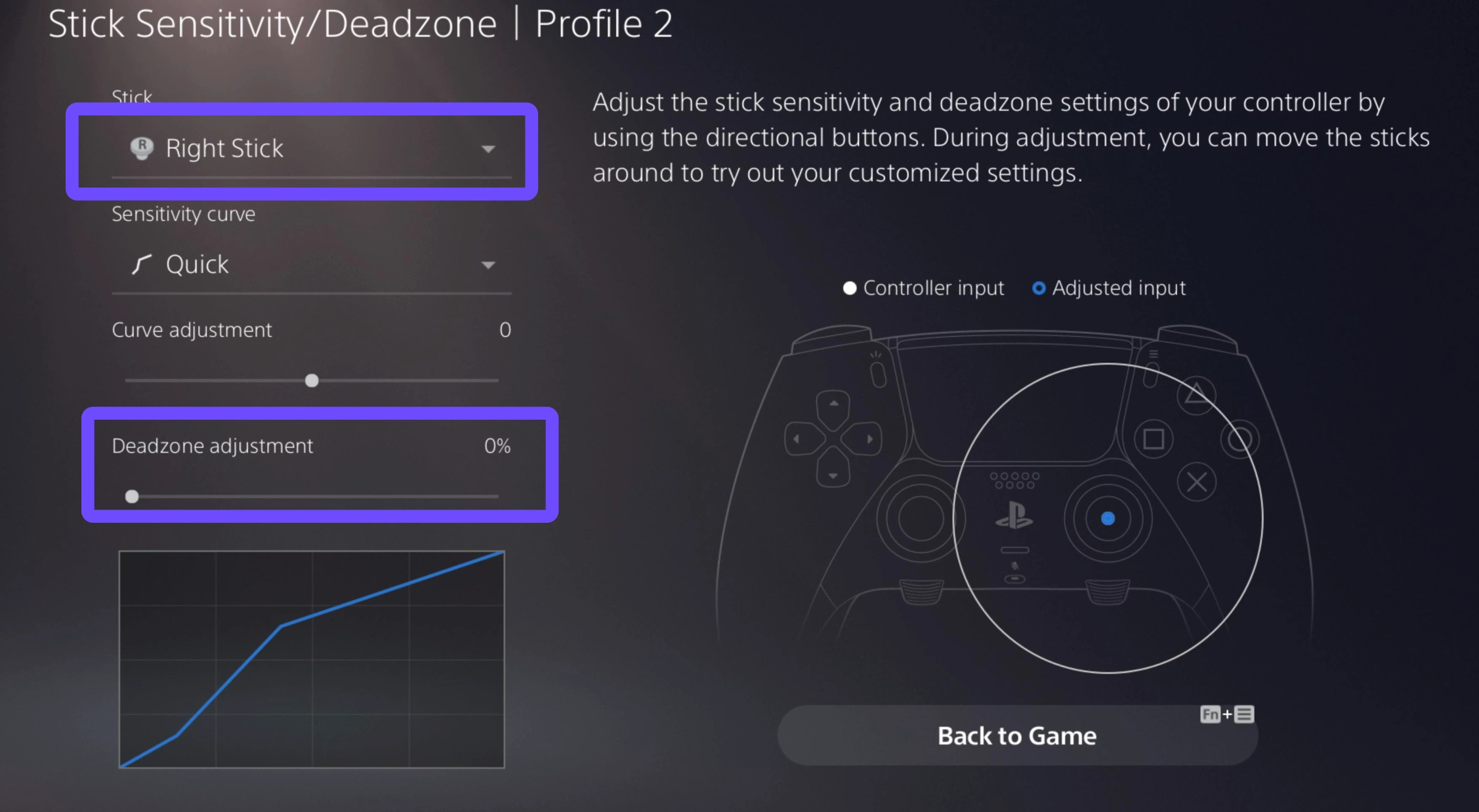
Step 4: Test movement to ensure smooth transitions between walking, jogging, and sprinting.
Fix 4: Reconfigure/Disable Steam Input
Steam Input sometimes conflicts with native gamepad drivers, causing double inputs or movement drops.
Step 1: Open Steam and go to Settings, then Controller.
Step 2: Disable Steam Input for generic controllers if using an Xbox controller, or enable Steam Input specifically for PlayStation controllers.
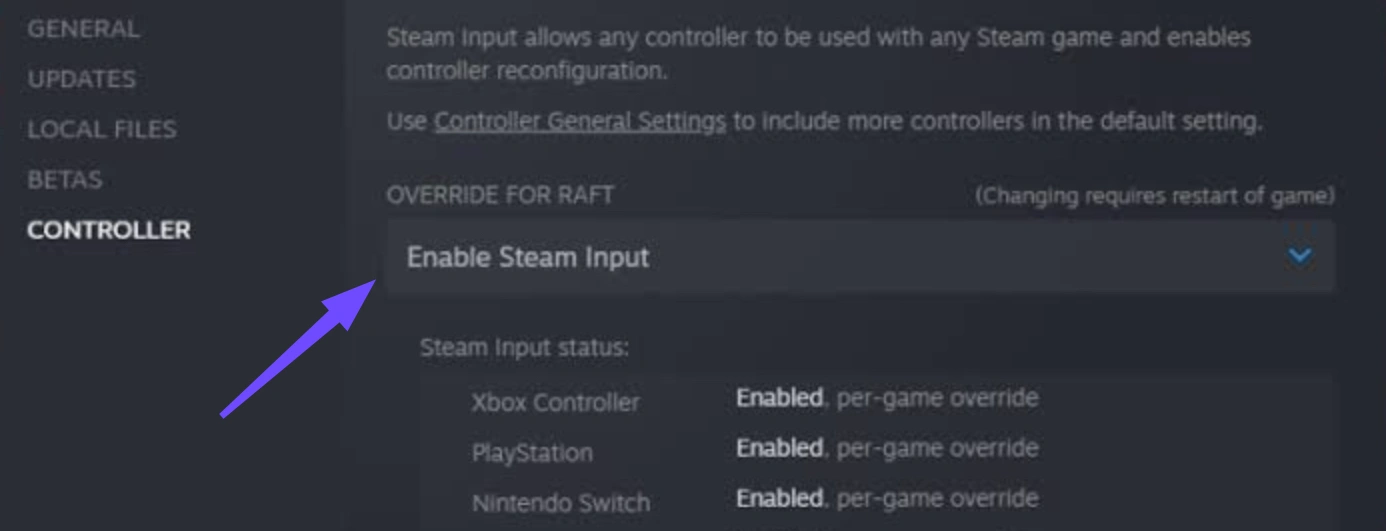
Step 3: Restart the game to load native device drivers properly.
Fix 5: Disconnect Extra Input Devices
Secondary peripherals can send competing signals to your PC, triggering movement interrupts.
- Unplug flight sticks, steering wheels, and secondary gamepads.
- Disable virtual controller software such as vJoy or MotioninJoy.
- Keep only your primary controller and main mouse or keyboard plugged into direct USB ports.
Part 4: Reduce Performance-Related Controller Delay with LagoFast
Sometimes controller lag is not caused by physical hardware at all, but by network jitter, packet loss, and frame drops. When server communication stutters, your controller inputs are delayed or dropped completely.
LagoFast is an all-in-one gaming performance booster designed to stabilize network connections and enhance frame rates. By routing game data through optimized global pathways, LagoFast eliminates input lag caused by ping spikes and packet loss. Its built-in FPS boost tool also clears system resources, ensuring that every controller button press registers instantly in real-time.
How to Optimize The Blood of Dawnwalker with LagoFast
Step 1: Download and launch the LagoFast client on your PC.
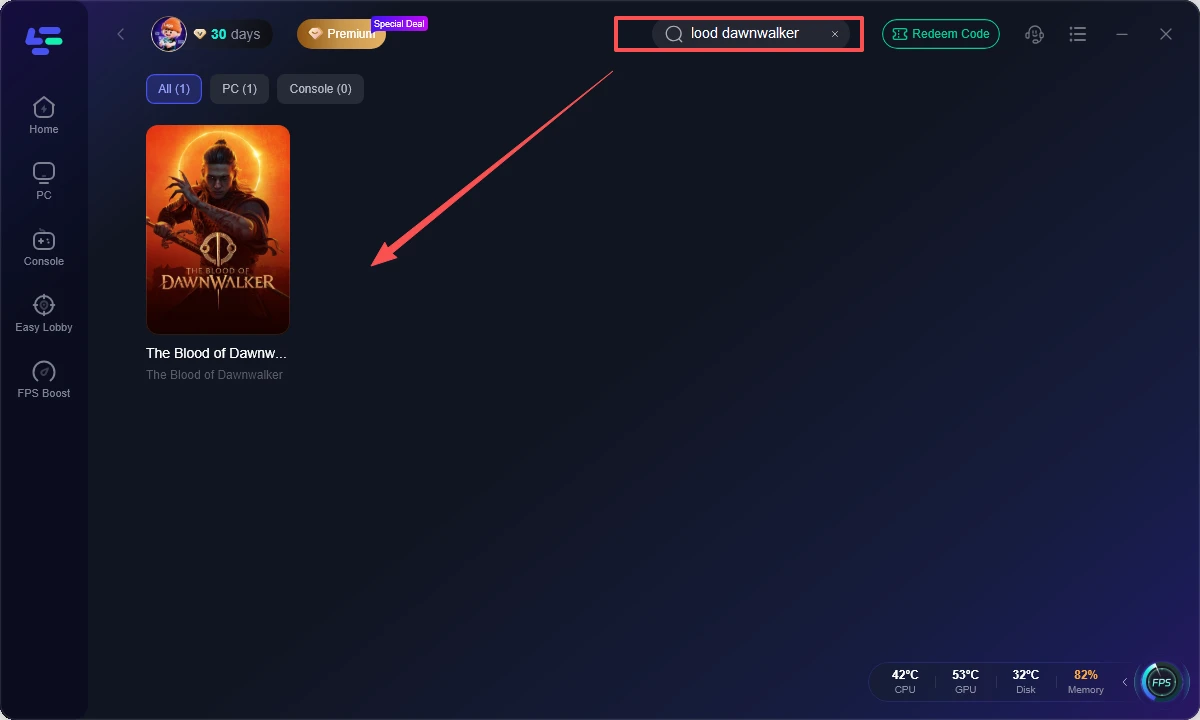
Step 2: Type "The Blood of Dawnwalker" into the search bar and select it.
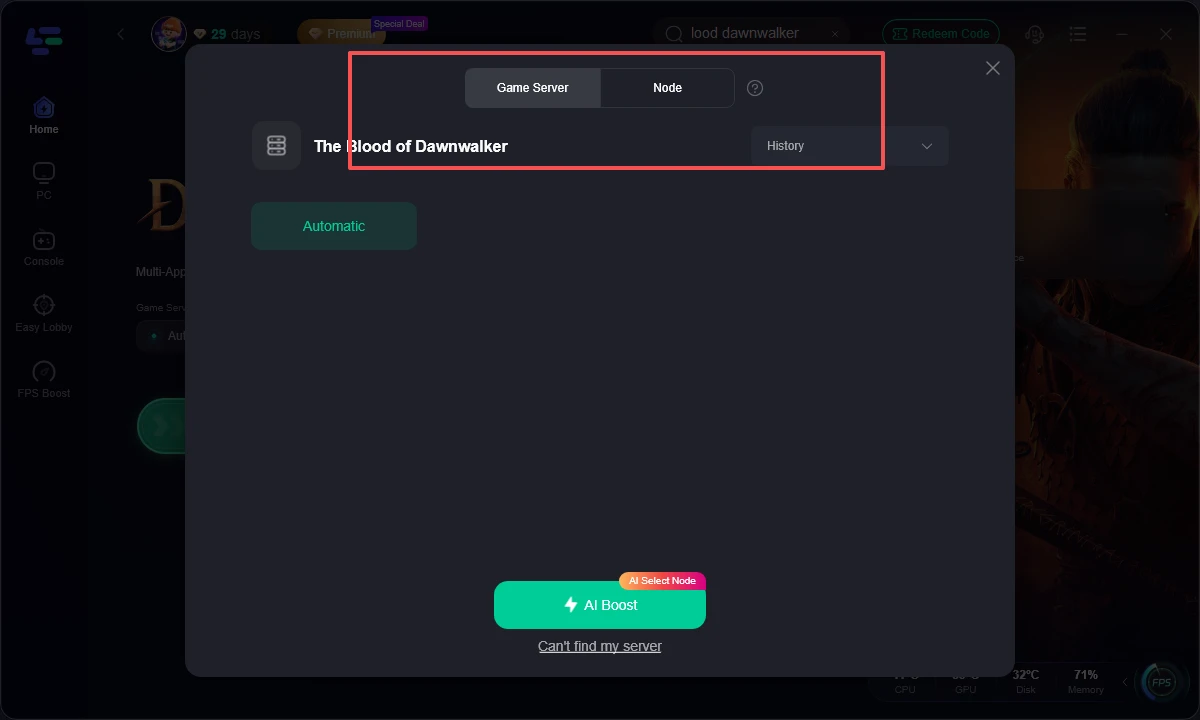
Step 3: Pick your preferred game server region, allowing AI to route you through the optimal node with the lowest latency and zero packet loss.
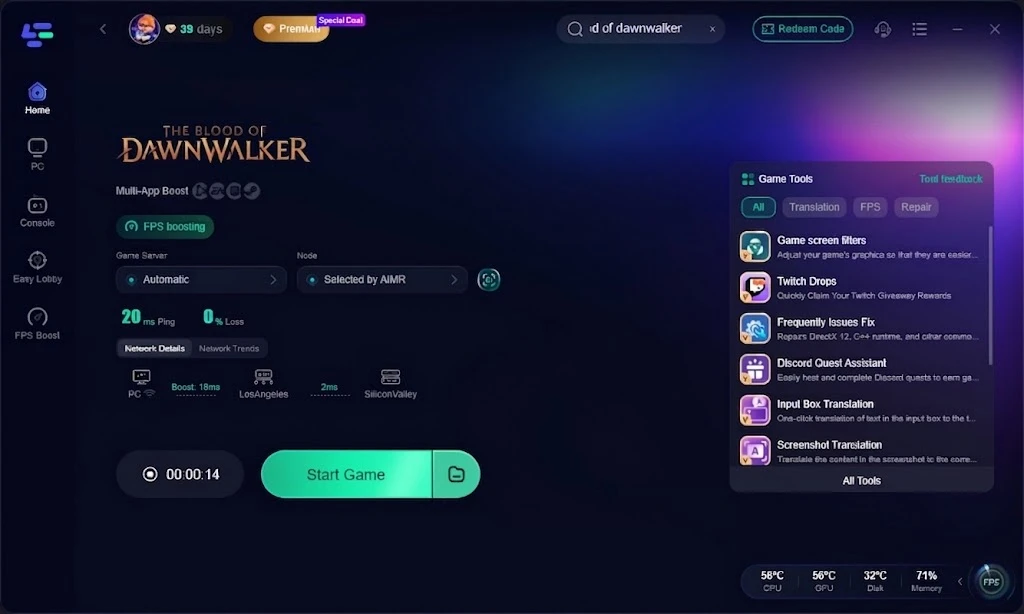
Step 4: Click Boost to automatically reduce network latency and activate FPS optimization, then start the game to enjoy smooth, responsive, and stutter-free controller gameplay.
Part 5: Fix The Blood of Dawnwalker Controller Not Working
If your controller fails to register any inputs at all in The Blood of Dawnwalker, the issue usually stems from driver corruption or incorrect device prioritization.
Use the summary table below to identify your specific issue and apply the quick solution:
|
Problem Cause |
Common Symptoms |
Quick Solution |
|
Driver Conflict |
Controller lights up but game ignores inputs |
Re-install controller drivers via Device Manager |
|
Bluetooth Interference |
Sudden disconnections or high input lag |
Connect via wired USB-C cable directly to PC |
|
Steam Device Overlay |
Controller unresponsive in menu screens |
Disable Steam Overlay in Game Properties |
|
Wrong Input Priority |
Game reads keyboard as primary device |
Unplug keyboard during startup or re-assign device in-game |
Part 6: PS5 DualSense & Xbox Controller Issues
Console players on PlayStation 5 and Xbox Series X/S also encounter movement stutter and input delays during gameplay. These issues are frequently tied to firmware settings, wireless signal congestion, or local network lag on console hardware.
- Xbox Controller Fixes: Update your Xbox controller firmware using the Xbox Accessories app. Clear persistent cache by performing a full hard restart of the Xbox console.
- PS5 DualSense Fixes: Reset the DualSense controller using the small pinhole button on the back. Connect the controller via USB-C and set Communication Method to "Use USB Cable" in PS5 Accessories settings.
- Console Network Optimization: High network latency on consoles can simulate severe controller input lag. LagoFast Game Booster supports console network optimization directly, stabilizing connection paths on PlayStation and Xbox to prevent network-induced command delay.
Part 7: FAQs
Here are quick answers to common questions regarding the Blood of dawnwalker controller issues.
Why does my controller keep disconnecting while playing The Blood of Dawnwalker?
Disconnections are usually caused by weak Bluetooth signals, low controller battery, or power-saving USB modes on your PC or console. Using a direct wired USB connection resolves most dropping issues.
Does disabling Steam Input fix the Blood of Dawnwalker controller bug?
Yes, disabling Steam Input allows the game to read native Xbox controller drivers directly, which often fixes sprint drops and diagonal deadzone bugs.
How do I fix camera spin when using a gamepad?
Camera spinning occurs when virtual controller drivers or secondary peripherals send conflicting signals. Disconnect extra devices and calibrate your right analog stick deadzone.
Can network lag make controller movement feel delayed?
Yes. Packet loss and high ping cause server-side position desync, making character movement appear sticky or delayed even when the controller is working properly.
Does LagoFast support controller optimization on consoles?
Yes, LagoFast Game Booster supports PC, PlayStation, and Xbox consoles. It stabilizes network routing to reduce input lag caused by latency and packet loss across all platforms.
What is the ideal deadzone setting for The Blood of Dawnwalker?
Set your inner deadzone between 5% and 8% and your outer deadzone around 90% to achieve maximum responsiveness and full sprinting speed.
Conclusion
Resolving the Blood of Dawnwalker controller issues can turn a frustrating experience into a smooth gaming session. By adjusting your deadzone parameters, configuring Steam Input correctly, and clearing peripheral conflicts, you can easily restore full control over Coen's movement. For the smoothest gameplay experience free of input delays and network lag, use LagoFast to optimize your connection and lock in stable performance on both PC and console.

Boost Your Game with LagoFast for Epic Speed
Play harder, faster. LagoFast game booster eliminates stutter and lags on PC, mobile, or Mac—win every match!
Quickly Reduce Game Lag and Ping!
Boost FPS for Smoother Gameplay!