
The “failed to create save game” error in Starfield is one of the most frustrating issues players face. Many users report losing progress or being unable to save at all — sometimes after hours of gameplay.
From real discussions on Reddit, here’s what players are actually experiencing:
- “It wasn’t actually creating the folder…”
- “My C drive was full—cleared space, and it worked.”
- “I lost 15 hours of progress because it wouldn’t save.”
This guide goes beyond generic fixes by breaking down the real root causes, Reddit-backed player experiences, official insights, and step-by-step solutions that actually work.

- ✅ Reduce Lag and High Ping.
- ✅ Boost FPS at the Same Time.
✅ Support 8000+ Popular Online Games.
✅ Popular Mods Supported.
✅ Boost Game Loading Speed.
Part 1: What Does "Failed to Create Save Game” Mean
Part 2: Why This Error Is Hard to Fix (Root Cause Model)
Part 3: Common Reasons You Cannot Save in Starfield
Part 4: Fix Starfield Failed To Create Save Game Files (Step-by-Step)
Part 5: Real Player Case Studies (Reddit & Steam)
Part 6: Bonus – Why This Happens More in Starfield
Part 1: What Does "Failed to Create Save Game” Mean
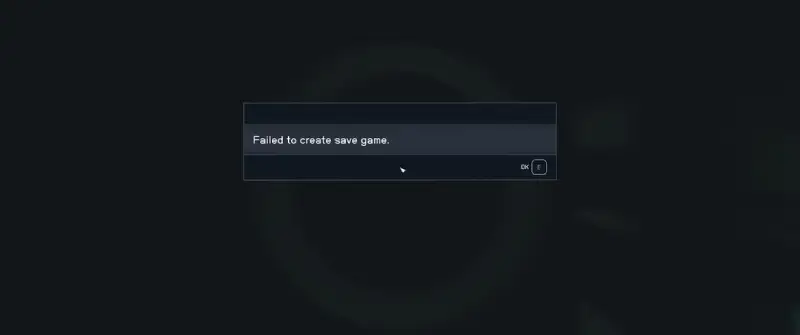
This error means:
The game cannot write to or access the save file location.
Unlike typical crashes, this is a system-level issue, not a gameplay bug.
Part 2: Why This Error Is Hard to Fix (Root Cause Model)
Unlike typical game bugs, this issue is caused by multiple systems interacting:
File system (Documents folder path)
Cloud sync (OneDrive / Steam Cloud)
OS security (Windows Defender / permissions)
Game save logic (how Starfield writes data)
This is why simple fixes often don’t work — you need to identify the actual source of conflict.
Part 3: Common Reasons You Cannot Save in Starfield
After analyzing community reports and player feedback, these are the most common root causes:
1. OneDrive Sync Conflict (Most Common)
Windows often redirects your Documents folder to OneDrive.
Problem:
Save path becomes cloud-based
Game fails to write properly
2. Permission Restrictions
Especially on Windows 10/11 with security enabled
Problem:
Controlled Folder Access blocks the game
No write permission to save directory
3. Save Folder Missing or Corrupted
Default path:
C:\Users\Username\Documents\My Games\Starfield
If this folder is missing or damaged → save fails instantly
4. Steam / Xbox Cloud Sync Conflict
Cloud save mismatch = write failure
5. Mods or Script Conflicts
Especially:
Save-related mods
UI or gameplay overhaul mods
Part 4: Fix Starfield Failed To Create Save Game Files (Step-by-Step)
Do Some Simple Checks
Before trying advanced fixes, make sure no basic system issues are preventing save file creation:
- Ensure you are logged in as an administrator on your PC.
- Make sure you are using a legitimate copy of the game.
- Check your hard drive health (run chkdsk) and ensure there is enough free disk space on the installation drive.
- Run Starfield as an administrator (Right-click → Properties → Compatibility → “Run this program as an administrator”).
- Update both the game and your game client to the latest version.
All fixes to Starfield ‘Failed to create save game’ error
If Starfield cannot create save files, the issue is usually related to permissions, folder paths, or sync conflicts. Follow the fixes below in order, starting with the most likely ones to work.
Fix 1: Disable OneDrive Sync for Documents
This is the most common fix and should be tried first.
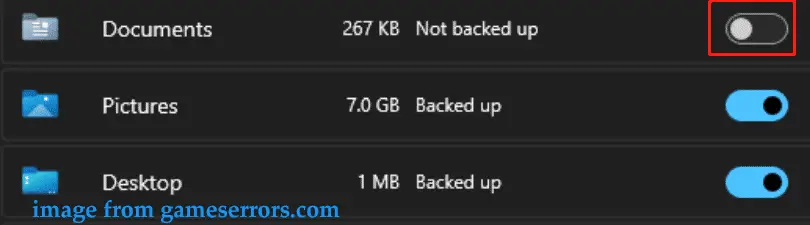
- Click the OneDrive icon in the system tray
- Go to Settings → Sync and Backup
- Click Manage Backup
- Turn OFF Documents
- Apply changes and wait for sync to stop
After that, check your save directory:
C:\Users\YourUsername\Documents\My Games\Starfield
Make sure it is stored locally and not inside a OneDrive path.
Fix 2: Allow Starfield in Windows Security (Controlled Folder Access)
If Windows Security is blocking file access, Starfield won’t be able to write saves.
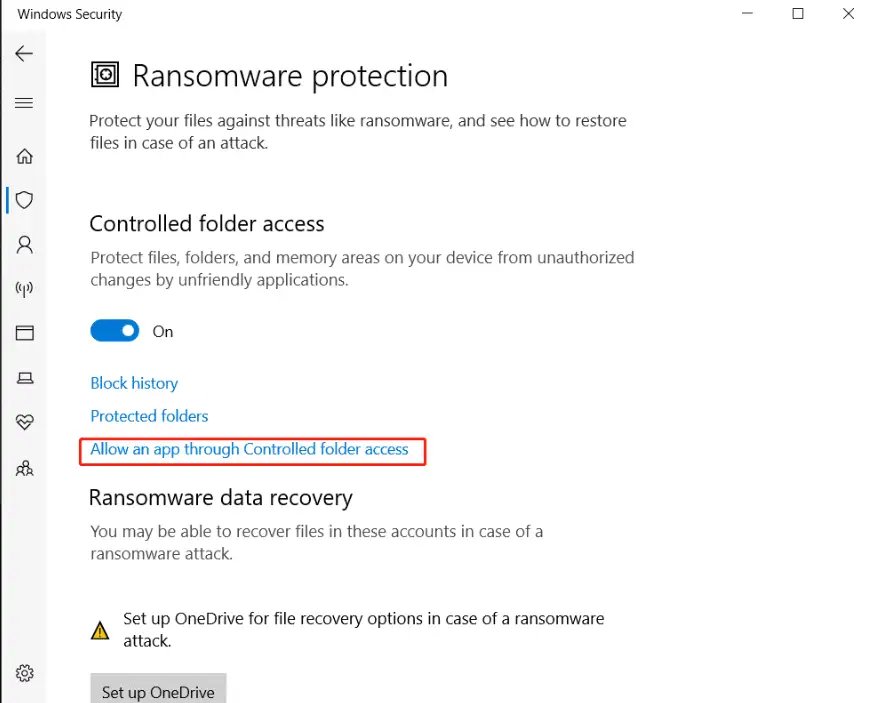
- Open Windows Security
- Go to Virus & Threat Protection
- Click Manage Settings
- Scroll to Controlled Folder Access
- Select Allow an app through Controlled folder access
- Add Starfield.exe
If you're unsure whether this is the issue, you can temporarily turn the feature off and test saving.
Fix 3: Restore Default Documents Path (Registry Method)
If your Documents folder still points to OneDrive, you may need to manually reset it.
Tip: Back up your registry or create a restore point before making changes
1. Press Win + R, type regedit, and press Enter
2. Navigate to:
HKEY_CURRENT_USER\Software\Microsoft\Windows\CurrentVersion\Explorer\User Shell Folders
3. Find entries linked to OneDrive (e.g. Documents path)
4. Change them to:
C:\Users\YourUsername\Documents
Apply similar changes to other affected folders if necessary.
Fix 4: Disable Cloud Saves (Steam / Xbox)
Cloud sync can sometimes prevent local saves from being created properly.
For Steam:
- Open Steam Settings
- Go to Cloud
- Disable Steam Cloud synchronization
Restart Steam and test saving again.
Fix 5: Run Steam and Starfield as Administrator
Even if your account has admin rights, apps don’t always inherit them automatically.
- Right-click Steam → select Run as administrator
- Launch Starfield from Steam
Fix 6: Disable Mods and Test a Clean Game
If you're using mods, they may interfere with save functionality.
- Disable all mods
- Launch the game in a clean (vanilla) state
- Try creating a new save
If saving works, re-enable mods one by one to find the issue.
Part 5: Real Player Case Studies (Reddit & Steam)
Case 1: OneDrive Caused 100% Failure
A player on Reddit reported:
“Game wouldn’t save at all. Turns out Documents was redirected to OneDrive.”
Root cause:
Documents folder synced with OneDrive instead of local storage
Fix:
- Disabled OneDrive sync
- Save worked instantly
Case 2: Windows Security Blocking Saves
A Windows 11 user couldn’t save even with admin rights.
Root cause:
Controlled Folder Access silently blocking game write permissions
Fix:
- Added Starfield to whitelist in Windows Security
Case 3: Steam Cloud Conflict
A player switched PCs, and saves stopped working.
Root cause:
Cloud sync mismatch between local and Steam Cloud saves
Fix:
- Disabled Steam Cloud
- Deleted corrupted local save files
Advanced Fix (If Nothing Works)
If all standard fixes fail, try the following advanced solutions:
Option 1: Create a New Windows User (English Name)
- Helps avoid path encoding or permission issues tied to user profiles
Option 2: Reinstall the Game (Last Resort)
- Useful if game files or save directories are severely corrupted
- Ensures a clean reset of all related configurations
How to Prevent This Issue
To avoid encountering the “failed to create save game” error again:
- Avoid syncing the Documents folder with OneDrive
- Keep your save directory stored locally
- Avoid excessive or unstable mods
- Regularly back up your save files
Part 6: Bonus – Why This Happens More in Starfield
Compared to many other games, Starfield is less tolerant of changes to its save environment.
It creates large save files and writes them frequently, while relying on a specific folder structure inside the Windows Documents directory. As long as everything stays local, this usually works without issues. However, once cloud sync, system protection, or custom paths are involved, problems can start to appear.
That’s why conflicts with OneDrive, permissions, or cloud saves tend to affect Starfield more than most games.
Improve Stability and Reduce Sync Issues
If you're also dealing with high ping, unstable connections, delayed cloud syncing, or playing across regions, the problem may not be limited to local settings alone.
LagoFast can help stabilize the overall environment your game depends on. It is a game performance optimization platform designed to improve connection quality and reduce common network-related issues. It helps in several ways:
- Lowering in-game ping
- Reducing packet loss and sudden lag spikes
- Optimizing routing between your device and game servers
- Stabilizing cross-region connections
- Helping resolve common Windows 11 network-related lag issues
While it won’t fix folder paths or permission errors directly, a more stable connection can help reduce cloud sync conflicts and make save behavior more consistent — especially for players relying on cloud saves or playing across regions.
How to Use LagoFast to Boost Starfield Performance
Step 1: Click the Free Trial button to download and install LagoFast.
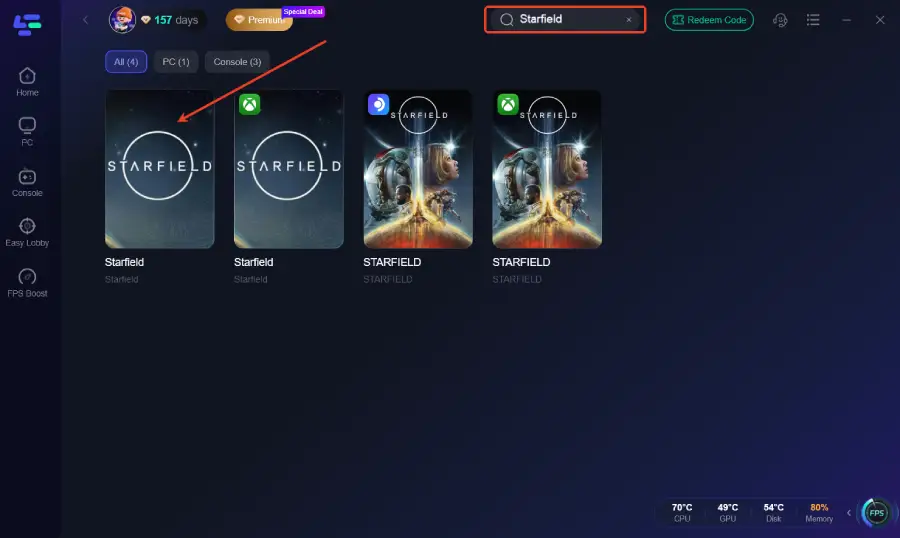
Step 2: After installation, search "Starfield" in the search bar and select the game.
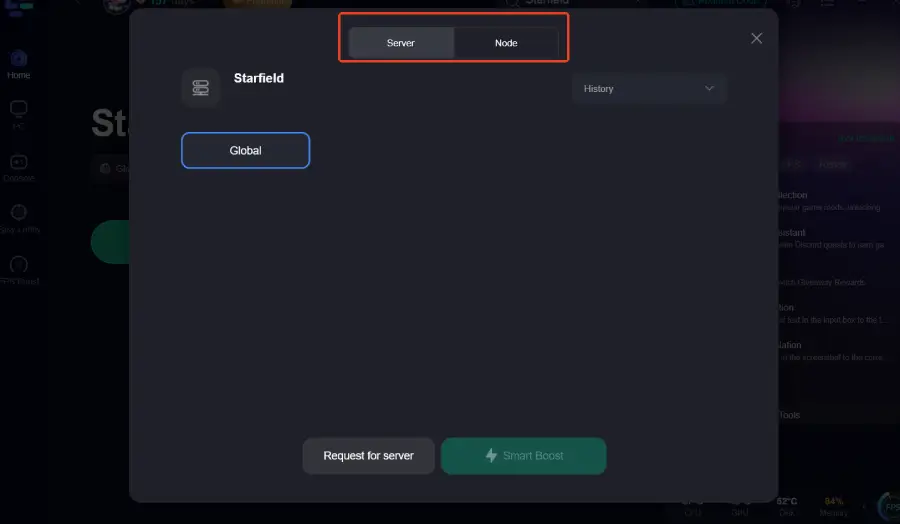
Step 3: Choose your preferred server node and click "Smart Boost" to start optimizing.
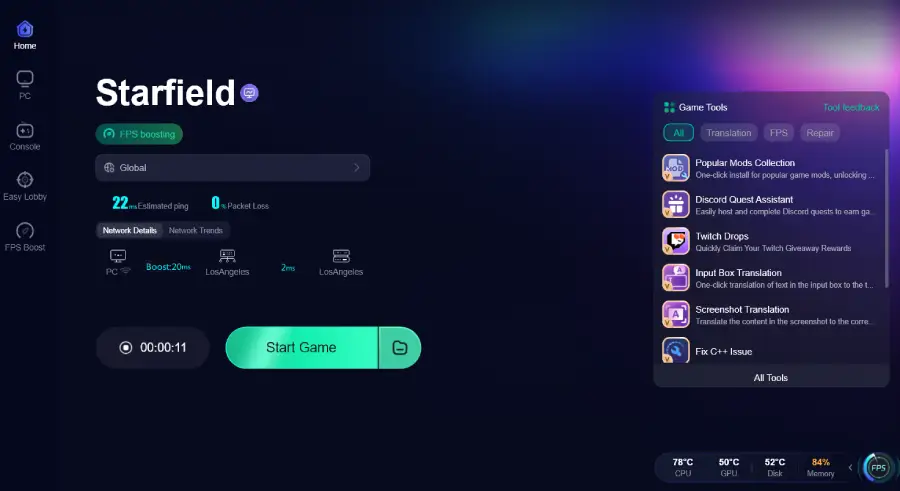
Step 4: Launch your game and enjoy smooth, optimized gameplay with lower ping and packet loss.
Final Thoughts
The “failed to create save game” error is not random—it's almost always caused by:
- OneDrive conflicts
- Permission issues
- Missing directories
- Cloud save errors
Disable OneDrive + ensure local save path + run as admin. These are common PC fixes for the “failed to create save game” error in Starfield, and trying them can usually resolve the issue. Once you fix those, the issue is usually gone permanently.
Boost Your Game with LagoFast for Epic Speed
Play harder, faster. LagoFast game booster eliminates stutter and lags on PC, mobile, or Mac—win every match!
Quickly Reduce Game Lag and Ping!
Boost FPS for Smoother Gameplay!