
If Star Wars Zero Company is crashing on PC, you are not necessarily dealing with a problem unique to your system. Since launch, PC players have met crashes during startup, shader compilation, cutscenes, missions, and other gameplay situations. Some players have also met severe freezes and repeated crashes even on high-end hardware.
EA has acknowledged emerging crash and CPU-threading issues, including crashes affecting certain NVIDIA GPUs and Intel processors. The developer specifically noted NVIDIA crashes related to DLSS and instability affecting some 13th- and 14th-generation Intel desktop CPUs.

- ✅ Reduce Lag and High Ping.
- ✅ Boost FPS at the Same Time.
- ✅ Support 8000+ Popular Online Games.
- ✅ Stable Server Connection
Part 1: Check Where Star Wars Zero Company Crashes
Part 2: Why Does Star Wars Zero Company Keep Crashing on PC?
Part 3: How to Fix Star Wars Zero Company Crashing on PC
Part 4: Fix Star Wars Zero Company Crashing During Shader Compilation
Part 5: Fix Star Wars Zero Company LowLevelFatalError
Part 6: Star Wars Zero Company Crashing on NVIDIA GPUs
Part 7: Fix Star Wars Zero Company Crashing on Intel 13th and 14th Gen CPUs
Part 8: Star Wars Zero Company Crashes on Startup or Shows a Black Screen
Part 9: Reduce Connection and Performance Problems By LagoFast
Part 1: Check Where Star Wars Zero Company Crashes
Before trying every possible fix, identify exactly when the game crashes.
|
Where the Game Crashes |
Main Things to Check |
|
Crashes Immediately After Launch |
Game files, drivers, background software |
|
Black Screen Then Crash |
GPU driver, fullscreen settings, overlays |
|
Crashes While Compiling Shaders |
Shader cache, GPU driver, rendering settings |
|
Crashes During Gameplay |
GPU/CPU stability, DLSS, Frame Generation, overheating |
|
LowLevelFatalError or Oodle Error |
Game files, installation, corrupted data |
This can help you avoid changing unrelated settings.
Part 2: Why Does Star Wars Zero Company Keep Crashing on PC?
There isn't a single cause behind every crash. Crashes can happen at very different points, while EA has confirmed several hardware and software-related issues.
Known Star Wars Zero Company Crash Issues
Players have reported crashes:
- Immediately after launching the game
- During the opening cutscene
- While compiling shaders
- When loading a save or mission
- During combat
- After completing a mission
- When switching between menus
- After Alt+Tab
- During certain animations or scripted events
NVIDIA GPU and DLSS Crashes
EA specifically reported crashes on certain NVIDIA GPUs when DLSS is enabled with NVIDIA Game Ready Driver 610.88 or older and recommends updating to the latest Game Ready Driver.
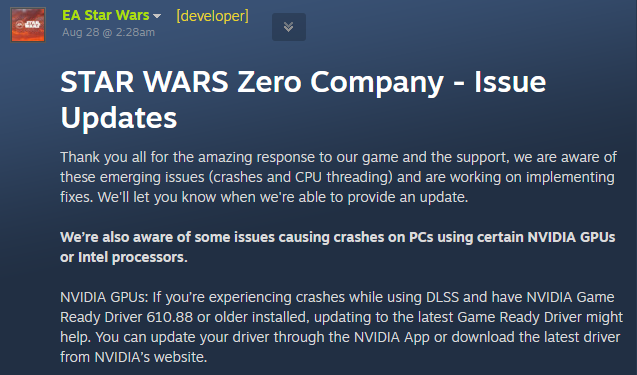
If Star Wars Zero Company keeps crashing with an NVIDIA GPU, updating your driver should therefore be one of the first steps to try.
Intel 13th and 14th Gen CPU Instability
EA has also identified a problem affecting some Intel Core 13th- and 14th-generation desktop processors.

If you are using one of these CPUs and experience repeated crashes, check your motherboard BIOS and Intel platform settings before assuming that your GPU or game installation is the problem.
Shader Compilation and LowLevelFatalError
Shader compilation can also be a crash point. If your game crashes at the same percentage during shader compilation every time, the issue may be related to cached shaders, graphics drivers, or another rendering-related conflict.
A LowLevelFatalError or Oodle-related message can point to a different type of game or file-loading problem.
Part 3: How to Fix Star Wars Zero Company Crashing on PC
Try the following solutions in order.
1. Restart Your PC
Completely restart Windows before troubleshooting further.
This can clear temporary driver, shader, and background-process problems.
2. Update Your GPU Driver
If you use an NVIDIA GPU, update to the latest Game Ready Driver, particularly if you are using driver 610.88 or older. EA specifically recommends updating NVIDIA drivers for DLSS-related crashes.
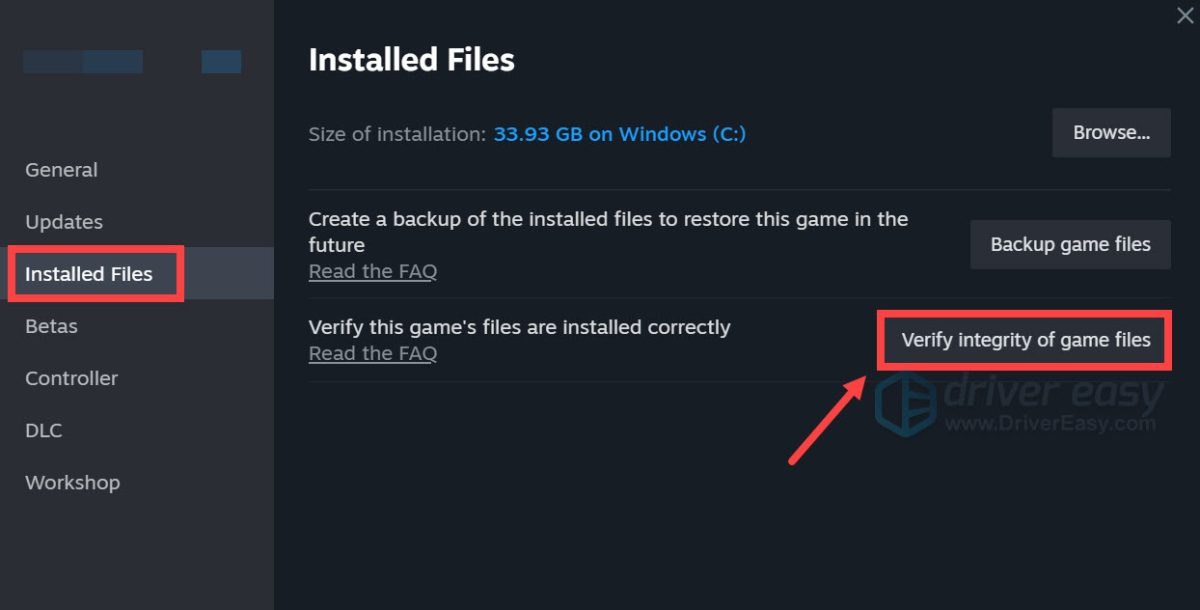
3. Verify the Game Files
Corrupted or incomplete game files can cause startup and gameplay crashes.
On Steam:
- Open Steam.
- Go to your Library.
- Right-click STAR WARS Zero Company.
- Select Properties.
- Open Installed Files.
- Select Verify integrity of game files.
- Wait for the process to finish.
- Launch the game again.
4. Disable Overlays
Temporarily disable overlays from applications such as:
- Steam
- Discord
- NVIDIA App
- Xbox Game Bar
- Other GPU monitoring software
Then launch the game again.
5. Remove GPU Overclocks and Undervolts
If your GPU or CPU is overclocked or undervolted, temporarily return it to stock settings.
6. Close Unnecessary Background Programs
Temporarily close:
- RGB control software
- Hardware monitoring tools
- Recording software
- Performance overlays
- Third-party optimization utilities
Then test the game again.
Part 4: Fix Star Wars Zero Company Crashing During Shader Compilation

If Star Wars Zero Company crashes while compiling shaders, start with the graphics driver.
First, update your GPU driver and restart Windows.
Next, verify the game files.
If the crash continues:
- Close the game.
- Restart your PC.
- Launch Star Wars Zero Company again.
- Allow shader compilation to finish without switching applications.
- Avoid Alt+Tab during the process.
- Temporarily disable overlays and GPU monitoring software.
Part 5: Fix Star Wars Zero Company LowLevelFatalError
If you see LowLevelFatalError, start with file and driver troubleshooting.
Verify Game Files
A damaged or incomplete file can trigger fatal errors during loading. Run Steam's file verification first.
Update Your GPU Driver
An outdated driver can cause rendering-related crashes, especially if the error appears during startup or shader compilation.
Disable DLSS and Frame Generation
If you can reach the graphics settings, temporarily disable DLSS and Frame Generation.
This is particularly worth testing on NVIDIA hardware because EA has confirmed DLSS-related crashes on certain NVIDIA configurations.
Remove Overclocks
Return the GPU and CPU to default settings and test again.
Check for Oodle/File Errors
If the error specifically mentions Oodle or a failed file operation, verifying the game installation should be one of your first steps.
Part 6: Star Wars Zero Company Crashing on NVIDIA GPUs
If you're using an NVIDIA GPU, follow this order:
- Update the NVIDIA Game Ready Driver.
- Restart your PC.
- Verify Star Wars Zero Company files.
- Disable DLSS temporarily.
- Disable Frame Generation temporarily.
- Disable overlays.
- Remove GPU overclocking or undervolting.
- Test the game again.
EA specifically recommends updating the Game Ready Driver if you experience DLSS crashes while using NVIDIA driver 610.88 or older.

Part 7: Fix Star Wars Zero Company Crashing on Intel 13th and 14th Gen CPUs

If your PC uses an Intel 13th- or 14th-generation desktop CPU, check whether your system is affected by CPU instability.
Try:
- Update your motherboard BIOS.
- Load stable/default CPU settings.
- Remove CPU overclocking.
- Check your motherboard manufacturer's recommended Intel settings.
- Test the game again.
Part 8: Star Wars Zero Company Crashes on Startup or Shows a Black Screen
If the game crashes immediately after launching or shows a black screen before closing, try these steps:
Step 1: Restart Windows
A simple restart can clear temporary driver and background-process conflicts.
Step 2: Update Your GPU Driver
Make sure your NVIDIA, AMD, or Intel graphics driver is current.
Step 3: Verify Game Files
Repair the installation through Steam or your game launcher.
Step 4: Disable Overlays
Turn off Steam, Discord, NVIDIA, Xbox Game Bar, and other overlays.
Step 5: Try Running the Game Without Advanced Upscaling Features
If you can reach the graphics menu, temporarily disable:
- DLSS
- Frame Generation
- Other upscaling features
Then restart the game.
Step 6: Check Your PC Specifications
The official minimum requirements include 16 GB RAM, an Intel Core i5-8400 or Ryzen 5 2600X, and a GTX 1080, RX 5600 XT, or Intel Arc B580. The recommended configuration includes 32 GB RAM, an i7-10700K or Ryzen 7 3700X, and an RTX 3080 or RX 7800 XT.
Part 9: Reduce Connection and Performance Problems By LagoFast
If you've fixed the crashing issue but still experience unstable connections, high ping, lag, or other network-related problems while playing Star Wars Zero Company, LagoFast can help optimize your connection route.
How to Use LagoFast for Star Wars Zero Company
1. Open LagoFast.
2. Select your prefSearch for Star Wars Zero Company.
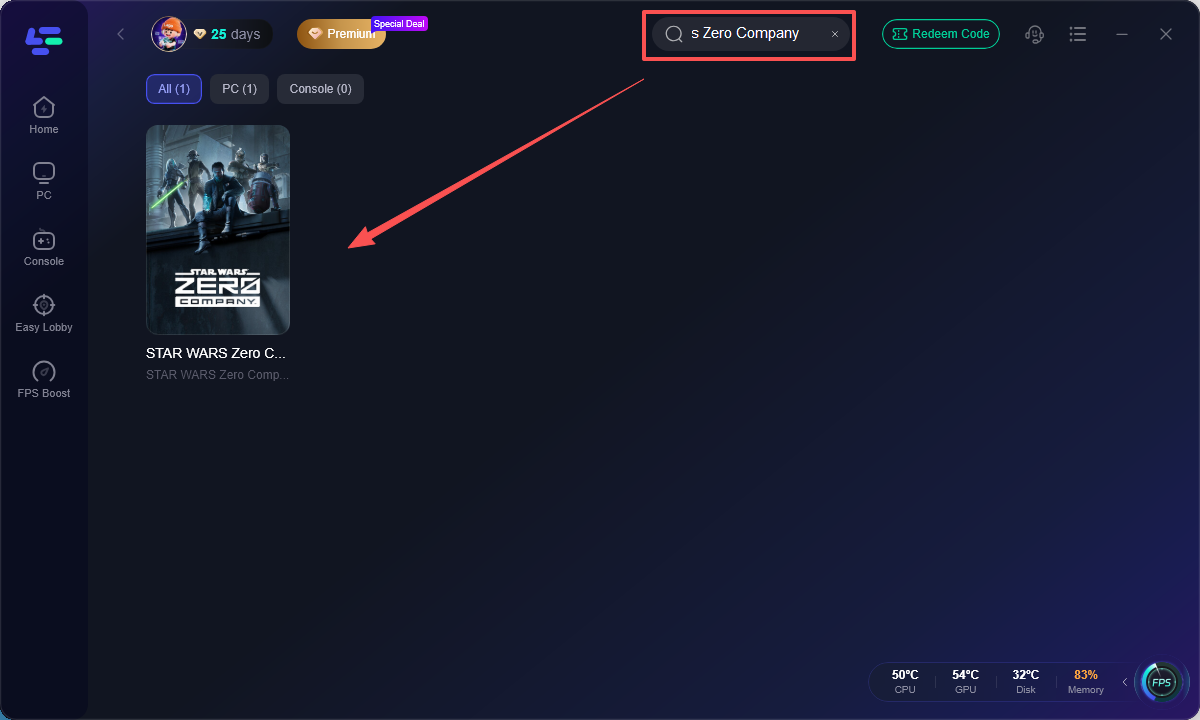
3. Choose a recommended connection server and node.
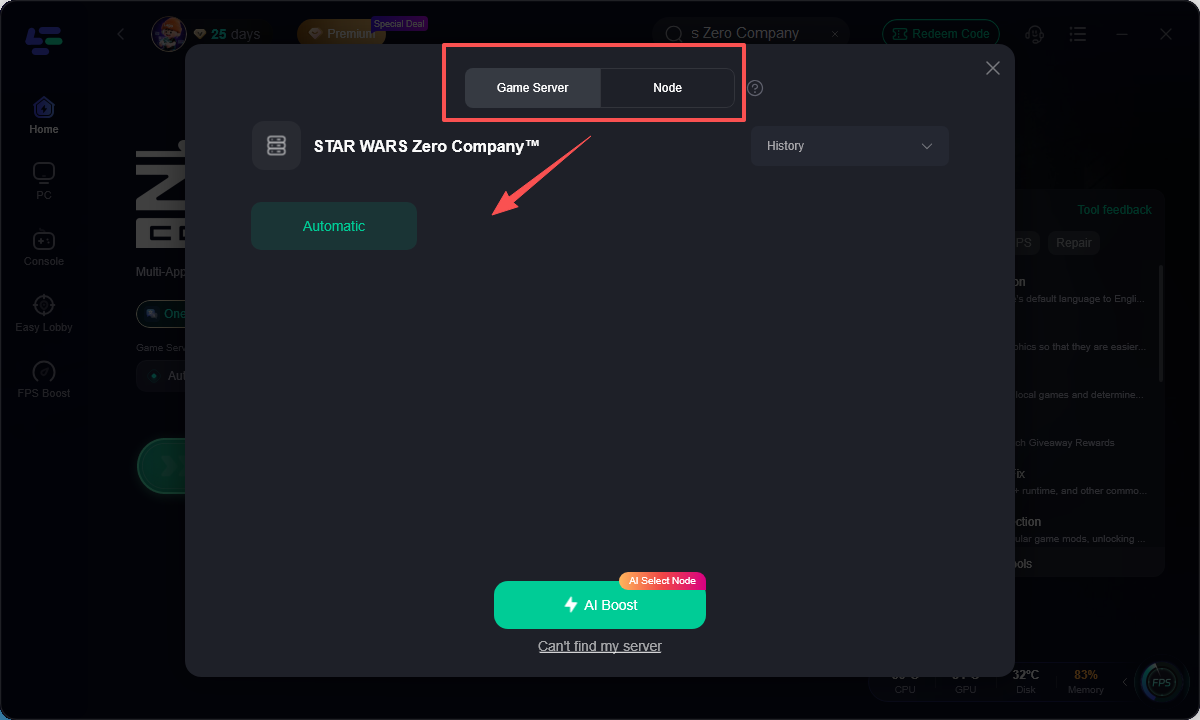
4. Click Boost. Launch the game.
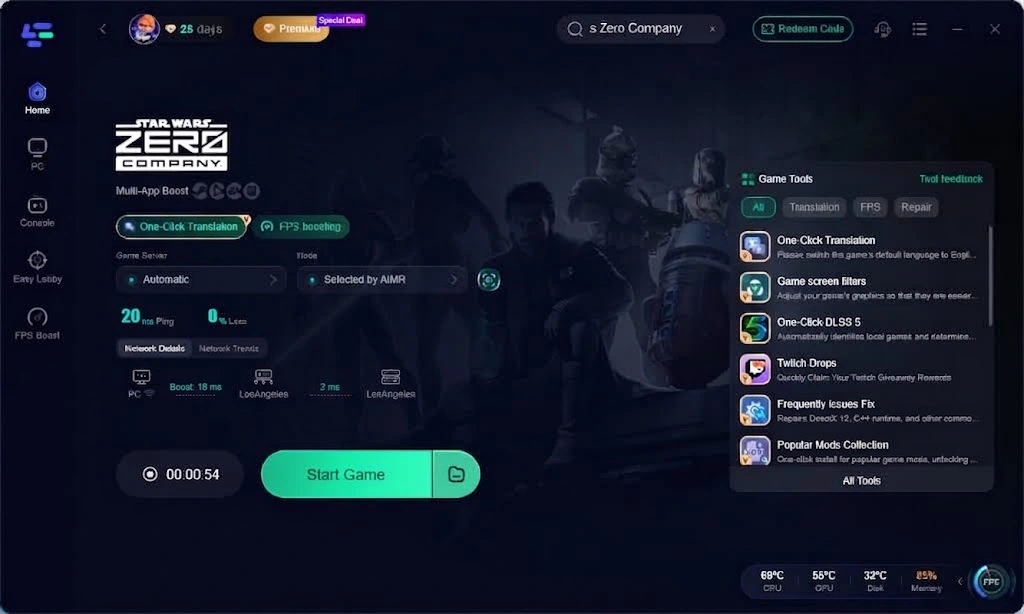
5. Check whether your connection stability improves.
Conclusion
Star Wars Zero Company crashing on PC can have several causes, including NVIDIA/DLSS issues, Intel 13th- and 14th-generation CPU instability, shader compilation problems, corrupted game files, and driver conflicts. EA has already acknowledged several crash-related issues and is working on fixes.
Start with the basics—update your drivers, verify game files, disable overlays and advanced graphics features, and check CPU stability. If the game launches normally but you later encounter lag or connection problems, LagoFast can be used to optimize your network connection.

Boost Your Game with LagoFast for Epic Speed
Play harder, faster. LagoFast game booster eliminates stutter and lags on PC, mobile, or Mac—win every match!
Quickly Reduce Game Lag and Ping!
Boost FPS for Smoother Gameplay!