
Quick Answer: How to Fix SpaceCraft Server Down & Not Able to Connect?
To fix SpaceCraft connection errors, start by verifying the game's server status online to confirm if an official outage is occurring. If the infrastructure is active, clear your network cache via a DNS flush, restart your local router, and verify your game files on Steam. For a guaranteed solution that bypasses congested regional routing, utilize LagoFast to automatically optimize your connection path.
The highly anticipated SpaceCraft Early Access phase has arrived, bringing massive cosmic economies and vast star systems to explore. However, piloting an intergalactic fleet becomes impossible when you encounter severe connectivity roadblocks. If you are experiencing mid-warp crashes, persistent login bugs, or unresponsiveness from the North American Beta servers, you are not alone.

- ✅ Reduce Lag and High Ping.
✅ Boost FPS at the Same Time.
✅ Stabilize Server Connection.
✅ Change Server without Latency.
✅ Boost Game Loading Speed.
Part 1: SpaceCraft Server & Connection Issues: Overview
Part 2: Fixing SpaceCraft Connection Issues: Top Manual Solutions
Part 3: Why Manual Solutions Can’t Fix SpaceCraft NA Server Down Issues
Part 4: Ultimate Fix: SpaceCraft Server Down & Not Able to Connect – LagoFast
Part 5: SpaceCraft System Requirements for Best Performance
Part 1: SpaceCraft Server & Connection Issues: Overview
During the Early Access phase, developers frequently alter backend code, leaving network nodes vulnerable to instability. The table below details the exact nature of these common roadblocks.
|
Issue Symptom |
Primary Root Cause |
Recommended Fix |
|
Infinite Loading / Connection Failed |
Network handshake timeout or blocked regional ISP routing. |
Perform a full DNS Flush & network hardware power cycle. |
|
SpaceCraft NA Server Unresponsive |
North American Beta server overload or unscheduled emergency maintenance. |
Switch network routes or use an optimized gaming Booster. |
|
Error Screen During Authentication |
Stale local session data or mismatch with the master server login protocol. |
Force-close the application and clear local cache configurations. |
|
Crashing During Warp Transitions |
Packet loss spikes and high latency during heavy asset loading sequences. |
Use LagoFast to stabilize data packet paths and optimize CPU usage. |
Part 2: Fixing SpaceCraft Connection Issues: Top Manual Solutions
If the core servers are operational but your system refuses to establish a reliable handshake, local misconfigurations might be choking your data stream. Use these manual troubleshooting workflows to clear potential local bottlenecks.
Solution 1: Flush Your DNS and Renew the IP Configuration
Stale network routing paths stored in your operating system can misdirect your game client, causing connection timeouts when trying to reach the SpaceCraft master server.
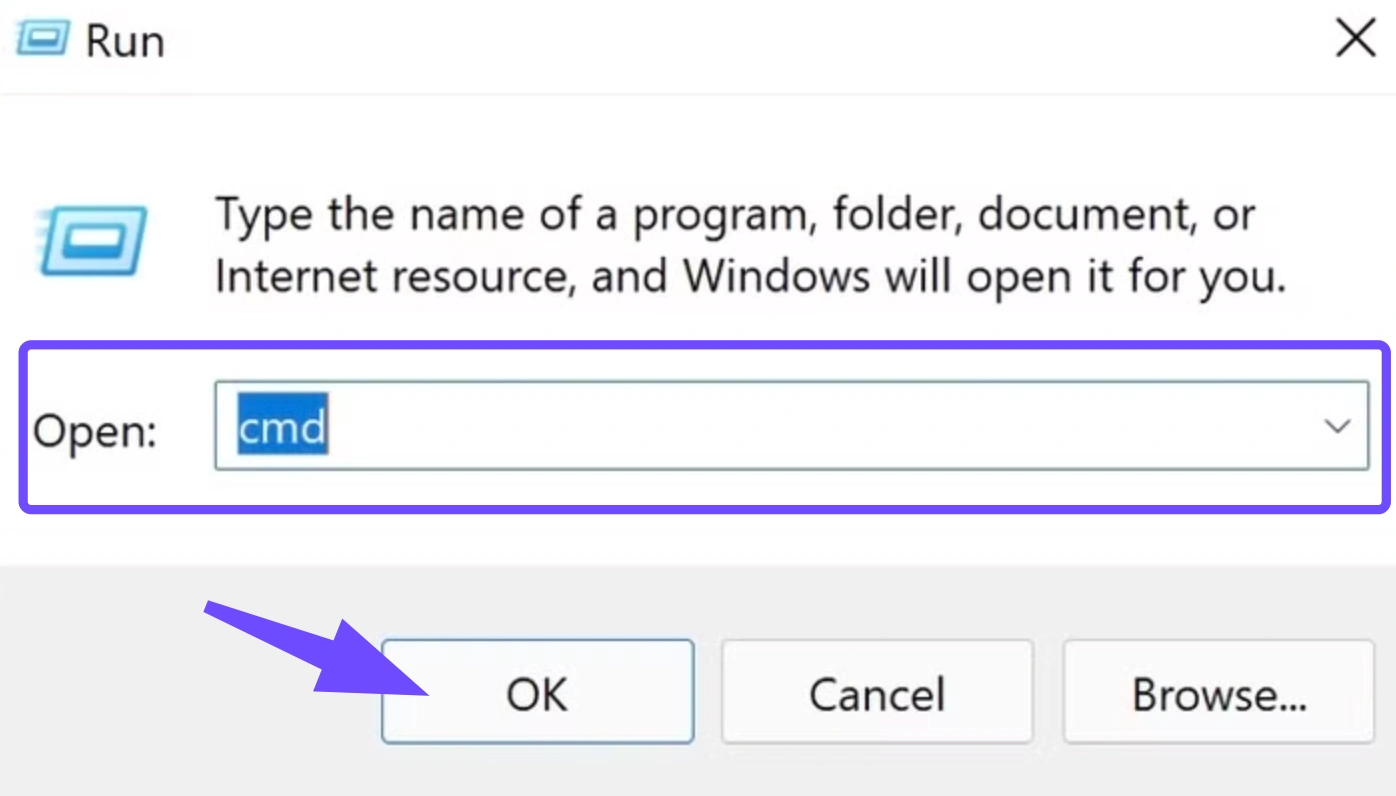
Step 1: Press the Windows Key + R simultaneously to launch the Run dialog box.
Step 2: Type cmd into the input field and press Ctrl + Shift + Enter to open the Command Prompt with administrator privileges.
Step 3: Inside the elevated terminal window, input ipconfig /flushdns and hit Enter. Wait for the confirmation message indicating the cache was cleared successfully.
Step 4: Type ipconfig /release and press Enter to drop your current local network assignment.
Step 5: Type ipconfig /renew and hit Enter to force your network adapter to request fresh routing parameters from your router.
Solution 2: Perform a Complete Power Cycle on Local Network Hardware
Routers and modems accumulate memory leaks over periods of continuous operation, which can degrade packet processing efficiency and trigger abrupt disconnects during high-bandwidth events like warp sequences.
Step 1: Safely shut down your PC and close out any background launcher applications completely.
Step 2: Walk over to your internet equipment and unplug the power cables from both your modem and wireless router.
Step 3: Wait a full 60 seconds to allow the internal capacitors in the hardware to drain their memory buffers entirely.
Step 4: Plug the power cord back into the modem first, waiting for the front-panel indicator lights to turn solid green.
Step 5: Reconnect your router’s power, boot up your computer, and attempt to launch the game to see if connection stability improves.
Solution 3: Verify Integrity of Game Installation Files via Steam
Corrupted assets or missing installation fragments from a recent patch can cause the game client to malfunction and crash when executing resource-heavy tasks like loading new sector servers.
Step 1: Open your Steam desktop client and navigate directly to your personal Library tab.
Step 2: Locate SpaceCraft in your games list, right-click its title, and select Properties from the context menu.
Step 3: In the Properties window that pops up, click on the Installed Files option located in the left-hand navigation column.
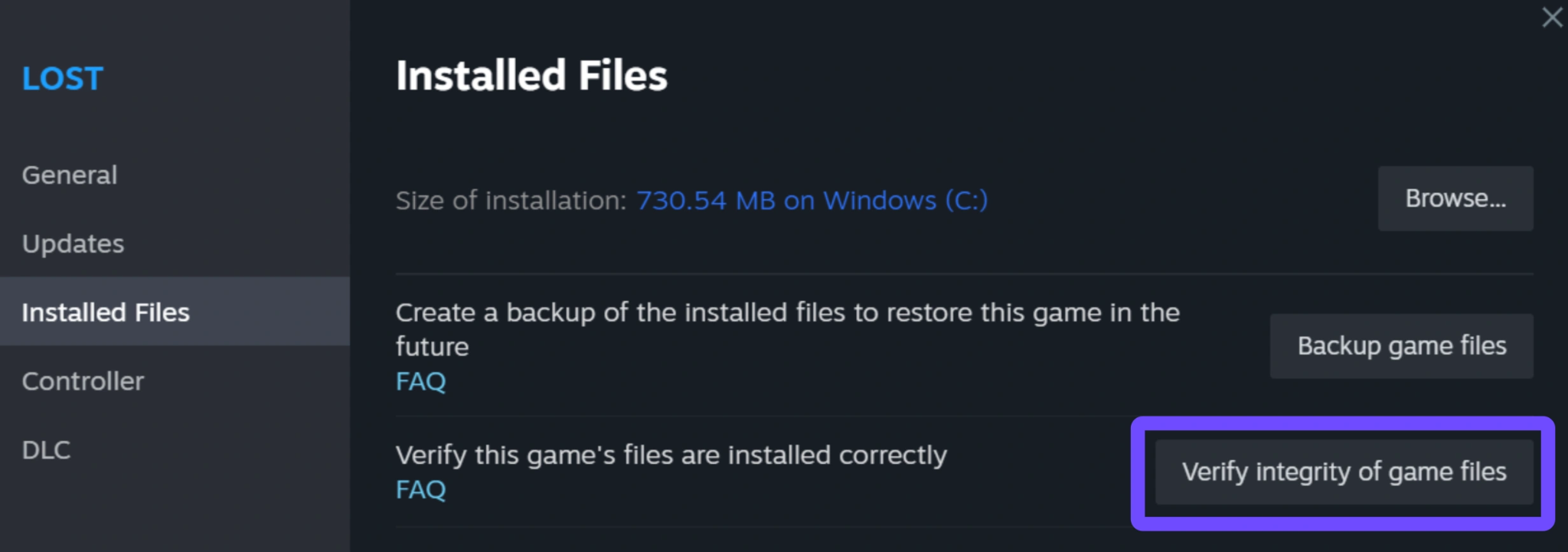
Step 4: Click the button labeled Verify integrity of game files to initiate a deep scan of your local directory against the official database.
Step 5: Allow the validation process to finish completely. Steam will automatically download and replace any corrupted network files it discovers during the scan.
Solution 4: Clean Out the SpaceCraft Temporary Configuration Cache
Corrupt local user profile configurations or outdated cache files can loop your client into authentication failures during the initial login handshake.
Step 1: Make sure SpaceCraft is completely closed and check your system tray to ensure no related tasks are running in the background.
Step 2: Press the Windows Key + E to open File Explorer, then click on the address bar at the top.
Step 3: Type appdata into the bar and press Enter to open your system's hidden Roaming folder.
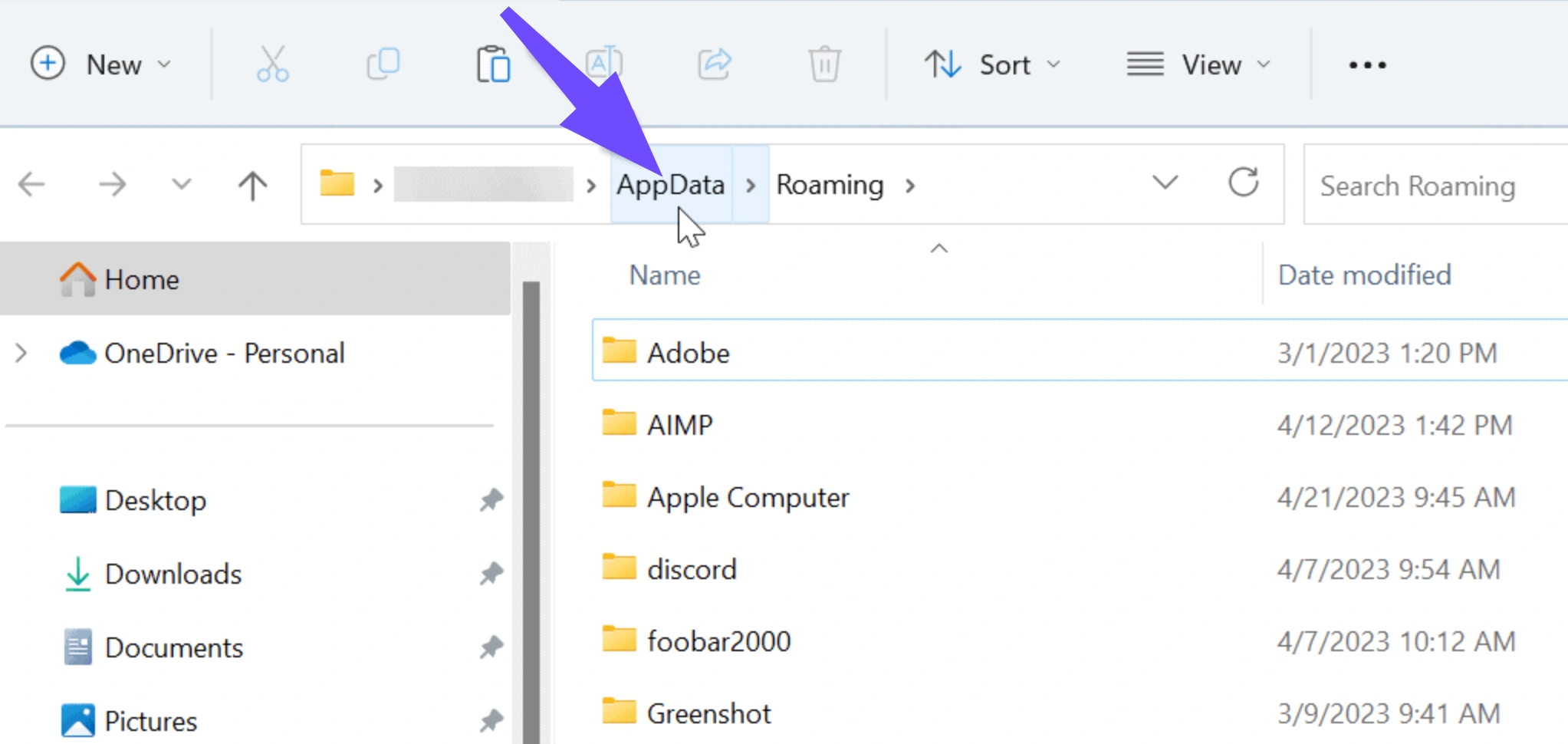
Step 4: Look through the directory to locate the folder associated with the game developers or SpaceCraft directly.
Step 5: Locate the temporary cache or .cfg configuration files, delete them, and restart your computer to force the game to generate clean system variables.
Part 3: Why Manual Solutions Can’t Fix SpaceCraft NA Server Down Issues
While manual fixes help correct local system configurations, they are fundamentally limited when handling issues rooted in the broader network infrastructure.
- Underbuilt Infrastructure Constraints: The developers have explicitly stated in their official Early Access documentation that they are continuously working to optimize server performance, stability, infrastructure, and CPU limits. When the NA Beta cluster experiences genuine hardware overloads, no amount of router resetting on your end will create a stable connection.
- Suboptimal ISP Path Routing: Standard Internet Service Providers route data based on cost efficiency rather than gaming performance. If the main pipeline to the North American data centers is congested, standard network data packets will get bounced across multiple inefficient nodes, causing massive latency spikes.
- Data Bottlenecks During Warp Scaling: Transitions like sector warping place a sudden load on both your local processor and the game's database. If the server is already struggling under structural stress, normal internet connections will drop the ball, leading to immediate disconnect loops.
Part 4: Ultimate Fix: SpaceCraft Server Down & Not Able to Connect – LagoFast
When official infrastructure optimization is still a work in progress, relying on standard internet routing won't give you a stable connection. LagoFast bridges this gap by acting as a dedicated gaming lane, using smart multi-path routing to completely bypass standard internet congestion. It dynamically optimizes data transfers directly between your PC and the target servers, helping to prevent connection errors even when regional nodes are struggling.
Key Features of LagoFast:
- One-Click FPS Boost: Optimizes your system configuration and reduces background CPU overhead to ensure maximum graphical fluidity during resource-heavy warp events.
- Smart Multi-Path Routing: Constantly scans for the fastest, most stable data routes, automatically steering your traffic away from broken or overloaded nodes.
- Real-Time Ping Reduction: Keeps your connection path short, minimizing latency to prevent rubber-banding and command delays.
- Worldwide Node Network coverage: Offers specialized support for regional servers like North America (NA), Europe (EU), and Asia, ensuring reliable connectivity regardless of your location.
Tutorial to Use LagoFast to Fix SpaceCraft Connection Issues:
Step 1: Click the Free Trial button to download and install LagoFast.
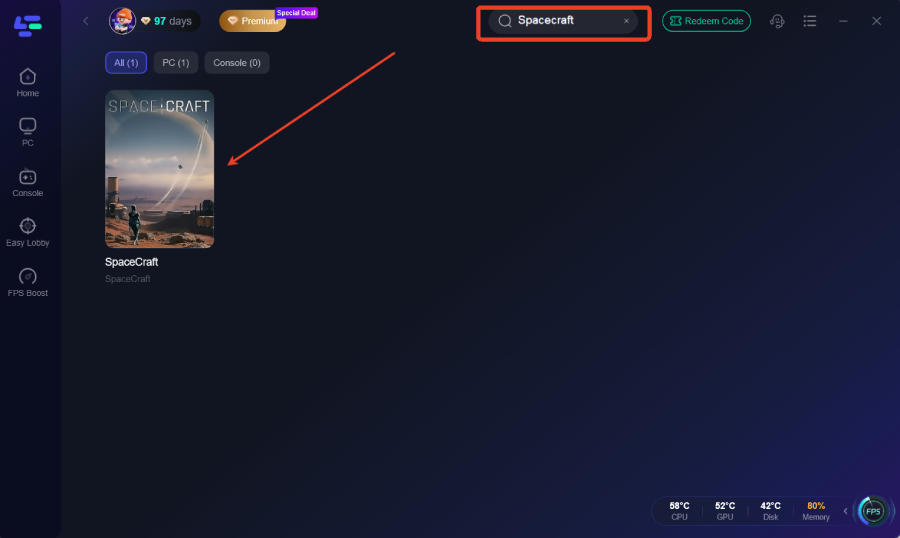
Step 2: Open LagoFast, then click the PC button on the left, search for SpaceCraft in the search bar, and click it after it appears.
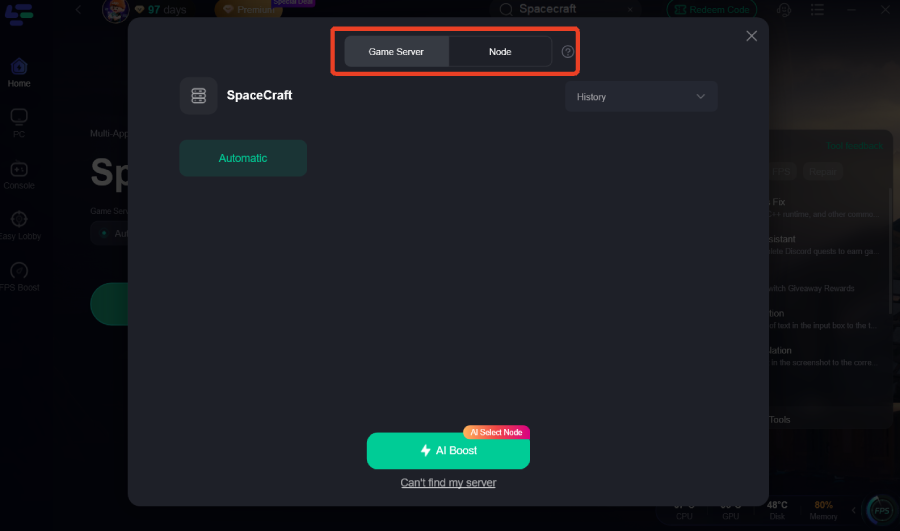
Step 3: Click on “Server” to change to a better server that ensures a better gaming experience, then click on “Smart Boost” to fix SpaceCraft connection issues.
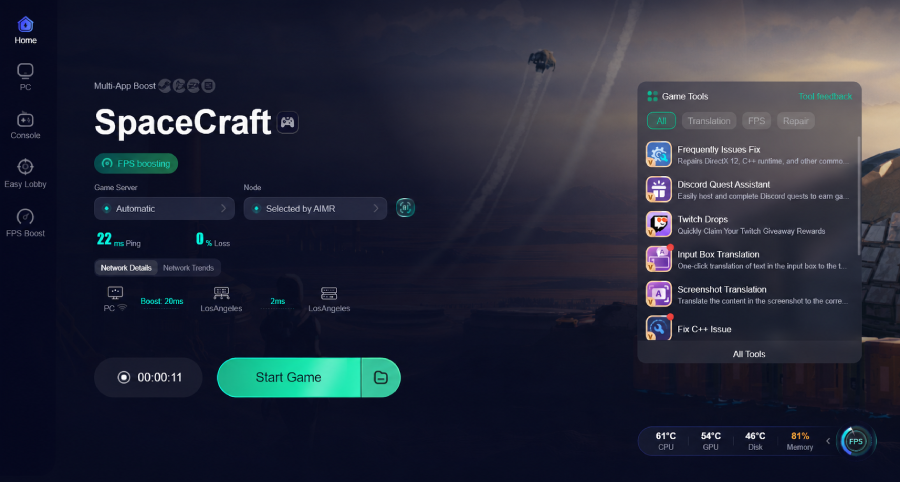
Step 4: Check the specific game ping, packet loss, and multiple path connections on the right side. Finally, click “Start Game” to play the game.
Part 5: SpaceCraft System Requirements for Best Performance
To minimize client-side performance dips that can complicate network desyncs, ensure your desktop computer matches or exceeds the following hardware configurations.
|
Hardware Component |
Minimum Specifications |
Recommended Specifications |
|
Operating System |
Windows 10 (64-bit architecture) |
Windows 11 (64-bit architecture) |
|
Processor (CPU) |
Intel Core i5-6400 or AMD Ryzen 3 1200 |
Intel Core i7-9700K or AMD Ryzen 5 3600X |
|
System Memory |
8 GB RAM |
16 GB RAM or greater |
|
Graphics Card |
NVIDIA GTX 960 or AMD Radeon R9 280 |
NVIDIA RTX 2060 or AMD Radeon RX 5700 |
|
DirectX API |
Version 11 compatible |
Version 12 compatible |
|
Storage Space |
40 GB available space (HDD supported) |
40 GB available space (Solid State Drive preferred) |
Part 6: FAQs
Why does SpaceCraft keep crashing when I initiate a warp sequence?
Warping forces your client to quickly unload your current environment while streaming in massive asset sets from a new sector server. If your connection drops packets or encounters a sudden latency spike during this handoff, the data stream breaks, causing the game to crash to the desktop or drop the connection.
How can I check if the North American Beta servers are completely down?
Check the developers' official social media channels, community discord server, or dedicated community server tracking platforms. If multiple players are reporting identical login failures simultaneously, the issue is likely a regional backend server outage.
Will changing my in-game graphic settings prevent server disconnects?
Directly, no; however, reducing resource-heavy visual settings can lower overall CPU utilization. Since server handoffs require synchronized processing between your hardware and the network, keeping your system's CPU unburdened can help prevent local timeout errors.
Why am I experiencing high ping even though my home internet speeds are fast?
High ping is caused by inefficient routing and physical distance to the host nodes, not raw download bandwidth. If your ISP directs your data through distant nodes before reaching the SpaceCraft servers, you will encounter high latency despite having a fast connection.
Can a wired Ethernet connection fix the login error?
A wired connection eliminates local wireless interference and reduces packet loss caused by weak Wi-Fi signals. While it stabilizes your local setup, it cannot fix issues stemming from server-side outages or poor ISP routing.
I have extremely fast fiber internet; why do I still experience rubber-banding?
Raw download and upload speeds do not dictate gaming performance. Rubber-banding is caused by latency jitter and packet loss. Even on a high-bandwidth fiber connection, if your internet service provider routes your data through congested or poorly configured public nodes on the way to the game servers, you will still experience lag and connection hitches.
Conclusion
Dealing with server errors and disconnects in Early Access can be incredibly frustrating when you just want to explore the stars. While manual fixes can help clean up local settings, they can't solve underlying routing problems or server overloads. By using a specialized tool like LagoFast, you can bypass congested internet pathways and enjoy a smooth, stable journey through the galaxy.

Boost Your Game with LagoFast for Epic Speed
Play harder, faster. LagoFast game booster eliminates stutter and lags on PC, mobile, or Mac—win every match!
Quickly Reduce Game Lag and Ping!
Boost FPS for Smoother Gameplay!